GitHub Copilot Work Automation in Practice
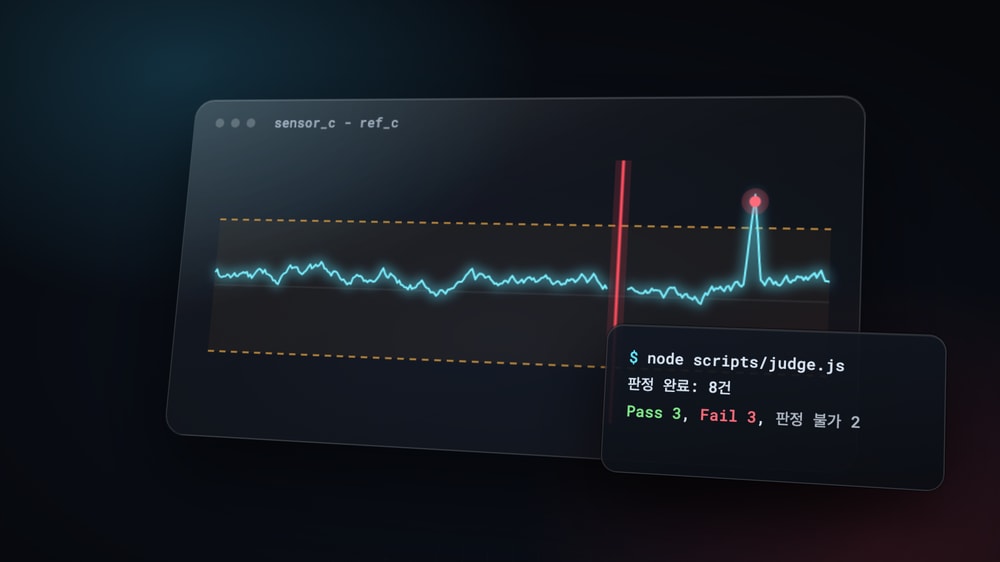
In GitHub Copilot Essentials, we looked at the chat view, instructions, skills, custom agents, hooks, and MCP one by one.
This post shows how to combine those features to automate one repetitive task from start to finish.
The example task is environmental testing of a temperature sensor module.
An environmental test checks whether a product meets its specifications while conditions such as the test chamber temperature change.
You judge the test logs, build a report with graphs, file failed cases as defects in Jira, and summarize the week's issue status in a report.
This 'test, analyze, report' flow is common in R&D teams, but if you change the input files and judgment criteria, you can use the same structure for other work.
# Harness engineering
Even if you give the same model the same task, the result can be a little different each time.
That is fine for getting an answer to a single question, but if you want to hand over work that repeats every week, the results must be consistent, and you must be able to notice when they are wrong.
A harness originally means the gear you put on a horse.
The horse provides the power, but the harness decides where it goes and how far.
For AI agents, the things outside the model that decide how the model works (rules, procedures, tools, safeguards, and checks) are called the harness, and designing them to fit your work is called harness engineering.
The harness menu (Copilot, Claude, Codex) you saw in 'GitHub Copilot Essentials' lets you pick a default harness prepared by the company that built the tool.
Harness engineering means adding the files your own work needs on top of that.
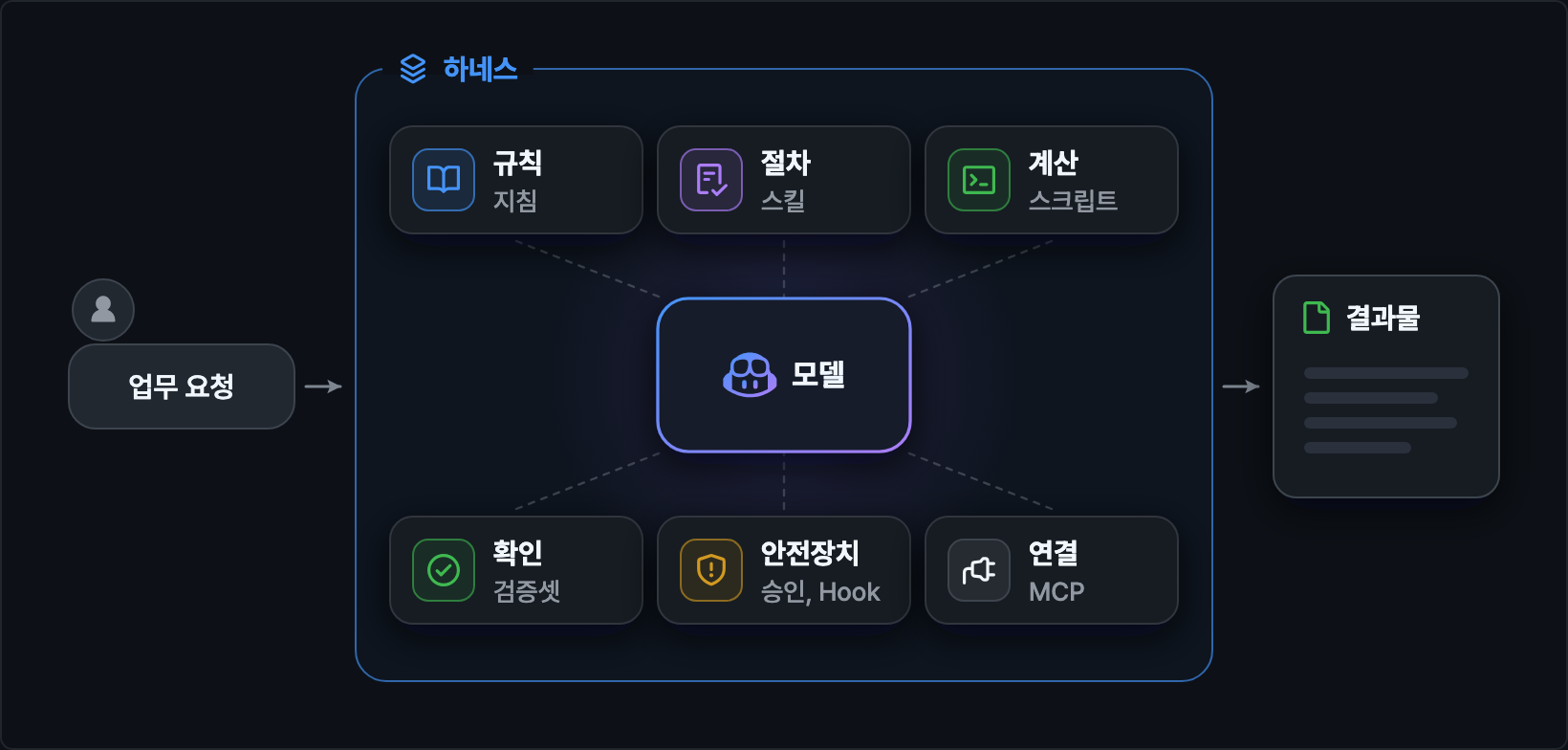
| Harness element | What it does | In Copilot | Example file |
|---|---|---|---|
| Rules | Things to always follow | Instructions | .github/copilot-instructions.md |
| Procedure | The order of the work | Skills | .github/skills/*/SKILL.md |
| Calculation | Same input, same result | Scripts | scripts/judge.js |
| Checking | Test whether results are correct | Validation set | tests/cases.json |
| Safeguards | Block risky actions | Approval, hooks | Approval rules in the instructions |
| Connection | Use external systems | MCP | .mcp.json |
The important point is that every element is a file.
A prompt you polished in the chat box is used only in that session, but a harness saved as files can be used the same way in new sessions and by a coworker who clones the repository.
'Automating the automation' also comes down to copying this set of files to other work, and the last section, Applying it to your work, shows how.
# Breaking down the task
When you automate repetitive work, the first step is not writing a prompt but splitting the work into steps.
If you can answer the following five questions, you are ready to start automating.
- Input: Which files do you receive (format, location, column names)?
- Order: In what order does a person handle it now?
- Criteria: What do you look at, and how do you decide (numbers, conditions, exceptions)?
- Output: What do you produce, and who receives it?
- Checking: How do you confirm the result is correct?
Then decide who handles each step.
The rule is simple.
- Calculations, judgments, and conversions that must always give the same answer for the same input go to scripts.
- Work where slightly different wording is fine, such as summarizing, writing sentences, and asking for missing information, goes to the model.
- Actions you cannot undo, such as sending something outside or deleting it, need human approval.
Here is the example test result reporting task broken down.
The same content is in docs/task-worksheet.md in the repository.
| Step | Work | Criteria | Assigned to |
|---|---|---|---|
| 1 | Export logs from the test PC as CSV | Person | |
| 2 | Fix encoding and column names | Column name table | Script |
| 3 | Judge Pass or Fail for each test item | Tolerance, 300 s settling, 3 s gap | Script |
| 4 | Draw error graphs | Script | |
| 5 | Write a summary and next actions | Summary format | Model |
| 6 | File defects for Fail cases | Check for duplicate issues | Model, human approval |
| 7 | Review and share the report | Person |
The model directly handles only steps 5 and 6.
Scripts and people handle the rest, and the model helps write and run those scripts.
If you give every step to the model from the start, the results become unstable and hard to check.
# Prompt structure
Even when you ask in chat, adding structure makes the results more stable.
Here is a common request.
1Analyze the TC-03 log and tell me if there's a problem
This request has no judgment criteria and no output format.
The model may try to read the whole log file, or it may judge by criteria it makes up.
If you rewrite the same request with five elements, it looks like this.
12345Goal: I want to check whether the data/logs/TC-03.csv log meets the specification. Input: Use docs/test-rules.md for the judgment criteria and REQ-02 in docs/spec-ts100.md for the tolerance. Output: Answer with a table of the verdict (Pass, Fail, Inconclusive), the max error and when it happened, and the rule it was based on. Constraints: Don't read the whole log file; calculate with a script. Don't invent criteria that aren't in the rules. Done when: The numbers in the table match the script output, and if you're not sure, leave it as Inconclusive.
| Element | What happens without it | Where to move it when it repeats |
|---|---|---|
| Goal | Handles the wrong scope | The skill's description |
| Input | Uses other files as evidence | The skill's steps |
| Output | Answers in a different format each time | The skill's format, template |
| Constraints | Edits originals or invents criteria | Instructions |
| Done when | Stops too early or keeps re-checking | Validation set |
The last column is the path to a harness.
If you find yourself writing the same instruction twice or more, it is time to move that part into a file.
Here are a few more tips.
- If the criteria are unclear, add "Before you start, ask me first if any information is missing" to the end of the request. Copilot can ask about all the missing items at once with question cards.
- For the output format, showing one line of the result you want is more accurate than describing it in words.
- For a task you are trying for the first time, use plan mode (
/plan) to get research and a plan first, fix the plan, and then run it.
# Judging test logs
Now let's get the example repository and automate the work one step at a time.
You need Node.js 22 or later to run the scripts, and no external packages are used.
123git clone https://github.com/ParkYoungWoong/github-copilot-automation-example.git cd github-copilot-automation-example code .
If you don't have Git, click Code > Download ZIP on the repository page, unzip it, and open the folder in VS Code.
This is a different repository from the Essentials example, so open only this folder to keep the instructions and skills from mixing.
1234567891011121314151617github-copilot-automation-example/ ├── .github/ │ ├── copilot-instructions.md # Rules applied to every request │ └── skills/ # test-report, defect-issue, weekly-status, new-automation ├── .mcp.json # Registers the practice Jira MCP server ├── data/ │ ├── test-cases.csv # 8 test items │ ├── jira-export.csv # Jira export file used when MCP isn't available │ └── logs/ # Test logs ├── docs/ │ ├── spec-ts100.md # Product specification │ ├── test-rules.md # Judgment rules │ └── task-worksheet.md # Task breakdown sheet ├── mock-jira/ # Practice Jira MCP server ├── scripts/ # judge.js, report.js, check.js ├── tests/cases.json # Validation set └── output/ # Output files
# Input data
The test items (TC, test case) are in data/test-cases.csv.
Each item has a linked requirement ID, target temperature, supply voltage, and log file name.
12345TC,Item,Requirement,TargetTemp,SupplyVoltage,TestTime(min),LogFile TC-01,Room temperature accuracy,REQ-02,25,3.3,30,TC-01.csv TC-02,Low temperature accuracy,REQ-02,-40,3.3,60,TC-02.csv TC-03,High temperature accuracy,REQ-02,85,3.3,60,TC-03.csv TC-04,Long continuous measurement,REQ-07,25,3.3,480,TC-04.csv
Each log is a CSV that records, once per second, the reference thermometer value (ref_c), the sensor value (sensor_c), and the supply voltage.
1234time_s,ref_c,sensor_c,supply_v 0,25.03,25.2,3.298 1,24.99,25.2,3.296 2,24.98,25.1,3.298
The 8 items intentionally include problems you often meet in real work.
| TC | Problem included |
|---|---|
| TC-04 | An 8-hour log of about 29,000 lines, with no records for 46 seconds in the middle |
| TC-05 | A CP949 file saved from Excel, with Korean column names (시간(초) 'time (s)', 기준온도 'reference temp', etc.) |
| TC-06 | The log file is missing |
| TC-07 | The target temperature is -10 degrees, right on the boundary where the tolerance changes |
| TC-08 | A short log where the test stopped after 8 minutes |
The first rule to set is 'the model does not read large logs directly'.
The TC-04 log alone is about 650 KB, and reading it as is would take hundreds of thousands of tokens, so it either can't be read at once or uses a lot of credits.
Show the model only the first few lines so it sees the structure, and let a script do the calculation.
The example's instruction file contains this rule.
1234567891011121314151617181920212223# TS-100 Test Automation Rules This repository is an example of handing GitHub Copilot the work of judging and reporting test logs for the TS-100 temperature sensor. The rules below apply to every request. ## How to answer - Always answer in Korean. - For numbers such as errors, counts, and times, use only values from the result files the scripts create. Don't calculate or estimate them yourself. - Don't judge by criteria that aren't in the rule documents. If you're not sure, mark it Inconclusive and write the reason. - Don't state causes as fact; list them as items to check. ## File rules - Logs in `data/logs` are large, so don't read them in full. To check the structure, read only the first 10 lines, and do calculations with the scripts in the `scripts` folder. - The `docs` and `data` folders hold the reference documents and original data. Don't edit them unless asked. - Save output files in the `output` folder. - Scripts use only built-in Node.js modules. ## External systems - Before creating or changing issues in an external system such as Jira, show the content first and get approval. - Searching and viewing proceed without approval.
Line 15 is the rule that stops the model from reading logs directly, and line 9, which makes the model use only values from result files instead of calculating numbers itself, is there for the same reason.
The moment the model estimates or rounds an error, the numbers in the report and the judgment table can differ.
# Judgment rules
As with the issue triage in the Essentials post, first define the judgment criteria in a document people can read, and have the script follow that document.
This time the criteria are numbers and ranges instead of keywords, so the document must clearly state which side a boundary value belongs to.
12345678910111213141516171819202122232425262728293031323334# Test Judgment Rules For each test item in `data/test-cases.csv`, read its log in `data/logs` and judge it as Pass, Fail, or Inconclusive. If you change the rules, update the constants in `scripts/judge.js` and `tests/cases.json` together. ## Tolerance The error is `sensor temperature - reference temperature`. The tolerance follows REQ-02 (measurement accuracy) in `docs/spec-ts100.md` and is set by the test's target temperature. | Target temperature | Tolerance | | --- | --- | | -10 degrees or above, 85 degrees or below | 0.5 degrees | | Any other temperature | 1.0 degrees | -10 degrees and 85 degrees belong to the 0.5-degree range. ## Judgment 1. The first 300 seconds after the log starts are when the chamber temperature settles, so they are excluded from error judgment. 1. If any sample interval is longer than 3 seconds, it is Fail. Note: logging gap 1. If even one sample after the settling period has an absolute error larger than the tolerance, it is Fail. Note: error exceeded 1. If none of the above apply, it is Pass. ## Inconclusive If there is not enough evidence to judge, don't force a verdict; mark it Inconclusive. | Situation | Note | | --- | --- | | The log file is missing | no log | | A required column (time, reference temperature, sensor temperature) is missing | missing column | | A required column has an empty or non-numeric value | invalid value | | Fewer than 600 samples after the settling period | too few samples |
'Inconclusive', where items without enough evidence go, is the same exit as 'untriaged' in the Essentials post, and every Fail gets a note with its reason.
A line like '-10 degrees and 85 degrees belong to the 0.5-degree range' looks minor, but as you will see in Checking the judgments, it prevents boundary mistakes.
# Judgment script
As with the issue triage, let Copilot write the script.
This request adds conditions for not reading large logs directly and for handling CP949 files.
1234Based on docs/test-rules.md and data/test-cases.csv, write scripts/judge.js that reads the log for each test item and decides Pass, Fail, or Inconclusive. Look at only the first 10 lines of each log to understand its structure, and handle the column name aliases in the rules document and CP949 encoding. Put the numbers from the rules document as constants at the top of the script, and save the results in the output folder as tc-result.md, tc-result.csv, and tc-result.json. Record the evidence for each verdict (max error and when it happened, gaps in the log), and don't use external packages.
When you compare the generated script with the finished version in the example repository, first check that the numbers in the rules document were copied as is into the constants at the top of the script.
1234567891011121314// Constants copied as is from the rules document. const SETTLE_SECONDS = 300 // Settling period (seconds) const MAX_GAP_SECONDS = 3 // A gap longer than this is a logging gap const MIN_SAMPLES = 600 // Minimum samples after settling const TIGHT_RANGE = { min: -10, max: 85 } // 0.5-degree range (both ends included) const TOLERANCE = { tight: 0.5, wide: 1.0 } // Column name aliases. The key on the left is the name used inside the script. const COLUMNS = { time: ['time_s', '시간(초)'], ref: ['ref_c', '기준온도'], sensor: ['sensor_c', '센서온도'], supply: ['supply_v', '전원전압'] }
You can also run it directly in the terminal.
1234node scripts/judge.js ## Judgment complete: 8 cases ## Pass 3, Fail 3, Inconclusive 2 ## Result files: output/tc-result.md, output/tc-result.csv, output/tc-result.json
Here is part of the generated judgment table.
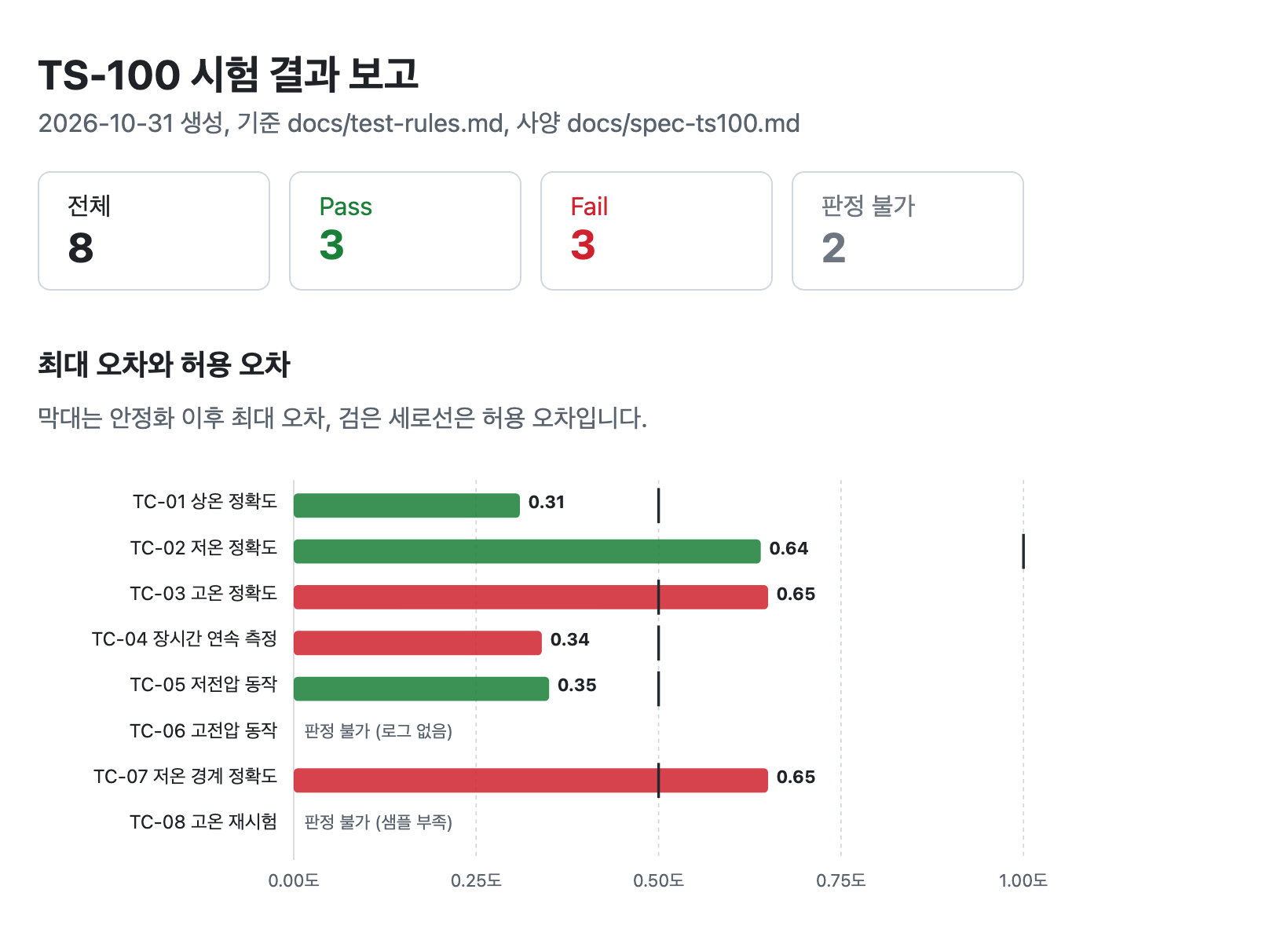
12345678| TC | Item | Requirement | Target temp | Tolerance | Max error | Verdict | Note | Evidence | | --- | --- | --- | --- | --- | --- | --- | --- | --- | | TC-02 | Low temperature accuracy | REQ-02 | -40 | 1.0 | 0.64 | Pass | | Max error 0.64 <= allowed 1.0 | | TC-03 | High temperature accuracy | REQ-02 | 85 | 0.5 | 0.65 | Fail | error exceeded | Max error 0.65 (at 3,566 s) > allowed 0.5 | | TC-04 | Long continuous measurement | REQ-07 | 25 | 0.5 | 0.34 | Fail | logging gap | No records for 46 s between 17,999 s and 18,045 s, max error 0.34 <= allowed 0.5 | | TC-05 | Low voltage operation | REQ-05 | 25 | 0.5 | 0.35 | Pass | | Max error 0.35 <= allowed 0.5 | | TC-06 | High voltage operation | REQ-05 | 25 | 0.5 | | Inconclusive | no log | data/logs/TC-06.csv does not exist | | TC-08 | High temperature retest | REQ-02 | 85 | 0.5 | | Inconclusive | too few samples | 180 after settling, 600 required |
TC-04 is within the tolerance but is Fail because of the logging gap, and TC-05, the CP949 file, was read without problems.
TC-06 and TC-08, whose logs are missing or too short, were left as Inconclusive.
# Automating the report
In the Essentials post, you made a Markdown report by filling in a template.
Test results are hard to follow from numbers alone, so here you make an HTML report with graphs and run everything from judgment to summary in one go.
Graphs must also always come out the same for the same data, so a script makes them too.
123Write scripts/report.js that builds an output/test-report.html report from output/tc-result.json and the logs in data/logs. Include summary cards (total, Pass, Fail, Inconclusive), a bar chart of max error and tolerance per TC, error trend graphs for Fail items, a results-by-requirement table, and the judgment table. Draw the graphs as SVG without external libraries, and group long logs into 30-second buckets.
123node scripts/report.js ## Report created: output/test-report.html ## 4 graphs, 3 Fail, 2 Inconclusive
Open the file location in your file explorer and check the generated HTML file in a browser.
Each bar is the max error for a TC, and the black vertical line is the tolerance.
If a bar crosses the line, it is Fail.
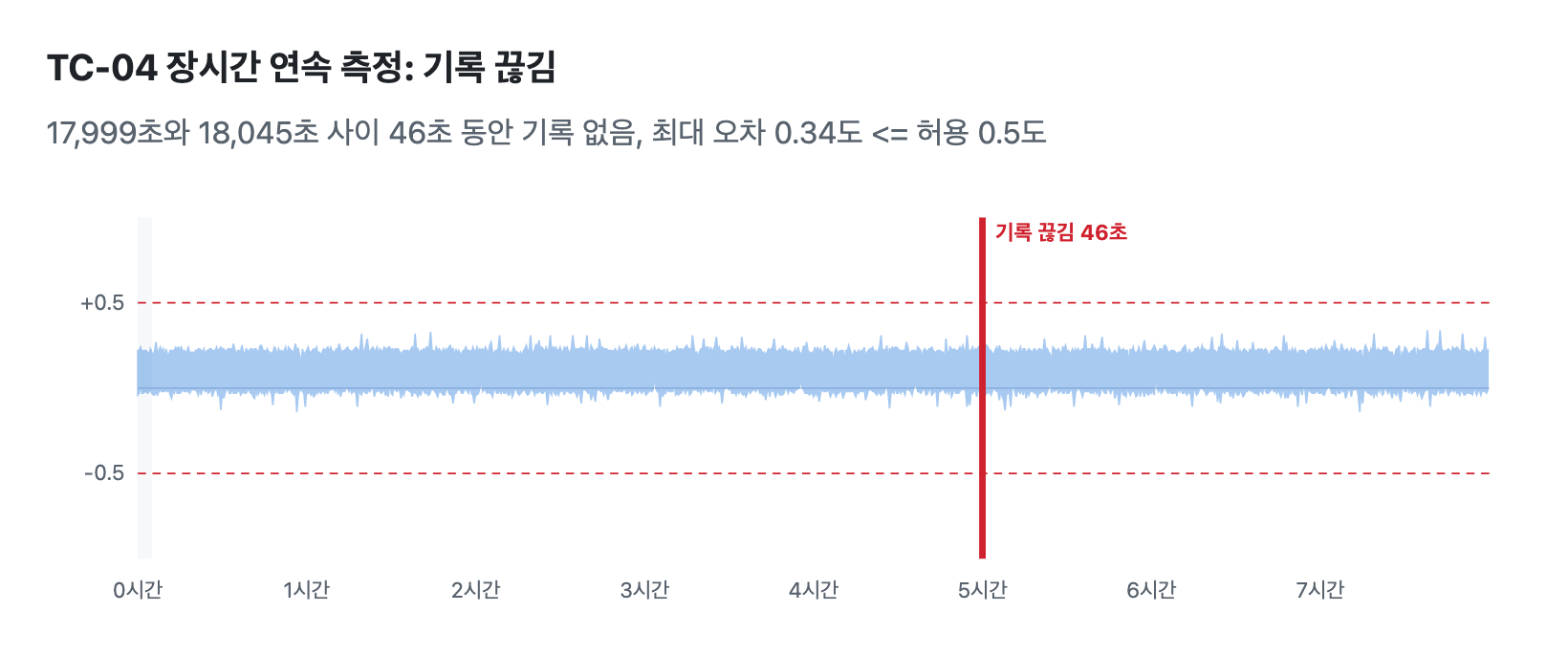
An error trend graph follows for each Fail item.
In the TC-04 graph, the red band at the 5-hour mark shows the logging gap right away.
The 'Results by requirement' table near the bottom of the report is a traceability table that groups, for each requirement ID, which tests exist and how they turned out.
If the items in the specification have IDs and each test item lists its ID, a script can also build the table that links requirements to tests.
# A skill that runs it all in sequence
To avoid asking for judgment, checking, the report, and the summary separately each time, bundle them into one skill.
This is work a person should start at a set time, so disable-model-invocation: true makes it run only when you call /test-report.
12345678910111213141516171819202122--- name: test-report description: Judges test logs and creates a report with graphs and a summary. Use only when the user calls /test-report. argument-hint: Report audience or points to emphasize disable-model-invocation: true --- # Test Result Report Follow the steps below exactly. 1. Run `node scripts/check.js`. If there are mismatches, don't create the report; report only the mismatched TCs and what to check, then stop. 1. Run `node scripts/judge.js`. 1. Run `node scripts/report.js`. 1. Read `output/tc-result.md` and write `output/test-summary.md` in the format below. 1. At the end, tell the user to open `output/test-report.html` and check the graphs. ## Rules - Copy the numbers and evidence in tables as is from `output/tc-result.md`. - You write only 'What to check', 'Required action', and 'Next actions' yourself. - In 'What to check', don't state causes as fact; write what to check.
The key is running the validation set as the first step.
If the judgment script or rules change and no longer match the validation set, it stops without making a report, so wrong verdicts never go out in a report.
The next section covers the validation set in detail.
1/test-report Environmental tests, fourth week of October
It runs the three scripts in order, then reads the judgment table and writes the summary file.
Here is part of the summary Copilot wrote.
The numbers and evidence were copied as is from the judgment table, and only the action sentences were written by Copilot.
123456789101112## Inconclusive | TC | Item | Note | Required action | | --- | --- | --- | --- | | TC-06 | High voltage operation | no log | Get the TC-06 test log or run the test again. | | TC-08 | High temperature retest | too few samples | Get a log with enough samples after settling or run the test again. | ## Next actions - Check the test data and measurement setup for TC-03 and TC-07, then review the accuracy tests. - Check the missing log interval and logging status for TC-04. - Get the TC-06 log and retest TC-08 so it includes the required samples.
Even if the request says 'fourth week of October', the logs have no test dates, so Copilot may state "I can't confirm whether these were run in the fourth week of October" and write the summary based on all the logs.
This is how the instruction 'Don't judge by criteria that aren't in the rule documents' works.
# Running without a person
With GitHub Copilot CLI, you can run the same skill with a single terminal command.
Copilot CLI is installed separately from VS Code.
On macOS, install it with brew install --cask copilot-cli, and on Windows, with winget install GitHub.Copilot.
On Windows, it does not run in the built-in Windows PowerShell 5.1, so install PowerShell 7 as well.
After installing, run copilot in the terminal and log in to your GitHub account with /login.
The -p option is non-interactive mode, which handles one request and exits.
1copilot -p "/test-report this week's environmental tests" --model auto --trust-folder --allow-tool='shell(node:*)' --allow-tool='write'
| Option | Meaning |
|---|---|
-p |
Runs one request and exits |
--model auto |
Picks the model automatically. If you don't set it, a default model that uses more credits may be used |
--trust-folder |
Trusts the current folder's settings (MCP servers, etc.) for this run only |
--allow-tool='shell(node:*)' |
Runs commands starting with node without asking |
--allow-tool='write' |
Creates and edits files without asking |
In non-interactive mode there is no one to approve, so actions not on the allow list are denied automatically.
The narrower the allow list, the safer it is.
If you register this command in a tool such as Windows Task Scheduler or Jenkins, you can create the report at a set time every week.
When running on a server, instead of logging in, pass a fine-grained personal access token (PAT) with the Copilot Requests permission in the COPILOT_GITHUB_TOKEN environment variable.
# Checking the judgments
The validation set in the Essentials post ended with all 9 cases matching.
This time, you build a validation set for the test logs, then remove rules on purpose to see how mismatched results are shown.
As before, you include boundary cases and cases that must not be judged along with normal cases.
12345678910[ { "TC": "TC-01", "type": "normal", "verdict": "Pass" }, { "TC": "TC-02", "type": "normal", "verdict": "Pass", "check": "Does it exclude the 300-second settling period?" }, { "TC": "TC-03", "type": "boundary", "verdict": "Fail", "note": "error exceeded", "check": "Does it put 85 degrees in the 0.5-degree range?" }, { "TC": "TC-04", "type": "normal", "verdict": "Fail", "note": "logging gap", "check": "Is it Fail when the log has a gap even if the error is small?" }, { "TC": "TC-05", "type": "normal", "verdict": "Pass", "check": "Does it read CP949 and Korean column names?" }, { "TC": "TC-06", "type": "inconclusive", "verdict": "Inconclusive", "note": "no log" }, { "TC": "TC-07", "type": "boundary", "verdict": "Fail", "note": "error exceeded", "check": "Does it put -10 degrees in the 0.5-degree range?" }, { "TC": "TC-08", "type": "inconclusive", "verdict": "Inconclusive", "note": "too few samples" } ]
The check field says what each case is there to test, and it is printed along with the result when there is a mismatch.scripts/check.js runs the judgment script again and compares the results with the validation set.
12345678node scripts/check.js ## TC-01 normal expected Pass result Pass match ## TC-02 normal expected Pass result Pass match ## TC-03 boundary expected Fail error exceeded result Fail error exceeded match ## ... ## TC-08 inconclusive expected Inconclusive too few samples result Inconclusive too few samples match ## ## Checked 8: match 8
Everything matches.
So what happens if one rule is missing?
Let's turn off the settling period and logging gap checks in the judgment script.
12const SETTLE_SECONDS = 0 // Settling period (seconds) const MAX_GAP_SECONDS = Infinity // A gap longer than this is a logging gap
12345678node scripts/check.js ## TC-01 normal expected Pass result Pass match ## TC-02 normal expected Pass result Fail error exceeded false alarm (check: Does it exclude the 300-second settling period?) ## TC-03 boundary expected Fail error exceeded result Fail error exceeded match ## TC-04 normal expected Fail logging gap result Pass miss (check: Is it Fail when the log has a gap even if the error is small?) ## ... ## ## Checked 8: match 6, false alarm 1, miss 1
Mismatched results fall into two types.
In this example, the targets to catch are failed (Fail) tests.
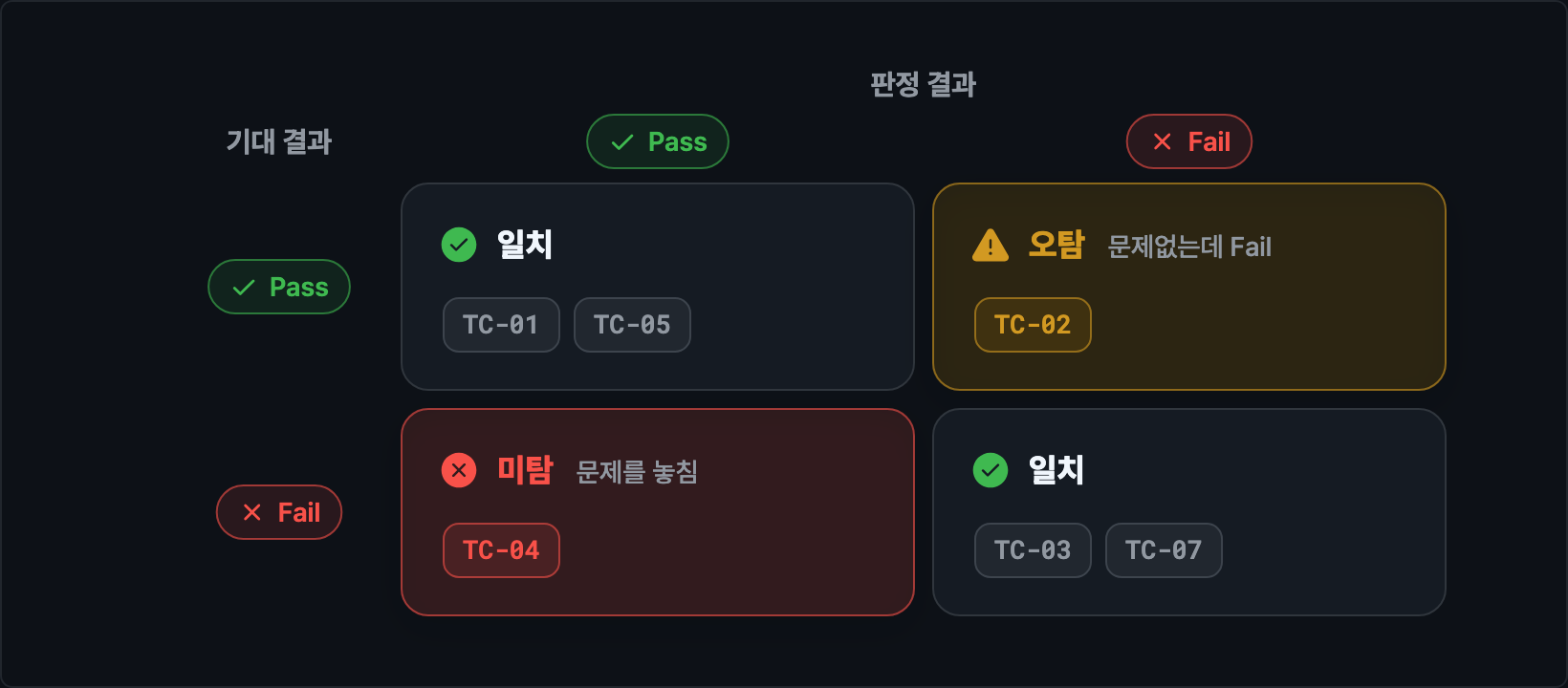
- A false alarm is when a test with no problem is judged Fail. TC-02 became Fail because the error was large in the first few minutes while the chamber cooled down to -40 degrees.
- A miss is when a test with a problem is judged Pass. TC-04 had no records for 46 seconds, but it became Pass because only the error of the remaining samples was checked.
False alarms make people spend time re-checking, and misses let defects pass through.
That is why you add cases that prevent misses to the validation set first.
Looking at mismatches, adding rules, and running again to make sure the new rules didn't break other cases is how you refine the judgment logic.
Boundary cases catch small mistakes in AI-generated code.
If Copilot wrote the tolerance range like the first line below, it would be hard to spot the error at a glance.
12target > TIGHT_RANGE.min && target < TIGHT_RANGE.max // Misses -10 and 85 degrees target >= TIGHT_RANGE.min && target <= TIGHT_RANGE.max // Same as the rules document
If you switch to the first line and run the validation set, TC-03 and TC-07 show up as misses.
This is because -10 and 85 degrees are calculated in the 1.0-degree range, so an error of 0.65 degrees becomes Pass.
The one line '-10 degrees and 85 degrees belong to the 0.5-degree range' in the rules document, plus one boundary case that checks it, prevents this kind of mistake.
# Jira basics
To file defects and report status, you need to connect to an issue tracking tool.
Many companies use Atlassian's Jira, so here are the basic concepts for anyone new to it.
If you have used GitHub, it is easier to understand by mapping them like this.
| Atlassian product | What it does | Similar thing in GitHub |
|---|---|---|
| Jira | Manages issues such as tasks and bugs | Issues, Projects |
| Confluence | A wiki that collects team documents | Wiki |
| Bitbucket | Git repositories and pull requests | Repositories, pull requests |
Here are the Jira concepts to know.
- Project: A unit that groups issues, with a short key such as
TS. In Jira Cloud, it is being renamed to Space. - Issue: A single piece of work. It is identified by an issue key that combines the project key and a number, such as
TS-108. In Jira Cloud, it may be shown as a work item. - Issue type: The defaults are Epic for large groups, Story for features, Task for general work, Bug for defects, and Subtask for subtasks.
- Status: The defaults are To Do, In Progress, and Done, and some teams add statuses such as 'In Review'. The path that statuses follow is called a workflow.
- Field: An item of an issue, such as Summary, description, assignee, reporter, priority, and labels.
- Board: A screen that lays out issue cards in columns by status.
You find issues with a search expression called JQL (Jira Query Language).
It joins fields, operators, and values with AND, so it is similar to the WHERE clause in SQL.
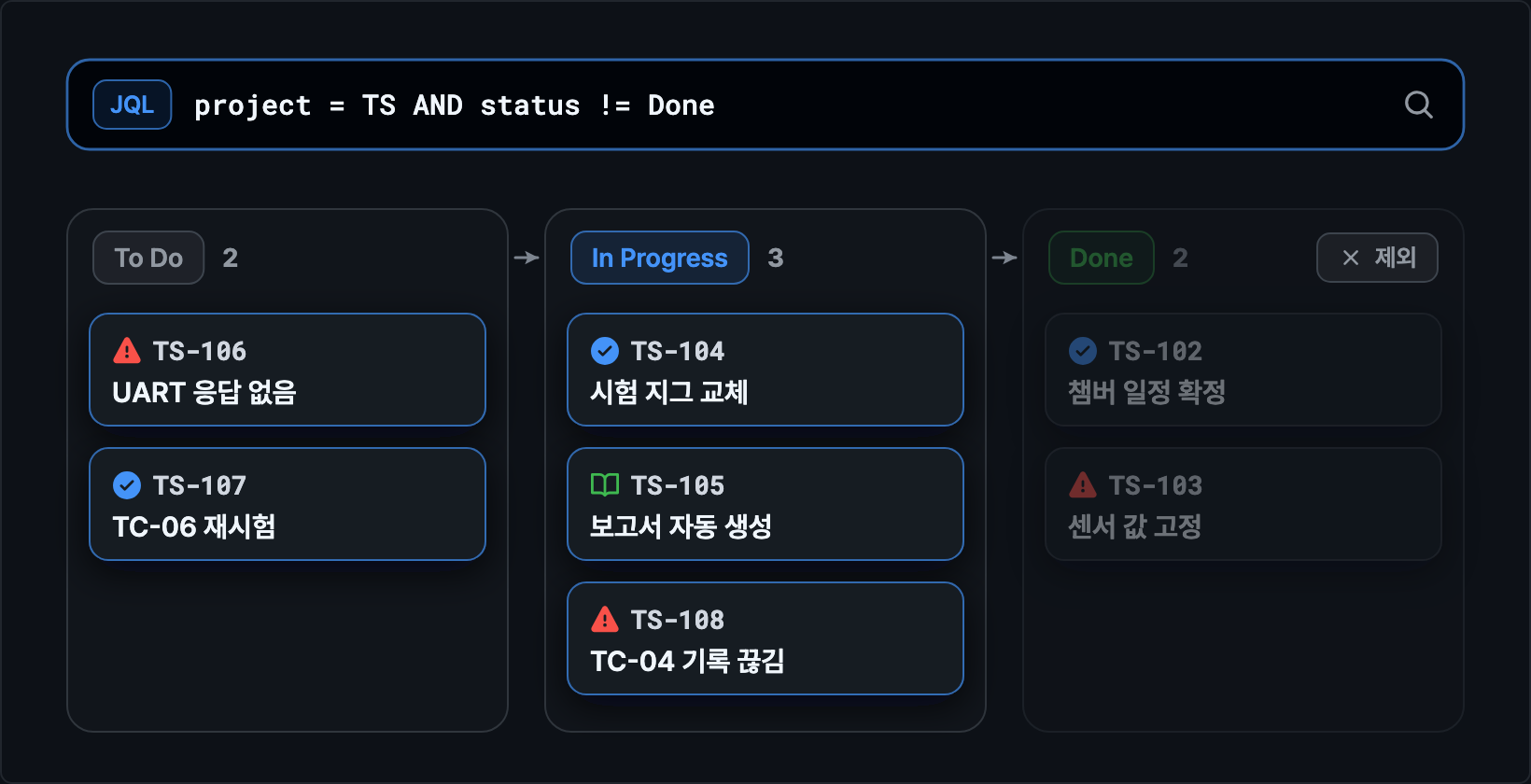
| What you want to find | JQL |
|---|---|
| Unfinished bugs in the TS project | project = TS AND issuetype = Bug AND statusCategory != Done |
| Issues changed in the last 7 days | project = TS AND updated >= "-7d" ORDER BY updated DESC |
| Issues with TC-03 in the summary | project = TS AND summary ~ "TC-03" |
| Unresolved issues assigned to me | assignee = currentUser() AND resolution = Unresolved |
statusCategory groups statuses into three categories (to do, in progress, and done), so it still excludes finished issues correctly even if your team adds a done status such as 'Closed'.~ is a text search operator that means 'contains', and it is safer to wrap relative dates such as -7d in quotes.
A date alone is read as midnight of that day, so updated <= "2026-10-30" misses issues changed during October 30.
To include the whole last day of a range, add the time, like "2026-10-30 23:59".
Jira can be run in two ways.
How you connect AI tools depends on which one you use, so first check your company's Jira address.
| Type | Address | Notes |
|---|---|---|
| Cloud | your-company.atlassian.net |
A web service run by Atlassian. The Free plan is free for up to 10 users |
| Data Center | Internal company address | Installed by the company on its own servers. No longer sold to new customers from March 30, 2026, and existing customers can use it until March 28, 2029 |
The older Server product reached end of support in February 2024, and you can no longer get a Data Center trial yourself.
So it is hard for an individual to install Jira on their own computer for practice.
To try the real Jira screens, create a site on the Cloud Free plan, and to practice without a Jira account, use the practice server in the next section.
# Connecting Jira with MCP
To use Jira in Copilot, you connect a Jira MCP server.
First, you learn the flow with a practice server, and then you look at how to connect to a real Jira.
This section also covers how to do the same work with CSV files when company policy does not let you use MCP.
# Practice server
It is hard to practice by connecting straight to your company Jira.
You need to request permissions, and an issue you create by mistake can send notifications to your coworkers.
The example repository includes a practice MCP server (mock-jira/server.js) that stores issues in a JSON file instead of a real Jira.
It is about 250 lines written with only built-in Node.js modules, and it provides three tools with the same names as the community Jira MCP server (mcp-atlassian).
| Tool | What it does | Approval |
|---|---|---|
jira_search |
Search issues with JQL | Read-only |
jira_get_issue |
Get one issue by issue key | Read-only |
jira_create_issue |
Create a new issue | Write |
Because the tool names are the same, skills you build with the practice server keep working when you later connect to a real Jira with mcp-atlassian.
The server is registered in .mcp.json at the top level of the repository.
12345678910{ "mcpServers": { "jira": { "type": "stdio", "command": "node", "args": ["mock-jira/server.js"], "tools": ["*"] } } }
stdio means VS Code runs the server program itself and exchanges messages with it through standard input and output.
When you open the folder, the Copilot harness reads this file, and the first time it runs, it may ask whether you trust the server.
You can check the connected servers and tools on the MCP Servers and Tools screens of the agent customization editor.
Check the connection with a simple search.
1Use the jira tools to find issues in the TS project with High priority that are not done, and reply with only the issue keys and summaries
Copilot builds a JQL query, calls jira_search, and answers with two issues: TS-106 and TS-108.
If a tool fails, the server returns the error message as the result, and the model can read that message, fix the query, and try again.
For example, the practice server does not support OR in JQL, so if the model uses OR, it gets the error 'Join conditions with AND only' and can split the query and search again.
# Weekly status and defect filing
You turn two repetitive tasks that use Jira into skills.
The first is a weekly status report that groups the issues changed during the week by status.
It only searches and writes nothing to outside systems, so disable-model-invocation is left out to let Copilot pick it on its own based on the request.
1234567891011121314151617--- name: weekly-status description: Collects TS project issues from Jira for a date range and creates a weekly status report. Use when asked for a weekly report, issue status, or a progress summary. argument-hint: Date range (e.g. 2026-10-26 to 2026-10-30) --- # Weekly issue status 1. If there is no date range, ask for the start and end dates. 1. Use `jira_search` to find issues updated within the range. JQL example: `project = TS AND updated >= "2026-10-26 00:00" AND updated <= "2026-10-30 23:59" ORDER BY updated DESC` 1. Group them by status and save them to `output/weekly-status.md` in the format below. ## Rules - Do not make up anything that is not in the issues. - Use assignee names exactly as written in Jira. - Write the status names To Do, In Progress, and Done in sentence case (To do, In progress, Done).
1Summarize the TS project issue status for this week (2026-10-26 to 2026-10-30) as a weekly report
You did not name the skill, but the request matches its description, so the weekly-status skill may be used.
It searches for issues changed and newly created within the range and saves the report.
1234567891011121314# TS weekly issue status (2026-10-26 to 2026-10-30) ## Summary 3 done, 4 in progress, 2 to do (3 newly created in this period) ## In progress | Key | Summary | Assignee | Last updated | | --- | --- | --- | --- | | TS-108 | [TC-04] Logging gap during long continuous measurement (46 s) | Kim OO | 2026-10-30 17:40 | | TS-105 | Automatic test result report generation | Lee OO | 2026-10-30 16:00 | | TS-104 | Replace low-temperature test jig | Choi OO | 2026-10-29 11:30 | | TS-101 | TS-100 second environmental test | Park OO | 2026-10-27 17:20 |
The second is a skill that files the Fail results of the verdicts as defects.
It creates issues in an outside system, so it runs only when you call it with /defect-issue, and it always asks for approval before filing.
It also includes a step that searches open issues first so the same defect is not filed twice.
12345678910111213141516171819202122232425262728293031--- name: defect-issue description: Files the Fail results of test verdicts as Jira defect issues. Use only when the user calls /defect-issue. argument-hint: TC number (all Fail results if omitted) disable-model-invocation: true --- # File defect issues 1. Check in `output/tc-result.md` that the target TC is Fail. If it is not Fail, do not file it and explain why. 1. Use `jira_search` to check for an open issue for the same TC. JQL example: `project = TS AND summary ~ "TC-03" AND statusCategory != Done` 1. If a result has a summary that starts with the same `[TC number]`, do not create a new one, and report that issue key. `~` also finds similar text, so check that the number matches exactly. 1. If there is none, show a draft issue in the chat in the format below and ask whether to file it. 1. After approval, file it with `jira_create_issue` and report the created issue key. ## Issue format | Field | Value | | --- | --- | | Project | TS | | Type | Bug | | Summary | `[TC number] Item note (max error n degrees, limit n degrees)` | | Priority | High for logging gap, Medium for error exceeded | | Label | test-fail | | Description | Test item and requirement ID, target temperature and supply voltage, verdict basis, log file and report paths | ## Rules - Do not create issues without approval. - Write only observed facts in the description, and do not guess the cause. - Copy the verdict basis exactly from the Evidence column of `output/tc-result.md`.
1/defect-issue
Of the three Fail results, TC-04 already has an open issue, TS-108, so it is not filed, and for TC-03 and TC-07, Copilot shows the draft issues in a table and waits for approval.
When you reply that it can file them, it calls jira_create_issue, and TS-112 and TS-113 are created.
1234567Test item: High temperature accuracy (TC-03) Requirement: REQ-02 Target temperature: 85 degrees Supply voltage: 3.3V Verdict basis: Max error 0.65 (at 3,566 s) > allowed 0.5 Log file: data/logs/TC-03.csv Report: output/tc-result.md
The practice server stores issues in output/mock-jira.json.
To go back to the starting state, delete this file.
# Connecting a real Jira
You can connect a real Jira, both Cloud and Data Center, with the community-built mcp-atlassian.
For Cloud, you can also use Atlassian's official remote MCP server.
| Product you use | How to connect | Authentication |
|---|---|---|
| Jira, Confluence Cloud | mcp-atlassian | API token |
| Jira, Confluence Cloud | Atlassian official remote MCP server | Browser sign-in (OAuth) |
| Jira, Confluence Data Center | mcp-atlassian | Personal access token (PAT) |
| Bitbucket Data Center | Atlassian official MCP plugin | HTTP access token |
To use the skills in this post as they are, choose mcp-atlassian.
The tool names are the same as the practice server's, so you only need to change .mcp.json.
mcp-atlassian runs with the uvx command of uv, a Python runner, so install uv first.
12345678910111213141516{ "mcpServers": { "jira": { "type": "stdio", "command": "uvx", "args": ["mcp-atlassian"], "env": { "JIRA_URL": "https://your-company.atlassian.net", "JIRA_USERNAME": "${JIRA_USERNAME}", "JIRA_API_TOKEN": "${JIRA_API_TOKEN}", "READ_ONLY_MODE": "true", "TOOLSETS": "default" } } } }
For Data Center, only the authentication part is different.
Instead of JIRA_USERNAME and JIRA_API_TOKEN, you use a single personal access token.
12"JIRA_URL": "https://jira.example.com", "JIRA_PERSONAL_TOKEN": "${JIRA_PERSONAL_TOKEN}",
- Do not write tokens directly in the settings file. If you write
${JIRA_API_TOKEN}, the value is read from the operating system's environment variable. Create a Cloud API token in your Atlassian account's security settings, and a Data Center personal access token on your Jira profile screen. - Setting
READ_ONLY_MODEtotrueturns off all write tools. Start with searches and reports, and change it tofalsewhen you need to file defects. TOOLSETSsets which tool groups to use. If you leave it out, close to 100 tools are turned on, and every request carries a lot of tool descriptions.- If you name the server
jira, the tool names match the practice server's (jira_search,jira_create_issue), so you can use the skills you built earlier as they are. For Confluence, addCONFLUENCE_URLand the authentication values, and tools such asconfluence_searchandconfluence_create_pageare provided as well.
For Cloud's official remote server, you only need to register the address.
The first time you use it, a browser opens, and you sign in with your Atlassian account to allow access.
However, its tool names are different, such as searchJiraIssuesUsingJql, getJiraIssue, and createJiraIssue, so to use this server you also need to change the tool names written in the skills.
Your organization admin may have limited MCP server use or the allowed features (read, write, search).
12345678{ "mcpServers": { "atlassian": { "type": "http", "url": "https://mcp.atlassian.com/v2/mcp" } } }
Before connecting to your company Jira, you can try the same flow on a personal Cloud site.
- Sign up for the Jira Free plan on the Atlassian site and choose a site address.
- Create a project with the key
TS, and check that Bug is one of the issue types. - Create an API token in your Atlassian account's security settings, and register your sign-up email and the token as the
JIRA_USERNAMEandJIRA_API_TOKENenvironment variables. - Change
.mcp.jsonto the Cloud settings above, restart VS Code, and check the connection with the search request from earlier. - Change
READ_ONLY_MODEtofalseand run/defect-issue, and you can create issues on the Cloud site in the same order as with the practice server.
# Using CSV instead
Even when company policy blocks MCP, or while you wait for approval to connect Jira, you can still do the same work.
Export the results from Jira's issue search screen as a CSV file, and have the skill read that file.
The example repository's data/jira-export.csv is the practice server's 11 starting issues saved in the export format.
1234Issue key,Issue Type,Summary,Status,Priority,Assignee,Reporter,Created,Updated TS-101,Epic,TS-100 second environmental test,In Progress,Medium,Park OO,Park OO,2026-10-01 09:00,2026-10-27 17:20 TS-102,Task,Finalize environmental chamber test schedule,Done,Medium,Park OO,Park OO,2026-10-14 10:00,2026-10-27 09:40 TS-103,Bug,Sensor value stuck at 0 on firmware 2.3.1,Done,High,Kim OO,Kim OO,2026-09-01 11:00,2026-10-28 15:10
The two skills above include a part that uses this file when the jira tools are not available.
123456## When the jira tools are not available If there are no jira tools, use `data/jira-export.csv` (the issue list exported from Jira) instead. - Use rows whose `Updated` is within the range, and count rows whose `Created` is within the range as newly created issues. - Below the summary line, write `Based on CSV exported from Jira`.
123456## When the jira tools are not available If there are no jira tools, use `data/jira-export.csv` (the issue list exported from Jira) instead. - Find open issues as rows whose `Summary` starts with the same `[TC number]` and whose `Status` is not Done. - Issues cannot be filed, so do not ask for approval; save the draft to `output/defect-draft.md` and tell the user to file it in Jira themselves.
The requests are the same as before.
When you ask for the weekly status, Copilot reads the CSV and counts the issues, and because of the instruction rule 'use only numbers from script output', it may ask for approval to run a node command for the counting.
The result is the same report as with the MCP search: '3 done, 4 in progress, 2 to do (3 newly created in this period)'./defect-issue finds TC-04's open issue TS-108 in the CSV and skips it, then saves the drafts for TC-03 and TC-07 to output/defect-draft.md.
A person checks the drafts and files them directly on the Jira screen, so the approval step before filing becomes the person's filing work.
Files exported from your company Jira may have different column names or date formats depending on the Jira settings.
Show Copilot the first few lines of the file and match the column names in the skill, and you can use it the same way.
The next section looks more at using export files when you cannot connect to a program directly.
# Connecting in-house programs
In many cases, AI cannot access the programs you use at work directly.
In that case, do not try to attach AI to the program; instead, look for what the program puts out.
If there is an export file, a command-line tool (CLI), or an API, you can wrap it in a script, and you can connect the script to Copilot as a skill or an MCP tool.
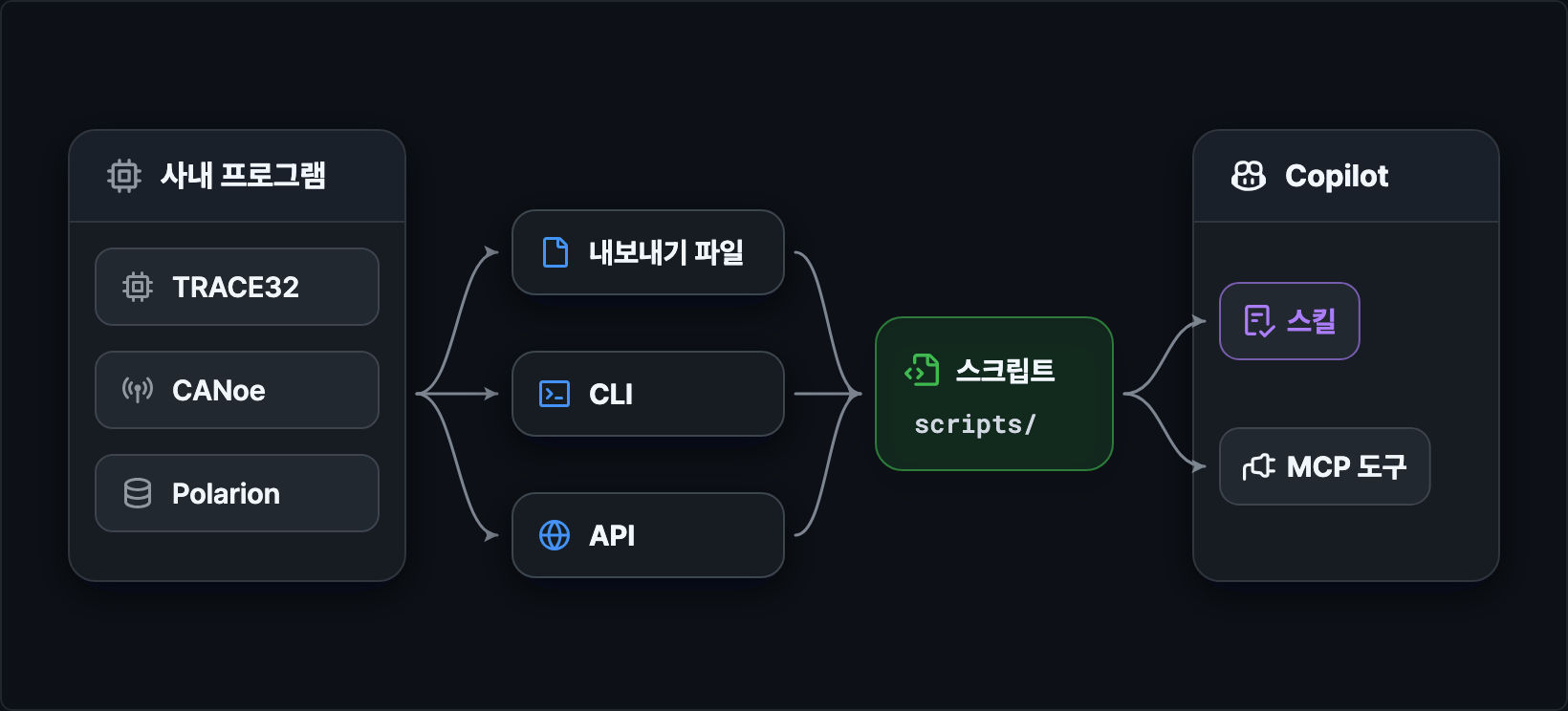
Here are some programs often used in R&D, as examples.
| Program | What you can use for automation |
|---|---|
| TRACE32 (debugger) | PRACTICE scripts (.cmm), remote control API |
| CANoe, CANalyzer (vehicle networks) | Log export (.asc is text, .blf is binary), CAPL scripts |
| Polarion (requirements, test management) | Excel or ReqIF export, REST API |
| In-house web systems | REST API, Excel export |
Choose the connection method starting from the easiest.
- An export file alone is enough. A person exports the file and puts it in a set folder, and you automate everything after that. The example in this post works this way.
- If there is a CLI or API, wrap it in a script and add a step that runs the script to the skill's steps.
- If you use the same feature in several repositories or in tools other than Copilot, make it an MCP server. You can ask Copilot to build a server that provides a few tools, like the practice Jira server.
- For programs that only have a screen, look for an export feature or the log file location before trying screen automation.
For scripts that operate test equipment (power control, firmware flashing, and so on), Copilot writes a draft, and a person reviews it and runs it themselves.
You can block commands the agent must not run with the hooks covered in GitHub Copilot Essentials.
# Company environment and security
A harness that worked on a personal account may not work as is in a company environment because of policies, security rules, and the network.
Here is what to check before applying it at your company.
# Admin policies
With Copilot on a company account (Business, Enterprise), the features you can use depend on the policies your admin sets.
If an example you tested on a personal account does not work at your company, check the following policies first.
| Policy | What it affects |
|---|---|
| MCP servers in Copilot | Using MCP servers. Off by default; if it is off, see Using CSV instead for Jira |
| Editor preview features | Features in preview |
| Models | Models shown in the model menu |
| Copilot CLI | The copilot command in the terminal and non-interactive runs |
| Bring Your Own Key | Connecting models with another company's API key |
The Claude and Codex harnesses in VS Code are turned off when your company's Copilot management settings apply.
On a company account, it is safer to design your harness around the Copilot harness.
# Data handling
According to GitHub's Copilot Trust Center, data from Business and Enterprise customers is not used to train models.
Input and output from IDE chat and the CLI are not retained by default, with exceptions such as security investigations.
However, retention terms can differ by model; for example, with the Claude Fable 5 family, Anthropic retains prompts and outputs by default.
Check the terms for the model you use in the model hosting documentation.
That does not mean you can put in any internal material.
Requests are sent to GitHub's servers and to the company that provides the model, so for material that must not leave the company, your company's security policy comes first.
It is safer to practice and develop with fake data that only has the same format.
Even when making fake data, describe the format in words instead of showing a real file.
12Write a script that creates fake data imitating a test log at 1-second intervals with four columns: time_s, ref_c, sensor_c, supply_v. Keep the temperature between -40 and 85 degrees and the voltage between 3.0V and 3.6V, and include one section in the middle where recording stops.
# Proxies and certificates
If your company network goes through a proxy or inspects HTTPS traffic, you may get connection errors.
- In VS Code settings, enter the proxy address in
http.proxyand the internal addresses that should skip the proxy inhttp.noProxy. Proxy addresses that start withhttps://are not supported. - We recommend adding your company's root certificate to the operating system's certificate store, and you can also point to the certificate file with the
NODE_EXTRA_CA_CERTSenvironment variable. - MCP servers and scripts do not use VS Code's proxy settings. Each program sets its proxy with environment variables such as
HTTPS_PROXYandNO_PROXY, and mcp-atlassian supports these environment variables too. - You can diagnose the connection with
GitHub Copilot: Chat Diagnosticsin the Command Palette.
# Credits
Business and Enterprise credits are not used separately per user; the whole organization pools them and uses them together.
Usage beyond the pooled credits is billed at $0.01 per credit, and usage may be blocked once it passes the budget your admin set, so check your organization's budget policy.
When the examples in this post were run in Copilot CLI with the Auto model, /test-report used 0.79 credits, drafting with /defect-issue used 0.25 credits, and the weekly status report used 0.55 credits.
If you leave calculations to scripts and do not make the model read large logs, you also use fewer credits.
Beyond that, starting a new session when the topic changes and keeping instruction files short also help.
# Applying it to your work
Keep the structure of the example and change only the task, and you can build the same harness for other repetitive tasks.
If you also turn this process into a skill, you can start each new task with the same questions and the same file structure.
1234567891011121314151617181920212223242526272829--- name: new-automation description: When you want to automate a new repetitive task, fills in a task breakdown sheet and creates drafts of a rules document, a skill, and a validation set. Use only when the user calls /new-automation. argument-hint: Name of the task to automate disable-model-invocation: true --- # Create a draft for a new task automation Based on the format of `docs/task-worksheet.md`, create drafts that move the new task into the same structure as this repository. 1. Ask the five questions below all at once. Do not ask again about anything already in the request. - Input: what files do you receive (format, location, column names or one example line) - Steps: the steps a person follows now - Criteria: what you look at and how you decide (numbers, conditions, exceptions) - Output: what you produce and who you send it to - Verification: how you check that the result is correct 1. Name the task in English with lowercase letters and hyphens. Example: `eol-report` 1. Save the task breakdown sheet as `docs/<task-name>-worksheet.md`. For each step, decide who handles it (script, model, person). 1. Organize the criteria into a draft `docs/<task-name>-rules.md`. Mark unclear criteria with 'needs confirmation'. 1. Create a draft `.github/skills/<task-name>/SKILL.md`. Add an approval step before any step that sends something outside or cannot be undone. 1. Propose at least one normal, boundary, and inconclusive case each in `tests/<task-name>-cases.json`. 1. Report the list of created files and the items the user needs to check. ## Rules - Do not create scripts. Those are requested separately after the user checks the rules document. - Do not ask for real work data. If an example is needed, create fake data that only has the same format. - Do not make up criteria. Leave criteria without an answer as 'needs confirmation'.
It is important not to create the script right away.
If you create the script before the criteria are settled, you may get code in which the model filled in the gaps on its own.
Let's run it with an example: the defect report for EOL (End of Line) inspection, which checks finished products at the last step of the production line.
If you include the answers to the five questions in the request, it creates the drafts right away without asking.
1/new-automation EOL inspection defect report. The input is a CSV exported from the EOL tester (columns: serial, test item, measured value, lower limit, upper limit, test time), and right now a person filters the rows outside the lower and upper limits in Excel to make a defect list and sends it by email. The criterion is: a measured value below the lower limit or above the upper limit is a defect, and if the same serial passes on retest, mark it separately as passed on retest. The output is a defect list by serial and a defect rate table by test item, sent to the quality team lead. Verification is checking that the counts match last week's manual results.
Four drafts are created (task breakdown sheet, rules document, skill, and validation set), and the following items are left as 'needs confirmation'.
- How to link a retest row to the first test (same serial and same test item, or the order of test times)
- What the denominator of the defect rate is (number of tests, or number of serials)
- Whether the 'count' to compare with last week's results is the number of defect rows or the number of defective serials
- The location and encoding of the CSV file
Because the request said 'below the lower limit, above the upper limit', values exactly equal to the lower or upper limit were treated as not defective.
Like this, a single word in the rules document decides the boundary values, so when you get the drafts, review the 'needs confirmation' items and the boundary values first.
After that, the steps are the same as in this post.
- Fill in the 'needs confirmation' items in the rules document and settle the boundary values.
- Ask for the script based on the rules document.
- Run the validation set and refine the rules and the script until everything matches.
- Have the skill run the script, verification, and summary in sequence.
- Start connections to outside systems as read-only, and open writes only after adding an approval step.
If the work assistant in the Essentials post focused on answering based on documents and asking back for missing information, the harness in this post focuses on calculating by the rules, not giving a verdict when there is no basis, stopping before a wrong verdict goes out in a report, and getting approval before writing to outside systems.
When you build a harness for a new task, first check that these four are in place.
For more details, see the following documents.
Thanks for reading to the end.
Likes and kind comments help keep this blog going!