Fetch vs Axios - A Guide to HTTP Data Communication

Data communication between the server and the client is one of the core concepts of web development. In this post, we compare the Fetch function and the Axios library for data communication in JavaScript and learn how to use each one.
Fetch is a built-in function available in web browsers, and it lets you get data from a server over HTTP.
Axios is a JavaScript library for HTTP communication, like the fetch function, and it provides several convenient features.
# Data communication
The client-server model is the basic structure of communication.
When a client requests information from a server, the server responds to that request, and they use HTTP (HyperText Transfer Protocol) to do so.
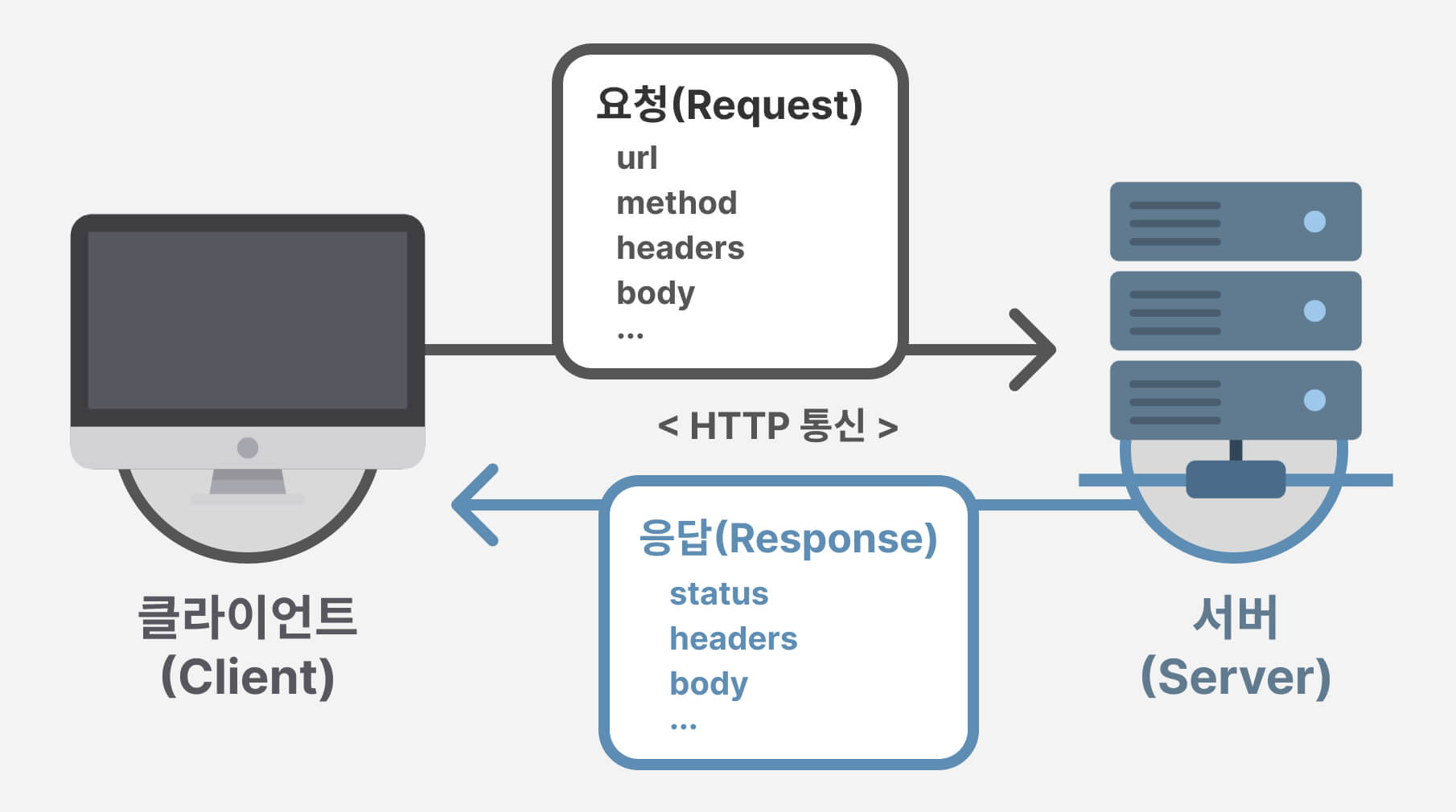
Requests and responses include the following information by default.
Request:
- url: The address of the server to request
- method: The kind of request (GET, POST, PUT, DELETE, and so on)
- headers: Request metadata
- body: Request data
Response:
- status: The response status code (200, 400, 500, and so on)
- headers: Response metadata
- body: Response data
- ok: Whether the request was handled successfully
# URL
A URL is an address that shows where a specific resource is located on the internet.
It has the following structure.

# Method
method indicates the kind of request, and it is mainly used like this.
- GET: Read data
- POST: Create data
- PUT / PATCH: Update data (all/part)
- DELETE: Delete data
Even for the same URL, how the server handles the request and what it responds with depend on the kind of request (method).
Also, you cannot use methods that the server does not support.
123456789101112131415161718192021222324252627282930// Get all users fetch('https://api.heropy.dev/v0/users', { method: 'GET' // Or you can leave it out! }) // Or fetch('https://api.heropy.dev/v0/users') // Create a new user fetch('https://api.heropy.dev/v0/users', { method: 'POST', body: JSON.stringify({ name: 'HEROPY', age: 85, emails: ['thesecon@gmail.com'] }) }) // Update user information fetch('https://api.heropy.dev/v0/users/ywTTX', { method: 'PUT', body: JSON.stringify({ name: "HEROPY", emails: ['thesecon@gmail.com'] }) }) // Delete a user fetch('https://api.heropy.dev/v0/users/ywTTX', { method: 'DELETE' })
# Headers
headers contain metadata about the request and the response.
Metadata can include many kinds of information, such as the data type, encoding, authentication information, and cache control.
You write them as an object, like this.
12345678910fetch('https://api.heropy.dev/v0/users', { headers: { 'Content-type': 'application/json', Apikey: 'KDnREmPe9B1', Username: 'ParkYoungWoong', Authorization: 'Bearer eyJhbGciOiJIUzI1NiIsInR5cCI6IkpXVCJ9.eyJpZCI6IjlQS3I...', 'X-Username': 'ParkYoungWoong', '...' } })
Headers with the X- prefix, such as X-Frame-Options and X-Username, are custom non-standard headers.
They are not part of the official HTTP specification, and they are used by developers or organizations to mark a specific purpose or meaning.
The IETF (Internet Engineering Task Force) recommends using custom headers without the X- prefix.
# Body
body is the content (the actual data) you want to send with a request or response.
You mostly send text (JSON) or FormData.
1234567891011fetch('https://api.heropy.dev/v0/users', { method: 'POST', headers: { 'Content-type': 'application/json' }, // User information (data) to create body: JSON.stringify({ name: 'HEROPY', age: 85 }) })
# Status
status indicates the response status code for the request.
HTTP status codes fall into the following five categories.
- 1xx: Processing
- 2xx: Success
- 3xx: Redirection
- 4xx: Client error
- 5xx: Server error
Here are the status codes you will see most often.
- 200: Handled successfully
- 400: Bad request
- 401: Missing authentication information
- 403: No permission
- 404: Not found
- 500: Server error

# Fetch vs Axios
fetch is a Web API that web browsers started supporting in 2015.
It supports asynchronous communication based on Promise, and you can use it right away without installing anything.
123fetch('https://api.heropy.dev/v0/users') .then(res => res.json()) .then(data => console.log(data)) // { total: 7, users: User[] }
axios is an HTTP client library first released around 2015.
Like fetch, it supports asynchronous communication based on Promise.
It offers cross-browser compatibility, as well as extra features such as automatic JSON data conversion and server-side support.
You can link it from a CDN,
1<script src="https://cdn.jsdelivr.net/npm/axios@1.6.2/dist/axios.min.js"></script>
or install it with NPM.
1npm i axios
1234import axios from 'axios' axios.get('https://api.heropy.dev/v0/users') .then(res => console.log(res.data)) // { total: 7, users: User[] }
Both fetch and axios are widely used for data communication in modern web development, but they differ in their strengths and how you use them.
Simply put, you can use fetch right away without installing anything, while axios provides richer features and a more concise API.
Let's compare how to use fetch and axios through simple CRUD (Create / Read / Update / Delete) examples that use JSONPlaceholder.
# Reading data
To read data, you mostly use the GET method.
The fetch function uses the GET method by default, so you do not need to set any options.
You need to parse the data you get with .json().
123456;(async () => { // const res = await fetch('https://api.heropy.dev/v0/users', { method: 'GET' }) const res = await fetch('https://api.heropy.dev/v0/users') const data = await res.json() console.log(data) })()
axios also uses the GET method by default, so you do not need to set any options.
It also provides a separate method (function) for each HTTP method, such as .get() and .post(), so using them explicitly is a good idea too.
You can access the data you get through the data property of the response object.
12345678import axios from 'axios' ;(async () => { // const res = await axios({ url: 'https://api.heropy.dev/v0/users', method: 'GET' }) // const res = await axios.get('https://api.heropy.dev/v0/users') const res = await axios('https://api.heropy.dev/v0/users') console.log(res.data) })()
Reading does not send data, so the request should not include data to send.
With the fetch function, you must leave out the body option or explicitly set it to null or undefined. If you set any other value, an error occurs.
With axios, you also should not set data to send, but even if you do, it leaves the data out and sends the request.
If you want to include details about what to read in the request, you can use a query string.
For example, you can use OMDbAPI, which provides movie information.
With fetch, you can include the query string directly in the URL,
1234567;(async () => { const res = await fetch('https://omdbapi.com/?apikey=7035c60c&s=avengers', { method: 'GET' }) const data = await res.json() console.log(data) })()
or, if you have the query information as an object, you can use the URLSearchParams class.
12345678910111213const queries = new URLSearchParams({ apikey: '7035c60c', s: 'avengers' }) console.log(queries.toString()) // 'apikey=7035c60c&s=avengers' ;(async () => { const res = await fetch(`https://omdbapi.com/?${queries}`, { method: 'GET' }) const data = await res.json() console.log(data) })()
With axios, you can also include the query string directly in the URL, or pass the query information as an object with the params option.
12345678910111213141516;(async () => { const res = await axios.get(`https://omdbapi.com/?apikey=7035c60c&s=avengers`) console.log(res.data) })() ;(async () => { const res = await axios({ url: `https://omdbapi.com/`, method: 'GET', params: { apikey: '7035c60c', s: 'avengers' } }) console.log(res.data) })()
# Creating and updating data
When you send data to create or update, you mostly use the POST or PUT method.POST is for creating, and PUT or PATCH is for updating.
The fetch function sends data with the body option.
Set the type of the data to send to application/json, then convert the data to a string with the JSON.stringify method and put it in body.
12345678910111213141516;(async () => { const res = await fetch('https://api.heropy.dev/v0/users', { method: 'POST', headers: { 'Content-Type': 'application/json', }, body: JSON.stringify({ name: 'HEROPY', age: 85, isValid: true, emails: ['thesecon@gmail.com'] }) }) const data = await res.json() console.log(data) })()
axios uses the data option instead of body.
You do not need to convert the data to a string yourself, because it converts it to a JSON string automatically.
12345678910111213141516;(async () => { const res = await axios({ url: 'https://api.heropy.dev/v0/users', method: 'POST', headers: { 'Content-Type': 'application/json', }, data: { name: 'HEROPY', age: 85, isValid: true, emails: ['thesecon@gmail.com'] } }) console.log(res.data) })()
To update data, you can use the PUT or PATCH method.
In this case, you need to provide the ID of the data to identify which data to update.
You can pass it in various ways, such as in the URL, headers, or body, depending on the API specification.
In the following example, the ID (ywTTX) of the user information to update is included in the URL.
1234567891011121314;(async () => { const res = await axios({ url: 'https://api.heropy.dev/v0/users/ywTTX', method: 'PUT', headers: { 'Content-Type': 'application/json', }, data: { name: "HEROPY", emails: ['thesecon@gmail.com'] } }) console.log(res.data) })()
# Deleting data
To delete data, you can use the DELETE method.
As with updating, you need to provide the ID of the data, according to the API specification, to identify which data to delete.
1234567;(async () => { const res = await fetch('https://api.heropy.dev/v0/users/ywTTX', { method: 'DELETE' }) const data = await res.json() console.log(data) })()
1234567;(async () => { const res = await axios({ url: 'https://api.heropy.dev/v0/users/ywTTX', method: 'DELETE' }) console.log(res.data) })()
# Sending files
To send a file from the client to the server, you can use several approaches, such as using FormData or converting the file to a Base64 string.
# FormData
FormData, a Web API, creates form data that can be sent to a server through an HTML <form>.
On the instance (formData) returned by calling the new FormData() constructor, you can use the append method to add names and data explicitly.
123456const formData = new FormData() // formData.append('name', data) formData.append('id', userId) formData.append('pw', userPw) formData.append('file', file) // ...
12345678910let file = null document.querySelector('input[type="file"]') .addEventListener('change', event => { file = event.target.files[0] }) document.querySelector('button') .addEventListener('click', async () => { if (!file) return sendFile(file) })
12345678910async function sendFile(file) { const formData = new FormData() formData.append('file', file) const res = await fetch('URL', { method: 'METHOD', body: formData }) return await res.json() }
1234567891011async function sendFile(file) { const formData = new FormData() formData.append('file', file) const res = await axios({ url: 'URL', method: 'METHOD', data: formData }) return res.data }
If you use a <form>, you can add data without the append method.
However, you must add the name attribute to each <input> to specify the name of the data.
123456<form> <input type="text" autocomplete="username" name="id" /> <input type="password" autocomplete="current-password" name="pw" /> <input type="file" name="file" /> <button type="submit">Submit</button> </form>
123456789101112document.querySelector('form') .addEventListener('submit', async event => { event.preventDefault() // Prevent the default behavior so the page does not reload! const formData = new FormData(event.target) // Pass a reference to the `<form>` element! const res = await axios({ url: 'URL', method: 'METHOD', data: formData }) return res.data })
You can check the data in formData like this.
12345678formData.get('name') // Get the single value that matches 'name'! formData.getAll('name') // Get all values that match 'name' as an array! // ... // Check all data! for (const [key, value] of formData) { console.log(key, value) }
# JSON strings
With Base64, you can also send a file as a string.
Building on the FormData example above, write an extra async function (toBase64) that converts a file to a Base64 string.
12345678function toBase64(file) { return new Promise((resolve, reject) => { const reader = new FileReader() reader.readAsDataURL(file) reader.onload = () => resolve(reader.result) reader.onerror = error => reject(error) }) }
Then, in the sendFile function, take the file, convert it to Base64, and send it.
12345678910111213141516async function sendFile(file) { const base64 = await toBase64(file) const res = await fetch('https://api.heropy.dev/v0/users/ywTTX', { method: 'PUT', headers: { 'Content-Type': 'application/json' }, body: JSON.stringify({ photo: { name: file.name, data: base64 } }) }) return await res.json() }
1234567891011121314151617async function sendFile(file) { const base64 = await toBase64(file) const res = await axios({ url: 'https://api.heropy.dev/v0/users/ywTTX', method: 'PUT', headers: { 'Content-Type': 'application/json' }, data: { photo: { name: file.name, data: base64 } } }) return res.data }
# Error handling
The fetch function does not reject the promise based on the response status.
It rejects only when the network fails or the request cannot be made at all.
For example, if you send a request to OMDbAPI without an API key like this, you get a 401 Unauthorized error.
But the fetch function does not reject the promise for the status code (401), so the catch block does not run.
123456789;(async () => { try { const res = await fetch('https://omdbapi.com/?apikey=&s=avengers') // Error: 401 Unauthorized! const data = await res.json() console.log(data) // { Response: 'False', Error: 'No API key provided.' } } catch (err) { console.error('Error:', err) } })()
So you need to check the properties of the response object according to the API specification and handle the error manually, like this.
123456789101112;(async () => { try { const res = await fetch('https://omdbapi.com/?apikey=&s=avengers') // Error: 401 Unauthorized! const data = await res.json() // { Response: 'False', Error: 'No API key provided.' } if (data.Response === 'False') { return console.error(data.Error) // 'No API key provided.' } console.log(data) } catch (err) { console.error('Error:', err) } })()
axios is convenient because it automatically rejects the promise for response status codes that are not successful (2xx).
12345678;(async () => { try { const res = await axios('https://omdbapi.com/?apikey=&s=avengers') // Error: 401 Unauthorized! console.log(res.data) } catch (err) { console.error('Error:', err) // { name: 'AxiosError', message: 'Request failed with status code 401', ... } } })()
# Timeouts
If a network request does not get a response within a certain time, you can stop the request.
This prevents endless waiting and reduces unnecessary network traffic.
The fetch function has no timeout setting by default, so you need extra work.
With the Promise.race static method, you can write and use a function that returns whichever promise settles first, like this.
123456789101112131415161718function fetchWithTimeout(url, options, timeout = 1000) { return Promise.race([ fetch(url, options), new Promise((_, reject) => setTimeout(() => reject(new Error('Request timed out!')), timeout) ) ]) } ;(async () => { try { await fetchWithTimeout('https://api.heropy.dev/v0/delay?t=3000', { method: 'GET' }, 2000) } catch (err) { console.log('Error:', err) } })()
Or you can set a timeout more concisely with the AbortSignal.timeout static method.AbortSignal.timeout automatically aborts the request after the specified time.
123456789;(async () => { try { await fetch('https://api.heropy.dev/v0/delay?t=3000', { signal: AbortSignal.timeout(2000) // 2 seconds }) } catch (err) { console.log('Error:', err) // TimeoutError: The operation was aborted due to timeout } })()
With axios, you can easily add a timeout with the timeout option.
1234567891011;(async () => { try { await axios({ url: 'https://api.heropy.dev/v0/delay?t=3000', method: 'GET', timeout: 2000 // 2 seconds }) } catch (err) { console.log('Error:', err) } })()
# Canceling requests
When needed, you can cancel a network request at any time.
This reduces unnecessary network traffic, and you do not have to handle unnecessary responses.
To cancel a request with the fetch function, you need to use AbortController.
On the instance (controller) returned by calling the new AbortController() constructor, use the signal property and pass it as an option to the fetch function.
When needed, you can cancel the request by calling the controller.abort() method.
12345678910111213141516171819202122const controller = new AbortController() ;(async () => { try { const res = await fetch('https://api.heropy.dev/v0/delay?t=3000', { method: 'GET', signal: controller.signal }) const data = await res.json() console.log(data) } catch (err) { if (err.name === 'AbortError') { console.log('The request was canceled!') } console.log(err) } })() document.querySelector('h1') .addEventListener('click', () => { controller.abort() // Cancel the request! })
axios works the same way.
123456789101112131415161718192021const controller = new AbortController() ;(async () => { try { const res = await axios({ url: 'https://api.heropy.dev/v0/delay?t=3000', method: 'GET', signal: controller.signal }) console.log(res.data) } catch (err) { if (err.name === 'AbortError') { console.log('The request was canceled!') } } })() document.querySelector('button.cancel') .addEventListener('click', () => { controller.abort() })
# Credentials
When you send a request to a server, the user's authentication information included with it is called 'credentials'.
Depending on the API specification, cookies, the basic authorization header, and so on can also be included and sent automatically.
With the fetch function, you can set whether to send credentials automatically with the credentials option.
The default value is omit, which does not send credentials, and if you set it to include, credentials are included in the request.
(To send them only for the same origin, use same-origin.)
12345678910;(async () => { const res = await fetch('https://api.heropy.dev/v0/users', { method: 'POST', headers: { 'Content-Type': 'application/json' }, body: JSON.stringify({ name: 'HEROPY', age: 85 }), credentials: 'include' }) const data = await res.json() console.log(data) })()
With axios, you set whether to send credentials automatically with the withCredentials option.
The default value is false.
12345678910;(async () => { const res = await axios({ url: 'https://api.heropy.dev/v0/users', method: 'POST', headers: { 'Content-Type': 'application/json' }, data: { name: 'HEROPY', age: 85 }, withCredentials: true }) console.log(res.data) })()
If you want to include them manually, you can add the header information yourself, like this.
How you use it can differ depending on the API specification.
123456789101112;(async () => { const res = await axios({ url: 'https://api.heropy.dev/v0/users', method: 'POST', headers: { 'Content-Type': 'application/json', Authorization: 'Bearer eyJhbGciOiJIUzI1NiIsInR5cCI6IkpXVCJ9.eyJpZCI6IjlQS3I...', }, data: { name: 'HEROPY', age: 85 } }) console.log(res.data) })()
# Custom configuration
With a custom configuration, you can make your request code concise and easy to manage.
With the fetch function, you can create a configuration the way you want and reuse it, like this.
12345678910111213141516171819202122232425262728function api(method, endpoint, data) { const url = 'https://api.heropy.dev/v0' + endpoint const timeout = 2000 const options = { method, headers: { Apikey: 'KDnREmPe9B1', Username: 'ParkYoungWoong' }, body: data ? JSON.stringify(data) : null } return Promise.race([ fetch(url, options), new Promise((_, reject) => setTimeout(() => reject(new Error('Request timed out!')), timeout) ) ]) } api('GET', '/users') api('POST', '/users', { name: 'HEROPY', age: 85 }) api('PUT', `/users/${userId}`, { age: 127 }) api('DELETE', `/users/${userId}`)
With axios, you can create a custom configuration more easily with the axios.create function.
123456789101112131415161718const api = axios.create({ baseURL: 'https://api.heropy.dev/v0', timeout: 2000, headers: { Apikey: 'KDnREmPe9B1', Username: 'ParkYoungWoong' } }) api.get('/users') api.post('/users', { name: 'HEROPY', age: 85 }) api.put(`/users/${userId}`, { age: 127 }) api.delete(`/users/${userId}`)
# Interceptors
An interceptor is a feature that intercepts a request before it reaches the server, or a response before it is handled, to run shared logic.
It is very useful because you can manage repetitive tasks in one place, such as attaching an authentication token automatically, handling error responses in a common way, and managing loading state.
The fetch function does not provide an interceptor feature, so you need to write a wrapper function yourself, like this.
123456789101112131415161718async function interceptedFetch(url, options = {}) { // Before the request (acts as an interceptor) options.headers = { ...options.headers, Authorization: `Bearer ${localStorage.getItem('token')}` } const res = await fetch(url, options) // After the response (acts as an interceptor) if (res.status === 401) { console.log('Authentication has expired.') } return res } interceptedFetch('https://api.heropy.dev/v0/users')
axios provides request and response interceptors through the interceptors property.
You can register a request interceptor with axios.interceptors.request.use and a response interceptor with axios.interceptors.response.use.
12345678910111213141516171819// Request interceptor axios.interceptors.request.use(config => { config.headers.Authorization = `Bearer ${localStorage.getItem('token')}` return config }) // Response interceptor axios.interceptors.response.use( res => res, err => { if (err.response?.status === 401) { // When authentication expires, handle it, for example by moving to the login page console.log('Authentication has expired.') } return Promise.reject(err) } ) axios.get('https://api.heropy.dev/v0/users')
You can also register interceptors on an instance created with axios.create, so they work even better together with the custom configuration we looked at earlier.
123456789101112const api = axios.create({ baseURL: 'https://api.heropy.dev/v0', timeout: 2000 }) // Register an interceptor on the instance api.interceptors.request.use(config => { config.headers.Authorization = `Bearer ${localStorage.getItem('token')}` return config }) api.get('/users')
# Concurrent requests
When you need to call several APIs at the same time, you can handle multiple requests in parallel with the Promise.all static method.
This can reduce the total response time compared to handling each request one after another.
12345678910111213;(async () => { try { const [usersRes, postsRes] = await Promise.all([ fetch('https://api.heropy.dev/v0/users'), fetch('https://api.heropy.dev/v0/posts') ]) const users = await usersRes.json() const posts = await postsRes.json() console.log(users, posts) } catch (err) { console.error('Error:', err) } })()
1234567891011;(async () => { try { const [usersRes, postsRes] = await Promise.all([ axios.get('https://api.heropy.dev/v0/users'), axios.get('https://api.heropy.dev/v0/posts') ]) console.log(usersRes.data, postsRes.data) } catch (err) { console.error('Error:', err) } })()
# Streaming responses
Sometimes a server does not send data all at once, but splits it into chunks and sends them one by one.
Streaming responses are typically used in AI chatbots, large file downloads, and so on.
The fetch function provides the response body as a ReadableStream, so you can process the data in order as it arrives.
1234567891011;(async () => { const res = await fetch('https://api.heropy.dev/v0/stream') const reader = res.body.getReader() const decoder = new TextDecoder() while (true) { const { done, value } = await reader.read() if (done) break console.log(decoder.decode(value)) // Print each data chunk in order as it arrives } })()
By default, axios uses XMLHttpRequest in the browser, so it could not handle streaming responses directly. Since version 1.7.0, however, the adapter: 'fetch' option has been added, so you can make it use the Fetch API internally.
When you use it together with responseType: 'stream', the response data is returned as a ReadableStream, so you can handle streaming the same way as with fetch.
1234567891011121314;(async () => { const { data } = await axios.get('https://api.heropy.dev/v0/stream', { responseType: 'stream', adapter: 'fetch' }) const reader = data.getReader() const decoder = new TextDecoder() while (true) { const { done, value } = await reader.read() if (done) break console.log(decoder.decode(value)) // Print each data chunk in order as it arrives } })()
# Node.js support
You can also use fetch and axios as data communication tools in a Node.js environment.
Since Node.js 18, the fetch function is built in, so you can use it right away without installing anything.
123fetch('https://api.heropy.dev/v0/users') .then(res => res.json()) .then(data => console.log(data)) // User[]
In environments older than Node.js 18, you can install and use the node-fetch package.
1npm i node-fetch
12345import fetch from 'node-fetch' fetch('https://api.heropy.dev/v0/users') .then(res => res.json()) .then(data => console.log(data)) // User[]
axios also supports the Node.js environment, so you can install and use it the same way.
1npm i axios
1234import axios from 'axios' axios.get('https://api.heropy.dev/v0/users') .then(res => console.log(res.data)) // User[]
Thanks for reading to the end.
Likes and kind comments help keep this blog going!