Setting Up a New MacBook: Notes for Myself
I had been getting by with an Intel MacBook Pro I bought in 2020, but in November 2024 it suddenly stopped turning on, so I took it in for repair.
The diagnosis was a logic board replacement, and I was told the repair would take about a week. I had to teach a class starting the very next day, so I had no choice but to buy an M3 MacBook Air to use right away. I used it for about two months, setting things up one by one whenever I needed them.
Then in January 2025, I also bought an M4 MacBook Pro, and as I was about to set up a MacBook yet again, I thought it would be good to write down how I do it.
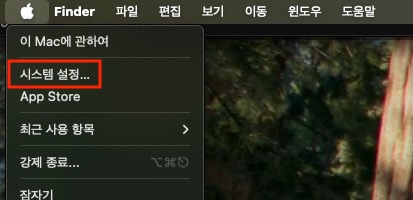
# System Settings...
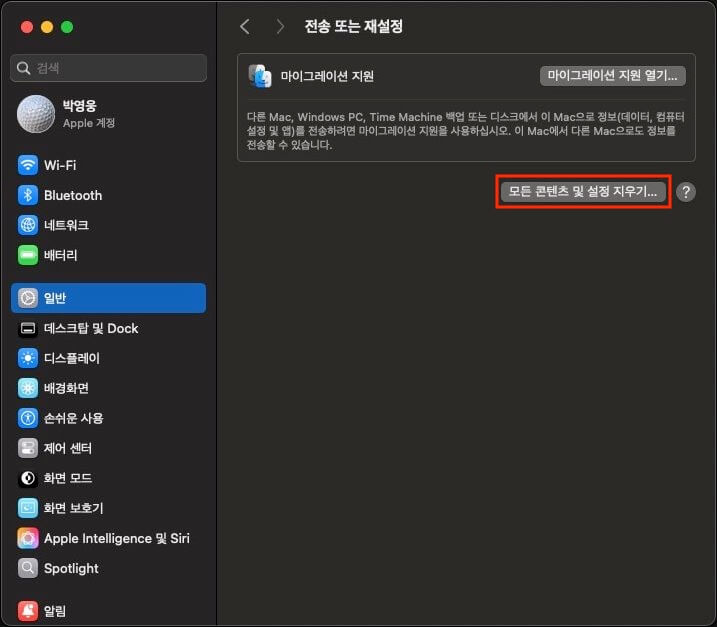
# Resetting your MacBook
If something goes wrong while you are setting up your MacBook and you want to reset it, you can very easily start over from the language selection screen of a new MacBook.
If you use cloud services such as iCloud or Dropbox, or you just take care to back up your important data, it is nice to reset your MacBook once in a while and start fresh as if it were new.
- General >
- Transfer or Reset >
- Erase All Content and Settings...
- Transfer or Reset >
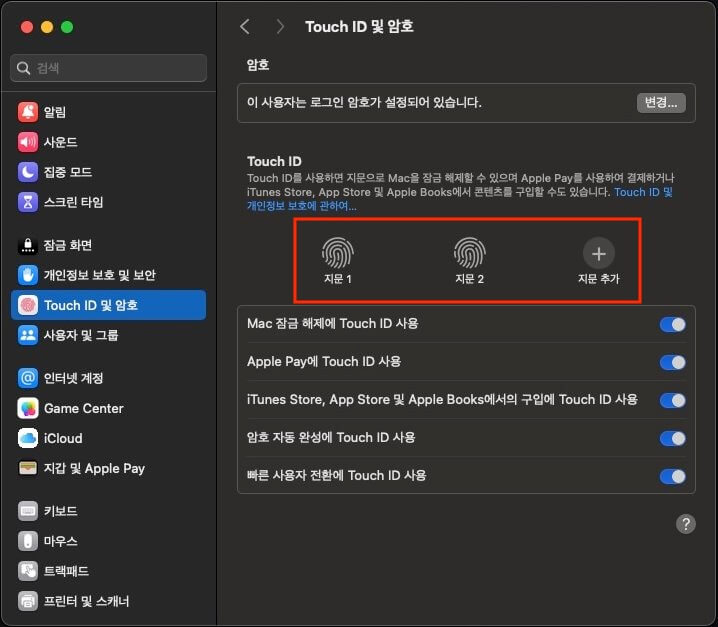
# Touch ID & Password
You usually register the index or middle finger of your right hand, but it is convenient to register an extra fingerprint so that you can use your left hand when your right hand is hard to use.
There is a lot left to set up, and most of it requires authentication each time, so it is a good idea to register your fingerprints first.
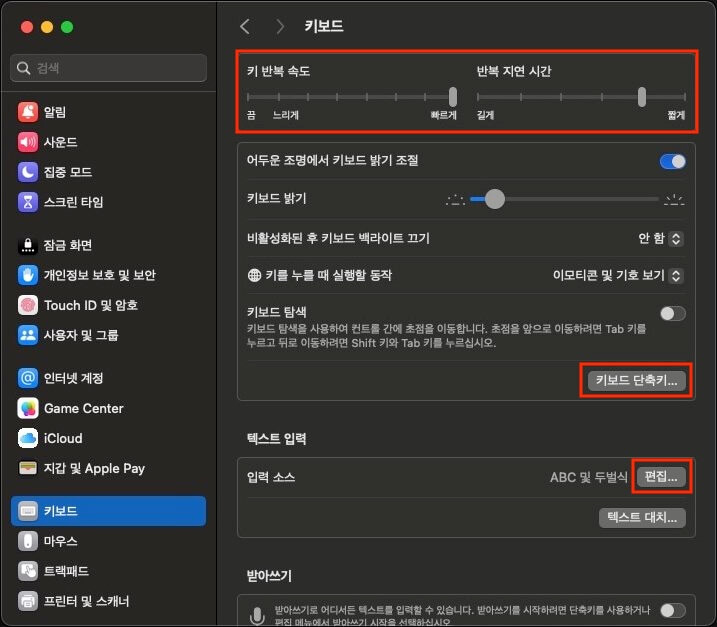
# Keyboard
- Key repeat rate:
Fast - Delay until repeat:
Short - Keyboard Shortcuts... >
- Input Sources >
- Configure this only if you use Karabiner-Elements!
- Select next source in Input menu: right
Cmd(F18)
- Screenshots >
- Configure this only if you use iStatistica!
- Copy picture of selected area to the clipboard:
Shift+Cmd+S
- Function Keys >
- Use F1, F2, etc. keys as standard function keys:
On
- Use F1, F2, etc. keys as standard function keys:
- Input Sources >
- Text Input / Edit... >
- Add period with double-space:
Off
- Add period with double-space:
# Trackpad
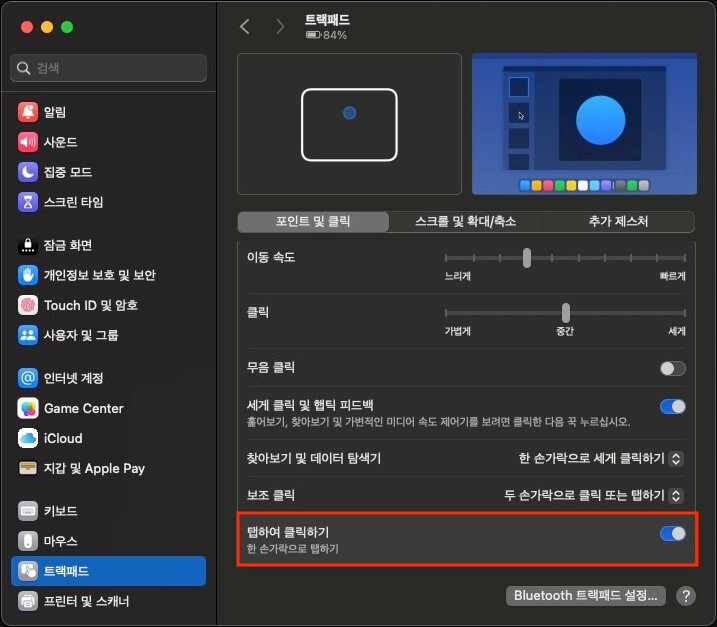
- Tap to click:
On
# Accessibility
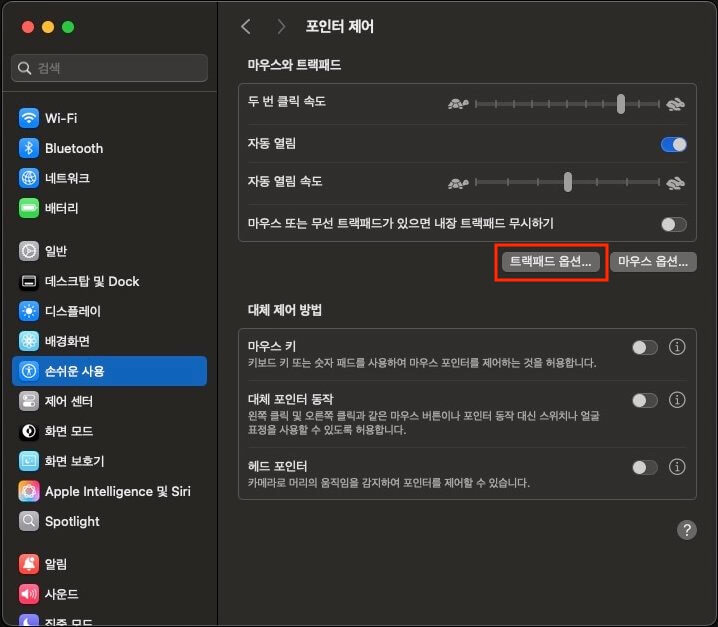
- Pointer Control >
- Mouse & Trackpad / Trackpad Options... >
- Use trackpad for dragging:
On - Dragging style:
Three Finger Drag
- Use trackpad for dragging:
- Mouse & Trackpad / Trackpad Options... >
# Desktop & Dock
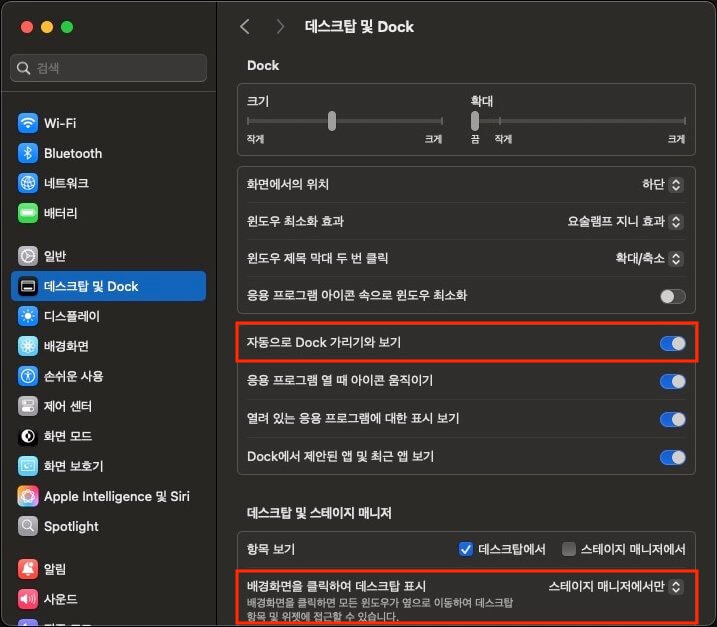
- Dock / Automatically hide and show the Dock:
On - Desktop & Stage Manager / Click wallpaper to reveal desktop:
Only in Stage Manager
# Control Center
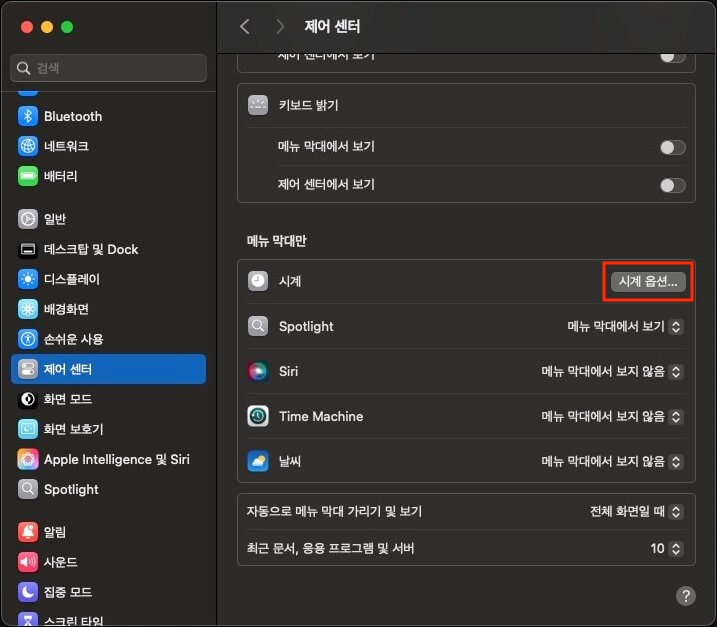
- Menu Bar Only / Clock / Clock Options... >
- Time / Display the time with seconds:
On
- Time / Display the time with seconds:
# Lock Screen
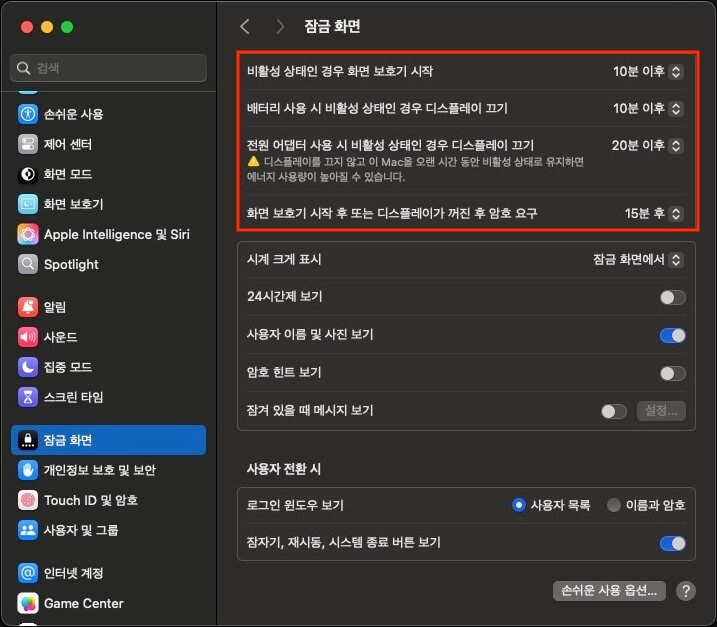
I often look at the screen without using the keyboard or mouse, so I set each time to a relatively long value.
# Screen Saver
Select Shuffle All so that the wallpaper and screen saver change automatically every day.

# Changing the screenshot file format
The default screenshot file format is PNG. To change it to JPG, run the following command in the terminal.
1defaults write com.apple.screencapture type jpg
# Homebrew
Homebrew is a package manager for macOS.
Run the following command in the terminal to install Homebrew.
1/bin/bash -c "$(curl -fsSL https://raw.githubusercontent.com/Homebrew/install/HEAD/install.sh)"
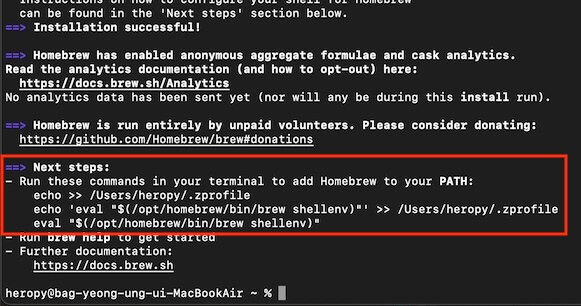
When the installation finishes, copy the commands shown under 'Next steps' in the terminal output and run them in the terminal.
Finally, check that the brew command runs correctly.
12brew -v # Homebrew 4.4.15
# Git
Git is a tool for version control of your projects.
If you install Git with Homebrew instead of downloading the installer from the website, you can easily manage Git versions.
12345678brew install git # Basic configuration git config --global credential.helper osxkeychain # Store credentials git config --global core.autocrlf input # macOS line endings git config --global user.name "ParkYoungWoong" # Name (GitHub) git config --global user.email "thesecon@gmail.com" # Email (GitHub) git config --global pull.rebase true # Rebase by default
# GitHub
GitHub is a service that provides remote repositories for your projects.
After you sign up, follow the steps below.
# SSH
SSH (Secure SHell), one of the network protocols, is used for secure remote access.
Run the following commands in the terminal to generate and copy an SSH key.
The ED25519 algorithm type that GitHub recommends is known to be faster and more secure than the commonly used RSA.
12345678# Generate an SSH key ssh-keygen -t ed25519 -C "thesecon@gmail.com" # Add it to the keychain ssh-add --apple-use-keychain ~/.ssh/id_ed25519 # Copy the SSH key pbcopy < ~/.ssh/id_ed25519.pub
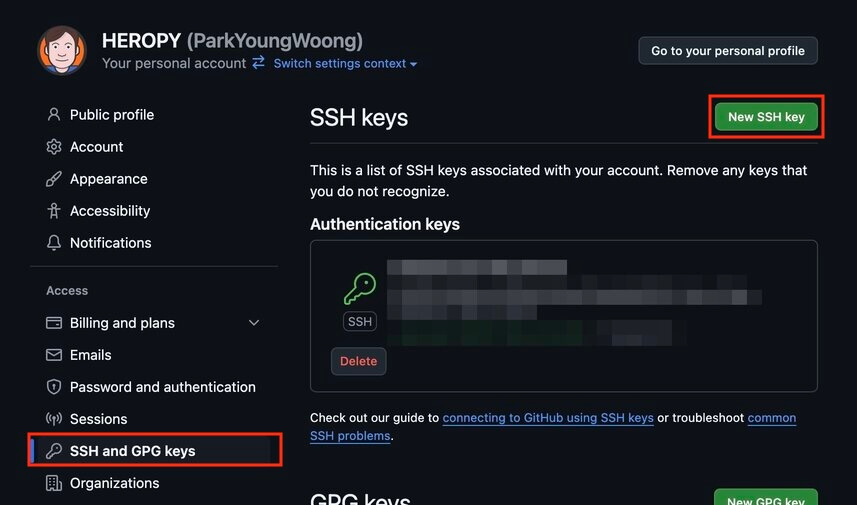
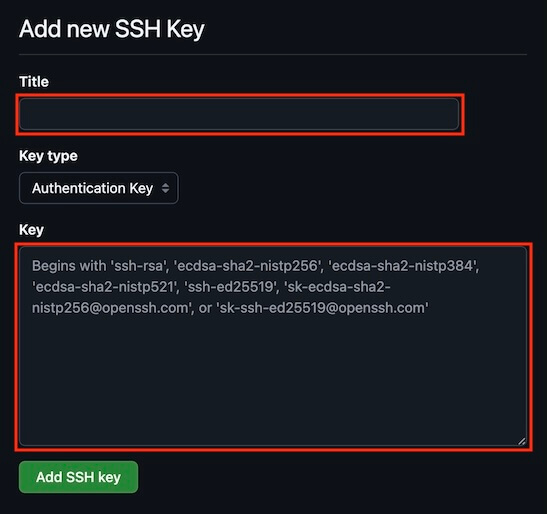
Register the SSH key you generated and copied in GitHub Settings (SSH and GPG keys).
Paste the copied SSH key into the Key field.
# HTTPS
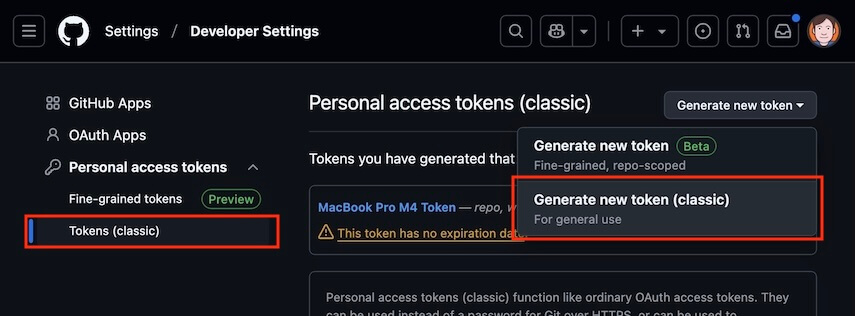
Start creating a token in GitHub Settings (Personal access tokens).
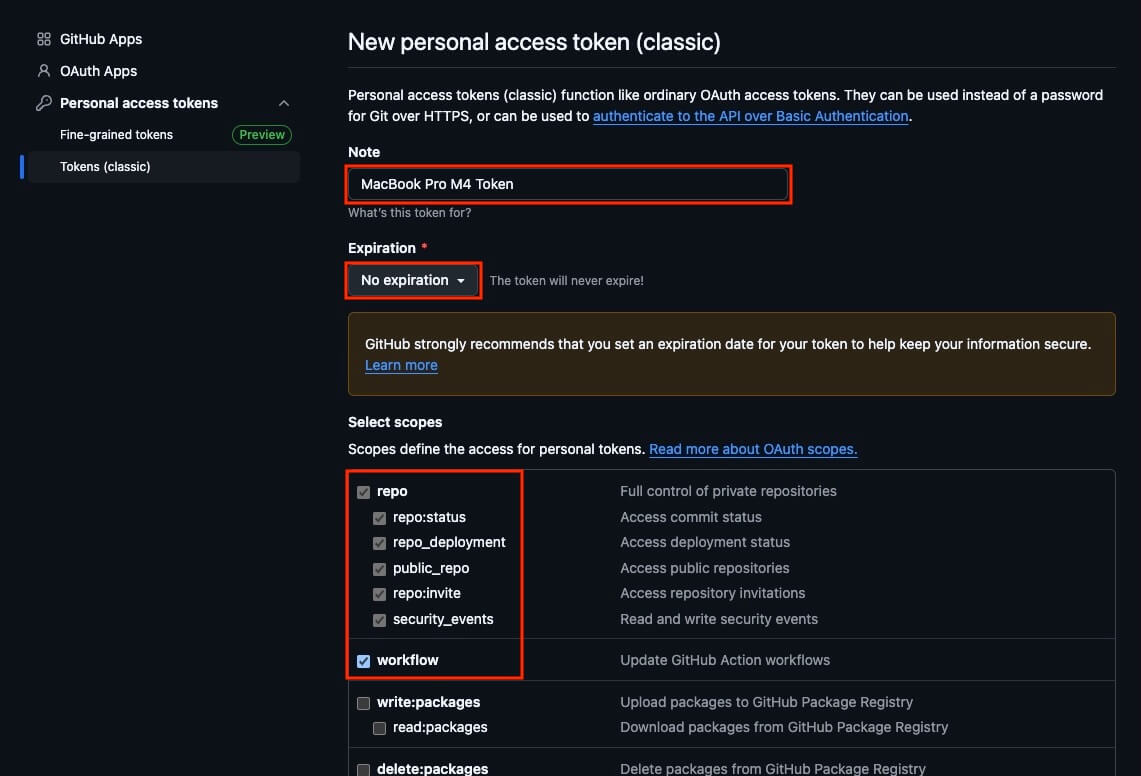
Enter a token name and choose the access scopes (Select scopes).
Select repo and workflow as a baseline, and add other scopes as needed.
When the token is created, copy it.
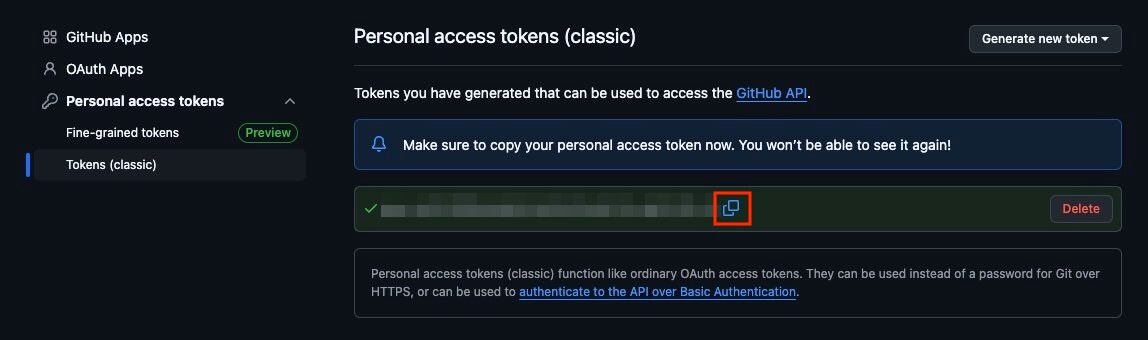
In the following code, replace <USERNAME> with your GitHub username (ParkYoungWoong) and <ACCESS_TOKEN> with the token you copied, then run it in the terminal.
1printf "protocol=https\nhost=github.com\nusername=<USERNAME>\npassword=<ACCESS_TOKEN>\n" | git credential-osxkeychain store
# NVM
NVM is a tool for managing Node.js versions.
Run the following commands in the terminal to install and configure NVM.
1234567# Install brew install nvm # Configure echo 'export NVM_DIR="$HOME/.nvm"' >> ${ZDOTDIR:-$HOME}/.zshrc echo '[ -s "$NVM_DIR/nvm.sh" ] && \. "$NVM_DIR/nvm.sh" # This loads nvm' >> ${ZDOTDIR:-$HOME}/.zshrc echo '[ -s "$NVM_DIR/bash_completion" ] && \. "$NVM_DIR/bash_completion" # This loads nvm bash_completion' >> ${ZDOTDIR:-$HOME}/.zshrc
Once NVM is installed and configured, install the Node.js version you want.
123456789101112# Install the latest LTS version of Node.js nvm install --lts # Install the latest version 22 of Node.js nvm install 22 # Set the default version nvm alias default 22 # Use a version nvm use 22 nvm use default
# Zsh
# Oh My Zsh

Oh My Zsh is a framework for managing your Zsh configuration.
Run the following command in the terminal to install it. (Install oh-my-zsh now)
1sh -c "$(curl -fsSL https://raw.githubusercontent.com/ohmyzsh/ohmyzsh/master/tools/install.sh)"
# Powerlevel10k
Run the following command in the terminal to install Powerlevel10k.
1git clone --depth=1 https://github.com/romkatv/powerlevel10k.git ${ZSH_CUSTOM:-$HOME/.oh-my-zsh/custom}/themes/powerlevel10k
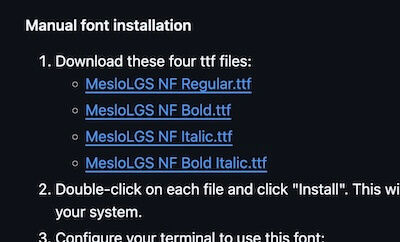
Download the MesloLGS NF font from the Powerlevel10k GitHub repository, then open the files to install them on your system.
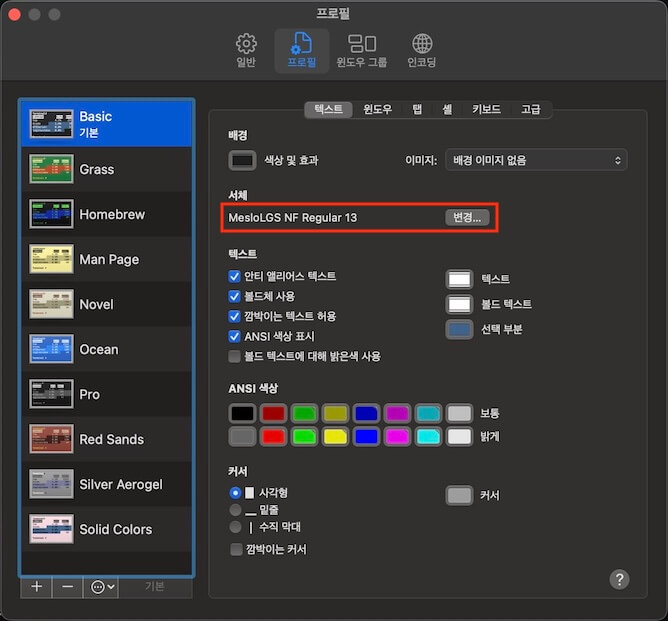
In Terminal settings, select the font on the Profiles tab.
In .zshrc, change the value of the ZSH_THEME variable to powerlevel10k/powerlevel10k.
If you run the following command in the terminal, it is changed automatically.
12345if grep -q "^ZSH_THEME=" ${ZDOTDIR:-$HOME}/.zshrc; then sed -i '' 's|^ZSH_THEME=.*|ZSH_THEME="powerlevel10k/powerlevel10k"|' ${ZDOTDIR:-$HOME}/.zshrc else echo 'ZSH_THEME="powerlevel10k/powerlevel10k"' >> ${ZDOTDIR:-$HOME}/.zshrc fi
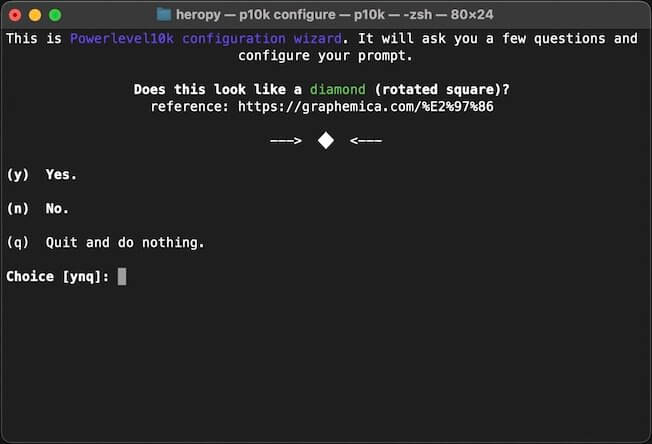
When you quit and restart the terminal, the Powerlevel10k configuration starts.
If it does not start right away, run the p10k configure command to start the configuration yourself.
# Zsh-Autosuggestions
Zsh-Autosuggestions provides autocompletion.
12345# Install brew install zsh-autosuggestions # Configure echo "source $(brew --prefix)/share/zsh-autosuggestions/zsh-autosuggestions.zsh" >> ${ZDOTDIR:-$HOME}/.zshrc
# Zsh-Syntax-Highlighting
Zsh-Syntax-Highlighting provides syntax highlighting for commands.
12345# Install brew install zsh-syntax-highlighting # Configure echo "source $(brew --prefix)/share/zsh-syntax-highlighting/zsh-syntax-highlighting.zsh" >> ${ZDOTDIR:-$HOME}/.zshrc
# Installing from the App Store
When you install apps from the App Store, they stay in your purchase history, so it is easy to install them again later.
# ScreenBrush

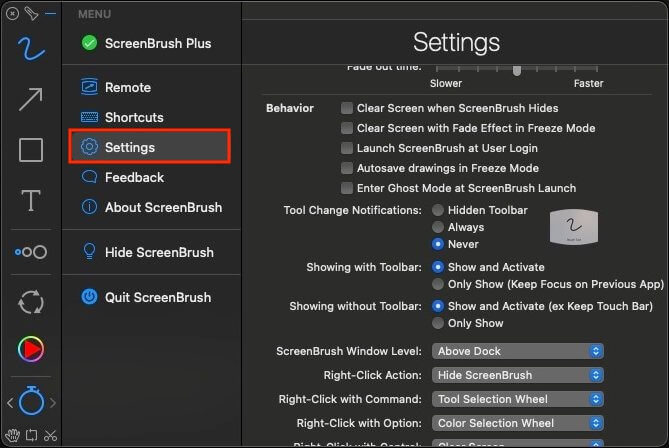
ScreenBrush provides brushes and other features for drawing on the screen.
You can use it for free, and I use the Plus version, which costs $4.99.
It is the tool I use to draw on the screen during lectures.
- Settings >
- Tool Change Notifications:
Never - Flashlight >
- Radius:
170px
- Radius:
- Zoom >
- Scale:
1.3x
- Scale:
- Tool Change Notifications:
# DaVinci Resolve
DaVinci Resolve is a video editing tool.
I use it to edit my lecture videos.
# iStatistica
iStatistica shows system information.
You can check CPU and memory usage in real time from the menu bar at the top of the screen.
It is a paid app, and it costs $5.99.
# GIPHY Capture
GIPHY Capture. The GIF Maker is an app that makes GIFs by capturing your screen.
It is handy for capturing short scenes that do not quite warrant a video as GIF images and attaching them to documents.
# Installing with Homebrew
When you install apps with Homebrew, managing versions and uninstalling them is easy.
And instead of finding and installing apps one by one, you can install them all at once from the terminal like this.
1brew install --cask karabiner-elements docker rectangle maccy cursor keka appcleaner zoom dropbox logi-options+ wacom-tablet
# Karabiner-Elements

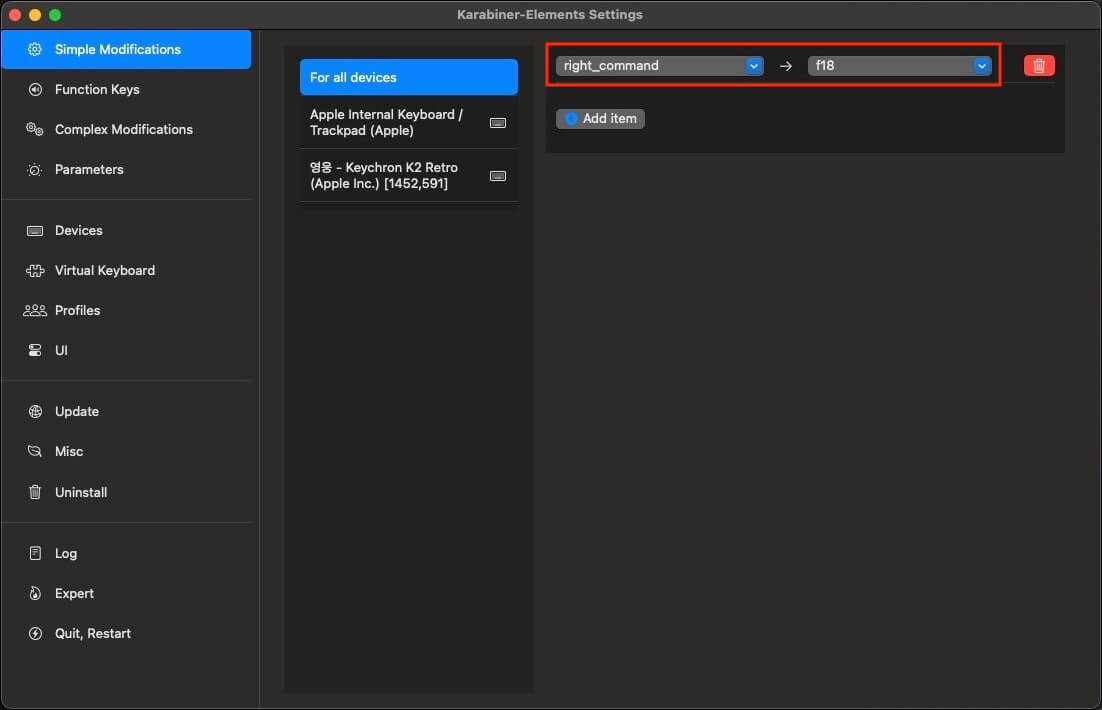
Karabiner-Elements is the tool I use to change the Korean/English input toggle key.
Like the 한/영 (Korean/English) key on Windows, it lets you use the Cmd key to the right of the Space key as the Korean/English toggle key, which is convenient.
Install it with Homebrew as follows.
1brew install --cask karabiner-elements
If it asks for your keyboard type, select the ANSI type, which is common in the US and Korea.
In Simple Modifications, set right_command to F18.
# Cursor

I use a paid plan of Cursor instead of VS Code.
1brew install --cask cursor
If you want to use VS Code instead of Cursor, install it with the following command.
1brew install --cask visual-studio-code
# Docker
Docker Desktop is a tool for managing Docker containers through a GUI.
1brew install --cask docker
# Rectangle

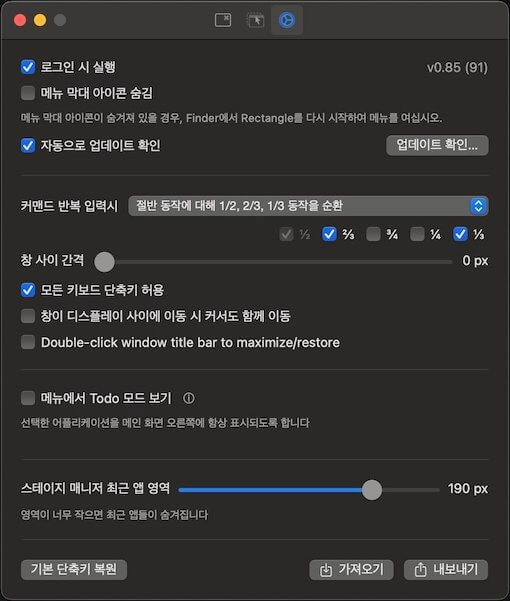
Rectangle is a tool for easily resizing windows with keyboard shortcuts.
I used Spectacle before, so instead of the recommended shortcut option, I use the Spectacle shortcut option, which feels more familiar to me.
1brew install --cask rectangle
# Maccy

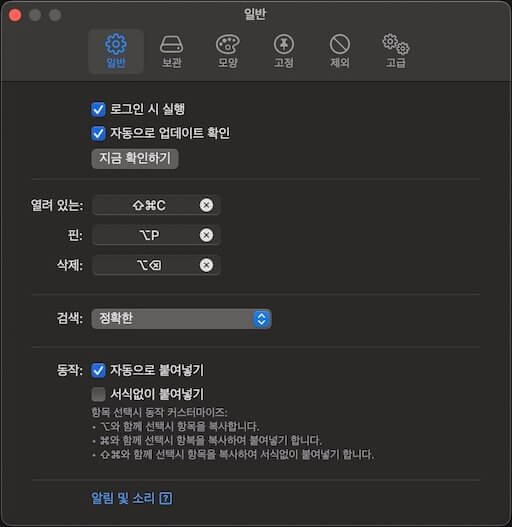
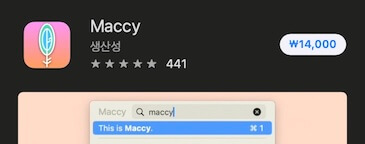
Maccy is a tool that keeps a history of what you copy to the clipboard, so you can easily find what you want and paste it.
It is a paid app that costs $9.99, but it is open source, so you can use it for free if you install it with Homebrew.
1brew install --cask maccy
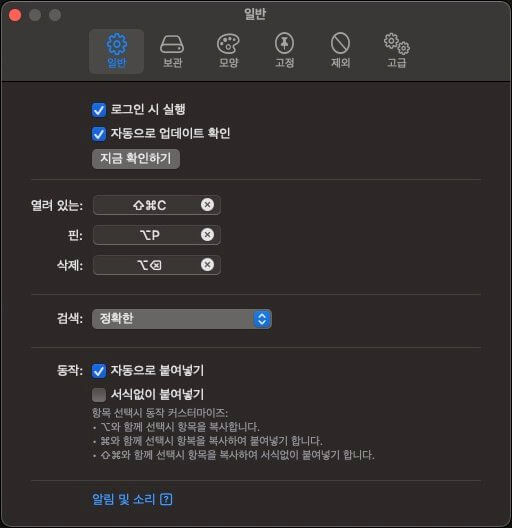
- General
- Launch at login:
On - Check for updates automatically:
On - Paste automatically:
On
- Launch at login:
- Storage
- Files:
Off
- Files:
- Advanced
- Clear history on quit:
On
- Clear history on quit:
# Keka

Keka is a tool for compressing folders and files.
1brew install --cask keka
# App Cleaner

App Cleaner is a tool that also deletes an app's related data when you delete the app.
1brew install --cask appcleaner
# Zoom

I use Zoom for most meetings and online lectures.
1brew install --cask zoom
# Dropbox

Dropbox is a cloud storage service like Google Drive. Install the desktop app so you can easily browse and share files in Finder.
To store and share my lecture videos, I use the Plus plan, which provides 2TB of storage.
The free plan gives you up to 2GB of storage.
1brew install --cask dropbox
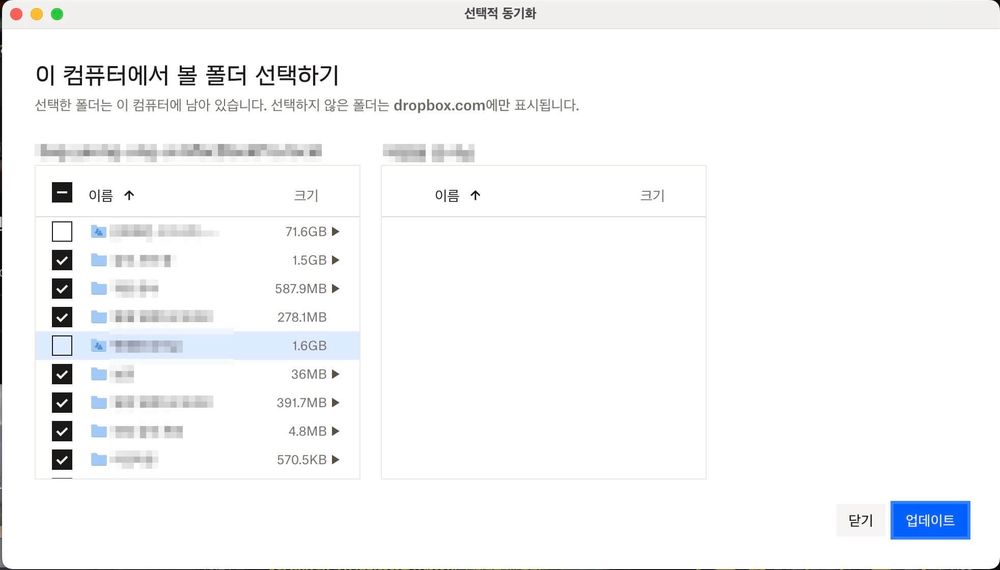
To keep it from taking up too much space when it syncs with this computer, select only the folders you use often.
# Logi Options+
I mainly use the trackpad, but it is hard to control the pointer precisely while lecturing, so I also use a Logitech vertical mouse.
If you install the driver, you can change what the buttons do or adjust the pointer speed.
1brew install --cask logi-options+
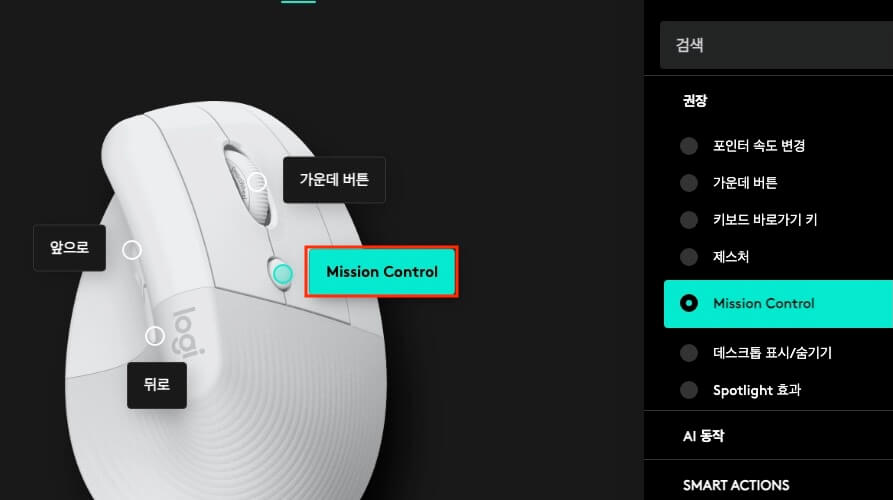
Change the extra button from Change pointer speed to Mission Control.
# Wacom driver

I still use the Wacom Intuos 4 tablet my father gave me as a gift when I was a senior in college.
I used it a lot for design work, but these days I use it almost only for lectures.
Maybe because it is an old model, it only recognizes the pointer position correctly after I install the driver.
1brew install --cask wacom-tablet
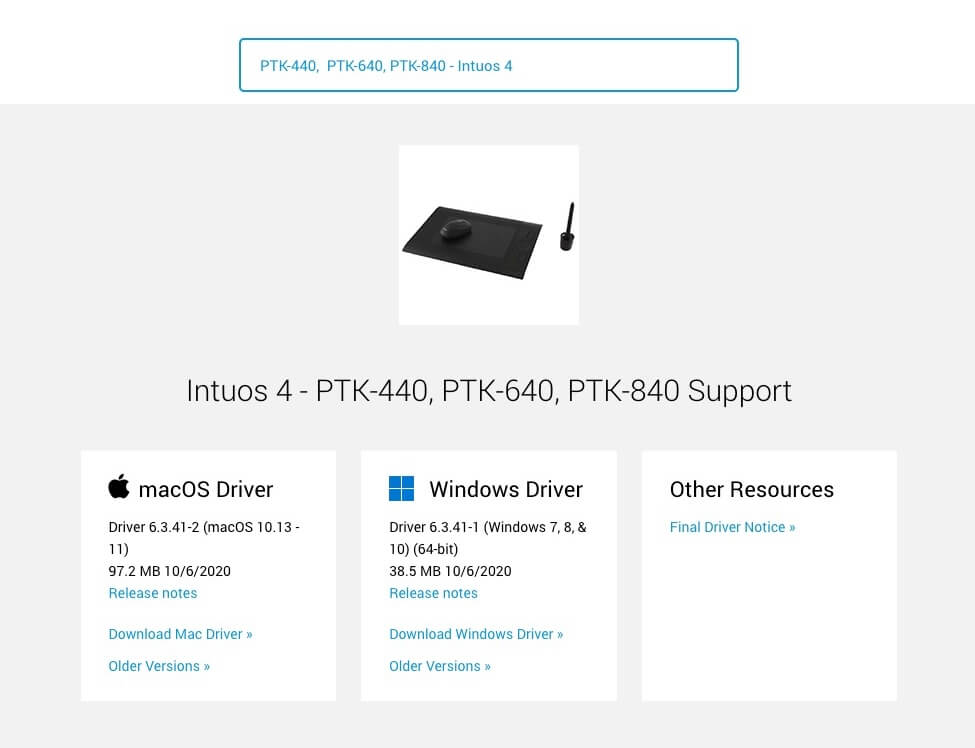
If you install the driver yourself, search for PTK-640, the model name of the Intuos 4 tablet, on the Wacom driver download page.
Thanks for reading to the end.
Likes and kind comments help keep this blog going!