The Complete Guide to CSS Flex

Most websites have a vertical overall layout, and you use them by scrolling 'up and down'.
The elements you use most when building a layout are displayed as blocks by default, and blocks stack vertically (top to bottom) in the view, so vertical layouts are relatively easy to build.
Horizontal (left to right) layouts, however, are a bit different.
The problem was that there was no clear property for building horizontal structures, so in many cases we relied on <table>, float, or inline-block.
But these methods come with various problems (clearing, white space, and so on, though they can be worked around..), so in the end they are only second-best options for horizontal layouts. Now we can build layouts easily with a clear concept (a set of properties) called Flex (Flexible Box).
I talked about easy horizontal layouts above, but Flex makes vertical layouts easy too.
Before we start, let's look at a simple example.
For a horizontal layout using the float property, you can write styles as follows.
1234<div class="box"></div> <div class="box"></div> <div class="box"></div> <div class="clear-element"></div>
123456.box { float: left; } .clear-element { clear: both; /* or left */ }
I'll skip the details. The method above looks simple, but besides the box elements it also needs a following (next) element with the class name clear-element, which makes it very inconvenient in practice and not very clear, so the method below is used more often.
12345<div class="clearfix"> <div class="box"></div> <div class="box"></div> <div class="box"></div> </div>
123456789/* The approach most faithful to the principle, excluding IE hacks and other tricks */ .clearfix::after { content: ""; clear: both; display: block; } .box { float: left; }
In this example, you apply float directly to each element that should line up horizontally, and apply the predefined clearfix to their container (parent element).
So how do you write this with Flexible Box (Flex from here on)?
It's very simple.
12345<div class="box-container"> <div class="box"></div> <div class="box"></div> <div class="box"></div> </div>
123.box-container { display: flex; }
With Flex, you apply display: flex; to the container (box-container) of the elements that should line up horizontally.
(You often don't need any other properties, so you can build horizontal layouts quite easily and quickly.)
# CSS3 Flex Box
Flex provides an efficient way to align elements, even when their sizes are unknown or dynamic.
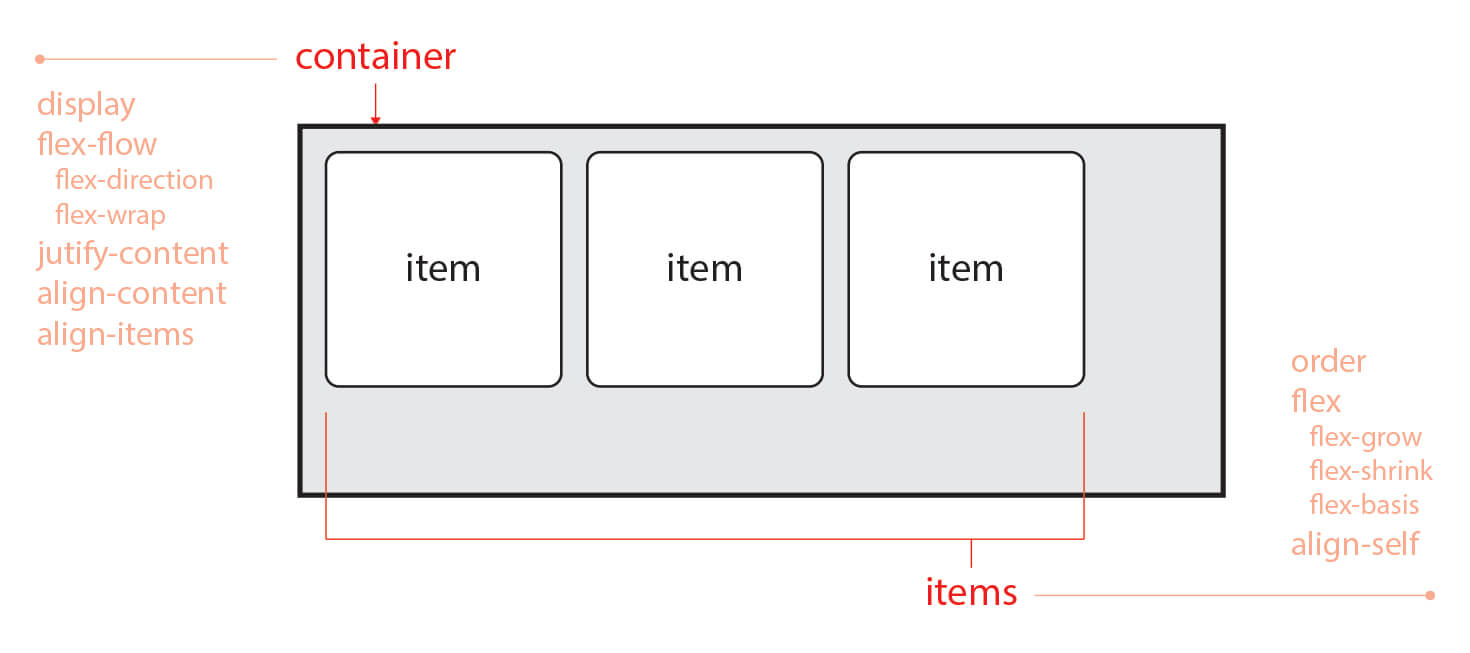
First, Flex is divided into two concepts.
The first is the container, and the second is the items.
As we saw above, the container is the parent element that wraps the items, and you need a container to align the items.
Note that the properties you apply to the container and to the items are separate.
On the container, you can use properties such as display, flex-flow, and justify-content,
and on the items, you can use properties such as order, flex, and align-self.
# Flex container
The properties for a flex container are as follows.
We'll look at the concepts of the main axis and cross axis later.
| Property | Meaning |
|---|---|
| display | Defines a flex container |
| flex-flow | Shorthand for flex-direction and flex-wrap |
| flex-direction | Sets the main axis of flex items |
| flex-wrap | Sets whether flex items wrap onto multiple lines |
| justify-content | Sets the alignment along the main axis |
| align-content | Sets the alignment along the cross axis (2 or more lines) |
| align-items | Sets how items align on the cross axis (1 line) |
| gap | Sets the spacing between items |
# display
The display property defines a flex container.
You often set how an element is displayed with values like display: block;, display: inline-block, or display: none;.
In the same way, you define the element's display type as Flex (display: flex, display: inline-flex) instead of block or inline.
| Value | Meaning | Default |
|---|---|---|
| flex | Defines a block-level flex container | |
| inline-flex | Defines an inline-level flex container |
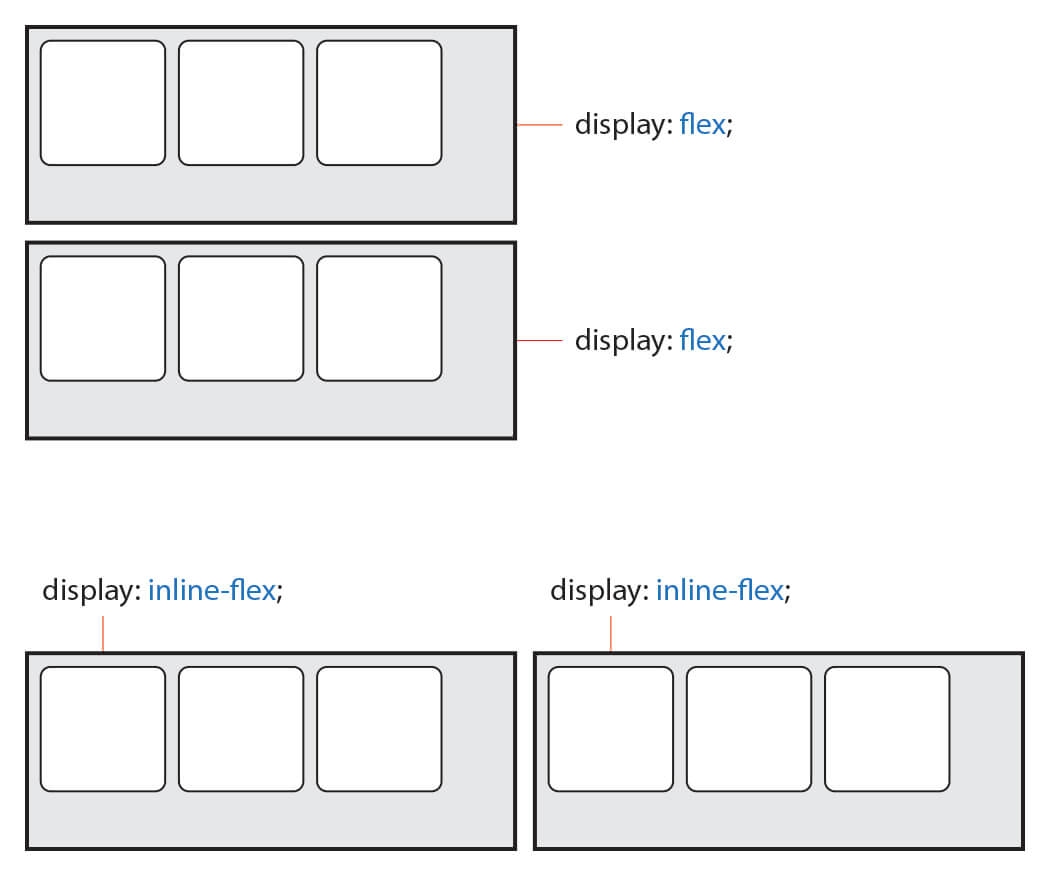
The difference between flex and inline-flex is simple.
A flex container set with display: flex; behaves like a block element (stacks vertically),
and a flex container set with display: inline-flex behaves like an inline (inline-block) element (stacks horizontally).
Note that the vertical and horizontal stacking here refers to the container, not the items.
The difference between the two values doesn't affect the items inside.
# flex-flow
This shorthand property sets the main axis of flex items and also sets whether the items wrap onto multiple lines.
1flex-flow: main-axis wrapping;
123.flex-container { flex-flow: row-reverse wrap; }
| Value | Meaning | Default |
|---|---|---|
| flex-direction | Sets the main axis of items | row |
| flex-wrap | Sets whether items wrap onto multiple lines | nowrap |
Let's look at each property.
# flex-direction
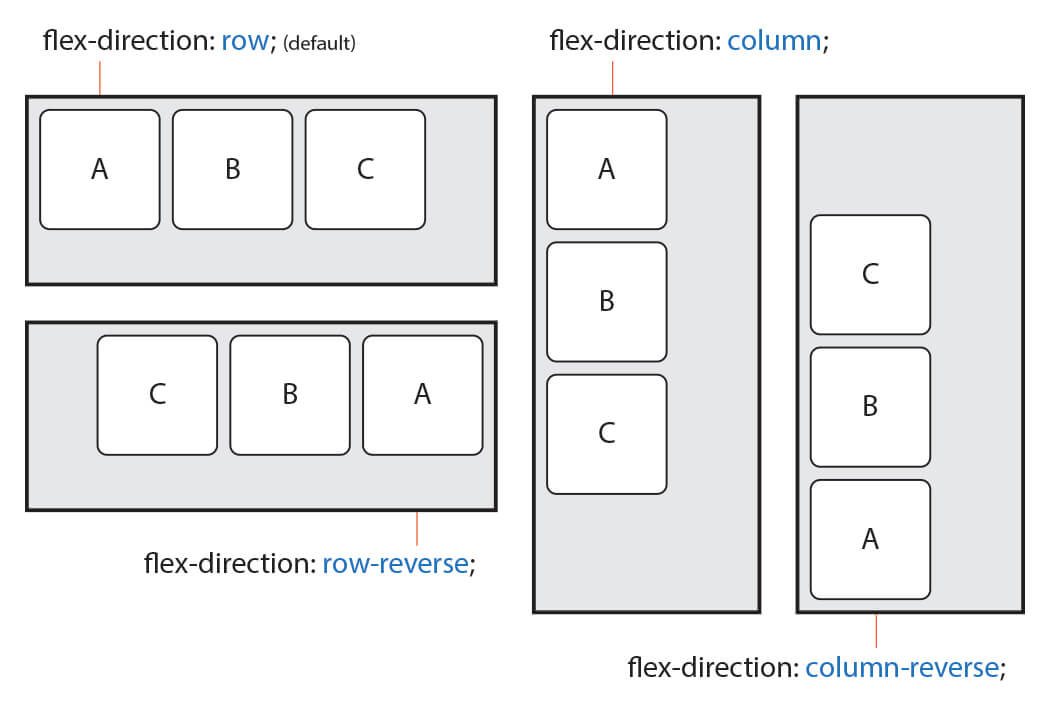
Sets the main axis of items.
| Value | Meaning | Default |
|---|---|---|
| row | Displays items along the horizontal axis (left to right) | row |
| row-reverse | Displays items along the axis opposite to row |
|
| column | Displays items along the vertical axis (top to bottom) | |
| column-reverse | Displays items along the axis opposite to column |
1flex-direction: main-axis;
# Main axis and cross axis
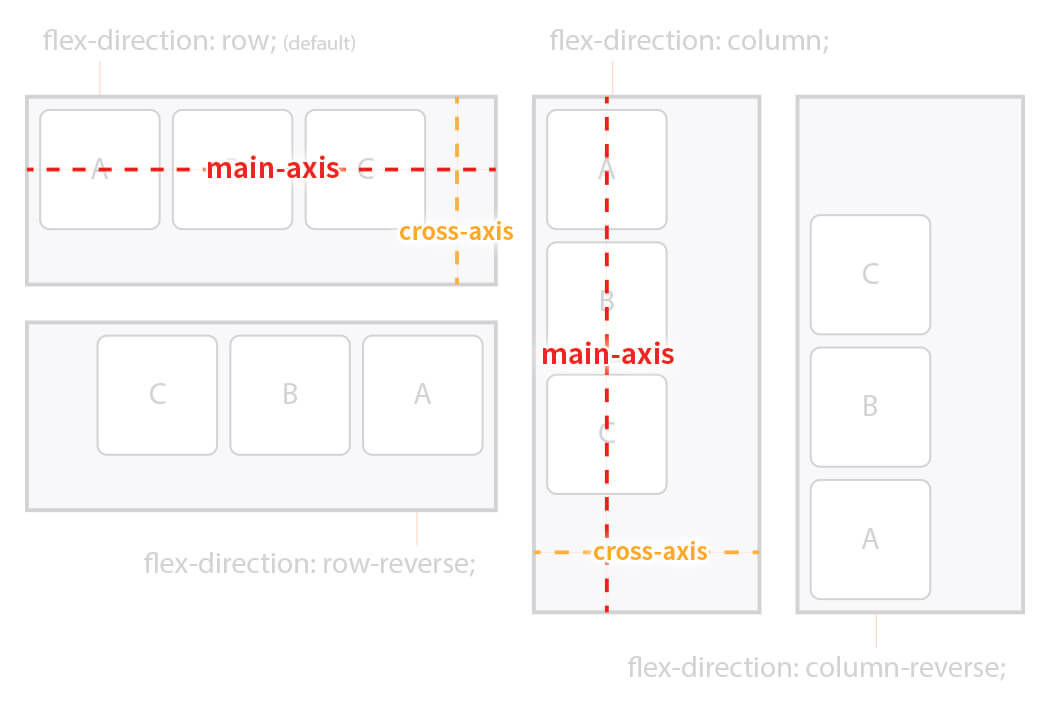
Here is what the main axis and cross axis mentioned above mean.
The value row displays items along the horizontal axis, so the main axis is horizontal and the cross axis is vertical.
Conversely, the value column displays items along the vertical axis, so the main axis is vertical and the cross axis is horizontal.
In other words, the main axis and cross axis change depending on the direction (horizontal or vertical).
# Start (flex-start) and end (flex-end)
There are also the concepts of start (flex-start) and end (flex-end).
They refer to the point where the main axis or cross axis begins and the point where it ends.
These also change depending on the direction.
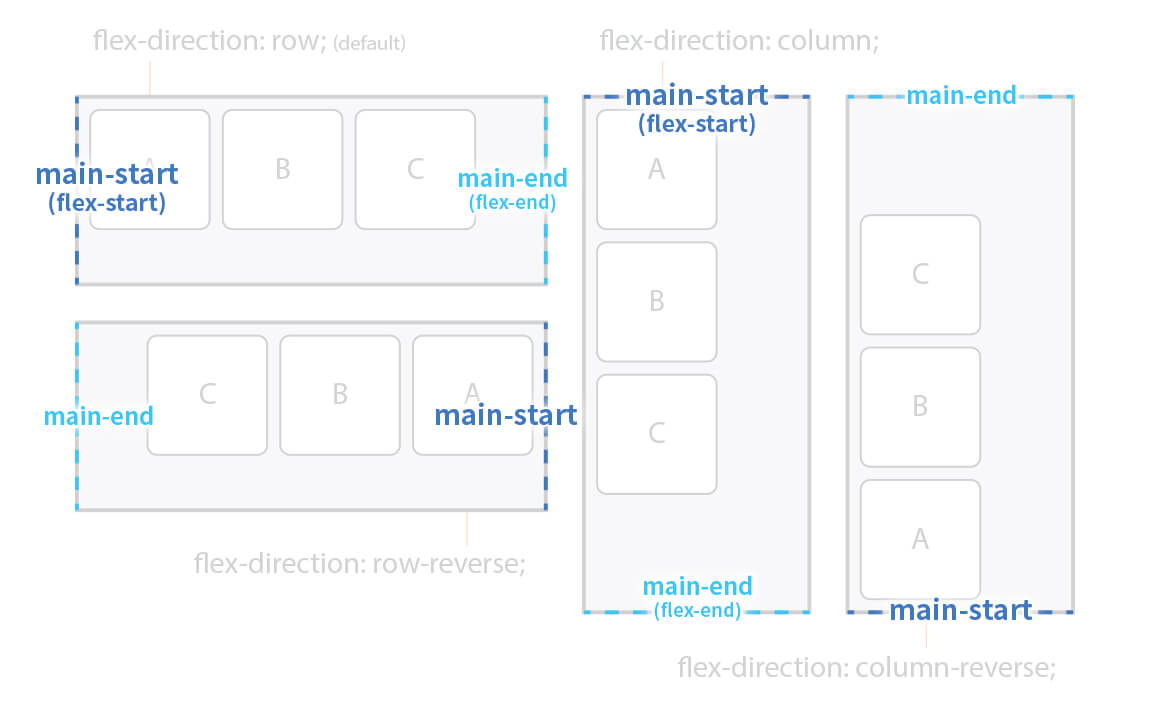
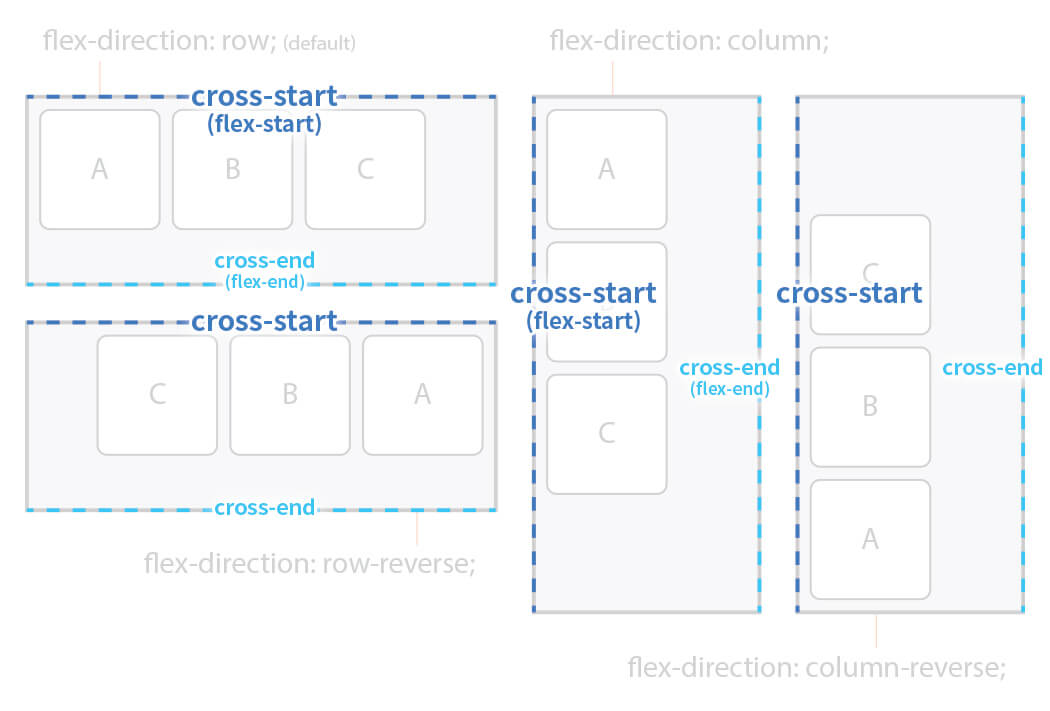
Some properties covered later take flex-start and flex-end as values, and these mean the start and end that match the direction.
# flex-wrap
Sets whether items wrap onto multiple lines.
| Value | Meaning | Default |
|---|---|---|
| nowrap | Doesn't wrap any items (shows them on one line) | nowrap |
| wrap | Wraps items onto multiple lines | |
| wrap-reverse | Wraps items onto multiple lines in the reverse direction of wrap |
1flex-wrap: wrapping;
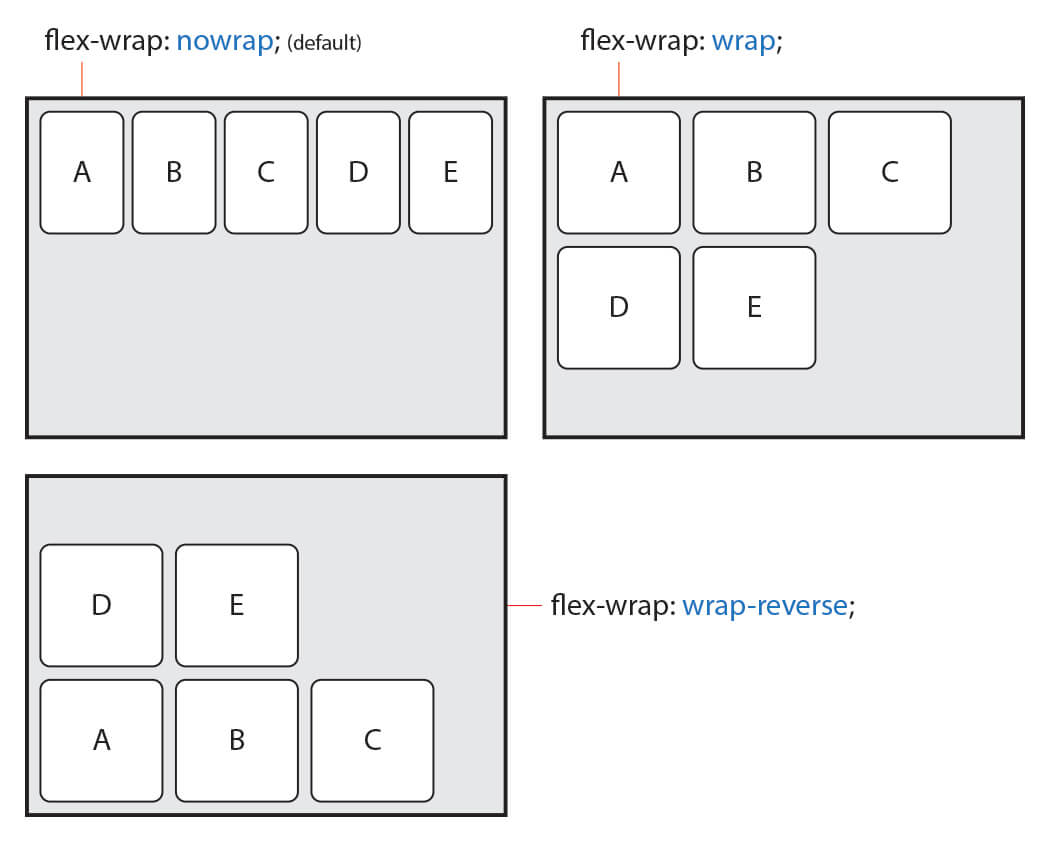
By default, items are displayed on a single line and don't wrap.
They ignore their specified size (width or height, depending on the main axis) and flex within that single line.
To make items wrap, you need to use the value wrap.
# justify-content
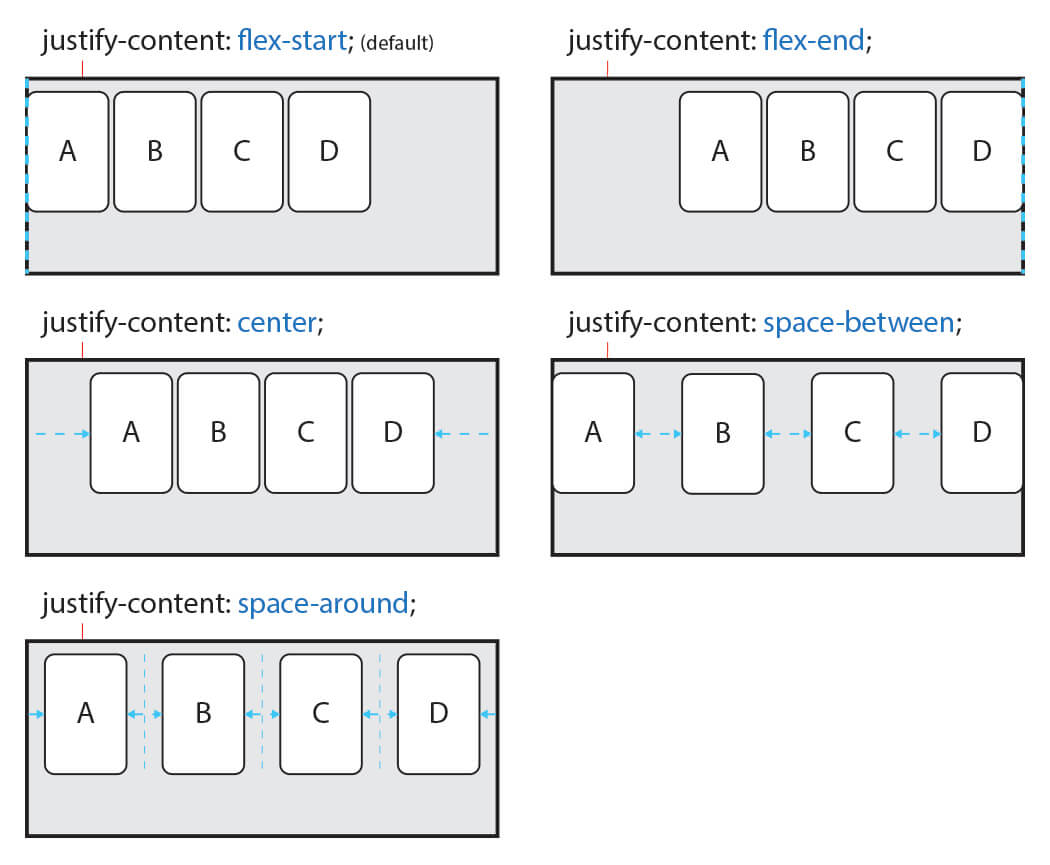
Sets the alignment along the main axis.
| Value | Meaning | Default |
|---|---|---|
| flex-start(start) | Aligns items to the start | flex-start |
| flex-end(end) | Aligns items to the end | |
| center | Centers items | |
| space-around | Distributes space evenly on both sides of each item | |
| space-between | Places the first item at the start and the last item at the end, then distributes the remaining space evenly | |
| space-evenly | Distributes all space evenly |
1justify-content: alignment;
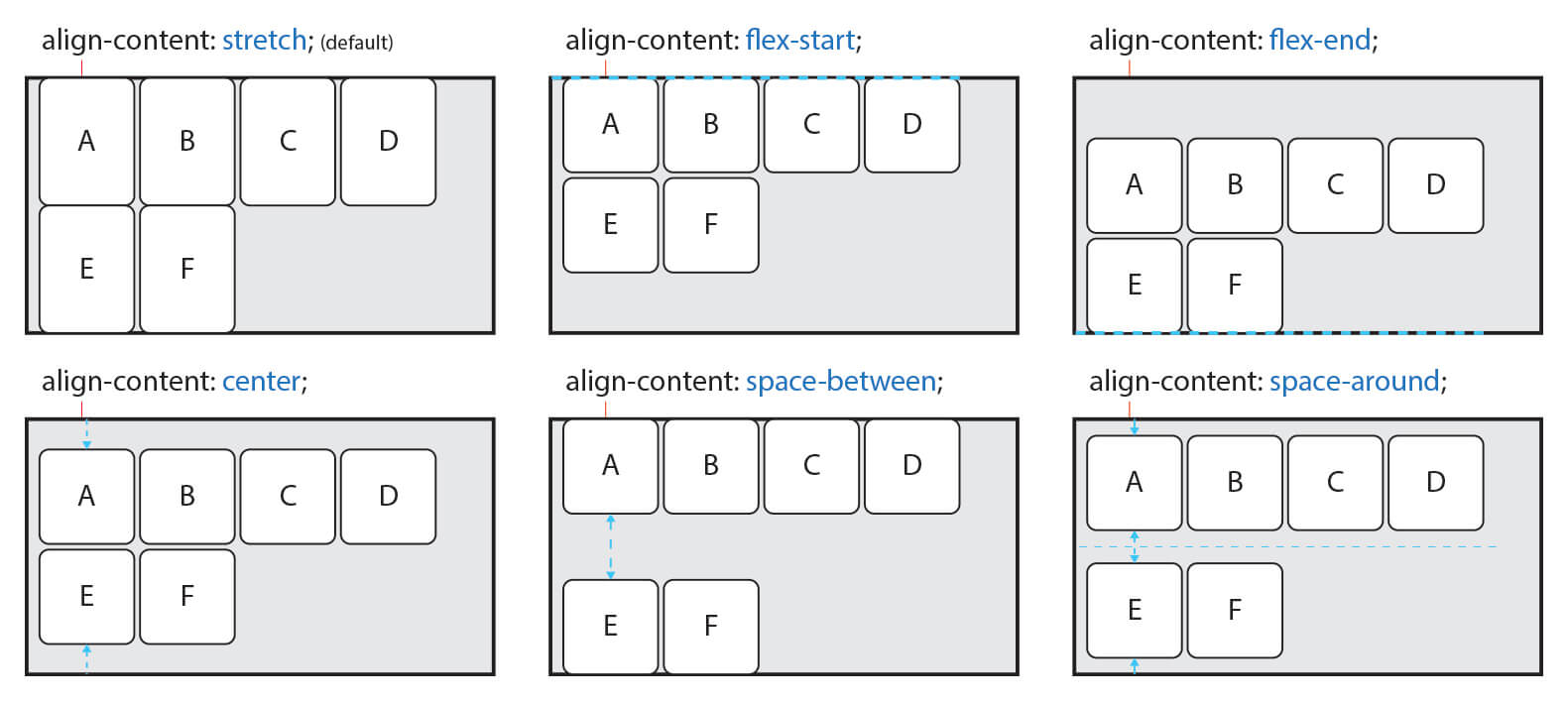
# align-content
Sets the alignment along the cross axis.
Note that it only works when the items span multiple lines (2 or more) through the flex-wrap property and there is free space.
If the items are on a single line, use the
align-itemsproperty.
| Value | Meaning | Default |
|---|---|---|
| stretch | Stretches items to fill the container's cross axis | stretch |
| flex-start(start) | Aligns items to the start | |
| flex-end(end) | Aligns items to the end | |
| center | Centers items | |
| space-around | Distributes space evenly on both sides of each item | |
| space-between | Places the first item at the start and the last item at the end, then distributes the remaining space evenly | |
| space-evenly | Distributes all space evenly |
1align-content: alignment;
With the value stretch, if the item's size along the cross axis (the width or height property) is auto (the default), the item automatically stretches to fill the cross axis.
# align-items
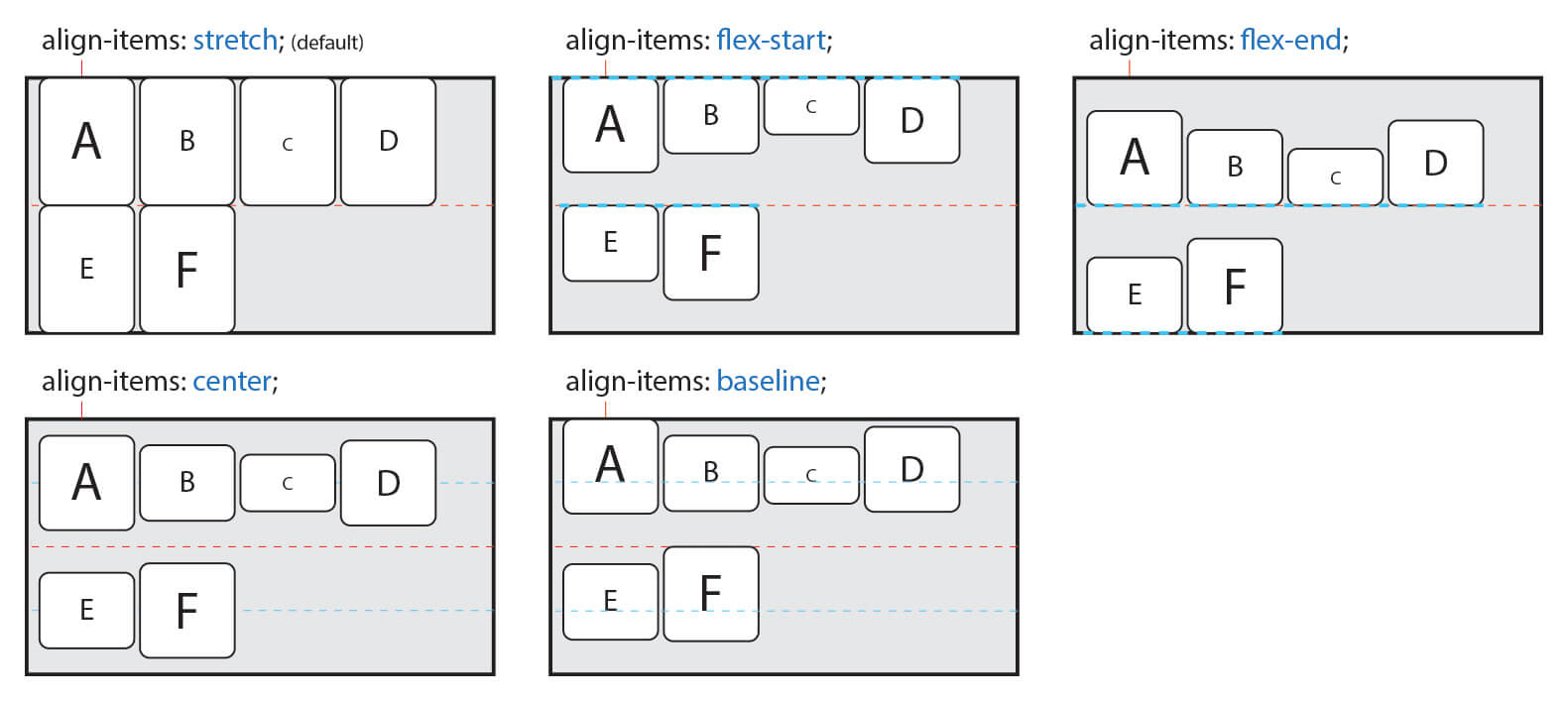
Sets how items align on the cross axis.
It's mostly used when the items are on a single line.
Note that when the items span multiple lines (2 or more) through flex-wrap, the align-content property takes precedence.
So to use align-items, you need to set align-content to its default value (stretch).
| Value | Meaning | Default |
|---|---|---|
| stretch | Stretches items to fill the container's cross axis | stretch |
| flex-start(start) | Aligns items to the start of each line | |
| flex-end(end) | Aligns items to the end of each line | |
| center | Centers items in each line | |
| baseline | Aligns items to the text baseline |
1align-items: alignment;
# gap
Sets the spacing between items.
| Value | Meaning | Default |
|---|---|---|
| Length | Specified in units such as px, em, or cm | 0 |
# Flex items
The properties for flex items are as follows.
| Property | Meaning |
|---|---|
| order | Sets the order of a flex item |
| flex | Shorthand for flex-grow, flex-shrink, and flex-basis |
| flex-grow | Sets the growth ratio of a flex item's width |
| flex-shrink | Sets the shrink ratio of a flex item's width |
| flex-basis | Sets the base width of a flex item (before space is distributed) |
| align-self | Sets how an item aligns on the cross axis |
# order
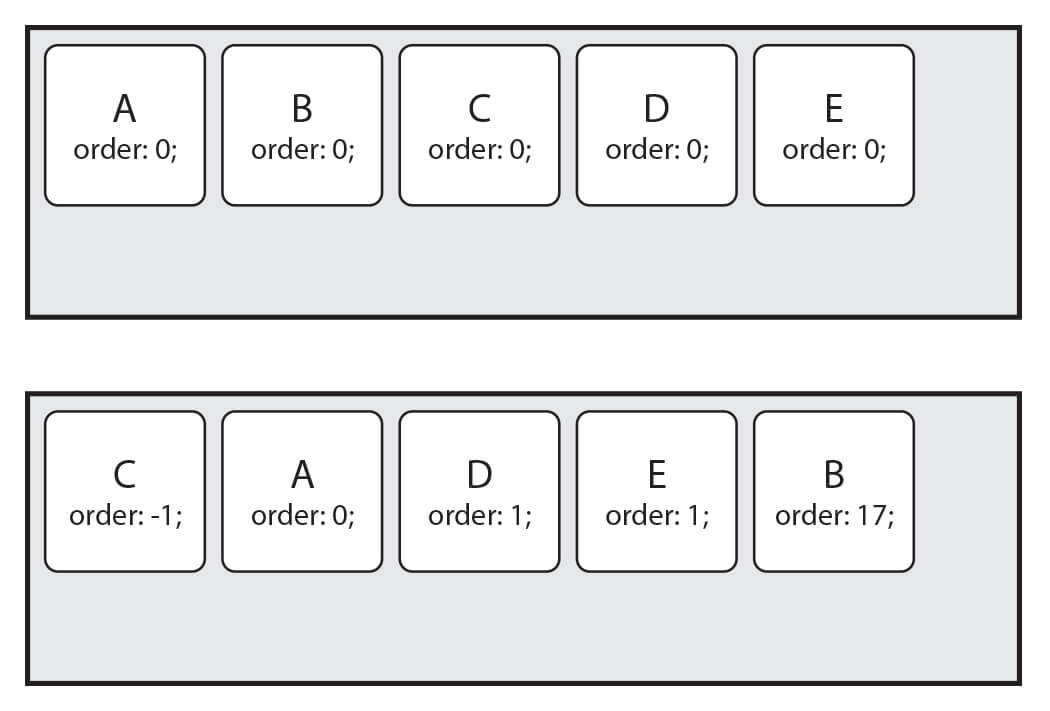
Sets the order of an item.
You give each item a number, and the larger the number, the later it comes.
Negative numbers are allowed.
This is useful because you can change the order regardless of the HTML structure.
| Value | Meaning | Default |
|---|---|---|
| Number | Sets the order of the item | 0 |
1order: number;
# flex
A shorthand property that sets an item's width (grow, shrink, and base).
| Value | Meaning | Default |
|---|---|---|
| flex-grow | Sets the growth ratio of the item's width | 0 |
| flex-shrink | Sets the shrink ratio of the item's width | 1 |
| flex-basis | Sets the base width of the item (before space is distributed) | auto |
1flex: grow shrink basis;
12345.item { flex: 1 1 20px; /* grow shrink basis */ flex: 1 1; /* grow shrink */ flex: 1 20px; /* grow basis (a value with a unit is applied as flex-basis) */ }
You can omit each individual value except flex-grow.
If you write flex: 1;, it's the same as flex-grow: 1;.
Then the omitted properties get their default values, so they become flex-shrink: 1; and flex-basis: auto;, right?
In other words, you might think flex: 1; or flex: 1 1; is the same as flex: 1 1 auto;, but it isn't.
The default value of flex-basis is auto, but if you omit it in the flex shorthand, 0 is applied.
To put it another way, flex: 1; or flex: 1 1; becomes flex: 1 1 0;.
If you don't keep this in mind, you may get unexpected results, so be careful!
# flex-grow
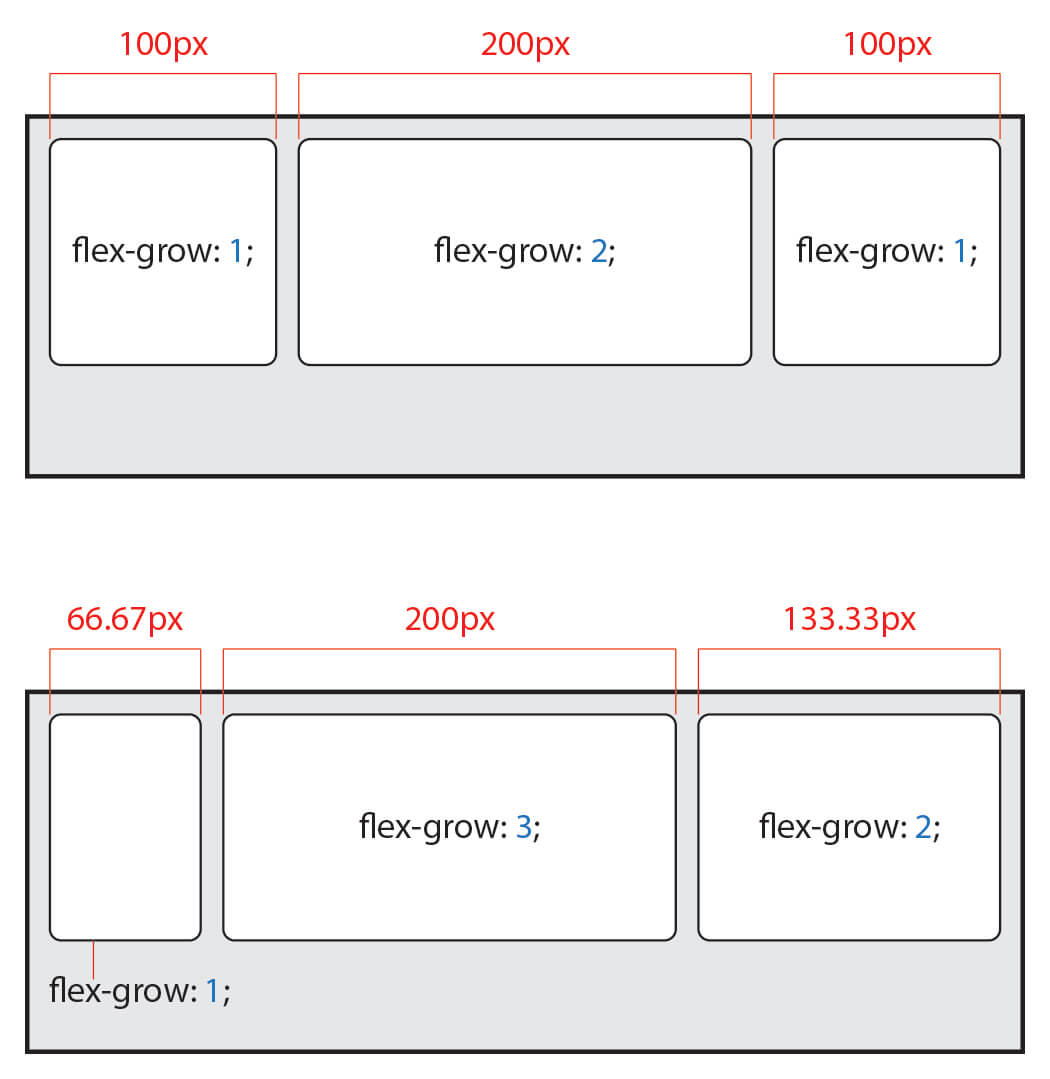
Sets the growth ratio of an item's width.
The larger the number, the more width the item gets.
It has no effect if the item doesn't have a flexible width or if the value is 0.
| Value | Meaning | Default |
|---|---|---|
| Number | Sets the growth ratio of the item's width | 0 |
1flex-grow: grow;
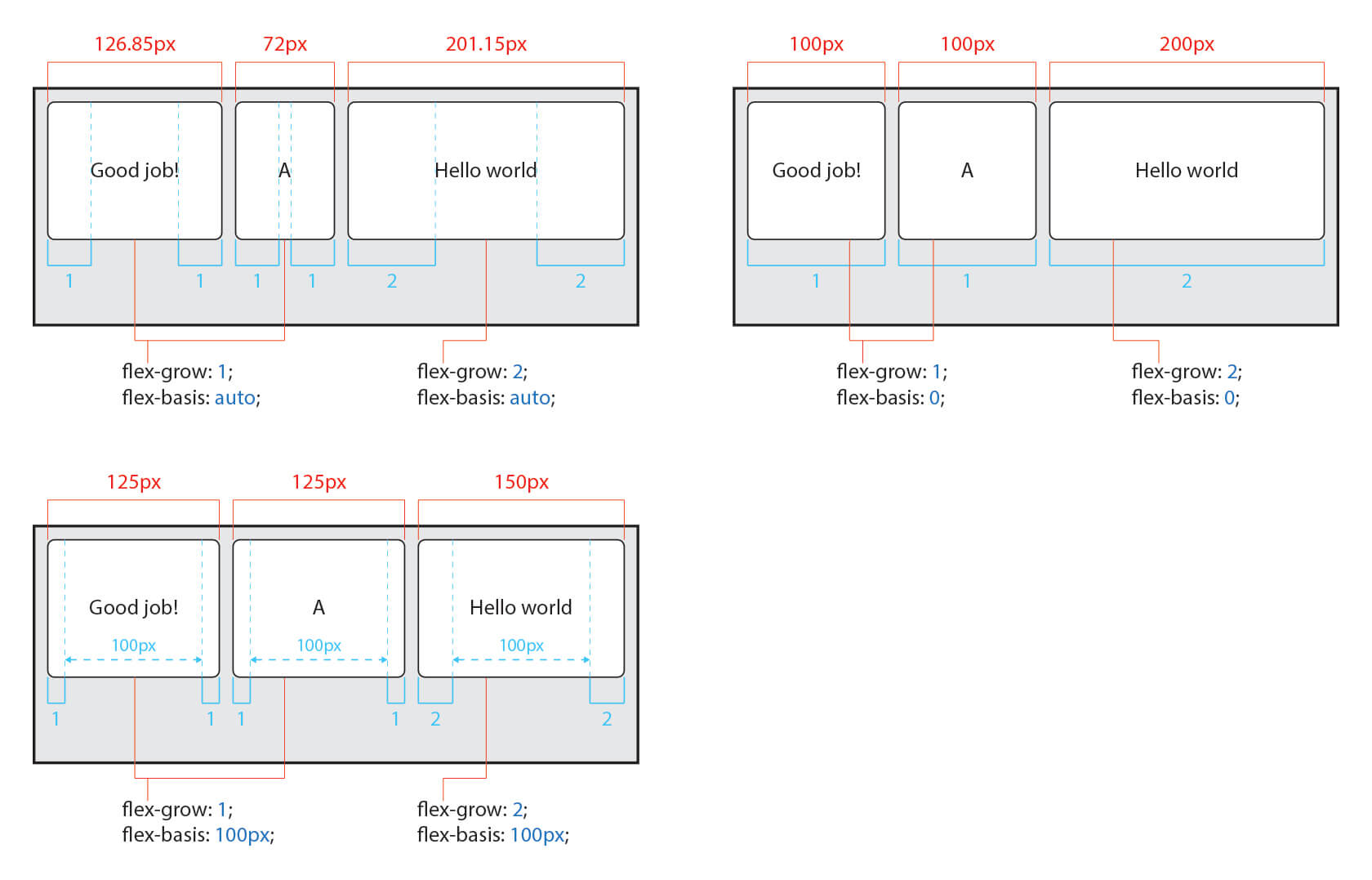
Each item gets width in proportion to its own grow value out of the total grow values (flex-grow) of all items.
For example, if there are 3 items with grow values of 1, 2, and 1,
the first item gets 25% (1/4) of the total width,
the second item gets 50% (2/4) of the total width,
and the third item gets 25% (1/4) of the total width.
# flex-shrink
Sets the ratio by which an item's width shrinks.
The larger the number, the more width the item loses.
It has no effect if the item doesn't have a flexible width or if the value is 0.
| Value | Meaning | Default |
|---|---|---|
| Number | Sets the shrink ratio of the item's width | 1 |
1flex-shrink: shrink;
The shrink value (flex-shrink) is tricky to calculate because it depends on the element's width.
Here, the element's width means a width set with width, height, flex-basis, and so on.
When the container gets narrow enough to affect the items' widths, each item shrinks, in proportion to its shrink ratio, by the distance the container has shrunk since that point.
For example, say the container shrinks, and the actual distance it has shrunk since it began to affect the items' widths is 90px.
If there are 2 items of the same element width with shrink values of 2 and 1,
the shrink ratio is 2:1,
so the first item shrinks by 60px, which is 2/3 of 90px,
and the second item shrinks by 30px, which is 1/3 of 90px.
As another example, say the container shrinks, and the actual distance it has shrunk since it began to affect the items' widths is 90px.
If there are 2 items of different element widths, 200 and 100,
with shrink values of 2 and 1,
then 200 x 2 = 400 and 100 x 1 = 100, so the shrink ratio is 4:1,
the first item shrinks by 72px, which is 4/5 of 90px,
and the second item shrinks by 18px, which is 1/5 of 90px.
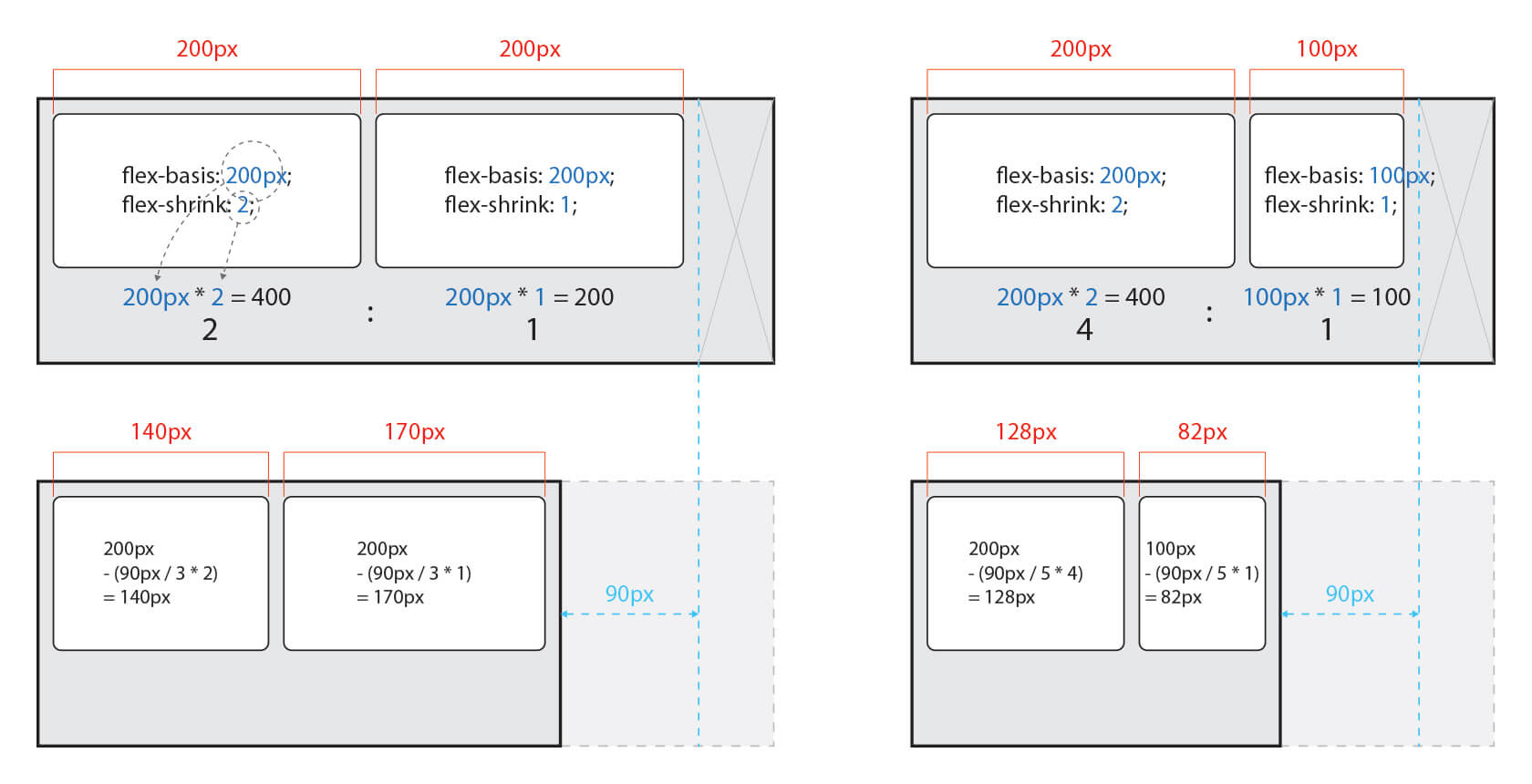
Because the calculation is tricky, I think it's a little less useful in practice.
Just understand the principle and move on.
# flex-basis
Sets the base width of an item (before space is distributed).
If the value is auto, you can set the item's width with properties such as width and height.
If a value with a unit is given, however, you can't set it that way.
| Value | Meaning | Default |
|---|---|---|
| auto | Same width as the flexible item | auto |
| Length | Specified in units such as px, em, or cm |
1flex-basis: basis;
As explained for the flex property, be careful: if you omit flex-basis in the shorthand, its value becomes 0.
# align-self
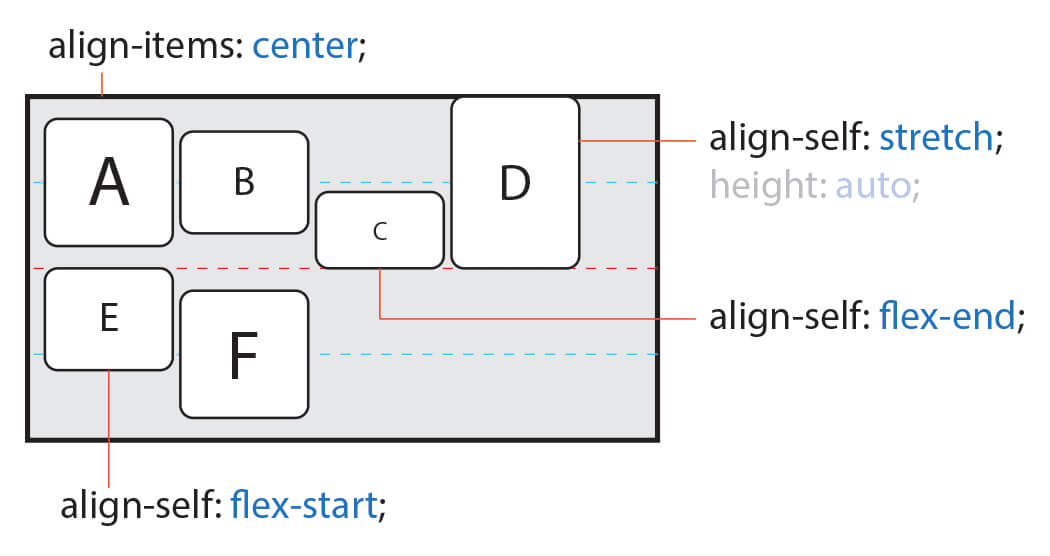
Sets how an individual item aligns on the cross axis.
align-items sets the alignment of all items in the container.
If you need to change the alignment of only some items, you can use align-self.
This property takes precedence over the align-items property.
| Value | Meaning | Default |
|---|---|---|
| auto | Inherits the container's align-items value |
auto |
| stretch | Stretches the item to fill the container's cross axis | |
| flex-start(start) | Aligns the item to the start of each line | |
| flex-end(end) | Aligns the item to the end of each line | |
| center | Centers the item | |
| baseline | Aligns the item to the text baseline |
1align-self: alignment;
Thanks for reading to the end.
Likes and kind comments help keep this blog going!