CSS ::before and ::after Selectors
The CSS ::before and ::after pseudo-element selectors let you add content inside a specific HTML element with CSS.
You can add or change visual elements without changing the HTML structure, so you can build more dynamic and polished web pages.
# Basic structure
You can insert new content at the very beginning (before) or the very end (after) of a specific HTML element's content with the CSS content property.
So the content property is required.
123456selector::before { content: ""; } selector::after { content: ""; }
All child nodes of an element can be called its content.
In the following example, everything inside the .container element, including .item, is content.
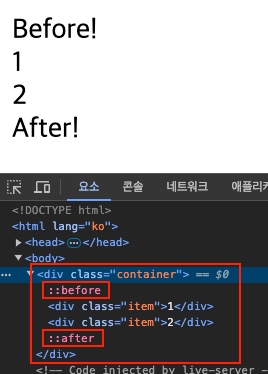
With CSS ::before and ::after, we add Before! at the very beginning of the target's (.container) content and After! at the very end.
1234<div class="container"> <div class="item">1</div> <div class="item">2</div> </div>
123456.container::before { content: "Before!"; } .container::after { content: "After!"; }
You can see where the pseudo-elements are in the Elements tab of the browser's developer tools.
# Key features
Let's look at some important features of the ::before and ::after selectors.
- The
contentproperty is required. - They are created as inline elements (
inline), and you can change their type (block,inline-block, etc.) with thedisplayproperty as needed. - They don't exist in the actual HTML structure, so they should not contain structurally important information.
- You can apply a wide range of CSS (size, color, position, animation, etc.).
- You can show additional visual elements without modifying the HTML structure.
- CSS2 used a single colon, as in
:before, but since CSS3, a double colon is used, as in::before, to distinguish them from pseudo-class selectors.
# Examples
The before and after pseudo-element selectors are very useful because they let you add elements with CSS.
Let's see how you can actually use these selectors through the following examples.
# Quotation marks
When you mark up a quotation with the <blockquote> tag, you can add double quotation marks automatically.
1<blockquote>While there is life, there is hope - Cicero</blockquote>
The Unicode values \201C and \201D mean double quotation marks.
The value of the content property is written in double quotes (""), so we use Unicode to express the double quotation mark characters.
12345678910111213141516171819blockquote { margin: 0; font-size: 30px; } blockquote::before, blockquote::after { font-size: 3em; line-height: 0.1em; vertical-align: -0.5em; font-family: sans-serif; } blockquote::before { content: "\201C"; margin-right: 0.1em; } blockquote::after { content: "\201D"; margin-left: 0.1em; }
# Simple tooltip
This example shows a tooltip when you hover the mouse pointer over a specific element.
Add the text to show in the tooltip to the data-tooltip attribute.
Then add a data-tooltip-direction attribute to specify the direction in which the tooltip appears.
HTML data-* attributes are for storing simple data on an element, and you can use them in CSS or JavaScript.
123456789101112131415161718<div class="btns"> <button data-tooltip="Shows the search results." data-tooltip-bottom> <span class="material-symbols-outlined">search</span> <span class="material-symbols-outlined">keyboard_arrow_down</span> </button> <button data-tooltip="Shows the search results." data-tooltip-top> <span class="material-symbols-outlined">search</span> <span class="material-symbols-outlined">keyboard_arrow_up</span> </button> <button data-tooltip="Shows the search results." data-tooltip-right> <span class="material-symbols-outlined">search</span> <span class="material-symbols-outlined">keyboard_arrow_right</span> </button> <button data-tooltip="Shows the search results." data-tooltip-left> <span class="material-symbols-outlined">search</span> <span class="material-symbols-outlined">keyboard_arrow_left</span> </button> </div>
With the CSS attr() function, you can get the value of an attribute added to the element.
With the CSS calc() function, you calculate the position so that the tooltip appears correctly regardless of the element's size.
1234567891011121314151617181920212223242526272829303132333435363738394041424344454647484950515253545556575859606162636465666768697071727374757677787980818283.btns { display: flex; gap: 20px; } button { width: max-content; height: 40px; padding: 0 12px; border: none; outline: none; border-radius: 6px; background-color: royalblue; color: #fff; font-size: 16px; cursor: pointer; display: flex; justify-content: center; align-items: center; position: relative; user-select: none; } button:hover { filter: brightness(1.1); } [data-tooltip] { position: relative; } [data-tooltip]:hover { z-index: 1; } [data-tooltip]::after { --gap: 6px; /* Gap between the element and the tooltip */ content: attr(data-tooltip); padding: 6px 10px; border-radius: 4px; background-color: rgba(0,0,0,0.7); color: #fff; font-size: 12px; white-space: nowrap; position: absolute; top: calc(100% + var(--gap)); /* Default direction: bottom */ left: 50%; transition: opacity 0.3s; transform: translateX(-50%); opacity: 0; visibility: hidden; } [data-tooltip]:hover::after { opacity: 1; visibility: visible; } /* TOP */ [data-tooltip][data-tooltip-top]::after { top: initial; bottom: calc(100% + var(--gap)); left: 50%; right: initial; transform: translateX(-50%); } /* BOTTOM */ [data-tooltip][data-tooltip-bottom]::after { top: calc(100% + var(--gap)); bottom: initial; left: 50%; right: initial; transform: translateX(-50%); } /* RIGHT */ [data-tooltip][data-tooltip-right]::after { top: 50%; bottom: initial; left: calc(100% + var(--gap)); right: initial; transform: translateY(-50%); } /* LEFT */ [data-tooltip][data-tooltip-left]::after { top: 50%; bottom: initial; left: initial; right: calc(100% + var(--gap)); transform: translateY(-50%); }
# Numbering
This example numbers specific elements in order.
You can number them with the counter-reset and counter-increment properties and the counter() function.
The sections are listed in order, and each one contains a title in an <h2> tag.
You could type the numbers yourself, but if the order changes, you would have to type the numbers again to match the new order.
Instead of typing numbers in HTML, you can number them automatically with a counter in CSS.
12345678910111213141516171819202122<main> <section> <h2>Requirements analysis</h2> <p>Define the project's goals and required features, and gather user needs to set clear requirements.</p> </section> <section> <h2>Design phase</h2> <p>Design the system structure and data flow, including the UI/UX design. Build prototypes to visualize early ideas.</p> </section> <section> <h2>Development phase</h2> <p>Carry out frontend and backend development, writing code and implementing features. Testing also takes place in this phase.</p> </section> <section> <h2>Testing phase</h2> <p>Verify the features of the developed web application and fix bugs. Get feedback through user testing.</p> </section> <section> <h2>Deployment and maintenance</h2> <p>Deploy the finished web application to a server, and keep updating and maintaining it based on user feedback.</p> </section> </main>
The CSS counter-reset property initializes a counter named section.
You must initialize it on the parent element that contains all the counter elements.
Then, each time a counter element (h2::before) is output, the counter-increment property increases the number by one.
After that, you can get the current counter value with the counter() function.
In the following example, the number is combined with the ) symbol to number each section.
123456789101112131415161718192021222324main { counter-reset: section; width: 500px; margin: 20px; padding: 10px; border: 10px solid; } section { padding: 20px; } section h2 { font-size: 30px; font-weight: 700; margin-bottom: 14px; } section h2::before { counter-increment: section; content: counter(section) ")"; margin-right: 0.3em; font-family: monospace; } section p { line-height: 1.4; }
# Custom bullets
A bullet is the symbol or shape shown in front of each item in a list, and you can change it to any shape you want with pseudo-element selectors.
In list tags, you can also set the bullet with the list-style-type property, but with pseudo-elements, you can apply your own style using emojis, images, and more, as follows.
123456789101112131415161718<ul class="default"> <li>Apple</li> <li>Banana</li> <li>Cherry</li> <li>Lemon</li> </ul> <ul class="attribute"> <li data-emoji="🍎">Apple</li> <li data-emoji="🍌">Banana</li> <li data-emoji="🍒">Cherry</li> <li data-emoji="🍋">Lemon</li> </ul> <ul class="image"> <li>Apple</li> <li>Banana</li> <li>Cherry</li> <li>Lemon</li> </ul>
If you use the url() function in the content property, the image is added, but you can't resize it.
So we set the image as the background of the pseudo-element so that its size can be adjusted.
Using the em unit is effective because the bullet's size also changes to match the element's font size.
123456789101112131415161718192021222324252627282930313233343536373839404142434445body { padding: 20px; } ul { list-style: none; padding-left: 0.2em; } li { position: relative; padding-left: 0.6em; font-size: 30px; } /* default */ ul.default li::before { content: ""; width: 0.2em; height: 0.2em; background-color: red; position: absolute; left: 0; top: 50%; transform: translateY(-50%); } /* attribute / attr() */ ul.attribute li::before { content: attr(data-emoji); font-size: 0.6em; position: absolute; left: -0.4em; top: 50%; transform: translateY(-50%); } /* image / url() */ ul.image li::before { --size: 0.7em; content: ""; width: var(--size); height: var(--size); background-image: url(https://heropy.dev/favicon.png); background-size: cover; position: absolute; left: -0.3em; top: 50%; transform: translateY(-50%); }
# Adding shapes
With pseudo-elements, you can go beyond basic rectangles and create more complex shapes.
12345<div class="shapes"> <div class="shape shape--large">L</div> <div class="shape shape--medium">M</div> <div class="shape shape--small">S</div> </div>
With CSS variables, you can easily change or calculate each element's size, color, and so on.
You can make a triangle with the border property by taking advantage of the fact that the borders on each side meet at a diagonal.
123456789101112131415161718192021222324252627282930313233343536373839404142434445464748.shapes { display: flex; flex-direction: column; gap: 20px; } .shape { --width: 90px; --height: 60px; --font-size: 30px; --color: white; --background-color: red; width: var(--width); height: var(--height); font-size: var(--font-size); font-weight: 700; line-height: 1; color: var(--color); background: var(--background-color); position: relative; display: flex; justify-content: center; align-items: center; } .shape--medium { --width: 60px; --height: 40px; --font-size: 20px; --background-color: orange; } .shape--small { --width: 30px; --height: 20px; --font-size: 10px; --background-color: green; } .shape::before { --size: calc(var(--height) / 2); content: ""; position: absolute; top: 0; right: calc(var(--size) * -1); /* Make a triangle */ width: 0; height: 0; border-left: var(--size) solid var(--background-color); border-top: var(--size) solid transparent; border-bottom: var(--size) solid transparent; }
# Active indicator
This example marks the active tab among several tab menus.
We want to show an underline on the active tab, and if we add it as a pseudo-element, we can add the style without changing the structure.
Of course, you can also add a decoration in a shape other than an underline!
The active tab has the active class.
We combine selectors (li:hover::after) so that the style is applied to the pseudo-element (so that it appears) when you hover over each tab (li).
If you write li::after:hover instead, it means applying the style when you hover over the pseudo-element, not the tab element, so it does not work properly.
123456<ul class="tabs"> <li class="active">Home</li> <li>Posts</li> <li>Portfolio</li> <li>Contact</li> </ul>
1234567891011121314151617181920212223242526272829303132333435363738.tabs { display: flex; list-style-type: none; padding: 0; margin: 0; } .tabs li { padding: 14px 20px; color: #333; font-size: 18px; line-height: 1; background-color: #f8f8f8; position: relative; transition: color 0.3s ease; cursor: pointer; } .tabs li.active { color: royalblue; } .tabs li::after { content: ""; position: absolute; bottom: 0; left: 0; width: 0; height: 2px; background-color: royalblue; transition: 0.3s; opacity: 0; } .tabs li:hover::after { width: 100%; opacity: 0.5; } .tabs li.active::after { width: 100%; opacity: 1; }
To make each tab active when you select it, you need a little JavaScript code.
It adds the active class only to the selected tab element and removes it from the other tab elements.
123456789const tabsEl = document.querySelector('.tabs') const tabEls = tabsEl.querySelectorAll('li') tabsEl.addEventListener('click', event => { if (event.target.closest('li')) { tabEls.forEach(el => el.classList.remove('active')) event.target.classList.add('active') } })
# Responsive layout
Without using JavaScript, you can use the content property of a pseudo-element to add different text depending on the viewport size.
12345678910111213141516body::after { content: "Desktop"; color: red; } @media (max-width: 992px) { body::after { content: "Tablet"; color: royalblue; } } @media (max-width: 576px) { body::after { content: "Mobile"; color: green; } }
# Gradient border
Instead of a single-color border, you can add a gradient border where the colors flow smoothly.
Strictly speaking, of course, it is not a line but an optical illusion that looks like one.
1<button>Hello World</button>
Create a pseudo-element slightly larger than the button, place it in the center, and apply a gradient effect with the linear-gradient() function.
A CSS gradient must be set as the element's background image, not its background color.
So you cannot use a transition directly on a gradient.
1234567891011121314151617181920212223242526272829body { --background-color: white; background-color: var(--background-color); } button { width: max-content; padding: 0.5em 1em; border: none; outline: none; border-radius: 999px; background-color: var(--background-color); font-size: 30px; font-weight: 700; color: navy; position: relative; display: flex; justify-content: center; align-items: center; } button::after { --border-width: 10px; content: ""; width: calc(100% + var(--border-width)); height: calc(100% + var(--border-width)); border-radius: 999px; background-image: linear-gradient(to bottom right, red, blue); position: absolute; z-index: -1; }
Thanks for reading to the end.
Likes and kind comments help keep this blog going!