Installing and Using Yarn
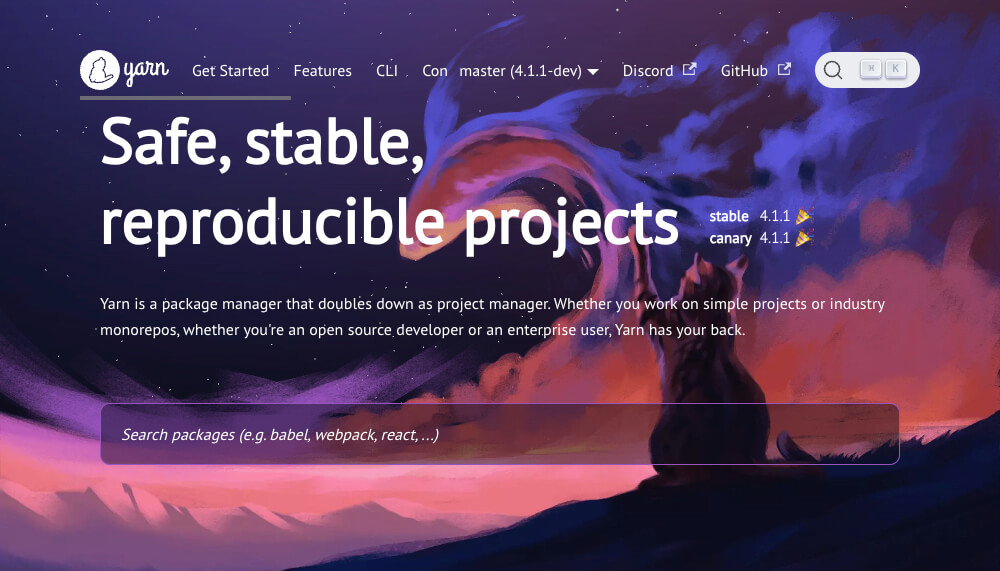
Let's try Yarn, the JavaScript package manager created by Meta (formerly Facebook).
# Installing Yarn
You can install Yarn on a variety of operating systems.
# macOS
Install it with Homebrew:
1brew install yarn
If you manage Node.js with a version manager such as NVM, leave out the Node.js install:
1brew install yarn --without-node
# Windows
Install it with Chocolatey:
1choco install yarn
Or install it with Scoop:
1scoop install yarn
# npm
You can also install it with npm.
1npm install -g yarn
Check that the installation worked:
1yarn --version
If you can't run it globally after installing, you need to add it to your PATH.
Add the following to .profile, .bash_profile, .bashrc, .zshrc, or a similar file:
1export PATH="$PATH:/opt/yarn-[version]/bin"
# Using Yarn
If you've used npm before, this will feel familiar.
To initialize a new project (this creates package.json):
1yarn init
To install the dependencies listed in package.json:
123yarn # or yarn install
To add a dependency:
123yarn add [package] yarn add [package]@[version] yarn add [package]@[tag]
To add a dependency to another category, such as devDependencies, peerDependencies, or optionalDependencies:
123yarn add [package] --dev yarn add [package] --peer yarn add [package] --optional
To upgrade a dependency:
123yarn upgrade [package] yarn upgrade [package]@[version] yarn upgrade [package]@[tag]
To remove a dependency:
1yarn remove [package]
# yarn.lock
The yarn.lock file records the versions of the installed modules, so you get dependencies with the same versions and structure on every machine.
Yarn generates yarn.lock automatically every time you run yarn install.
It serves the same purpose as npm's package-lock.json.
Thanks for reading to the end.
Likes and kind comments help keep this blog going!