React Unit/E2E Test Automation with Vite/Next
This post introduces the basics of testing in a React project.
Through core concepts and simple examples, you'll learn how to write unit tests with Vitest and Testing Library, mock APIs with MSW, and write E2E tests with Cypress.
# Unit tests
A unit test checks that each of the smallest defined units, such as state, functions, modules, and components, works correctly on its own.
This improves the reliability of the whole program and reduces the burden of code refactoring.
- Tests the smallest defined units of code in isolation.
- Minimizes and mocks external dependencies.
- Runs fast and is easy to automate.
- Gives immediate feedback when code changes.
- Is usually written and maintained by developers themselves.
# Benefits of unit tests
- Finds problems early in development, which lowers the cost of fixing them.
- Lets you see the impact of changes right away, which makes development more stable.
- Naturally improves code structure and design as you write tests. (Code that is easy to test is usually well-designed code.)
- Prevents unexpected side effects when you change features or improve code. (Passing all tests ensures that existing features still work.)
- Well-written unit tests act as executable documentation. (They help new developers quickly understand how the system behaves.)
- Writing tests takes time in the short term, but in the long run it reduces time spent on bug fixes and maintenance, which speeds up overall development.
# Red-Green-Refactor
Red-Green-Refactor is the core cycle of Test-Driven Development (TDD), in which you repeat testing in three stages.
- Red stage: Write a test that fails (for a feature you haven't built yet).
- Green stage: Focus on implementation over quality and quickly write the minimum code that makes the test pass.
- Refactor stage: Improve the code by making it more readable, removing duplication, optimizing performance, and so on.
The following example fails, but it tells you what feature you need to build.
1export function add() {}
1234567import { add } from '../add' describe('add', () => { test('1 plus 2 should equal 3.', () => { expect(add(1, 2)).toBe(3) }) })
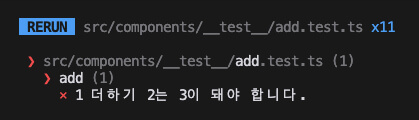
Once you build the feature and run the test again, the test passes.
123export function add(a: number, b: number) { return a + b }
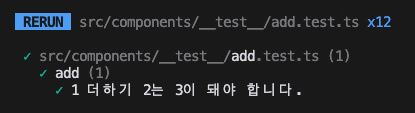
You can also change it to an arrow function to make it more concise, and declare the function's return type.
1export const add = (a: number, b: number): number => a + b
# Given-When-Then
Given-When-Then (or Arrange-Act-Assert) is a way of writing test scenarios that splits test code into a setup stage, an execution stage, and a verification stage, which makes the code more readable and easier to maintain.
The following example is test code that uses the Given-When-Then pattern.
It prepares the arguments to pass to the function, runs the function, and then verifies the result.
123456789101112131415import { add } from '../add' describe('add', () => { test('1 plus 2 should equal 3.', () => { // Given (Arrange, set up) const num1 = 1 const num2 = 2 // When (Act, run) const res = add(num1, num2) // Then (Assert, verify) expect(res).toBe(3) }) })
# Testing tools

Vitest is a testing framework that provides test groups (describe), test cases (test), assertions, a test runner (running tests, reporting results, and more), and full compatibility with Vite projects.
It's at least 10-20 times faster than Jest and supports ESM by default.
It also supports most of the Jest API, so if you've used Jest before, it's easier to understand and use.
Testing Library is a set of simple, intuitive testing utilities for user-centered testing.
As its creator put it, "The more your tests resemble the way your software is used, the more confidence they can give you." It encourages tests that imitate the behavior of real users.
# Setting up the test environment
First, set up a Vite project or a Next.js project, then install the required packages as follows.
1npm i -D vitest jsdom @testing-library/react @testing-library/dom @testing-library/user-event @testing-library/jest-dom @vitest/coverage-v8
1npm i -D vitest jsdom @testing-library/react @testing-library/dom @testing-library/user-event @testing-library/jest-dom @vitejs/plugin-react vite-tsconfig-paths @vitest/coverage-v8
- vitest: A fast, lightweight unit testing framework built on Vite. It provides a Jest-like API and a watch mode that instantly reruns only the changed files.
- jsdom: A library that simulates a browser environment in Node.js, so you can test with DOM APIs without a browser.
- @testing-library/react: A collection of lightweight utility functions for testing React components.
- @testing-library/dom: A collection of utility functions for testing DOM nodes, and the library that
@testing-library/reactand@testing-library/jest-domare built on. - @testing-library/user-event: A utility that simulates real user events, so you can test user interactions such as keyboard input and mouse clicks.
- @testing-library/jest-dom: Extends Jest's expect function with DOM-related matchers, enabling DOM-specific assertions such as
toBeInTheDocument()andtoHaveTextContent(). - @vitejs/plugin-react: In a Next.js project, lets the Vite-based Vitest understand JSX (TSX) syntax and handle React components.
- vite-tsconfig-paths: In a Next.js project, lets Vitest recognize the path aliases defined in TypeScript's
tsconfig.jsonconfiguration. - @vitest/coverage-v8: A package for Vitest coverage testing that uses the V8 engine.
Once the packages are installed, add a test script.
If you register it as the "test" script, you can run it in the terminal with npm t (npm test, npm run test).
If you want to tell it apart from E2E tests, it's also a good idea to add a :unit suffix.
The vitest command watches for file changes and doesn't exit.
In environments where it needs to run once and finish, such as CI, you must use the vitest run command.
123456{ "scripts": { "test": "vitest", "test:unit": "vitest" } }
Next, add the Vitest configuration.
For Vite.js, you need to include Vitest's type definitions in the vite.config.ts configuration file with a triple-slash directive (///) and a reference tag (<reference />).
The test.globals option lets you use the global functions in test files without import.
The test.environment option sets the test environment.test.setupFiles sets the files to run before the tests.test.exclude sets the paths to exclude from testing, and here it excludes in advance the Cypress and Playwright E2E test files (covered later) so that Vitest doesn't pick them up.
1234567891011121314151617181920/// <reference types="vitest/config" /> import { defineConfig } from 'vite' import react from '@vitejs/plugin-react' // https://vitejs.dev/config/ export default defineConfig({ plugins: [react()], test: { globals: true, environment: 'jsdom', setupFiles: ['vitest.setup.ts'], exclude: [ './node_modules/**', './dist/**', './cypress/**', './tests/**', './tests-examples/**' ] } })
For Next.js, create a vitest.config.mts file to provide the same environment as the Vite build tool.
The official Next.js docs recommend the .mts extension so that the file is treated as ESM even without the "type": "module" setting in package.json.
12345678910111213141516171819202122import { defineConfig } from 'vitest/config' import react from '@vitejs/plugin-react' import tsconfigPaths from 'vite-tsconfig-paths' export default defineConfig({ plugins: [ tsconfigPaths(), react() ], test: { globals: true, environment: 'jsdom', setupFiles: ['vitest.setup.ts'], exclude: [ './node_modules/**', './.next/**', './cypress/**', './tests/**', './tests-examples/**' ] } })
To use global functions like describe and test without import through the globals option, you need to add Vitest's global types to your TypeScript configuration to avoid type errors.
If your tsconfig.json file references a tsconfig.app.json file, add the option to the tsconfig.app.json file.
12345{ "compilerOptions": { "types": ["vitest/globals"] } }
Then add what should run before the tests to the vitest.setup.ts file.
Import the '@testing-library/jest-dom' module for DOM-specific assertions such as toBeInTheDocument() and toHaveTextContent().
1import '@testing-library/jest-dom'
You don't need to call the cleanup function, which cleans up rendered React components and resets the DOM, yourself.
That's because when Testing Library is imported, it checks whether a global afterEach function exists, and if it does, it registers afterEach(cleanup) on its own.
When the globals option is enabled, Vitest provides afterEach as a global function, so there's no extra code to write.
This keeps tests independent of each other and prevents one test from affecting the next.
On the other hand, if you don't use the globals option, there's no global afterEach function, so the automatic registration doesn't happen.
In that case, you need to add the cleanup yourself, as follows.
1234567import '@testing-library/jest-dom' import { afterEach } from 'vitest' import { cleanup } from '@testing-library/react' afterEach(() => { cleanup() })
# Writing your first component test
There's nothing in it yet, but we want the MovieList component to render a list of movies.
123export default function MovieList() { return <></> }
Let's write test code for a component for the first time.
The render function renders a component, and you can inspect the rendered component with the screen object.
The getByText method finds and returns an element by its text.
The toBeInTheDocument method checks whether the element passed to expect exists in the document.
12345678910import { render, screen } from '@testing-library/react' import MovieList from '@/components/MovieList' describe('MovieList', () => { test('Should render the movie list.', async () => { render(<MovieList />) expect(screen.getByText('Avengers: Infinity War')).toBeInTheDocument() expect(screen.getByText('Avengers: Endgame')).toBeInTheDocument() }) })
Render the movie list with simple mock (fake) data.
1234567891011121314151617181920212223242526272829303132import { useEffect, useState } from 'react' export interface Movie { imdbID: string Title: string } export default function MovieList() { const [movies, setMovies] = useState<Movie[]>([]) useEffect(() => { async function fetchMovies() { const movies = [ { imdbID: '1', Title: 'Avengers: Infinity War' }, { imdbID: '2', Title: 'Avengers: Endgame' } ] setMovies(movies) } fetchMovies() }, []) return ( <> <h2>Movie List!</h2> <ul> {movies?.map(movie => ( <li key={movie.imdbID}>{movie.Title}</li> ))} </ul> </> ) }
# Mocking
To make the MovieList component render a real movie list through an API, update the Movie type and the fetchMovies function as follows.
Now it can render the real movie list.
However, this structure makes the function inside the component hard to test from the outside.
123456789101112131415161718192021import { useEffect, useState } from 'react' export interface Movie { imdbID: string Title: string } export default function MovieList() { const [movies, setMovies] = useState<Movie[]>([]) useEffect(() => { async function fetchMovies() { const res = await fetch('https://omdbapi.com/?apikey=7035c60c&s=avengers') const { Search: movies } = await res.json() setMovies(movies) } fetchMovies() }, []) // ... }
So, for better testability and reusability, move the data fetching function into its own module, as follows.
This separates the component from the data fetching logic, so you can test each one independently.
12345678910export interface Movie { imdbID: string Title: string } export async function fetchMovies(title: string): Promise<Movie[]> { const res = await fetch(`https://omdbapi.com/?apikey=7035c60c&s=${title}`) const { Search } = await res.json() return Search }
12345678910111213141516171819202122import { useEffect, useState } from 'react' import { fetchMovies } from '@/fetchers/movie' import type { Movie } from '@/fetchers/movie' export default function MovieList() { const [movies, setMovies] = useState<Movie[]>([]) useEffect(() => { fetchMovies('avengers').then(setMovies) }, []) return ( <> <h2>Movie List!</h2> <ul> {movies.map(movie => ( <li key={movie.imdbID}>{movie.Title}</li> ))} </ul> </> ) }
In a test environment, it's often hard to use the real implementation as is.
For example, a function that depends on an external API incurs network costs, and a function that works directly with a database may leave the database modified after the tests run.
Also, a function that performs complex calculations may take a long time to run and slow down your tests.
These external factors make it hard to focus on the test itself.
This is where mock functions come in handy.
A mock function is, as the name says, a 'fake' function that you can control however you want.
You can use it in many ways: make it return a specific result instantly without any network cost, make it throw an error on purpose, track how many times the function was called, and more.
This minimizes the things that get in the way of testing, so you can focus fully on the logic you want to test.
[Mock]: Imitating the real thing and trying it out the same way.
The fetchMovies function that the MovieList component imports from the @/fetchers/movie module can only get the movie list through a network request, so we replace the fetchMovies function that the module returns with a mock function that returns mock data.
Creating mock functions or data like this is called mocking.
The vi object has a variety of utilities provided by Vitest.
The vi.mock function replaces a module with the return value of a callback.
The vi.fn function creates a mock function, and the mockResolvedValue method sets the async return value of the mock function.
Then, when you render the MovieList component, the fetchMovies function is replaced with the mock function and returns the mock data.
Use the waitFor function to wait for the async work to finish.
12345678910111213141516171819202122import { vi } from 'vitest' import { render, screen, waitFor } from '@testing-library/react' import MovieList from '@/components/MovieList' import { fetchMovies } from '@/fetchers/movie' vi.mock('@/fetchers/movie') // Mock the module const mockedFetchMovies = vi.mocked(fetchMovies) // Return the mocked module typed like the real one describe('MovieList', () => { test('Should render the movie information.', async () => { // Mock the fetchMovies function mockedFetchMovies.mockResolvedValue([ { imdbID: '1', Title: 'Avengers: Infinity War' }, { imdbID: '2', Title: 'Avengers: Endgame' } ]) render(<MovieList />) await waitFor(() => { expect(screen.getByText('Avengers: Infinity War')).toBeInTheDocument() expect(screen.getByText('Avengers: Endgame')).toBeInTheDocument() }) }) })
# Mock Service Worker (MSW)

When you have a lot of mocking for network requests and responses, there's an easier way to handle it.
Mock Service Worker (MSW) is an API mocking library that can intercept or observe network requests and return mock responses.
With MSW, you can run tests in a way that closely resembles the real API, so you get more reliable test results.
1npm i -D msw
The http.get method intercepts the URL passed as the first argument and returns the return value of the second argument, a callback, as the response.
Depending on the request method, you can also use methods such as http.post, http.put, and http.delete.
The HttpResponse.json method returns the response body in JSON format.
12345678910111213141516171819202122232425262728293031323334import { render, screen, waitFor } from '@testing-library/react' import { http, HttpResponse } from 'msw' import { setupServer } from 'msw/node' import MovieList from '@/components/MovieList' describe('MovieList', () => { const server = setupServer() // Create the server beforeAll(() => server.listen()) // Start the server before all tests afterEach(() => server.resetHandlers()) // Reset handlers after each test afterAll(() => server.close()) // Close the server after all tests test('Should render the movie information.', async () => { const response = { Response: 'True', Search: [ { imdbID: '1', Title: 'Avengers: Infinity War' }, { imdbID: '2', Title: 'Avengers: Endgame' } ], totalResults: '2' } server.use( http.get('https://omdbapi.com', () => { return HttpResponse.json(response) }) ) render(<MovieList />) await waitFor(() => { // expect(screen.getByText('Avengers: Infinity War')).toBeInTheDocument() // expect(screen.getByText('Avengers: Endgame')).toBeInTheDocument() expect(screen.getByText(response.Search[0].Title)).toBeInTheDocument() expect(screen.getByText(response.Search[1].Title)).toBeInTheDocument() }) }) })
You can also test the fetchMovies function we moved into its own module earlier with MSW, as follows.
123456789101112131415161718192021222324252627282930313233343536373839404142434445464748495051525354import { http, HttpResponse } from 'msw' import { setupServer } from 'msw/node' import { fetchMovies } from '@/fetchers/movie' describe('fetchMovies', () => { const server = setupServer() beforeAll(() => server.listen()) afterEach(() => server.resetHandlers()) afterAll(() => server.close()) test('Fetches movies successfully.', async () => { const response = { Response: 'True', Search: [ { imdbID: '1', Title: 'Avengers: Infinity War' }, { imdbID: '2', Title: 'Avengers: Endgame' } ], totalResults: '2' } server.use( http.get('https://omdbapi.com', () => { return HttpResponse.json(response) }) ) const movies = await fetchMovies('avengers') expect(movies).toHaveLength(2) expect(movies[0]).toEqual(response.Search[0]) expect(movies[1]).toEqual(response.Search[1]) }) test('Fails to fetch movies.', async () => { const response = { Error: 'Movie not found!', Response: 'False' } server.use( http.get('https://omdbapi.com', () => { return HttpResponse.json(response) }) ) const movies = await fetchMovies('A movie that does not exist!') expect(movies).toBeUndefined() }) test('Throws a network error.', async () => { server.use( http.get('https://omdbapi.com', () => { return HttpResponse.error() }) ) await expect(fetchMovies('avengers')).rejects.toThrow() }) })
# User events
You can simulate user interactions such as keyboard input and mouse clicks.
We'll use the @testing-library/user-event library that we installed at the beginning.
Update the MovieList component so that it renders the movie list when you type a movie title and press Enter.
123456789101112131415161718192021222324252627282930import { useEffect, useState } from 'react' import { fetchMovies } from '@/fetchers/movie' import type { Movie } from '@/fetchers/movie' export default function MovieList() { const [movies, setMovies] = useState<Movie[]>([]) const [title, setTitle] = useState('') useEffect(() => { fetchMovies('avengers').then(setMovies) }, []) return ( <> <h2>Movie List!</h2> <input type="text" value={title} placeholder="Enter a movie title!" onChange={e => setTitle(e.target.value)} onKeyDown={e => e.key === 'Enter' && fetchMovies(title).then(setMovies)} /> <ul> {movies?.map(movie => ( <li key={movie.imdbID}>{movie.Title}</li> ))} </ul> </> ) }
The userEvent.setup function returns an object that can simulate user events.
On the user object, you can use various interaction methods such as click, dblClick, keyboard, and type.
For example, the type method simulates text input.
Pass the element to type into as the first argument of the type method, and the text to type as the second argument.
If you use {KeyName} in the text to type, you can simulate keyboard input.
The following example simulates typing text into the input element with the Enter a movie title! placeholder and pressing Enter.
12345678910111213141516171819202122232425262728293031323334353637383940import { render, screen, waitFor } from '@testing-library/react' import userEvent from '@testing-library/user-event' import { http, HttpResponse } from 'msw' import { setupServer } from 'msw/node' import MovieList from '@/components/MovieList' describe('MovieList', () => { const server = setupServer() // Create the server beforeAll(() => server.listen()) // Start the server before all tests afterEach(() => server.resetHandlers()) // Reset handlers after each test afterAll(() => server.close()) // Close the server after all tests test('Should render the movie information.', async () => { //... }) test('Renders the movie list when you type a movie title and press Enter.', async () => { const user = userEvent.setup() const response = { Response: 'True', Search: [ { imdbID: '1', Title: 'Batman Begins' }, { imdbID: '2', Title: 'The Batman' } ], totalResults: '2' } let requestUrl = '' server.use( http.get('https://omdbapi.com/', ({ request }) => { requestUrl = request.url return HttpResponse.json(response) }) ) render(<MovieList />) const searchInput = screen.getByPlaceholderText('Enter a movie title!') await user.type(searchInput, 'batman{Enter}') const url = new URL(requestUrl) expect(url.searchParams.get('s')).toBe('batman') }) })
# Coverage
Coverage is the scope that your tests cover.
By checking coverage, you can see how much of the project your tests reach.
To check coverage, use the @vitest/coverage-v8 package installed earlier.
Add a script for checking coverage, as follows.
123456{ "scripts": { "test:unit": "vitest", "test:unit:coverage": "vitest run --coverage" } }
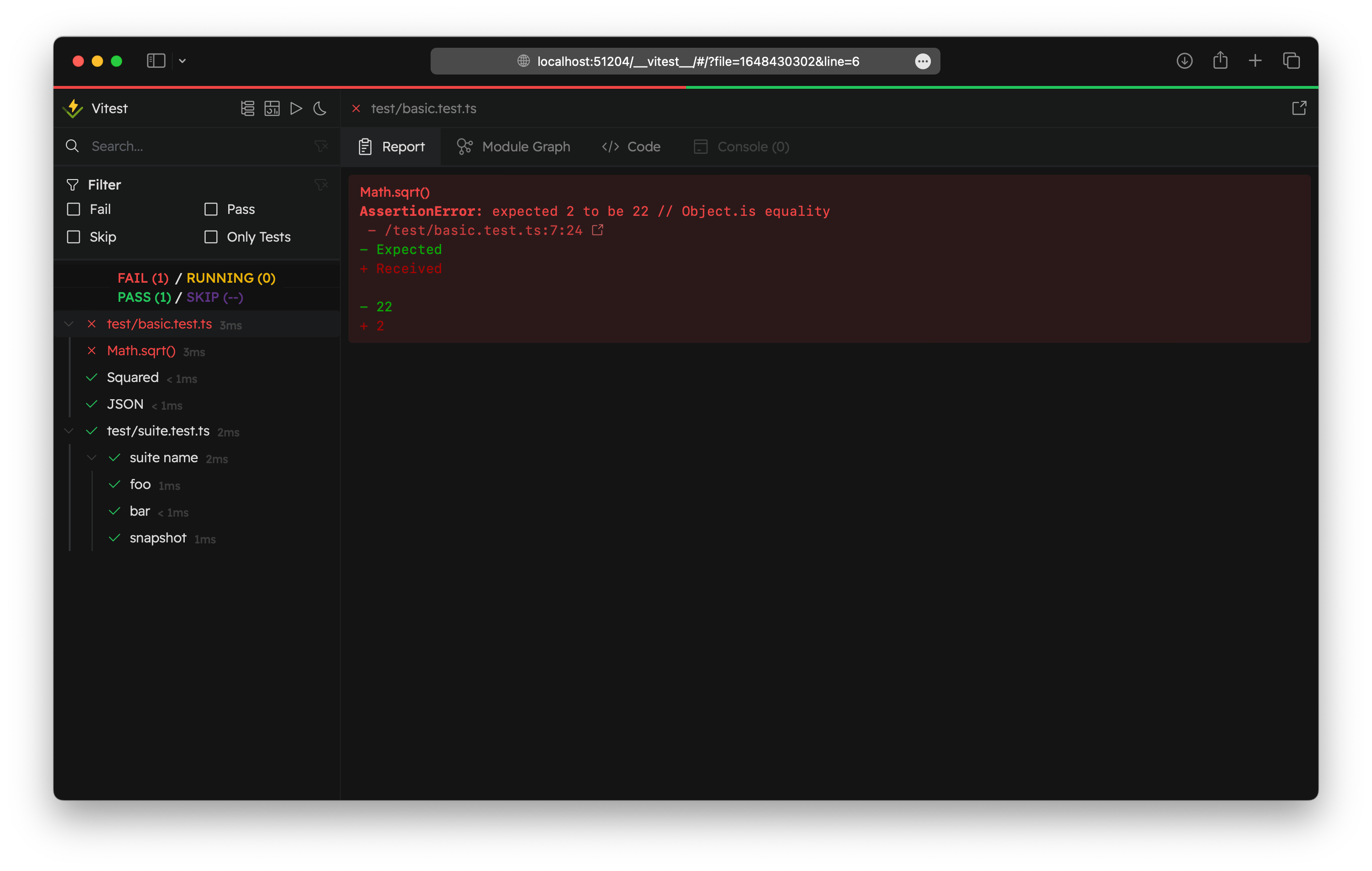
Run the script as follows to see the coverage results.
Because we wrote test code for the /src/components/MovieList.tsx and /src/fetchers/movie.ts files earlier, both files show 100% coverage.
High coverage means the tests cover a wide area, and the project is that much more reliable.
But high coverage isn't always good in every respect.
There can be any number of poorly written tests, so you should also weigh the quality and efficiency of your tests, as well as opportunity costs such as the time it takes to write test code.
1npm run test:unit:coverage

Here's what each column in the coverage results table means.
| Column | Description |
|---|---|
| Stmts (Statements) | Checks simply whether each statement runs |
| Branch | Checks whether each branch (every possible outcome) of conditionals (If, Switch) runs |
| Funcs (Functions) | Checks whether each function is called |
| Lines | Checks whether each line of code runs |
| Uncovered Line | Shows the lines of code that the tests didn't run |
Starting with Vitest 4, coverage results include only the files that were actually imported during the tests.
So, to show untested files in the results too, you need to set the target scope yourself with the test.coverage.include option. (For example, ['src/**'].)
On the other hand, the default value of the test.coverage.exclude option is an empty array, so you need to write patterns yourself, as follows, for paths to exclude from coverage, such as type declaration files and configuration files.
The test.exclude option doesn't affect what's excluded from coverage.
1234567891011121314151617181920212223242526272829/// <reference types="vitest/config" /> import { defineConfig } from 'vite' import react from '@vitejs/plugin-react' // https://vitejs.dev/config/ export default defineConfig({ plugins: [react()], test: { globals: true, environment: 'jsdom', setupFiles: ['vitest.setup.ts'], exclude: [ './node_modules/**', './dist/**', './cypress/**', './tests/**', './tests-examples/**' ], coverage: { provider: 'v8', exclude: [ '**/*.d.ts', '**/*.config.[jt]s', './src/routes/index.tsx', './src/components/Loader.tsx' ] } } })
# Testing Next.js
The examples so far were written for Client Components, which run in the browser.
In the Next.js App Router, components are Server Components by default, so you also need to keep a few limitations in mind for unit tests.
# Server Components
A synchronous Server Component is just like a regular function that takes props and returns elements.
So you can render it with the render function and test it the same way as a Client Component.
123export default function MovieTitle({ title }: { title: string }) { return <h2>{title}</h2> }
123456789import { render, screen } from '@testing-library/react' import MovieTitle from '@/components/MovieTitle' describe('MovieTitle', () => { test('Should render the movie title.', () => { render(<MovieTitle title="Avengers: Endgame" />) expect(screen.getByText('Avengers: Endgame')).toBeInTheDocument() }) })
On the other hand, an async Server Component that fetches data directly on the server returns a Promise object, not elements.
The render function can't render a Promise object, so writing it like this doesn't work.
The fetchMovies function in the following example is the same as the module we wrote earlier, and in a Next.js project it lives at the /fetchers/movie.ts path.
12345678910111213import { fetchMovies } from '@/fetchers/movie' export default async function MoviesPage() { const movies = await fetchMovies('avengers') return ( <ul> {movies.map(movie => ( <li key={movie.imdbID}>{movie.Title}</li> ))} </ul> ) }
1234import { render } from '@testing-library/react' import MoviesPage from '@/app/movies/page' render(<MoviesPage />)
In this case, we recommend unit testing only the data fetching function separated from the component and verifying the rendered output with E2E tests.
It's the same reason we moved the fetchMovies function out of the MovieList component into a separate module earlier.
It isn't officially supported, but for a simple async component that only returns elements, there's a workaround: instead of using the render function, call the component directly as a function and render the elements it returns.
If it contains another async Server Component or uses a server-only API such as cookies(), this approach doesn't work either, so it's best not to add more tests that depend on it.
123456789101112131415161718192021222324import { render, screen } from '@testing-library/react' import { http, HttpResponse } from 'msw' import { setupServer } from 'msw/node' import MoviesPage from '@/app/movies/page' describe('MoviesPage', () => { const server = setupServer() beforeAll(() => server.listen()) afterEach(() => server.resetHandlers()) afterAll(() => server.close()) test('Should render the movie list.', async () => { server.use( http.get('https://omdbapi.com', () => { return HttpResponse.json({ Response: 'True', Search: [{ imdbID: '1', Title: 'The Avengers' }] }) }) ) render(await MoviesPage()) // Call the component directly as a function! expect(screen.getByText('The Avengers')).toBeInTheDocument() }) })
# Async params
Starting with Next.js 16, params, searchParams, cookies(), headers(), and the like can only be accessed asynchronously.
So when you test the page component of a dynamic route, you need to pass a Promise object, not a plain value, to the params prop.
12345678export default async function MoviePage({ params }: { params: Promise<{ movieId: string }> }) { const { movieId } = await params return <h2>{movieId}</h2> }
12345678910import { render, screen } from '@testing-library/react' import MoviePage from '@/app/movies/[movieId]/page' describe('MoviePage', () => { test('Should render the movie ID.', async () => { const params = Promise.resolve({ movieId: 'tt4154796' }) render(await MoviePage({ params })) expect(screen.getByText('tt4154796')).toBeInTheDocument() }) })
# Mocking router hooks
If a Client Component uses hooks such as useRouter, usePathname, and useSearchParams, you get an error in the test environment, which has no router context.
Mock the next/navigation module so that it returns only the values the test needs.
12345678910111213141516171819'use client' import { useState } from 'react' import { useRouter } from 'next/navigation' export default function SearchInput() { const router = useRouter() const [title, setTitle] = useState('') return ( <input type="text" value={title} placeholder="Enter a movie title!" onChange={e => setTitle(e.target.value)} onKeyDown={e => e.key === 'Enter' && router.push(`/movies?title=${title}`)} /> ) }
The vi.mock function is hoisted to the top of the file and runs first, so referencing a regular variable in its callback causes an error.
To reference a mock function from outside the callback, you need to hoist it along with vi.mock using the vi.hoisted function.
12345678910111213141516171819import { vi } from 'vitest' import { render, screen } from '@testing-library/react' import userEvent from '@testing-library/user-event' import SearchInput from '@/components/SearchInput' const { push } = vi.hoisted(() => ({ push: vi.fn() })) vi.mock('next/navigation', () => ({ useRouter: () => ({ push }) })) describe('SearchInput', () => { test('Navigates to the search path when you type a movie title and press Enter.', async () => { const user = userEvent.setup() render(<SearchInput />) const searchInput = screen.getByPlaceholderText('Enter a movie title!') await user.type(searchInput, 'batman{Enter}') expect(push).toHaveBeenCalledWith('/movies?title=batman') }) })
You can add the usePathname and useSearchParams hooks the same way, returning only the values you need.
12345vi.mock('next/navigation', () => ({ useRouter: () => ({ push }), usePathname: () => '/movies', useSearchParams: () => new URLSearchParams('title=batman') }))
# E2E tests
An E2E test checks the entire flow of an application from start to finish.
While unit tests focus on verifying the behavior of the smallest units, such as functions and components, E2E tests verify the application's overall features and performance from a real user's point of view.
The goal of E2E testing is to confirm that the application works as intended and to catch problems that can occur in real-world use before they happen.
This improves the quality and reliability of the application.
- Tests are based on scenarios of real users using the application.
- Tests cover every part of the project, including the frontend, backend, and database.
- Tests run under conditions as close as possible to the production environment.
- Tests check the interactions and data flow between multiple parts.
- Repetitive tests can be automated for better efficiency.
- Developers sometimes write them, but QA engineers or testers often do.
# Benefits of E2E tests
- You can check how the whole system behaves from the user's point of view.
- You can find problems that can occur in interactions between multiple parts.
- You can confirm that entire business flows work as intended.
- You can save time and money by automating repetitive tests.
- You can improve the stability and reliability of the whole system.
- You can check compatibility across different browsers, devices, and operating systems.
- Test scenarios can serve as the system's functional specification.
# Cypress
Cypress is a framework for running tests in multiple browser environments.
Here are Cypress's main features.
- Automatically reruns tests when the test code changes.
- Automatically waits until elements appear.
- Records the test run as snapshots and videos.
- Can mock network requests when needed.
- Can run tests in multiple browsers.
1npm i -D cypress
With the cypress open command, you can run tests in a GUI.
This is the command you use for everyday testing.
When you run tests in headless mode with the cypress run command, no browser window opens to show the test results.
It helps speed up test runs and improve efficiency when you don't need visual feedback, and it's useful in situations like these.
- When running automated tests in a CI/CD pipeline
- When the server environment has no GUI
- When you need to run a large number of tests quickly
123456{ "scripts": { "cy:open": "cypress open", "cy:run": "cypress run" } }
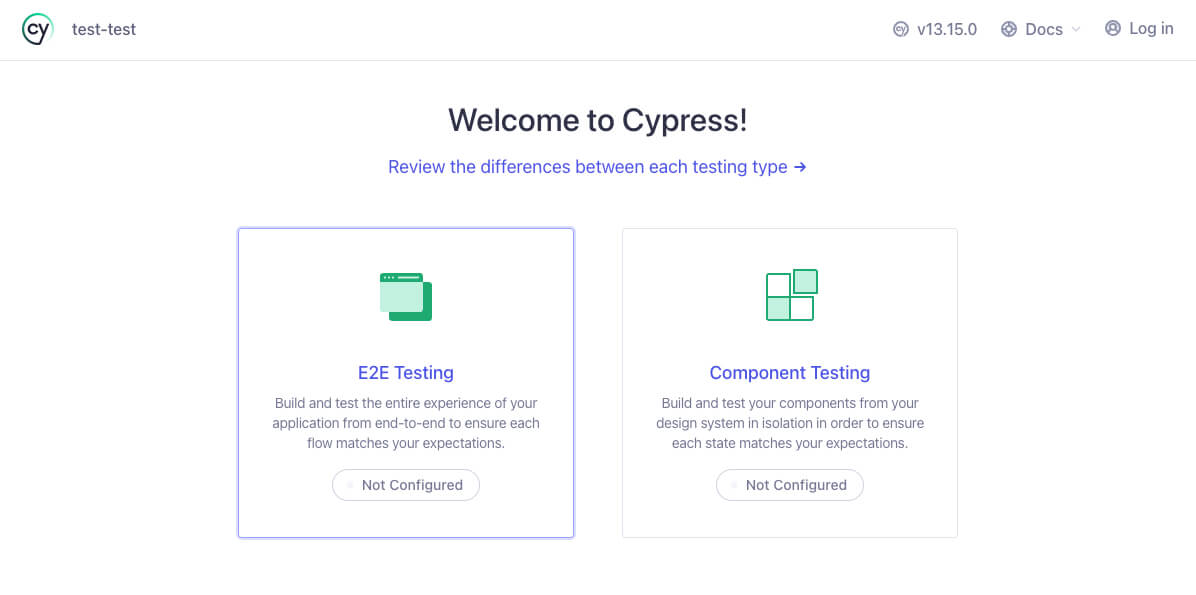
Once you've installed the package and registered the scripts, start testing in the GUI with the npm run cy:open command.
A new window opens where you can choose a testing type.
Select the 'E2E Testing' button.
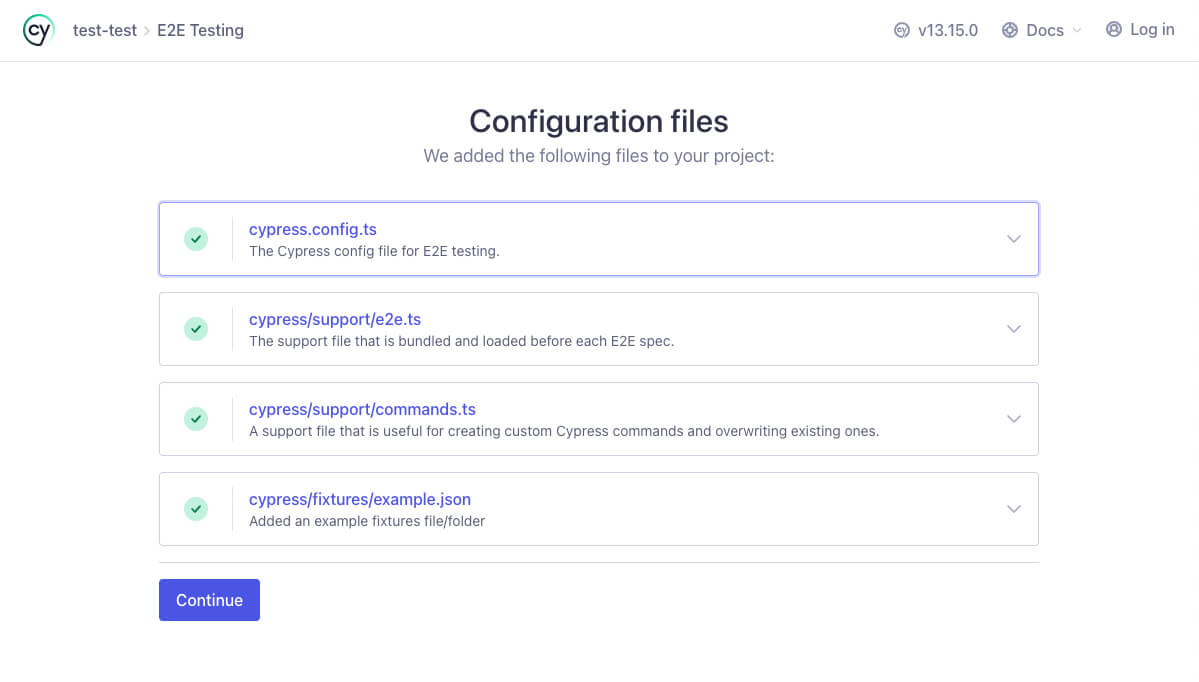
It shows a list of the configuration files that will be created in your project automatically.
Select the 'Continue' button at the bottom.
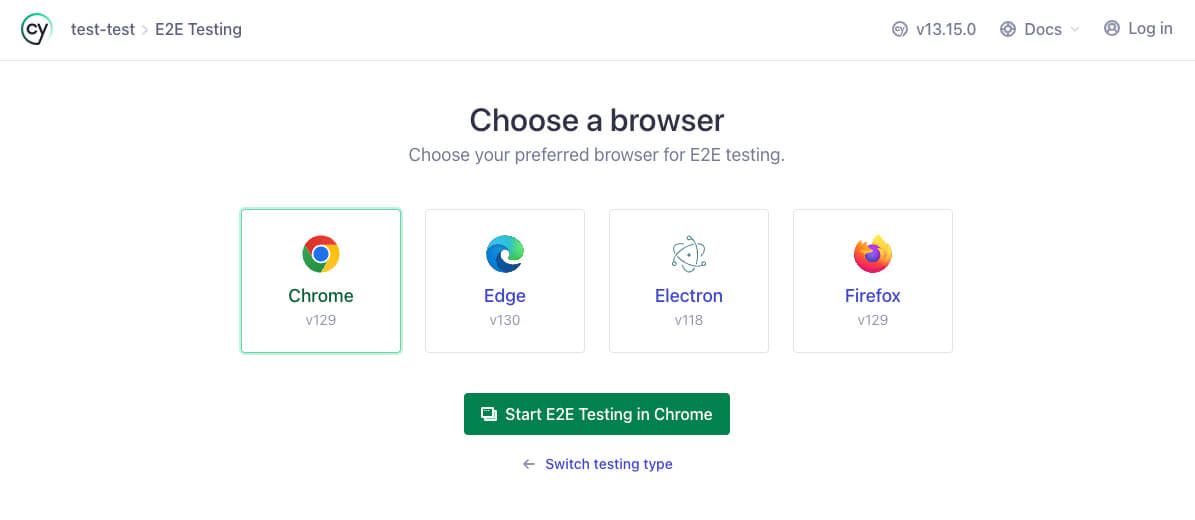
Once the configuration files are created, you can choose the browser to test in, as shown below.
Choose the browser you want and select the 'Start E2E Testing in {browser}' button.
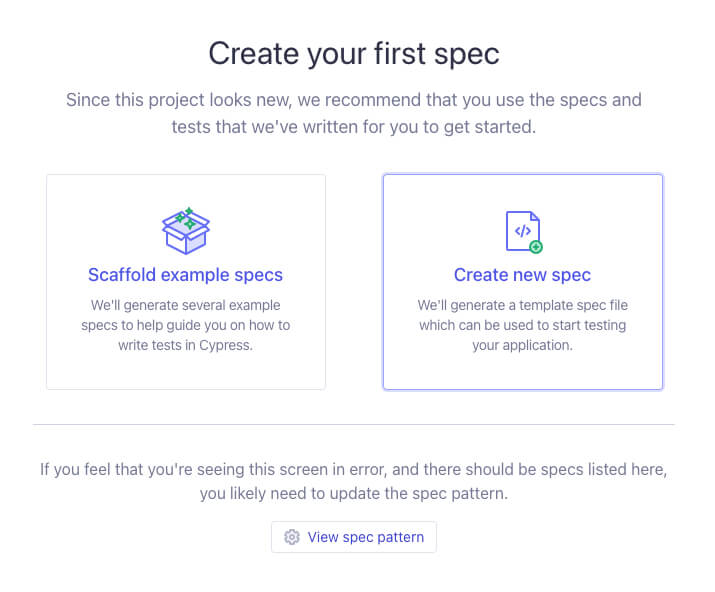
There are no test files at first, so select the 'Create new spec' button to create a new test file.
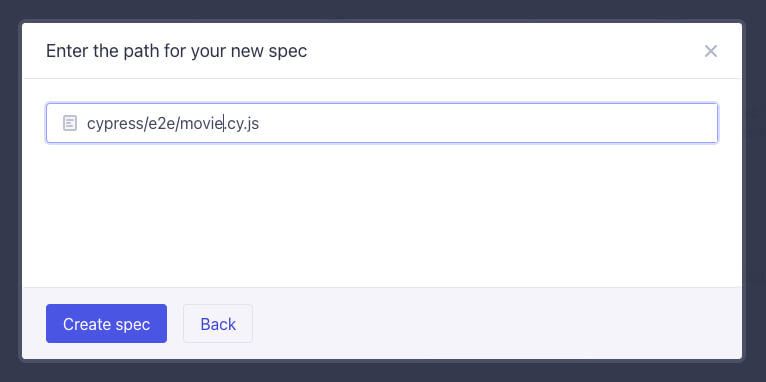
Name the test file and select the 'Create spec' button.
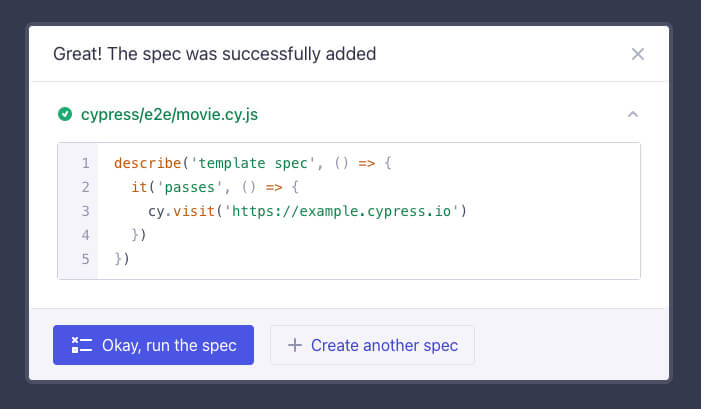
The file is created with minimal test code that simply visits the https://example.cypress.io/ site.
Select the 'Okay, run the spec' button to finish.
Let's test a scenario where a user visits the page that renders the MovieList component we wrote earlier and searches for a movie.
Write test code that checks whether the default movie list appears correctly when the page loads and whether the search feature works properly.
Unlike unit tests, you don't import functions or components directly; instead, you visit the finished page, find elements with the cy.get function, and check what's on the screen.
The cy.wait function lets you wait for a specific amount of time, which is useful when dealing with async work.
12345678910111213141516171819describe('Movie list page', () => { beforeEach(() => { cy.visit('http://localhost:5173/') }) it('Should show the default movie list when the page loads.', () => { cy.wait(1000) // Wait 1 second for the movie list to load! cy.get('h2').should('contain', 'Movie List!') // The <h2> element's text must be 'Movie List!' cy.get('ul li').should('have.length.gt', 0) // There must be at least one <li> element! cy.get('ul li').first().should('have.text', 'The Avengers') // The first <li> element's text must be 'The Avengers'! }) it('Should show the matching movie list when searching by movie title.', () => { cy.get('input[type="text"]').type('batman{Enter}') // Type text, then press Enter! cy.wait(1000) cy.get('ul li').should('have.length.gt', 0) cy.get('ul li').first().should('contain', 'Batman Begins') }) })
Once you've finished writing the test code, select the file to test on the screen.

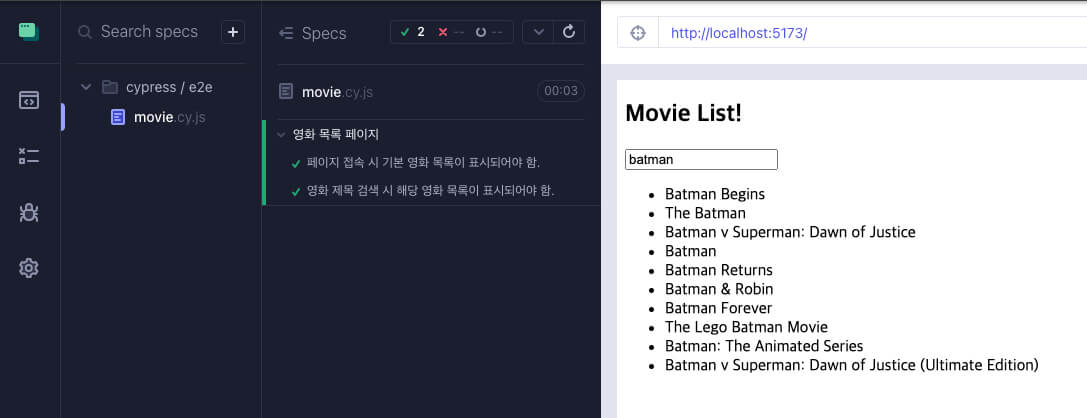
When you run the test, you can see the actual page it visited on the right.
The test code runs on this page, and you can visually check what the test does at each step.
As the test progresses, the left panel shows in real time whether each test case passed or failed.
This makes it easy to follow the test's progress and respond quickly when something goes wrong.
You can use a full URL, like cy.visit('http://localhost:5173/'), but if you're testing a single site, you can set a default test URL with the baseUrl property.
This makes maintenance much easier even as your test code grows.
It's also convenient because you can easily switch URLs between development and production environments.
With the viewportWidth and viewportHeight properties, you can set the size of the test screen.
In the following example, 5173 is the default port of the Vite development server.
For a Next.js project, use http://localhost:3000.
123456789101112import { defineConfig } from 'cypress' export default defineConfig({ e2e: { baseUrl: 'http://localhost:5173', viewportWidth: 1280, viewportHeight: 720, setupNodeEvents(on, config) { // implement node event listeners here } } })
Since we've set the base URL, the test code now only needs a relative (sub) path instead of the full URL.
1234567describe('Movie list page', () => { beforeEach(() => { cy.visit('/') // '/about', '/movies', etc. }) // ... })
If you use the video property in the Cypress configuration, videos are recorded automatically when you run tests in headless mode.
12345678import { defineConfig } from 'cypress' export default defineConfig({ e2e: { video: true, // ... } })
1npm run cy:run
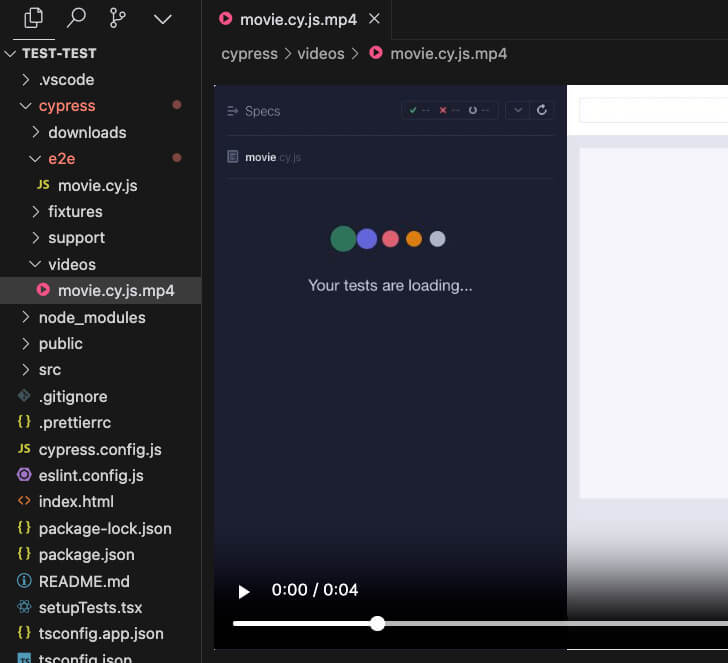
With a continuous integration (CI) setup, you can run tests automatically when you push to the main branch on GitHub or open a PR.
This lets you see right away how code changes affect the project's stability, so you can catch and fix errors early in development.
Unit tests in watch mode never finish, so run them once with the vitest run command.
12345678910111213141516171819202122232425262728293031323334353637383940414243# Name the GitHub Action! name: Run tests! # Specify the events! on: push: branches: [ "main" ] pull_request: branches: [ "main" ] # Specify the jobs! jobs: test: # Job name! runs-on: ubuntu-latest steps: - uses: actions/checkout@v4 - name: Set up Node.js uses: actions/setup-node@v4 with: node-version: '22' cache: 'npm' - name: Install dependencies run: npm ci - name: Run unit tests run: npx vitest run - name: Run Cypress tests uses: cypress-io/github-action@v7 with: start: npm run dev wait-on: 'http://localhost:5173' - name: Upload Cypress screenshots uses: actions/upload-artifact@v4 if: failure() with: name: cypress-screenshots path: cypress/screenshots - name: Upload Cypress videos uses: actions/upload-artifact@v4 if: failure() with: name: cypress-videos path: cypress/videos
# Playwright
Playwright is an open-source E2E testing framework developed by Microsoft.
It lets you test the entire flow of an application from a real user's point of view and supports multiple browser engines, including Chromium, Firefox, and WebKit.
Playwright is especially strong at cross-browser testing and handling complex user scenarios, and it runs in a Node.js environment.
Besides automated browser testing, it also provides many features such as mobile viewport emulation, network mocking, and screenshot and video capture.
Install it as follows.
12345npm create playwright@latest Initializing project in '.' ✔ Where to put your end-to-end tests? · tests ✔ Add a GitHub Actions workflow? (y/N) · false ✔ Install Playwright browsers (can be done manually via 'npx playwright install')? (Y/n) · true
When the installation finishes, Playwright-related paths to ignore in version control are added to the /.gitignore file, and test folders and a configuration file are created, as shown below.
12345# Playwright /test-results/ /playwright-report/ /blob-report/ /playwright/.cache/
12345678├─.github/ │ └─workflows/ │ └─playwright.yml ├─tests/ │ └─example.spec.ts ├─tests-examples │ └─demo-todo-app.spec.ts ├─playwright.config.ts
The files created in the tests/ and tests-examples/ paths follow the same naming rule as Vitest test files.
That's why we excluded both paths in the test.exclude option of the Vitest configuration earlier.
Here is the Playwright configuration file.baseURL and webServer.url use the Vite development server address; for a Next.js project, change them to http://localhost:3000.
1234567891011121314151617181920212223242526272829303132333435363738import { defineConfig, devices } from '@playwright/test' export default defineConfig({ testDir: './tests', // Directory that contains the test files fullyParallel: true, // Run all tests in parallel forbidOnly: !!process.env.CI, // Fail in CI if test.only is left in the code retries: process.env.CI ? 2 : 0, // Retry failed tests up to 2 times in CI workers: process.env.CI ? 1 : undefined, // Run with a single process in CI reporter: 'html', // Save test results as an HTML file // Settings applied to all tests use: { baseURL: 'http://localhost:5173', // Base URL to use when running tests trace: 'on-first-retry', // Collect traces only on the first retry video: 'on-first-retry' // Collect videos only on the first retry }, // Browser settings to use when running tests projects: [ { name: 'chromium', use: { ...devices['Desktop Chrome'] } }, { name: 'firefox', use: { ...devices['Desktop Firefox'] } }, { name: 'webkit', use: { ...devices['Desktop Safari'] } } ], // Web server settings to use when running tests webServer: { command: 'npm run dev', // Command to start the web server url: 'http://localhost:5173', // URL to use when the web server starts reuseExistingServer: !process.env.CI, // Reuse a running server only outside CI timeout: 120 * 1000 // Time limit for starting the web server } })
Playwright generates a continuous integration configuration automatically.
Modify it to fit the integration you want, for example by specifying branch names or sending a message on failure.
123456789101112131415161718192021222324252627name: Playwright Tests on: push: branches: [main, master] pull_request: branches: [main, master] jobs: test: timeout-minutes: 60 runs-on: ubuntu-latest steps: - uses: actions/checkout@v4 - uses: actions/setup-node@v4 with: node-version: lts/* - name: Install dependencies run: npm ci - name: Install Playwright Browsers run: npx playwright install --with-deps - name: Run Playwright tests run: npx playwright test - uses: actions/upload-artifact@v4 if: ${{ !cancelled() }} with: name: playwright-report path: playwright-report/ retention-days: 30
Now that installation and checks are done, add scripts for local testing.
123456789{ "scripts": { "test:unit": "vitest", "test:unit:coverage": "vitest run --coverage", "test:e2e": "playwright test", "test:e2e:ui": "playwright test --ui", "test:e2e:report": "playwright show-report" } }
Let's write a simple test.
It checks that the default movie list appears when the page loads and that the search feature works properly.
test.describe: Defines a test group.test.beforeEach: Sets up initialization work to run before each test.page.goto: Navigates to the given URL.page.locator: Selects elements, which you can find by CSS selector or by text.expect: Performs assertions, and Playwright automatically waits until the element appears.count: Returns the number of selected elements as a Promise, so get the value withawaitfirst and then verify it.
123456789101112131415161718192021import { test, expect } from '@playwright/test' test.describe('Movie list page', () => { test.beforeEach(async ({ page }) => { await page.goto('/') // Use a relative path based on baseURL }) test('Should show the default movie list when the page loads', async ({ page }) => { await expect(page.locator('h2')).toHaveText('Movie List!') await expect(page.locator('ul li').first()).toHaveText('The Avengers') expect(await page.locator('ul li').count()).toBeGreaterThan(0) }) test('Should show the matching movie list when searching by movie title', async ({ page }) => { const searchInput = page.getByPlaceholder('Enter a movie title!') await searchInput.fill('batman') await searchInput.press('Enter') await expect(page.locator('ul li').first()).toHaveText('Batman Begins') expect(await page.locator('ul li').count()).toBeGreaterThan(0) }) })
1npm run test:e2e
# Example
I've prepared a simple React project with unit tests and E2E tests applied.
Thanks for reading to the end.
Likes and kind comments help keep this blog going!