Starting a React Project with Vite

This post explains how to start a React project with the Vite.js build tool.
It covers the setup for JavaScript and TypeScript projects separately.
# Quick install
I have prepared the setup below as a React (Compiler) + TS template.
Start your project more easily!
12345678# Copy the template into the current project (folder) npx degit ParkYoungWoong/vite-template--react-ts . # Install packages npm i # Run the development server npm run dev
# Using a skill
If you use the Skills feature in AI coding tools such as Claude Code and Cursor, you can install and set up the project automatically through a conversation.
Install the skill with the following command.
1npx skills add ParkYoungWoong/skills --skill react-vite-scaffold
After installation, when you start a React project in your AI coding tool, the skill activates automatically and creates a project that includes the setup above (ESLint, Prettier, path aliases, and more).
You can also invoke the skill manually in each tool, as in the following Claude Code example.
1❯ /react-vite-scaffold
# Creating a Vite project
Open the project folder in VS Code and run the following commands in the terminal, in order.
1234567# Set up the project in the current path npm create vite@latest . Select a framework: React Select a variant: TypeScript + React Compiler Which linter to use?: ESLint Install with npm and start now? Yes
Or, in the terminal, move to the path where you want to create the project and run the following commands in order.
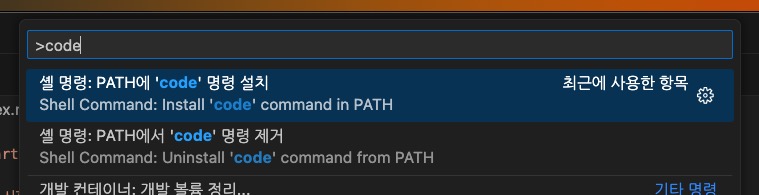
12345678910111213141516171819202122# Create and set up a project folder in the current path npm create vite@latest <project-folder-name> Select a framework: React Select a variant: TypeScript + React Compiler Which linter to use?: ESLint Install with npm and start now? No # Move to the project path cd <project-folder-name> # Install dependency packages npm i # Open the current path in a new VS Code window code . # Or open it in the current VS Code window code . -r # Or open the project manually # Run the development server npm run dev
A project created with the TypeScript + React Compiler variant sets up React Compiler with the @rolldown/plugin-babel plugin and the reactCompilerPreset preset, like this.
For more on React Compiler, see the React Compiler Essentials post.
1234567891011import { defineConfig } from 'vite' import react, { reactCompilerPreset } from '@vitejs/plugin-react' import babel from '@rolldown/plugin-babel' // https://vite.dev/config/ export default defineConfig({ plugins: [ react(), babel({ presets: [reactCompilerPreset()] }) ] })
# Setting up ESLint + Prettier
- ESLint: checks code quality and detects bugs and anti-patterns
- Prettier - Code formatter: manages code style and formatting, so you can apply a consistent code style
# Installing VS Code extensions
To use ESLint and Prettier, install each extension in VS Code.
It is a good idea to restart VS Code after installing them.


# Installing and configuring packages
If you selected ESLint for Which linter to use? when creating the project, the ESLint packages are already installed.
So you only need to install the Prettier packages.
All of these packages are for development only and are not needed at runtime, so install them as 'dev dependencies' with the -D flag.
1npm i -D prettier eslint-config-prettier eslint-plugin-prettier
| Package | Description | Note |
|---|---|---|
eslint |
ESLint core package / checks code quality and detects bugs and anti-patterns | Included in Vite |
@eslint/js |
ESLint's set of basic recommended rules | Included in Vite |
typescript-eslint |
Provides a TypeScript parser and rules together | Included in Vite |
eslint-plugin-react-hooks |
Enforces the rules of React Hooks and provides rules that help prevent mistakes | Included in Vite |
eslint-plugin-react-refresh |
Provides rules for using React Refresh | Included in Vite |
globals |
A list of global variables for runtime environments such as the browser | Included in Vite |
prettier |
Prettier core package / manages code style and formatting, so you can apply a consistent code style | |
eslint-config-prettier |
Prevents conflicts between ESLint and Prettier | |
eslint-plugin-prettier |
Integrates Prettier rules into ESLint rules |
Add the plugin to the extends option in the configuration file, like this.
12345678910111213141516import js from '@eslint/js' import prettierRecommended from 'eslint-plugin-prettier/recommended' // ... export default defineConfig([ globalIgnores(['dist']), { files: ['**/*.{ts,tsx}'], extends: [ js.configs.recommended, // ... prettierRecommended ], // ... } ])
Also, create a .prettierrc file in the project root and add the following content.
You can find the detailed rules in Prettier / Options.
123456789{ "semi": false, "singleQuote": true, "singleAttributePerLine": true, "bracketSameLine": true, "endOfLine": "auto", "trailingComma": "none", "arrowParens": "avoid" }
# Setting up auto-formatting
To use auto-formatting in VS Code, add the following option to your user settings (settings.json).
Check carefully whether it is already set, so you do not add the same option twice.
12345{ "editor.codeActionsOnSave": { "source.fixAll.eslint": "explicit" } }
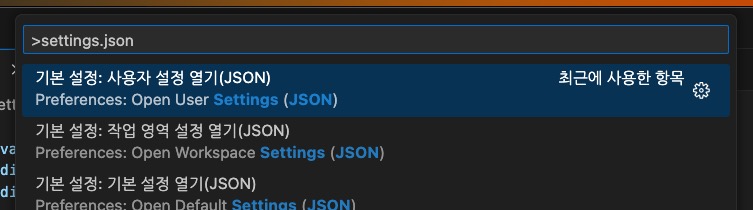
You can find the user settings (global) by searching for settings.json in the Command Palette.
You can also turn on auto-formatting for *.jsx and *.tsx files through user settings (local) that apply only to the current project.
Create a .vscode/settings.json folder and file in the project root and add the following content.
1234{ "editor.formatOnSave": true, "editor.defaultFormatter": "esbenp.prettier-vscode" }
# Setting up path aliases
Path aliases are convenient because they let you reference files in your project easily.
12345678910111213141516import { defineConfig } from 'vite' import react, { reactCompilerPreset } from '@vitejs/plugin-react' import babel from '@rolldown/plugin-babel' // https://vite.dev/config/ export default defineConfig({ plugins: [ react(), babel({ presets: [reactCompilerPreset()] }) ], resolve: { alias: [ { find: '@', replacement: '/src' } ] } })
With this, you can reference a specific path directly instead of using relative paths that can get complicated.
12// import type { Routes } from '../../../../routes' import type { Routes } from '@/routes'
So that TypeScript can also recognize the paths, add the following configuration option.
If the tsconfig.json file in your project references the tsconfig.app.json file, add the option to tsconfig.app.json.
12345678{ "compilerOptions": { // ... "paths": { "@/*": ["./src/*"] } } }
Starting with TypeScript 6, the baseUrl option is deprecated and using it causes an error, so use only the paths option.
If you use TypeScript 5 or earlier, you may need the baseUrl option.
123456789{ "compilerOptions": { // ... "baseUrl": ".", "paths": { "@/*": ["./src/*"] } } }
Thanks for reading to the end.
Likes and kind comments help keep this blog going!