Using GA4 Query Explorer and the Google Analytics Data API

Let's learn how to get your website's traffic information from Google Analytics with GA4 Query Explorer and the Google Analytics Data API.
(GA4 Query Explorer, Google Analytics Data API)
# GA4 Query Explorer
GA4 (Google Analytics 4) Query Explorer is a site where you can query and explore data.
On this site, you can look up and analyze various traffic data without calling the Google Analytics Data API directly.
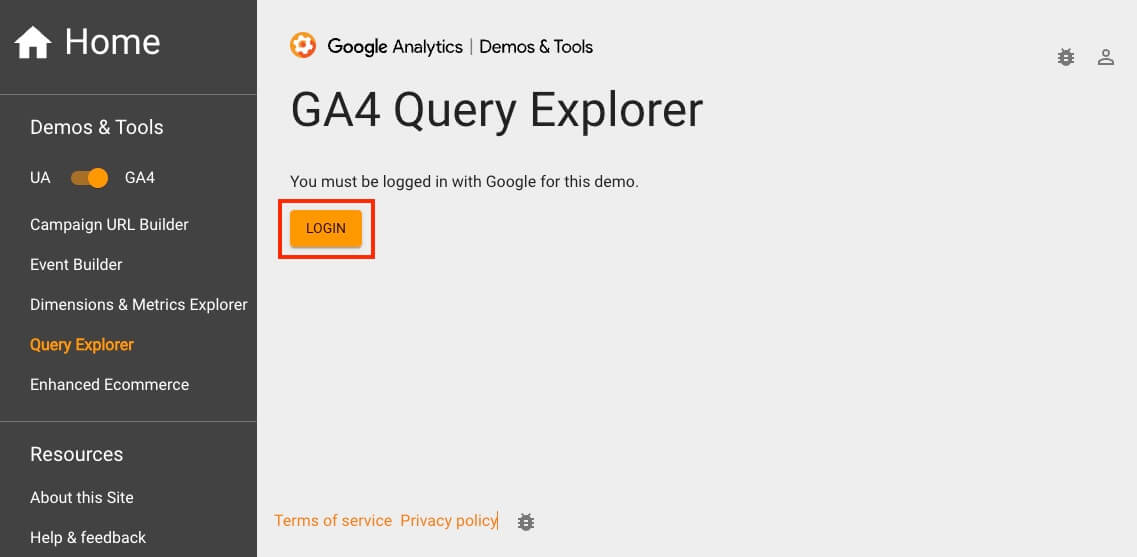
GA4 Query Explorer uses OAuth 2.0 authentication, so you can use it after signing in with your Google account.
# Yesterday's active users
For a simple test, let's write a query that gets yesterday's 'active users' data.
As shown in the following image, select values for the account and property (application) fields, and enter yesterday and activeUsers in the date ranges and metrics fields, respectively.
| Field | Value |
|---|---|
account |
GA4 account |
property |
GA4 application |
dateRanges.startDate |
yesterday |
dateRanges.endDate |
yesterday |
metrics |
activeUsers |
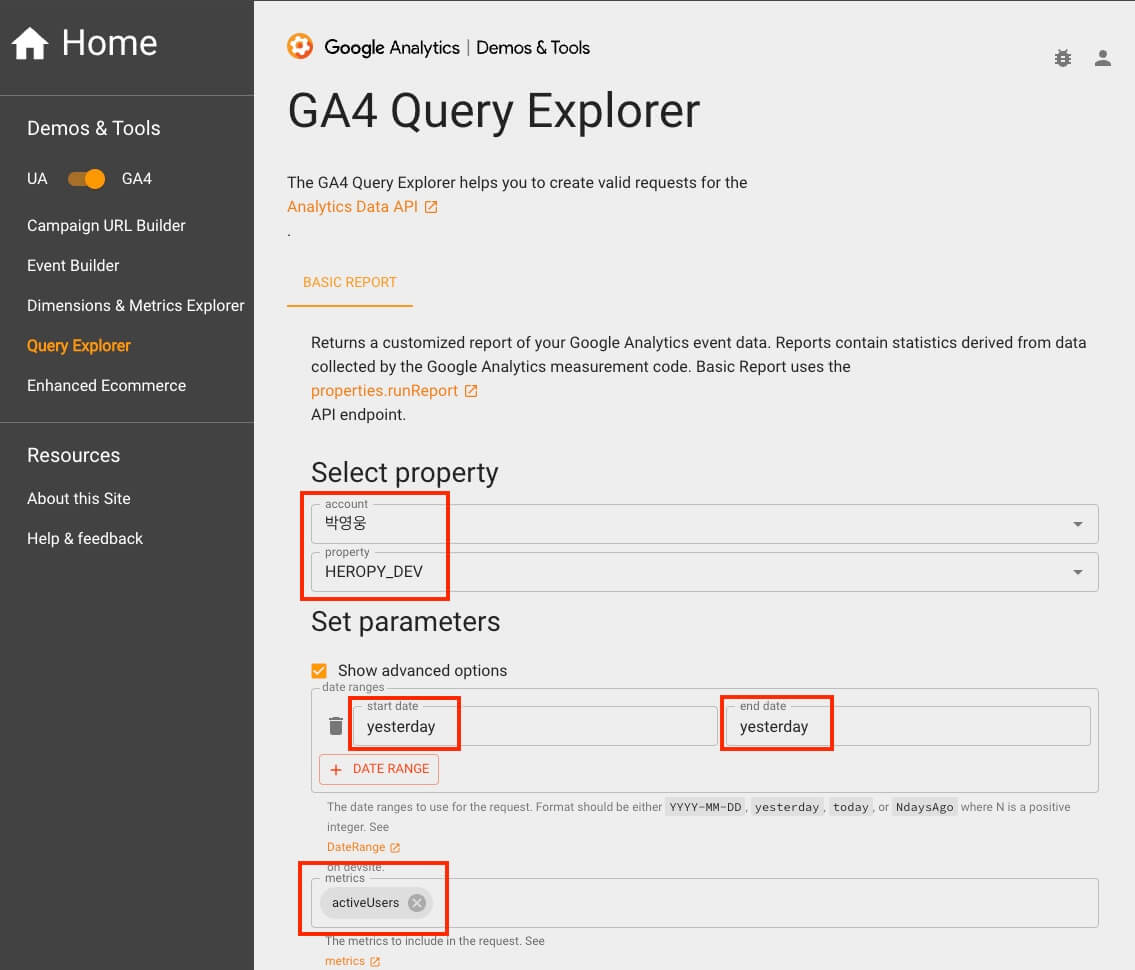
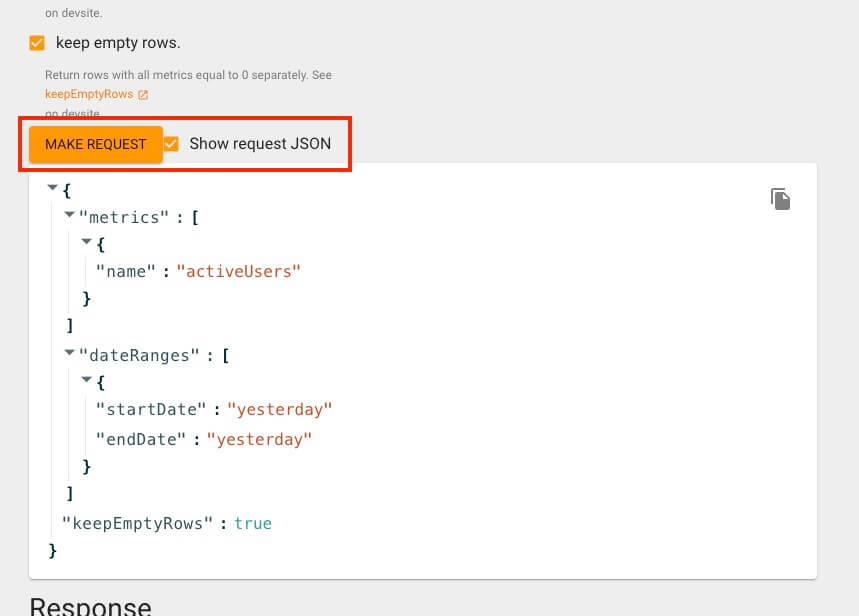
Now select the MAKE REQUEST button at the bottom of the screen to request the data.
If you select Show request JSON, you can see the structure of the requested data in JSON format.
This is the same as the request data for the Google Analytics Data API that we will look at later, so it is a great reference.
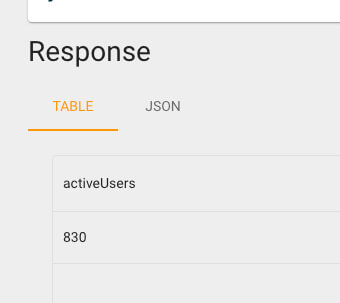
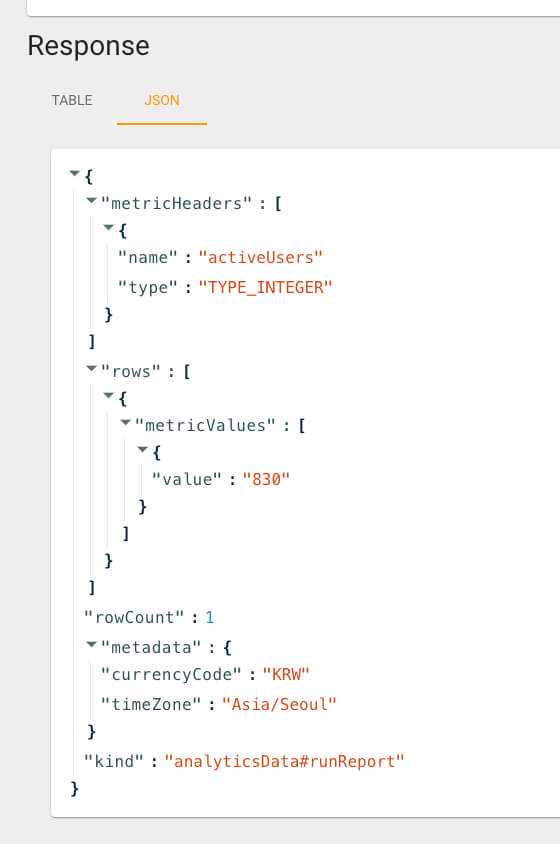
Then, as shown in the following images, you can check the returned data in JSON or TABLE format.
Again, the JSON format is the same as the response data of the Google Analytics Data API.
The response.rows[0].metricValues[0].value value is the number of active users, and its type is string.
There were 830 active users yesterday.
# Total active users for a period
This time, let's write a query that gets 'active users' data for a specific period (one week).
Enter the period and metric as follows.
| Field | Value |
|---|---|
dateRanges.startDate |
2024-03-20 |
dateRanges.endDate |
2024-03-26 |
metrics |
activeUsers |
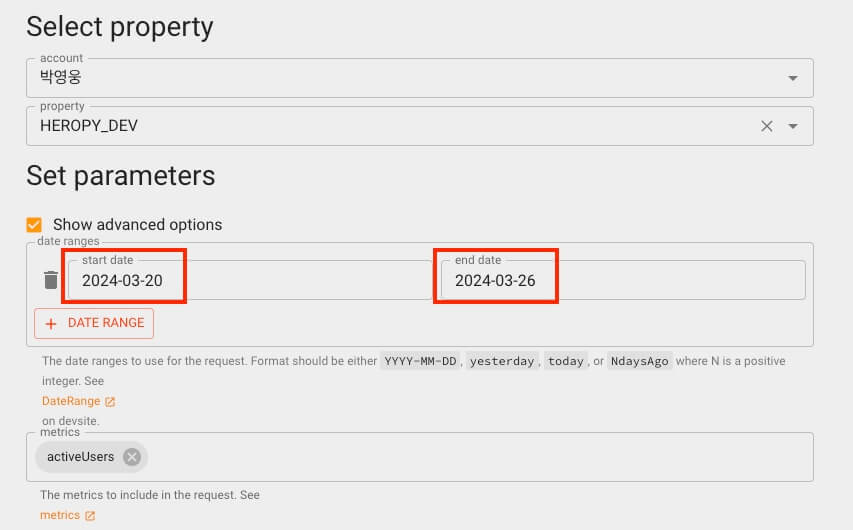
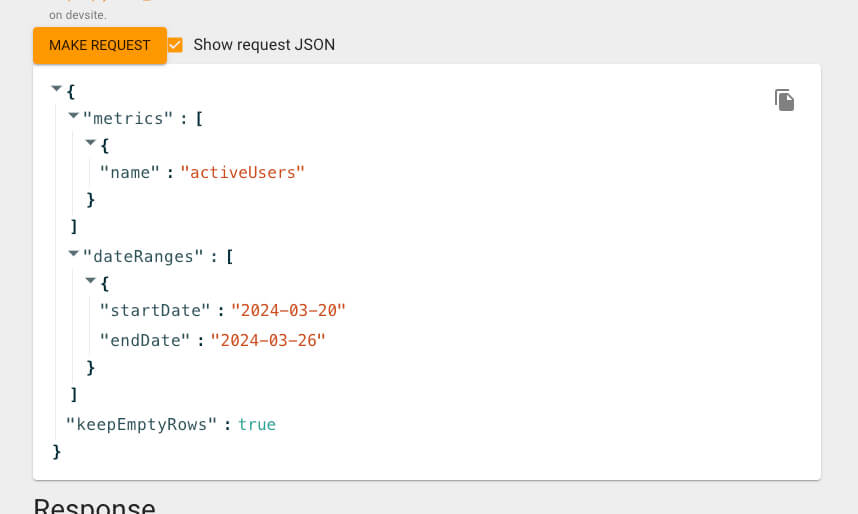
When you finish entering the values, select the MAKE REQUEST button at the bottom of the screen to request the data again.
It is a good idea to check the request data structure carefully to make sure it does not include unnecessary information.
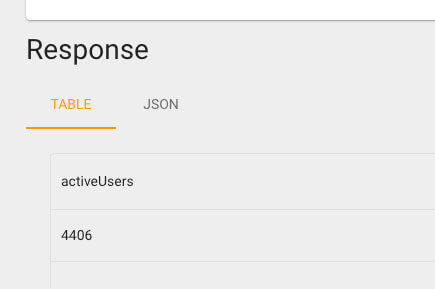
If you check the response, you can see the total number of active users for the period, as follows.
# Active users and views by date
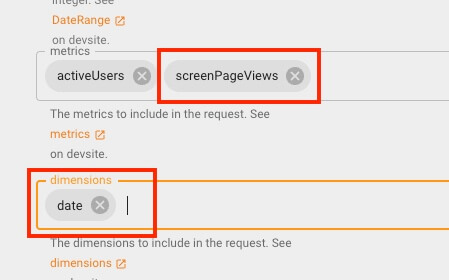
If you want to see the results by date instead of as a total, enter date (a date in YYYYMMDD format) in the dimensions field.
You can also check views along with active users. Just add the screenPageViews value to the metrics field.
| Field | Value |
|---|---|
dateRanges.startDate |
2024-03-20 |
dateRanges.endDate |
2024-03-26 |
metrics |
activeUsers, screenPageViews |
dimensions |
date |
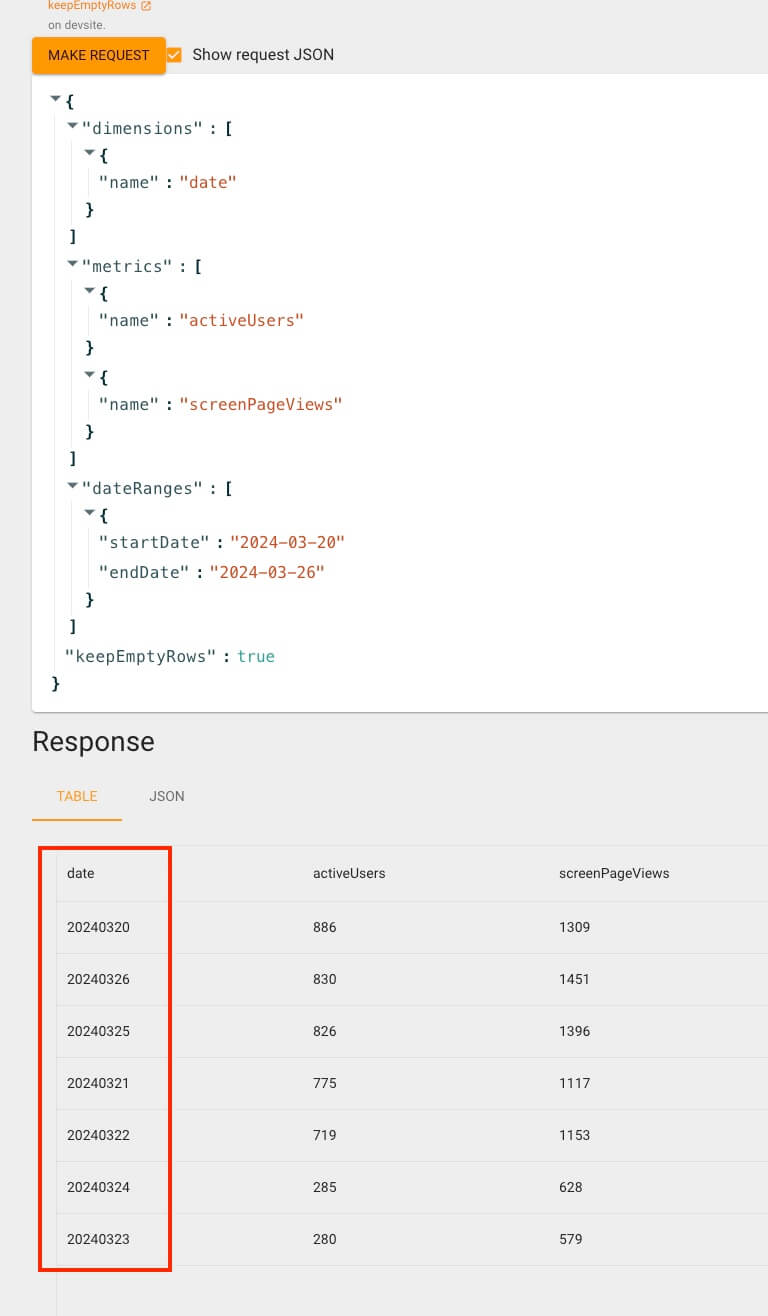
If you send the request again, you can now see the views data by date.
But if you look closely, the dates are not sorted in order.
# Sorting the response
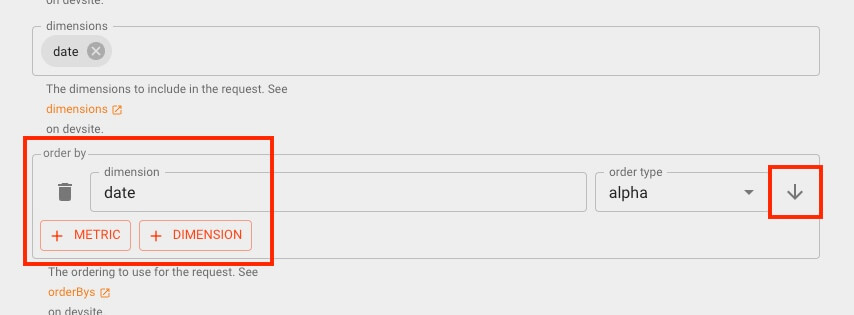
To sort the response by date, select the DIMENSION button in the order by field and enter date.
Then, with the arrow button on the right, you can choose ascending or descending order.
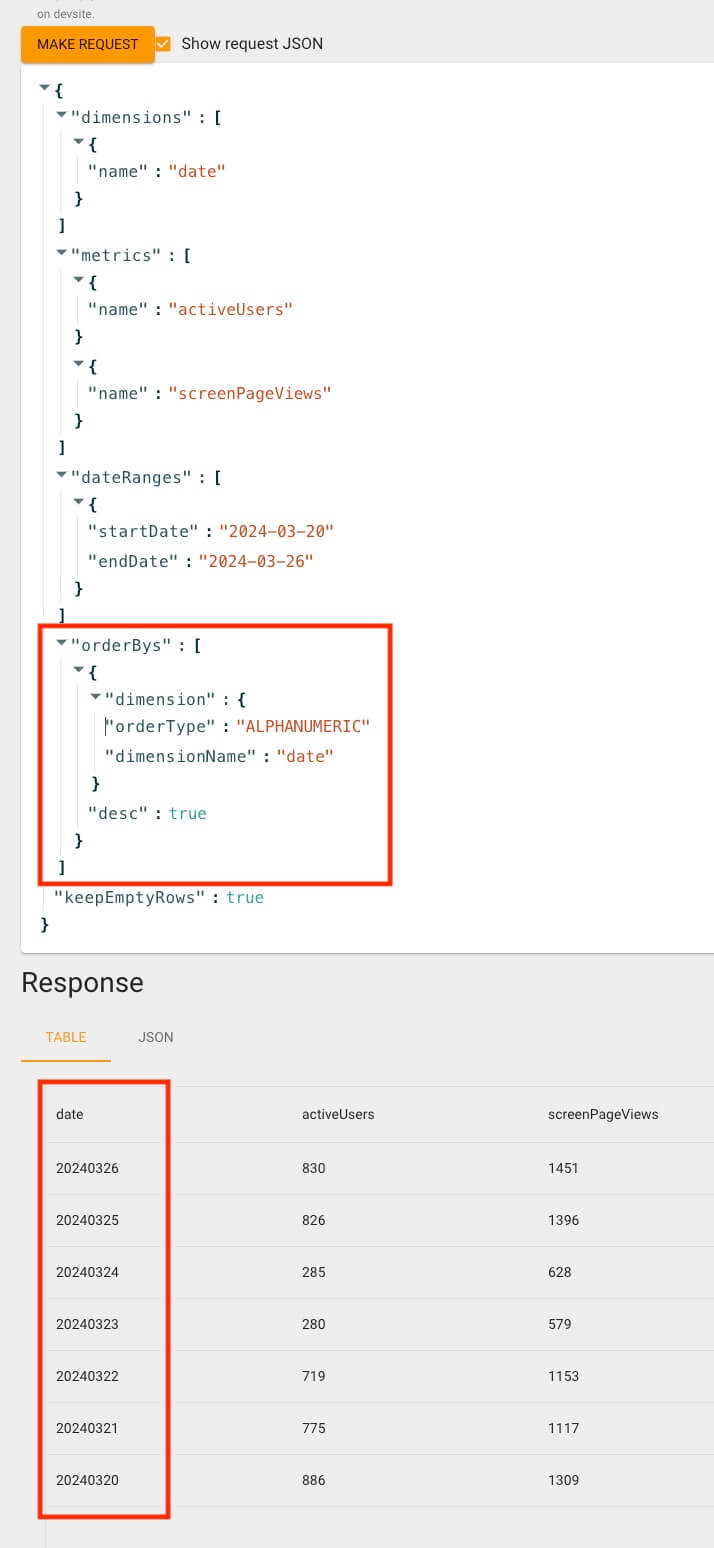
If you send the request again, you can now see the results sorted by date.
# Checking results for a specific page
If you want to check the data of only a specific page instead of all pages on the site, you can use the dimensionFilter field.
Let's check the data of this blog's About the developer page (/about).
First, add pagePath to the dimensions field.
Then select the FILTER button in the dimensionFilter field.
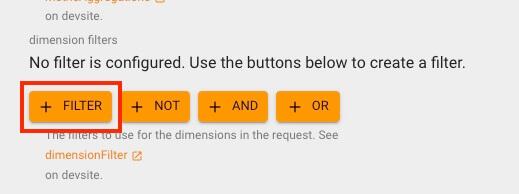
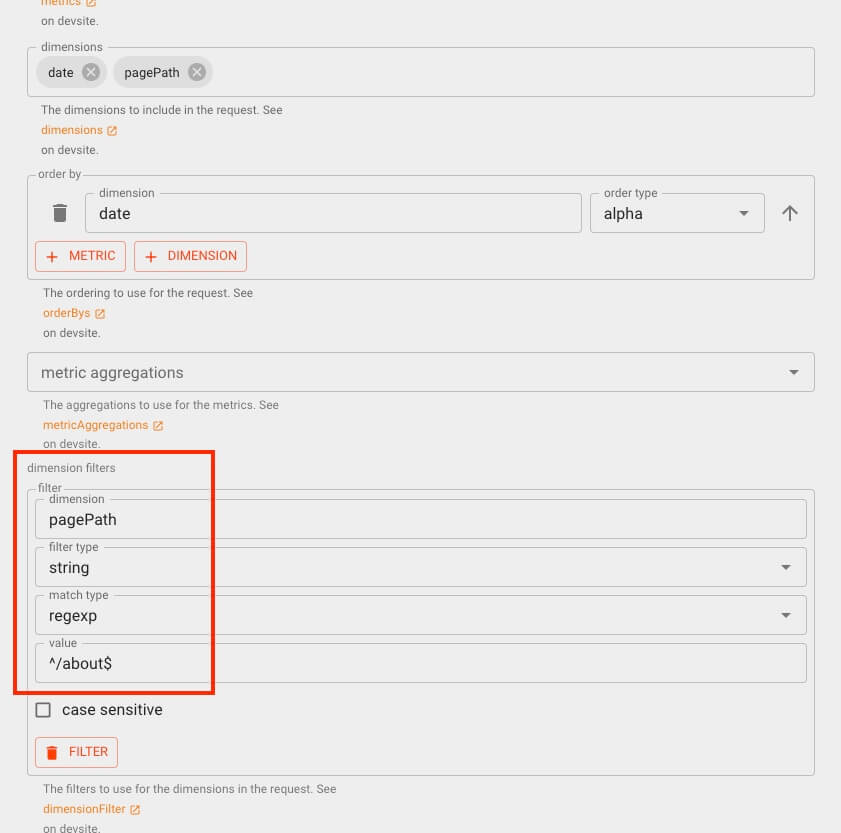
Then enter the filter conditions as follows.
Using a regular expression helps you specify precise results.^ means the start of the string, and $ means the end of the string.
In other words, this filters page addresses whose path starts and ends with /about.
| Field | Value |
|---|---|
dateRanges.startDate |
2024-03-20 |
dateRanges.endDate |
2024-03-26 |
metrics |
activeUsers, screenPageViews |
dimensions |
date, pagePath |
dimensionFilter.dimension |
pagePath |
dimensionFilter.filterType |
string |
dimensionFilter.matchType |
regexp |
dimensionFilter.value |
^/about$ |

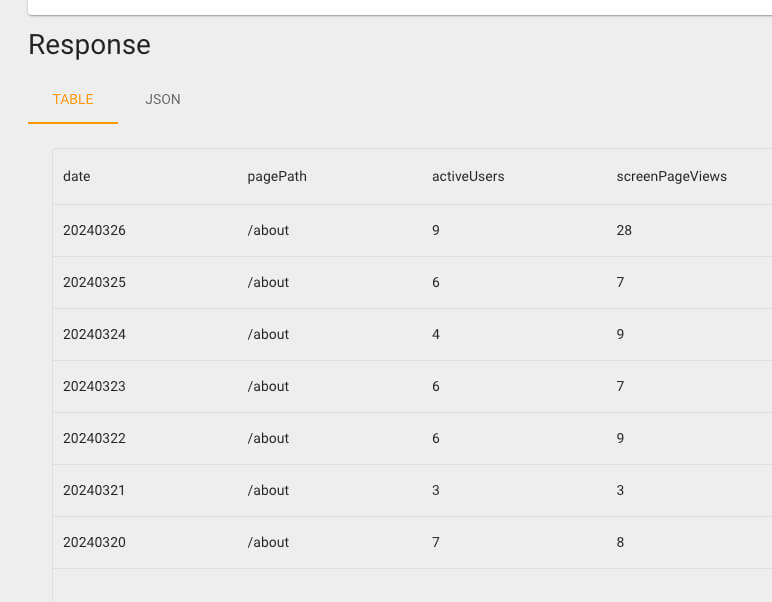
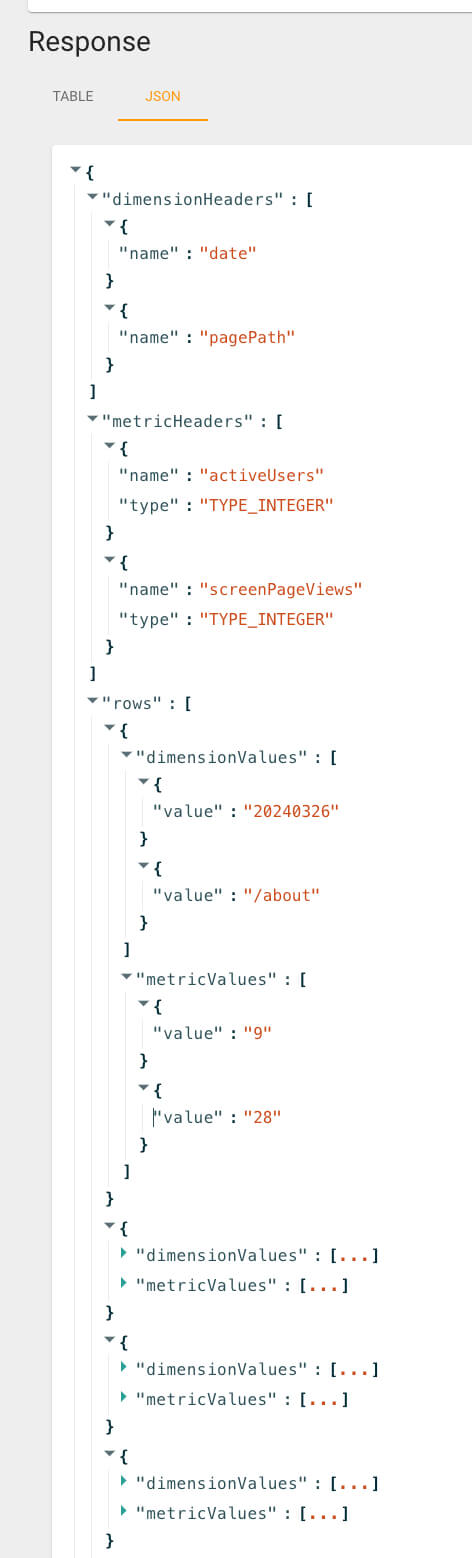
The JSON structure of the response data looks complex, but it is not difficult.
The basic data structure is as follows, so compare it with the image below.
| Field | Description |
|---|---|
response.dimensionHeaders[0].name |
Date (date) |
response.dimensionHeaders[1].name |
Page path (pagePath) |
response.metricHeaders[0].name |
Number of active users (activeUsers) |
response.metricHeaders[1].name |
Views (screenPageViews) |
response.rows[0] |
Data for March 26, 2024 |
response.rows[0].dimensionValues[0].value |
Date |
response.rows[0].dimensionValues[1].value |
Page path |
response.rows[0].metricValues[0].value |
Number of active users |
response.rows[0].metricValues[1].value |
Views |
response.rows[1] |
Data for March 25, 2024 |
response.rows[2] |
Data for March 24, 2024 |
response.rows[3] |
Data for March 23, 2024 |
| . . . |
# API dimensions and metrics
The dimensions and metrics we have used so far are as follows.
- Dimensions
date: DatepagePath: Page path
- Metrics
activeUsers: Number of active usersscreenPageViews: Number of page views
For more details on the dimensions and metrics you can use in the Google Analytics Data API, see the API Dimensions & Metrics guide.
# Google Analytics Data API
Once you have confirmed on the GA4 Query Explorer site what data to get, let's learn how to get the data with the Google Analytics Data API.
There are two main ways to use the Google Analytics Data API: the REST API and a library.
With the REST API, like GA4 Query Explorer, you have to get an access token by creating an OAuth 2.0 client.
So it is inconvenient for collecting data in a typical Node.js server environment. Instead, you can use it easily by providing credentials with the @google-analytics/data library.
# Enabling the API
To use the Google Analytics Data API, you need to do several things in the Google Cloud Console, such as creating a project and approving its use.
There is a good way to start right away without going through this process.
First, go to the Google Analytics Data API Quickstart guide page and select the Enable the Google Analytics Data API v1 button, as shown in the following image.

When the modal opens, enter a project name and select the NEXT button.
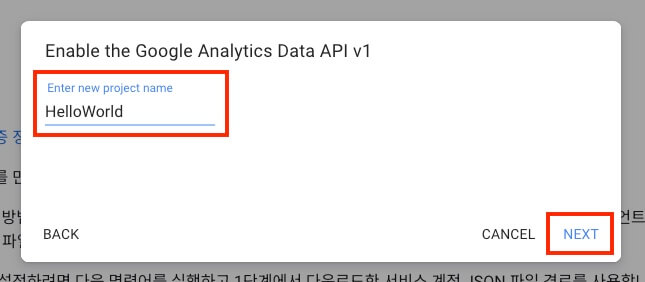
After a moment, when the project creation result appears as follows, select the DOWNLOAD PRIVATE KEY AS JSON button to download the service account key.
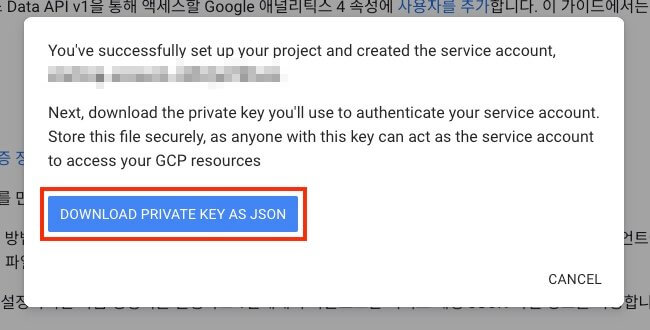
If you open the downloaded file, it is a JSON file with the following structure.
The first piece of information to check is the client_email property, so copy its value.
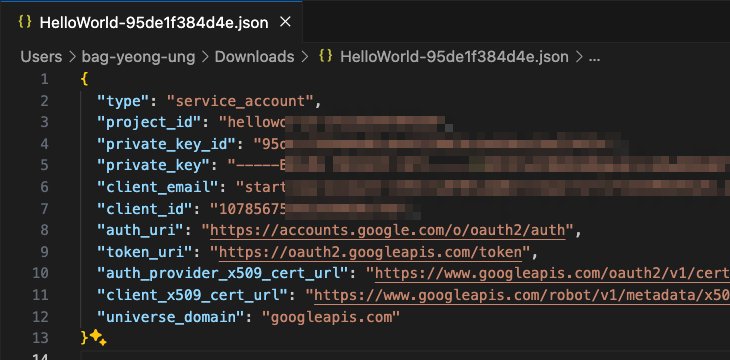
# Adding a service account
You need to add the service account in Google Analytics account access management before you can use the Google Analytics Data API for that Analytics application.
First, sign in to your Google Analytics account and go to the Admin menu of that Analytics application.
Then select the 'Account settings > Account > Account access management' menu.
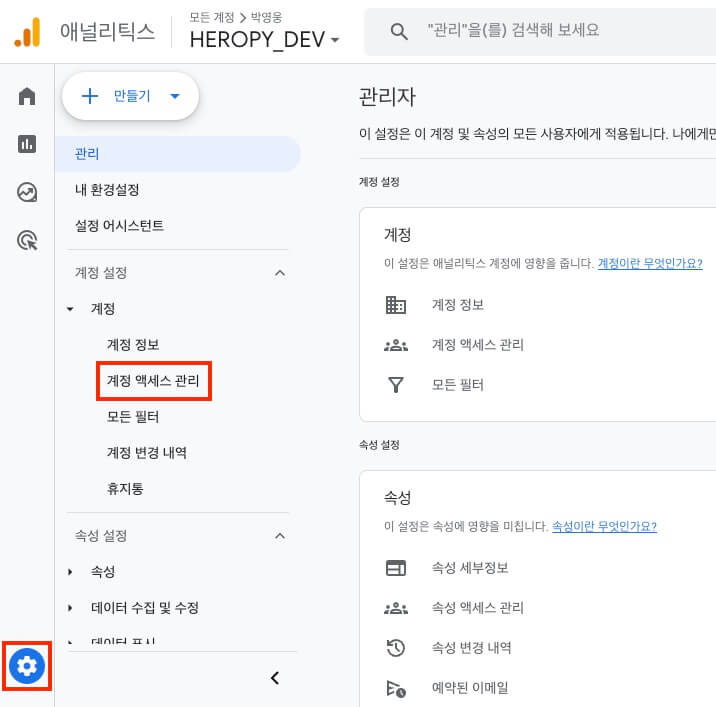
From the + button at the top right, select Add users.
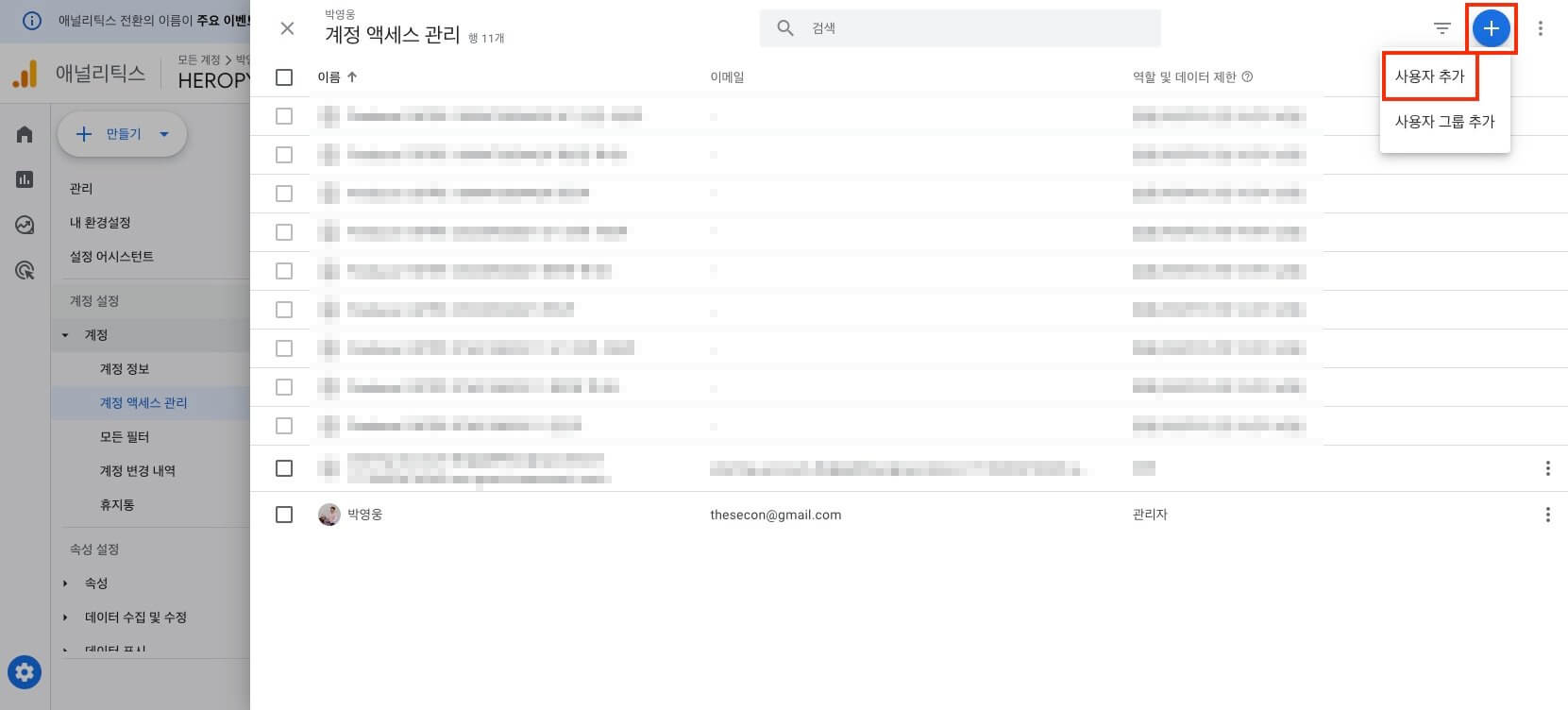
Paste the value of the client_email property you copied earlier and select the standard role you want.
It is fine to simply select 'Viewer'.
Then select the Add button at the top right to finish adding the service account.

# Setting up the project
Now let's set up a project that uses the Google Analytics Data API.
Create an empty project and install the dotenv and @google-analytics/data libraries.
12345mkdir google-analytics-api cd google-analytics-api code . npm init -y npm install dotenv @google-analytics/data
Add a .env file in the root path and enter the environment variables as follows.
For GOOGLE_APPLICATION_CREDENTIALS, copy and paste the contents of the key file (JSON) you downloaded earlier and write it inline. (Remove all line breaks so that it is written on one line.)
12GOOGLE_APPLICATION_CREDENTIALS={ "type": "service_account", "project_id": "helloworld-1711... GOOGLE_ANALYTICS_PROPERTY="412883001"
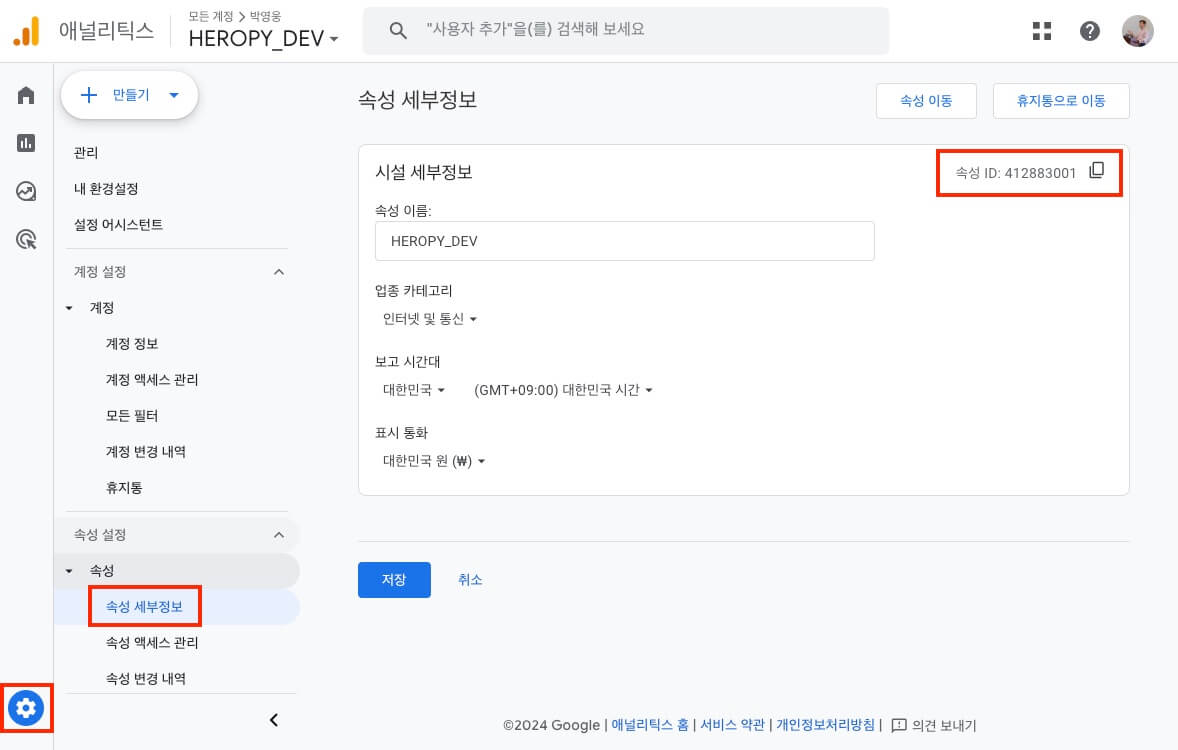
For GOOGLE_ANALYTICS_PROPERTY, enter the Google Analytics property ID.
You can easily find the property ID in GA4 Query Explorer, or on the Google Analytics Admin page.

# Calling the API
Now let's write code that gets data with the Google Analytics Data API.
Create an analytics.js file in the root path and write the code as follows.
When you write the request data for the .runReport() method, it helps to refer to the data structure you checked in GA4 Query Explorer above.
You can then transform the data into the format you want and save it to a file or a DB, or use it in other ways.
12345678910111213141516171819202122232425262728293031323334353637383940414243444546474849505152535455565758596061626364import fs from 'fs' import { config } from 'dotenv' import { BetaAnalyticsDataClient } from '@google-analytics/data' config() // Load environment variables! const { GOOGLE_APPLICATION_CREDENTIALS, GOOGLE_ANALYTICS_PROPERTY } = process.env const client = new BetaAnalyticsDataClient({ credentials: JSON.parse(GOOGLE_APPLICATION_CREDENTIALS || '') }) // Call the Google Analytics Data API! ;(async () => { const [response] = await client.runReport({ property: `properties/${GOOGLE_ANALYTICS_PROPERTY}`, dateRanges: [ { startDate: '2024-03-20', endDate: '2024-03-26' } ], metrics: [ { name: 'activeUsers' }, // Active users { name: 'screenPageViews' } // Page views ], dimensions: [ { name: 'date' }, // Date { name: 'pagePath' } // Page path ], dimensionFilter: { filter: { fieldName: 'pagePath', stringFilter: { matchType: 'FULL_REGEXP', // Regular expression value: `^/about$` } } }, orderBys: [ { dimension: { orderType: 'ALPHANUMERIC', dimensionName: 'date' }, desc: true } ], keepEmptyRows: true, // Include empty rows // returnPropertyQuota: true // Check the quota }) // Transform the data into the format you want! const result = response.rows?.reduce((acc, row) => { acc[row.dimensionValues[0].value] = { activeUsers: Number(row.metricValues[0].value) || 0, screenPageViews: Number(row.metricValues[1].value) || 0 } return acc }, {}) || {} // Save to a file! fs.writeFileSync('analytics.json', JSON.stringify(result, null, 2)) })()
When you finish writing the code, run it in the terminal with the following command.
1node analytics.js
Then the generated analytics.json file looks like this.
123456789101112131415161718192021222324252627282930{ "20240320": { "activeUsers": 7, "screenPageViews": 8 }, "20240321": { "activeUsers": 3, "screenPageViews": 3 }, "20240322": { "activeUsers": 6, "screenPageViews": 9 }, "20240323": { "activeUsers": 6, "screenPageViews": 7 }, "20240324": { "activeUsers": 4, "screenPageViews": 9 }, "20240325": { "activeUsers": 6, "screenPageViews": 7 }, "20240326": { "activeUsers": 9, "screenPageViews": 28 } }
# Quotas
Each API request runs only within the given quotas, and when a quota is used up, all requests for that property are blocked.
Based on the 'standard property limits' (free), the quotas are as follows.
- 200,000 tokens available per day
- 40,000 tokens available per hour
Most requests reportedly use 10 or fewer tokens.
The request in the example above used 1 token.
To check how many tokens you used, add returnPropertyQuota: true to the request data as an option of the .runReport() method.
Then the quota information is included in the propertyQuota property of the response data, as follows.

Thanks for reading to the end.
Likes and kind comments help keep this blog going!