First Steps in HTML and CSS

# Overview
Understanding and learning HTML, CSS, and JS, which make up the web, goes beyond simply learning a technology: it helps you understand the past, present, and future of the web, mobile, and IT as a whole.
In practice, it also builds your ability to look at a product from a more structural point of view.
It can be especially helpful in roles that work closely with product development, such as planning, design, and technical sales.
For these reasons, many companies now ask for development experience even from people without a computer science background.
I've gathered as much of the knowledge you need before learning HTML and CSS as I could.
# HTML, CSS, and JavaScript

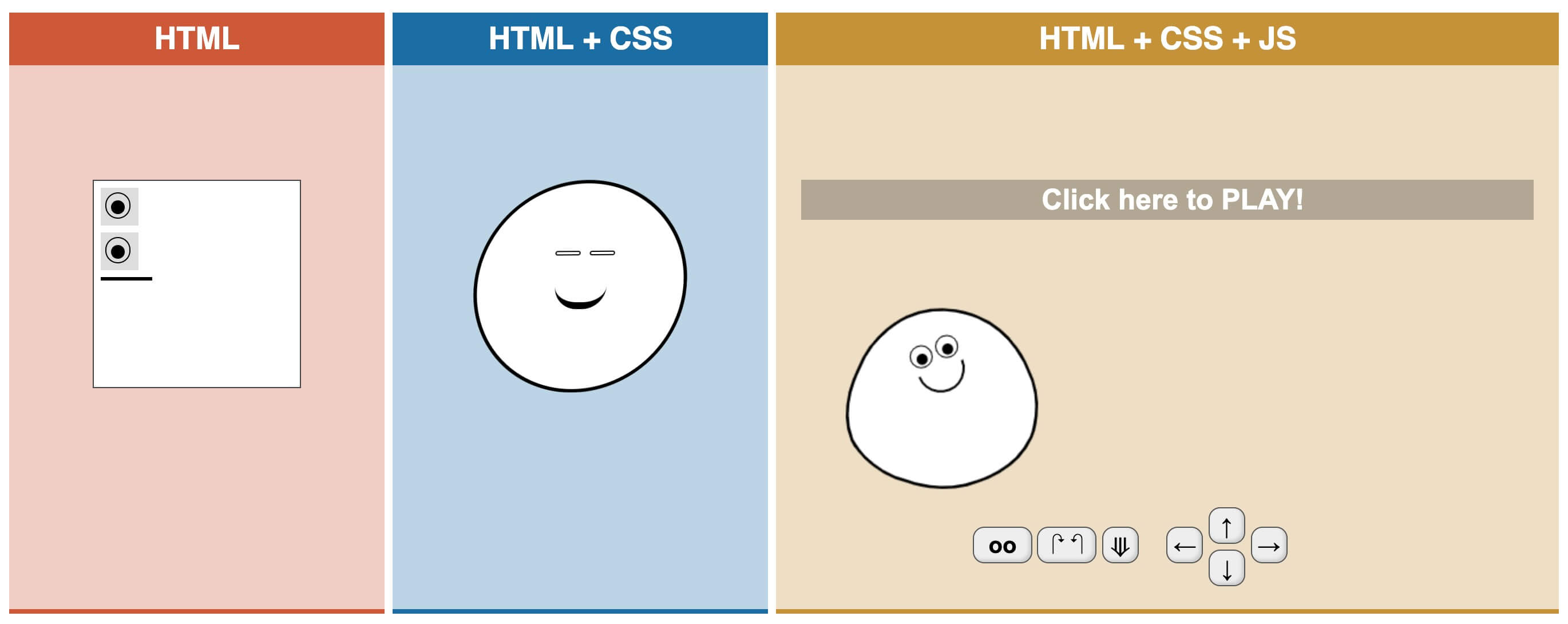
HTML (Hyper Text Markup Language) is a static language that defines headings, paragraphs, tables, images, videos, and so on in a page and gives them structure and meaning, and it is responsible for the structure of the web.
Don't try to make the screen pretty with HTML! (Not that you could..)
You should focus only on building a solid, semantic structure.

CSS (Cascading Style Sheets) is a static language that decorates the content structure by specifying how a markup language (HTML, XML, and so on) is actually displayed (color, size, font, layout, and so on), and it is responsible for the visual presentation of the web.
It lets you focus only on making things pretty.
You can focus on setting the right sizes, beautiful colors, and the positions you want.

JS (JavaScript) is a programming language that makes a page dynamic, for example by changing content and moving things around, and it is responsible for dynamic processing on the web.
JS can also take over the jobs of HTML and CSS (structure, visual presentation, and so on) by using them, but it can't do those jobs as well as they can (in terms of performance), so it should focus on dynamic processing as much as possible.
Just as building a house is split into specialties such as framing, plastering, and interior work for efficiency, when you build a web page you should be careful not to let one language replace another language's role, and you need to optimize the languages (code) structurally and technically so that each role is carried out properly.
(When they move on to real-world projects, many beginners wonder why on earth these three simple roles are split into separate files and folders and written in a more complicated way. As mentioned, this is the process of optimizing structurally and technically when you build larger and more complex web pages, and it is essential for maintenance, scalability, productivity, and so on. Understanding and getting used to this process itself is very important when you learn. But you don't need to think too hard about it yet!)
HTML-CSS-JS is a site that visually shows the roles of HTML, CSS, and JS.
It will help you understand the role of each language.
# Web standards
Web standards means 'the standard technologies or rules used on the web', and it covers the technologies that come from W3C Recommendations.
Web browsers (Chrome, IE, Safari, and so on) are built on these standard technologies, but because browser vendors (such as Google, MS, and Apple) interpret the standards differently and add new technologies (following the standardization stages (Korean)), some browsers end up behaving a little differently.
Technologies such as ActiveX and Flash, which have now almost disappeared, are not standards.
In most cases, it's easiest to think of technologies at the 'Recommendation (REC)' stage of standardization as the standards.
# Cross-browsing
Cross-browsing refers to the techniques and methods for building pages that give the same user experience (the same screen, the same behavior, and so on) in browsers that, as explained above, behave a little differently.
Most browsers are built to follow web standards as closely as possible, so problems are rare, but MSIE (Microsoft Internet Explorer) is a browser that is hard to bring in line with the standards in many ways.
So making things work in IE is sometimes called cross-browsing. (In most cases, if it works in IE, other browsers are OK!)
# Web accessibility
Web accessibility refers to ways of creating web content that every user can access equally, from general users who can use web content without difficulty to users with physical or environmental limitations, such as older adults and people with disabilities.
Adding captions to videos for people who are deaf, making the web usable with a keyboard for people who can't use a mouse (or the other way around), and even simple things like providing alternative text for images are all part of web accessibility.
The power of the Web is in its universality. Access by everyone regardless of disability is an essential aspect.
Sir Tim Berners-Lee - Inventor of the Web
# Assistive technology devices
People with disabilities must be able to access web content through assistive technology devices such as the following.
These devices can be bought personally or rented from government agencies or welfare facilities for people with disabilities.
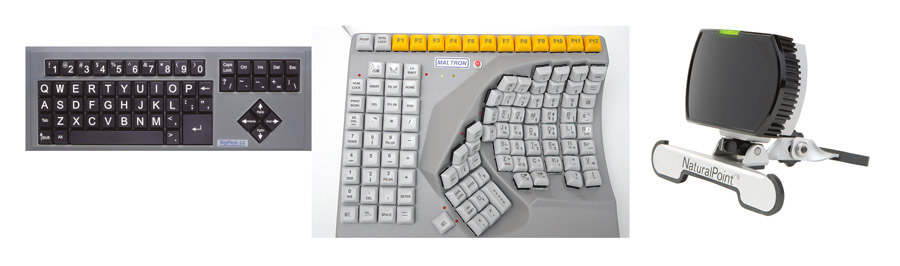
- One-handed keyboard: A keyboard designed for typing with one hand, for people with hemiplegia
- Big key keyboard: A special keyboard with large keys that suits people with hand tremors or upper limb disabilities, with a key guard that prevents typos
- n-Abler joystick: A joystick mouse for people who have trouble using a regular mouse because they can't move their arms freely
- SmartNav: A special mouse that people who have difficulty using their upper and lower limbs can control with head movements (using infrared and reflective stickers)
- Sound alerter: A wireless signaling device for people who are deaf that turns sound information into light and vibration
# Web accessibility quality certification mark

This is a Korean program that certifies the quality of excellent websites that follow web accessibility standards, so that people with disabilities and older adults can use websites without inconvenience, and awards them a mark. Under Article 32-2 of the Framework Act on National Informatization and Article 3-3 of its Enforcement Rules, you can be reviewed and certified through a web accessibility quality certification body designated by the Ministry of Science and ICT.
After a document review, a technical review, and so on, you have to pay a review fee starting at KRW 1,000,000, depending on the number of pages.
Realistically, it's not easy for individuals or small and medium-sized businesses to get it.
# Editors for web development
Unlike web and app design, which depends on a limited set of tools such as Photoshop and Sketch 3, web development hardly depends on any particular tool.
You could even use Notepad, but for better development performance, I recommend choosing a good editor.
Here is a short introduction to cross-platform (Windows, macOS) editors for web development (frontend, Node.js) with HTML, CSS, and JS that are widely used in practice.
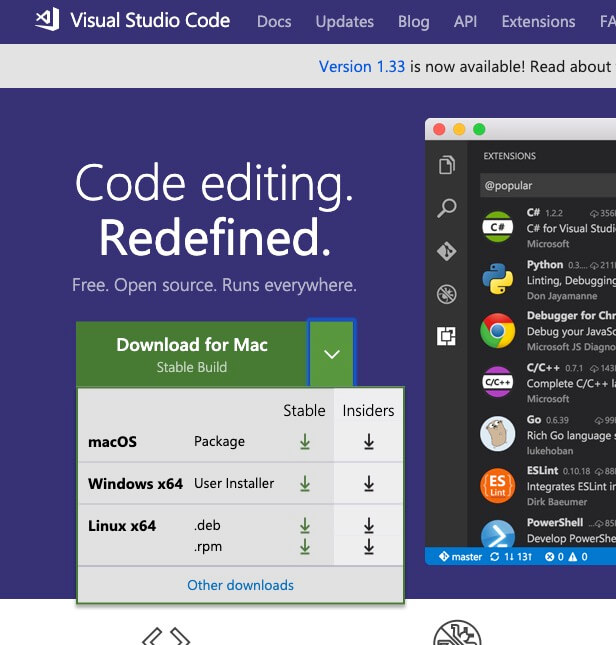
# VS Code

https://code.visualstudio.com/
VS Code (Visual Studio Code) is a text editor made by Microsoft (MS).
It's lightweight to get started with and has a huge number of extensions.
# WebStorm

https://www.jetbrains.com/webstorm/
It is one of the integrated development environment (IDE) programs made by JetBrains.
You hardly need any extra extensions, and you can start most projects right away.
I recommend it because it's so convenient that once you use it, it's hard to switch to another editor, but the catch is that it's paid.
However, if you get a student license you can use it for free, and there is also a 30-day trial, so if you can afford it, I recommend giving it a try.
# Installing and setting up VS Code
I went with VS Code because it's free. (At work, I use WebStorm)
Let's get an editor ready for web development, from installation to shortcuts and extensions!
# Installation
Install the Stable version for your operating system (Windows, macOS, Linux).
Ignore the extra settings and keep clicking Next to proceed.
# Interface
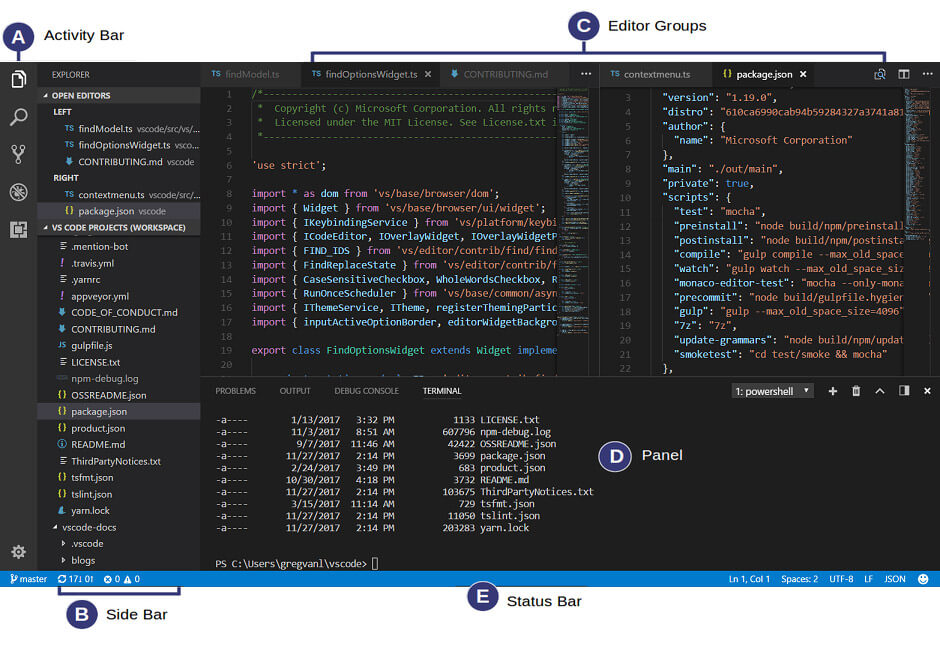
# Extensions
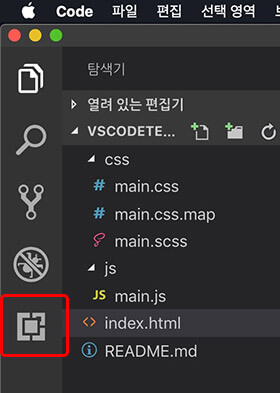
Like other editors, VS Code supports extensions: you can download (install) various extensions that the initially installed version doesn't include, connect them, and use them. (In most editors, you can search for extensions within the editor itself)
Some features may be absorbed into the editor itself as it is updated, so some extensions may already be supported depending on your editor's version; I recommend checking whether a feature is already provided before installing it.
# Korean Language Pack for Visual Studio Code
Almost every menu in VS Code changes to Korean.
# Live Server
Select Go Live in the status bar at the bottom
Or,
Right-click in an HTML file > select Open with Live Server
# Auto Rename Tag
When you edit a tag name, the opening and closing tags are edited as a pair.
It saves you the trouble of editing each one separately.
# Other recommendations
You probably won't need the following extensions right away.
Check them out later.
# Useful shortcuts
You can view or change shortcuts in Preferences > Keyboard Shortcuts.
| Windows shortcut | macOS shortcut | Description |
|---|---|---|
| "Ctrl + B" | "Cmd + B" | Open/close the sidebar |
| "Ctrl + P" | "Cmd + P" | Quick Open (go to a file or symbol) |
| "Ctrl + Shift + P" | "Cmd + Shift + P" | Show All Commands (access every command in the editor) |
| "Ctrl + F" | "Cmd + F" | Find (search) |
| "Ctrl + H" | "Cmd + Opt(Alt) + F" | Find (search)/Replace |
| "Alt + Up" | "Alt + Up" | Move line up |
| "Alt + Down" | "Alt + Down" | Move line down |
| "Shift + Alt + UpArrow" | "Shift + Alt + UpArrow" | Copy line up |
| "Shift + Alt + DownArrow" | "Shift + Alt + DownArrow" | Copy line down |
| "Tab" | "Tab" | Indent |
| "Shift + Tab" | "Shift + Tab" | Outdent |
| "Ctrl + PageUp" | "Cmd + Shift + [" | Open previous editor (switch to the editor on the left) |
| "Ctrl + PageDown" | "Cmd + Shift + ]" | Open next editor (switch to the editor on the right) |
| "Ctrl + \" | "Cmd + \" | Split editor (backslash) |
| "Ctrl + number" | "Cmd + number" | Focus the numberth split editor group |
| "Ctrl + W" | "Cmd + W" | Close editor |
# Wrap with abbreviation
- Select the code to wrap
- Run Show All Commands / "Ctrl + Shift + P" (Windows), "Cmd + Shift + P" (macOS)
- Type
Emmet: Wrap with Abbreviationor select it from the list ("Enter") - Enter Emmet syntax such as
divorspan(ex:.wrapper,span.bold) - Done ("Enter")
# Images used on the web
# Bitmap and vector images
Images (graphics) fall into two broad types: bitmap and vector.
A bitmap is a collection of information made up of individual pixels, and it is also called a raster image.
It is rendered on the screen pixel by pixel. (Rendering: the computer draws a picture on the screen so that we can see it)
Most of the images we commonly use are in bitmap format.
You can edit them with tools such as Paint and Photoshop.
A vector is the result produced by shapes defined with mathematical information.
It holds all of the image's information, such as the positions (coordinates) and colors of its points, lines, and faces, and renders that on the screen.
So it needs more computation, but unlike bitmap images, which are affected by resolution (pixels), it can be rendered independently of resolution.
Simply put, the image doesn't break up when you zoom in or out.
Also, because it holds only mathematical information, its file size doesn't change when you scale the image up or down.
You can edit them with tools such as Illustrator.
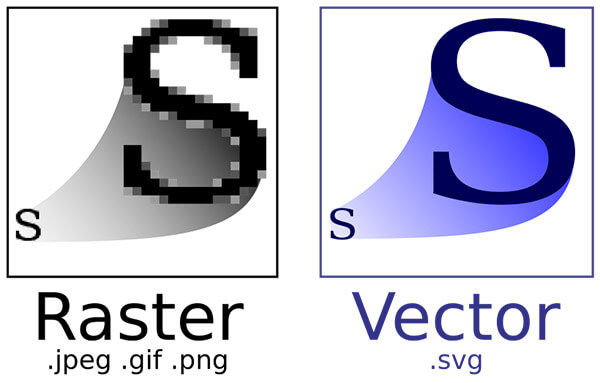
| Image type | Pros | Cons |
|---|---|---|
| Bitmap | Represents fine detail and a wide range of colors naturally | Jagged edges and quality loss when scaled |
| Vector | Scales freely, no change in file size | Hard to represent detailed images (such as portraits and landscape photos) |
# JPG(JPEG)
JPG (Joint Photographic coding Experts Group) was created to compress full-color and grayscale images, and its excellent compression ratio makes it widely used for photos and art.
Its high compression ratio (small file size) is its strength!
- Lossy compression
- Excellent color depth (24-bit, about 16 million colors), suitable for high-resolution displays
- Image quality and file size are easy to adjust
- The most widely used image format
# PNG
PNG (Portable Network Graphics) was developed as a replacement for GIF.
It supports transparency!
- Lossless compression
- Handles 8-bit (256 colors) / 24-bit (about 16 million colors) color images
- Supports an alpha channel (transparency)
- A format recommended by W3C
# GIF
GIF (Graphics Interchange Format) can store information such as images and strings inside the image file.
It can provide video-like images (animation)!
- Lossless compression
- Can hold several images in one file (animated GIFs, animation)
- Supports only 8-bit color (not suitable for work that needs a wide range of colors)
# WEBP
An image format developed by Google that can replace JPG, PNG, and GIF.
It is a more advanced image format! (Support Browser for Webp)
- Full support for lossy/lossless compression
- Supports animation like GIF
- Supports an alpha channel (both lossy and lossless)
# SVG
SVG (Scalable Vector Graphics) is a format for vector graphics based on a markup language (HTML/XML).
- Free from the effects of resolution
- Can be styled with CSS
- Can handle events with JavaScript
- Can be used as code or as a file
# Names of special characters
| Symbol | English | Korean |
|---|---|---|
` |
Backtick, Grave | - |
~ |
Tilde | 물결표시 (wave mark) |
! |
Exclamation mark | 느낌표 (exclamation mark) |
@ |
At sign | 골뱅이 (sea snail) |
# |
Number sign, Sharp | 샵 (sharp), 우물 정 (the character 井, 'well') |
$ |
Dollar sign | 달러 (dollar) |
% |
Percent sign | 퍼센트 (percent) |
^ |
Caret | - |
& |
Ampersand | - |
* |
Asterisk | 별표 (star mark) |
- |
Hyphen, Dash | 마이너스 (minus) |
_ |
Underscore, Low dash | 밑줄 (underline) |
= |
Equals sign | 이꼬르 (equal) |
" |
Quotation mark | 큰 따옴표 (big quotation mark) |
' |
Apostrophe | 작은 따옴표 (small quotation mark) |
: |
Colon | 땡땡이 (two dots) |
; |
Semicolon | 털 달린 땡땡이 (two dots with a tail) |
, |
Comma | 쉼표 (comma) |
. |
Period, Dot | 점, 마침표 (dot, period) |
? |
Question mark | 물음표 (question mark) |
/ |
Slash | - |
| |
Vertical bar | - |
\ |
Backslash | - |
() |
Parenthesis | (소)괄호 ((small) brackets) |
{} |
Brace | 중괄호 (middle brackets) |
[] |
Bracket | 대괄호 (big brackets) |
<> |
Angle Bracket | 꺽쇠괄호 (bent brackets) |
# Open source licenses
Open source means making the source code or design needed to develop a product public so that anyone can access and view it.
People usually think open source is free of copyright restrictions and fine to use at no cost, but in fact there are many kinds of open source licenses, and some allow personal use but restrict commercial use, or in some cases may require you to pay.
Realistically, you can't write every line of code yourself from start to finish, so you often end up depending on open source. That's fine for personal use, but if you use it carelessly at work (commercially), it could become a problem and you might get fired or have to pay damages.
Of course, copying a few lines of code floating around the internet won't cause a problem that serious, but it's always good to be careful.
If you find a good open source project while working at a company, reflexively look for its 'License' first!
You don't need to study every license out there, so here are a few licenses that make you smile just by looking at them.
# Apache License
A license created by the Apache Software Foundation to apply to its own software.
It allows personal/commercial use, distribution, modification, and patent applications.
# MIT License
A license developed by the Massachusetts Institute of Technology (MIT) for its software students.
All you have to do is keep a notice in your source that it uses this license, and there are no other restrictions on use, so it is very popular.
# BSD License
BSD (Berkeley Software Distribution) is a license developed at the University of California, Berkeley.
Like MIT, you only need to keep the license notice.
# Beerware
A license that requires you to buy the open source developer a beer.
If you ever get to meet them, of course!
You can find more information about other open source licenses at OpenSource.org.
# HTML
# Really easy HTML syntax
# Basic form
Each tag has its own meaning and takes the following form.
12<TAG></TAG> <TAG>CONTENT</TAG>
123456<h1>The Tortoise and the Hare</h1> <p>Once upon a time, there lived a hare and a tortoise ...</p> <!-- You can understand it like this. --> <Heading1>The Tortoise and the Hare</Heading1> <Paragraph>Once upon a time, there lived a hare and a tortoise ...</Paragraph>
A tag also has an opening and closing structure, and the two tags form a pair.
(This is also called a start and end structure)
This structure creates the scope of the tag.
1234<h1>The Tortoise and the Hare</h1> <!-- You can understand it like this. --> <Heading1OpensHere>The Tortoise and the Hare</Heading1ClosesHere>
One thing beginners should watch out for is that a closing tag has a / (slash) in front of the tag name.
# Attributes and values
You can use 'attributes' to extend what a tag (element) can do.
1<TAG attribute="value"></TAG>
123456<img src="./my_photo.jpg" alt="My profile photo" /> <div class="name">John Doe</div> <!-- You can understand it like this. --> <InsertImage sourceLocation="./my_photo.jpg" altText="My profile photo" /> <SimpleDivision tagNickname="name">John Doe</SimpleDivision>
<img /> is the tag for inserting an image.
But with the tag alone, you can't tell which image to insert, so you use the src (source) attribute to specify the path of the image to insert. And the alt (alternative) attribute specifies the text to show instead of the image when the image can't be displayed.<div></div> is a tag with no meaning, and it can wrap any content.
Above, it wraps the text 'John Doe', but you can't tell what that content means, so we added a tag nickname (class) called name.
# Parent and child elements
When tag A is used as the content of tag B, tag B is called the parent element of tag A, and tag A is called the child element of tag B.
123<PARENT> <CHILD></CHILD> </PARENT>
1234567891011121314151617181920<section class="fruits"> <h1>Fruit list</h1> <ul> <li>Apple</li> <li>Strawberry</li> <li>Banana</li> <li>Orange</li> </ul> </section> <!-- You can understand it like this. --> <SectionArea tagNickname="fruits"> <Heading1>Fruit list</Heading1> <UnorderedList> <Item>Apple</Item> <Item>Strawberry</Item> <Item>Banana</Item> <Item>Orange</Item> </UnorderedList> </SectionArea>
Inside <section></section> (as its content) are <h1></h1>, <ul></ul>, and <li></li>, and inside <ul></ul> (as its content) is <li></li>.
(From here on, I'll leave out the closing tags)
In this structure, <section> is the parent element of <h1> and <ul>.
Also, <ul> is the parent element of <li>.
Conversely, <h1> and <ul> are child elements of <section>.
Also, <li> is a child element of <ul>.
Here, <ul> is a child element of <section> and also the parent element of <li>.
Like this, parent and child elements are relative concepts.
(Going a bit further, <section> is called an ancestor (upper) element of <li>, and conversely, <li> is called a descendant (lower) element of <section>)
Just as we define titles like grandfather, mother, uncle, and brother through a basic family tree (or, conversely, understand a family tree through those titles), HTML structure also uses the concepts above to name elements, and these names become important later when you work with HTML in CSS and JS through selectors.
# Empty tags
HTML has tags with no concept of closing.
They take the following form.
123456<!-- Empty tag without `/` --> <TAG> <!-- Empty tag with `/` --> <TAG/> <TAG />
In HTML5, you can use both forms above, but depending on the XHTML version, the lint environment, or the framework setup, using / may be required.
People argue back and forth about which form to use, but it doesn't really matter. Use whichever form you like, but don't mix them.
# Comments
You can write notes on changes, explanations, and so on that aren't interpreted as actual code.
These are called comments, and in most editors you can press Cmd or Ctrl + / to turn a line or code into a comment in the syntax of that language.
1<!-- Comment (notes on changes or explanations) -->
# Scopes of an HTML document
We can call an HTML file such as index.html an HTML document.
Let's look at the tags that indicate (mean) the scopes of an HTML document.
123456789<!DOCTYPE html> <html> <head> Document information </head> <body> Document structure </body> </html>
12345678910111213141516171819202122<!DOCTYPE html> <html> <head> <meta charset="UTF-8"> <meta name="author" content="John Doe"> <meta name="description" content="Our site is the best!"> <title>My Site</title> <link rel="stylesheet" href="./css/main.css"> <script src="./js/main.js"></script> </head> <body> <section> <h1></h1> <div> <ul> <li></li> <li></li> </ul> </div> </section> </body> </html>
# HTML (entire scope)
<html> specifies the entire scope of an HTML document.
It tells the web browser where the HTML document it has to interpret starts and where it ends.
# HEAD (information scope)
Specifies the information scope of the HTML document that the web browser has to interpret.
The information here includes things like the web page title, the character encoding of the web page, the location of external files to link, and default settings for structuring the web page.
Put another way, you can describe it as 'the default settings for building the screen'.
# BODY (structure scope)
Specifies the structure scope of the HTML document that the web browser has to interpret.
Structure means the shape, layout, and so on of the content that users can see on the screen, and everything visible, such as the logo, header, footer, navigation, menus, buttons, input fields, pop-ups, and ads, is part of the structure.
You create the structure only inside the BODY scope.
# DOCTYPE (DTD, version declaration)
DOCTYPE (DTD, Document Type Definition) defines the document type in a markup language.
It tells the web browser which HTML version's rules to use when structuring the HTML document we provide.
(HTML broadly has versions 1, 2, 3, 4, X-, and 5. It's easy to think of it like the Windows operating system having versions 95, 98, ME, XP, Vista, 7, 8, and 10)
The current standard mode is HTML5.
12345<!-- HTML 5 --> <!DOCTYPE html> <!-- XHTML 1.0 Transitional --> <!DOCTYPE html PUBLIC "-//W3C//DTD XHTML 1.0 Transitional//EN" "http://www.w3.org/TR/xhtml1/DTD/xhtml1-transitional.dtd">
# Information in an HTML document
The tags used inside <head></head> hold the information of the HTML document.
# TITLE (web page title)
Defines the title of the HTML document.
It is shown as the name on each site's tab in the web browser.

123<head> <title>Naver</title> </head>
# META (web page information)
Provides information about the HTML document (web page), such as how it's displayed, its author (owner), content, and keywords, to search engines or browsers.
It is an empty tag.
123456789101112<head> <meta charset="UTF-8"> <meta name="author" content="John Doe"> <meta name="description" content="Our site is the best!"> </head> <!-- You can understand it like this. --> <DocumentInfoScope> <Info characterEncoding="UTF-8"> <Info infoType="siteAuthor" infoValue="John Doe"> <Info infoType="siteDescription" infoValue="Our site is the best!"> </DocumentInfoScope>
The attributes you can use in <meta> are as follows.
Each tag has a fixed set of attributes and values it can use.
You should be able to tell which attributes can and can't be used.
Some attributes aren't used often, so you don't need to memorize every attribute and value right away.
(There are also attributes called 'global attributes' that you can use on any tag, but you don't need to look at them now!)
| Attribute | Meaning | Value |
|---|---|---|
charset |
Character encoding | UTF-8, EUC-KR, etc.. |
name |
The type of information to provide to search engines and so on (metadata) | author, description, keywords, viewport, etc.. |
content |
Provides the value of the name or http-equiv attribute |
# LINK (loading CSS)
Used to link external documents.
In particular, it is used to load and link a CSS document (an xxx.css file) written outside the HTML.
It is an empty tag.
12345678910<head> <link rel="stylesheet" href="./css/main.css"> <link rel="icon" href="./favicon.png"> </head> <!-- You can understand it like this. --> <DocumentInfoScope> <LinkExternalDocument relation="CSS" documentPath="./css/main.css"> <LinkExternalDocument relation="siteIcon" documentPath="./favicon.png"> </DocumentInfoScope>
| Attribute | Meaning | Value |
|---|---|---|
rel |
(Required) Specifies the relationship between the current document and the external document | stylesheet, icon, etc.. |
href |
Specifies the location of the external document | Path |
# STYLE (writing CSS)
Used when you write CSS inside the HTML document instead of writing it in an external document and linking it.
123456789101112131415<style> img { width: 100px; height: 200px; } p { font-size: 20px; font-weight: bold; } </style> <!-- You can understand it like this. --> <StyleDefinition> <!-- CSS code --> </StyleDefinition>
# SCRIPT (loading or writing JS)
In an HTML document, you can load CSS written elsewhere with <link>, or write it inside <style></style>.
For JS, you can use both of these ways with <script></script>.
1234567891011121314151617181920<!-- Load --> <script src="./js/main.js"></script> <!-- Write --> <script> function windowOnClickHandler(event) { console.log(event); } window.addEventListener('click', windowOnClickHandler); </script> <!-- You can understand it like this. --> <!-- Load --> <JavaScript documentPath="./js/main.js"></JavaScript> <!-- Write --> <JavaScript> <!-- JS code --> </JavaScript>
# Structure of an HTML document
The tags used inside <body></body> represent the structure of the HTML document.
# DIV (the catch-all tag)
The 'div' in <div></div> is short for 'division', which means 'splitting', and it 'defines a part or section of a document'.
Because it has no clear meaning, it is very often used simply to wrap a certain area.
Usually, you apply CSS or JS to these wrapped parts.
123456789101112131415161718192021222324<body> <div> <p></p> </div> <div> <div> <h1></h1> <p></p> </div> </div> </body> <!-- You can understand it like this. --> <body> <Group1> <p></p> </Group1> <Group2> <Group2-1> <h1></h1> <p></p> </Group2-1> </Group2> </body>
# IMG (the image tag)
<img> is used to insert an image into HTML.
(There are two main ways to insert an image into a web page: 'inserting in HTML (IMG)' and 'inserting in CSS (background)')
12345678<body> <img src="./kitty.png" alt="Kitty"> </body> <!-- You can understand it like this. --> <body> <Image path="./kitty.png" altText="Kitty"> </body>
| Attribute | Meaning | Value |
|---|---|---|
src |
(Required) The URL of the image | URL |
alt |
(Required) Specifies the alternate text of the image |
The attributes marked '(Required)' in the table above (src, alt) are attributes that must be included when you use <img> (required attributes).
If you write <img src="./kitty.png"> and leave out the alt attribute, it violates web standards.
# Validating web standards
You can test whether the HTML document you wrote conforms to the standards.
Go to W3C validator, upload your HTML document, and start the test!
It can tell you whether the document meets the basic standards.
Especially if you're a beginner, it's a good idea to check often until you get used to it.

This is the result you get when you write <img src="./kitty.png"> as above.
There are many rules like this to follow when you write an HTML document.
Note that passing the test doesn't ultimately decide whether you comply with web standards/web accessibility; this test is really closer to a basic syntax check.
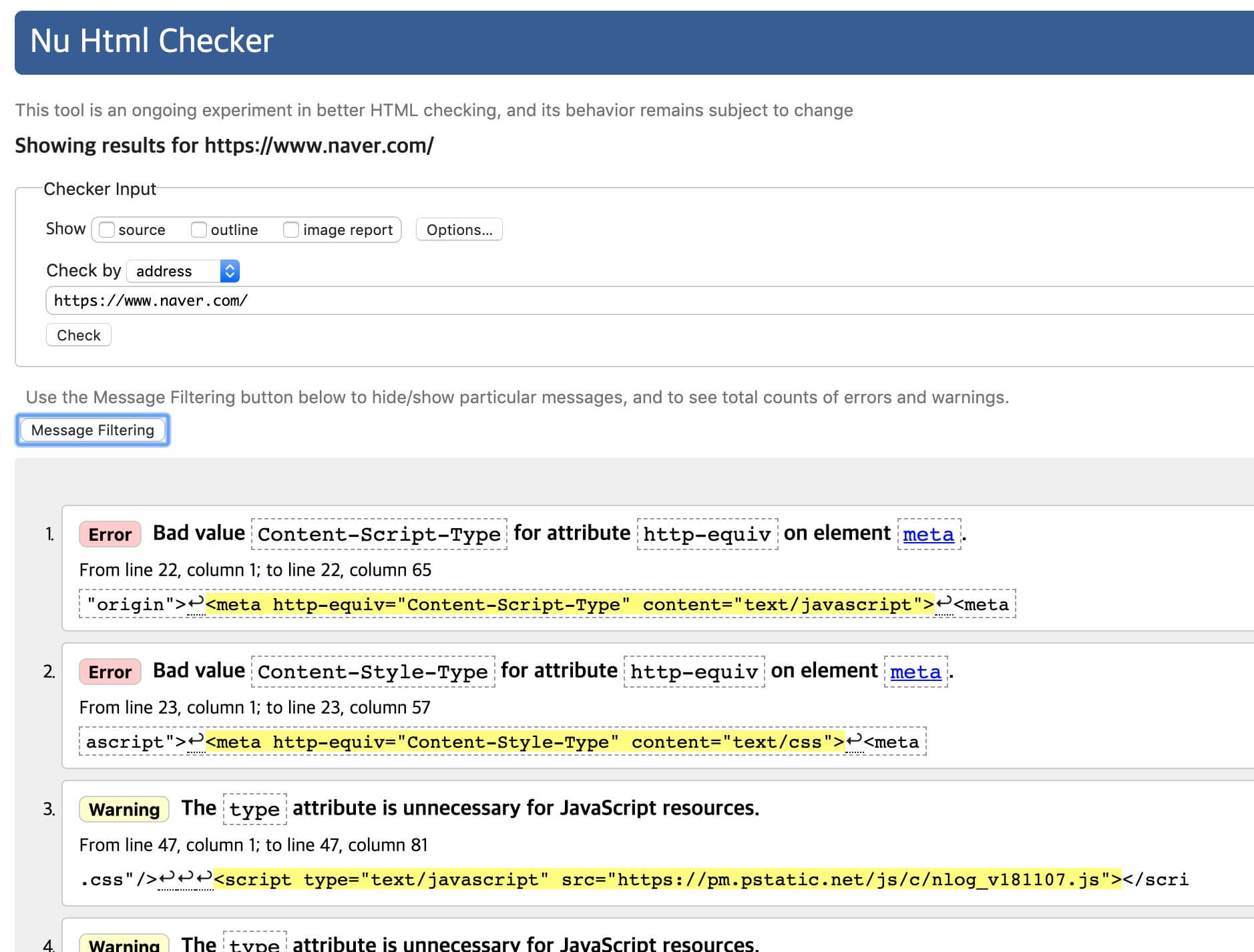
You can also validate a site (page) by its address.
The following is the result of validating naver.com.
# HTML example
The following image is part of the GitHub main page. (The image used in this example shows an older version of the main page)
Let's code part of this page in HTML.
Here is the finished page (https://heropcode.github.io/GitHub-Responsive/).
It's a clone of the GitHub main page.

To keep things from getting too difficult at the beginner level (so the code doesn't get too long), let's organize the structure of only part of the content in the marked area (Header) of the screen above.

Create a project directory (folder) named example1 somewhere familiar, such as your desktop. (Feel free to name it whatever you like)
Now run VS Code, select File/Open, find the directory you created, and open it.
Create a file named index.html inside it. (File/New File > Save > set the name and extension)
Code along while comparing the following code with the structure above.
123456789101112131415161718192021222324<!DOCTYPE html> <html> <head> <meta charset="UTF-8"> <title>GitHub</title> </head> <body> <div class="header"> <div class="container"> <div class="container-left"> <div class="logo"> <img src="https://heropcode.github.io/GitHub-Responsive/img/logo.svg" alt="GitHub Logo"> </div> <div class="menu"> <div class="menu-item">Personal</div> <div class="menu-item">Open Source</div> <div class="menu-item">Business</div> <div class="menu-item">Explore</div> </div> </div> </div> </div> </body> </html>
Right now, if you open this structure in the browser, you only see one image and the 4 pieces of text in the menu, as follows. (Right-click in the HTML file > select 'Open with Live Server')
If there is no 'Open with Live Server' menu, you need to install the Live Server VS Code extension.

It looks unfinished, but HTML's job is done.
Now you need CSS to make it pretty (style it).
# CSS
# CSS syntax couldn't be easier
CSS syntax is even easier than HTML.
As in the example below, it has selectors, properties, and values, and understanding what they mean is all you need for the basic syntax!
12345678910div { font-size: 20px; color: red; } /* You can understand it like this. */ selector { property: value; property: value; }
# Comments
In CSS, you can also write comments that aren't interpreted as code.
Press Cmd or Ctrl + / to turn the line or code into a comment.
1234/* HEADER SECTION */ header { color: #FF0000; /* Color Red */ }
# The role of selectors
A selector is a sign that selects specific elements in HTML so that styles (CSS) can be applied to them.
As in "I'll apply red text (CSS, color: red;) to that heading over there (HTML, <h1></h1>)!" or "I'll apply blue text (CSS, color: blue;) to this body text here (HTML, <p></p>)!", you express the style to apply with properties (color) and values (red, blue), and the target to apply it to (H1, P) with a selector.
Put into code, it looks like this.
1234<div> <h1>Title..</h1> <p>Body text..</p> </div>
123456h1 { color: red; } p { color: blue; }
# Properties and values
You use properties and values to specify styles such as what the text color is, how wide something is, and how much spacing there is.
12345678div { color: red; /* The text color is red */ font-size: 20px; /* The text size is 20px */ width: 300px; /* The width is 300px */ margin: 20px; /* The outer margin is 20px */ padding: 10px 20px; /* The inner padding is 10px top and bottom, 20px left and right */ position: absolute; /* The position is based on the parent element, hmm.. what does this mean? */ }
It's important to know many properties and values.
If you want to make text bigger but don't know what font-size does, you have no way to adjust the text size.
Likewise, if you want to set a position (coordinates) but don't know the position property, or don't know what absolute, a value of that property, means, again you have no way to do it.
Suppose English grammar consisted only of a subject and a verb, as in I like. The grammar would be very easy, but there would be many words for the subject, such as You, She, and They, and countless words for the verb, such as love, work, and eat, right?!
Just as knowing more words lets you make richer and more wonderful sentences, knowing more properties and values lets you create more wonderful styles!
# Ways to declare CSS
Now let's see how you can apply the CSS code you wrote to HTML.
# Writing directly in a tag
This method writes the style directly in the HTML tag, so you don't need a selector.
This is called an inline style.
1234<div style="color: red;">Written directly in the tag 1</div> <!-- red --> <div style="color: red;">Written directly in the tag 2</div> <!-- red --> <div style="color: red;">Written directly in the tag 3</div> <!-- red --> <div style="color: red;">Written directly in the tag 4</div> <!-- red -->
# Including in HTML
Because you write the CSS separately, you need a selector.
The CSS code is included inside <style></style> in the HTML.
This is called an internal style.
123456789101112<head> <style> div { color: red; } </style> </head> <body> <div>Included in HTML 1</div> <!-- red --> <div>Included in HTML 2</div> <!-- red --> <div>Included in HTML 3</div> <!-- red --> </body>
# Loading a CSS file
You can fully separate the CSS code.
You can load the separated CSS file from an HTML file and use it.
Several HTML files can share one CSS file, and you can also use this to split files by content (modularization).
1234567<!-- HTML 1 --> <head> <link rel="stylesheet" href="/css/main.css"> </head> <body> <div>Loaded into HTML from outside 1</div> <!-- red --> </body>
1234567<!-- HTML 2 --> <head> <link rel="stylesheet" href="/css/main.css"> </head> <body> <div>Loaded into HTML from outside 2</div> <!-- red --> </body>
1234/* main.css */ div { color: red; }
# Loading CSS from CSS
With the CSS @import rule, you can load another separate CSS file and use it.
You can use other CSS from within CSS without changing the HTML.
123456<head> <link rel="stylesheet" href="css/common1.css"> </head> <body> <div>HELLO</div> </body>
12/* common1.css */ @import url("./common2.css");
123456/* common2.css */ div { color: red; font-size: 20px; font-weight: bold; }
# Selectors
As explained above, a selector is a sign that selects specific elements in HTML.
There are several kinds, but let's look at just two of them first.
# Finding by tag
In the selector part, enter the name of the tag you want to apply the style to (find).
12345678/*<h1> has red text!*/ h1 { color: red; } /*<p> has blue text!*/ p { color: blue; }
1234<h1>Title1</h1> <!--red--> <h1>Title2</h1> <!--red--> <p>Body1</p> <!--blue--> <p>Body2</p> <!--blue-->
What if you want to add color only to 'Title1' and 'Body1'?
That would be hard with only a 'tag selector'..
# Finding by class
To find the element you want more precisely, there is something called a 'class selector'.
Let's look at an example.
12345678/*class="title" has red text!*/ .title { color: red; } /*class="main-text" has blue text!*/ .main-text { color: blue; }
1234<h1 class="title">Title1</h1> <!--red--> <h1>Title2</h1> <p class="main-text">Body1</p> <!--blue--> <p>Body2</p>
Enter the nickname you want in the HTML attribute called class.
We gave the heading the nickname title and the body text the nickname main-text.
Now you can find elements in CSS based on these nicknames.
But note that the selector has a . in front of it.
The . indicates a class, and .title in CSS matches class="title" in HTML.
The selector title without the . means the <title> tag, so it is recognized as something completely different.
Because special symbols such as . are used like this to match HTML and CSS, they are easy to miss. So it's important to write selectors carefully.
# Properties
Now let's look at properties.
You can specify visible styles such as size, spacing, and color.
# width (horizontal size)
Specifies the width of an element.
Use px (pixels) as the unit.
1234div { width: 300px; elementWidth: widthValue; }
# height (vertical size)
Specifies the height of an element.
1234div { height: 150px; elementHeight: heightValue; }
# font-size (text size)
Specifies the text size of the element's content (text).
1234div { font-size: 16px; textSize: sizeValue; }
# margin (outer spacing of an element)
Specifies the outer margin of an element.
The outer margin is used to create spacing (distance, space) between elements.
1234div { margin: 20px; elementOuterMargin: marginValue; }
The code above means that margin sets a 20px margin on the top, bottom, left, and right of the element.
To be more specific, you can also set one direction at a time, as below.
The code above and the code below mean the same thing.
12345678910div { margin-top: 20px; margin-right: 20px; margin-bottom: 20px; margin-left: 20px; elementOuterMargin-top: marginValue; elementOuterMargin-right: marginValue; elementOuterMargin-bottom: marginValue; elementOuterMargin-left: marginValue; }
# padding (inner spacing of an element)
Specifies the inner padding of an element.
Inner padding means the space that wraps the child elements.
1234div { padding: 20px; elementInnerPadding: paddingValue; }
Like margin, you can set one direction at a time.
12345678910div { padding-top: 20px; padding-right: 20px; padding-bottom: 20px; padding-left: 20px; elementInnerPadding-top: paddingValue; elementInnerPadding-right: paddingValue; elementInnerPadding-bottom: paddingValue; elementInnerPadding-left: paddingValue; }
# color (text color)
Specifies the text color of the element's content (text).
A great many beginners mistakenly write font-color or text-color, but those properties don't exist.
1234div { color: red; textColor: red; }
# background (element color)
Specifies the background color of an element.color can only set the color of text; to change the (background) color of an element, you need background-color.
1234div { background-color: red; elementBackground: red; }
# CSS example
Let's continue the example we wrote at the end of the HTML section and apply CSS to it.
Create another directory named css inside the example1 directory. (Right-click in the Side Bar area > select New Folder)
Create a main.css file inside the css directory you created.
The following is the directory and file structure of this example.
1234/example1 ├─ /css │ └─ main.css └─ index.html
(Although we haven't written any CSS yet) the main.css file you created must be linked to the existing index.html file before you can use it.
Use <link> to link the CSS file that lives outside the HTML (the main.css you just created).
1234<head> <!-- Omitted... --> <link rel="stylesheet" href="./css/main.css"> </head>
Now that it's linked, write the CSS as follows.
1234567891011121314151617181920212223242526272829303132333435363738394041424344454647484950body { /* Browsers set margin and padding values on the BODY element by default. */ /* The BODY element may have different values in each browser, so we reset them to consistent values. */ /* 0 doesn't use a unit. */ margin: 0; padding: 0; } .header { /* It is rendered on the screen with the following values, but you can omit them for several reasons (which would take a lot of explaining). */ /* width: 100%; */ /* height: 75px; */ background-color: white; border-bottom: 1px solid lightgray; /* elementBorder-bottom: 1pxThick thinSolidLine lightGray; - A gray line appears at the bottom of the header. */ } .container { /* height: 75px; */ width: 980px; margin: auto; /* elementOuterMargin: autoMargin; - This property and value are used to center the container horizontally. */ } .container-left { /* width: 370px; */ /* height: 75px; */ /* float: left; */ padding-top: 20px; padding-bottom: 20px; } .logo { margin-right: 5px; float: left; /* horizontalAlignment: inOrderFromLeft; - Used to line up the logo and menu horizontally. This property doesn't strictly mean horizontal alignment, but it is described loosely to make it easy to understand. */ } .logo img { /* The img tag that is a child (descendant) element of logo - A space in a selector means a child (descendant) element. */ display: block; /* elementTrait: blockShaped; - Used to remove the unnecessary space below the img (image). */ } .menu { float: left; /* Used to line up the logo and menu horizontally. */ } .menu-item { font-size: 16px; padding: 8px 10px; /* Same as padding-top: 8px; padding-bottom: 8px; padding-left: 10px; padding-right: 10px; */ float: left; /* Used to line up each menu-item horizontally. */ line-height: 1; /* Line height, which you can think of as similar to line spacing. The default value is normal, which is about 1.2 times. If you keep it, .menu-item becomes about 35px tall, so we change it to 1 to make it 32px, the same size as .logo. */ } /* Code you need to finish up after using float: left; */ /* Add class="clearfix" to the parent element of the HTML element that uses float: left; to clear the effects caused by the CSS float property. */ .clearfix::after { content: ""; display: block; clear: both; }
If you practice by alternating between coding from large elements (header) and coding from small elements (menu-item or logo), getting familiar with each change by eye, you'll get used to it quickly.
This part is important: if you used float: left, be sure to add class="clearfix" to the parent element of the element that uses it, and check the change. (The exact usage and meaning would take a lot of space, so I won't explain them here)
The final HTML is as follows. Look carefully at what has changed.
12345678910111213141516171819202122232425262728293031<!DOCTYPE html> <html> <head> <meta charset="UTF-8"> <title>GitHub</title> <!-- A link element was added! --> <link rel="stylesheet" href="./css/main.css"> </head> <body> <div class="header"> <!-- A clearfix class value was added! --> <!-- The class attribute can use several classes at once, separated by spaces. --> <!-- The element below is the same as <div class="container" class="clearfix">. --> <div class="container clearfix"> <!-- A clearfix class value was added! --> <div class="container-left clearfix"> <div class="logo"> <img src="https://heropcode.github.io/GitHub-Responsive/img/logo.svg" alt="GitHub Logo"> </div> <!-- A clearfix class value was added! --> <div class="menu clearfix"> <div class="menu-item">Personal</div> <div class="menu-item">Open Source</div> <div class="menu-item">Business</div> <div class="menu-item">Explore</div> </div> </div> </div> </div> </body> </html>
You should get the following result.

Thanks for reading to the end.
Likes and kind comments help keep this blog going!