Orca Essentials

Running a single agent in a terminal is not hard.
The trouble starts when you run two or three at the same time.
From terminal tab titles alone, it is hard to tell which tab is working on which task, what each one is waiting for right now, and which files each one changed.
When two agents edit files in the same folder, their changes can even get mixed up.
Orca is a desktop app that organizes this situation on screen.
It runs an agent in a separate folder for each task and shows the status and changes of every task on one screen.
Written for first-time Orca users, this post uses real screenshots to cover what is ready after installation and what you need to do yourself, through the flow of assigning work and reviewing and applying the results.
# Overview
Orca is a free, open-source app released under the MIT license, and it does not provide its own AI model.
It runs the CLI agents installed on your computer, such as Claude Code and Codex, in terminals inside Orca, so usage is also deducted from each tool's subscription.
What Orca adds is a screen that groups those terminals by task, shows their status, and lets you review the results.
You need three concepts to understand the Orca screen.
- Project: A folder you register in Orca. Usually one Git repository is one project.
- Workspace: A space for working on one task. It has its own folder and branch split off from the project.
- Tab: An agent terminal, browser, or diff view that you open inside a workspace.
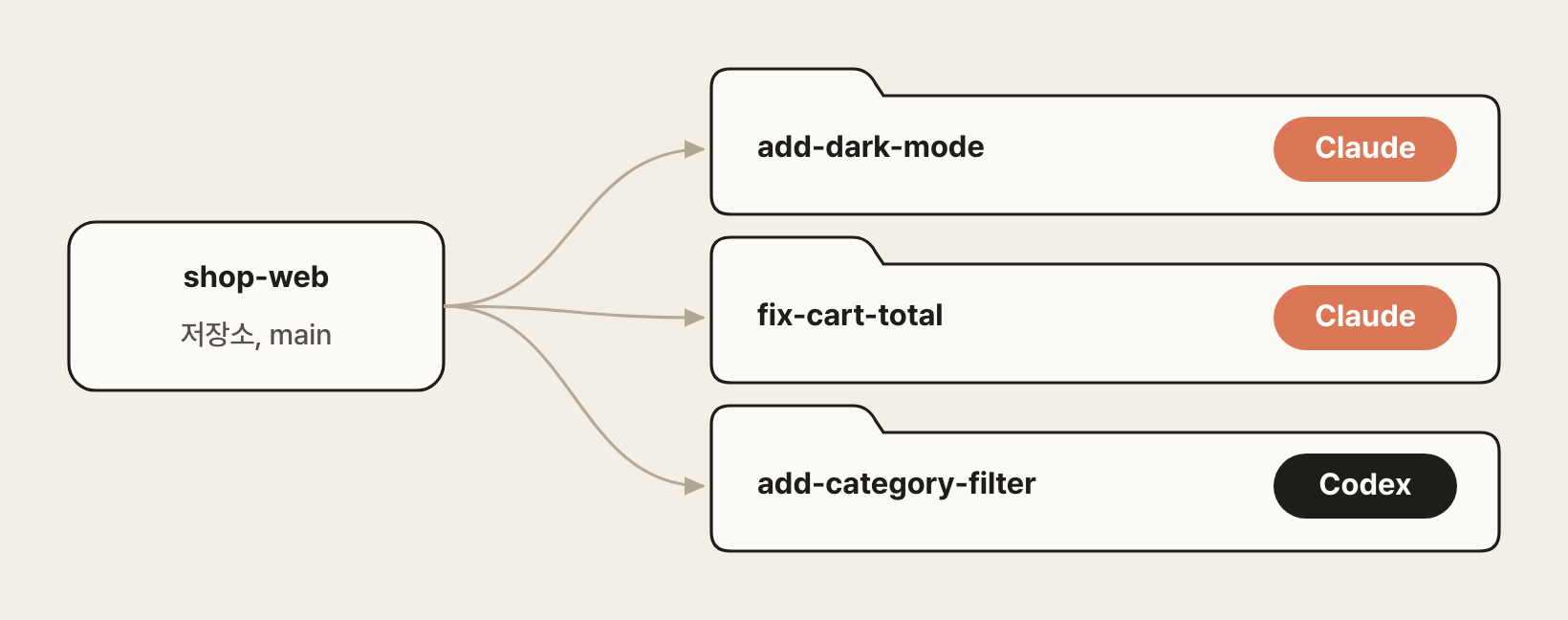
A workspace's folder is created as a Git worktree.
A worktree is a Git feature that checks out one repository into multiple folders at the same time, with a different branch in each folder.
So even when two agents edit files at the same time, their changes don't get mixed up, and you can pick and apply only the results you like.
Since you create and delete worktrees from the Orca screen, you never need to type the git worktree command yourself.
# Installation and first run
Download the installer for your operating system from the official site or GitHub Releases and install it.
| Platform | How to install |
|---|---|
| macOS | .dmg for Apple Silicon/Intel, or Homebrew |
| Windows | orca-windows-setup.exe installer |
| Linux | AppImage, .deb, .rpm packages |
1brew install --cask stablyai/orca/orca
# Preparing agents
Orca does not install agent CLIs or sign you in to them.
It only finds the CLIs that are already installed, shows them in a list, and runs the one you select in a terminal.
So what you need to prepare depends on your situation.
- If you already use
claudeorcodexin a terminal, there is nothing to connect. Orca detects the installed CLIs, and it uses the sign-in information each CLI has already saved (~/.claude,~/.codex) as is. - If you haven't installed them yet, install the CLI before using Orca, and run it once in a terminal to sign in.
12345curl -fsSL https://claude.ai/install.sh | bash claude npm install -g @openai/codex codex
You can check the detection results in the Agents section of Settings.
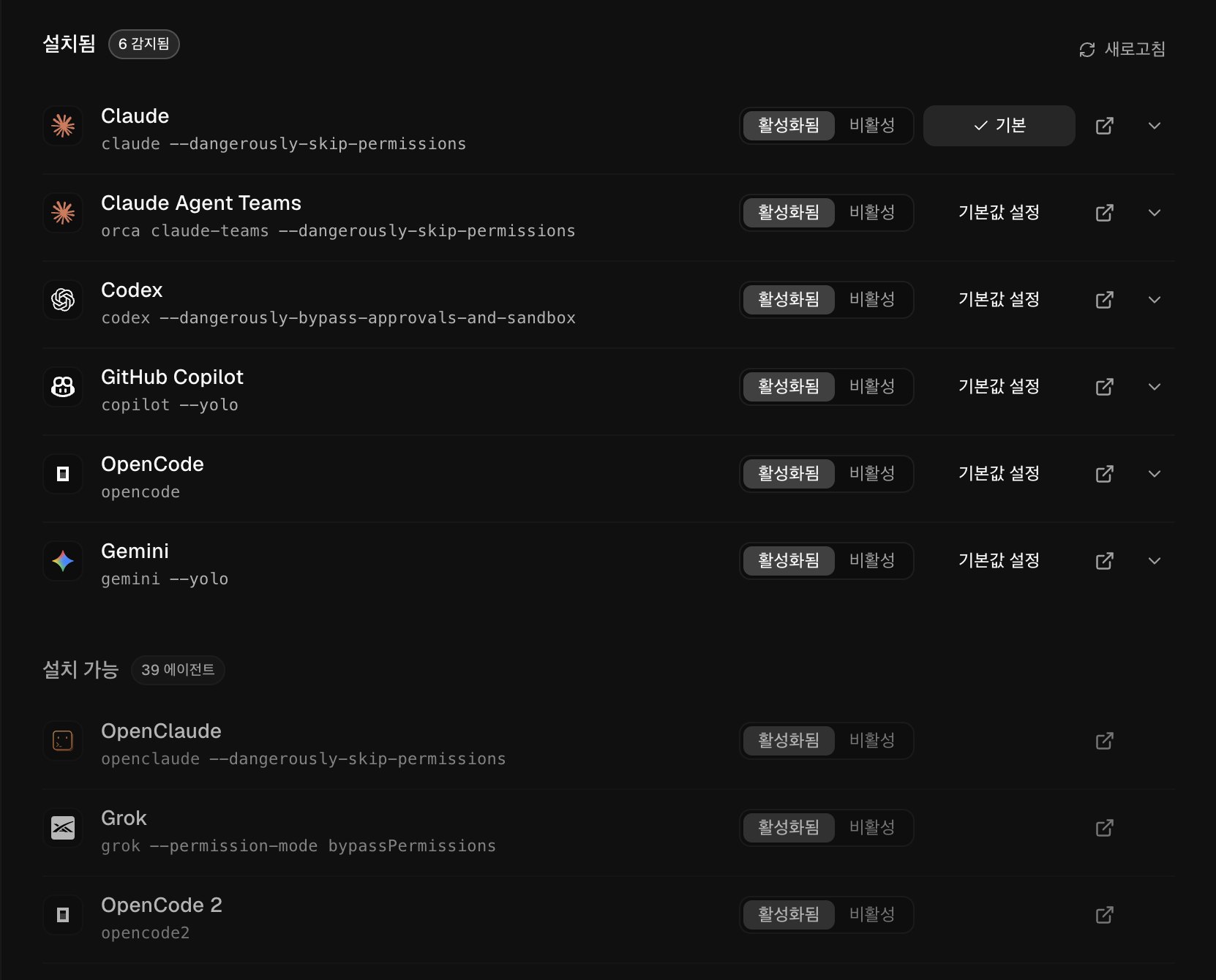
Installed shows the detected agents and the commands Orca will run, and Available to install shows agents that Orca supports but that are not installed yet.
Clicking the link icon in a row opens that agent's installation docs, and after you finish installing, clicking Refresh moves it to Installed.
Flags such as --dangerously-skip-permissions attached to the run commands come from Yolo mode, described below.
# First run
When you run Orca for the first time, a three-step setup guide appears.
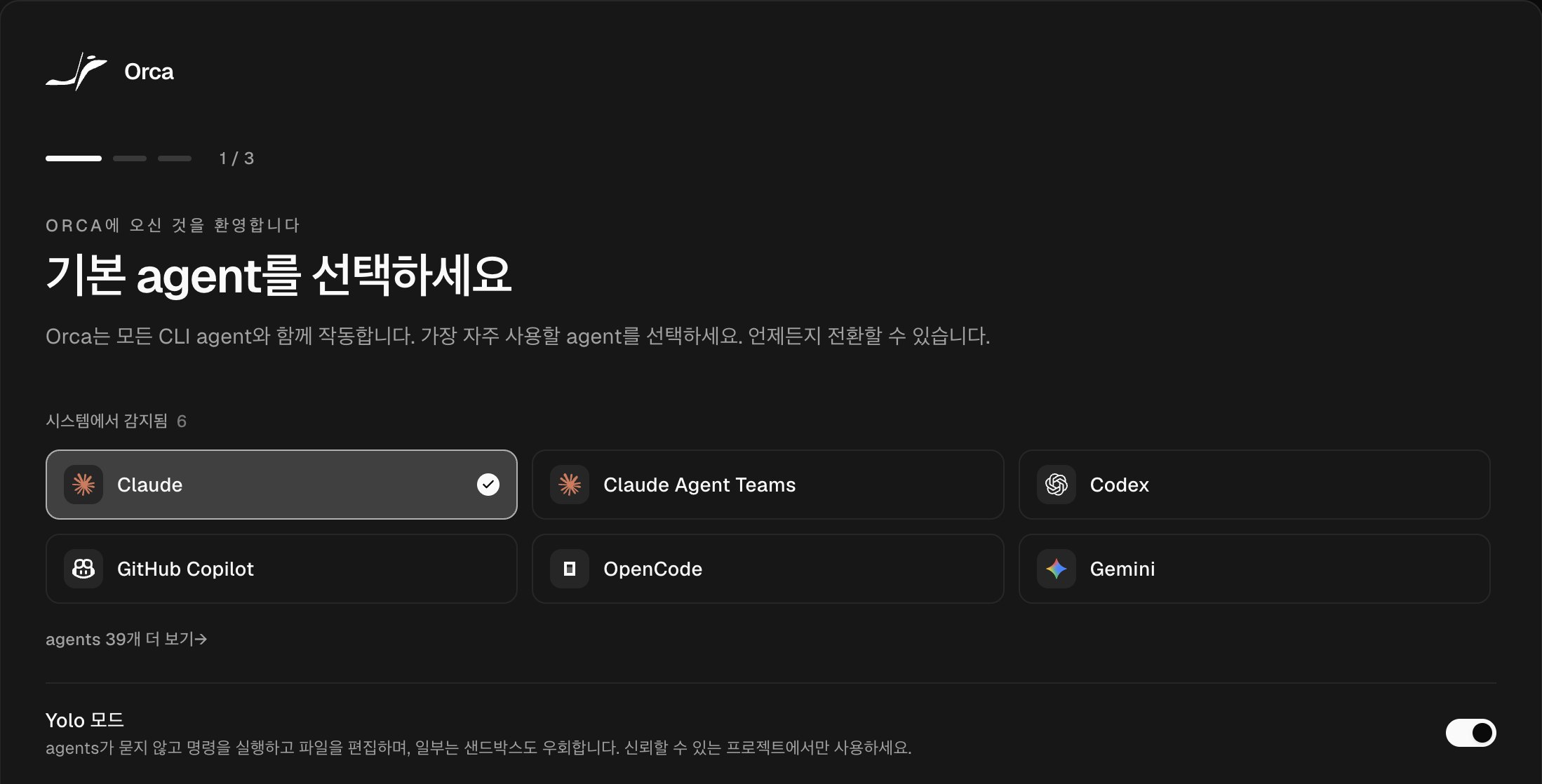
- Default agent: From the agents listed under
Detected on your system, choose the one to run by default when you create a new task. - Theme: Choose dark, light, or your system setting.
- Notifications: Set the system notifications and sounds you get when an agent finishes a task or waits for your answer.
If you click Add your first project in the last step, a window opens right away for registering the folder to work in.
Yolo mode in the first step is turned on by default.
When it is on, agents run commands and edit files without asking you, so work doesn't stop while waiting for approval.
# Orca skills
After you finish the setup guide, an Onboarding checklist remains in the sidebar.
Of its steps, Orca does not handle Give agents Orca skills automatically.
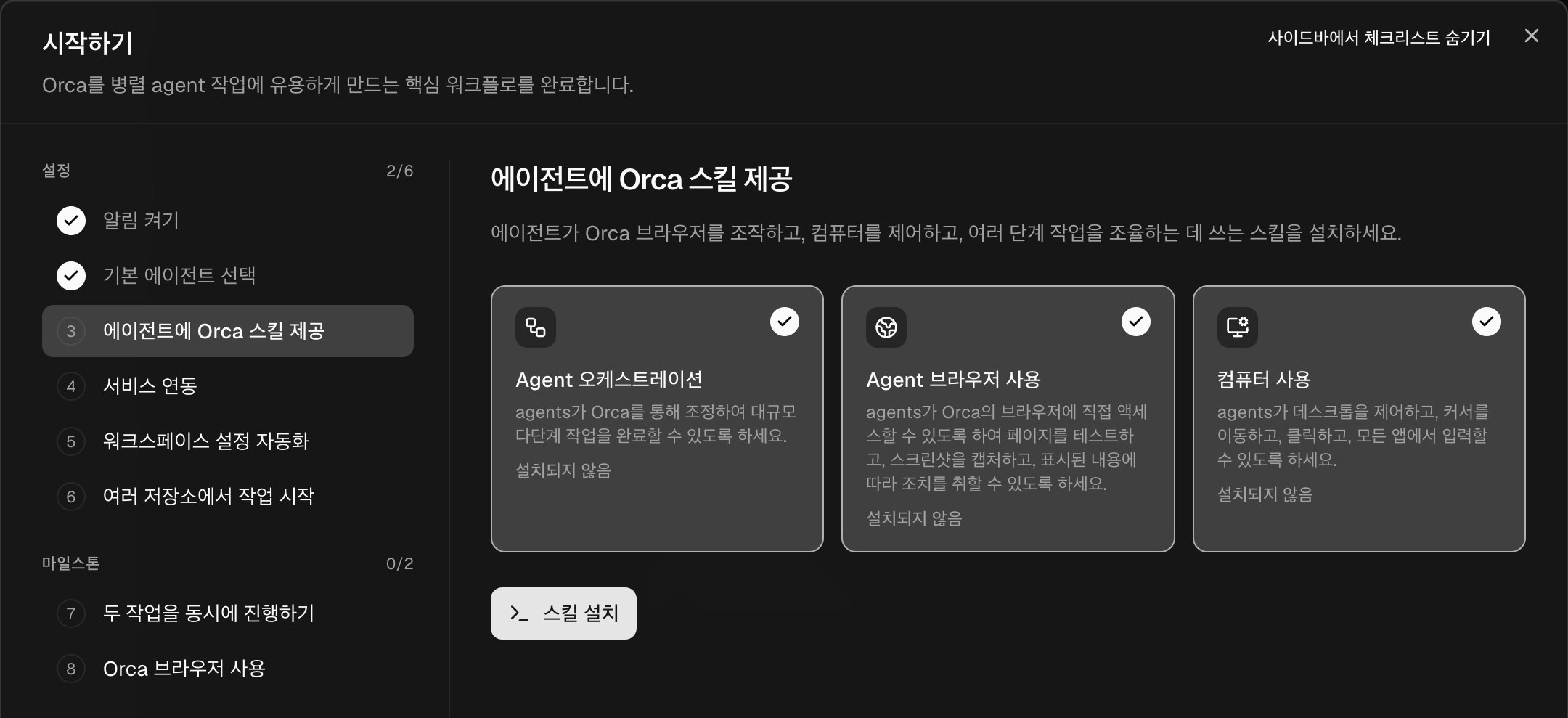
Skills are instruction files that teach agents how to work with Orca, and they are not installed automatically when you install Orca.
Basic use, such as creating workspaces and assigning work to agents, does not need skills; among the features covered in this post, the one that really needs skills is orchestration, covered later.
To install them, click Install skills, press Enter to run the command entered in the terminal inside the checklist, and then choose the agents to add the skills to.
If you only plan to use orchestration, choosing just the one agent that will hand out the work (for example, Claude Code) is enough.
Here is a summary of the state right after installation.
| Item | Right after installation | What you need to do |
|---|---|---|
| CLIs such as Claude Code and Codex | Detected automatically if installed | Install them yourself if missing |
| Sign-in for each CLI | Uses the sign-in saved by the CLI as is | If it's your first time, sign in once in the CLI |
| Orca skills | Not installed | Install them to use orchestration |
# Screen layout
Here is what the Orca screen looks like with a few tasks in progress.
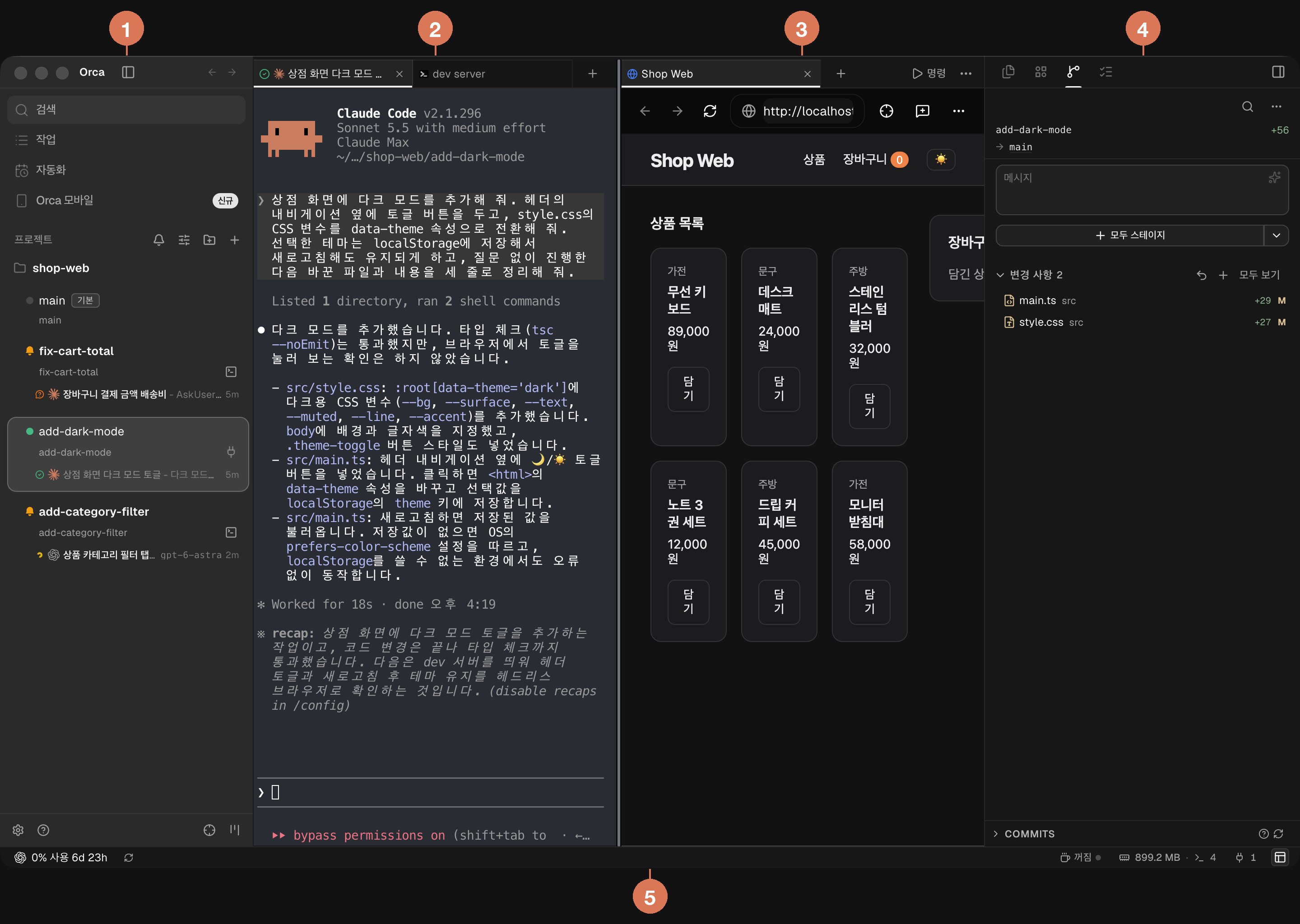
- Left sidebar: The list of projects and the workspaces under them. At the top are Search, Tasks (issue lists such as GitHub and Linear), and Automations, and at the bottom are the Settings and Workspace board buttons.
- Work area: The tabs of the selected workspace. In the screenshot above, a Claude Code terminal and a development server terminal are open as tabs.
- Split pane: An area where tabs are placed side by side. In the screenshot above, the built-in browser shows the development server's page.
- Right sidebar: Switches between four tabs: Explorer, Agents (session history), Source Control, and Checks (GitHub check results). The screenshot above shows the Source Control tab, which lists the changed files.
- Status bar: Shows usage and limit reset times for each agent, a toggle that keeps the computer awake, the number of running terminals, and the detected development server ports.
Clicking + in the tab bar opens a menu for choosing the type of new tab.
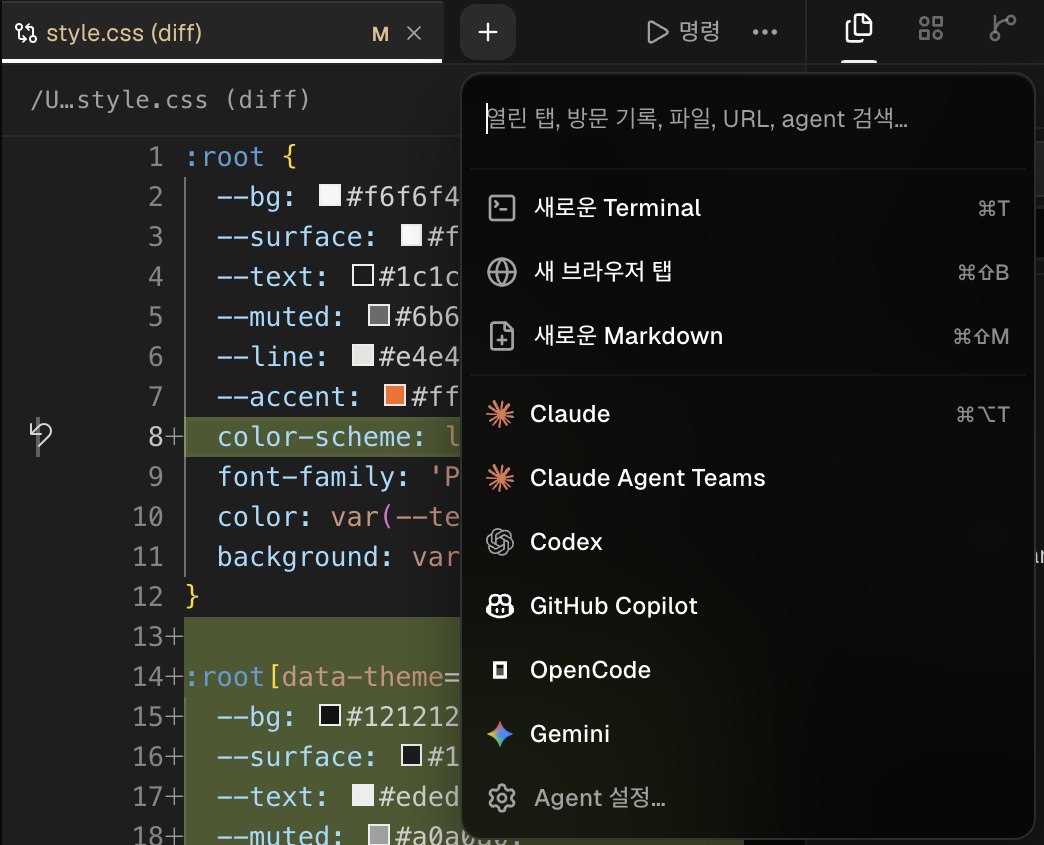
Terminal, browser, and Markdown document are at the top, and the detected agents are listed below them.
Choosing an agent runs that CLI in a new tab, so you can keep both Claude Code and Codex open in one workspace.
To split the screen, drag a tab to the edge of a pane, or right-click a tab and choose a direction under Move Tab to Split.
The layout is remembered per workspace, so when you switch to another task and come back, the tabs and views you were looking at are still there.
Frequently used shortcuts are as follows.
| Action | macOS | Windows/Linux |
|---|---|---|
| New workspace | Cmd+N |
Ctrl+N |
| Search workspaces and tabs | Cmd+J |
Ctrl+J |
| Search files | Cmd+P |
Ctrl+P |
| New terminal tab | Cmd+T |
Ctrl+T |
| New browser tab | Cmd+Shift+B |
Ctrl+Shift+B |
# Starting work
# Adding a project
Clicking the folder icon (Add project) next to Projects in the sidebar opens a window for adding a project.
Choose a folder on your computer with Browse folder, clone a remote repository with Clone from URL, or start from an empty folder with Create a new project.
When you add a Git repository, its default branch becomes the base, and the workspaces you create afterward branch off from it.
A folder that is not a Git repository (for example, a folder of documents) opens as a plain folder; terminals, agents, and file browsing still work, and only Git-based features such as worktrees, diffs, and commits are left out.
If you later create a repository in that folder with git init and make the first commit, you can use all the features.
# Creating a workspace
Clicking the + icon (New workspace) in the sidebar or pressing Cmd+N opens a window for creating a workspace (Create worktree).
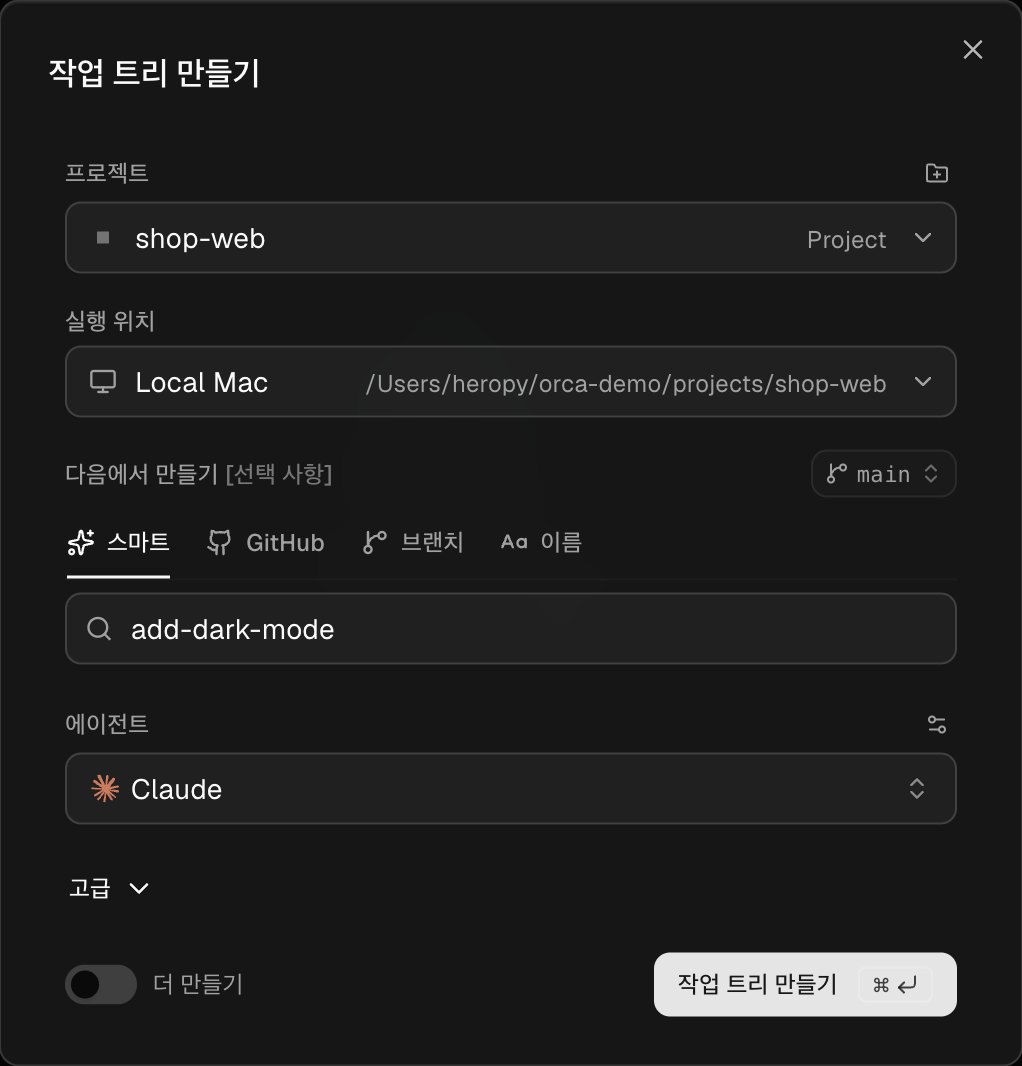
- Project: Choose the project to create the workspace in.
- Run on: Choose whether to run on this computer (
Local Mac) or on a remote machine you have connected. - Create From: Enter the workspace name. The
mainon the right is the base branch to branch off from. - Agent: The agent to run in the first tab. The default agent you chose in the setup guide is preselected, and you can also start with an empty terminal.
- Create more: When this is on, the window stays open after you create a workspace, so you can create several in a row with the same settings.
When you click Create worktree, the workspace is added to the sidebar, and the agent runs in the ~/orca/workspaces/project/name folder.
Type a prompt in the agent's input box to start the work.
By default, the branch name gets your Git user name as a prefix, in the form name/add-dark-mode.
You can change or remove the prefix under Branch Prefix in the Git & Source Control section of Settings.
A new workspace is a clean checkout, so it has no installed files such as node_modules.
If the repository has a lock file such as pnpm-lock.yaml, a card appears the first time you create a workspace, asking whether to save the install command as a setup script.
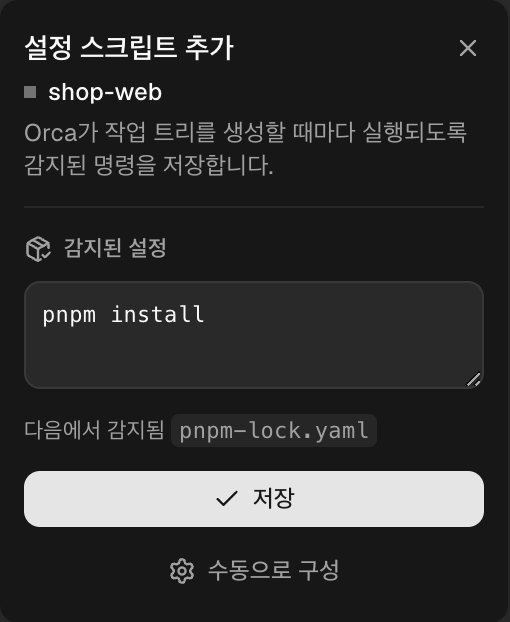
If you click Save, this command runs automatically in every workspace you create afterward.
# Checking progress
Workspaces appear as cards in the sidebar.
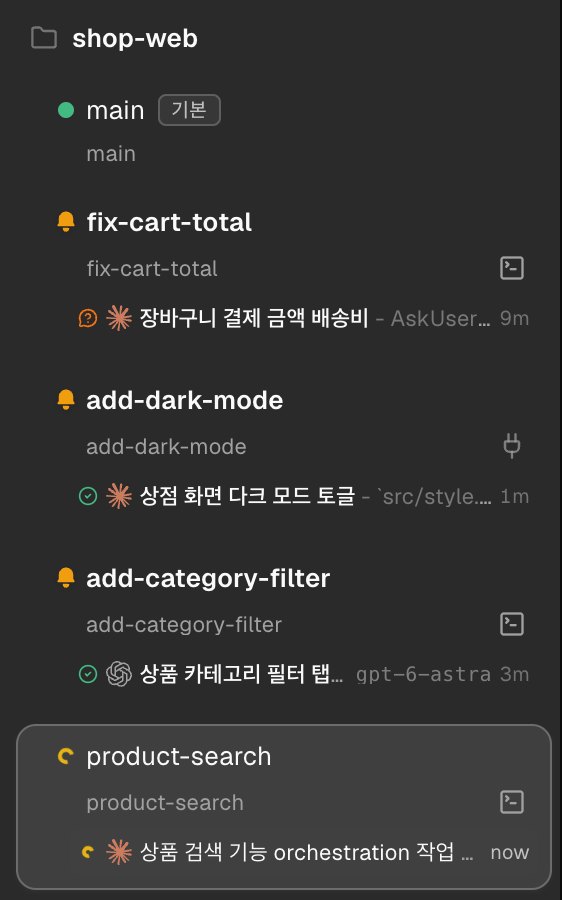
A card shows the workspace name and branch, with rows for the running agents below.
The title of an agent row is generated automatically from the first prompt, and the icon at the front shows the agent's current status.
| Indicator | Status | |
|---|---|---|
| Yellow spinning ring | Working | |
| Orange question mark | Waiting for an answer or permission approval | |
| Green check | Finished the task | |
| Yellow bell | Has results you haven't checked | |
| Green dot | Terminal is open and idle | |
| Red dot | Failed |
In the screenshot above, fix-cart-total is waiting for an answer to a question, add-dark-mode and add-category-filter have finished, and product-search is working.
When you run several tasks at once, check the ones with an orange question mark or a bell first, and leave the ones that are working alone.
When an agent finishes a task or starts waiting for an answer, Orca lets you know with a system notification and a sound, and on macOS, the Dock icon shows the number of items you haven't checked.
You can change the notification types and sounds in the Notifications section of Settings.
If you have so many tasks that the sidebar alone is hard to follow, click the board icon at the bottom of the sidebar to open the workspace board.
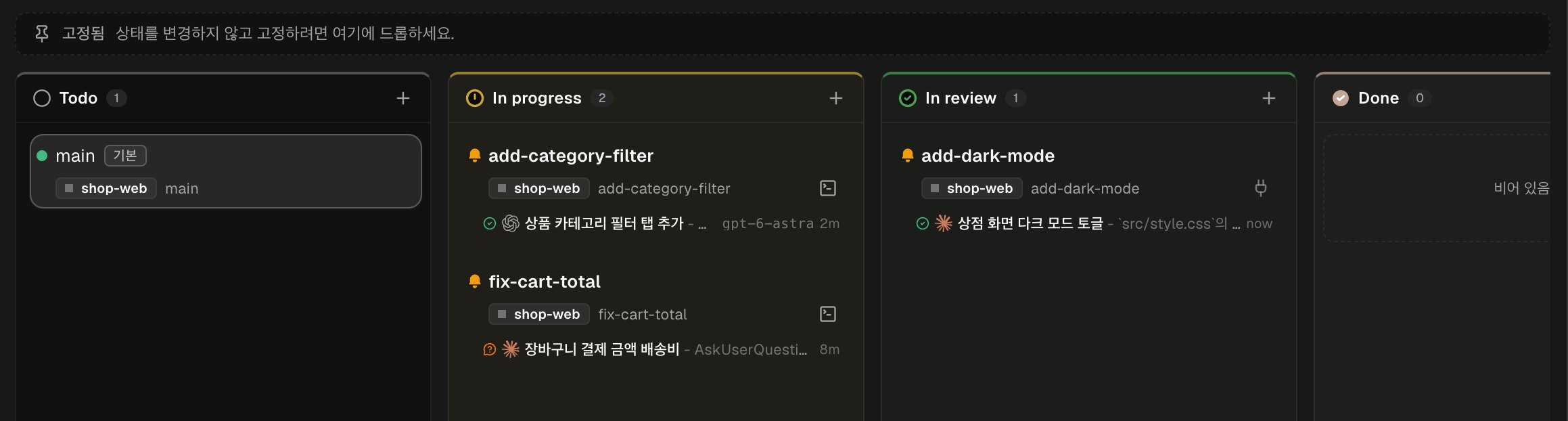
It shows all workspaces divided into Todo, In progress, In review, and Done columns, and dragging a card to another column changes its status.
The columns are progress stages you set yourself, and the icons inside the cards are the agent statuses you saw earlier.
Closing the Orca window or quitting the app does not stop the agents.
The terminals keep running in a background process, and when you reopen the app, the running agents and their output so far are reconnected as they were.
If you restart your computer and the agents are shut down too, the workspaces and tab layouts are restored, and you can resume interrupted Claude Code and Codex sessions from their previous conversations.
# Reviewing and applying results
# Browser and Design Mode
If the task builds a web page, check the result in the built-in browser.
When you run a development server in a workspace's terminal, its port appears in the status bar, and you open that address in a new browser tab.
Browser tabs are separated per workspace, so even if you keep development servers on different ports open for each task, they don't get mixed up.
Clicking the crosshair icon (Grab page element) to the right of the address bar turns on Design Mode.
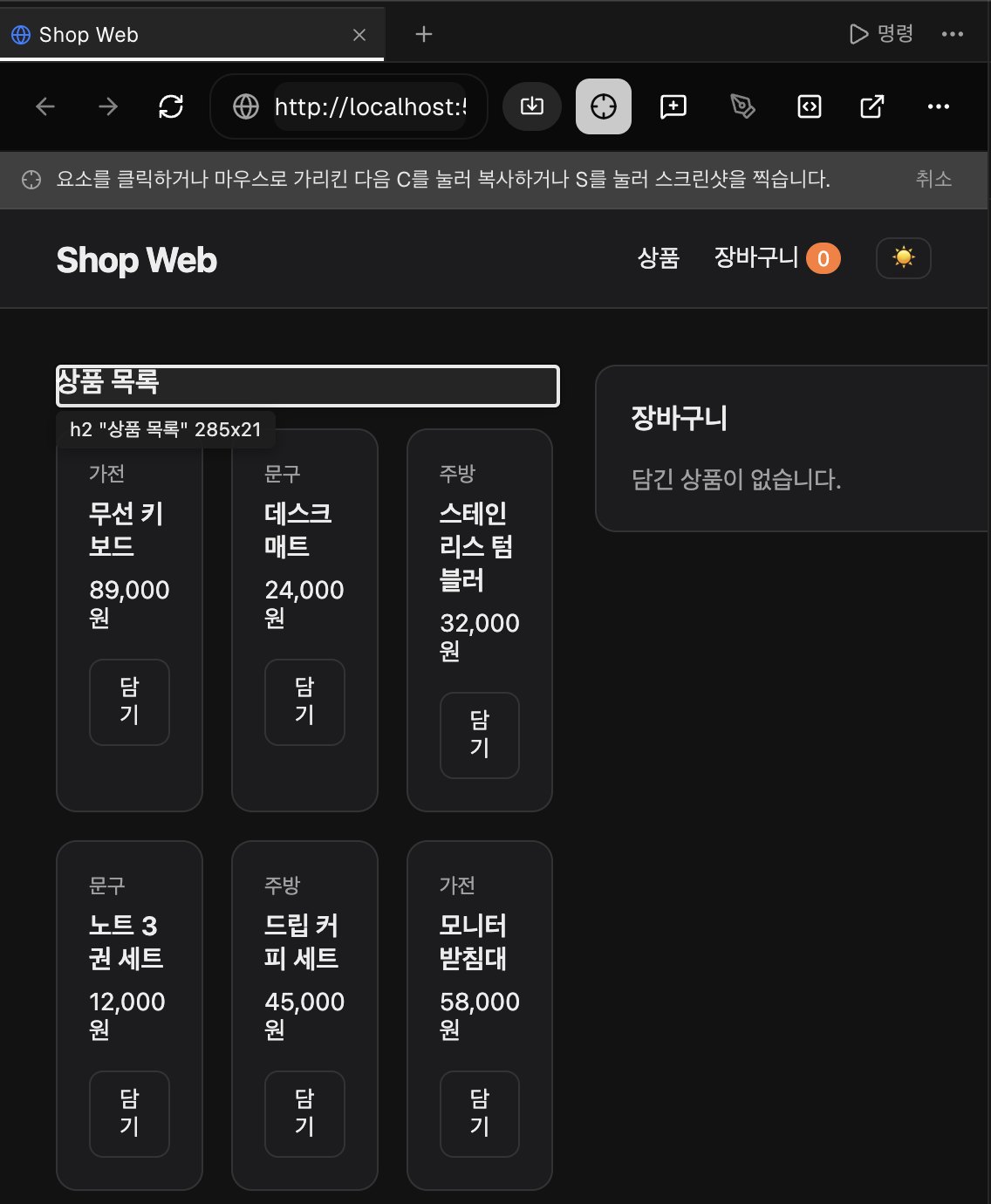
The element under your mouse is outlined with its tag name and size, and clicking an element attaches its HTML, computed CSS, and a cropped screenshot to the current agent terminal.
Even if you don't know which code in which file creates that element, you can point at it on screen and ask for a change in words, such as "Make the spacing of this heading match the card below."
# Reviewing diffs and leaving notes
You can check what the agent changed in the Source Control tab of the right sidebar.
Clicking a changed file opens a diff tab, and when you see something to fix, leave a note on that line.
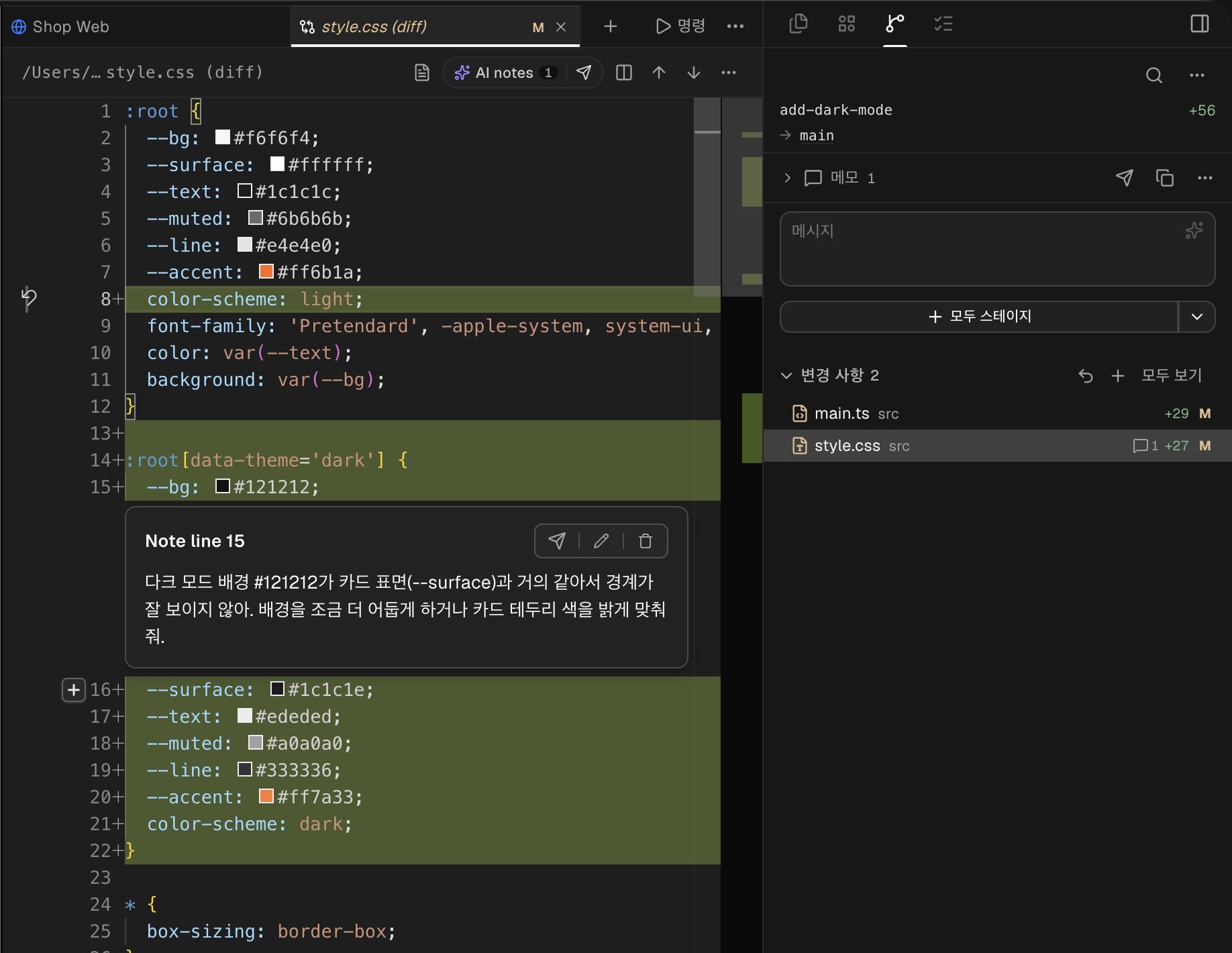
- Click the
+that appears when you hover to the left of a line number. - Write what to change in the input box and click
Add note. - Leave notes on other lines the same way. Saved notes are pinned to their lines as cards, and their count appears in
AI notesin the toolbar and in the Source Control tab.
When you finish reviewing, click the send icon next to AI notes in the toolbar.
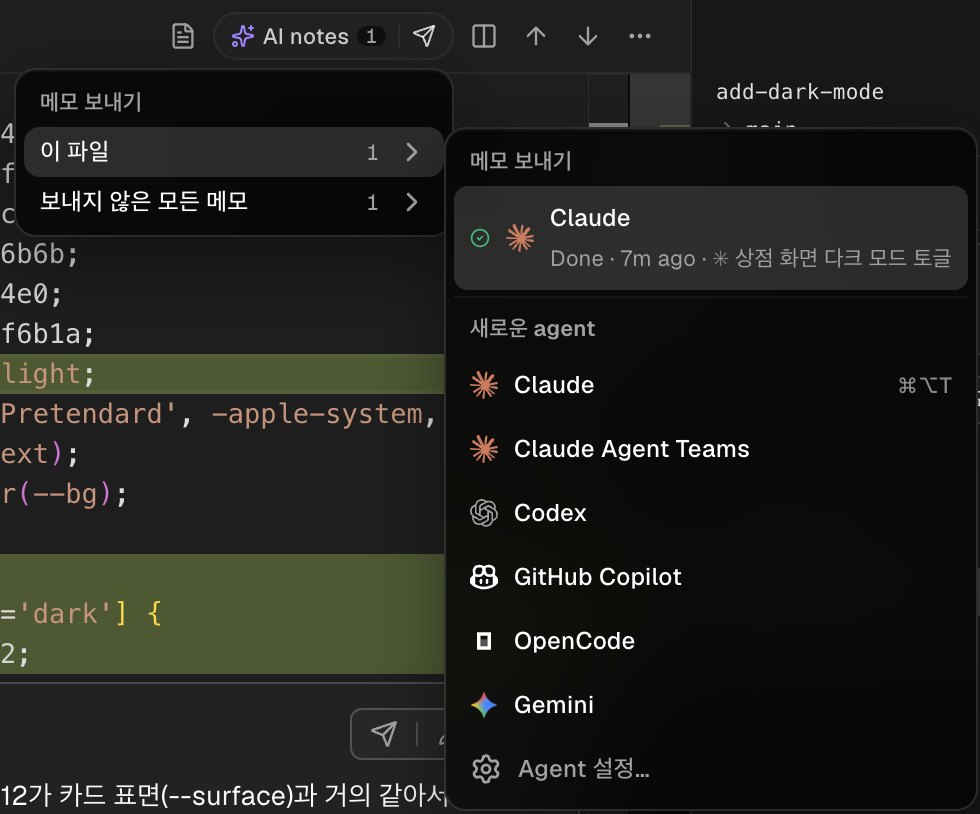
Choose whether to send only the notes in This file or All unsent notes, and then select the agent to receive them.
Choosing a running session at the top asks the agent that did the work to make the changes, and choosing Codex under New agent at the bottom lets you have Codex fix changes made by Claude Code.
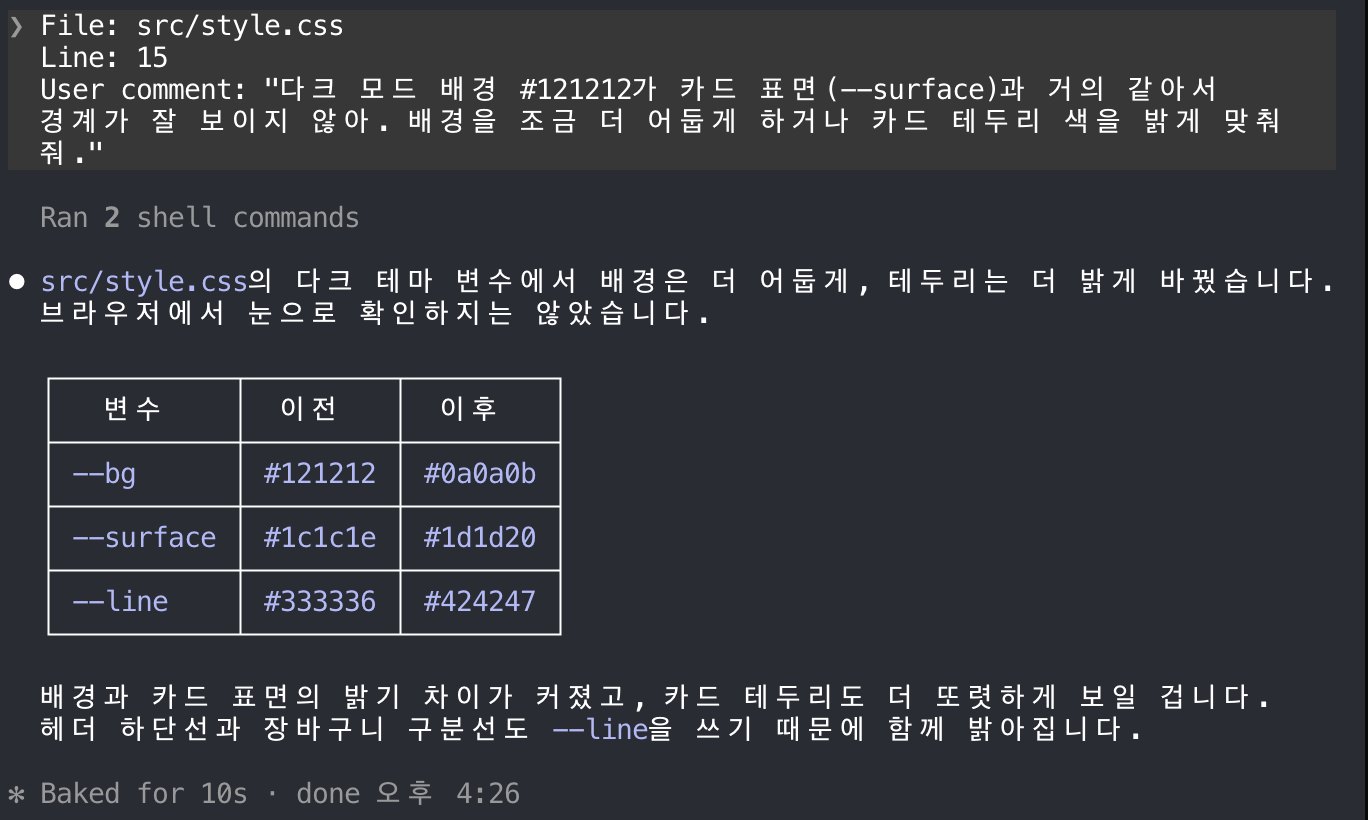
The notes are organized into a single prompt with file paths and line numbers and delivered together.
Sending all the notes at once after you finish reviewing makes it easier for the agent to understand the direction of the changes than sending them one by one.
# Committing and pushing
If you like the result, you can apply it from the Source Control tab as well.
Write a commit message in the Message input box, or generate an AI draft with the icon on the right, and then stage, commit, and push in turn with the main button, which changes with the state.
If you connect your GitHub account, you can also create a PR inside Orca after pushing.
When you are done with a workspace, right-click it in the sidebar, click Delete, and confirm, and its folder and branch are deleted together.
However, Git does not delete branches that may have unmerged commits, so Orca shows those branches separately and lets you choose whether to force delete them.
# Using multiple agents together
Claude Code and Codex are separate programs, so even when they run side by side in Orca, they don't know about each other.
Two sessions you opened yourself don't talk to each other on their own; here are the ways to pass one agent's results to another.
| Method | How it is passed | What you need |
|---|---|---|
| Comparing the same task | Not passed; a person compares the results | Nothing |
| Sending notes | Diff notes are passed to another agent once | Nothing |
| Handing off to another agent | The key points of the conversation are passed to a new session once | Nothing |
| Orchestration | Instructions, completion reports, and questions go back and forth continuously | The orchestration skill in the instructing agent |
# Comparing the same task
This method gives the same problem to several agents at once and compares the results.
- In the window for creating a workspace, turn on
Create more, and create two or three workspaces from the same base branch, changing only the agent. - Enter the same prompt for each agent.
- As each task finishes, open its diff and compare the results.
- Leave notes on the best result to ask for improvements, commit and push, and then delete the remaining workspaces.
Each agent makes mistakes in different places, so this is easier to judge than asking one agent to try again several times.
If the results point in the same direction, they are likely right, and the parts where they disagree are what you need to check yourself in that task.
# Handing off to another agent
Use this when the conversation has gotten long and the quality of responses has dropped, or when you want to continue work you started in Claude Code with Codex.
Click the handoff icon (Hand Off to Another Agent) at the top right of the agent terminal.
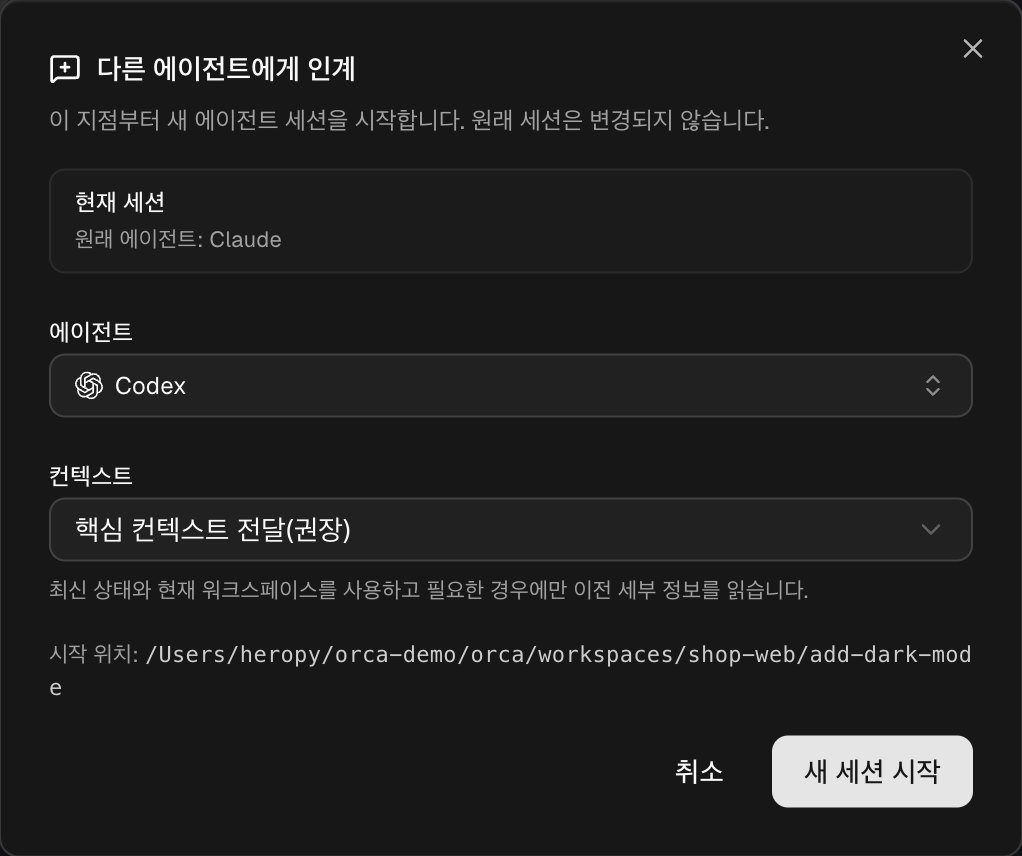
Choose the agent to continue the work and the scope of context to pass, and click Start New Session; a new session opens in the same workspace, and a prompt with the key points so far is delivered to it.
The original session stays as it is.
# Orchestration
Orchestration is a feature that lets one agent divide work among other agents, receive their completion reports, and combine the results.
The side that divides the work is called the coordinator, and the side that takes the work is called a worker.
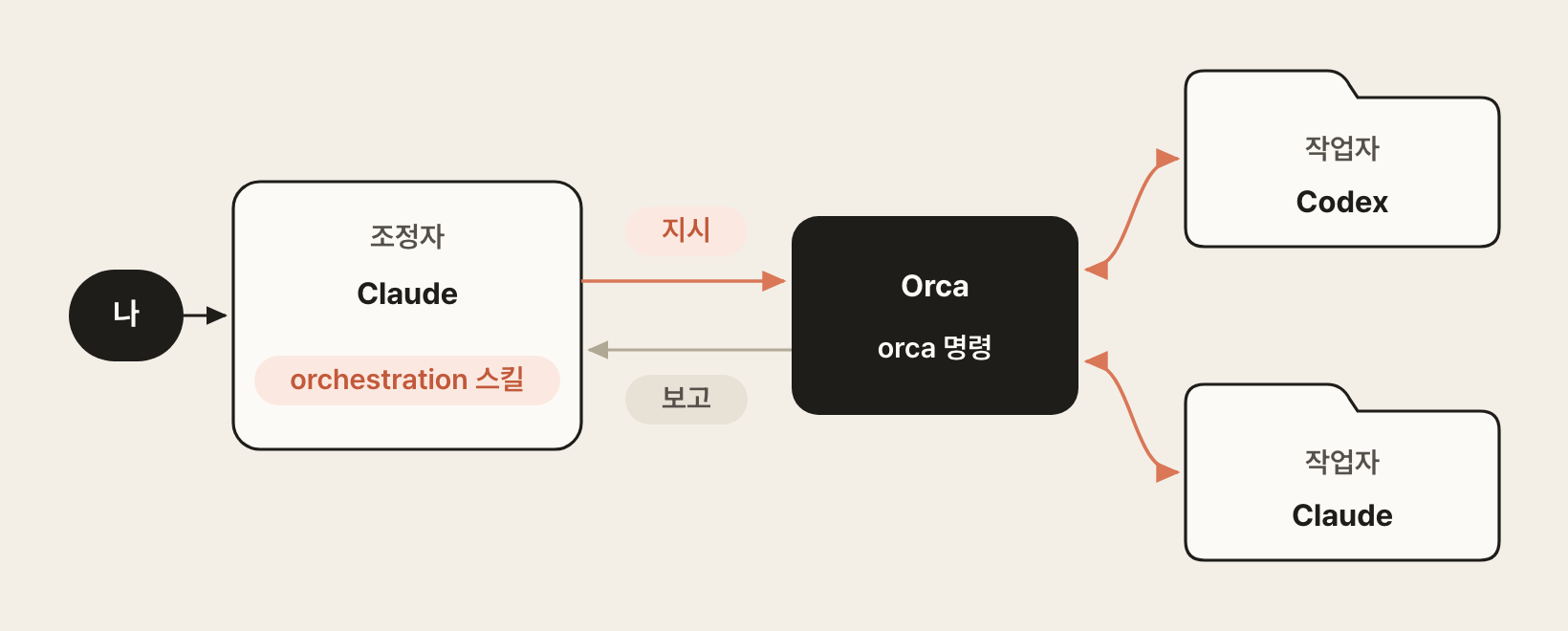
The agents don't talk to each other directly; every message goes through Orca.
The coordinator starts workers and gives them instructions with the orca command, and when the workers finish, they report their results the same way and ask questions when needed.
So here is what you need to prepare.
- The agent acting as the coordinator must have the orchestration skill installed. Without the skill, the agent doesn't know this feature exists, so even if you say "Give this to Codex," it can't pass the work along and may handle it itself or with its own subagents.
- Workers don't need the skill. When the coordinator starts a worker, Orca puts instructions on how to report in front of the task instructions it delivers.
- By default, the coordinator starts new workers, but you can also ask it to use a Codex or Claude terminal you already have open as a worker. In this case too, only the coordinator needs the skill.
- The
orcacommand is already included in the terminals inside Orca, so there is nothing to install or connect separately.
You can check the skill's installation status in the Orchestration section of Settings.
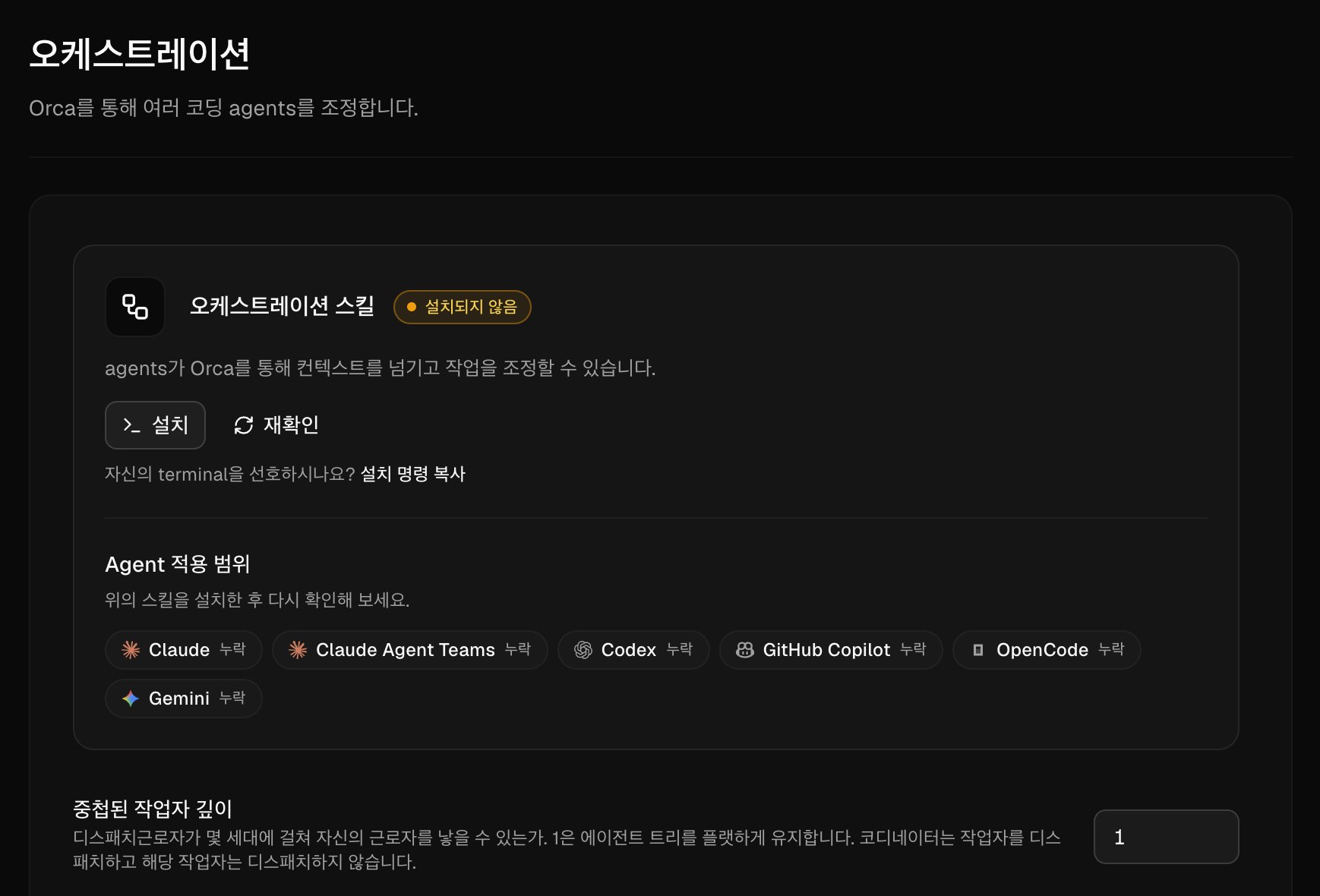
If it shows Not installed, click Install and install it the same way you saw in Orca skills earlier, and then click Re-check when it's done.Agent coverage shows whether the skill is installed for each detected agent, and it's fine as long as the agent you will use as the coordinator is not Missing.
Once everything is ready, just explain to the coordinator agent what to split and how.
12345Use the orchestration skill to split the product search feature into two tasks. Give the search input above the product list and the name filtering logic to Codex, and the message and styles shown when there are no search results to Claude, each in a new workspace. When both tasks are done, summarize what changed.
In Claude Code, you can also load the skill directly with /orchestration and then describe the work.
The coordinator that receives the request above creates task items, starts Codex and Claude as workers in new workspaces, and then receives and summarizes the completion reports from both workers.
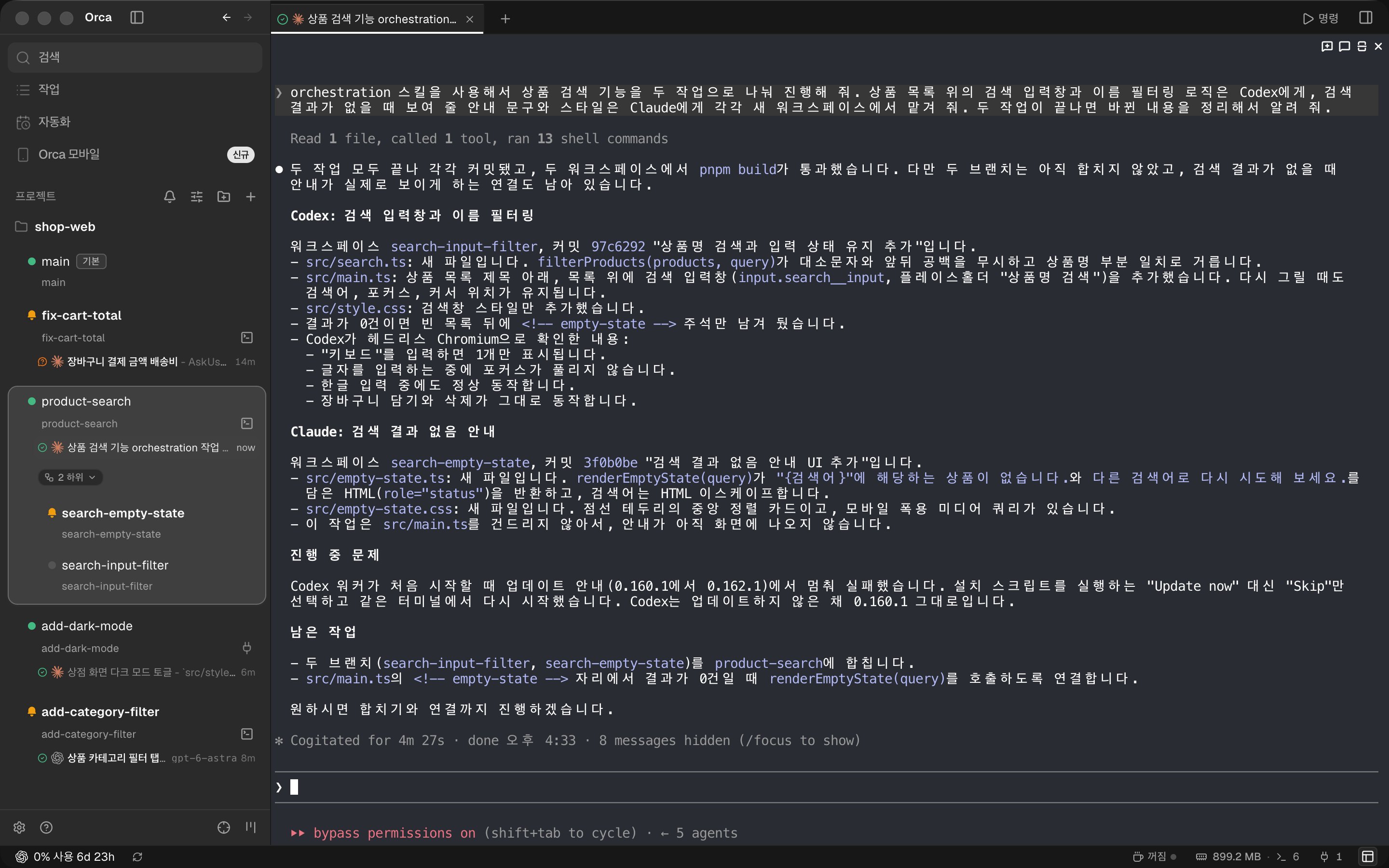
In the sidebar, the workers' workspaces are grouped under the coordinator (product-search) as 2 children.
Each worker commits to its own branch, and the coordinator terminal summarizes what each worker changed and what is left to do (such as merging branches).
# Automations
Automations is a feature that runs prompts at set times.
Choose a template such as a daily change review in Automations in the sidebar, or click New Automation, and a settings window opens.
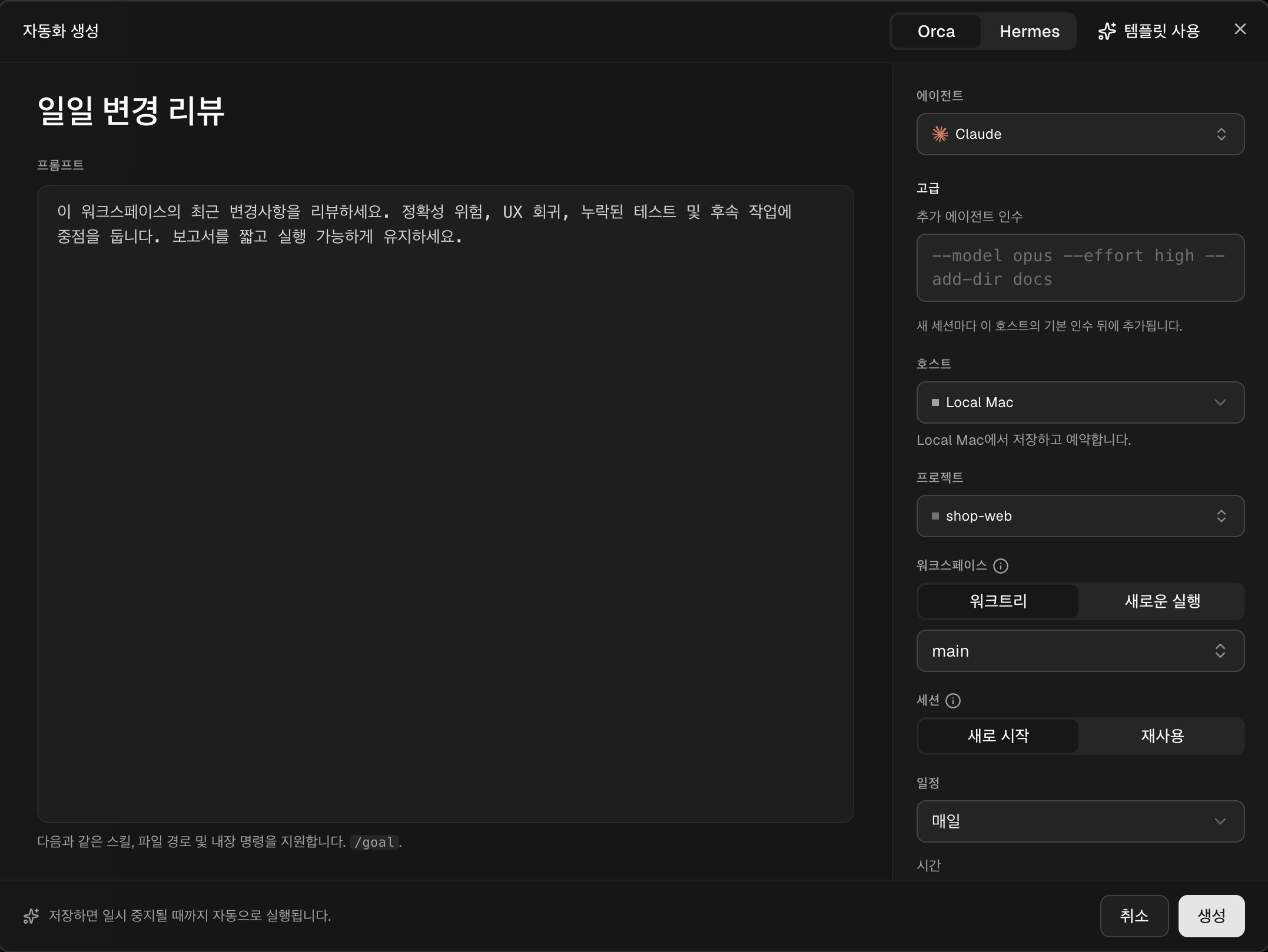
Write the prompt to run on the left, and set the run conditions on the right.
- Agent: Choose the agent to run.
- Project and workspace: Choose whether to run in an existing workspace (
Worktree) or create a new one each time it runs (New run). - Session: Choose whether to start fresh each time or continue the previous session.
- Schedule and time: Set the frequency, such as daily, weekdays, or weekly, and the run time.
- Grace period: Catches up on runs missed while the computer was off, within the time you specify.
Automations run only when the computer you registered them on is turned on.
Until the prompt is stable, it is a good idea to run it manually without a schedule, check the results, and then turn the schedule on.
# Phone and remote
If you connect the Orca mobile app (iOS, Android), you can check progress and answer agents' questions even while you're away.
Click Get started in Orca Mobile in the sidebar to create a pairing code, and scan that code from desktop pairing in the mobile app to connect.
If your phone is on the same Wi-Fi or Tailscale network, it connects without an account; to connect from outside, you need to sign in with an Orca account.
You can also run agents on another computer.
If you register a remote machine in SSH Hosts in Settings, you can choose that machine under Run on when you create a workspace; the agents and Git run remotely, while the screen stays on your computer.
# Orca CLI
The Orca CLI is the orca command that controls a running Orca from the command line.
You can use it right away in terminals inside Orca, and to use it in an outside terminal, register the shell command under Orca CLI in the General section of Settings.
12orca worktree create --name fix-login --agent claude --prompt "Reproduce and fix the login failure bug" orca worktree ps
Most things you can do on screen can also be done with the CLI, but people rarely type these commands themselves; they are mostly used by agents.
In orchestration, the coordinator also uses this command to start workers and receive their reports.
Thanks for reading to the end.
Likes and kind comments help keep this blog going!