The Complete Markdown Guide

Have you ever seen a file with the .md extension?!
When you start studying development, you will see a file named README.md at least once, and this is a typical Markdown file.
There is also AsciiDoc syntax with the .adoc extension, which is similar to Markdown but has a somewhat more complex syntax, and it lets you create a wider variety of documents.
However, its syntax is much more complex and fewer platforms support it, so it has many limitations in use.
Learn Markdown, with its easy syntax and support across many platforms!
30 minutes is enough!
# Pros and cons
Markdown has the following pros and cons.
- The syntax is easy.
- It is simple to manage.
- Many platforms and programs support it.
- There is no standard, so the syntax may differ slightly from user to user.
- It cannot replace all HTML markup.
# Where to use it
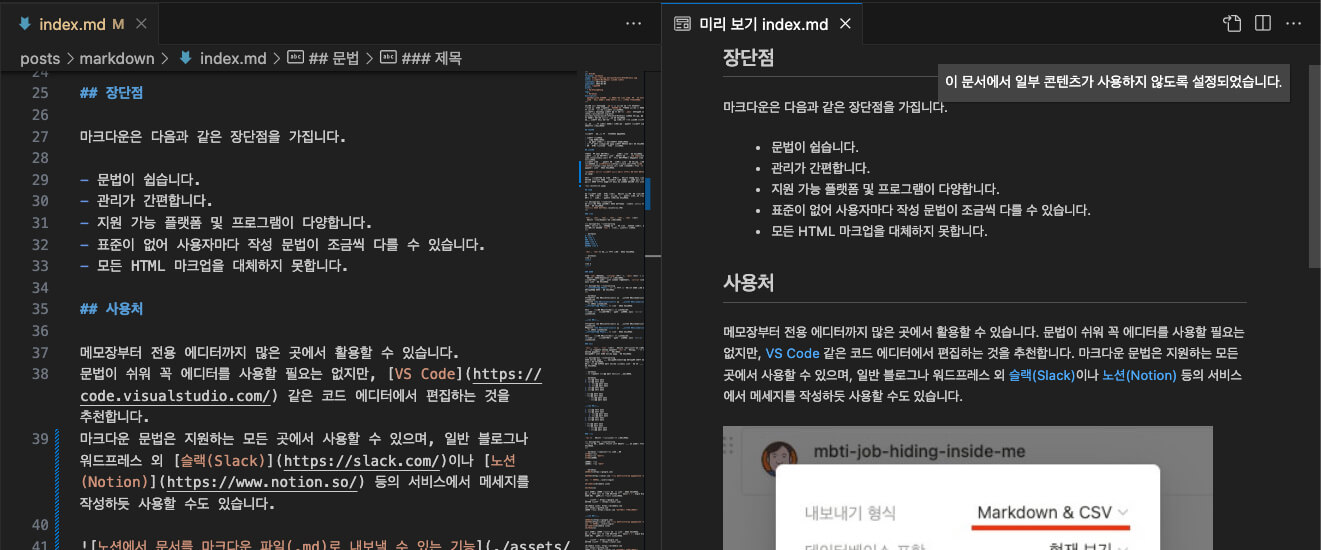
You can use it in many places, from a plain text editor to a dedicated editor.
The syntax is easy, so you do not have to use an editor, but we recommend editing in a code editor such as VS Code.
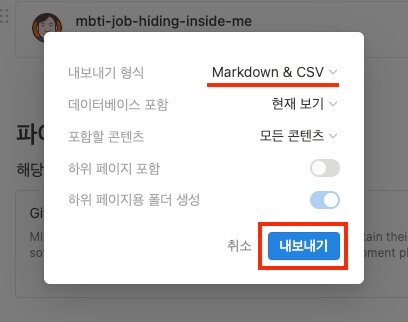
You can use Markdown syntax anywhere that supports it. Besides regular blogs and WordPress, you can also use it in services such as Slack and Notion, just like writing a message.
Also, each Markdown syntax is converted to HTML and displayed with CSS, so how it looks on screen depends on the style configuration of the place where you use it.
So you should use each syntax for its meaning, not for how it looks.
# Syntax
Each Markdown syntax is converted to an HTML tag and displayed in the browser.
Markdown does not replace every HTML tag, and it converts only to some core HTML.
Also, each platform may support only part of the Markdown syntax.
# Headings
Use this syntax for 'headings', which are converted to <h1>, <h2>, <h3>, <h4>, <h5>, and <h6> tags.
123456# Heading 1 ## Heading 2 ### Heading 3 #### Heading 4 ##### Heading 5 ###### Heading 6
You can also write <h1> and <h2> as follows.
12345Heading 1 ====== Heading 2 ------
# Emphasis
Use this syntax for 'emphasis', which is converted to the <em> (italic), <strong> (bold), and <del> (strikethrough) tags.
To add an underline, which Markdown does not support, you can use the <u></u> (underline) tag directly.
123456For italics, use *asterisks* or _underscores_. For bold, use two **asterisks** or __underscores__. You can also combine __*italics* and bold__. For strikethrough, use ~~tildes~~. <u>Underline</u> is not supported in Markdown, so use the `<u></u>` tag directly.
Output:
For italics, use asterisks or underscores.
For bold, use two asterisks or underscores.
You can also combine italics and bold.
For strikethrough, use tildes.
Underline is not supported in Markdown, so use the <u></u> tag directly.
# Lists
Use this syntax for 'lists', which are converted to the <ol>, <ul>, and <li> tags.
Items that start with 1. are converted to <ol>, and items that start with - are converted to <ul>.
You can write nested lists with indentation.
1234567891011121314Items that start with `-` are treated as an unordered list. ```markdown 1. Ordered item 1. Ordered item 1. Unordered item 1. Unordered item 1. Ordered item 1. Ordered item - Unordered item - Unordered item - Unordered item - Unordered item
Output:
- Ordered item
- Ordered item
- Unordered item
- Unordered item
- Ordered item
- Ordered item
- Unordered item
- Unordered item
- Unordered item
- Unordered item
# Checkboxes
Use this syntax for 'checkboxes', which are converted to the <input type="checkbox"> tag.
In list syntax, you can make a task list by entering a space or x inside square brackets ([ ]).
12345- [x] Completed item - [ ] Incomplete item - [x] Completed item - [ ] Incomplete subitem - [x] Completed subitem
Output:
- Completed item
- Incomplete item
-
Completed item
- Incomplete subitem
- Completed subitem
# Links
Use this syntax for 'links', which are converted to <a>.
123456[name](link) [name](link "description") [name][reference] [reference]: link [reference]: link "description"
12345678910111213141516171819[GOOGLE](https://google.com) [NAVER](https://naver.com "Write the link description (title).") [Relative reference](../users/login) [Dribbble][Dribbble Link] [GitHub][1] You can also use a [reference link] as is in the document. As follows, plain URLs in the document and URLs inside angle brackets (`< >`) become links automatically. Google homepage: https://google.com Naver homepage: <https://naver.com> [Dribbble Link]: https://dribbble.com [1]: https://github.com [reference link]: https://naver.com "Go to Naver!"
Output:
GOOGLE
NAVER
Relative reference
Dribbble
GitHub
You can also use a reference link as is in the document.
As follows, plain URLs in the document and URLs inside angle brackets (< >) become links automatically.
Google homepage: https://google.com
Naver homepage: https://naver.com
# Images
Use this syntax for 'images', which are converted to <img>.
It is similar to a link, but you need to add ! in front.
123456  ![alt-text][reference] [reference]: image-url [reference]: image-url "description"
1234 ![This is an image!][Image] [Image]: https://picsum.photos/500/300 "This is an image!"
Output:
# Adding a link to an image
Wrap the Markdown image syntax with the link syntax.
1[](https://heropy.dev/)
Output:

# Code
Use this syntax for 'code', which is converted to the <pre> and <code> tags.
It uses the ` (backtick) character.
# Inline
Wrap the code you want to highlight with ` to express 'inline' code.
1You can insert a background image into an element with the `background` or `background-image` property.
Output:
You can insert a background image into an element with the background or background-image property.
# Blocks
Type ` 3 or more times and specify the language (code) name to express a code 'block'.
The number of ` characters that open a code block must be the same as the number that close it.
123456789// Structure that opens and closes with 3 backticks ```language-name content ``` // Structure that opens and closes with 4 backticks ````language-name content ````
12345678910111213141516171819202122232425262728293031```html <a href="https://www.google.co.kr/" target="_blank">GOOGLE</a> ``` ```css .list > li { position: absolute; top: 40px; } ``` ```javascript function add(a, b = 1) { console.log(a, b) return a + b } ``` ```bash $ npm run dev ``` ```python s = "Python syntax highlighting" print s ``` ```plaintext No language indicated, so no syntax highlighting. But let's throw in a <b>tag</b>. ```
Output:
1<a href="https://www.google.co.kr/" target="_blank">GOOGLE</a>
1234.list > li { position: absolute; top: 40px; }
1234function add(a, b = 1) { console.log(a, b) return a + b }
1$ npm run dev
12s = "Python syntax highlighting" print s
12No language indicated, so no syntax highlighting. But let's throw in a <b>tag</b>.
# Using the backtick character
In Markdown, the backtick (`) character has a syntax role for expressing code, so to output the backtick character itself, you need to escape it.
As follows, if you write it with the \ character, you can output a backtick.
Or, to show ` as inline code, you can use the <code> tag.
12\` <code>\`</code>
Output:
``
# Tables
Use this syntax for 'tables', which are converted to the <table> tag.
To separate the table header, use 3 or more - (hyphen/dash) characters.
When you separate the table header, you can add : (colons) to align the content inside the cells (columns).
---,:---: Left alignment:---:: Center alignment---:: Right alignment
You can omit the leftmost and rightmost | (vertical bar) characters. (On some platforms, you cannot omit them.)
123456789| Header | Header | Header | |---|---|---| | Cell | Cell | Cell | | Cell | Cell | Cell | Header | Header | Header ---|---|--- Cell | Cell | Cell Cell | Cell | Cell
123456789101112131415| Value | Meaning | Default | |---|:---:|---:| | `static` | No type (reference) / cannot be positioned | `static` | | `relative` | Positioned relative to the element itself | | | `absolute` | Positioned relative to the positioned parent (ancestor) element | | | `fixed` | Positioned relative to the browser window | | | `sticky` | Positioned relative to the scroll area | | Value | Meaning | Default ---|:---:|---: `static` | No type (reference) / cannot be positioned | `static` `relative` | Positioned relative to the element itself | `absolute` | Positioned relative to the positioned parent (ancestor) element | `fixed` | Positioned relative to the browser window | `sticky` | Positioned relative to the scroll area |
Output:
| Value | Meaning | Default |
|---|---|---|
static |
No type (reference) / cannot be positioned | static |
relative |
Positioned relative to the element itself | |
absolute |
Positioned relative to the positioned parent (ancestor) element | |
fixed |
Positioned relative to the browser window | |
sticky |
Positioned relative to the scroll area |
# Using the vertical bar character
In Markdown, the vertical bar (|) character has a syntax role for expressing tables.
If you want to output the vertical bar character itself inside a table, you need to escape it by writing it with the \ character.
1234| Value | Meaning | |---|---| | Print a vertical bar | \| | | Inline code | `\|` |
| Value | Meaning |
|---|---|
| Print a vertical bar | | |
| Inline code | | |
# Blockquotes
Use this syntax for 'blockquotes', which are converted to the <blockquote> tag.
12345678910> Quotation - a sentence taken directly or indirectly from someone else's words or writing. > _(Naver Korean Dictionary)_ BREAK! > Write a blockquote! >> You can create a nested blockquote. >>> Doubly nested blockquote 1 >>> Doubly nested blockquote 2 >>> Doubly nested blockquote 3
Output:
Quotation - a sentence taken directly or indirectly from someone else's words or writing.
(Naver Korean Dictionary)
BREAK!
Write a blockquote!
You can create a nested blockquote.
Doubly nested blockquote 1
Doubly nested blockquote 2
Doubly nested blockquote 3
# Raw HTML
Instead of Markdown syntax, you can use HTML directly (raw HTML).
As with adding an underline earlier, this is useful when you need a feature that Markdown syntax does not support.
A typical case is when you need to set the size of an image. Markdown syntax does not provide size control, so you have to use HTML directly.
You can also add separate styles or scripts.
12345Markdown does not support <u>underline</u>. <img width="150" src="http://gstatic.com/webp/gallery/4.jpg" alt="Prunus" title="Markdown cannot set the size of an image, so you need to use the <img> tag to set its size."> 
Markdown does not support underline.


# Horizontal rules
Type 3 or more of ---, ___, or *** to express a 'horizontal rule', which is converted to the <hr> tag.
12345--- *** ___
Output: The thick dotted line shown right below is the horizontal rule on this blog.
# Line breaks
For a line break, type the <br> tag directly at the end of a sentence, or type 2 or more spaces at the end of a sentence.
12345Until the East Sea runs dry and Mt. Baekdu is worn away, God protect and preserve our country, hurrah! Three thousand ri of splendid rivers and mountains filled with mugunghwa <!--two spaces--> Great Korean people, stay true to the Great Korean way<br> The end!
Until the East Sea runs dry and Mt. Baekdu is worn away, God protect and preserve our country, hurrah! Three thousand ri of splendid rivers and mountains filled with mugunghwa
Great Korean people, stay true to the Great Korean way
The end!
# Comments
Use <!-- --> or [//]: # to express comments.
12345678-- Comments start -- <!-- Hello. --> [//]: # (Hello.) [//]: # "Hello." [//]: # 'Hello.' -- Comments end --
Output: Nothing appears between the start and the end of the comments!
-- Comments start --
-- Comments end --
# Front matter
Front matter is metadata written at the top of a Markdown file. The name comes from a publishing term for the material at the front of a book, such as the preface or table of contents.
You can define extra information about the Markdown, such as the title, date written, tags, and description, in a structured form. Front matter is mainly used when static site generators (SSG), content management systems (CMS), and, especially these days, AI-related documents (AGENTS.md, CLAUDE.md, SKILL.md, etc.) process Markdown files.
Front matter must start on the first line of the file. You mark the range that opens and closes with the --- symbol (delimiter) and write the data inside it.
Be careful: if there is whitespace or a blank line before the delimiter, it may not be recognized as front matter.
123456--- title: Document title description: A description of the document --- The Markdown body starts here!
You can also write empty front matter with no properties.
Some static site generators recognize a file as something to process only if it has front matter, even if it is empty.
1234--- --- The Markdown body starts here!
The main data types you can use in front matter are as follows.
| Data type | Description |
|---|---|
| String | Can be written without quotes |
| Number | Both integers and decimals |
| Boolean | true or false |
| Date | ISO 8601 format recommended |
| Array/List | Inline or indented form |
| Object/Map | Hierarchy expressed with indentation |
1234567891011121314151617--- string: How to use Markdown number: 42 boolean: true date: 2024-01-01 array: - Markdown - HTML - CSS object: author: HEROPY emails: - thesecon@gmail.com - neo@heropy.dev --- The Markdown body starts here!
You can write arrays in two ways: inline and block.
12345678910--- # Inline style tags: [Markdown, HTML, CSS] # Block style tags: - Markdown - HTML - CSS ---
Objects express hierarchy with indentation.
123456789--- author: name: HEROPY social: blog: https://heropy.dev github: name: ParkYoungWoong url: https://github.com/ParkYoungWoong ---
You can write multiline strings with the | (literal block) and > (folded block) symbols.| keeps line breaks as they are, and > converts line breaks into spaces.
1234567891011--- # | : Keeps line breaks (literal block) description: | This is the first line. This is the second line. # > : Converts line breaks into spaces (folded block) summary: > This sentence is joined into one line in the output. ---
Indentation allows only spaces, and you cannot use tabs.
Also, if a value contains special characters that are interpreted as syntax (#, [], :, etc.), you must wrap the value in quotes.
123456789--- # Wrong ❌ title: The Complete Guide: Markdown selector: div > .class[attr] # Correct ✅ title: "The Complete Guide: Markdown" selector: "div > .class[attr]" ---
# Examples in use
The properties you can use in front matter differ by platform, but the following properties are used often.
| Property | Description | Example |
|---|---|---|
title |
Document title | title: How to Use Markdown |
description |
Document description (used for SEO, previews, etc.) | description: A summary of Markdown syntax |
date |
Date written | date: 2024-01-01 |
lastmod |
Date modified (also used as updatedAt, etc.) |
lastmod: 2024-06-15 |
author |
Author | author: HEROPY |
tags |
Tags (classification) | tags: [Markdown, Tutorial] |
categories |
Categories | categories: [Development, Web] |
draft |
Whether it is a draft (unpublished) | draft: true |
published |
Whether it is published (excluded from the site if false) |
published: false |
slug |
The last path segment of the URL | slug: markdown-guide |
permalink |
Specifies the full URL path directly | permalink: /posts/md-guide/ |
image |
Featured image (thumbnail) | image: /images/cover.png |
layout |
The layout template to use | layout: post |
Front matter is used on many platforms and tools.
Jekyll is a Ruby-based static site generator, and GitHub Pages uses it by default.
It provides predefined properties such as layout, permalink, published, date, categories, and tags.
123456789--- layout: post title: "How to Use Markdown" date: 2024-01-01 09:00:00 +0900 categories: tutorial tags: [Markdown, Tutorial] permalink: /posts/markdown-guide/ published: true ---
Hugo is a Go-based static site generator known for its fast build speed.
Hugo supports all three formats, YAML, TOML, and JSON, and detects the format automatically.
123456789--- title: "How to Use Markdown" date: 2024-01-01T09:00:00+09:00 draft: false weight: 10 menu: main: parent: "tutorials" ---
Modern frameworks such as Gatsby, Next.js, and Astro also support front matter.
123456--- title: How to Use Markdown description: A summary of Markdown syntax pubDate: 2024-01-01 heroImage: /images/markdown-hero.png ---
Note apps such as Obsidian also use front matter to manage a note's properties.
1234567891011--- tags: - Markdown - Tutorial aliases: - How to use MD - Markdown guide cssclasses: - wide-page publish: true ---
Thanks for reading to the end.
Likes and kind comments help keep this blog going!