React Router Essentials (Data Mode)

With the React Router library, you can easily manage multiple pages and implement navigation in a React application.
Let's look at the core concepts and usage of React Router, which supports features such as dynamic routing, nested routing, and several ways to navigate.
# Understanding React Router modes
React Router offers three modes in total: Declarative, Data, and Framework.
The features available in each mode are cumulative, so as you migrate from Declarative mode to Data mode and then to Framework mode, you gain more features in exchange for control over the architecture.
So you can choose the mode you need based on how much control you want to hand over to React Router.
The API and mode availability table makes it easy to compare which features each mode provides.
Declarative mode is the oldest and most basic way of routing in React Router.
It matches URLs to components so you can navigate the app, and it provides only the most basic APIs.
It is a good fit for simple SPA projects.
12345678910111213141516171819import { createRoot } from 'react-dom/client' import { BrowserRouter, Routes, Route } from 'react-router' import Home from './pages/Home' import About from './pages/About' createRoot(document.getElementById('root')!).render( <BrowserRouter> <Routes> <Route path="/" element={<Home />} /> <Route path="/about" element={<About />} /> </Routes> </BrowserRouter> )
Data mode, a newer mode added in React Router v6, configures the router outside of rendering and lets you use extra features such as loaders, actions, and fetchers.
It is a good fit for more complex CSR projects, and this post is based on Data mode.
123456789101112131415161718import { createBrowserRouter, RouterProvider } from 'react-router' import Home from './pages/Home' import About from './pages/About' const router = createBrowserRouter([ { path: '/', Component: Home }, { path: '/about', Component: About } ]) export default function Router() { return <RouterProvider router={router} /> }
Framework mode was added in React Router v7, which became the next version of Remix v2 after merging with Remix, and it is built by wrapping Data mode in a Vite plugin.
It provides extra features such as SSR and type-safe href, and it is a good fit for full-stack projects.
1234567import { index, route } from '@react-router/dev/routes' import type { RouteConfig } from '@react-router/dev/routes' export default [ index('routes/home.tsx'), route('/about', 'routes/about.tsx') ] satisfies RouteConfig
# Installation and setup
Install react-router as follows.
Starting with v7, you no longer use react-router-dom!
1npm install react-router
The top-level App.tsx component is no longer used.
Start with the following folder and file structure.
1234567├─src/ │ ├─routes/ │ │ ├─pages/ │ │ │ ├─About.tsx │ │ │ └─Home.tsx │ │ └─index.tsx │ └─main.tsx
First, prepare the page components you will use.
There is nothing special in them yet.
123export default function Home() { return <h1>Home</h1> }
123export default function About() { return <h1>About</h1> }
Configure the project's router in the /src/routes/index.tsx file.
The createBrowserRouter function takes an array of the routes the project manages and creates a single router object.
In each route, the path property sets the route's path, and the element property sets the component to show when the route matches.
So in the following example, you can visit the / and /about addresses.
The <RouterProvider> component receives the router object through its router property, handles the project's routing, and renders it on the screen.
123456789101112131415161718import { createBrowserRouter, RouterProvider } from 'react-router' import Home from './pages/Home' import About from './pages/About' const router = createBrowserRouter([ { path: '/', element: <Home /> }, { path: '/about', element: <About /> } ]) export default function Router() { return <RouterProvider router={router} /> }
Once the setup is done, render the Router component as the top-level component, as follows.
Now you can move between pages.
Try visiting the / and /about addresses.
123456789import { StrictMode } from 'react' import { createRoot } from 'react-dom/client' import Router from './routes' createRoot(document.getElementById('root')!).render( <StrictMode> <Router /> </StrictMode> )


# Layouts
1234567891011├─src/ │ ├─components/ │ │ └─TheHeader.tsx │ ├─routes/ │ │ ├─layouts/ │ │ │ └─Default.tsx │ │ ├─pages/ │ │ │ ├─About.tsx │ │ │ └─Home.tsx │ │ └─index.tsx │ └─main.tsx
Let's create a <TheHeader> component that provides navigation buttons for moving to each page, and show it on every page.
First, create the <TheHeader> component as follows.
12345678910export default function TheHeader() { return ( <header> <nav> <a href="/">Home</a> <a href="/about">About</a> </nav> </header> ) }
You can implement a layout component by including the <TheHeader> component you just made and using the <Outlet> component to render child routes in its place.
1234567891011import { Outlet } from 'react-router' import TheHeader from '@/components/TheHeader' export default function DefaultLayout() { return ( <> <TheHeader /> <Outlet /> </> ) }
Then pass the existing array of routes to the children property of a top-level route that has no path of its own.
Now, when a child route is rendered because its path matches, its parent, the <DefaultLayout /> component, is rendered along with it.
123456789101112131415161718192021222324import { createBrowserRouter, RouterProvider } from 'react-router' import DefaultLayout from './layouts/Default' import Home from './pages/Home' import About from './pages/About' const router = createBrowserRouter([ { element: <DefaultLayout />, children: [ { path: '/', element: <Home /> }, { path: '/about', element: <About /> } ] } ]) export default function Router() { return <RouterProvider router={router} /> }

# Scroll restoration
With the <ScrollRestoration> component, you can have the scroll position handled automatically when moving between pages.
When the user goes back or forward, it restores the page's scroll position, and on a new page it moves the scroll position to the very top.
This gives users a better page navigation experience.
You only need to add the <ScrollRestoration> component once, in the top-level layout.
123456789101112import { Outlet, ScrollRestoration } from 'react-router' import TheHeader from '@/components/TheHeader' export default function DefaultLayout() { return ( <> <TheHeader /> <Outlet /> <ScrollRestoration /> </> ) }
# Navigation
Unlike the <a> element, which loads the whole page, React Router's <Link> and <NavLink> components update only the parts that need to change when you navigate, which gives a better user experience.
You can also use the useNavigate hook to move between pages programmatically.
# <Link>
<Link> is the most basic navigation component, and selecting its content moves you to the path set in the to property.
Use the <Link> component in place of the existing <a> elements in the <TheHeader> component, as follows.
Now, when you change paths, the page does not reload and only the parts that need to change are updated.
123456789101112import { Link } from 'react-router' export default function TheHeader() { return ( <header> <nav> <Link to="/">Home</Link> <Link to="/about">About</Link> </nav> </header> ) }
If you want to replace the current entry instead of adding to the navigation history, like history.replaceState, you can use the replace property.
This is useful in cases like a sign-in page, where the user should not return to the previous page when they press back.
12345<Link to="/about" replace> About </Link>
If you want to navigate without the scroll restoration of the <ScrollRestoration> component, you can use the preventScrollReset property.
This can be useful when moving to a child page in nested routing.
12345<Link to={`/movies/${movie.imdbID}`} preventScrollReset={true}> {movie.Title} </Link>
# <NavLink>
<NavLink> is an extended version of the <Link> component that can set an active state by comparing itself with the current path.
When it matches the current path, the <NavLink> component automatically adds the active class, so you can show the active state visually.
This lets users see at a glance which navigation button is linked to the page they are on.
123456789101112import { NavLink } from 'react-router' export default function TheHeader() { return ( <header> <nav> <NavLink to="/">Home</NavLink> <NavLink to="/about">About</NavLink> </nav> </header> ) }
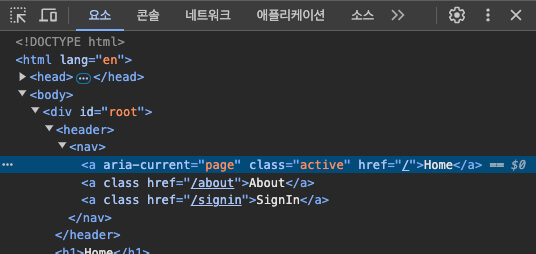
If you want to modularize your styles or set class names dynamically, you can pass a function to the className property to apply different styles depending on the active state.
In that function's parameter, you can use the isActive property to check whether the current link is active (a Boolean).
This allows more flexible and dynamic styling.
123456789101112├─src/ │ ├─components/ │ │ ├─TheHeader.module.css │ │ └─TheHeader.tsx │ ├─routes/ │ │ ├─layouts/ │ │ │ └─Default.tsx │ │ ├─pages/ │ │ │ ├─About.tsx │ │ │ └─Home.tsx │ │ └─index.tsx │ └─main.tsx
12345678.nav { display: flex; gap: 14px; } .active { color: red; font-weight: bold; }
123456789101112131415161718192021import { NavLink } from 'react-router' import styles from './TheHeader.module.css' export default function TheHeader() { return ( <header> <nav className={styles.nav}> <NavLink to="/" className={({ isActive }) => (isActive ? styles.active : '')}> Home </NavLink> <NavLink to="/about" className={({ isActive }) => (isActive ? styles.active : '')}> About </NavLink> </nav> </header> ) }
To make the code more extensible and concise, you can define the navigation items as data and render them as a list, as follows.
This makes it easy to add or change navigation items, so the code is easier to maintain.
123456789101112131415161718192021222324import { NavLink } from 'react-router' import styles from './TheHeader.module.css' const navigations = [ { to: '/', label: 'Home' }, { to: '/about', label: 'About' } ] export default function TheHeader() { return ( <header> <nav className={styles.nav}> {navigations.map(nav => ( <NavLink key={nav.to} to={nav.to} className={({ isActive }) => (isActive ? styles.active : '')}> {nav.label} </NavLink> ))} </nav> </header> ) }

If you want to use the active state inside the <NavLink> component, you can also pass a function as children.
Then you can adjust the inner elements dynamically based on the active state.
12345678<NavLink to="/about"> {({ isActive }) => ( <> <span className={isActive ? styles.active : ''}>About</span> page </> )} </NavLink>
When you use the end property on the <NavLink> component, it becomes active only when the current path exactly matches the path in the to property.
This gives you finer control over navigation.
| Component usage | Current URL | Active |
|---|---|---|
<NavLink to="/about" /> |
/about |
true |
<NavLink to="/about" /> |
/about/team |
true |
<NavLink to="/about" end /> |
/about |
true |
<NavLink to="/about" end /> |
/about/team |
false |
<NavLink to="/about/" end /> |
/about |
false |
<NavLink to="/about/" end /> |
/about/ |
true |
You can also use the caseSensitive property to make the path case-sensitive.
| Component usage | Current URL | Active |
|---|---|---|
<NavLink to="/about/A" /> |
/about/a |
true |
<NavLink to="/about/A" caseSensitive /> |
/about/a |
false |
# <Navigate>
The <Navigate> component redirects to another path immediately when it is rendered.
This is useful when you want to redirect to a specific path during conditional rendering.
12345678import { Navigate } from 'react-router' export default function PrivatePage({ isAuth }: { isAuth: boolean }) { if (!isAuth) { return <Navigate to="/signin" replace /> } return <h1>Private content</h1> }
# navigate = useNavigate()
With the useNavigate hook, you can move between pages programmatically.
This hook returns a navigate function, which you use to control movement between pages.
When you call the navigate function, the page moves to the path you pass as an argument.
You can give the path directly as a string, or use a number or an object.
If you pass a number, it moves backward or forward in the browser history by that number.
For example, -1 acts as 'back' and 1 acts as 'forward'.
In this way, the navigate function lets you implement page movement in many ways.
123456789101112131415161718192021222324import { useNavigate } from 'react-router' export default function LoginButton() { const navigate = useNavigate() function push() { navigate('/about') } function replace() { navigate('/about', { replace: true }) } function go(n: number) { navigate(n) } return ( <> <button onClick={push}>Go to page</button> <button onClick={replace}>Go to page (no going back)</button> <button onClick={() => go(1)}>Forward</button> <button onClick={() => go(-1)}>Back</button> </> ) }
If you want to work with query strings or hashes more conveniently, you can pass an object (of type To) as the argument when you call the navigate function.
This way, you can manage the different parts of a URL in a more structured form.
1234567891011121314151617181920212223242526272829303132import { useNavigate } from 'react-router' // Type of the To object (for reference) interface To { pathname?: string search?: string hash?: string } export default function GoTo() { const navigate = useNavigate() const query = { name: 'Neo', age: '85' } const hash = '#h1-title' // Write it directly navigate('/signin?name=Neo&age=22#h1-title') // Use URLSearchParams navigate(`/signin?${new URLSearchParams(query).toString()}${hash}`) // Use an object navigate({ pathname: '/signin', search: new URLSearchParams(query).toString(), hash }) // ... }
# redirect
The redirect function lets you implement redirects programmatically.
It is useful when you want to send the user to another page based on certain conditions.
The following is an example loader, used in a route's loader property, that checks the user's information.
12345678910111213141516171819import { redirect } from 'react-router' // Function that requests user information async function getUser() { const token = localStorage.getItem('access_token') const res = await fetch('httsp://api.heropy.dev/user/me', { headers: { 'Authorization': `Bearer ${token}` } }) return res.json() } // Loader function export async function requiresAuth() { const user = await getUser() if (!user) { return redirect('/signin') } return { user } }
# Dynamic segments
Dynamic segments are a handy feature that lets you use part of the URL like a variable.
With them, a single route component can manage many pages dynamically, which greatly improves reusability and flexibility.
For example, instead of making a separate page for each movie's details in a movie search, you can use one component to show the details of every movie.
12345678910111213├─src/ │ ├─components/ │ │ ├─TheHeader.module.css │ │ └─TheHeader.tsx │ ├─routes/ │ │ ├─layouts/ │ │ │ └─Default.tsx │ │ ├─pages/ │ │ │ ├─About.tsx │ │ │ ├─Home.tsx │ │ │ └─MovieDetails.tsx │ │ └─index.tsx │ └─main.tsx
A dynamic segment is written with the : symbol.
12345678910111213141516171819// ... import MovieDetails from './pages/MovieDetails' const router = createBrowserRouter([ { element: <DefaultLayout />, children: [ // ... { path: '/movies/:movieId', element: <MovieDetails /> } ] } ]) export default function Router() { return <RouterProvider router={router} /> }
With the useParams hook, you can easily extract the value of a dynamic segment.
The following example extracts a movie ID through a dynamic segment, then fetches and shows the matching information.
From the '/movies/:movieId' path, you can take the value of the :movieId part and use it for API requests or data processing.
This example uses the OMDb API to fetch movie information.
123456789101112131415161718192021222324import { useState, useEffect } from 'react' import { useParams } from 'react-router' interface Movie { Title: string // Movie title Poster: string // Movie poster URL } export default function MovieDetails() { const [movie, setMovie] = useState<Movie | null>(null) const { movieId } = useParams() useEffect(() => { fetchMovie() }, [movieId]) async function fetchMovie() { const res = await fetch(`https://www.omdbapi.com/?apikey=7035c60c&i=${movieId}`) const movie = await res.json() setMovie(movie) } return <h1>{movie?.Title}</h1> }
Now let's add a navigation item to the TheHeader component that moves to the movie details page.
Add the item as follows, then try moving to the movie details page.
123456789import { NavLink } from 'react-router' import styles from './TheHeader.module.css' const navigations = [ { to: '/', label: 'Home' }, { to: '/about', label: 'About' }, { to: '/movies/tt4154796', label: 'Movie(Avengers: Endgame)' } ] // ...

# Nested routing
As you saw in the Layouts section, you can build a hierarchy by defining child routes inside a parent route with the route's children property and the <Outlet> component.
Child routes then automatically inherit the parent route's path.
123456789101112131415161718192021222324createBrowserRouter([ { path: '/parent', element: <Parent />, children: [ { path: 'child' // '/parent/child' element: <Child /> } ] } ]) function Parent() { return ( <> <h1>Parent</h1> <Outlet /> </> ) } function Child() { return <h2>Child</h2> }
This time, let's add a movie search feature, and when you select a movie in the search results, show its details in a modal.
123456789101112131415├─src/ │ ├─components/ │ │ ├─TheHeader.module.css │ │ └─TheHeader.tsx │ ├─routes/ │ │ ├─layouts/ │ │ │ └─Default.tsx │ │ ├─pages/ │ │ │ ├─About.tsx │ │ │ ├─Home.tsx │ │ │ ├─MovieDetails.module.css │ │ │ ├─MovieDetails.tsx │ │ │ └─Movies.tsx │ │ └─index.tsx │ └─main.tsx
So that the URL changes but only part of the current page is updated instead of loading a whole new page, change the existing route structure and add the movie details page (<MovieDetails>) as a child route of the movie search page (<Movies>).
1234567891011121314151617181920212223242526// ... import Movies from './pages/Movies' import MovieDetails from './pages/MovieDetails' const router = createBrowserRouter([ { element: <DefaultLayout />, children: [ // ... { path: '/movies', element: <Movies />, children: [ { path: ':movieId', // '/movies/:movieId' element: <MovieDetails /> } ] } ] } ]) export default function Router() { return <RouterProvider router={router} /> }
When the user types a movie title and searches, the <Movies> component prints the search results as a list.
It uses the <Link> component so that selecting a movie in the list moves to that movie's details page.
Finally, it uses the <Outlet> component to set where the <MovieDetails> component, defined as a child route, is rendered.
123456789101112131415161718192021222324252627282930313233343536373839import { useState } from 'react' import { Link, Outlet } from 'react-router' interface Movie { imdbID: string Title: string Poster: string } export default function Movies() { const [title, setTitle] = useState('') const [movies, setMovies] = useState<Movie[]>([]) async function fetchMovies() { const res = await fetch(`https://www.omdbapi.com/?apikey=7035c60c&s=${title}`) const { Search: movies } = await res.json() setMovies(movies) } return ( <> <h1>Movies</h1> <input value={title} onChange={e => setTitle(e.target.value)} onKeyDown={e => { if (e.key === 'Enter') fetchMovies() }} /> <button onClick={fetchMovies}>Search</button> <ul> {movies.map(movie => ( <li key={movie.imdbID}> <Link to={`/movies/${movie.imdbID}`}>{movie.Title}</Link> </li> ))} </ul> <Outlet /> </> ) }
Now change the <MovieDetails> component as follows to show it as a modal.
The overlay is the background that surrounds the modal area, and the content is the body of the modal.
123456789101112131415161718// ... import styles from './MovieDetails.module.css' export default function MovieDetails() { // ... return ( <div className={styles.modal}> <div className={styles.overlay} onClick={() => navigate(-1)} /> <div className={styles.content}> <h1>{movie?.Title}</h1> </div> </div> ) }
The styles applied to the component are as follows.
123456789101112131415161718192021222324252627.modal { position: fixed; top: 0; left: 0; width: 100vw; height: 100vh; display: flex; justify-content: center; align-items: center; } .overlay { position: absolute; top: 0; left: 0; width: 100%; height: 100%; background-color: rgba(0, 0, 0, 0.5); cursor: pointer; } .content { position: relative; max-width: 500px; padding: 20px 30px; border-radius: 10px; box-shadow: 0 10px 10px rgba(0, 0, 0, 0.1); background-color: white; }
Add a navigation item to reach the movie search page.
Then add the end property to the <NavLink> component so that a navigation button becomes active only when the address matches exactly.
123456789101112131415161718192021222324252627import { NavLink } from 'react-router' import styles from './TheHeader.module.css' const navigations = [ { to: '/', label: 'Home' }, { to: '/about', label: 'About' }, { to: '/movies', label: 'Movies' }, { to: '/movies/tt4154796', label: 'Movie(Avengers: Endgame)' } ] export default function TheHeader() { return ( <header> <nav className={styles.nav}> {navigations.map(nav => ( <NavLink key={nav.to} to={nav.to} end className={({ isActive }) => (isActive ? styles.active : '')}> {nav.label} </NavLink> ))} </nav> </header> ) }
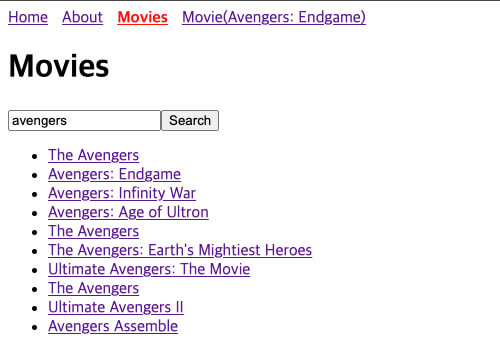
Now, when you select a movie on the movie search page, the movie details page appears as a modal.
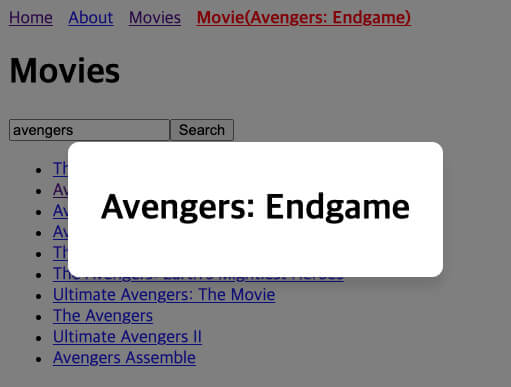
You usually use the <Outlet> component to render child routes, but depending on the situation you can also use the useOutlet hook.
The useOutlet hook returns the (new) child route to render, which allows more flexible handling, such as easily detecting page changes and applying animation effects.
123456789101112131415import { useState } from 'react' import { Link, useOutlet } from 'react-router' // ... export default function Movies() { const outlet = useOutlet() // ... return ( <> {/* ... */} {outlet} </> ) }
# Not found page
12345678910111213141516├─src/ │ ├─components/ │ │ ├─TheHeader.module.css │ │ └─TheHeader.tsx │ ├─routes/ │ │ ├─layouts/ │ │ │ └─Default.tsx │ │ ├─pages/ │ │ │ ├─About.tsx │ │ │ ├─Home.tsx │ │ │ ├─MovieDetails.module.css │ │ │ ├─MovieDetails.tsx │ │ │ ├─Movies.tsx │ │ │ └─NotFound.tsx │ │ └─index.tsx │ └─main.tsx
To handle paths that don't exist, you can set up a not found page.
The not found page must come last, so that it is rendered only when no other route matches.
123export default function NotFound() { return <h1>404 Page Not Found / The page could not be found.</h1> }
123456789101112131415// ... import NotFound from './NotFound' const router = createBrowserRouter([ // ... // Must come last! { path: '*', element: <NotFound /> } ]) export default function Router() { return <RouterProvider router={router} /> }

# Protected routes
A protected route is the concept of setting up pages that can be accessed only when the user is authorized.
In this section, we provide a sign-in page and set things up so that only signed-in users can access the movie search page.
12345678910111213141516171819├─src/ │ ├─components/ │ │ ├─TheHeader.module.css │ │ └─TheHeader.tsx │ ├─routes/ │ │ ├─loaders/ │ │ │ └─requiresAuth.ts │ │ ├─layouts/ │ │ │ └─Default.tsx │ │ ├─pages/ │ │ │ ├─About.tsx │ │ │ ├─Home.tsx │ │ │ ├─MovieDetails.module.css │ │ │ ├─MovieDetails.tsx │ │ │ ├─Movies.tsx │ │ │ ├─NotFound.tsx │ │ │ └─SignIn.tsx │ │ └─index.tsx │ └─main.tsx
First, create the <SignIn> component for the sign-in page.
There is no sign-in API yet, so we sign the user in temporarily.
12345678910111213141516171819202122232425262728293031323334353637383940import { useSearchParams, useNavigate } from 'react-router' export default function SignIn() { const navigate = useNavigate() // Get the query string and convert it to an object that is easy to use. const [searchParams] = useSearchParams() const query = Object.fromEntries(searchParams) function handleSubmit(event: React.FormEvent<HTMLFormElement>) { // Prevent the `<form>` from reloading the page (its default behavior). event.preventDefault() // Get the `<form>` data and convert it to an object that is easy to use. const formData = new FormData(event.currentTarget) const { email, password } = Object.fromEntries(formData) as Record<string, string> // If all the sign-in information is there, sign the user in temporarily. if (email && password) { localStorage.setItem('access_token', 'abcd1234') navigate(query.redirectTo || '/') } } return ( <> <h1>Sign In</h1> <form onSubmit={handleSubmit}> <input type="email" name="email" placeholder="Email" /> <input type="password" name="password" placeholder="Password" /> <button type="submit">Sign In</button> </form> </> ) }
When the user visits a page, you can check whether they are authorized through a loader function before the page is rendered.
A loader function receives the request information (request) for the page being visited and can use it.
1234567891011121314151617181920212223242526272829import { redirect } from 'react-router' export interface User { name: string age: number } async function getUser() { const token = localStorage.getItem('access_token') // const res = await fetch('httsp://api.heropy.dev/user/me', { // headers: { 'Authorization': `Bearer ${token}` } // }) // return res.json() // If there is a token, return the user information. if (token) return { name: 'Neo', age: 22 } satisfies User return null } // Loader function called when a page is visited! export async function requiresAuth({ request }: { request: Request }) { const user = await getUser() if (!user) { const url = new URL(request.url) // Get the URL information of the requested page. const redirectTo = url.pathname + url.search // Path + query string of the requested page return redirect(`/signin?redirectTo=${encodeURIComponent(redirectTo)}`) // Go to the sign-in page along with the page to return to (`redirectTo`). } return user // The returned data can be used with the `useLoaderData` hook. }
Pass the loader function to the route's loader property.
Now, when you visit /movies or any page under it, the loader function is called to check whether the user is authorized.
1234567891011121314151617181920212223242526272829303132// ... import SignIn from './pages/SignIn' import { requiresAuth } from './loaders/requiresAuth' const router = createBrowserRouter([ { element: <DefaultLayout />, children: [ // ... { path: '/signin', element: <SignIn /> }, { path: '/movies', element: <Movies />, loader: requiresAuth, children: [ { path: ':movieId', element: <MovieDetails /> } ] } // ... ] } ]) export default function Router() { return <RouterProvider router={router} /> }
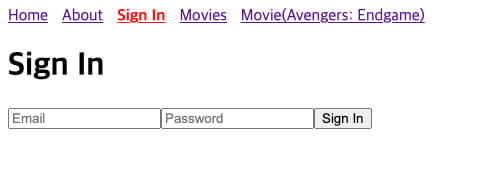
If needed, components can use the data returned by the loader function through the useLoaderData hook.
1234567// ... import type { User } from '@/routes/loaders/requiresAuth' export default function Movies() { const user = useLoaderData() as User | undefined // ... }
# Lazy loading pages
Lazy loading is a technique that loads components or modules dynamically only when they are needed, to shorten the app's initial loading time, and with it you can load a page's component only when the user visits that page.
This approach has the following pros and cons, so use it as your needs require.
- Shorter initial loading time thanks to a smaller bundle
- Saves network bandwidth
- Transition delays when a page is large
- More complexity, such as dynamic imports and error handling
Use the lazy and import functions to load components dynamically.
A component returned by the lazy function starts loading when it is used.
12345678910111213141516import { lazy } from 'react' import { createBrowserRouter, RouterProvider } from 'react-router' const Home = lazy(() => import('./pages/Home')) const About = lazy(() => import('./pages/About')) const router = createBrowserRouter([ { path: '/', element: <Home /> }, { path: '/about', element: <About /> } ])
# Handling loading
With the Suspense component, you can manage the loading state while a component loads.
Use the fallback property to set the element or component that shows the loading state.
1234567891011121314151617181920212223242526import { lazy, Suspense } from 'react' import { createBrowserRouter, RouterProvider } from 'react-router' const Home = lazy(() => import('./pages/Home')) const About = lazy(() => import('./pages/About')) const router = createBrowserRouter([ { path: '/', element: ( <Suspense fallback={<div>Loading...</div>}> <Home /> </Suspense> ) }, { path: '/about', element: ( <Suspense fallback={<div>Loading...</div>}> <About /> </Suspense> ) } ]) // ...
# Handling errors
With the ErrorBoundary component, you can handle errors thrown in components.
Use the fallbackRender property to return the element or component to show when an error occurs.
1npm i react-error-boundary
12345678910111213141516171819202122232425262728293031import { lazy, Suspense } from 'react' import { ErrorBoundary } from 'react-error-boundary' import { createBrowserRouter, RouterProvider } from 'react-router' const Home = lazy(() => import('./pages/Home')) const About = lazy(() => import('./pages/About')) const router = createBrowserRouter([ { path: '/', element: ( <ErrorBoundary fallbackRender={({ error }) => <div>Error: {error.message}</div>}> <Suspense fallback={<div>Loading...</div>}> <Home /> </Suspense> </ErrorBoundary> ) }, { path: '/about', element: ( <ErrorBoundary fallbackRender={({ error }) => <div>Error: {error.message}</div>}> <Suspense fallback={<div>Loading...</div>}> <About /> </Suspense> </ErrorBoundary> ) } ]) // ...
# Custom load function
If you want to apply dynamic components in your own way, you can also write a custom function yourself.
Create a dynamic function as follows so that it handles common default loading and errors, and also lets you handle loading and errors individually.
12345678910111213141516171819202122232425262728293031import { lazy, Suspense } from 'react' import { ErrorBoundary } from 'react-error-boundary' import type { FallbackProps } from 'react-error-boundary' interface DynamicOptions { error?: ({ error }: FallbackProps) => React.ReactNode loading?: React.ReactNode } export function dynamic( importFn: () => Promise<{ default: React.ComponentType }>, options: DynamicOptions = {} ) { const Component = lazy(() => importFn()) return function DynamicComponent() { return ( <ErrorBoundary fallbackRender={ options.error || (({ error }) => ( <div>Error: {(error as Error)?.message || 'Unknown error!!'}</div> )) }> <Suspense fallback={options.loading || <div>Loading...</div>}> <Component /> </Suspense> </ErrorBoundary> ) } }
1234567891011121314151617181920212223import { createBrowserRouter, RouterProvider } from 'react-router' import { dynamic } from './dynamic' import DefaultLayout from './layouts/Defatult' const router = createBrowserRouter([ { element: <DefaultLayout />, children: [ { path: '/', Component: dynamic(() => import('./pages/Home')) }, { path: '/about', Component: dynamic(() => import('./pages/About'), { error: ({ error }) => <div>This page can't be displayed! ({error.message})</div> }) } ] } ]) // ...
# Page transition animations
With the Framer Motion library, you can easily add a transition animation every time the page changes.
1npm i framer-motion
With Framer Motion's <motion.elementName> component, you can wrap the target you want to animate (an element or component) and set options (properties).elementName is the name of the actual HTML element that the <motion> component is replaced with, and you use div unless you have a special case.
In the <motion> component, set the animation's start state in the initial property and its end state in the animate property, and set the animation's type (type), duration (duration), number of repeats (repeat), and so on in the transition property.
123456<motion.div initial={startState} animate={endState} transition={transitionOptions}> {target to animate} </motion.div>
When the page changes, the previous page component is unmounted and the new page component is mounted.
By default, React components don't wait for an animation to finish before unmounting, so you can't apply an animation to the previous page in a page transition.
This is where Framer Motion's <AnimatePresence> component comes in: with it, you can use the exit property of the <motion> component to apply an (exit) animation to the previous page in a page transition as well.
Then pass a unique value to the key property to tell the transitioning pages apart.
12345678910<AnimatePresence> <motion.div key={uniqueValue} initial={startState} animate={endState} exit={endState} transition={transitionOptions}> {target to animate} </motion.div> </AnimatePresence>
Change the layout component to apply the transition animation to every page.
The commonly used <Outlet> component renders child routes in its own position in a fixed way, so the <AnimatePresence> component may not detect page changes.
On the other hand, the useOutlet hook gets the child route to render as data and handles it reactively, so the <AnimatePresence> component can detect page changes and trigger the animation.
12345678910111213141516171819202122232425import { motion, AnimatePresence } from 'framer-motion' import { useLocation, useOutlet, ScrollRestoration } from 'react-router' import TheHeader from '@/components/TheHeader' export default function DefaultLayout() { const location = useLocation() const outlet = useOutlet() return ( <> <TheHeader /> <AnimatePresence> <motion.div key={location.pathname} initial={{ opacity: 0 }} animate={{ opacity: 1 }} exit={{ opacity: 0, position: 'absolute' }} transition={{ duration: 0.3 }}> {outlet} </motion.div> </AnimatePresence> <ScrollRestoration /> </> ) }
Check that the page transition animation is applied.
To see the animation more easily, try increasing the duration (duration) to 1 second or more.
# Deployment
When you deploy a project that uses BrowserRouter (createBrowserRouter), you need a server setting that redirects every request to index.html.
This way, the app works correctly even when the user types a URL directly or refreshes the page.
Let's look at the settings needed for the major hosting services.
# Vercel
If you deploy with Vercel, create a vercel.json file in the project's root and add the following configuration.
123{ "rewrites": [{ "source": "/(.*)", "destination": "/index.html" }] }
# Netlify
If you deploy with Netlify, create a _redirects file in the project's public folder (/public) and add the following configuration.
1/* /index.html 200
Or create a netlify.toml file in the project's root and add the following configuration.
1234[[redirects]] from = "/*" to = "/index.html" status = 200
# Firebase
If you deploy with Firebase, create a firebase.json file in the project's root and add the following configuration.
1234567891011{ "hosting": { "public": "dist", "rewrites": [ { "source": "**", "destination": "/index.html" } ] } }
Thanks for reading to the end.
Likes and kind comments help keep this blog going!