Claude Cowork Essentials

Claude Chat answers questions, but Claude Cowork carries out the work you assign.
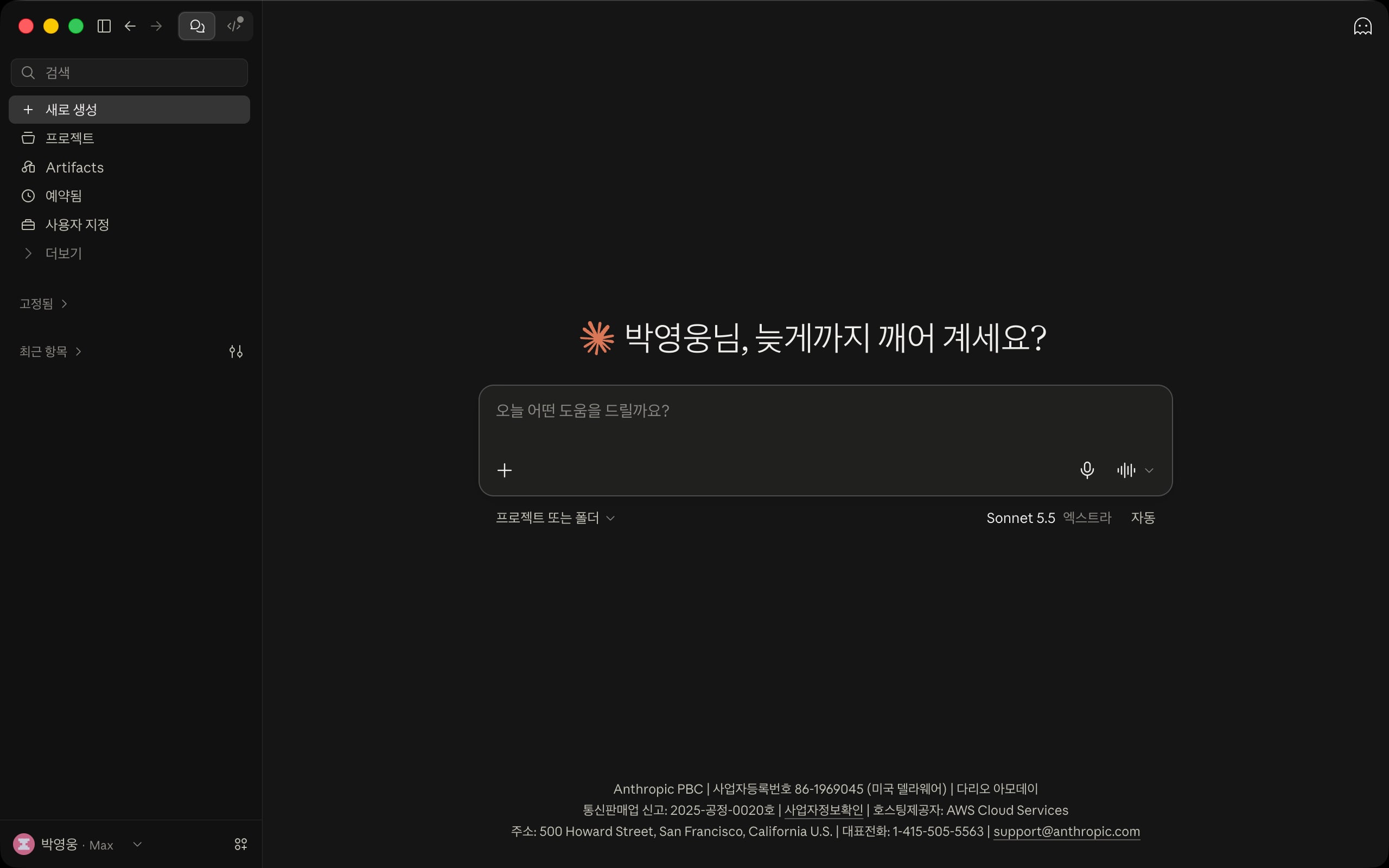
Claude Cowork is an agentic tool in the Desktop app that moves between files, folders, and apps to turn knowledge work, such as organizing documents or researching, into finished results.
# Overview
The main features of Cowork are as follows.
- An agent with no code required: You can start working right away in Claude Desktop, on the web, or in the mobile app, with no command-line knowledge.
- A secure sandbox: Tasks run in an isolated environment on Anthropic's servers and can access only the folders and connectors you connect.
- Scheduled tasks: Repetitive work such as weekly reports runs automatically on a set schedule.
- Assign tasks from anywhere: Start a new task on mobile or check on a task you started on the desktop, and handle web tasks through the Chrome browser integration or the built-in browser.
- A GUI friendly to non-developers: Anyone can use it through a graphical user interface.
# How it works
In Cowork, the screen where you assign a task and the place where the task actually runs are different.
The desktop app, the web, and the mobile app are screens for assigning tasks and checking results, and tasks run in a sandbox created on Anthropic's servers.
A sandbox is a temporary execution environment separated from the outside; one is created for each session when the session starts and deleted when the session ends.
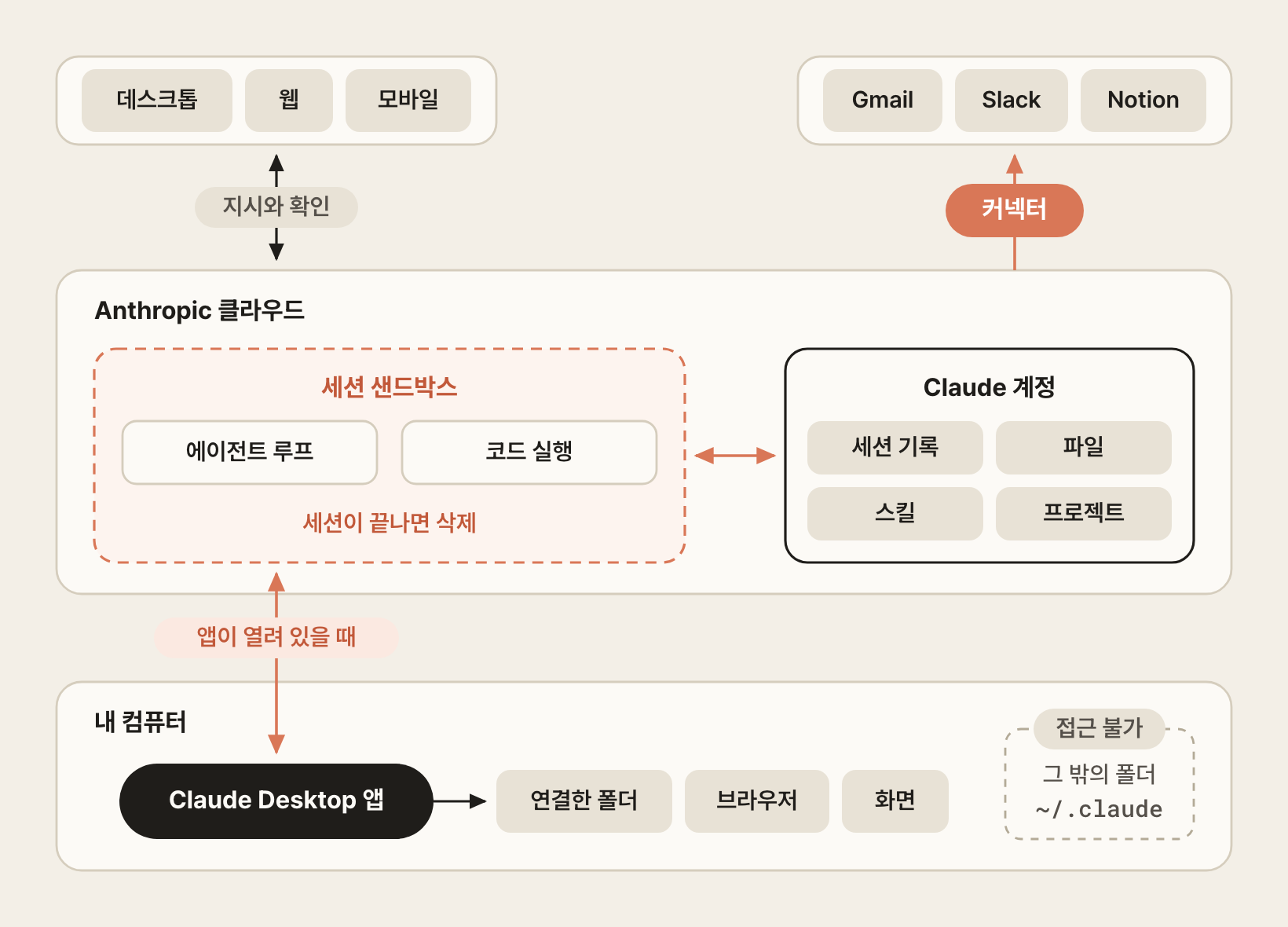
- Session sandbox: The agent loop, where Claude makes plans and calls tools, as well as shell commands and code execution, all happen inside the sandbox. It shares no state with other sessions and can't access your home or company network.
- Claude account: Session history, result files, projects, artifacts, and skills are saved to your account, not the sandbox. So you can continue your work on another device even after the sandbox is deleted, and a new session starts with the skills you enabled in your account.
- Connectors: External services are called from Anthropic's servers, not from the sandbox, and connector authentication tokens are never passed to the sandbox.
- Your computer: Cowork accesses it through the Claude Desktop app only when it needs local files, the browser, or computer use. Access is limited to the folders you connect, and Cowork can't access your computer while the app is closed. Files used by a task running in the cloud leave your computer and are processed on Anthropic's servers.
So the commands you give Cowork run in the sandbox, not on your computer.
For example, if you ask Cowork to install a package, the package is installed in the sandbox and deleted along with the sandbox when the session ends.
Conversely, tools you installed from your computer's terminal and settings in the ~/.claude directory aren't available in Cowork.
This is also why skills you used in Claude Code don't show up in Cowork; Installing external skills explains how to solve this.
# Code and Cowork
They use the same engine but differ in who they're for and where they run.
| Category | Claude Code | Claude Cowork |
|---|---|---|
| In one line | Terminal-based coding agent | Desktop knowledge work agent |
| Target users | Developers (engineers, technical users) | Knowledge workers (practitioners, researchers, operators) |
| Interface | Terminal CLI or Desktop GUI | Desktop, web, and mobile GUI |
| Execution environment | Runs directly in the local terminal (with your permissions) | Isolated environment in the cloud (accesses only connected folders) |
| Main uses | Coding, debugging, builds, codebase automation | Files, research, reports, repetitive knowledge work |
# Plans and pay-as-you-go API
You sign in through the browser, and each plan provides a set amount of usage.
All prices below exclude VAT.
| Plan | Price (USD/month) | For | Key features |
|---|---|---|---|
| Pro | $20 ($17 billed annually) | Individuals | Includes Claude Code and Cowork |
| Max 5x | $100 | Individual heavy users | 5x the usage of Pro |
| Max 20x | $200 | Individual heavy users | 20x the usage of Pro |
| Team | $25 per seat ($20 billed annually), Premium seats $125 ($100 billed annually) | Businesses (2-150 seats) | SSO, centralized billing, admin controls, Premium seats get 5x the usage of standard seats |
| Enterprise | $20 per seat (billed annually) + usage at API rates | Large enterprises | SCIM, SLA, audit logs |
Claude Code also supports pay-as-you-go billing, where you authenticate with an API key instead of a subscription and pay only for what you use, but Cowork is available only with a plan subscription.
Below are the input and output prices per million tokens, as of October 2026.
| Model | Input (MTok) | Output (MTok) |
|---|---|---|
| Fable 5.1 | About $10 | About $50 |
| Opus 5.5 | About $4 | About $20 |
| Sonnet 5.5 | About $2 | About $10 |
| Haiku 5.5 | About $0.10 | About $0.50 |
For Haiku 5.5, prices rise to about $0.50 for input and about $2.50 for output when a prompt exceeds 100,000 tokens.
# Installation
Install the Claude Desktop app to use all Cowork features, including local files and browser use.
It supports macOS 11 (Big Sur) or later and Windows 10 or later, and Linux (Ubuntu 22.04 LTS or later, Debian 12 or later) is supported in beta.
Computer use isn't supported on Linux.
- Go to claude.ai, sign up, and log in
- Download the installer for your operating system from claude.com/download
- Install and run Claude Desktop
# Basic usage
# The Cowork interface
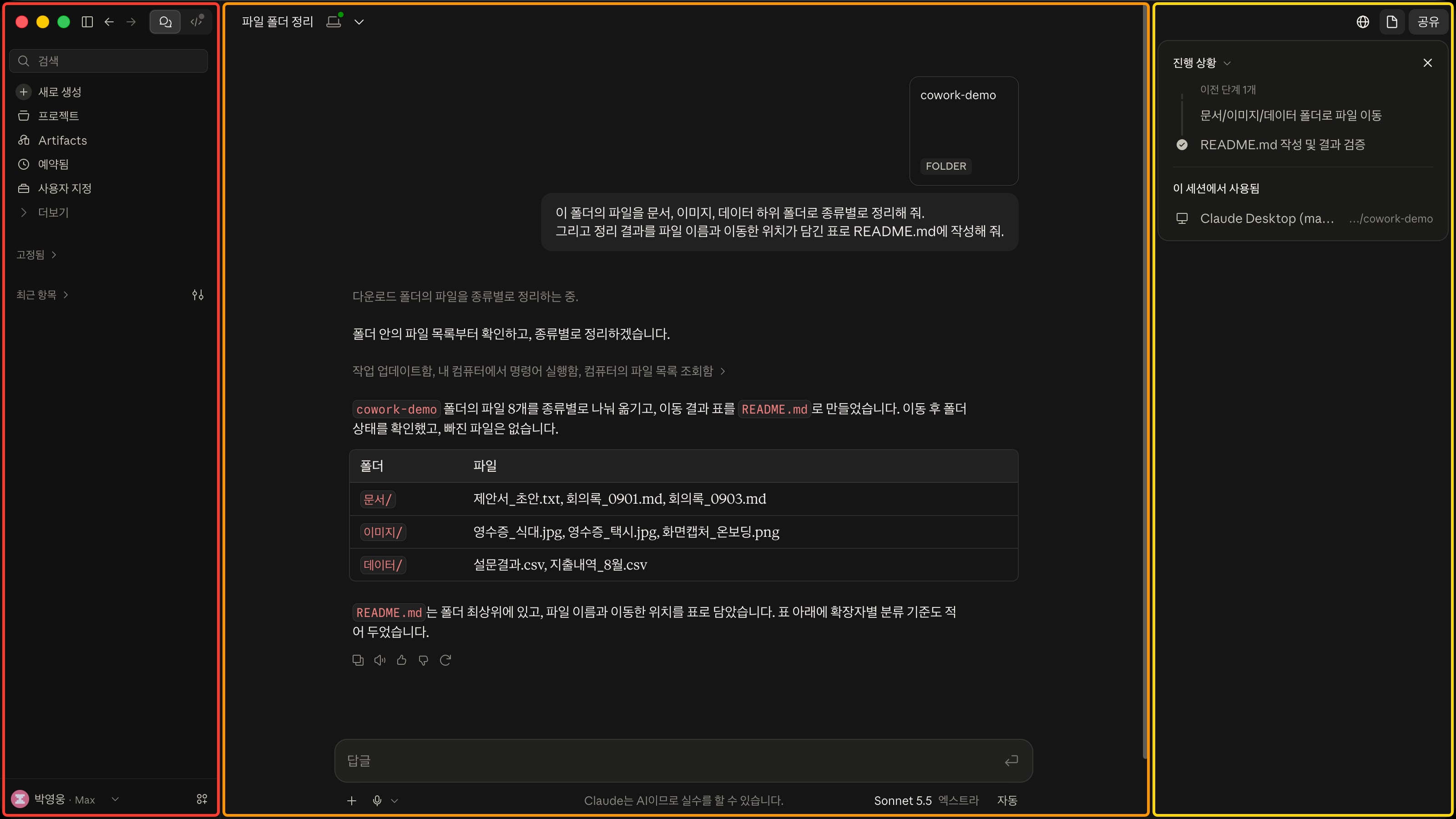
The Cowork screen is divided into three main areas: the left sidebar, the work area in the middle, and the activity panel on the right.
- Left sidebar: The icons at the top switch between Claude and Code, and the sidebar shows the Search, New, Projects, Artifacts, Scheduled, and Customize menus. More contains Dispatch and Design, and chats and Cowork tasks appear together under Recents
- Work area: Assign tasks in natural language in the prompt input box, and add files, folders, skills, connectors, and plugins with the
+button. Below the input box, choose the working folder (or project), the model and effort level, and the permission mode; once a task starts, the tool steps it ran and the result files appear in this area. The device icon next to the task title shows the computer this session is connected to - Activity panel: Open and close it with the document-shaped button in the upper right; it shows Progress and the devices and folders used in this session. The globe button next to it shows the built-in browser
You can attach many kinds of files in the input box, and Cowork reads and analyzes their content.
- Documents: HTML, MD, PDF, DOCX, and more
- Spreadsheets: CSV, XLSX, and more
- Images: JPG, PNG, WEBP, and more
- Code: most source files
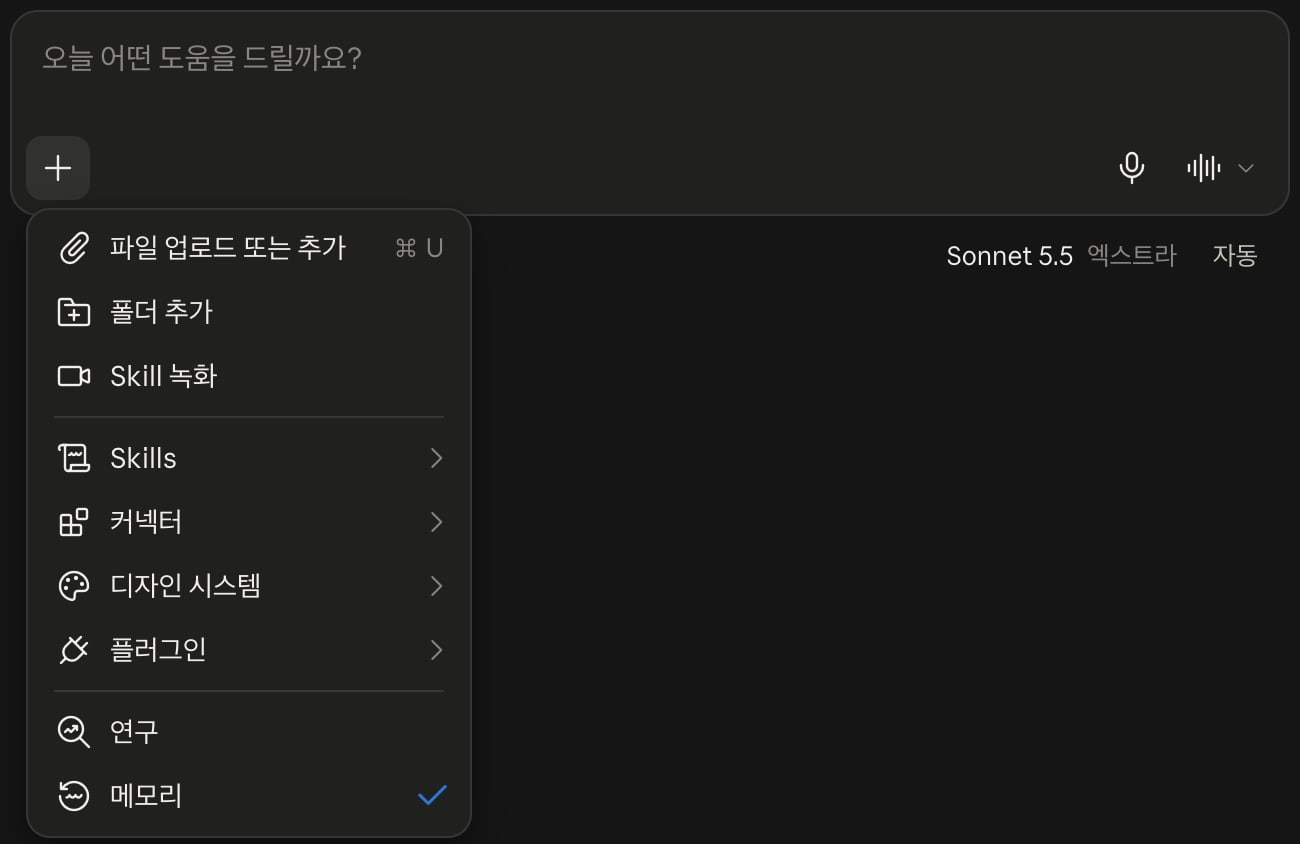
To add files, drag them into the conversation or choose the upload or add option in the + menu.
From the same menu, you can connect a folder or choose skills, connectors, design systems, and plugins, and you can also turn on Research or turn off memory for this task.
You can apply this attachment feature to all kinds of work, such as competitor analysis, interview analysis, turning a PRD into slides, and contract review.
For example, attach a meeting notes file and ask for analysis and a document like this.
12Using the attached meeting notes, analyze the three key decisions, next week's action items, risks, and so on. Then create a Markdown file for the weekly report.
# Task flow
When Cowork receives an instruction, it doesn't run it right away; it goes through planning, review, execution, and result stages.
- Write your instruction as a prompt and send it.
- Cowork makes a plan for the task.
- You review, modify, and approve the plan.
- Cowork calls several tools to carry out the task.
- It reports the result.
Simple tasks may run right away without plan confirmation.
For example, select the folder to organize with the project or folder chip below the input box or with the add folder option in the + menu, and give an instruction like this.
12Sort the files in this folder by type into documents, images, and data subfolders. Then write the results to README.md as a table with each file name and the location it was moved to.
Cowork names the task automatically and summarizes the tools it used, such as 'Updated task, Ran a command on your computer, Listed files on your computer'.
Click the summary to see the steps in order, such as adding and completing items in the task list and the commands run on your computer.
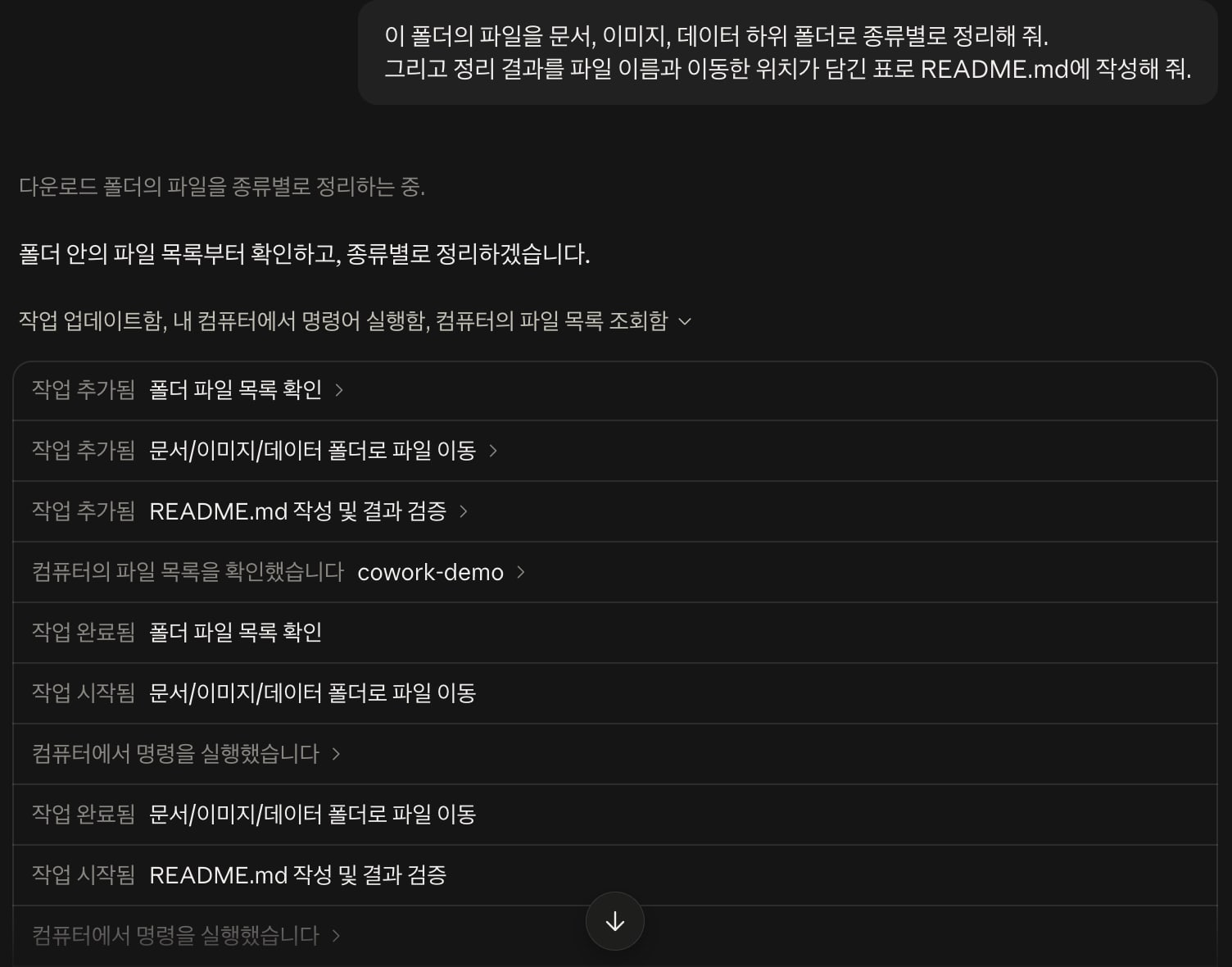
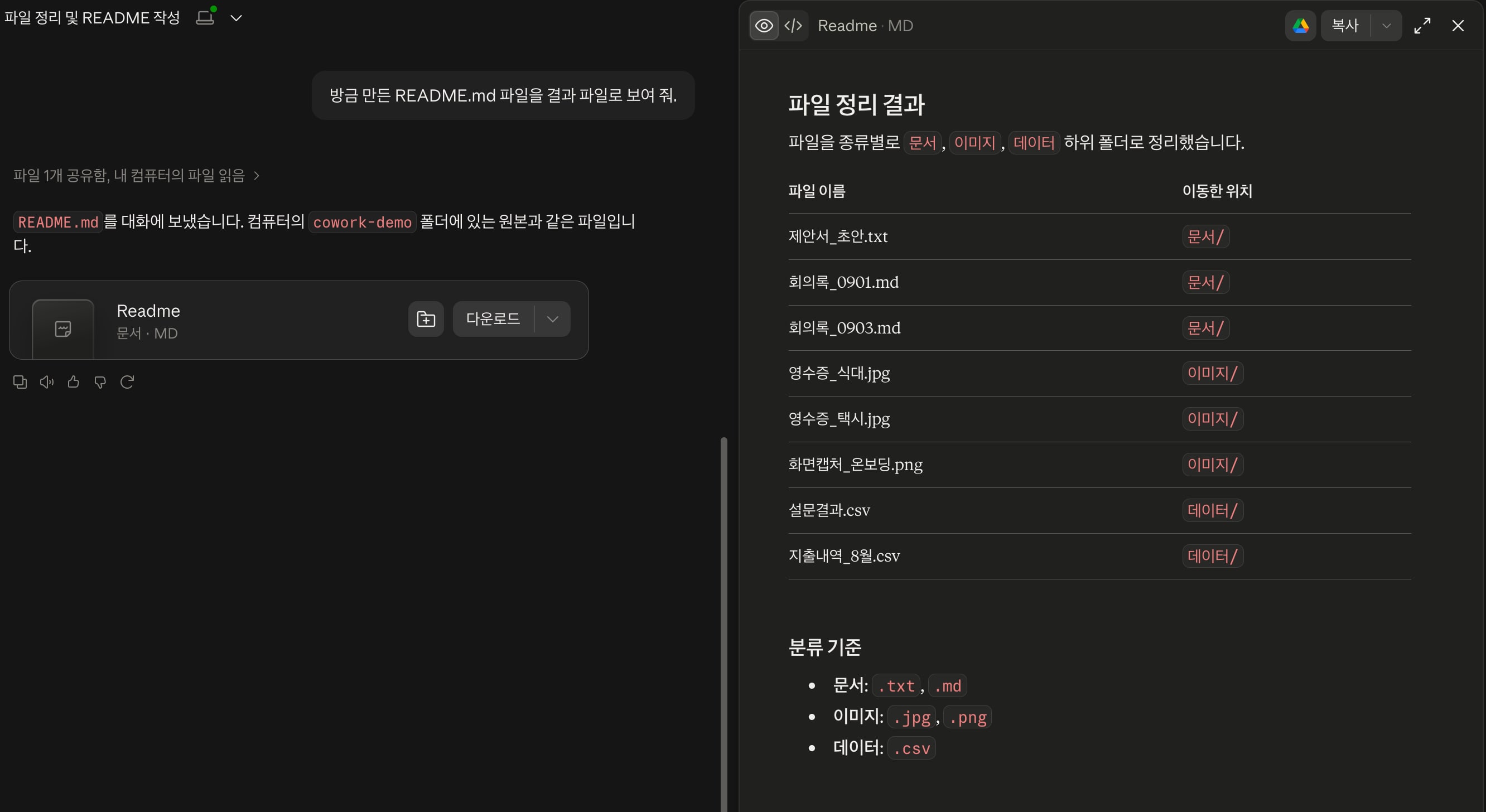
Files created as results appear as cards, and clicking a card opens a preview on the right.
In the preview, you can switch between the rendered view and the source code or copy the content, and from the card's download menu, you can open the file directly in an app on your computer, in Finder, or in Google Drive.
Files created in the working folder may be saved only to the folder without a card; in that case, ask Cowork to show them as result files, and they appear as cards.
# Permission modes
The permission mode determines how Cowork asks for your confirmation before running actions such as connector calls or file changes.
Choose one of two modes with the button at the lower right of the prompt input box; the mode you choose applies to the whole conversation.
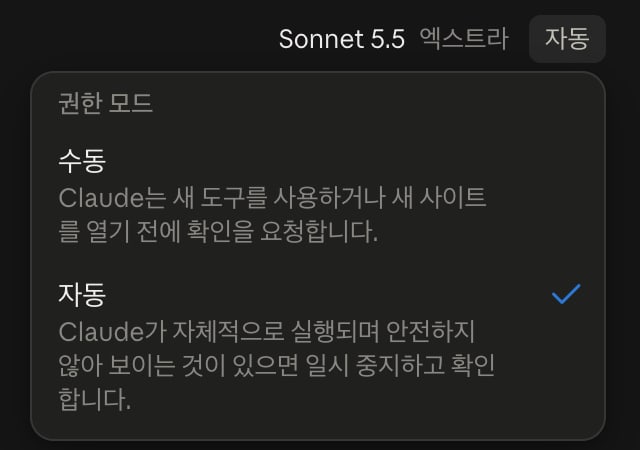
| Mode | Behavior |
|---|---|
| Manual | Asks for confirmation before using a new tool or opening a new site (default) |
| Auto | Keeps going without stopping, and pauses to ask for confirmation if an action seems unsafe |
In auto mode, each action is checked for risk signals such as data exfiltration or prompt injection, and actions judged unsafe are stopped.
Because this extra safety check runs, auto mode consumes more usage than manual mode.
On Team and Enterprise plans, depending on organization policy, connector tools that can perform write actions may need approval every time.
Switching to manual mode is safer in the following situations.
- Tasks that handle sensitive files or personal information
- Tasks that involve a tool or connector you're using for the first time
- Actions that are hard to undo, such as sending messages or making payments
When you add a working folder for the first time, Cowork first checks folder access permission, separately from the permission mode.
Allow applies only this time, and if you choose Always allow, it won't ask again in later tasks.
Manage the folders Cowork can use without asking in the trusted folders section of Settings > General.
Once you allow folder access, creating or moving files inside that folder may proceed without a separate confirmation, even in manual mode.
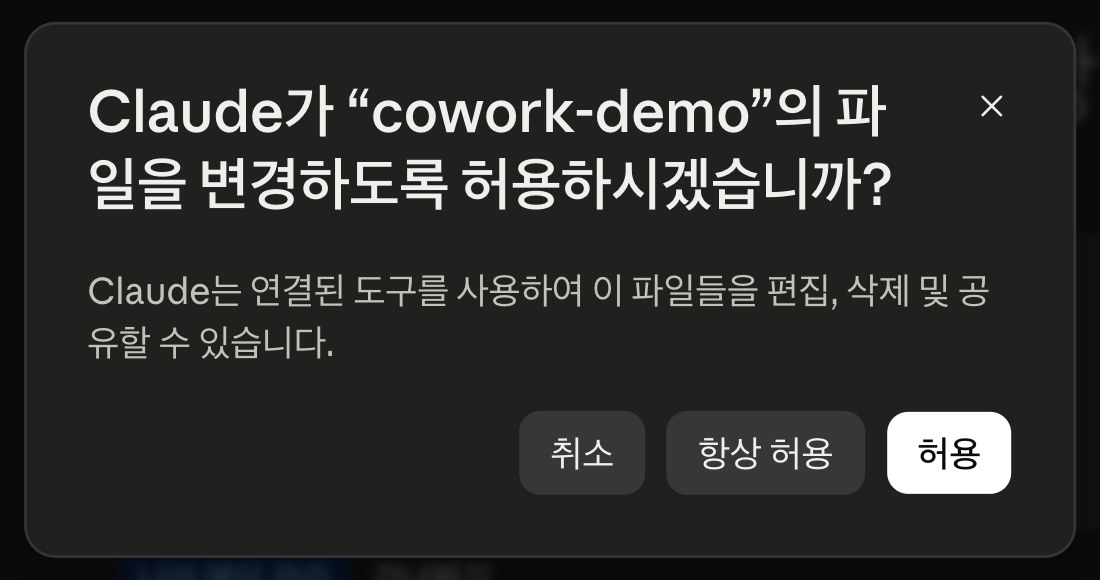
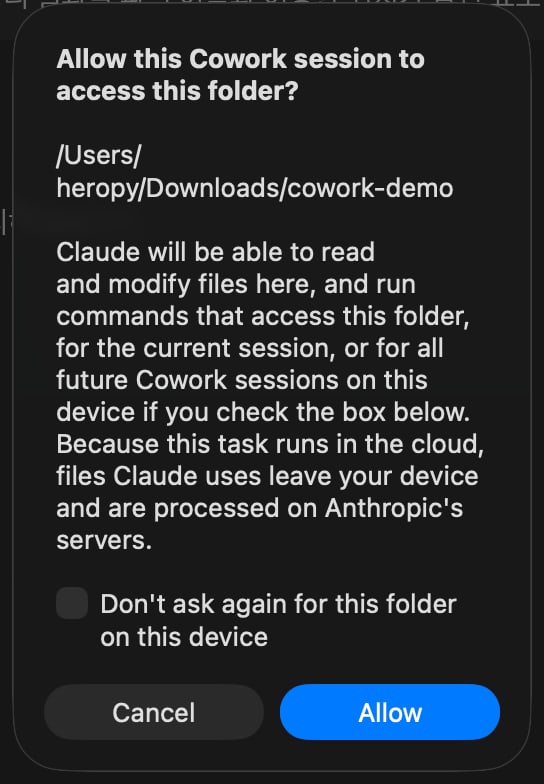
Because tasks run in the cloud, another confirmation dialog opens the first time a session uses that folder.
This dialog explains that the files Claude uses leave your computer and are processed on Anthropic's servers.
If you select Don't ask again for this folder on this device and then allow access, later sessions on this computer won't ask again.
# Context and model selection
As a conversation gets longer, context builds up and token consumption increases.
Depending on the topic of your work, decide whether to continue in the same task or start a new one.
- Continue working: If the work shares the same context, keep going in one task.
- Start a new task: If the topic changes, start in a new task.
The model you choose also affects token consumption and processing speed.
Choose both the model and the effort level with the model button on the right side of the input box.
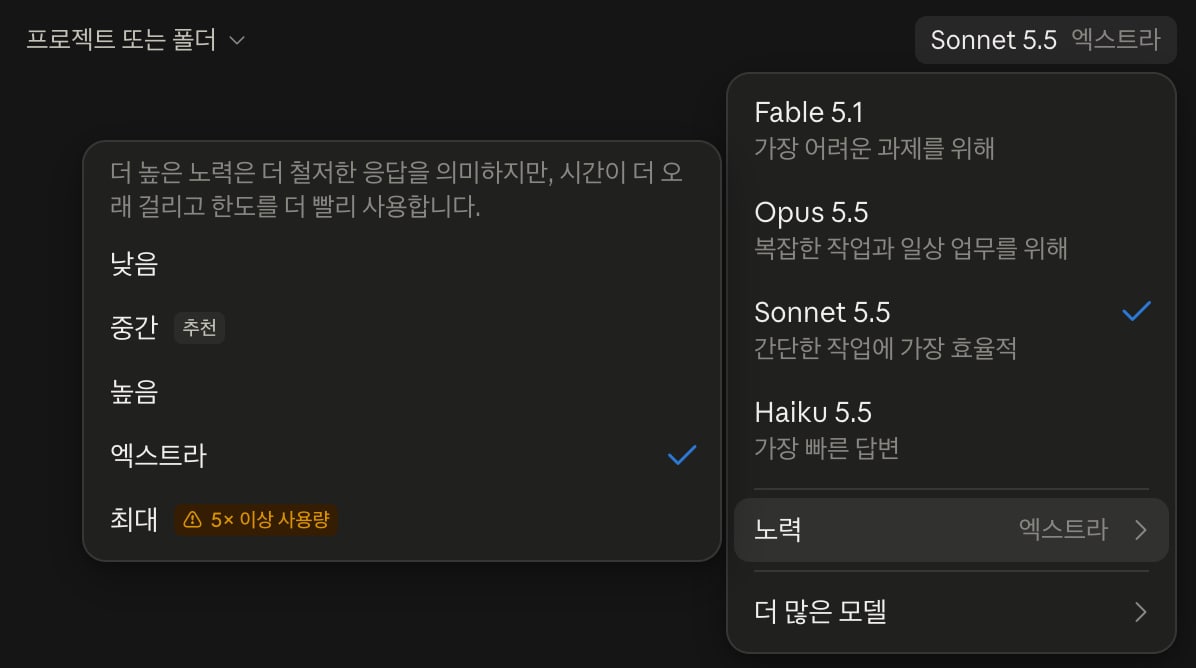
- Fable: Use it for the most complex knowledge work or coding projects that run autonomously for a long time.
- Opus: Use it for demanding tasks that need complex analysis or multi-step planning.
- Sonnet: Use it for balanced everyday work such as writing documents or organizing data.
- Haiku: Use it for simple summaries, classification, or small data processing.
On the Pro plan and Team Standard seats, Fable isn't included in plan usage, so you can use it only with usage credits.
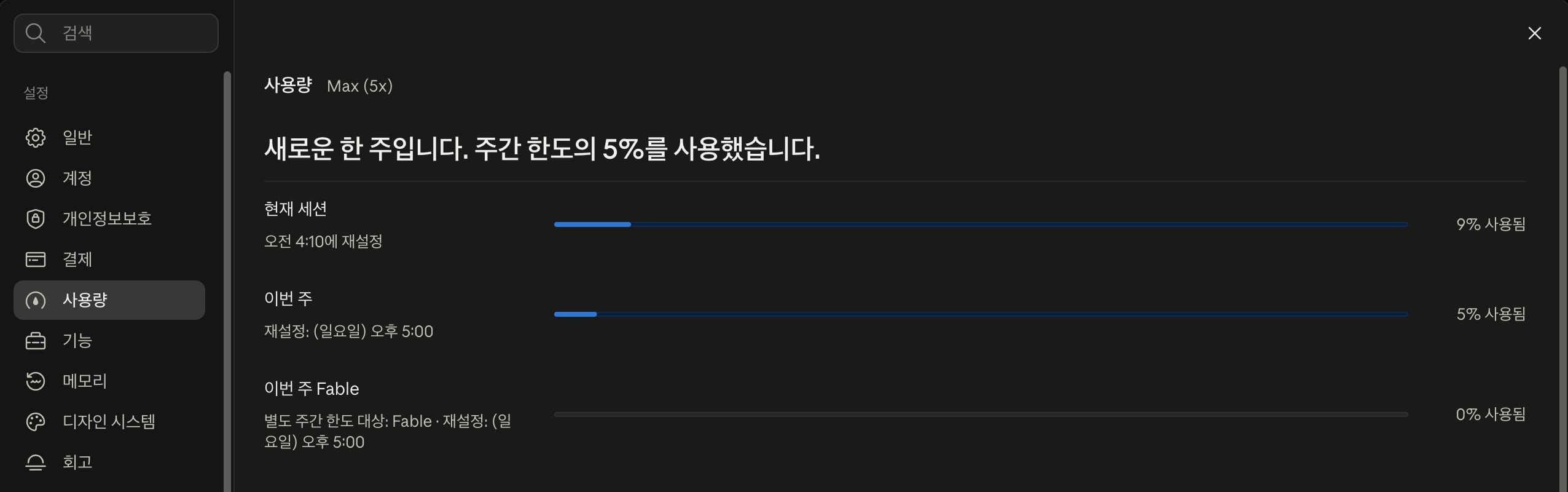
On Max plans, Fable usage is counted against a separate weekly limit.
Effort is the level that sets how thorough a response is; choose from Low, Medium, High, Extra high, and Max.
Higher levels give more thorough results but take longer and use up your usage limits faster.
The menu marks Medium as the recommended level and notes that Max can use 5x or more usage.
Check your current usage in Settings > Usage, split into the current session, this week, and Fable this week.
On the same screen, you also manage your usage credit balance, whether to use usage credits, and your monthly spending limit.
# Good prompts
When you assign a task, splitting your prompt into the RICEF elements as follows improves the quality of the results.Instruction describes the task to complete, Context the situation and materials needed to make judgments, and Examples the form the result should follow.
| Element | Description | Example |
|---|---|---|
| Role | Which professional perspective and criteria to apply | "Review from the perspective of a B2B SaaS market analyst" |
| Instruction | State the action and goal: what needs to be done | "Compare the features, prices, and differentiators of the three products" |
| Context | Provide the purpose, target audience, reference materials, scope, and constraints | "This is for an executive meeting; use only the three attached PDFs as sources" |
| Examples | Show samples or expression patterns the result should follow | "Apply the column layout and sentence length of the attached June report" |
| Format | State the file type, structure, and length of the output | "An xlsx file with each item written in 10 words or fewer" |
Use the reference materials in the context as the basis for the content, and use the examples as the standard for the structure or style of the result.
Even for the same task, the results vary depending on how specifically you provide the elements you need.
1Analyze our competitors
123456You are an IT strategy consultant with experience evaluating B2B SaaS adoption. So that we can decide whether to adopt a collaboration tool at next week's executive meeting, compare each product's key features, pricing, security policy, and differentiators, using only the three attached product brochure PDFs as sources. Don't guess anything you can't verify; mark it as 'Needs verification!', and create the result as an xlsx file that follows the column layout and sentence length of the attached June competitor analysis sheet. Put the comparison table on the first sheet, and each product's pros and cons and your final recommendation on the second sheet.
# Instructions
Instructions are standing rules that set in advance how Cowork works, such as tone, format, and which materials to refer to first.
If you find yourself retyping even a good prompt every time, it's more efficient to save it as instructions that apply automatically to every task.
| Priority | Layer | Scope | Where to set |
|---|---|---|---|
| 1 (highest) | Organization instructions | All conversations of organization members | Managed by admins in organization settings (Team and Enterprise only) |
| 2 | Project instructions | Tasks in that project | Instructions in the project's right panel |
| 3 | Personal instructions | All of your conversations | Instructions for Claude in Settings > Account |
According to the official documentation on organization instructions, organization instructions take precedence when they directly conflict with personal instructions.
The official guide to customizing Cowork explains that project instructions are added on top of personal instructions (global instructions).
Lower-level instructions still apply to anything the higher-level ones don't cover, so organization instructions don't replace the other instructions entirely.
123- Write all documents in English - Structure reports as a key summary, details, and action items, in that order - Cite the source when quoting figures

# Projects
A project groups related work into a single workspace so you can manage files, instructions, memory, and tools together.
In the new experience, chat and Cowork projects are merged into one and work in every conversation, and new projects are saved to your Claude account so you can keep using them on other devices.
When you keep working on the same topic or find yourself attaching the same files and instructions every time, setting up a separate project lets you start work with the same context.
To create a project, click New project on the Projects page in the left sidebar, then enter a task name and the goal you want to achieve.
To use a folder on your computer as well, connect it by selecting the folder with Add context.
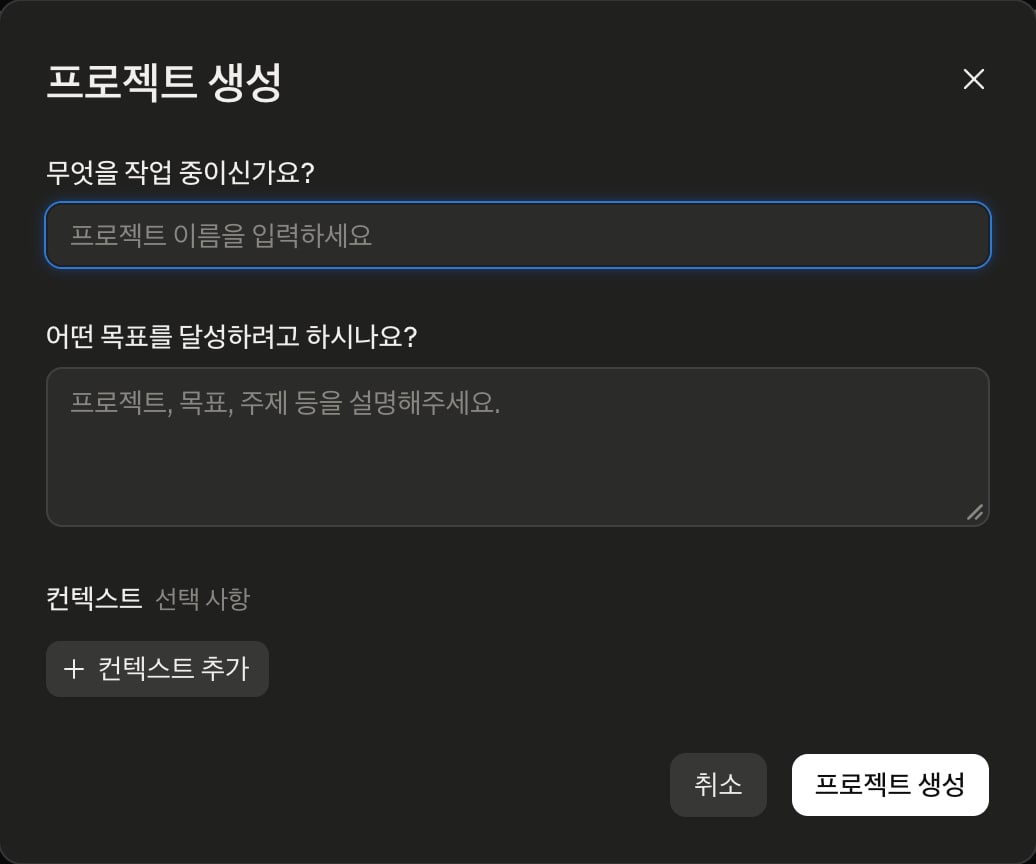
Each project includes the following.
- Instructions: Define the tone, format, and rules that apply automatically to every task in the project. They're applied on top of personal instructions.
- Context: Shows and adds the materials the project refers to, such as connected folders.
- Folder: Shows the connected folder on your computer. If you move the folder to the cloud (Move folder), its files are uploaded to your account so you can use them on any device, and once the upload finishes, the folder is disconnected from the project.
- Memory: What you asked Claude to remember in the project and the context of your work are saved and applied to later tasks. You can check what's saved in the Memory section of the project panel, and only you can see it.
- Scheduled: Set up recurring tasks just for the project.
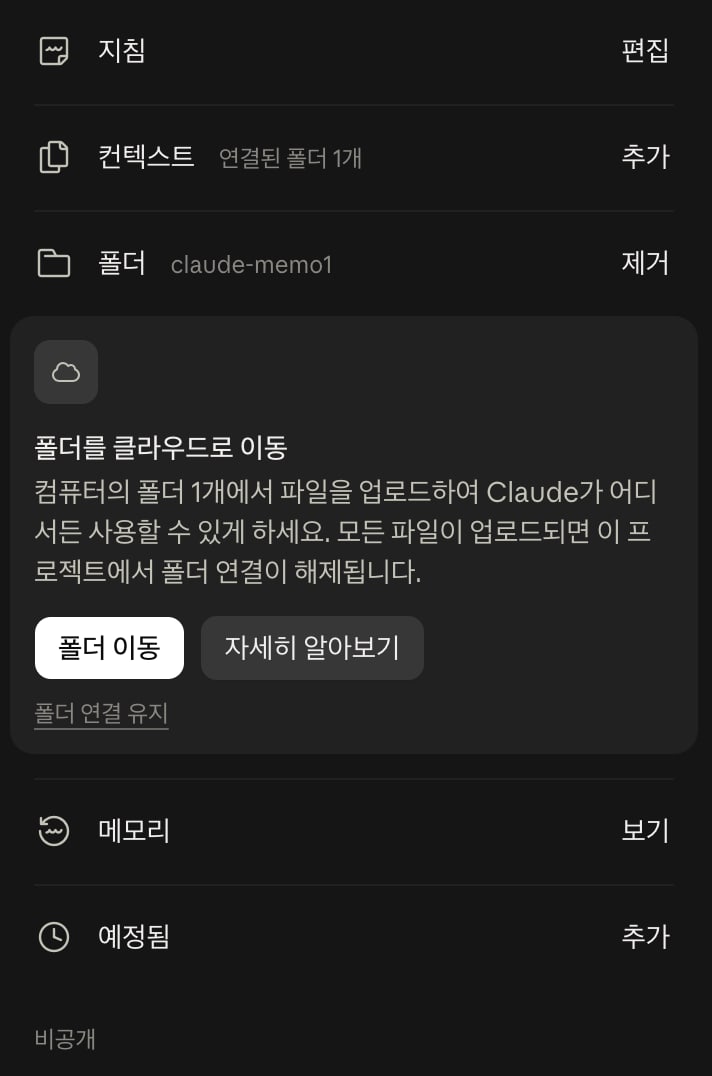
On Team and Enterprise plans, you can share a project with organization members by giving them Can view or Can edit permission, the same way as with chat projects.
The limitations are as follows.
- Projects aren't available in Claude Code yet (support is planned).
- For a project connected to a folder on your computer, the folder exists only on that computer, so sessions that use the folder's files must start on the desktop. To use the same files on other devices, move the folder to the cloud.
For example, let's create a Daily Briefing project that organizes your schedule and email every day.
Create a new project and define the role of each folder in its instructions.
12- schedules: Organize Google Calendar events by date - emails: Organize work emails from Gmail by date
Now when you start a new session from the input box on the project page, the instructions and memory are applied automatically.
12Check today's events in the 'Company schedule' calendar in Google Calendar, and create a Markdown file in the schedules folder named with today's date. In the file, list the events in chronological order, and to make it easy to read, also include the main agenda items, action items, and priority.
# Artifacts
Artifacts is a dedicated tab that collects the result pages Claude creates, such as documents, slides, designs, dashboards, and small tools.
With the merge of chat and Cowork, the former 'Live artifacts' tab was renamed 'Artifacts', and results created in both chat and Cowork are saved to this tab.
In the Artifacts tab, you can view your results split into All, Pinned, Mine, and Shared with me, and start a new artifact by choosing a template in Make something new.
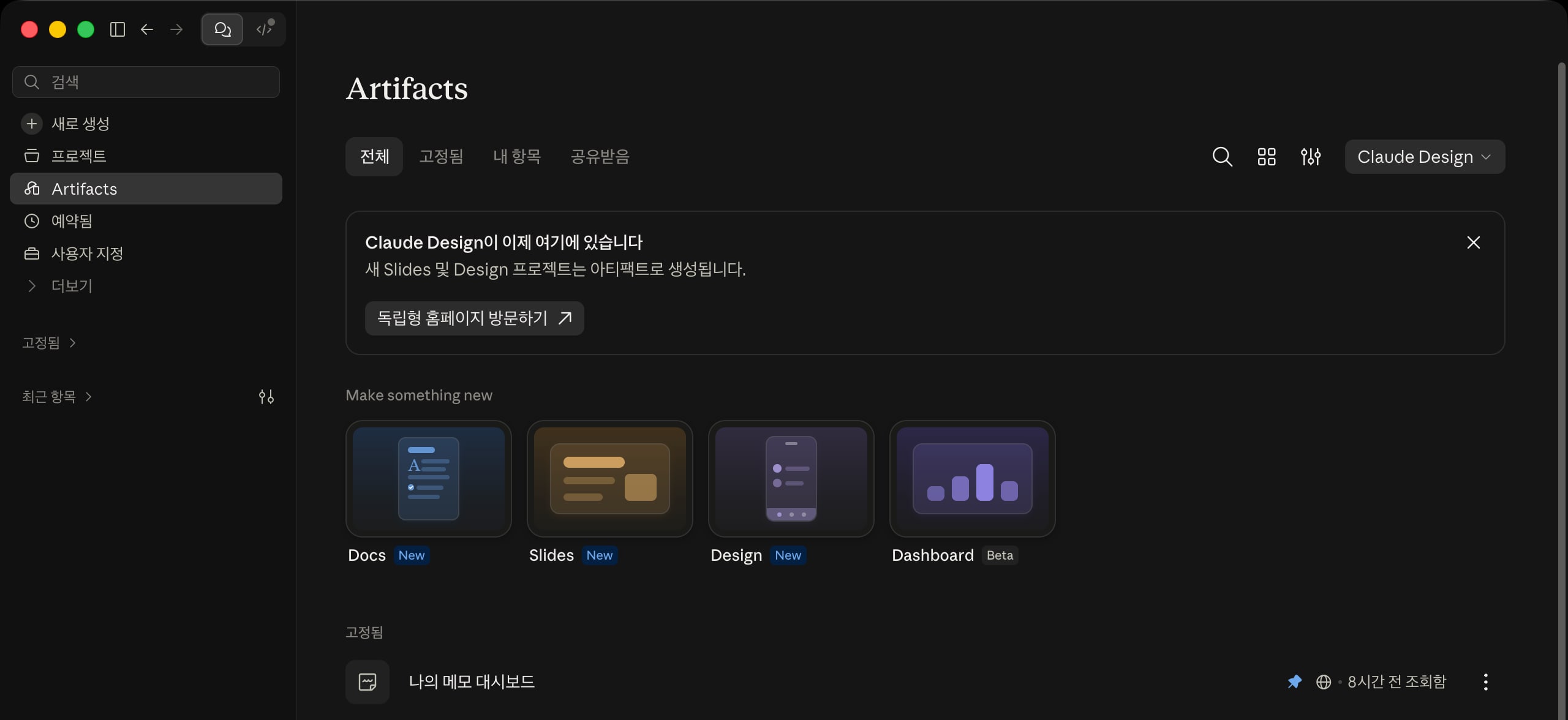
Since September 16, 2026, artifacts created in chat work the same way as artifacts created by Cowork tasks.
Artifacts created in chat before then are classified as Legacy artifacts; they keep working and can still be published or shared, but you can't create new ones the same way.
Legacy artifacts are documents, code, or pages whose content changes only when you ask for edits in the conversation, whereas today's artifacts are workspaces you change by asking Claude or by editing them yourself, and they can also fetch and display data from connected apps.
| Category | Legacy artifacts | Artifacts |
|---|---|---|
| Created in | Chat conversations before September 16, 2026 | Chat conversations, Cowork tasks, templates in the Artifacts tab |
| How to edit | Changes only when edited through the conversation | Ask Claude or edit directly |
| Data connection | None (based on the conversation) | Uses pre-approved connectors |
| Main forms | Documents, code, one-off pages | Documents, slides, designs, dashboards, trackers |
You can create Claude Docs, Claude Slides, Claude Design, and Claude Dashboards artifacts by asking for a document, presentation, or design in a conversation, by typing a slash (/) in the input box and choosing Doc, Slides, Design, or Dashboard, or by starting from a template in the Artifacts tab.
Docs are documents you write with your team, Slides are presentations, Design is for mockups and landing pages that apply a design system, and Dashboards are dashboards built from data in data platforms or connected apps.
There are two main ways to create an artifact.
- During a task, mention the app or file to use and ask Claude to turn it into a dashboard.
- In the Artifacts tab, choose a template such as Dashboard in Make something new and start a conversation with Claude.
Data connections work as follows.
- An artifact built to load data from connected apps can fetch the latest data when you open it, or load it again when you refresh.
- Before a connected app is used for the first time, the artifact shows the connectors and tools it will use and asks for your permission.
- Allowed tools are saved per artifact, so you aren't asked again on every call, and connector tools that require approval for every action can't be used in artifacts.
- Charts and diagrams placed in a Claude Docs document don't update automatically, even if they use data from connected apps, so ask Claude to fetch the data again when you need the latest version.
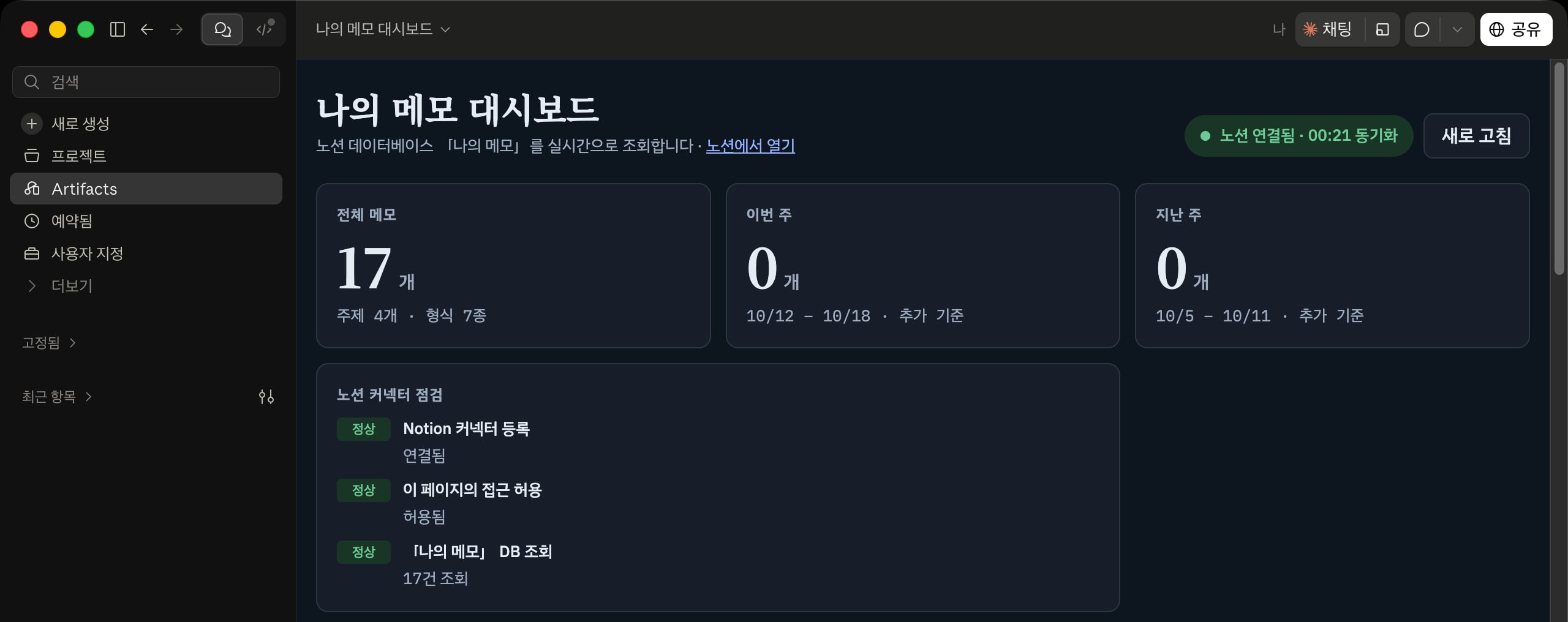
A new version is saved every time you make an edit, so you can compare it with earlier versions or restore them.
To edit an artifact you created, use the chat button at the top of the artifact to open the conversation that created it, and describe the changes.
In another session, paste the artifact link or ask Claude to find the artifact, then give your instructions.
Saving and sharing have the following limitations.
- You create and edit artifacts in the desktop app and on the web; in the mobile app, you can also view and edit results in the Artifacts tab, but you can't change sharing settings.
- Using data from connected apps and storing data are available on Pro and higher plans.
- A shared artifact runs with the connector permissions and data of the person viewing it, not the person who created it.
- The more often an artifact refreshes, the more tokens it consumes.
For example, you can ask for a morning briefing dashboard that gathers your schedule and unread email like this.
123Create a dashboard as an artifact that works with the following features. Check today's events in the 'Company schedule' calendar in Google Calendar, list them in chronological order, and to make it easy to read, also include the main agenda items, action items, and priority. Also check Gmail, summarize unread work emails, and list them in chronological order.
Open the artifact, click Share in the upper right, set the sharing scope under General access, and copy the link.
The sharing scopes you can choose depend on your plan.
| Plan | Sharing scope |
|---|---|
| Pro, Max | Only people invited, Anyone with the link |
| Team, Enterprise | Only people invited, Anyone at (organization name), Anyone with the link |
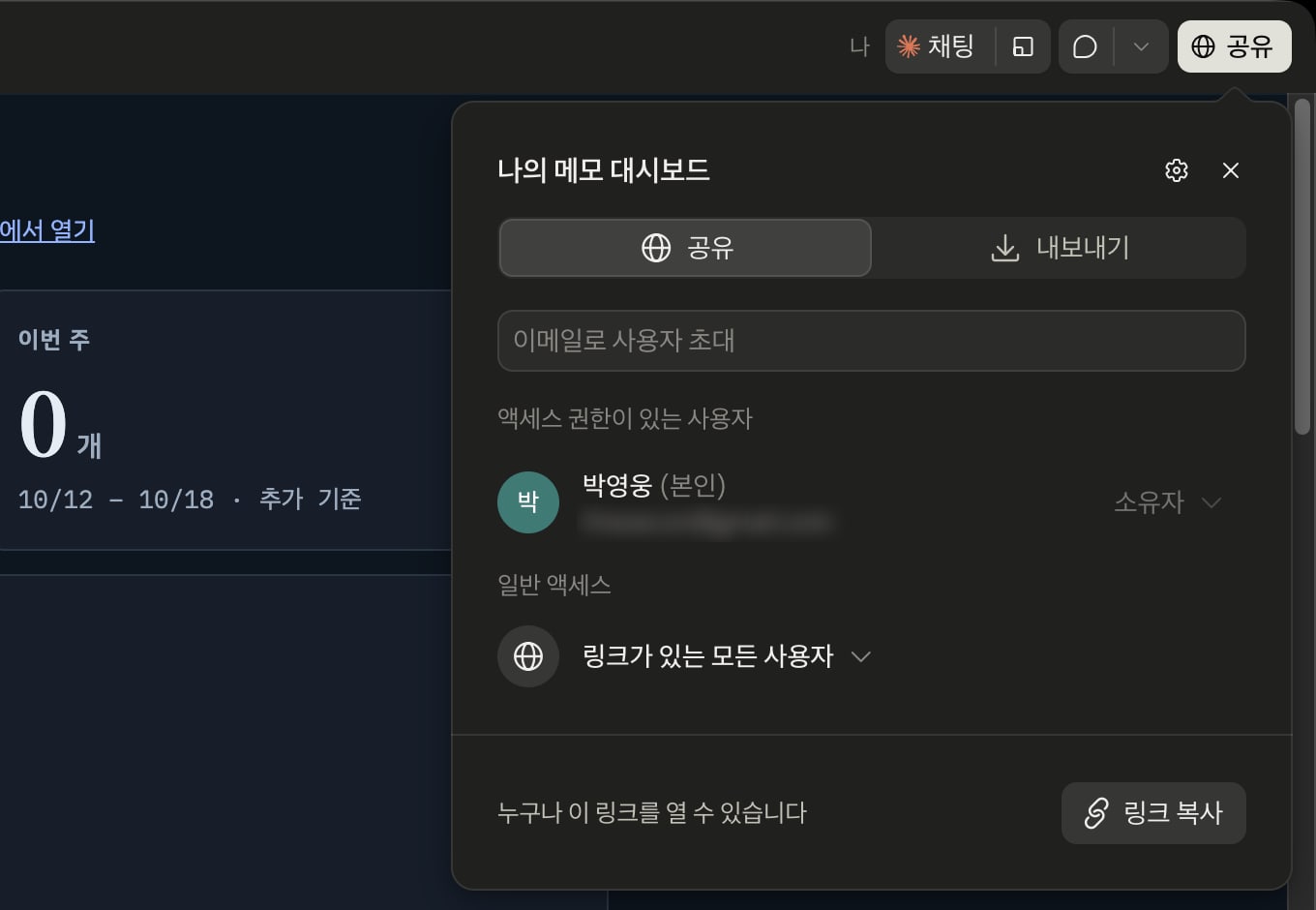
On Team and Enterprise plans, you add organization members and give each person Can view, Commenter, or Can edit permission, and Enterprise plans can also share by group.
On paid plans, including Pro and Max, inviting specific people by email from the input field at the top of the share dialog is also available in beta, and invitees open the artifact by logging in to a Claude account with the same email.
You can invite up to 50 people outside your organization per artifact, invitations that aren't accepted expire after 30 days, and Claude Docs documents can't be shared by email invitation.
On Team and Enterprise plans, the Owner must turn on external sharing in the Artifacts menu of organization settings before you can choose Anyone with the link.
Artifacts that use connected apps or call Claude can't be shared with Anyone with the link.
In the Export tab of the share dialog, you can export an artifact as a file such as HTML, Markdown, or PDF, and you can also export documents made from templates to Word and Google Docs, and presentations to PowerPoint and Google Slides.
Because a shared artifact runs with the connector permissions of the person it's shared with, each person can see information based on their own data.
If the person doesn't have access to some of the data, that part shows an error.
# Scheduled
Scheduled tasks let you schedule work to run automatically at the interval you want.
Use them to automate work that repeats at set times, such as daily briefings, weekly reports, and regular research.
There are two ways to create a scheduled task.
- In Scheduled in the left sidebar, click the New task button and choose Create with Claude or Set up manually.
- In a conversation, state the task and how often to run it, as in "Summarize last week's Slack messages every Monday at 9 a.m.", review the task name, schedule, and instructions Claude suggests, and click the Schedule button.
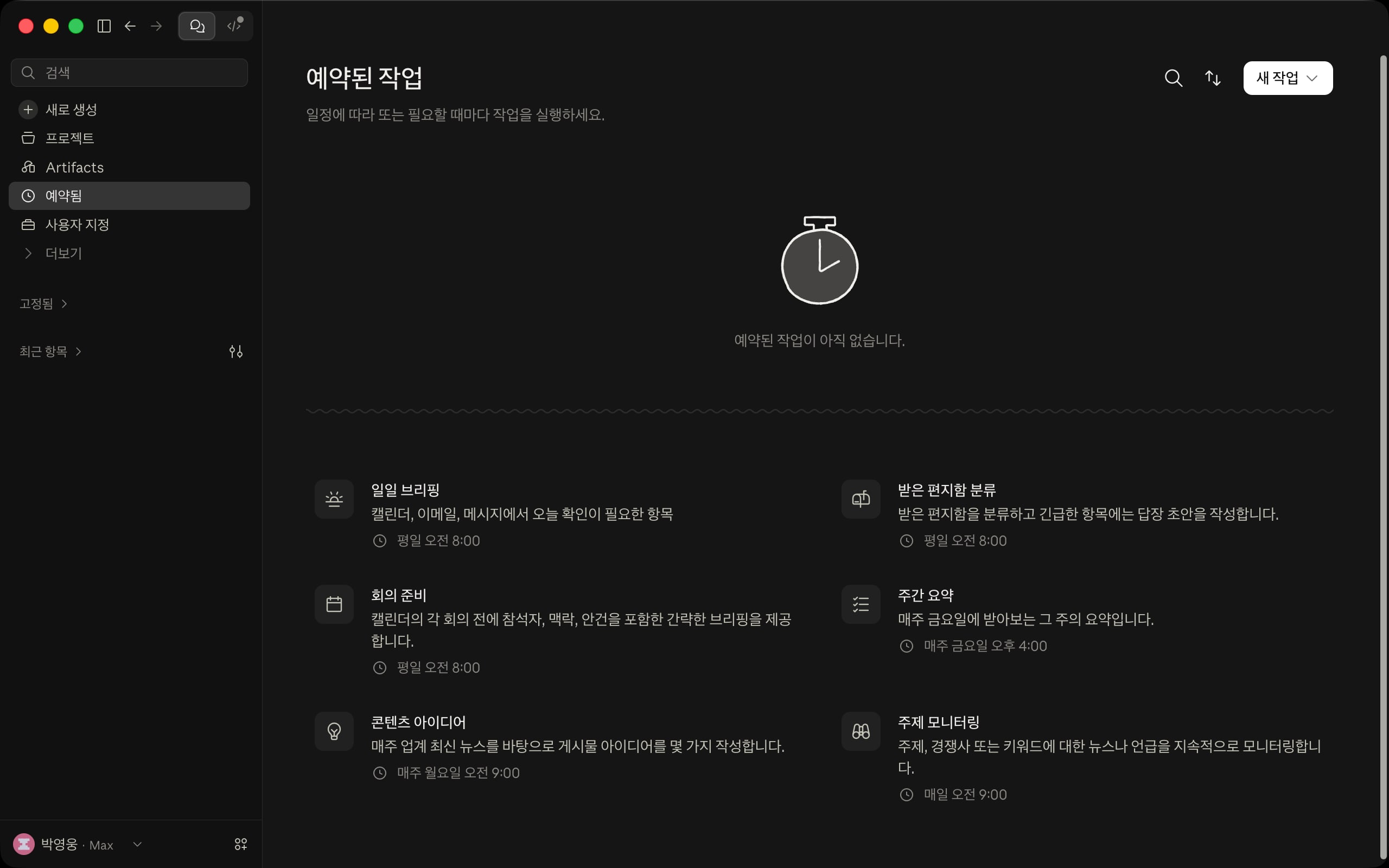
The Scheduled page has templates such as daily briefing, inbox triage, meeting prep, weekly summary, content ideas, and topic monitoring, so you can also pick one and start right away.
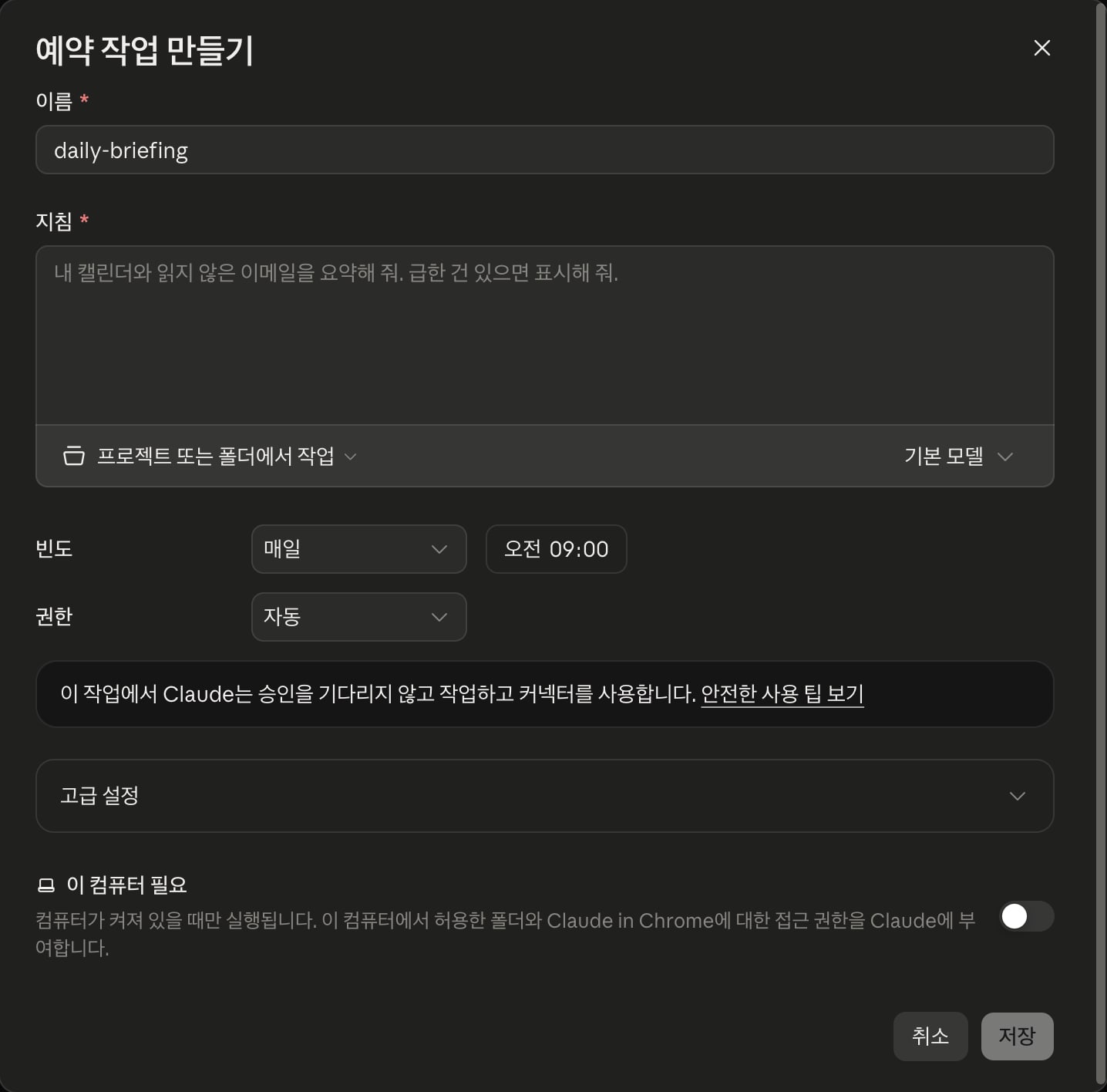
In Set up manually, enter the task name, instructions that describe what to do, the frequency, and the permissions, and if needed, specify the model and the target project or folder.
For the frequency, choose from hourly, daily, weekdays, weekly, and monthly, or leave it as manual (on-demand).
For the permissions, choose from manual, auto, and skip all approvals; if you choose auto, the task works and uses connectors without waiting for approval.
In the advanced settings, you can choose to receive a one-line summary by push notification, email, or Slack each time the task finishes.
If you create a scheduled task inside a project, it belongs to that project only.
How scheduled tasks run and their limitations are as follows.
- Scheduled tasks run remotely (in the cloud), so they run on schedule even when your computer is asleep or Claude Desktop is closed.
- For tasks that need files in a local folder or Claude in Chrome, turn on the Require this computer option. Tasks with this option turned on run only when your computer is on, and they use the folders allowed on this computer and Claude in Chrome.
- The minimum interval is one hour, and repeating every few minutes isn't supported.
- On Pro and Max plans, scheduled tasks created with the 'Only on this computer' option before October 6, 2026 keep running on that computer.
For example, in the Scheduled panel of the Daily Briefing project created earlier, add a scheduled task named daily-briefing that runs daily at 09:00 AM.
The task below creates files in the project's local folder, so turn on the Require this computer option, and Claude Desktop must be open when it runs.
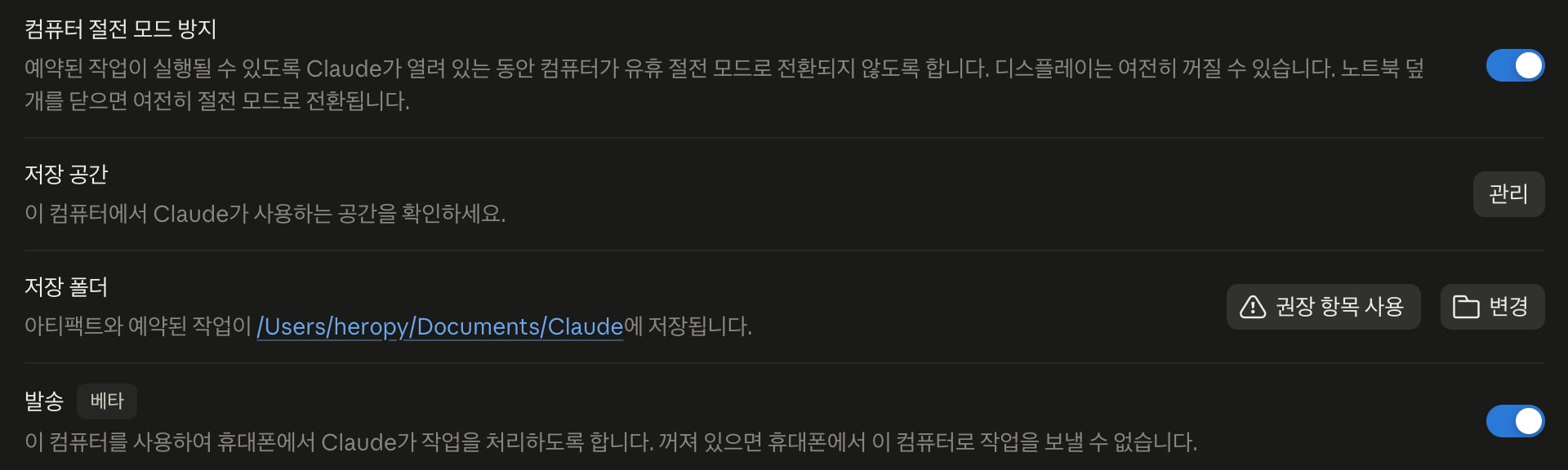
For tasks like this, turn on the option that keeps your computer from sleeping in Settings > System so that the computer is awake when the task runs.
12Check unread work emails in Gmail, and create a Markdown file in the project's emails folder named with today's date. In the file, summarize the emails and list them in chronological order.
# Web and mobile
You can use Cowork not only in the desktop app but also on the web (claude.ai) and in the Claude mobile app.
No matter which device you start from, sessions run in the cloud, an isolated environment on Anthropic's servers, and sessions and files are saved to your Claude account.
So your work continues even when you close your laptop or your computer is asleep, and you can pick up the same session on another device.
Pro and Max plans can use it on desktop, web, and mobile; web and mobile Cowork on the Team plan is a beta feature, and on Enterprise plans, an admin must enable it.
Starting a task on mobile works the same way as on the desktop.
- Open the latest version of the Claude mobile app (iOS or Android).
- Describe the task in the prompt input box. On accounts that haven't switched to the new experience, first select Cowork at the lower left of the input box, and if you don't see the Cowork option, update the app.
- A new session opens and the task starts.
1From the emails I received in Gmail this week, pick only the work emails that need a reply, and organize them in a table with the sender, the request, and the reply deadline.
On the web, start the same way from the Home screen of claude.ai.
If you open the side panel in Claude's Chrome extension, a Cowork session starts right away, without the step of selecting Cowork.
Cowork in the Chrome side panel is available on Max and Team plans, is rolling out gradually to Pro plans, and must be enabled by an admin on Enterprise plans.
Sessions follow your account, so you can switch devices in the middle of a task.
- Start a task on any device.
- Open the same session on another device to check its progress, answer Claude's questions, or change the direction of the task.
- Check the finished results on any device.
You get a notification on mobile when a task finishes or needs your input.
Tap the device icon next to the session title to check which computer this session is connected to and its connection status, and manage connected computers in Manage devices.
Cloud sessions also start with the memory built up in chat, and what comes out of Cowork tasks is reflected in chat memory as well.
The features available on each device are as follows.
| Feature | Desktop | Web | Mobile |
|---|---|---|---|
| Start tasks, give instructions, preview result files | Yes | Yes | Yes |
| Continue sessions started on another device | Yes | Yes | Yes |
| Connectors, skills, plugins | Yes | Yes | Yes |
| Projects, scheduled tasks | Yes | Yes | Yes |
| Artifacts (created after August 19, 2026) | Yes | Yes | View, edit |
| Live artifacts (created before August 19, 2026) | Yes | No | No |
| Local file access, browser use, computer use | Yes | Desktop app required | Desktop app required |
Features that use resources on your computer require the Claude Desktop app to be open on that computer, even when the session runs in the cloud.
That's because a cloud session accesses the computer's files or browser through the desktop app on that computer.
- Local file access: Cowork accesses only connected folders, with the permissions you set before, and this is available only in sessions started on the desktop or in scheduled tasks.
- Local connectors: Connectors, including local MCP servers, and the plugins that use them work through the desktop app.
- Browser use: If the desktop app is online, Cowork on the web and mobile can also use the built-in browser. If you set Claude in Chrome as your default browser, Cowork uses the Chrome extension while the session is connected to the desktop, even if the app isn't open.
- Computer use: Cowork controls your computer's screen directly through the desktop app.
Sessions keep running even if the desktop app is closed, but they can't access local files.
So it's best to start tasks that need local files on the desktop, keep the desktop app open, and then open the same session on mobile while you're on the go to check on it or give more instructions.
# Dispatch
Dispatch is a remote instruction feature that connects Claude Mobile and Claude Desktop into one continuous conversation.
When you assign a task on mobile, it's passed to Claude running on your desktop, and the same conversation syncs across devices.
Unlike cloud sessions, tasks run on your desktop computer, so use Dispatch when you assign tasks from mobile that need local files or apps on your desktop.
When it receives an instruction, Claude decides what type of task it is and launches an appropriate session.
Development work goes to Claude Code and knowledge work goes to Cowork, and you receive only the final result, without the intermediate steps.
The available tools are as follows.
- Local files and folders
- Connectors, plugins, and skills you've set up
- Controlling desktop apps with computer use
- Connected services such as Gmail, Slack, and Google Drive
The requirements are as follows.
- The latest Claude Desktop (macOS, Windows x64, or Linux) must be running and not asleep.
- You need the latest Claude Mobile app (iOS or Android).
- You need a Pro or Max plan.
- Both devices must be connected to the internet.
- Computer use isn't supported on Linux.
Dispatch is offered only as a limited beta on some Pro and Max plans.
It's no longer offered to new users, and only users who were already using it can keep using it.
If you don't see Dispatch under More in the desktop sidebar, use cloud sessions as described in Web and mobile.
On the desktop, the Dispatch (beta) item in Settings > System must be turned on before you can send tasks from your phone to this computer.
If you turn on the option that requires trusted devices in Settings > Account, new devices go through a confirmation before they can connect remotely to Claude on this computer.
You get a push notification when a task finishes or needs approval, and you can turn notifications on and off in the notifications section of Settings > General.
Starting a new session by selecting Cowork on mobile differs from Dispatch as follows.
| Category | Cowork on mobile | Dispatch |
|---|---|---|
| Where it runs | Cloud (Anthropic's servers) | Desktop computer |
| Conversation unit | A new session for each task | One continuous thread |
| When the computer is off | Task continues | Task stops |
| Local files | Not available (only in sessions started on the desktop) | Available |
| Browser, computer use | Available when the desktop app is open | Available |
| Available plans | Pro, Max, Team (Enterprise requires admin activation) | Some Pro, Max (existing users only) |
Set it up in the following order the first time you use it.
- Select More > Dispatch in the desktop sidebar, or Dispatch in the mobile app's sidebar.
- On the feature introduction screen, click Get started.
- Turn on file access and the option to keep your computer awake, then click Finish setup.
- Open Dispatch in the sidebar of the Claude Mobile app, check the connection status, and assign a task.
1Find today's schedule file in my Daily Briefing project and show it to me in your reply.
# Customize
Customize is a Unified Directory where you find and install the components that extend Cowork, all in one place.
Click Customize in the left sidebar to open a full page, and switch among the Skills, Connectors, and Plugins tabs at the top to manage them together.
- Skills: Install skills or create your own, and turn them on and off.
- Connectors: Search for and connect external services, and start authentication.
- Plugins: Install and manage official and custom plugins.
In each tab, My items shows what you've installed and Browse lets you look through the directory, and the Add button in the upper right adds a new item.
The same menus are also under Customize in Settings.
# Skills
A skill is an instruction file that holds the procedure and best practices for a specific task so you can use them again and again.
If instructions are rules that always apply to every task, a skill is a playbook that's loaded only when you do a related task.
Built-in skills for working with Excel, Word, PowerPoint, and PDF documents are provided by default, and you can add custom skills such as report templates or email writing rules.
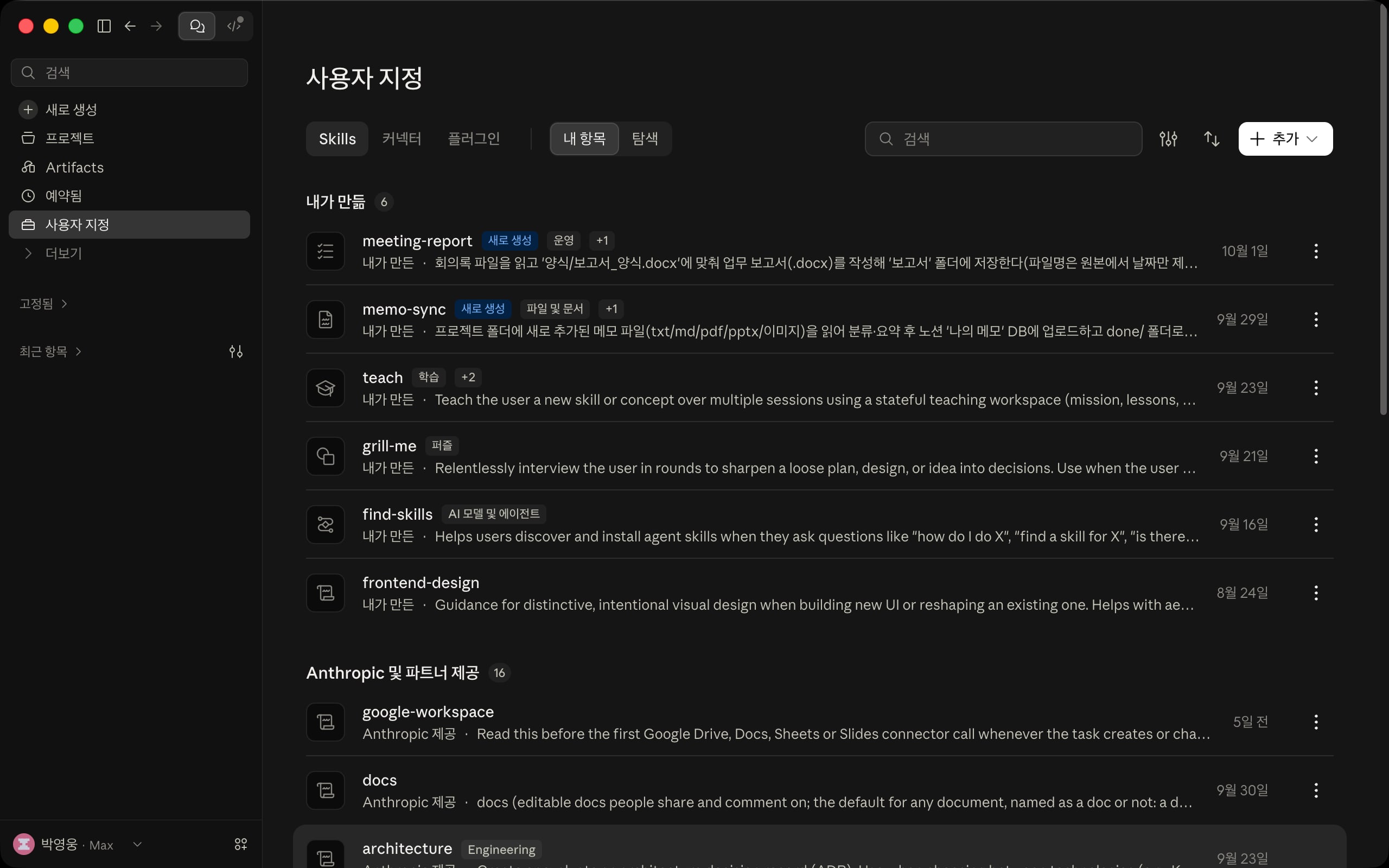
There are two ways to invoke a skill.
- Automatic invocation: When Cowork detects a related task, it uses the skill automatically.
- Direct invocation: Type a slash (
/) and the skill name in the prompt input box.
When you type a slash in the input box, a list appears with options for adding files, artifact templates such as Doc, Slides, Design, and Dashboard, and the skills and plugin commands you can use.
Keep typing a name after the slash to narrow the list.
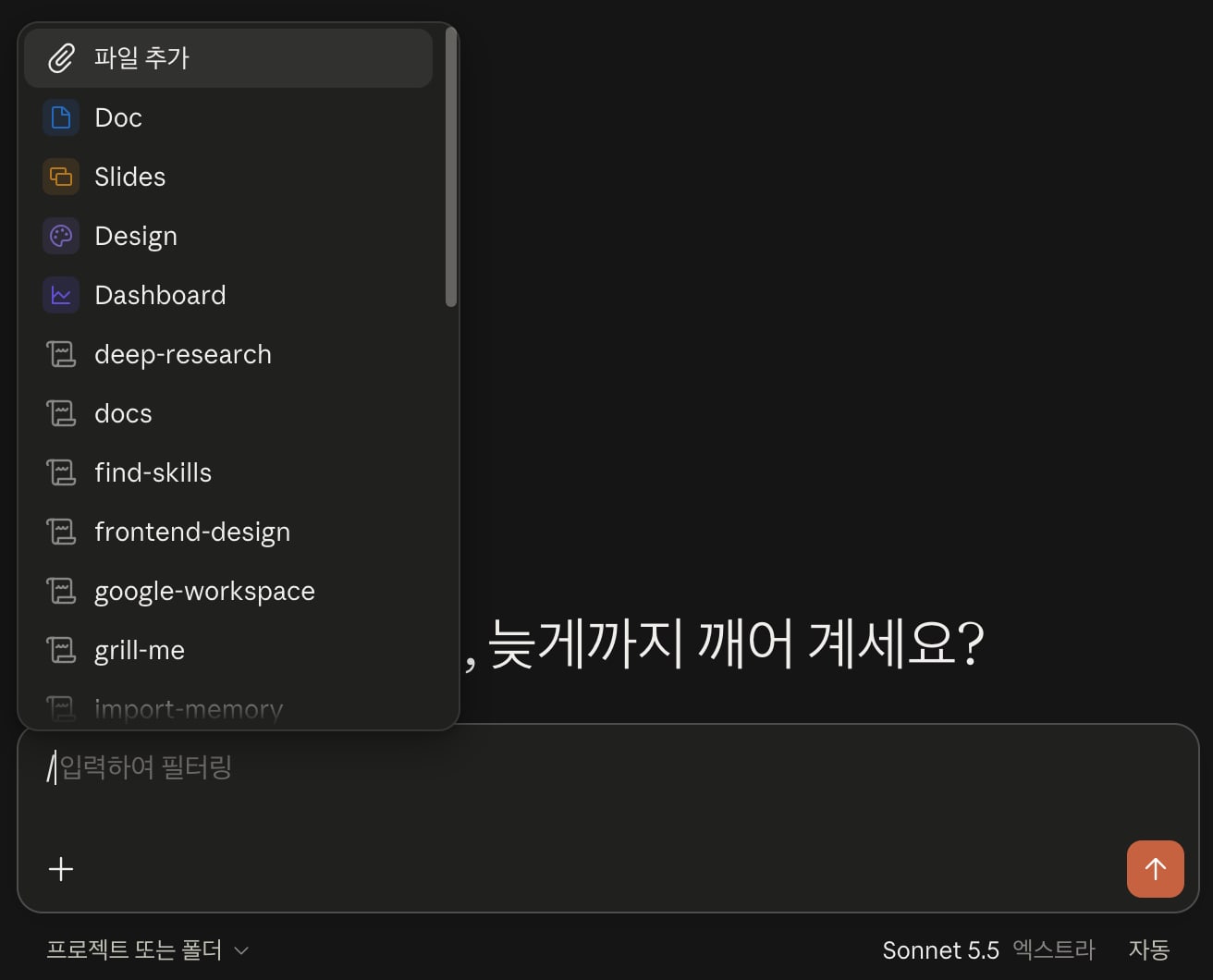
There are three ways to create a skill.
- Create one yourself with Create skill in the add menu of the Skills tab, or upload a skill folder as a ZIP file with Upload skill.
- After finishing a task, ask Cowork to turn what you just did into a skill, and the built-in skill generator (skill-creator) organizes the procedure, templates, and locations of materials and saves them as a skill.
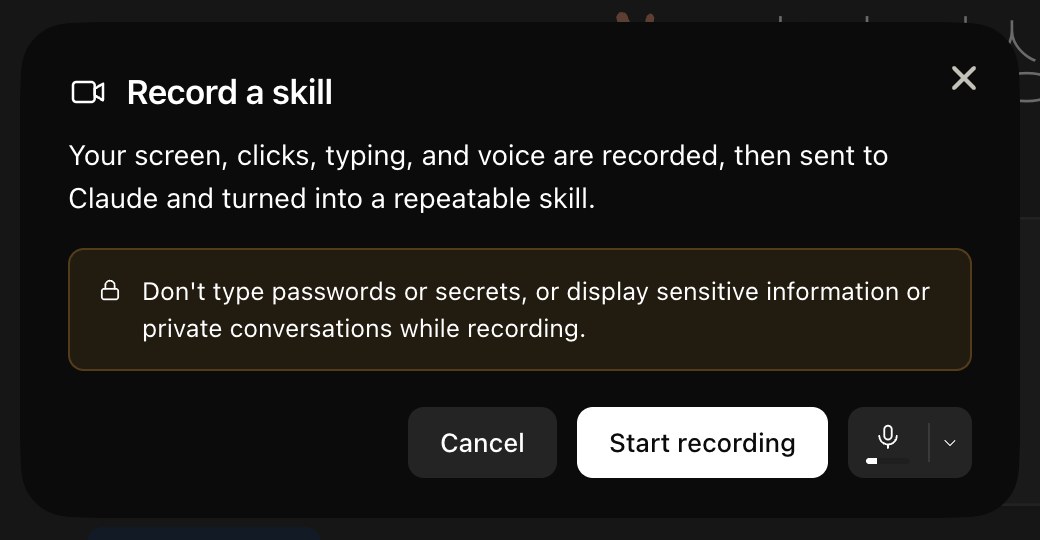
- Record your screen, clicks, typing, and voice with Record a skill in the input box's
+menu or with Add > Screen recording in the Skills tab, and Claude turns the recording into a reusable skill. Recordings can be up to about 10 minutes long and are available only in the macOS app on Pro, Max, and Team plans (not on Windows or on Free and Enterprise plans), and while recording, be careful that passwords or sensitive information don't appear on screen.
12Turn the weekly report writing process we just went through into a skill. Organize the procedure and templates so I can repeat it in the same format and order next time.
# Installing external skills
skills.sh is a site that collects skills published in GitHub repositories, so you can find skills there that aren't in the Customize directory.
For example, the page for the frontend-design skill published by Anthropic shows the following install command, but this command doesn't install the skill in Cowork.
1npx skills add https://github.com/anthropics/skills --skill frontend-design
The skills CLI is a tool that copies skill files into the folders read by coding agents such as Claude Code and Cursor, and Cowork isn't one of its install targets.
If you install for Claude Code in the user scope (-g), the skill is copied to the ~/.claude/skills/ folder on your computer.
But Cowork doesn't read this folder; when a session starts, it loads only the skills enabled in your Claude account.
As explained in How it works, the result is the same even if you ask Cowork to run the install command.
| Where you run the command | Where the skill is installed | Usable in Cowork |
|---|---|---|
| Your computer's terminal | ~/.claude/skills/ on your computer |
No (usable only in Claude Code) |
| A Cowork session | The session's sandbox | No (deleted when the session ends) |
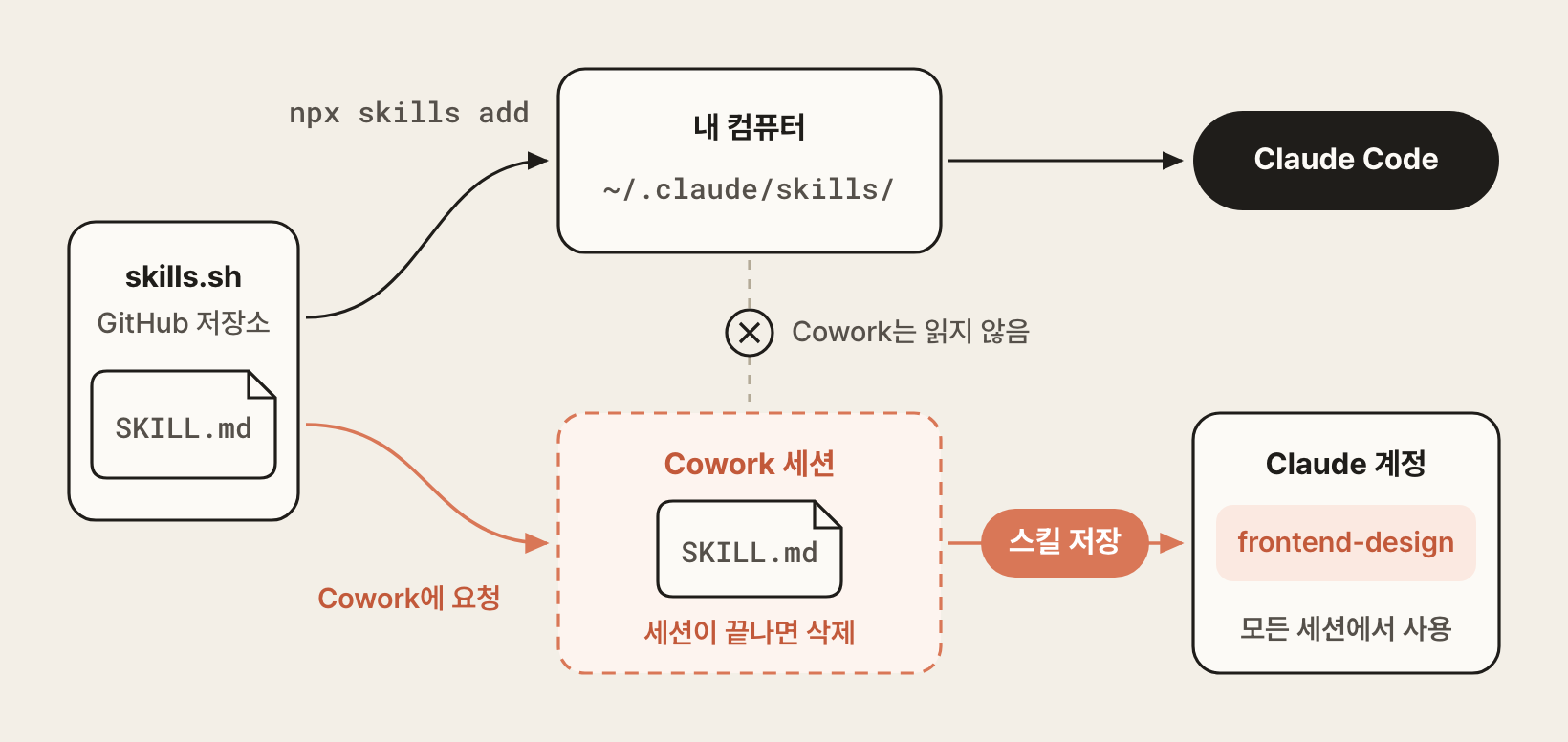
So you install external skills not by copying files but by saving them to your Claude account.
The simplest way is to ask Cowork to fetch the skill and save it as a skill in your account.
If you paste the install command from skills.sh as is, you can tell Cowork exactly which skill from which repository you mean.
12npx skills add https://github.com/anthropics/skills --skill frontend-design Fetch this skill and save it as a skill in my account.
Cowork may handle the request in the following order.
- It fetches the
SKILL.mdin the skill folder, along with the other files included with it, from the repository. - It reviews the content and organizes it into a format Cowork can use.
- It saves the skill to your Claude account. If Cowork doesn't save it right away and delivers a
.skillfile as the result instead, click the Save skill button on the file card to save it.
Saved skills appear in the Skills tab of Customize, and you can use them in new tasks with a slash (/) or automatic invocation.
Because the skill is saved to your account, you use the same skill everywhere, in chat and Cowork on desktop, web, and mobile.
The frontend-design skill uses only the name, description, and license fields in the frontmatter of SKILL.md and doesn't reference other skills, so it works even if you save its content as is.
On the other hand, skills written for Claude Code may not work if you bring them in as is.
- Frontmatter: Skills uploaded to your account can use only the
name,description,license,compatibility,metadata, andallowed-toolsfields. If the skill has Claude Code-only fields such asdisable-model-invocationorargument-hint, uploading the skill folder as a ZIP file as is causes an error. - References to other skills: A skill whose body calls other skills in the same repository works only if you also bring in the content of the skills it references.
If you ask Cowork to convert the skill, it can check for these differences and clean them up, but the results may vary each time, so it's a good idea to check the content of the saved skill in the Skills tab.
To add a skill yourself, download the skill folder from the GitHub repository, edit the frontmatter to meet the conditions above, compress the folder into a ZIP file, and upload it with Add > Upload skill in the Skills tab.
# Connectors
Connectors are integration modules that connect Cowork with external services.
They access services securely with OAuth authentication through Anthropic Cloud, and connected tools run on an open standard called MCP (Model Context Protocol).
- Official MCP servers: Connectors use official MCP servers from Anthropic and its partners.
- Automatic registration: The tools a service provides (read, create, update) are registered automatically.
- Natural language calls: Once connected, you call them directly in natural language in your prompts.
- GUI management: You manage them through the GUI, with no separate config files or CLI commands.
Connect a connector in the following order.
- In the Connectors tab of Customize, select Browse, then search for the service you want and connect it.
- Complete OAuth authentication in the browser and agree to the permissions.
- Check the connection status in My items in the Connectors tab.
- Confirm with a prompt that it responds correctly.
There are three main things you can do with connectors.
- Read and search: Find and classify emails, events, documents, messages, and more in natural language.
- Write and edit: Write or edit reply drafts, calendar events, document pages, and messages.
- Chained tasks: Call several services in a chain with one instruction and combine the results.
Organizing your schedule, drafting emails, and creating meeting notes can all be done with a single prompt.
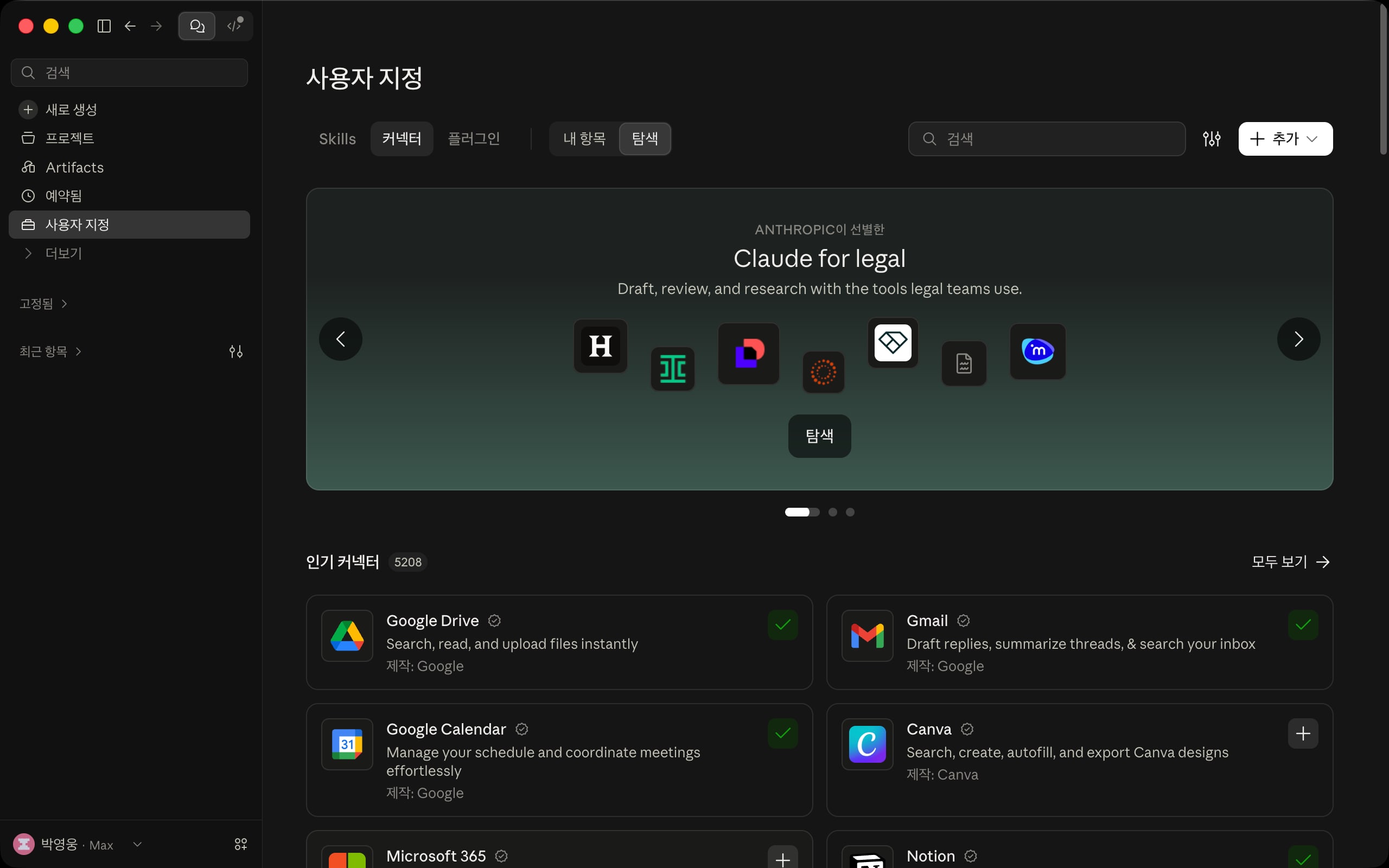
Even after the first connection, you stay in control of connector permissions and usage.
- Keep connectors disconnected by default to manage tokens, and connect only the ones you need
- Revoke granted permissions immediately in the external service's settings
- Always require explicit approval for actions that are hard to undo, such as sending, deleting, or payments
- Keep emails and documents that contain sensitive data, such as passwords or financial information, separate
# Plugins
Plugins are an extension mechanism that bundles connectors, skills, and subagents into one package you install with one click.
By combining connectors, which handle system access, with skills, which hold best practices, a plugin sets up a work environment for a specific role, team, or company all at once.
You can install official plugins for each job function and use them right away, or bundle your own connectors and skills into a custom plugin and share it with your team.
| Official plugin | Main use |
|---|---|
| Productivity | Manage to-dos, schedules, and notes in one place and organize your day |
| Sales | Research client companies, prepare for meetings, track sales progress, write emails |
| Marketing | Draft content, come up with campaign ideas, check the company's voice, track competitor trends |
| Legal | Review contracts and NDAs, check regulatory compliance, analyze risks |
| Finance | Record transactions, compare ledgers with bank statements, analyze budget variances, close the books |
| Pdf viewer | Preview PDFs, extract the parts you need, summarize, compare documents |
| Data | Query data with SQL, spreadsheets, and dashboards, create charts, explain results |
| Design | Review designs, manage design systems, write UX copy, check accessibility |
Install official plugins by finding them in Browse in the Plugins tab and clicking the add button, and create custom plugins by asking something like "Bundle what I just did into a plugin" or by making them yourself with Create plugin or Create with Claude in the add menu.
For third-party plugins, register a repository such as one on GitHub as a marketplace with Add marketplace in the add menu, or get a ZIP file and register it with Upload plugin.
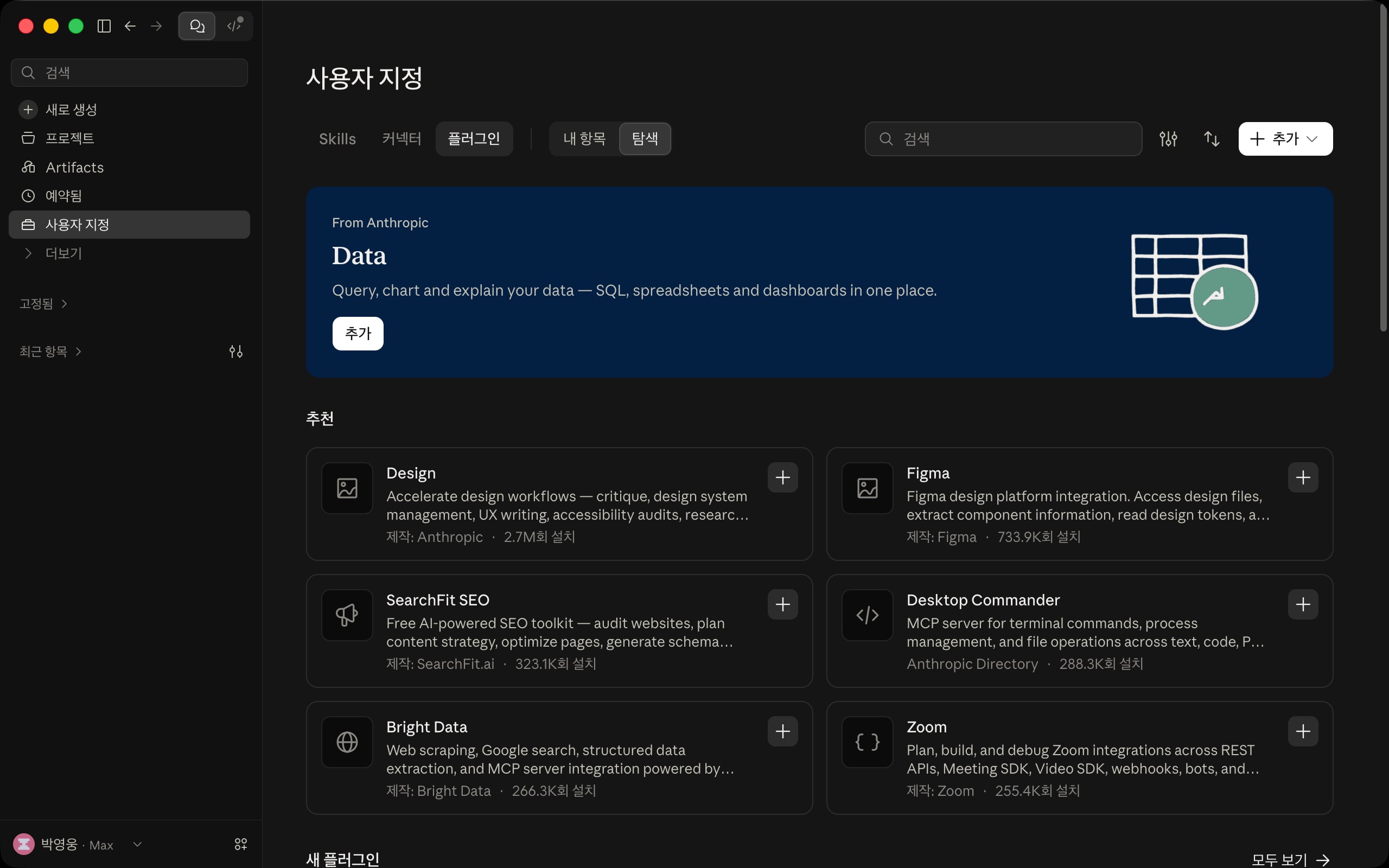
You can adjust installed plugins to fit your work environment.
Select a plugin in the Plugins tab and click the Customize button to open a session with the plugin loaded.
Cowork checks the connected Slack, email, Drive, and so on to understand the systems your team uses, then fills in what's missing by asking you questions.
# Computer use
Computer use is a feature that lets Cowork see your desktop screen and control the mouse and keyboard directly.
Just as a person looks at the screen and clicks and types by hand, Cowork recognizes and operates the screen the same way.
- Analyzes screenshots to decide where to click and what to type
- Can automate even GUI-only tools that have no connector or other API
- Works with natural language instructions alone, with no separate scripts
Computer use is useful for GUI-only tasks that can't be reached through an API or a connector.
- GUI tasks in tools that don't support connectors, such as internal company tools and admin pages
- Repetitive operations in the operating system's built-in apps (Notes, Calculator, File Explorer, and so on)
- Visual review tasks that require screen captures
- Visually walking through app features you don't know how to use
123I'm about to give a presentation while sharing my screen, and I want to turn on Do Not Disturb so notifications don't pop up during the presentation. But I don't know where that feature is in System Settings. Use Computer Use to find it and turn it on for me.
Computer use is offered in beta on Pro and Max plans and isn't available yet on Team and Enterprise plans or on Linux.
You can use it after turning on Enable computer use in the computer use section of Settings > System.
In the same section, choose how Claude uses the apps you allow.
- Background: Claude works inside the allowed apps while you keep using your computer, and asks for permission before taking full control of the screen.
- Full control: Claude controls the screen, mouse, and keyboard without asking again each time it uses an allowed app.
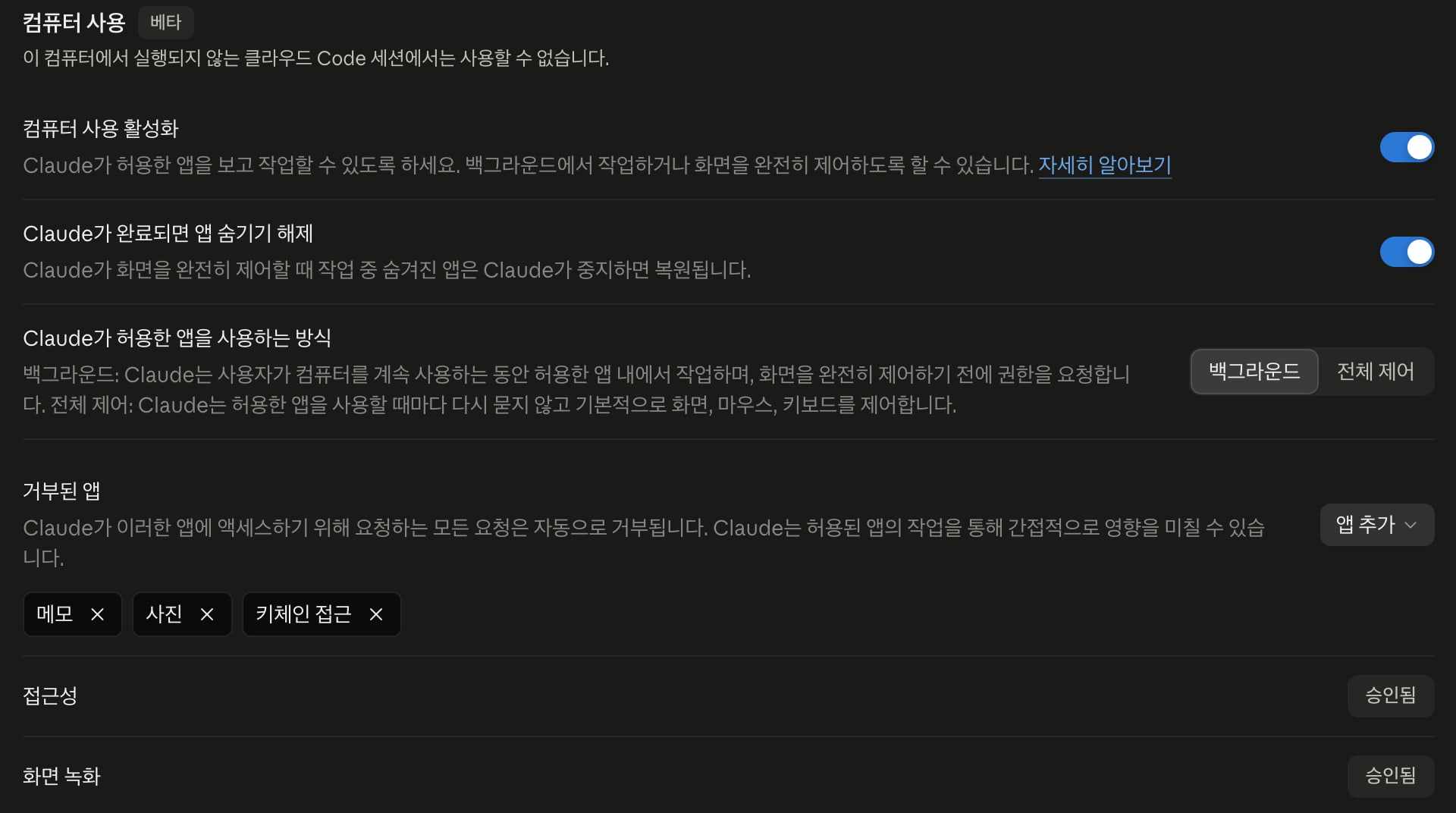
If you turn on the option to unhide apps when Claude is done, apps that were hidden while Claude had full control of the screen are shown again after the task finishes.
Access requests for apps on the denied apps list are rejected automatically.
It's safer to add apps that handle sensitive information, such as Notes, Photos, and Keychain Access, to that list, and macOS Accessibility and Screen Recording permissions must also be granted.
Cowork repeats the process of looking at the screen, acting, and checking the result again at every step.
- Ask for the feature with a keyword such as 'Computer Use'.
- Cowork makes a task plan that fits your instructions.
- It takes a screenshot and recognizes the elements on screen.
- It performs actions such as clicking, typing, and scrolling.
- It checks the result of the action with another screenshot.
- It moves on to the next step or asks for your approval.
The technical limitations are as follows.
- Execution speed: It's slow because screenshot analysis and mouse and keyboard operations repeat at every step.
- Token consumption: It analyzes an image at every step, so it uses more tokens than API-based approaches.
- Resolution dependence: If the screen resolution, layout, or scaling changes, the same instruction can fail.
- UI misrecognition: It can click the wrong spot on nested elements or similar-looking icons.
The security precautions are as follows.
- Don't run it on screens that show sensitive data such as passwords, tokens, or personal information
- Run actions that are hard to undo, such as payments, deletions, or sending, only after limiting the scope of the task in advance
- Monitor it, since it's hard to use the desktop while the task is running
- Stop it immediately if unexpected actions start
# Browser use
Browser use is a feature that lets Cowork control a web browser directly.
Unlike computer use, which handles the whole desktop, it's specialized for work that happens inside the browser.
- Performs clicks, typing, tab switching, data extraction, and more in the browser
- Faster and more accurate than screenshot-based approaches because it accesses the DOM directly
- You can freely use other apps while it works
- Can't access high-risk sites such as adult content or piracy sites, and asks for permission before accessing financial sites
- Tasks may stop on sites with strong bot blocking
- Flows that require direct authentication, such as logging in, need a person to step in
There are two ways to use the browser.
- Chrome extension: Install the Claude extension from the Chrome Web Store and log in with the same account; it then appears as a connected browser under Browser use in Settings > System, and Claude controls the logged-in Chrome window.
- Built-in browser: A browser you open with the globe button in the upper right of the task screen; with no installation, it opens websites, reads them, and fills out forms right next to your task.
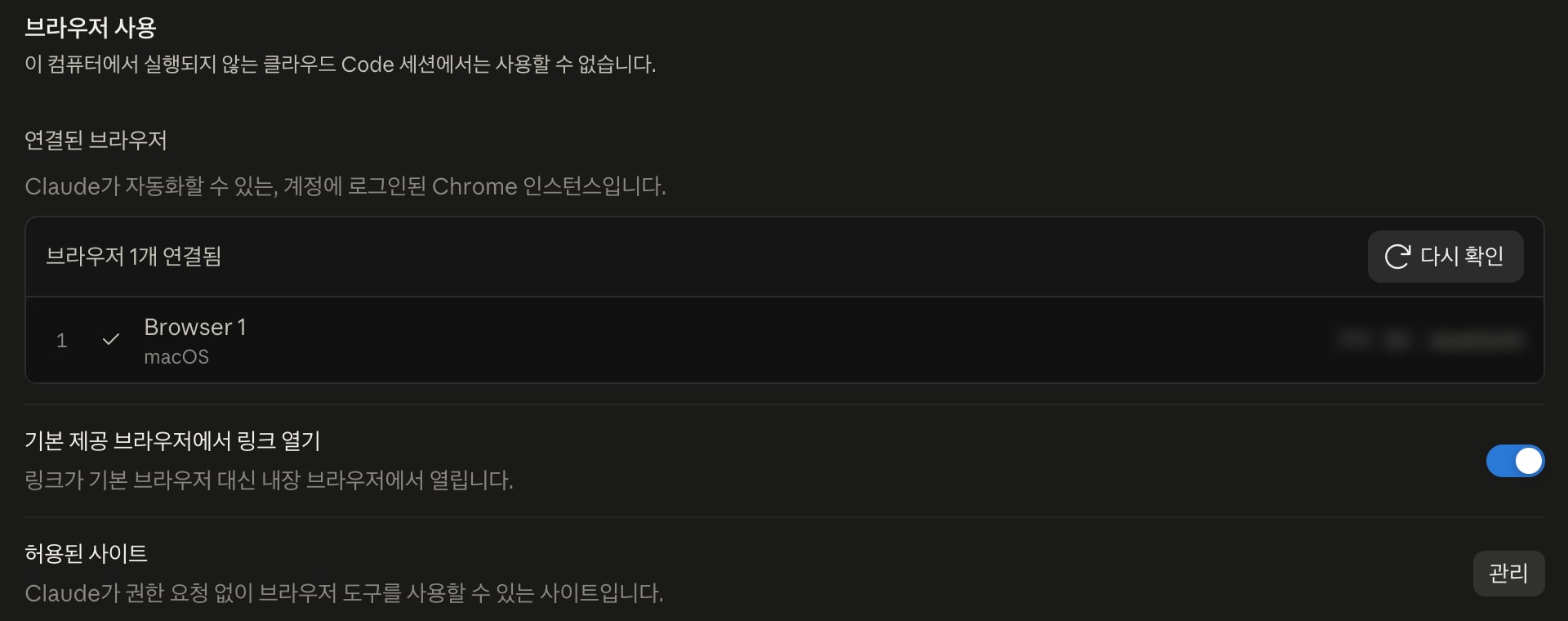
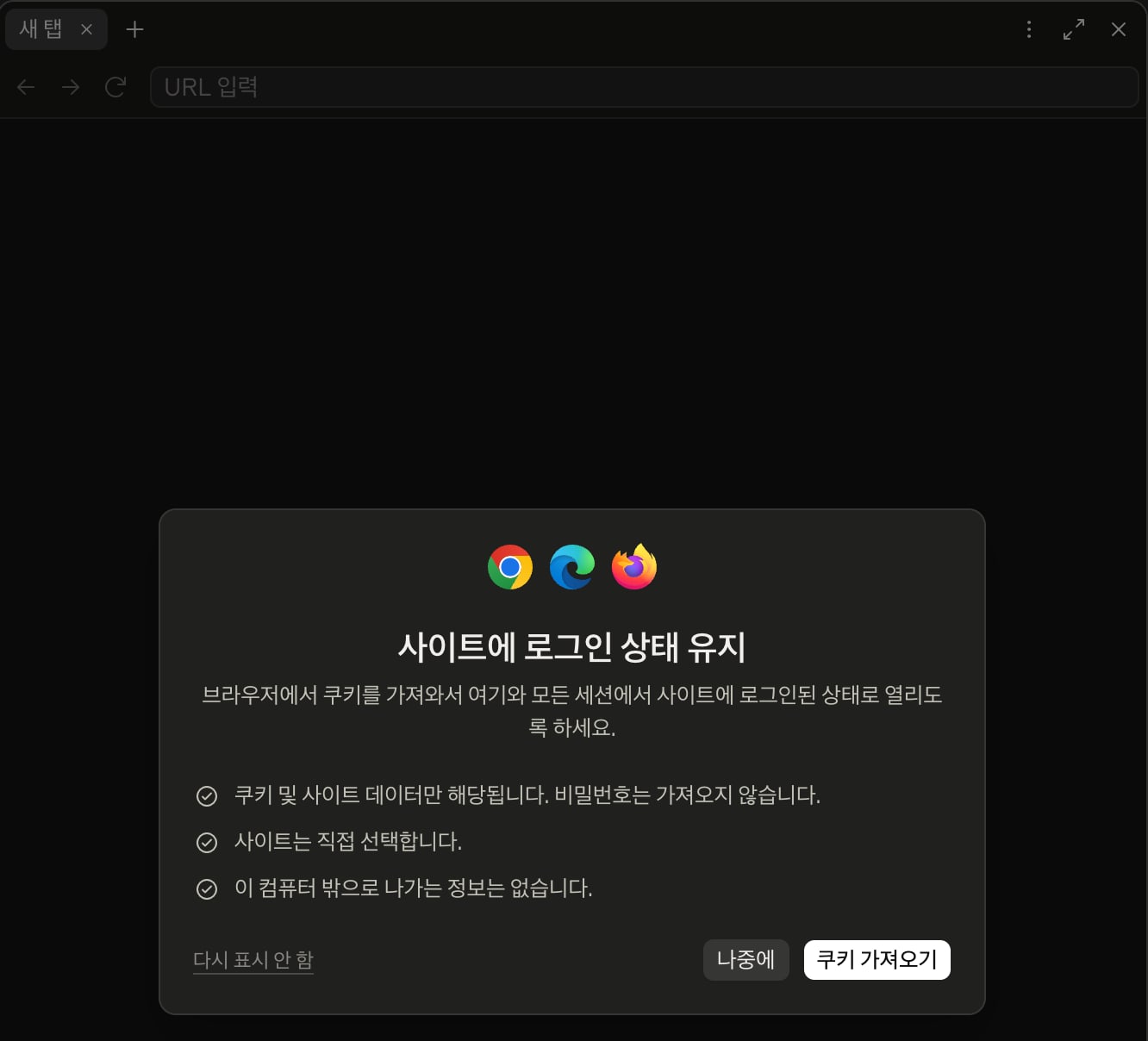
When you first open the built-in browser, 'Stay signed in to sites' appears, and if you click Import cookies, it brings in cookies from the browser you've been using, so those sites open signed in during later sessions on this computer.
Only cookies and site data are imported, not passwords; you choose the sites to import yourself (banking, email, and SSO sites are unselected by default), and the imported information never leaves your computer.
You can import cookies from Chrome, Edge, and Firefox on macOS, and from Firefox on Windows and Linux; Safari isn't supported.
Choose which browser to use by default in the default browser section of Settings > General, and on sites registered in the allowed sites section of Settings > System, Cowork uses browser tools without asking for permission.
If you turn on the option to open links in the built-in browser on the same screen, links in conversations open in the built-in browser instead of your default browser.
12Use Browser Use to search KONEPS (Korea ON-line E-Procurement System) for bid notices related to 'AI'. Organize the notice title, ordering agency, and deadline of the top 5 results in an Excel file.
| Category | Computer use | Browser use |
|---|---|---|
| Scope | Entire desktop | Browser only |
| Recognition | Screenshots | Direct DOM access |
| Speed | Slow | Fast |
| Multitasking | Difficult | Possible |
# vs Claude Code
Cowork and Code use the same agent structure, and many features exist in both, such as skills, plugins, connectors, scheduled tasks, and adjusting thinking depth.
So most concepts you learn in Cowork carry over to Code as they are.
However, some features exist only in Code, and when you need them is when you should start using Code alongside Cowork.
The biggest difference is how they handle multiple sessions at once.
Cowork also splits a single task across multiple subagents, and Dispatch creates subtasks whose status you can check in the sidebar.
However, sessions that collaborate with each other or run in parallel without file conflicts are available only in Code.
| Feature | Claude Code | Claude Cowork |
|---|---|---|
| Agent Teams | Multiple sessions form a team, and teammates handle the tasks the lead assigns in their own contexts and exchange messages with each other | None |
| Agent View | The claude agents command gathers background sessions on one screen so you can check their status and talk to them |
Only the status of Dispatch subtasks in the sidebar |
| Dynamic Workflows | A script coordinates tens to hundreds of subagents and passes only the final result to the conversation | None |
| Messages between sessions | Send messages to other running sessions to request work or pass along results | None |
| Git worktrees | Each session uses a separate working directory, so sessions run in parallel in the same repository without file conflicts | None |
Features for code and version control are also available only in Code.
| Feature | Claude Code | Claude Cowork |
|---|---|---|
| Git repository operations | Works directly with commits, branches, and history, and even creates and reviews PRs with the GitHub CLI | Passes coding tasks to Code through Dispatch |
| Checkpoints and rewind | Saves the state of files at every prompt and restores just the conversation, just the code, or both with /rewind |
Only artifact version history |
| IDE integration | Compare changes and approve plans in the VS Code and JetBrains extensions | None |
| Code intelligence | Go to definitions, find references, and check type errors with language server plugins | None |
How finely you can control the way things run also differs.
Cowork sets how confirmations work with permission modes, while Code lets you specify tools and timing in finer detail.
| Feature | Claude Code | Claude Cowork |
|---|---|---|
| Plan mode | A read-only mode that only makes plans without changing files | None |
| Permission rules | Write allow and deny lists per tool and path in settings.json, such as Bash(git *) |
Choose a permission mode (manual, auto) |
| Context control | Check context usage with /context and compact it whenever you want with /compact |
Only plan usage in Settings > Usage |
| Session branching | Duplicate the conversation with /branch to try a different direction while keeping the original |
None |
| Model combinations | Specify an advisor model (/advisor), fast mode (/fast), and a fallback model (--fallback-model) together |
Choose the model and effort level |
| Output styles | Built-in and custom styles that change the response format | None |
Ways to run without a GUI are also available only in Code.
| Feature | Claude Code | Claude Cowork |
|---|---|---|
| Non-interactive mode | Run with claude -p "..." from shell scripts and get only the result, with support for pipes |
None |
| Agent SDK | Use the Python and TypeScript libraries to bring in the agent loop and build your own agents | None |
| CI integration | Run reviews and fixes in GitHub Actions and GitLab CI in response to repository events | Runs only on a set schedule with scheduled tasks |
| Slack | Mention @Claude to have it read the thread context and pass coding tasks to a Code session on the web |
None |
In short, Cowork focuses on handling knowledge work without code, while Code focuses on working with repositories directly and controlling in detail how things run.
The two tools don't replace each other, so switch between them depending on the nature of the work.
Code's features are covered in detail in Claude Code Essentials.
Thanks for reading to the end.
Likes and kind comments help keep this blog going!