The Complete Guide to CSS Animation
CSS Animation is a technique that adds animation effects by controlling an element's size, color, shape, and more with various CSS style properties.
Because you can easily add dynamic effects to elements without using JavaScript, you can implement animations with better performance.
# Transition vs animation
A CSS transition smoothly changes an element from one state to another, and it is simple to use because you only need to think about the start and end states.
An animation, on the other hand, can also handle intermediate states, not just the start and end, so you can add more complex and varied effects.
# @keyframes
@keyframes is a CSS rule that defines 'animation frames'.
You can define the start and end styles of an animation with the from and to keywords, or define each stage of the animation with percentage values from 0% to 100%.
123456789101112/* from-to */ @keyframes name { from {} to {} } /* percentage */ @keyframes name { 0% {} 50% {} 100% {} }
# animation
animation is a shorthand property for the individual animation control properties.
The animation name and duration are required, and the other properties are optional.
1animation: name duration delay? timing-function? iteration-count? direction? fill-mode? play-state?;
| Property | Meaning | Default |
|---|---|---|
animation-name |
Name of the @keyframes rule |
none |
animation-duration |
Duration | 0s |
animation-delay |
Delay | 0s |
animation-timing-function |
Timing function | ease |
animation-iteration-count |
Iteration count | 1 |
animation-direction |
Iteration direction | normal |
animation-fill-mode |
State before and after | none |
animation-play-state |
Play and pause | running |
# animation-name
Specifies the name of the @keyframes rule (animation frames) to use.
| Value | Meaning | Default |
|---|---|---|
none |
No animation | none |
@keyframes name |
Applies the animation of the @keyframes rule with the matching name |
In the following example, when you hover over an element, it applies the animation frames named heropy (the element's width changes from 300px to 500px).
For the animation frames to actually run, you also need to specify how many seconds they last.
12345678910.item:hover { /* animation: heropy 2s; */ animation-name: heropy; animation-duration: 2s; } @keyframes heropy { 0% { width: 300px; } 100% { width: 500px; } }
# animation-duration
Specifies the duration of the animation frames.
The duration is the time it takes for the animation to go from start to finish.
| Value | Meaning | Default |
|---|---|---|
| Time | Sets the duration | 0s |
12345678910.item:hover { animation-name: heropy; } .item:nth-child(1):hover { animation-duration: 2s; } .item:nth-child(2):hover { animation-duration: 8s; } @keyframes heropy { 0% { width: 300px; } 100% { width: 500px; } }
If you use the animation shorthand property as follows, it overwrites the existing property and drops the animation frame name, so the animation does not run.
12345.item:hover { animation: heropy; } .item:nth-child(1):hover { animation: 2s; } .item:nth-child(2):hover { animation: 8s; }
# animation-delay
Sets the delay, which is how long to wait before the animation starts.
If you use a negative time, the animation starts that much ahead.
| Value | Meaning | Default |
|---|---|---|
| Time | Sets the delay | 0s |
12345678910111213.item:hover { /* animation: heropy 2s; */ animation-name: heropy; animation-duration: 2s; } .item:nth-child(1):hover { animation-delay: 0s; } .item:nth-child(2):hover { animation-delay: 1s; } .item:nth-child(3):hover { animation-delay: -1s; } @keyframes heropy { 0% { width: 300px; } 100% { width: 500px; } }
# animation-timing-function
Specifies the timing function to use in the animation.
| Value | Meaning | Default | Cubic Bezier value |
|---|---|---|---|
linear |
Constant | cubic-bezier(0, 0, 1, 1) |
|
ease |
Fast - slow | ease |
cubic-bezier(0.25, 0.1, 0.25, 1) |
ease-in |
Slow - fast | cubic-bezier(0.42, 0, 1, 1) |
|
ease-out |
Fast - slow | cubic-bezier(0, 0, 0.58, 1) |
|
ease-in-out |
Slow - fast - slow | cubic-bezier(.42, 0, .58, 1) |
|
cubic-bezier(n1, n2, n3, n4) |
Defines your own values (from 0 to 1) |
||
steps(n, j?) |
Animation divided into n steps |
123456789101112131415161718.item { /* animation: heropy 3s infinite; */ animation-name: heropy; animation-duration: 3s; animation-iteration-count: infinite; } .item:nth-child(1) { animation-timing-function: linear; } .item:nth-child(2) { animation-timing-function: ease; } .item:nth-child(3) { animation-timing-function: ease-in; } .item:nth-child(4) { animation-timing-function: ease-out; } .item:nth-child(5) { animation-timing-function: ease-in-out; } .item:nth-child(6) { animation-timing-function: cubic-bezier(0.83, 0, 0.5, 1.73); } .item:nth-child(7) { animation-timing-function: steps(4); } @keyframes heropy { 0% { width: 300px; } 100% { width: 500px; } }
# cubic-bezier
The CSS cubic-bezier() function controls the timing and speed of an animation by defining a Bezier curve made up of two end points and two control points.
1cubic-bezier(n1, n2, n3, n4)
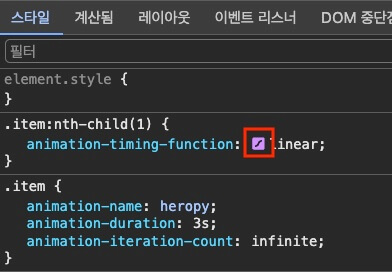
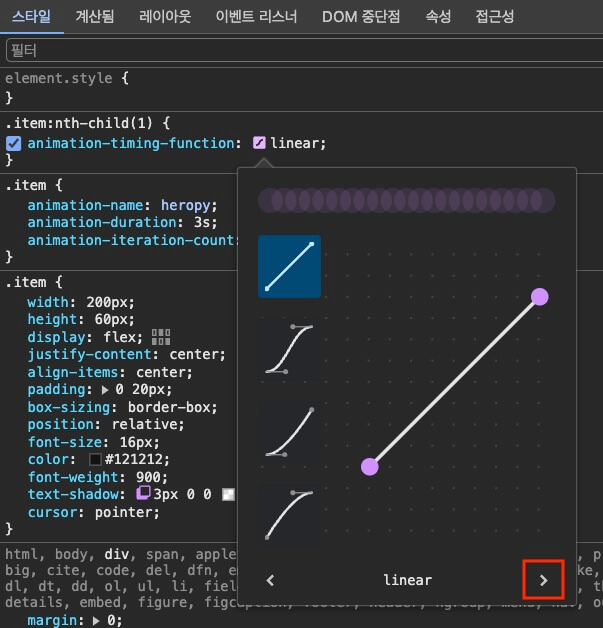
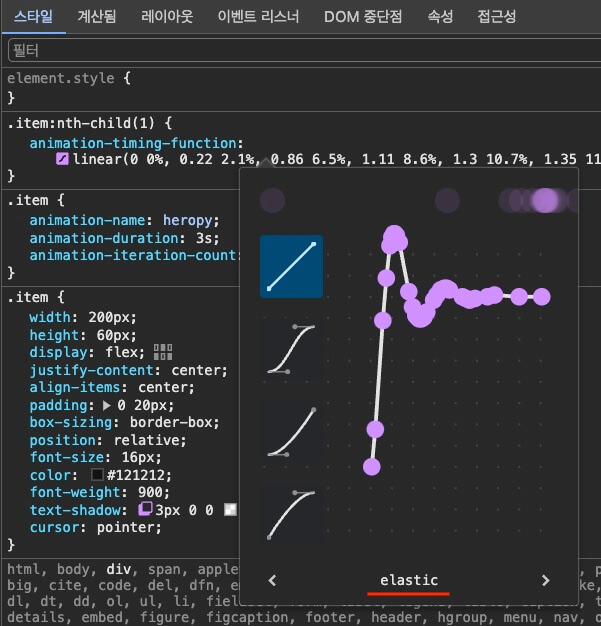
With the 'cubic bezier editor' in Chrome DevTools, you can adjust the value of each point and see the animation's timing function visually.
# steps
The CSS steps() function sets how many steps to divide the animation into.
1steps(count, jump-timing?)
| Value | Meaning | Default |
|---|---|---|
jump-start or start |
Skips the start (0%) |
|
jump-end or end |
Skips the end (100%) |
jump-end |
jump-both |
Skips both the start and the end | |
jump-none |
Skips nothing |
The following example uses the steps() function to divide an animation that moves from left to right into 5 steps.
You can see that the start and end points differ depending on each jump timing.
123456789101112131415.item { width: 150px; animation-name: heropy; animation-duration: 3s; animation-iteration-count: infinite; } .item:nth-child(1) { animation-timing-function: steps(5, jump-start); } .item:nth-child(2) { animation-timing-function: steps(5, jump-end); } /* default */ .item:nth-child(3) { animation-timing-function: steps(5, jump-both); } .item:nth-child(4) { animation-timing-function: steps(5, jump-none); } @keyframes heropy { 0% { transform: translateX(0px); } 100% { transform: translateX(500px); } }
# animation-iteration-count
Specifies how many times the animation repeats.
| Value | Meaning | Default |
|---|---|---|
| Number | Sets the iteration count | 1 |
infinite |
Repeats forever |
12345678910111213.item:hover { /* animation: heropy 2s; */ animation-name: heropy; animation-duration: 2s; } .item:nth-child(1):hover { animation-iteration-count: 1; } .item:nth-child(2):hover { animation-iteration-count: 2; } .item:nth-child(3):hover { animation-iteration-count: 3; } @keyframes heropy { 0% { width: 300px; } 100% { width: 500px; } }
# animation-direction
Specifies the direction in which the animation repeats.
For example, in an animation where an element moves from left to right, moving from left to right is the 'forward' motion, and moving from right to left is the 'reverse' motion.
Moving both forward and in reverse is called a 'round trip', and for a round-trip animation, the value of the animation-iteration-count property (iteration count) must be 2 or more.
| Value | Meaning | Default |
|---|---|---|
normal |
Repeats forward only | normal |
reverse |
Repeats in reverse only | |
alternate |
Round trip, starting forward | |
alternate-reverse |
Round trip, starting in reverse |
123456789101112131415.item:hover { /* animation: heropy 2s 2; */ animation-name: heropy; animation-duration: 2s; animation-iteration-count: 2; } .item:nth-child(1):hover { animation-direction: normal; } .item:nth-child(2):hover { animation-direction: reverse; } .item:nth-child(3):hover { animation-direction: alternate; } .item:nth-child(4):hover { animation-direction: alternate-reverse; } @keyframes heropy { 0% { width: 300px; } 100% { width: 500px; } }
# animation-fill-mode
Specifies the state (style) of the element before and after the animation.
It decides which style to keep before and after the animation: the element's own default style or the applied animation style.
If you want only the animation style to be shown, specify the both value, which ignores the default style.
| Value | Meaning | Default |
|---|---|---|
none |
Default state -> Animation start -> Animation end -> Default state | none |
forwards |
Default state -> Animation start -> Animation end | |
backwards |
Animation start -> Animation end -> Default state | |
both |
Animation start -> Animation end |
1234567891011121314151617.item { /* animation: heropy 2s 1s; */ animation-name: heropy; animation-duration: 2s; animation-delay: 1s; } .item:nth-child(1) { animation-fill-mode: none; } .item:nth-child(2) { animation-fill-mode: forwards; } .item:nth-child(3) { animation-fill-mode: backwards; } .item:nth-child(4) { animation-fill-mode: both; } @keyframes heropy { 0% { transform: translateX(230px) rotate(0deg); } 50% { transform: translateX(230px) rotate(360deg); } 85% { transform: translateX(500px) rotate(360deg); } 100% { transform: translateX(500px) rotate(360deg); } }
# animation-play-state
Specifies whether the animation plays or pauses.
| Value | Meaning | Default |
|---|---|---|
running |
Plays the animation | running |
paused |
Pauses the animation |
12345678910111213141516.item { /* animation: heropy 2s infinite alternate; */ animation-name: heropy; animation-duration: 2s; animation-iteration-count: infinite; animation-direction: alternate; } .item:nth-child(1) { /* animation-play-state: running; */ } .item:nth-child(2) { animation-play-state: paused; } .item:nth-child(1):hover { animation-play-state: paused; } .item:nth-child(2):hover { animation-play-state: running; } @keyframes heropy { 0% { width: 300px; } 100% { width: 500px; } }
# animation-composition
Specifies how to combine animation styles.
| Value | Meaning | Default |
|---|---|---|
replace |
Replaces the default style with the animation style | replace |
add |
Adds the animation style to the default style | |
accumulate |
Mixes the default style and the animation style |
In the following example, the element is 100 wide and 50 tall by default, moved 50 to the right, and twice its size.
If the value of the animation-composition property is replace (the default), the default style is replaced by the animation style, so the element is moved 100 to the right and is twice its size.
If the value is add, the animation style is added to the default style, so the element is moved 250 (50+100*2) to the right and is 4 (2+2) times its size.
If the value is accumulate, the default style and the animation style are mixed, so the element is moved 150 (50+100) to the right and is 3 times its size.
12345678910111213141516171819202122.item { width: 100px; height: 50px; /* animation: heropy 3s both; */ animation-name: heropy; animation-duration: 3s; animation-fill-mode: both; transform: translateX(50px) scale(2); transform-origin: 0 0; } .item:nth-child(1) { animation-composition: replace; } .item:nth-child(2) { animation-composition: add; } .item:nth-child(3) { animation-composition: accumulate; } @keyframes heropy { 0% { transform: translateX(50px) scale(1); } 100% { transform: translateX(100px) scale(2); } }
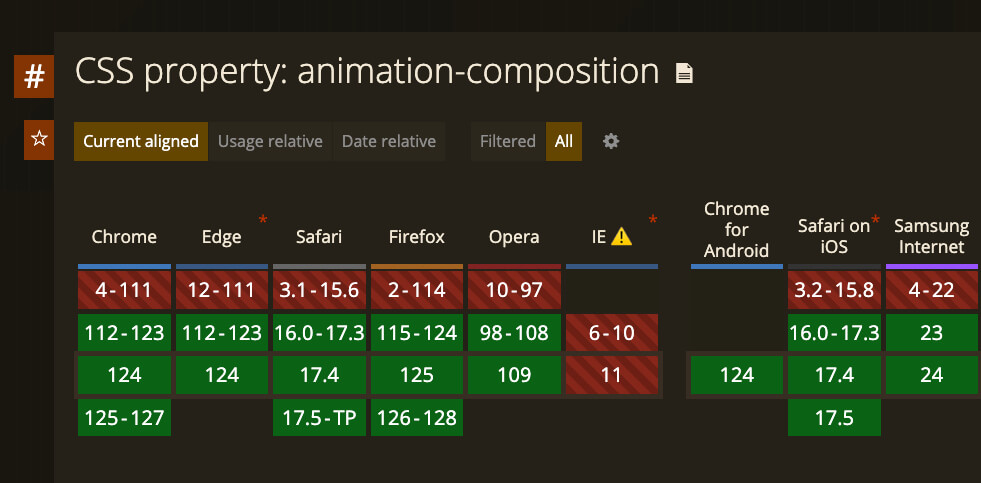
The animation-composition property is available in Chrome from version 112.
# Animation examples
# Simple spinner
123456789101112131415161718192021<style> .hloader { --hloader-color: #e96900; --hloader-size: 80px; --hloader-weight: 8px; --hloader-duration: 1s; width: var(--hloader-size); height: var(--hloader-size); color: var(--hloader-color); border: var(--hloader-weight) solid; border-top-color: transparent; border-radius: 50%; box-sizing: border-box; animation: hloader var(--hloader-duration) infinite linear; } @keyframes hloader { 0% { transform: rotate(0deg); } 100% { transform: rotate(360deg); } } </style> <div class="hloader"></div>
# Spinner
1234567891011121314151617181920212223242526272829303132333435<style> .hloader { --hloader-color: #e96900; --hloader-size: 100px; --hloader-weight: 4; --hloader-duration: 1.5s; width: var(--hloader-size); height: var(--hloader-size); color: var(--hloader-color); } .hloader svg { animation: hloader-svg var(--hloader-duration) linear infinite; } .hloader circle { animation: hloader-circle var(--hloader-duration) linear infinite; fill: transparent; stroke-width: var(--hloader-weight); stroke-dasharray: 80, 200; stroke-dashoffset: 0px; stroke: currentColor; } @keyframes hloader-svg { 100% { transform: rotate(1turn); } } @keyframes hloader-circle { 0% { stroke-dasharray: 1, 200; stroke-dashoffset: 0px; } 50% { stroke-dasharray: 100, 200; stroke-dashoffset: -15px; } 100% { stroke-dasharray: 100, 200; stroke-dashoffset: -124px; } } </style> <div class="hloader"> <svg viewBox="22.857142857142858 22.857142857142858 45.714285714285715 45.714285714285715"> <circle cx="45.714285714285715" cy="45.714285714285715" r="20" stroke-width="5.714285714285714" stroke-dasharray="125.664" stroke-dashoffset="125.66370614359172px"></circle> </svg> </div>
# Skeleton loader
12345678910111213141516171819202122232425262728<style> .hskeleton { background-color: #222; border-radius: 4px; position: relative; overflow: hidden; } .hskeleton::after { content: ""; width: 100%; height: 100%; position: absolute; top: 0; left: 0; background-image: linear-gradient(270deg, rgba(255,255,255,0), rgba(255,255,255,.1), rgba(255,255,255,0) ); transform: translateX(-100%); animation: hskeleton-loader 2s infinite; } @keyframes hskeleton-loader { 0% { transform: translateX(-100%); } 100% { transform: translateX(100%); } } </style> <div class="hskeleton"></div>
Thanks for reading to the end.
Likes and kind comments help keep this blog going!