Optimizing Next.js Bundle Size

# Why bundle size matters
Bundle size optimization is an important issue in frontend development.
The larger the bundle, the longer the initial page load takes, and this problem stands out even more on mobile devices or slow networks.
It directly affects the bounce rate, the share of users who leave while waiting for a page to load.
Once a page takes more than 2 seconds to load, the bounce rate rises quickly.
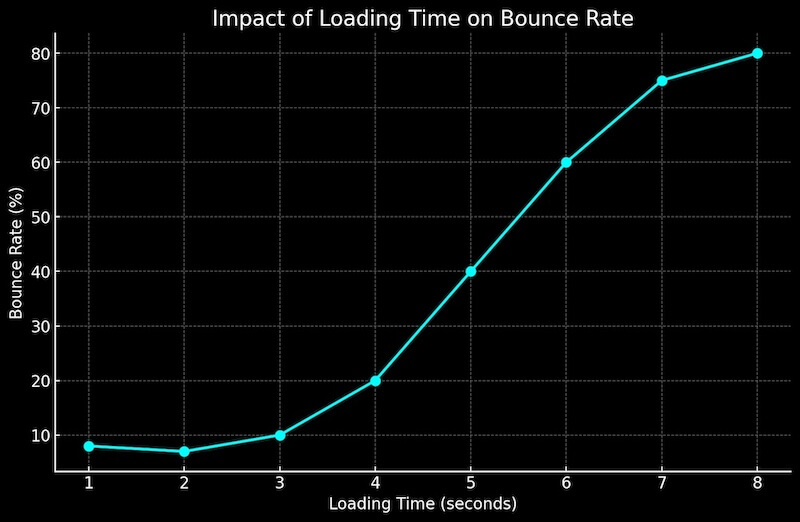
On the other hand, when a smaller bundle makes the page load faster, users can reach the content more smoothly and quickly.
In particular, it can leave a positive impression on the user's first interaction, which can lead to a higher retention rate.
Google evaluates the performance of web pages with the Core Web Vitals metrics and reflects them in search rankings.
In particular, loading-related factors such as LCP, CLS, and INP can be improved by reducing the bundle size.
So reducing the bundle size improves the Core Web Vitals metrics, which can also improve SEO (search engine optimization).
- LCP (Largest Contentful Paint): Measures when the main content is rendered on the screen.
- CLS (Cumulative Layout Shift): Measures visual stability by measuring how often and how much the layout shifts unexpectedly during loading.
- INP (Interaction to Next Paint): Measures how quickly the screen responds to user interactions.
# Bundle size analysis tools
To reduce the bundle size effectively, it is important to know exactly how large the current bundle is.
There are two bundle analysis tools you can use with Next.js, and you choose one based on the bundler your project uses.
- Turbopack bundle analyzer: It is built into Next.js, so you don't need to install anything.
- @next/bundle-analyzer: A plugin for the Webpack bundler.
# Turbopack
In Next.js 16, Turbopack is the default bundler.
The Turbopack bundle analyzer is a built-in tool available from Next.js 16.1, and you don't need to install or configure anything.
When you run the following, the bundle is analyzed and a server for viewing the results starts on port 4000.
1npx next experimental-analyze
If you use it often, register it as a script.
12345{ "scripts": { "analyze": "next experimental-analyze" } }
The Turbopack bundle analyzer is integrated with Turbopack's module graph, so it analyzes the actual build output as is.
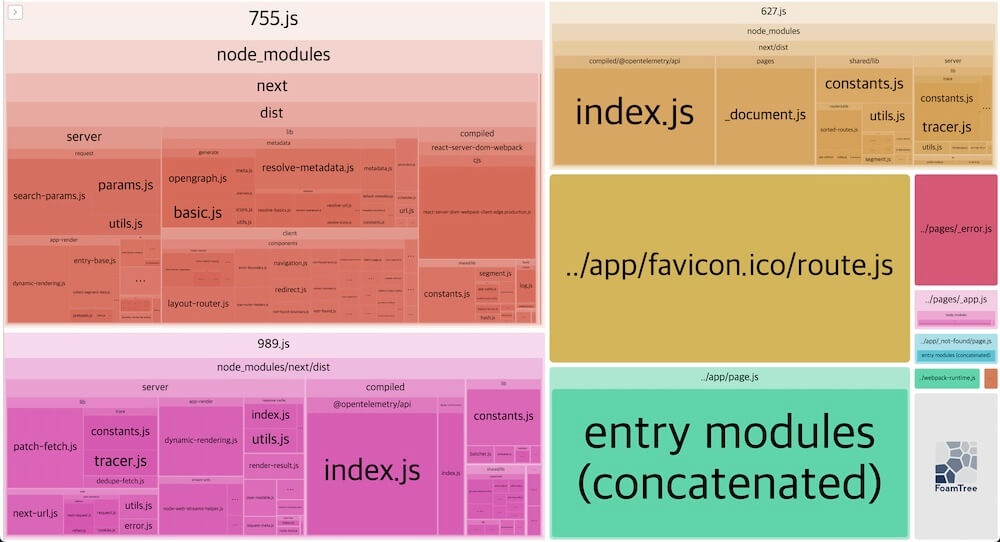
In the browser, you can see the following information.
- Filtering by route, by environment (client/server), and by type (JS/CSS/JSON), plus file search
- The size of each module, shown as the area of a rectangle in a treemap
- The import chain, which you can see by clicking a module
The import chain is especially useful for finding why an unexpected module ended up in the client bundle, because it traces imports even across the boundary between Server Components and Client Components and across dynamic imports.
Before running it yourself, you can preview what the screen looks like on the demo page.
To save the results only to files without viewing them in the browser, use the --output (-o) option.
The analysis results are saved in the .next/diagnostics/analyze path.
1npx next experimental-analyze --output
If you copy the saved results to another path, you can compare the bundle size before and after optimization or share it with others.
1cp -r .next/diagnostics/analyze ./analyze-before-refactor
The available options are as follows.
| Option | Description |
|---|---|
-o, --output |
Saves only the analysis result files without starting the server. |
--port <port> |
Specifies the port number to serve the analysis results on. Default 4000 |
--no-mangling |
Disables name mangling. |
--profile |
Enables React production profiling. |
# Webpack
@next/bundle-analyzer is a Webpack plugin that visually shows the size and structure of your bundle.
It does not work with Turbopack, so you need to use the Webpack bundler with the --webpack option when you build.
Install it as follows.
1npm i -D @next/bundle-analyzer cross-env
Enable bundle analysis by combining the options in the Next.js config file (next.config.ts) with @next/bundle-analyzer.
1234567891011import type { NextConfig } from 'next' import withBundleAnalyzer from '@next/bundle-analyzer' const nextConfig: NextConfig = { /* config options here */ } export default withBundleAnalyzer({ enabled: process.env.ANALYZE === 'true', // openAnalyzer: true // default! })(nextConfig)
Analysis is enabled only when the ANALYZE environment variable is true.
With this setup, you can run bundle analysis only when you need it, so it does not slow down development or deployment of the project.
12345{ "scripts": { "analyze:webpack": "cross-env ANALYZE=true next build --webpack" } }
Run the script as follows.
1npm run analyze:webpack
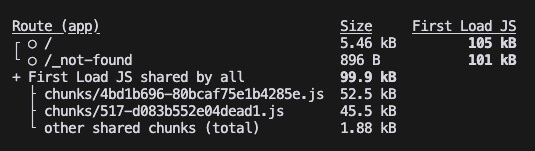
As in the example images below, you can see the bundle size analysis results in the browser and the terminal.
If you set the openAnalyzer: false option, the bundle size analysis results are not opened in the browser.
# Code splitting
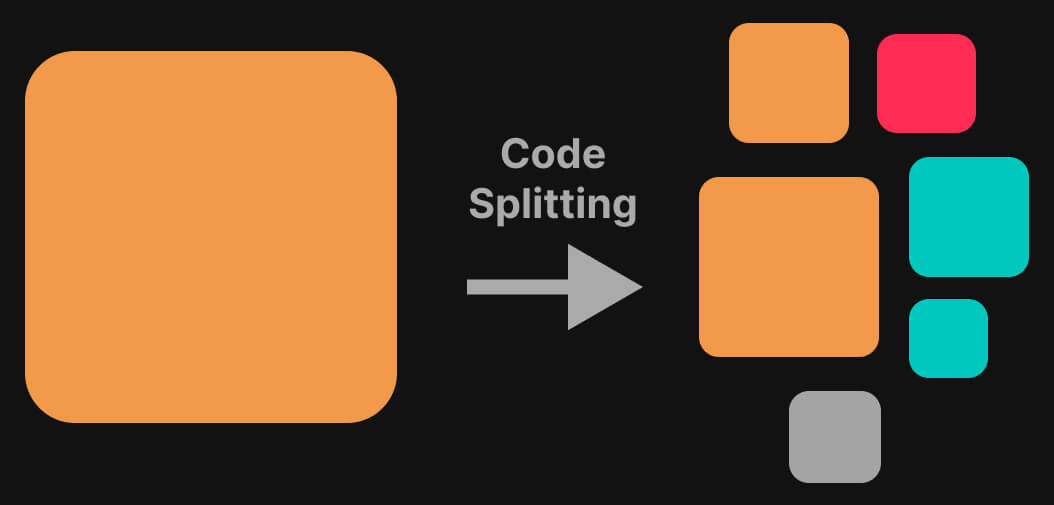
Code splitting is a way to split your application's code from one bundle into multiple chunks and load them only when needed.
Instead of loading one large bundle all at once when a page loads, it loads only the code you need, chunk by chunk, which makes it a very effective strategy for improving initial load speed.
# Dynamic imports
Next.js applies code splitting per page, so when you navigate to a page, only the code that page needs is loaded.
You can also apply code splitting per component.
In the following code, the Chart component is rendered only when there is chart data fetched from the server, but the component's code is included in the initial bundle by default.
12345678910111213import Chart from '@/components/Chart' export default async function Dashboard() { const res = await fetch('https://api.heropy.dev/dashboard') const { chartData } = await res.json() return ( <> {/* ... */} {chartData ? <Chart data={chartData} /> : <p>No data..</p>} </> ) }
With React's lazy function and Suspense component, you can import a component dynamically and load it only when it is needed.
The lazy function returns a component, and it imports the actual component dynamically with the JS import function at the moment the returned component is used.
The Suspense component manages the loading state asynchronously while the component is being loaded.
If you use dynamic imports for pages unrelated to the initial load, or for specific features such as modals and chatbots, you can optimize the loading speed.
123456789101112131415161718192021import { lazy, Suspense } from 'react' const Chart = lazy(() => import('@/components/Chart')) export default async function Dashboard() { const res = await fetch('https://api.heropy.dev/dashboard') const { chartData } = await res.json() return ( <> {/* ... */} {chartData ? ( <Suspense fallback={<p>Loading...</p>}> <Chart data={chartData} /> </Suspense> ) : ( <p>No data..</p> )} </> ) }
With the dynamic function provided by Next.js, you get the same effect as using the lazy function and the Suspense component.
1234567891011121314151617import dynamic from 'next/dynamic' const Chart = dynamic(() => import('@/components/Chart'), { loading: () => <p>Loading...</p> }) export default async function Dashboard() { const res = await fetch('https://api.heropy.dev/dashboard') const { chartData } = await res.json() return ( <> {/* ... */} {chartData ? <Chart data={chartData} /> : <p>No data..</p>} </> ) }
If you want to import a component dynamically only on the client, without pre-rendering, set ssr: false.
However, this setting works only in Client Components.
123456789'use client' import dynamic from 'next/dynamic' const Chart = dynamic(() => import('@/components/Chart'), { loading: () => <p>Loading...</p>, ssr: false }) // ...
# Tuning chunk splitting
If you split modules shared by multiple pages into separate chunks, you can reduce duplicate downloads.
In the following example, the sleep utility function is used by both the Dashboard page and the MyAccount page, so you might expect it to be split into its own chunk.
123export async function sleep(ms: number) { return new Promise(resolve => setTimeout(resolve, ms)) }
123456import { sleep } from '@/utils' export default async function DashboardPage() { await sleep(1000) return <h1>Dashboard!</h1> }
123456import { sleep } from '@/utils' export default async function MyAccountPage() { await sleep(2000) return <h1>My Account!</h1> }
However, if you check the bundle size analysis results, a small module like this is not split into a separate chunk; it stays included in each page's chunk.
This is where you need to understand how Turbopack creates chunks.
While Webpack's splitChunks tends to "split" shared modules into separate chunks, Turbopack's chunk generator works the other way, "merging" small chunks to reduce the number of requests.
You can adjust its criteria with the experimental.turbopackChunking option.
12345678910111213// ... const nextConfig: NextConfig = { experimental: { turbopackChunking: { minChunkSize: 50000, // Chunks smaller than this are merged, default: 50000 maxChunkCountPerGroup: 40, // Maximum number of chunks per chunk group, default: 40 maxMergeChunkSize: 200000 // Chunks larger than this are not merged, default: 200000 } } } // ...
Lowering minChunkSize creates more, smaller chunks, and raising it creates fewer, larger chunks.minChunkSize is measured in bytes before compression and minification, which is about 5 times the final output size.
Turbopack decides whether to merge chunks by combining maxChunkCountPerGroup, maxMergeChunkSize, and the requestCost option, which estimates the cost of a single request.
If there are pages where visitors usually land first, you can tell Turbopack to merge the chunks of those routes more aggressively.firstPageLoadPriority is an option that sets how much weight to give the first page load, as a value from 0 to 1.
The higher the value, the more aggressively chunks are merged, so the first load gets faster and page navigation gets slower.
If you're not sure what value to use, try your site's bounce rate.
The bounce rate is the share of visitors who leave after viewing only one page, so if it is high, it may pay off to prioritize the first page load over page navigation.
12345678const nextConfig: NextConfig = { experimental: { turbopackChunking: { priorityRoutes: [/^\/$/, /^\/signin/], // Routes where visitors often land first firstPageLoadPriority: 0.5 // How much weight to give the first page load, 0 to 1 } } }
Merging chunks reduces the number of requests needed for the first page load, but it makes it less likely that chunks can be reused when navigating between pages.
Since this setting trades initial loading performance for navigation performance, it is a good idea to check the results yourself with the bundle analyzer after adjusting the options.
1npm run analyze
# Tree shaking
Tree shaking is an optimization technique that reduces the final bundle size by removing unused code.
Next.js uses ESM modules (import/export), so it supports tree shaking by default, but CommonJS modules (require) cannot be tree-shaken.

# Optimizing libraries
When you use external libraries, it is a good idea to choose libraries that support ESM, which can be tree-shaken, or lightweight libraries.
The lodash library is a well-known CommonJS module that provides many utility functions.
If you import the whole module, it cannot be tree-shaken, so you need to use a named import or import exactly the module you need.
Some utility functions may not be optimized with a named import.
12345678// Importing the whole CommonJS module, which cannot be tree-shaken import _ from 'lodash' _.get({}, 'a.b') // Using a named import, or importing only the module you need // import { get } from 'lodash' import get from 'lodash/get' get({}, 'a.b')
You can use lodash-es, the officially supported ESM version of the lodash library.
In many cases, we recommend using lodash-es instead of lodash.
12import { get } from 'lodash-es' get({}, 'a.b')
The moment library has very powerful features for handling dates and times, but because it provides so many features, its bundle size is quite large, at over 18KB (parsed size).
As lightweight alternatives, you can use day.js or date-fns.
day.js is used almost the same way as moment and has a much smaller bundle size of 2KB by default, but to use additional features, you need to install and register plugins.
date-fns lets you import only the features you need with named imports, so it can be tree-shaken, but it is used differently from moment.
12345678import moment from 'moment' moment().format('YYYY-MM-DD') // 2025-12-16 import dayjs from 'dayjs' dayjs().format('YYYY-MM-DD') // 2025-12-16 import { format } from 'date-fns' format(new Date(), 'yyyy-MM-dd') // 2025-12-16
# Checking side effects
A side effect is a situation where a module's behavior depends on the outside environment or affects other modules, making the result of running the code hard to predict.
Code with side effects, such as DOM manipulation like document.querySelector('.hello'), debugging like console.log, use of global variables, and timers, is not removed by tree shaking.
Tree shaking can safely remove only code without side effects, so checking side effects carefully helps you reduce the bundle size effectively.
When choosing a library, it is best to prefer libraries without side effects, and even if a library has side effects, to choose one that documents them clearly.
A library without side effects declares it in its package.json file as follows.
Then tree shaking aggressively removes any unused code in that module.
123{ "sideEffects": false }
On the other hand, a module with side effects lists the internal modules that must not be removed, as follows.
UI libraries often include CSS files for global styles.
123456789{ "sideEffects": [ "index.common.js", "polyfills.js", "i18n/*.js", "*.css", "*.scss" ] }
# Avoiding barrel files
A barrel file is a way of using modules where multiple modules are bundled and exported from a single file, and you can create one with the re-export syntax, as follows.
Then you can easily import everything at once with a single import statement instead of importing each module one by one.
123export { default as sleep } from './sleep' export { default as format } from './format' export { default as parse } from './parse'
123456// import { sleep } from '@/utils/sleep' // import { format } from '@/utils/format' // import { parse } from '@/utils/parse' import { sleep, format, parse } from '@/utils' // ...
This is one way to make modules easier to use, but using barrel files comes with a big problem.
To use one module's feature from a barrel file, you also import other modules you don't need, which increases runtime loading and build time.
In particular, when this nesting happens many times, where a module exported by a barrel file is itself another barrel file, the build time grows exponentially.
The increase in build time is an even bigger problem in serverless environments where Next.js Server Components are loaded.
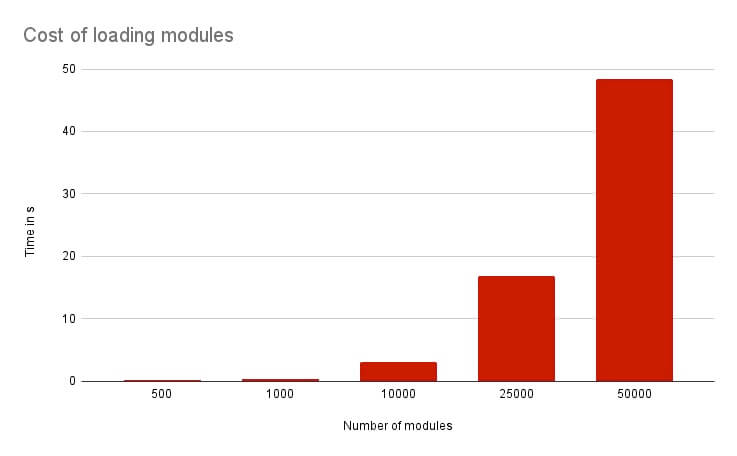
Many of the libraries we can use already use barrel files, re-exporting anywhere from dozens to thousands of modules.
To solve this problem, Next.js provides the optimizePackageImports option.
For the libraries you list in this option, Next.js analyzes the entry file, and if it is a barrel file, it recursively skips the barrel files and optimizes the imports to bring in only the modules you need directly.
123456789// ... const nextConfig: NextConfig = { experimental: { optimizePackageImports: ['LIBRARY_NAME'] } } // ...
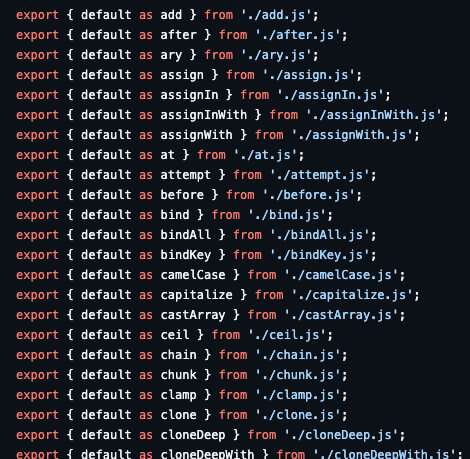
By default, Next.js optimizes commonly used libraries such as lodash-es, antd, and @mui.
For the full list, see the optimizePackageImports option.
If you want to prevent barrel files from being used in your project, you can add an ESLint rule as follows.
1npm i -D eslint-plugin-no-barrel-files
Append the flat/recommended config provided by the plugin to your existing configuration.
12345678import { defineConfig } from 'eslint/config' import nextVitals from 'eslint-config-next/core-web-vitals' import noBarrelFiles from 'eslint-plugin-no-barrel-files' export default defineConfig([ ...nextVitals, ...noBarrelFiles.configs['flat/recommended'] ])
This config enables the following two rules together.
If you already use barrel files, both rules will report errors, so you can also pick only the rules you need.
no-barrel-files: Prevents creating new barrel files.prefer-source-imports: Makes you import directly from the source module instead of going through a barrel file.
# Deduplication
As the dependency structure of a project gets more complex, the same library can be installed several times in different versions.
With the npm ls (npm list) command, you can check the list of a specific dependency installed in your project.
If you choose to use Tailwind CSS when you create a Next.js project, the postcss library is installed automatically.
If you check that library with the npm ls postcss command, you can see that the postcss library is installed twice, in versions 8.4.31 and 8.4.48, as follows.
123456789101112131415npm ls postcss my-project@0.1.0 ├─┬ next@15.0.3 │ └── postcss@8.4.31 ├── postcss@8.4.48 └─┬ tailwindcss@3.4.14 ├─┬ postcss-import@15.1.0 │ └── postcss@8.4.48 deduped ├─┬ postcss-js@4.0.1 │ └── postcss@8.4.48 deduped ├─┬ postcss-load-config@4.0.2 │ └── postcss@8.4.48 deduped ├─┬ postcss-nested@6.2.0 │ └── postcss@8.4.48 deduped └── postcss@8.4.48 deduped
The npm dedupe command consolidates duplicate versions in the dependency list into the highest possible version.
This reduces duplicate libraries in the node_modules folder as much as possible.
12npm dedupe added 1 package, removed 1 package, changed 1 package, and audited 370 packages in 2s
If you check the list again, you can see that the postcss library has been consolidated into version 8.4.31.
Every deduplicated library is marked with the deduped keyword.
123456789101112131415npm ls postcss my-project@0.1.0 ├─┬ next@15.0.3 │ └── postcss@8.4.31 deduped ├── postcss@8.4.31 └─┬ tailwindcss@3.4.14 ├─┬ postcss-import@15.1.0 │ └── postcss@8.4.31 deduped ├─┬ postcss-js@4.0.1 │ └── postcss@8.4.31 deduped ├─┬ postcss-load-config@4.0.2 │ └── postcss@8.4.31 deduped ├─┬ postcss-nested@6.2.0 │ └── postcss@8.4.31 deduped └── postcss@8.4.31 deduped
If the versions differ a lot or the dependency relationships between versions are complex, the duplicates are sometimes left as they are.
In the case of the nanoid library, a different version remains even after you try to deduplicate.
1234567npm i nanoid npm dedupe npm ls nanoid my-project@0.1.0 ├── nanoid@5.0.8 └─┬ postcss@8.4.31 └── nanoid@3.3.7
Thanks for reading to the end.
Likes and kind comments help keep this blog going!