Auth.js (NextAuth.js) Essentials
- v4 docs: https://next-auth.js.org/
- v5 docs: https://authjs.dev/
Auth.js (NextAuth.js) is a library for user authentication and session management in Next.js projects.
It supports many authentication providers such as Google and GitHub, and makes it easy to handle authentication and sessions on both the server and client sides of Next.js.
# Installation and setup
Start after you finish the Next.js project installation and setup!
1npm i next-auth@beta path-to-regexp
AUTH_SECRET is a value used to encrypt tokens and email verification hashes.
If you enter the following in the terminal, the environment variable is generated automatically.
123npx auth secret # Secret generated. Copy it to your .env/.env.local file (depending on your framework): # AUTH_SECRET=1234...
1AUTH_SECRET="1234..."
# Basic configuration
In your project, you can use handlers, signIn, signOut, auth, and update, which are returned by calling NextAuth().
handlers: An object of API routes (GETandPOSTfunctions) that manage authentication for the project.signIn: An async function that tries to sign the user in.signOut: An async function that tries to sign the user out.auth: An async function that returns session info.unstable_update(update): An async function that updates session info.
You can set the following call options.
All of them are optional except providers.
providers: Sets the authentication providers, such as Credentials, Google, and GitHub.session: Sets how sessions are managed.pages: Sets custom page paths; the default for the sign-in page is/auth/signin.callbacks: Sets the handlers called during authentication and session management.callbacks.signIn: Called when a user tries to sign in; returningtruemeans the sign-in succeeds, and returningfalsemeans it fails.callbacks.redirect: Called when navigating between pages, and its return value is the URL to redirect to.callbacks.jwt: Called when a JWT is created or updated, and its return value is encrypted and stored in a cookie.callbacks.session: Receives thetokenreturned by thejwtcallback, is called whenever the session is checked, and its return value can be read on the client. (It may be called two or more times.)
The callbacks are called in the following order.
- User signs in (signs up) =>
signIn=> (redirect) =>jwt=>session - Session update =>
jwt=>session - Session check =>
session
12345678910111213141516171819202122232425262728293031import NextAuth from 'next-auth' export const { handlers, signIn, signOut, auth, unstable_update: update // Beta! } = NextAuth({ providers: [ // ... ], session: { strategy: 'jwt', // Use JSON Web Token maxAge: 60 * 60 * 24 // Session expiration time (sec) }, pages: { signIn: '/signin' // Default: '/auth/signin' }, callbacks: { signIn: async () => { return true }, jwt: async ({ token, user }) => { return token }, session: async ({ session, token }) => { return session } } })
If you use a callback URL (e.g. ?callbackUrl=/dashboard), you can set the redirect callback like this.
Note that you must not use the redirectTo option when you call the signIn(provider, options) function.
123456789101112131415161718192021callbacks: { // `url` can look like the following. // '/abc' // '/abc?callbackUrl=/xyz' // 'https://heropy.dev/abc?callbackUrl=/xyz' // 'https://heropy.dev/abc?callbackUrl=https://heropy.dev/xyz' // ... redirect: async ({ url, baseUrl }) => { if (url.startsWith('/')) return `${baseUrl}${url}` if (url) { const { search, origin } = new URL(url) const callbackUrl = new URLSearchParams(search).get('callbackUrl') if (callbackUrl) return callbackUrl.startsWith('/') ? `${baseUrl}${callbackUrl}` : callbackUrl if (origin === baseUrl) return url } return baseUrl } }
# Middleware configuration
If you provide code that runs on the server side before navigating to a specific path (middleware), you can check authentication per path.
If you write and use a separate path-matching function like the following, you can manage authentication per path in more detail.
123456789101112131415161718192021222324252627282930313233343536import { NextResponse } from 'next/server' import type { NextRequest } from 'next/server' import { match } from 'path-to-regexp' import { getSession } from '@/serverActions/auth' // import { auth } from '@/auth' const matchersForAuth = [ '/dashboard/*', '/myaccount/*', '/settings/*', '...' ] const matchersForSignIn = [ '/signup/*', '/signin/*' ] export async function middleware(request: NextRequest) { // Control access to pages that require authentication! if (isMatch(request.nextUrl.pathname, matchersForAuth)) { return (await getSession()) // Check the session info ? NextResponse.next() : NextResponse.redirect(new URL('/signin', request.url)) // : NextResponse.redirect(new URL(`/signin?callbackUrl=${request.url}`, request.url)) } // Control access to sign-up and sign-in after authentication! if (isMatch(request.nextUrl.pathname, matchersForSignIn)) { return (await getSession()) ? NextResponse.redirect(new URL('/', request.url)) : NextResponse.next() } return NextResponse.next() } // Check for a path match! function isMatch(pathname: string, urls: string[]) { return urls.some(url => !!match(url)(pathname)) }
# API route configuration
Auth.js handles authentication under the /api/auth/ path.
Provide the route as a catch-all route that dynamically matches every sub-path, and map the route's GET and POST functions with the handlers object returned by the basic configuration.
1234import { handlers } from '@/auth' export const { GET, POST } = handlers // export const runtime = 'edge' // Optional!
# Server Actions configuration
Write sign-in (sign-up) and sign-out as Server Actions so they can be used in every Server and Client Component in the project.
12345678910111213141516171819202122'use server' import { auth, signIn, signOut, update } from '@/auth' export const signInWithCredentials = async (formData: FormData) => { await signIn('credentials', { /* options */ }) // ... } export const signInWithGoogle = async () => { await signIn('google', { /* options */ }) // ... } export const signInWithGitHub = async () => { await signIn('github', { /* options */ }) // ... } export const signOutWithForm = async (formData: FormData) => { await signOut() } export { auth as getSession, update as updateSession }
# Test setup
If you want to test authentication yourself, you can set up pages and components like this.
12345678910111213141516import Header from '@/components/Header' export default function RootLayout({ children }: Readonly<{ children: React.ReactNode }>) { return ( <html lang="ko"> <body> <Header /> {children} </body> </html> ) }
123export default function HomePage() { return <h1>Home Page</h1> }
12345678910111213import Link from 'next/link' export default async function Header() { return ( <header> <nav style={{ display: 'flex', gap: '10px' }}> <Link href="/">Home</Link> <Link href="/signin">Sign in</Link> <Link href="/signup">Sign up</Link> </nav> </header> ) }
# Credentials provider
With the credentials provider (Credentials), you can implement sign-up and sign-in with a user name, email, and password.
# Implementing sign-up and sign-in
In the signInWithCredentials Server Action, call the signIn method with 'credentials' to pass on the sign-up or sign-in info the user entered.
You can also provide the redirectTo option to redirect to the main page when sign-up or sign-in succeeds.
123456789101112131415161718'use server' import { auth, signIn, signOut, update } from '@/auth' export const signInWithCredentials = async (formData: FormData) => { await signIn('credentials', { displayName: formData.get('displayName') || '', // Prevent the `'null'` string email: formData.get('email') || '', password: formData.get('password') || '', // redirectTo: '/' // Go to the main page after sign-in! }) } export const signOutWithForm = async (formData: FormData) => { await signOut() } export { auth as getSession, update as updateSession }
The basic provider options are as follows.
The credentials parameter of the authorize function is the second argument (userInfo) of the signIn('credentials', userInfo) method called in the Server Action.
Also, when sign-up or sign-in succeeds, the authorize function must return the info in the fixed properties for the user's ID (id), display name (name), email (email), and profile image (image).
12345678910111213141516171819202122232425import NextAuth from 'next-auth' import Credentials from 'next-auth/providers/credentials' export const { // ... } = NextAuth({ providers: [ Credentials({ authorize: async credentials => { const { displayName, email, password } = credentials let user = { id: '', name: '', email: '', image: '' } // If there is a user name, sign up! if (displayName) { // <sign-up logic ...> return user } // <sign-in logic ...> return user } }) ], // ... })
Write the <Header> component like this.
The return value of the getSession Server Action is the user's session info.
The <Header> component needs to update after sign-out, so connect the signOutWithForm Server Action to a <form> element.
1234567891011121314151617181920212223242526import Link from 'next/link' import { getSession, signOutWithForm } from '@/serverActions/auth' export default async function Header() { const session = await getSession() return ( <header> {session?.user && <div>{session.user.name}</div>} <nav style={{ display: 'flex', gap: '10px' }}> <Link href="/">Home</Link> {session?.user ? ( <> <form action={signOutWithForm}> <button type="submit">Sign out</button> </form> </> ) : ( <> <Link href="/signin">Sign in</Link> <Link href="/signup">Sign up</Link> </> )} </nav> </header> ) }
Then write the sign-up and sign-in pages like this.
12345678910111213141516171819202122232425262728293031323334353637383940import { signInWithCredentials } from '@/serverActions/auth' export default function SignUpPage() { return ( <> <h1>Sign up</h1> <form action={signInWithCredentials} style={{ display: 'flex', flexDirection: 'column', alignItems: 'start', gap: '10px' }}> <label> User name <input name="displayName" type="text" /> </label> <label> Email (ID) <input name="email" type="email" /> </label> <label> Password <input name="password" type="password" /> </label> <button>Sign up</button> </form> </> ) }
123456789101112131415161718192021222324252627282930313233import { signInWithCredentials } from '@/serverActions/auth' export default function SignInPage() { return ( <> <h1>Sign in</h1> <form action={signInWithCredentials} style={{ display: 'flex', flexDirection: 'column', alignItems: 'start', gap: '10px' }}> <label> Email (ID) <input name="email" type="email" /> </label> <label> Password <input name="password" type="password" /> </label> <button>Sign in</button> </form> </> ) }
# Managing access tokens
If your project needs to send API requests with an access token, you can add the access token to the user's session info.
Add an accessToken property to the user info returned by the authorize function, and pass it all the way to the session.
When sign-in succeeds, the user info returned by the authorize function is passed to the user variable of the callbacks.jwt function, and the token info returned by the callbacks.jwt function is passed to the token variable of the callbacks.session function.
Finally, the session info returned by the callbacks.session function can be used on each page.
1234567891011121314151617181920212223242526272829303132333435363738394041424344454647484950import NextAuth from 'next-auth' import Credentials from 'next-auth/providers/credentials' export const { // ... } = NextAuth({ providers: [ Credentials({ authorize: async credentials => { const { displayName, email, password } = credentials let user = { id: '', name: '', email: '', image: '' } // If there is a user name, sign up! if (displayName) { // <sign-up logic ...> return { ...user, accessToken: '<ACCESS_TOKEN>' } } // <sign-in logic ...> return { ...user, accessToken: '<ACCESS_TOKEN>' } } }) ], // ... callbacks: { signIn: async () => { return true }, jwt: async ({ token, user }) => { if (user?.accessToken) { token.accessToken = user.accessToken } return token }, session: async ({ session, token }) => { if (token?.accessToken) { session.accessToken = token.accessToken } return session }, // ... } })
The accessToken property isn't a type defined in the next-auth library, so add a separate type definition like this.
12345678910111213export declare module 'next-auth' { interface User { accessToken: string } interface Session { accessToken: string } } export declare module '@auth/core/jwt' { interface JWT { accessToken: string } }
Now you can use the access token in the session info like this.
1234567891011121314151617181920import { getSession } from '@/serverActions/auth' interface ResponseValue { totalBalance: number } export default async function MyaccountPage() { const session = await getSession() const res = await fetch(`${process.env.HEROPY_API_URL}/banks/account`, { method: 'GET', headers: { 'Content-Type': 'application/json', apikey: process.env.HEROPY_API_KEY as string, username: 'HEROPY', Authorization: `Bearer ${session.accessToken}` } }) const account = (await res.json()) as ResponseValue return <div>{account?.totalBalance}</div> }
# Updating session info
To update session info when the user's info changes, you can call the updateSession Server Action like this.
12345678import { updateSession } from '@/serverActions/auth' await updateSession({ user: { name: updatedUser.name, image: updatedUser.image } })
When the updateSession Server Action is called, the callbacks.jwt callback is called, and the info is passed in the trigger and session properties.trigger is the update event and session is the updated session info, so add the updated user info to the returned token info like this.
123456789101112callbacks: { jwt: async ({ token, user, trigger, session }) => { if (user?.accessToken) { token.accessToken = user.accessToken } if (trigger === 'update' && session) { Object.assign(token, session.user) token.picture = session.user.image // Reflect it when the photo changes! } return token } }
Once the setup is done, you can provide a page where users can change their user name, as in the example below.
123456789101112131415161718192021import { getSession } from '@/serverActions/auth' import { updateUser } from '@/serverActions/user' export default async function MyaccountPage() { const session = await getSession() return ( <> <form action={updateUser}> <label> User name <input name="displayName" type="text" defaultValue={session?.user?.name || ''} /> </label> <button type="submit">Update</button> </form> </> ) }
You can write the updateUser Server Action like the following example.
1234567891011121314151617181920212223242526272829'use server' import { redirect } from 'next/navigation' import { getSession, updateSession } from '@/serverActions/auth' export async function updateUser(formData: FormData) { const session = await getSession() const res = await fetch( `${process.env.HEROPY_API_URL}/auth/user`, { method: 'PUT', headers: { 'Content-Type': 'application/json', apikey: process.env.HEROPY_API_KEY as string, username: 'HEROPY', Authorization: `Bearer ${session?.accessToken}` }, body: JSON.stringify({ displayName: formData.get('displayName') }) } ) const updatedUser = await res.json() await updateSession({ user: { name: updatedUser.displayName } }) redirect('/myaccount') // Refresh what's rendered on screen }
# Handling errors
To handle errors that occur during sign-up and sign-in, throw an error with throw like this.
123456789101112131415161718192021// ... export const { // ... } = NextAuth({ providers: [ Credentials({ authorize: async credentials => { const { displayName, email, password } = credentials let user = { id: '', name: '', email: '', image: '' } try { // Sign-up and sign-in logic.. } catch (error) { throw new Error(error.message) } } }) ], // ... })
If you want to show the error message on a separate page (error.tsx), throw an error object from the sign-in and sign-up Server Actions like this.
123456789101112131415161718// ... export const signInWithCredentials = async (formData: FormData) => { try { await signIn('credentials', { displayName: formData.get('displayName'), email: formData.get('email'), password: formData.get('password'), // redirectTo: '/' <= This property doesn't work inside a try statement! Beta? }) // On a successful sign-in, the redirect is handled as a caught error, so don't add code to run here! Beta? } catch (error) { // @ts-ignore-next-line // Ignored because the type doesn't exist yet. // if (error instanceof CredentialsSignin) throw new Error(error.cause.err.message) } redirect('/') // Or return { message: 'Message!' } } // ...
123456789'use client' export default function ErrorPage({ error }: { error: Error }) { return ( <> <h1>Error Page</h1> <h2>{error.message}</h2> </> ) }
If you want to show the error message right on the sign-up or sign-in page without navigating,
connect the Server Action with the useFormState hook and manage the message to display as state, like this.
The useFormState hook can only be used in Client Components.
1234567891011121314151617181920212223242526272829303132333435363738394041424344454647'use client' import { useFormState } from 'react-dom' import { signInWithCredentials } from '@/serverActions/auth' import SubmitButton from '@/components/SubmitButton' export default function SignUpPage() { const [state, action] = useFormState(signInWithCredentials, { message: '' }) return ( <> <h1>Sign up</h1> <h2>{state.message}</h2> <form action={action} style={{ display: 'flex', flexDirection: 'column', alignItems: 'start', gap: '10px' }}> <label> User name <input name="displayName" type="text" /> </label> <label> Email (ID) <input name="email" type="email" /> </label> <label> Password <input name="password" type="password" /> </label> <SubmitButton name="Sign up" /> </form> </> ) }
12345678910111213141516171819202122232425262728293031323334353637383940'use client' import { useFormState } from 'react-dom' import { signInWithCredentials } from '@/serverActions/auth' import SubmitButton from '@/components/SubmitButton' export default function SignInPage() { const [state, action] = useFormState(signInWithCredentials, { message: '' }) return ( <> <h1>Sign in</h1> <h2>{state.message}</h2> <form action={action} style={{ display: 'flex', flexDirection: 'column', alignItems: 'start', gap: '10px' }}> <label> Email (ID) <input name="email" type="email" /> </label> <label> Password <input name="password" type="password" /> </label> <SubmitButton name="Sign in" /> </form> </> ) }
Now you can manage the async status with the useFormStatus hook.
Write the submit button component used on the sign-up and sign-in pages like this.
12345678910111213'use client' import { useFormStatus } from 'react-dom' export default function SubmitButton({ name }: { name: string }) { const { pending } = useFormStatus() return ( <button type="submit" disabled={pending}> {pending ? 'Loading...' : name} </button> ) }
12const [state, formAction] = useFormState(actionFunction, initialState) const { pending, data, method, action } = useFormStatus()
Since the Server Action is no longer connected directly to the <form> element, you need to change the Server Action to match the argument types of the useFormState hook.
And the Server Action must return data that matches the initialState type.
12345678910111213141516171819// ... export const signInWithCredentials = async ( initialState: { message: string }, formData: FormData ) => { try { await signIn('credentials', { displayName: formData.get('displayName'), email: formData.get('email'), password: formData.get('password') }) } catch (error) { // @ts-ignore-next-line return { message: error.cause.err.message } } redirect('/') } // ...
# Usage example
As a more concrete usage example, you can also use sign-up and sign-in APIs like this.
1234567891011121314151617181920212223242526272829303132333435363738394041424344454647484950515253545556575859606162636465666768697071import NextAuth from 'next-auth' import Credentials from 'next-auth/providers/credentials' interface UserInfo { displayName?: string email: string password: string } interface ResponseValue { user: { email: string displayName: string profileImg: string | null } accessToken: string } export const { // ... } = NextAuth({ providers: [ Credentials({ authorize: async credentials => { const userInfo = credentials as unknown as UserInfo try { // Sign up if (userInfo.displayName) { return _signIn('signup', userInfo) } // Sign in return _signIn('login', userInfo) } catch (error) { throw new Error(error.message) } } }) ], // ... }) async function _signIn( type: 'signup' | 'login', body: { displayName?: string; email: string; password: string } ) { const res = await fetch(`${process.env.HEROPY_API_URL}/auth/${type}`, { method: 'POST', headers: { 'Content-Type': 'application/json', apikey: process.env.HEROPY_API_KEY, username: process.env.HEROPY_API_USERNAME }, body: JSON.stringify(body) }) const data = (await res.json()) as ResponseValue | string if (res.ok && typeof data !== 'string') { const { user, accessToken } = data return { id: user.email, email: user.email, name: user.displayName, image: user.profileImg, accessToken } } throw new Error( (data || 'Something went wrong. Please try again later.') as string ) }
# Google provider
With the Google provider, you can implement sign-up and sign-in with the user's Google account, which is usually called 'social login'.
# Getting a client ID and secret
To use the Google provider, you need to go to the Google Cloud Console, create a project, and get an OAuth 2.0 client ID.
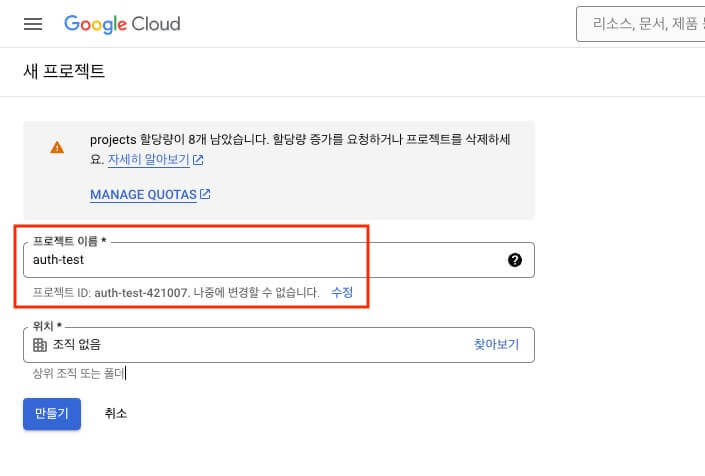
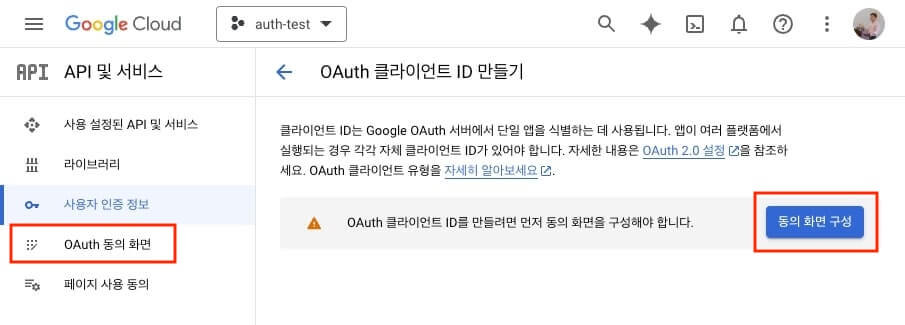
You need to configure the OAuth consent screen before you can get a client ID.

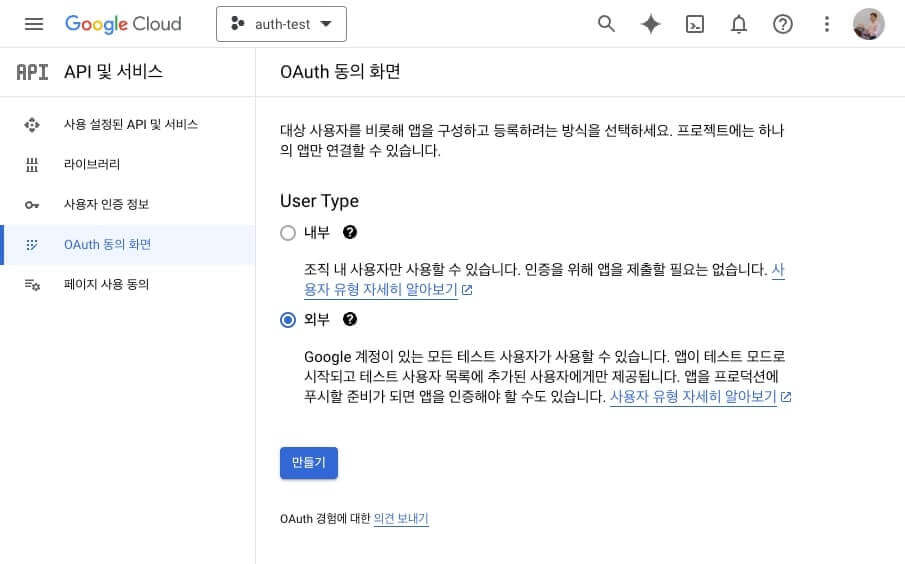
Select the user type for the project.
If anyone can sign up for your project, select External.
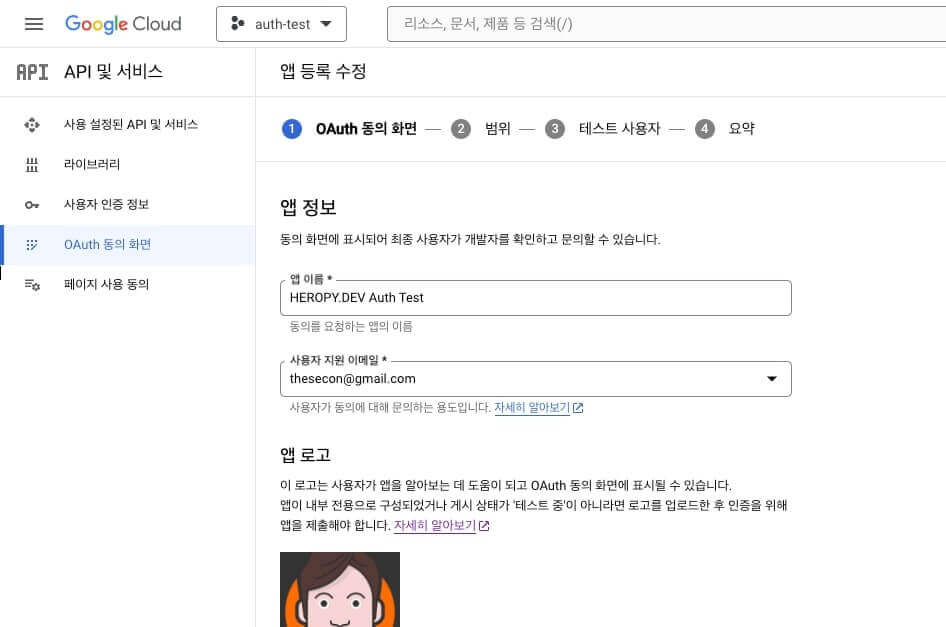
Enter the basic info for the OAuth consent screen.
You don't need to provide the 'App domain' and 'Authorized domains' right away.
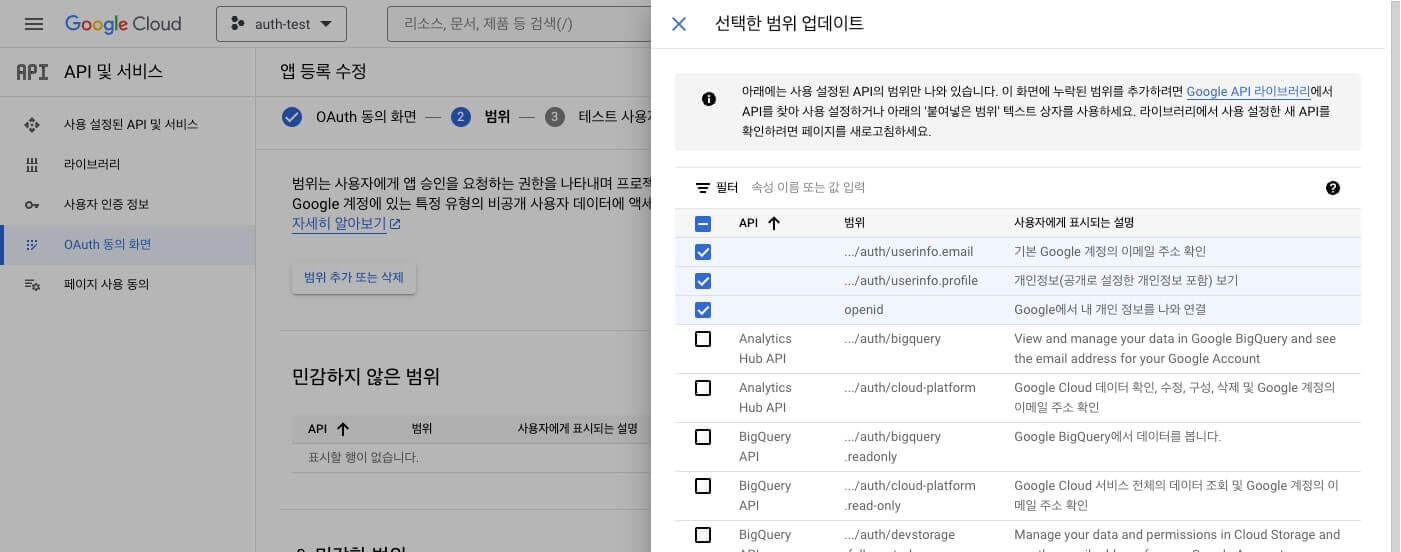
In the next step, set the scopes of permissions you request from users.
Even if you select only 'non-sensitive scopes', you can still get basic user info.
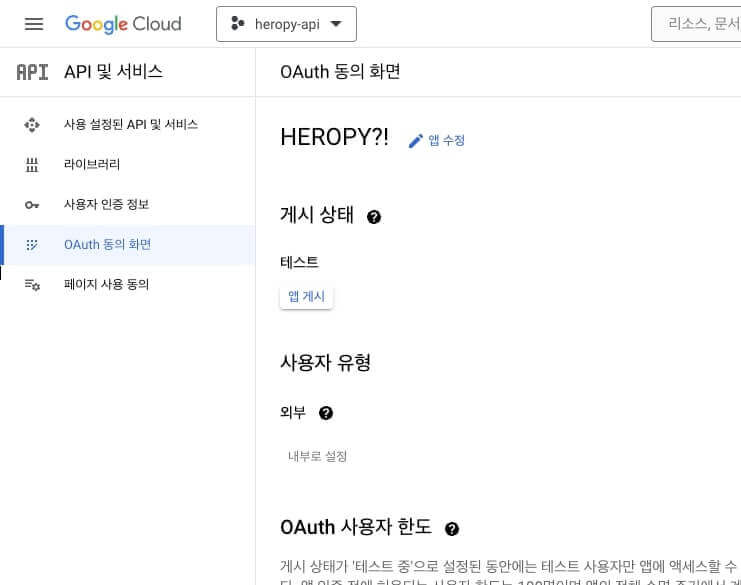
Click Next, then Next again to finish configuring the consent screen, and you'll see a screen like this.
Now that the consent screen is configured, it's time to get an OAuth client ID.
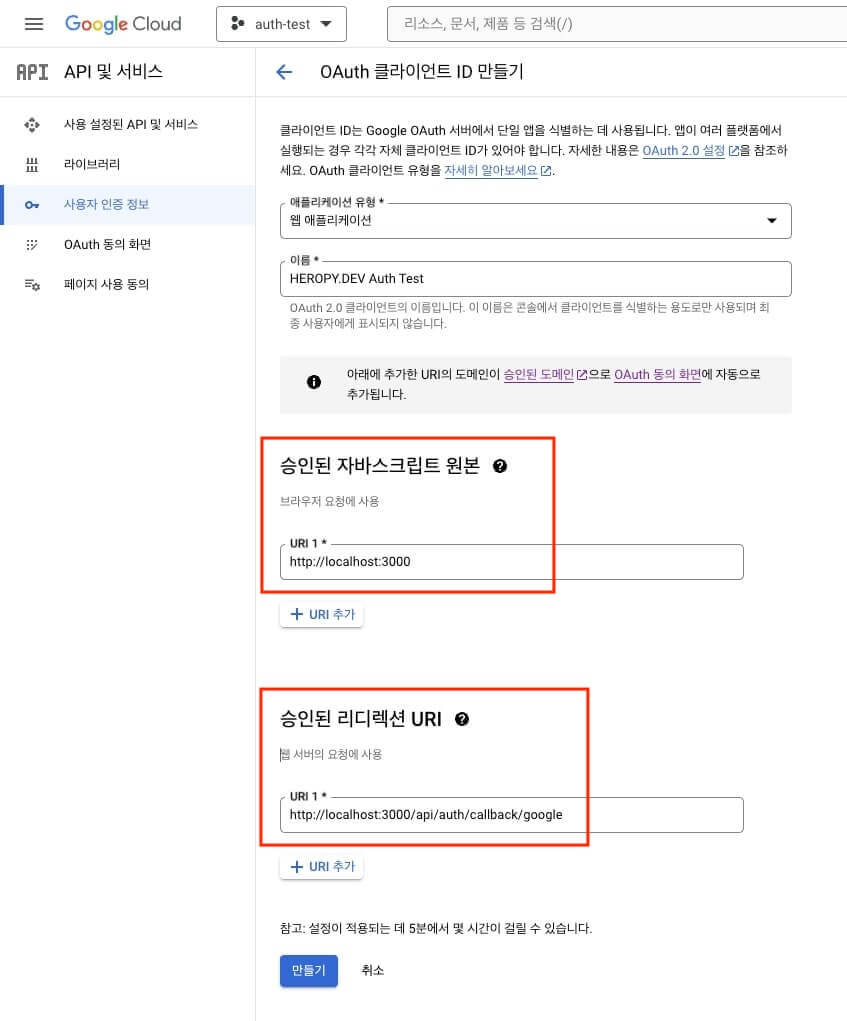
Go to the 'Credentials page' and select 'Create credentials / OAuth client ID'.
In 'Authorized JavaScript origins', enter the 'protocol + domain + port' that can pass authentication; addresses that aren't registered can't be used.
In 'Authorized redirect URIs', you need to write the URL of the page to redirect to after sign-in, so enter the following address!
1http://localhost:3000/api/auth/callback/google
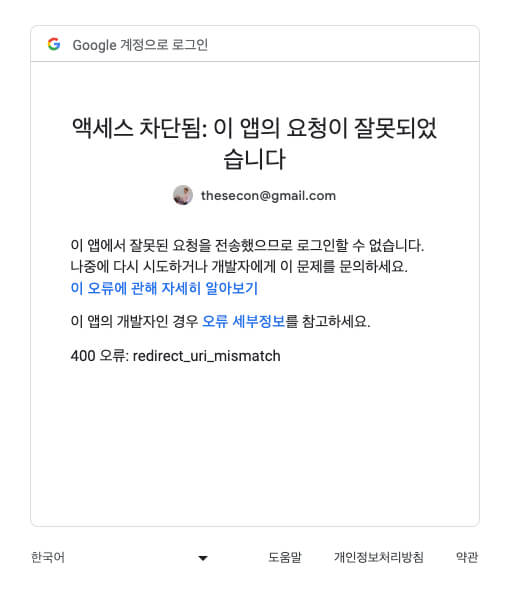
If you use an address that isn't registered, you get an error like this.
Check the port number carefully in particular!
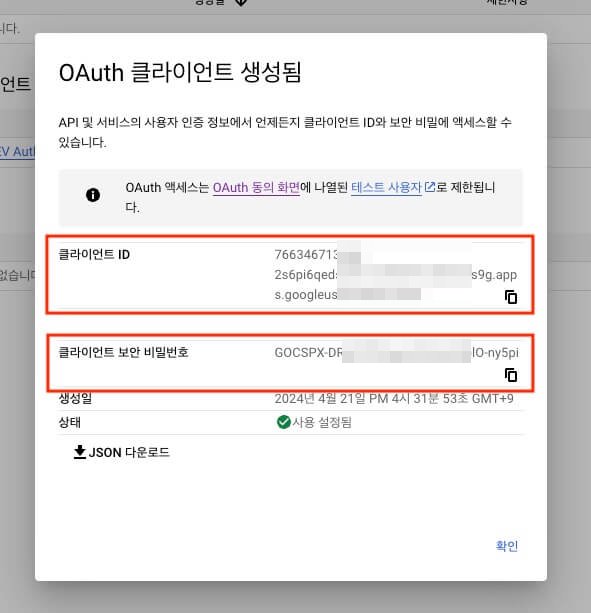
When you finish creating the OAuth client, you can see the client ID and secret values like this.
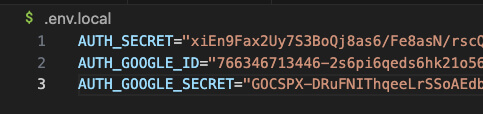
Register the client ID and secret values as environment variables.
# Implementing sign-up and sign-in
In the signInWithGoogle Server Action, call the signIn method with 'google'.
With the redirectTo option, you can set the page to redirect to after sign-in.
12345678910111213'use server' import { auth, signIn, signOut, update } from '@/auth' export const signInWithGoogle = async () => { await signIn('google', { redirectTo: '/' }) } export const signOutWithForm = async (formData: FormData) => { await signOut() } export { auth as getSession, update as updateSession }
With Google OAuth, you don't need to provide a separate sign-up page.
Provide a 'Sign in with Google' button only on the sign-in page like this, and handle sign-up or sign-in depending on whether the signed-in user exists in the DB.
123456789101112import { signInWithGoogle } from '@/serverActions/auth' export default function SignInPage() { return ( <> <h1>Sign in</h1> <form action={signInWithGoogle}> <button type="submit">Sign in with Google</button> </form> </> ) }
Use the Google provider and provide the client ID and secret values you created earlier.
In the signIn callback, you can identify the Google provider when account?.provider is 'google', so handle sign-up or sign-in at that point.
Make the sign-in succeed only when profile?.email_verified is true, and fail otherwise.
Managing access tokens and Updating session info work the same as in the 'Credentials' part we saw earlier.
If you don't need separate access token management or session info updates, remove the related code from the jwt and session callbacks.
12345678910111213141516171819202122232425262728293031323334353637383940414243444546474849import NextAuth from 'next-auth' import Google from 'next-auth/providers/google' export const { // ... } = NextAuth({ providers: [ Google({ clientId: process.env.AUTH_GOOGLE_ID, clientSecret: process.env.AUTH_GOOGLE_SECRET, authorization: { params: { prompt: 'consent' // Force the consent screen to always show to the user! } } }) ], session: { strategy: 'jwt', maxAge: 60 * 60 * 24 // 1 day }, pages: { signIn: '/signin' }, callbacks: { signIn: async ({ account, profile }) => { if (account?.provider === 'google') { // <Check the user, then sign up or sign in...> return !!profile?.email_verified } return true }, jwt: async ({ token, user, trigger, session }) => { if (user?.accessToken) { token.accessToken = user.accessToken } if (trigger === 'update' && session) { token = { ...token, ...session.user } } return token }, session: async ({ session, token }) => { if (token?.accessToken) { session.accessToken = token.accessToken } return session } } })
# Handling errors
If the signIn function returns a path (string) instead of true, the sign-in fails and the user is redirected to that path.
123456789101112callbacks: { signIn: async ({ account, profile }) => { if (account?.provider === 'google') { // <Check the user, then sign up or sign in...> if (error) { return `/error?message=${encodeURIComponent('<ERROR_MESSAGE>')}` } return !!profile?.email_verified } return true } }
A redirect isn't an actual error, so you need to write a separate error page that receives the message as a query string and displays it.
123456789101112export default function ErrorPage({ searchParams: { message } }: { searchParams: { message: string } }) { return ( <> <h1>Error Page</h1> <h2>{message}</h2> </> ) }
# Usage example
As a more concrete usage example, you can also use APIs for sign-up, sign-in, and so on, like this.
123456789101112131415161718192021222324252627282930313233343536373839404142434445464748495051525354555657585960616263646566676869707172737475767778798081828384858687888990919293949596979899100101102103104105106107108109110111112113114115116117118119120121122123124import NextAuth from 'next-auth' import Google from 'next-auth/providers/google' interface ResponseValue { user: { email: string displayName: string profileImg: string | null } accessToken: string } export const { handlers, signIn, signOut, auth, unstable_update: update } = NextAuth({ providers: [ Google({ clientId: process.env.AUTH_GOOGLE_ID, clientSecret: process.env.AUTH_GOOGLE_SECRET, authorization: { params: { prompt: 'consent' // Force the consent screen to always show to the user! } } }) ], session: { strategy: 'jwt', maxAge: 60 * 60 * 24 // 1 day }, pages: { signIn: '/signin' }, callbacks: { signIn: async ({ account, profile, user }) => { if (account?.provider === 'google') { try { // Check the user const type = (await _existUser(user.email as string)) ? 'oauth/login' : 'oauth/signup' // Sign up or sign in const _user = await _signIn(type, { displayName: user.name as string, email: user.email as string, profileImg: user.image as string }) Object.assign(user, _user) // Merge into the user property of the jwt callback return !!profile?.email_verified } catch (error) { if (error instanceof Error) { return `/error?message=${encodeURIComponent(error.message)}` } } } return true }, jwt: async ({ token, user, trigger, session }) => { if (user) { Object.assign(token, user) } if (trigger === 'update' && session) { Object.assign(token, session.user) token.picture = session.user.image // Reflect it when the photo changes! } return token }, session: async ({ session, token }) => { session = { ...session, ...token } return session } } }) // Check the user async function _existUser(email: string) { const res = await fetch(`${process.env.HEROPY_API_URL}/auth/exists`, { method: 'GET', headers: { 'Content-Type': 'application/json', apikey: process.env.HEROPY_API_KEY, username: process.env.HEROPY_API_USERNAME, email }, cache: 'no-store' }) return (await res.json()) as boolean } // Sign up or sign in async function _signIn( type: 'oauth/signup' | 'oauth/login', body: { email: string; displayName?: string; profileImg?: string } ) { const res = await fetch(`${process.env.HEROPY_API_URL}/auth/${type}`, { method: 'POST', headers: { 'Content-Type': 'application/json', apikey: process.env.HEROPY_API_KEY, username: process.env.HEROPY_API_USERNAME }, body: JSON.stringify(body), cache: 'no-store' }) const data = (await res.json()) as ResponseValue | string if (res.ok && typeof data !== 'string') { const { user, accessToken } = data return { email: user.email, name: user.displayName, image: user.profileImg, accessToken } } throw new Error( (data || 'Something went wrong. Please try again later.') as string ) }
# Reactive session checks
Checking the session info every time and turning it into reactive data is quite tedious.
So it's convenient to make and use a custom hook like this.
In the following example, the session info is refreshed every time the page changes, and you can use it reactively.
If you want to refresh the session info in other situations, you can modify the SessionProvider function.
12345678910111213141516171819202122232425262728293031'use client' import { createContext, useContext, useEffect, useState } from 'react' import { usePathname } from 'next/navigation' import type { Session } from 'next-auth' import { getSession } from '@/serverActions/auth' const SessionContent = createContext<Session | null>(null) export const SessionProvider = ({ children }: { children: React.ReactNode }) => { const pathname = usePathname() const [session, setSession] = useState<Session | null>(null) useEffect(() => { getSession().then(res => { setSession(res) }) }, [pathname]) // Refresh the session every time the page changes return ( <SessionContent.Provider value={session}> {children} </SessionContent.Provider> ) } // Custom hook for Client Components export const useSession = () => { return useContext(SessionContent) }
The useSession custom hook can only be used within the scope of the <SessionProvider> component.
So use the <SessionProvider> component in the global layout or wherever you want to use it, like this.
12345678910111213141516171819import { SessionProvider } from '@/providers/session' import Header from '@/components/Header' export default function RootLayout({ children }: Readonly<{ children: React.ReactNode }>) { return ( <html lang="ko"> <body> <SessionProvider> <Header /> {children} </SessionProvider> </body> </html> ) }
Server Components can't use custom hooks, so you need to declare the component as a Client Component ('use client').
12345678910111213141516171819202122232425262728293031'use client' import Link from 'next/link' // import { getSession, signOutWithForm } from '@/serverActions/auth' import { signOutWithForm } from '@/serverActions/auth' import { useSession } from '@/providers/session' export default function Header() { // const session = await getSession() const session = useSession() return ( <header> {session?.user && <div>{session.user.name}</div>} <nav style={{ display: 'flex', gap: '10px' }}> <Link href="/">Home</Link> <Link href="/about">About</Link> {session?.user ? ( <> <form action={signOutWithForm}> <button type="submit">Sign out</button> </form> </> ) : ( <> <Link href="/signin">Sign in</Link> <Link href="/signup">Sign up</Link> </> )} </nav> </header> ) }
Thanks for reading to the end.
Likes and kind comments help keep this blog going!