GitHub Copilot Essentials

GitHub Copilot is an AI coding assistant provided by GitHub.
It is built into VS Code, so while you type code or documents it suggests what comes next, answers questions in chat, and even handles tasks like creating files and running commands for you.
Let's start by looking at the difference between a chatbot and an agent.
A chatbot takes a question, returns one answer, and stops.
An agent takes a goal, plans what to do, uses tools to read files or run commands, checks the results to decide the next action, and repeats this until the work is done.
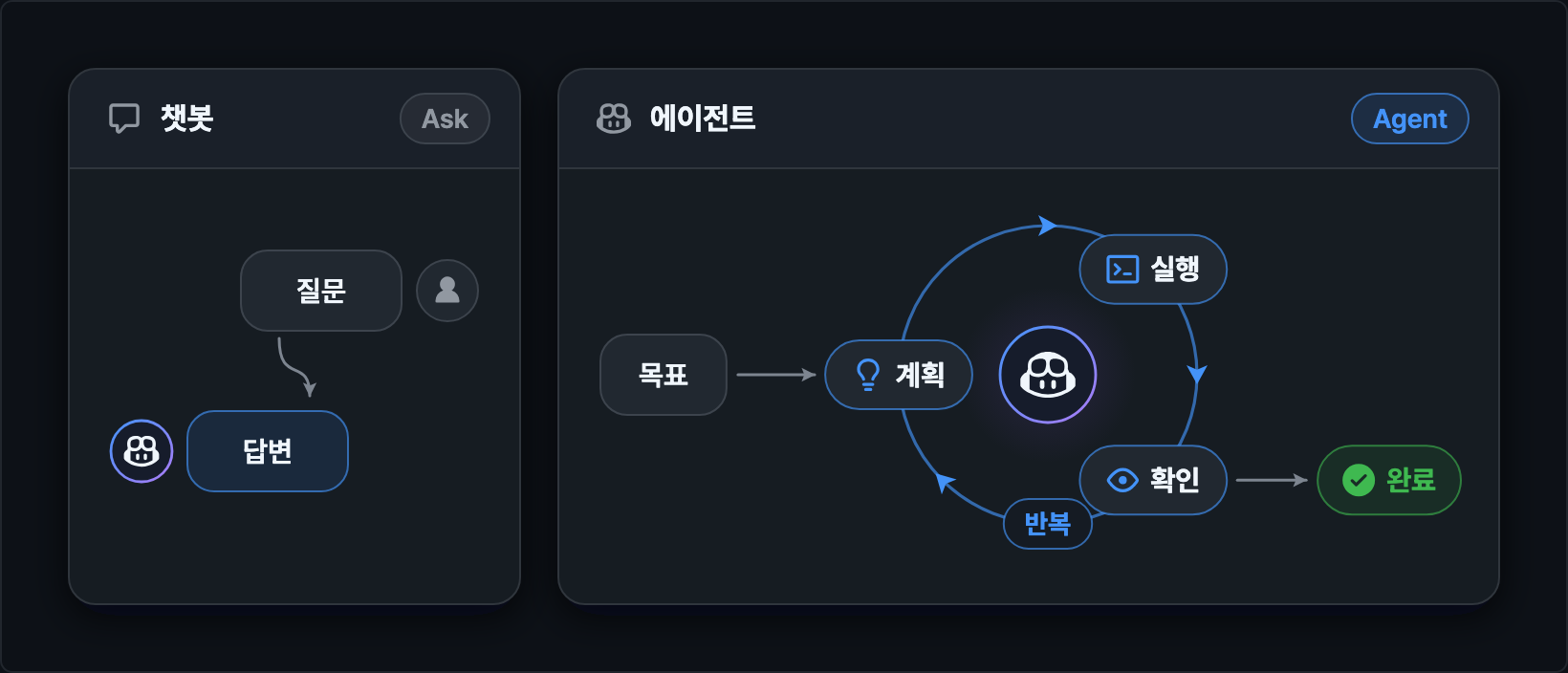
Copilot offers both.
If you only want to ask questions, pick Ask and use it like a chatbot. To hand off work like creating files and running scripts, use Agent.
Most examples in this post run in Agent.
You need a GitHub account to use Copilot, so it is a good idea to sign up and sign in beforehand.
You can start with the Free plan. Depending on the plan, the number of inline suggestions per month, AI credits, and the models you can choose differ.
| Plan | Price | Features |
|---|---|---|
| Copilot Free | Free | 2,000 inline suggestions and a set amount of credits per month, only the Auto model |
| Copilot Pro | $10/month | 1,500 credits per month, choice of multiple models |
| Copilot Pro+ | $39/month | 7,000 credits per month, access to top models |
| Copilot Max | $100/month | 20,000 credits per month, priority access to top models |
| Copilot Business | $19/user/month | Managed per organization, 1,900 credits per user shared by the organization |
| Copilot Enterprise | $39/user/month | Managed per organization, 3,900 credits per user shared by the organization |
Credits are the unit used for chat and agent requests, and how many you use depends on the model and the size of the request.
For usage after you run out of credits, you set a budget in dollars, and 1 credit is counted as $0.01.
Plans and credit policies change often, so also check the plans documentation.
# Installation and sign-in
Install and launch VS Code.
Copilot is built into VS Code, so you don't need to install a separate extension.
When you launch it for the first time, the Welcome to VS Code screen appears.
Click Continue with GitHub to open the GitHub sign-in page in your browser. After you sign in and authorize, you return to VS Code.
Accounts without a subscription are automatically signed up for the Free plan.
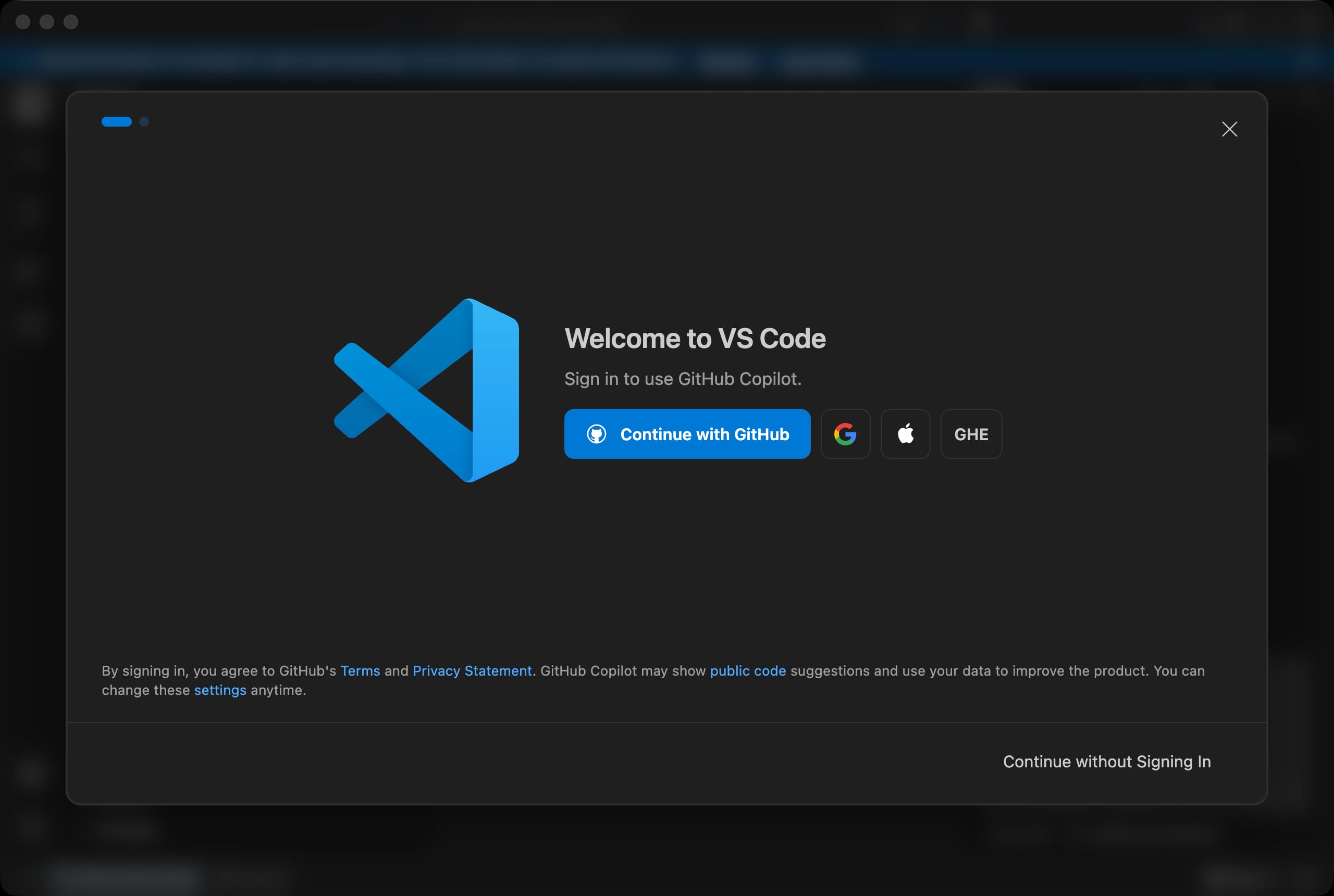
The first screen is shown in English.
To use Korean menus, click the Extensions icon in the activity bar on the left (Cmd + Shift + X, or Ctrl + Shift + X on Windows), search for Korean, install the Korean Language Pack, and restart VS Code as prompted.
All the remaining screens in this post have the Korean language pack applied.
The language pack is updated later than VS Code, so some newly added menus appear in English even in the Korean UI.
If you already had VS Code installed and were using it without signing in, or clicked Continue without Signing In on the first screen, this sign-in prompt will not appear again.
In that case, first update VS Code to the latest version.
On macOS, click Code > Check for Updates... in the top menu, or on Windows, Help > Check for Updates.... If a new version is available, restart VS Code as prompted.
When you are not signed in, a blue Sign In button appears to the right of the search box in the title bar at the top.
Click it to open the Sign in to use GitHub Copilot. dialog. Click Continue with GitHub, and just like during the first install, you sign in to GitHub in your browser, authorize, and return to VS Code.
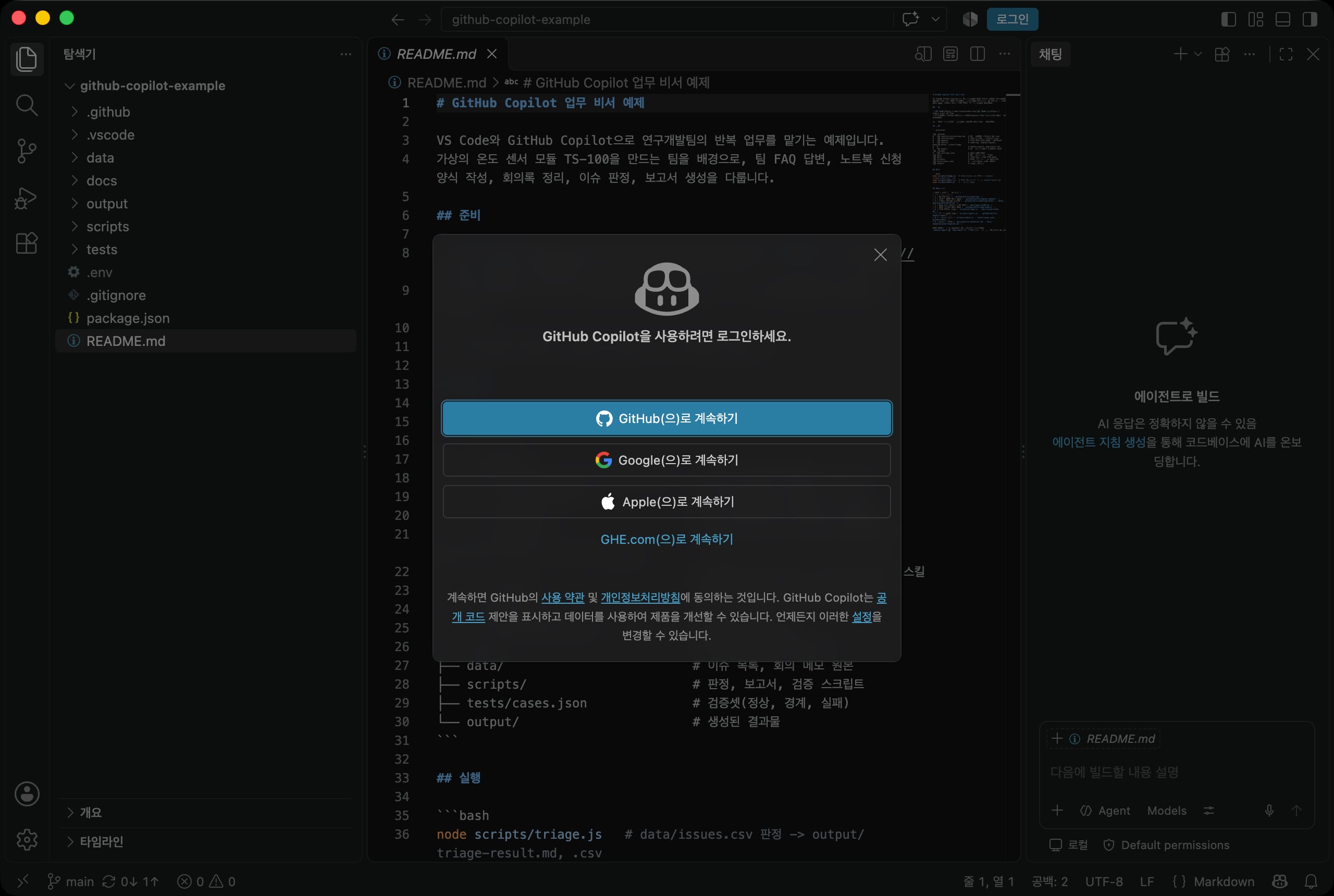
You can also open the same dialog by clicking the Copilot icon in the status bar at the bottom right, or by clicking the account icon at the bottom left and choosing Sign in to use GitHub Copilot....
If you send a request in chat without signing in, you may see a Language model unavailable error instead of a response. If you see this error, check your sign-in status first.
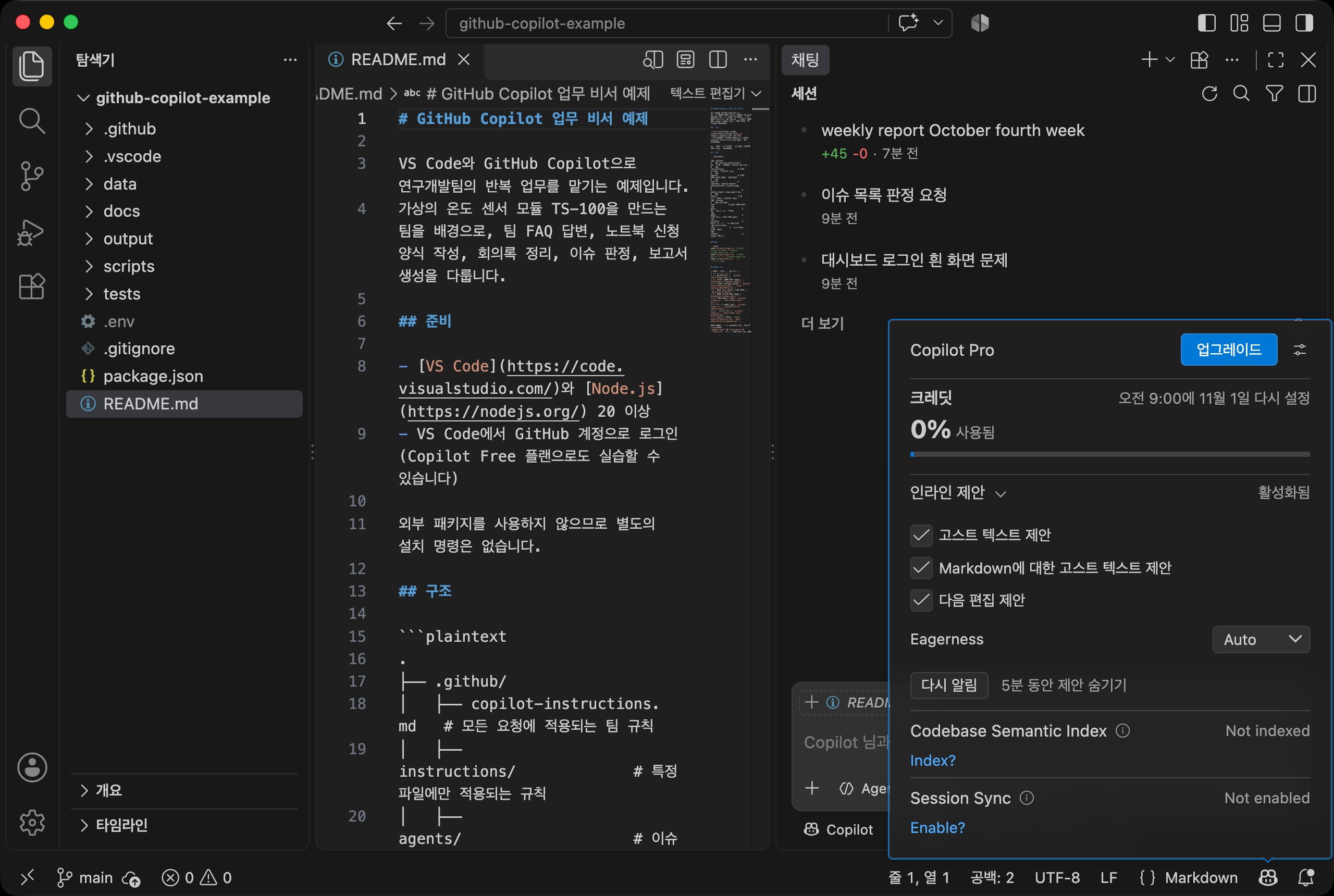
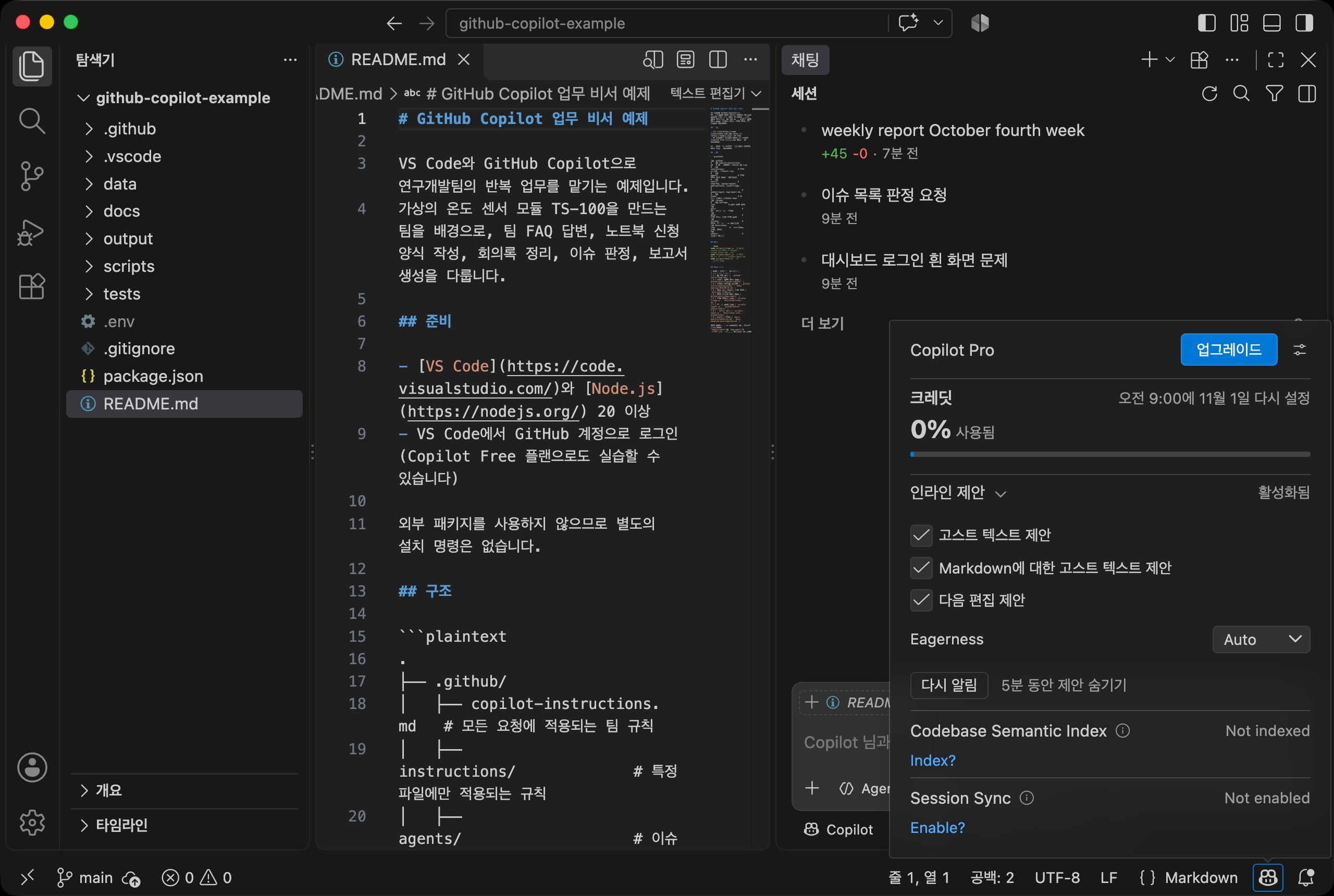
Once you are signed in, clicking the Copilot icon in the status bar shows your current plan, this month's credit usage, and the date your usage resets.
Expand Inline Suggestions to turn each type of suggestion on or off, and click Snooze to hide suggestions for 5 minutes.
Click the account icon at the bottom left to check the connected GitHub account or sign out.
If you need to turn off AI features completely, for example because of company policy, turn on chat.disableAIFeatures in settings.
Both chat and inline suggestions are hidden.
On the other hand, if you can't see the Sign In button, the Copilot icon in the status bar, or the chat view, this setting may be turned on.
Search for chat.disableAIFeatures in settings (Cmd + ,, or Ctrl + , on Windows) and uncheck it, and the sign-in button appears again.
# Preparing the example project
The example is set in an R&D team that builds a fictional temperature sensor module, the TS-100.
The team has recurring work such as frequently asked questions, laptop requests, cleaning up meeting notes, receiving and triaging issues, and weekly reports, and the goal is to hand this work off to Copilot.
You need Node.js to run the example scripts.
Node.js is a program that runs .js script files. Install version 22 or later.
For installation steps, see Node.js (NPM) Installation and NVM Version Management Guide.
The scripts use only built-in Node.js features, so there are no packages to install.
You can get the example repository in two ways.
If you use Git, run the following commands in a terminal.
123git clone https://github.com/ParkYoungWoong/github-copilot-example.git cd github-copilot-example code .
If you are not familiar with Git, click Code > Download ZIP on the repository page to download the archive, then open the extracted folder with File > Open Folder in VS Code.
When you open a folder for the first time, a dialog asks Do you trust the authors of the files in this folder?.
You downloaded this example yourself, so choose Yes, I trust the authors.
If you close the dialog and Restricted Mode appears in the status bar, you can click that text to change it to Trust.
The repository is structured as follows.
The files in the .github folder are settings that shape how Copilot behaves, and docs and data hold the reference documents and source data the assistant uses.
123456789101112131415github-copilot-example/ ├── .github/ │ ├── copilot-instructions.md # Team rules applied to every request │ ├── instructions/ # Rules applied only to specific files │ ├── agents/ # Custom agent dedicated to issue triage │ ├── skills/ # team-faq, laptop-request, meeting-notes, issue-triage, │ │ # weekly-report, bug-report skills │ └── hooks/ # Hook that blocks reading secret files ├── .vscode/ │ └── settings.json # Workspace settings ├── docs/ # FAQ, policies, triage rules, product spec, report templates ├── data/ # Issue list (CSV), meeting memos ├── scripts/ # Triage, report, and check scripts ├── tests/cases.json # Validation set └── output/ # Results created by the assistant
The order of this post follows the hands-on steps below.
| Step | Content | Related files |
|---|---|---|
| 1 | Team FAQ assistant | .github/skills/team-faq/ |
| 2 | Filling out a laptop request form | .github/skills/laptop-request/ |
| 3 | Cleaning up meeting notes and asking follow-up questions | .github/skills/meeting-notes/ |
| 4 | Asking about the spec document and checking sources | docs/spec-ts100.md |
| 5 | Investigation plan for a bug report | .github/skills/bug-report/ |
| 6 | Generating an issue triage table | scripts/triage.js, docs/issue-rules.md |
| 7 | Generating reports automatically | scripts/report.js, .github/skills/weekly-report/ |
| 8 | Validation set and permissions | scripts/check.js, tests/cases.json, .github/hooks/ |
| 9 | Putting it together and an adoption plan | docs/quality-checklist.md, docs/adoption-plan-template.md |
# Inline suggestions
When you type code or a document in the editor, the next content appears in gray text at the cursor.
This is called inline suggestions or ghost text.
Press Tab to accept the suggestion as is. If you keep typing, the suggestion disappears.
If you first write a comment describing what to build, Copilot suggests matching code below it.
Here, a new file has been created in the scripts folder with only a comment on the first line.
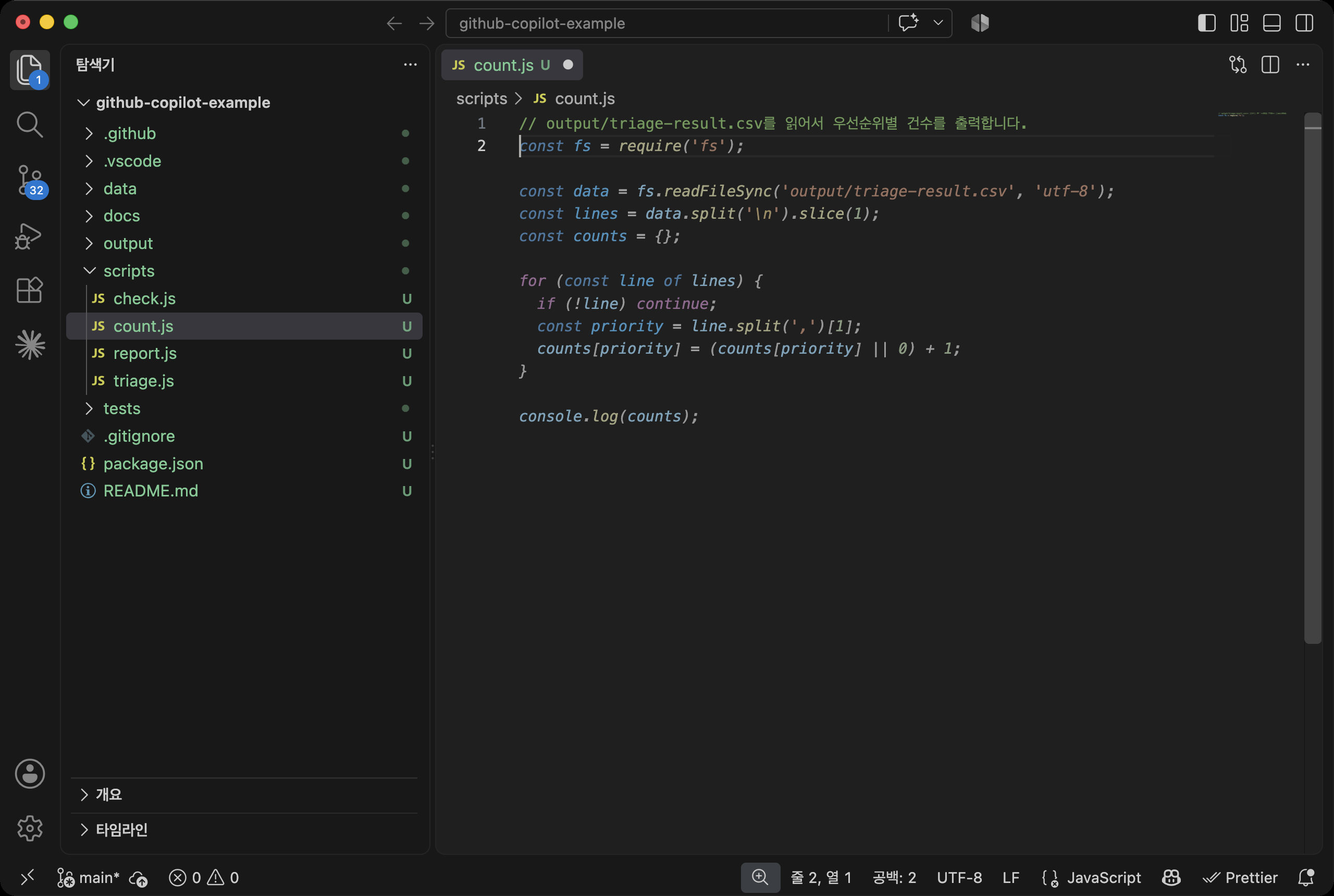
| Action | macOS | Windows |
|---|---|---|
| Accept the whole suggestion | Tab |
Tab |
| Accept one word at a time | Cmd + Right Arrow |
Ctrl + Right Arrow |
| Show next suggestion | Option + ] |
Alt + ] |
| Show previous suggestion | Option + [ |
Alt + [ |
| Dismiss suggestion | Esc |
Esc |
Suggestions are based on the open files and the content of the current file, so keeping related files open can lead to better suggestions.
On the other hand, suggestions are not always right.
In the screen above, the example project uses import syntax, but Copilot suggested require.
Treat suggestions as drafts, and get in the habit of checking the content after you accept them.
When you start editing accepted code, next edit suggestions kick in.
If you rename a variable, Copilot predicts that other lines using the same name also need to change, shows an arrow in the left margin of the editor, and previews the change.
Press Tab to move to that location, and press it again to apply the change.
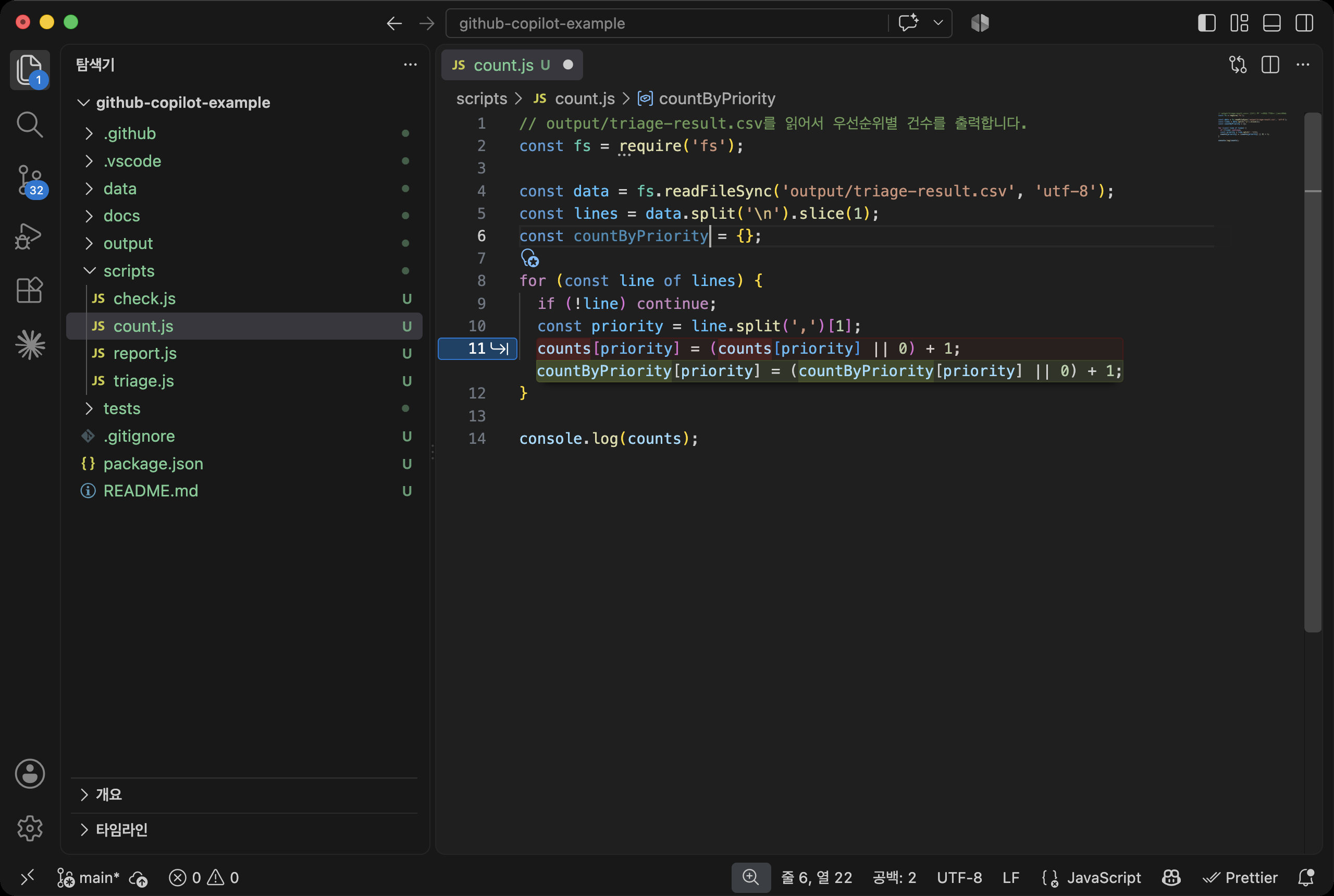
Inline suggestions are turned off by default in Markdown files.
If you work with documents a lot, check Ghost text suggestions for Markdown under Inline Suggestions in the Copilot menu in the status bar.
The example repository already turns this on in its workspace settings.
123456{ "github.copilot.enable": { "*": true, "markdown": true } }
# Inline chat
Inline chat lets you type a request right inside the editor.
Open a file and press Cmd + I (Ctrl + I on Windows), and an input box appears at the cursor.
If you select part of the code before opening it, the request applies only to that range.
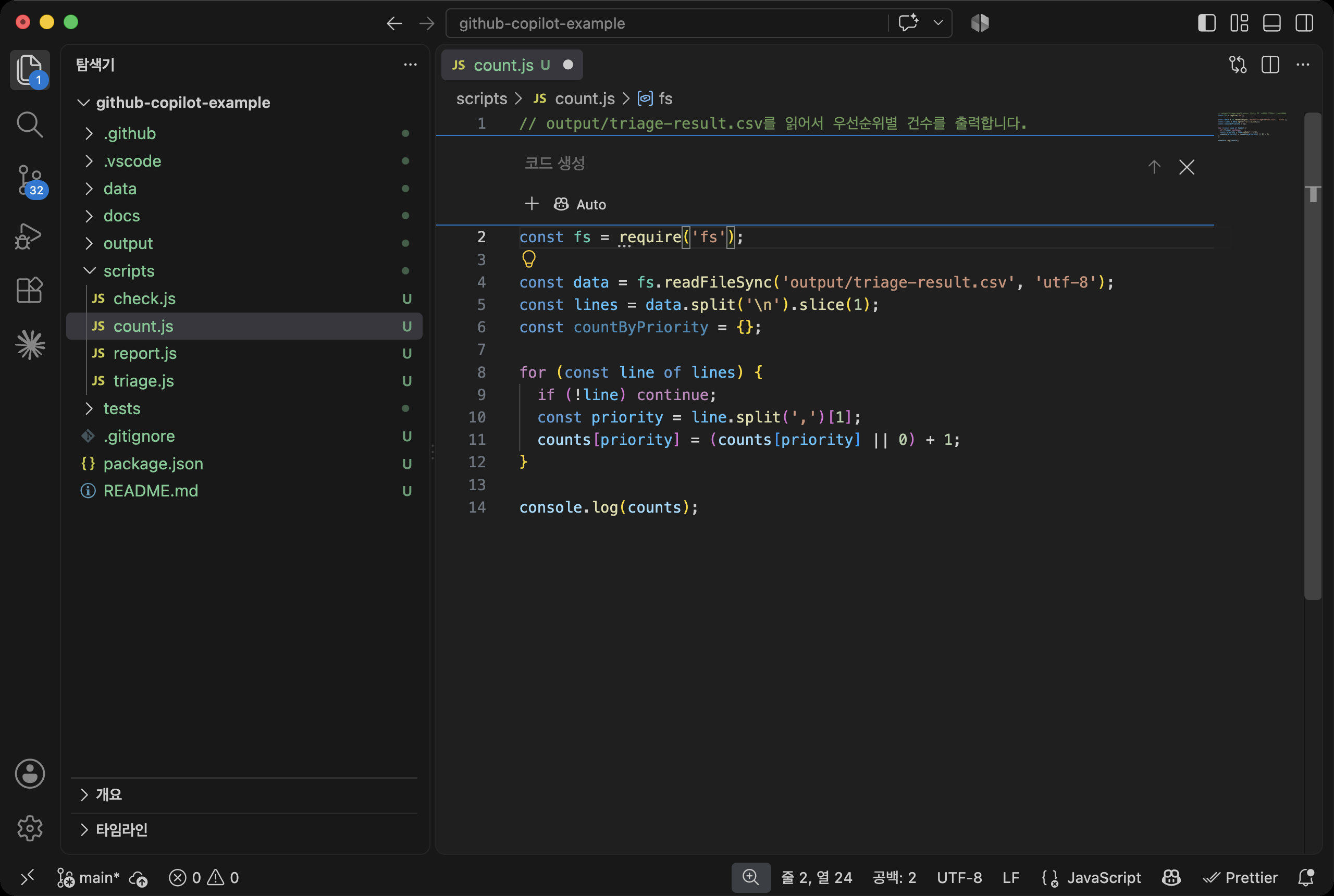
We sent the following request to the file created earlier.
1Switch from require to ES module import syntax, and print the count for each priority as a table
The result is shown in the editor as a before-and-after comparison (diff).
Green lines are added, and red lines are removed.
Click Keep to apply it, or Undo to go back to the original.
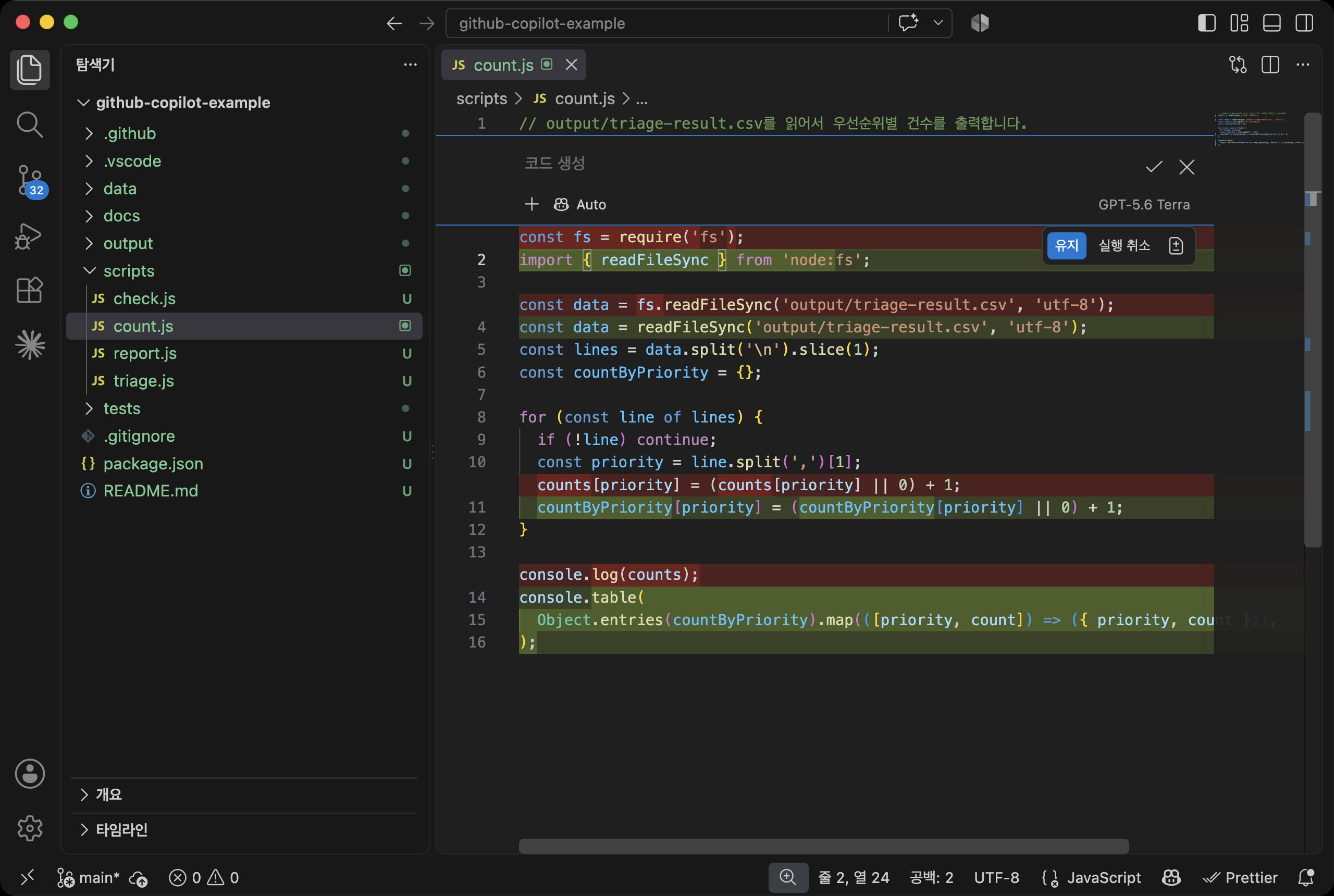
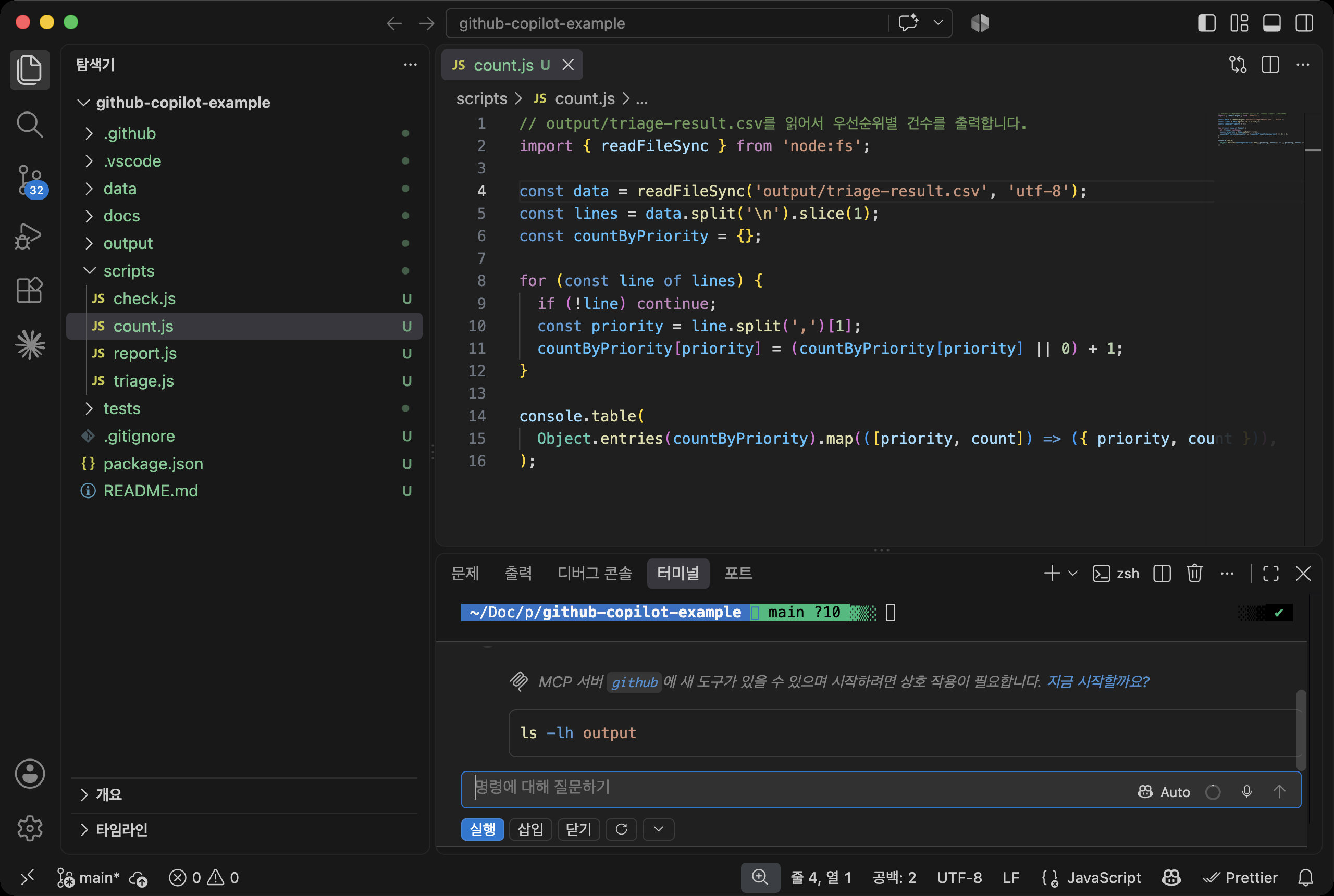
You can also open inline chat in the terminal with the same shortcut.
Even if you don't remember commands, describe what you want in words and Copilot suggests a command.
Click Run to run it right away, or Insert to only put the command in the terminal so you can edit it before running.
1A command that lists the files in the output folder along with their sizes
# Chat view
The chat view is the main screen for talking with Copilot.
You can open and close it with Control + Cmd + I (Ctrl + Alt + I on Windows), and it appears in the secondary sidebar to the right of the editor.
At the top is a list of past sessions, and at the bottom is the input box where you type requests.
Frequently used controls are gathered in and below the input box.
| Location | Name | Role |
|---|---|---|
+ on the left of the input box |
Add context | Attach files, folders, previous sessions, and more to the request |
Agent |
Agent picker | Choose among Agent, Ask, and custom agents |
Auto |
Model picker | Choose the language model that generates the response |
Copilot |
Harness picker | Choose how the agent runs. Shown only before you start a new session |
Interactive |
Mode picker | Choose among Interactive, Plan, and Autopilot |
Manual permissions |
Permission picker | Decide whether to require approval before running tools |
+ at the top |
New chat | Start a new session |
| Open Customizations at the top | Agent customization | Manage instructions, skills, agents, hooks, MCP servers, and tools |
# Harness
A harness is the way a language model is connected to tools and instructions so that it can actually get work done.
Starting with VS Code 1.143, new sessions use the Copilot harness by default.
The Copilot harness runs on the same foundation (the Copilot SDK) as the Copilot CLI and the GitHub Copilot app, and work can continue even if you close the VS Code window during a task.
If the chat title starts with Copilot, the session uses the Copilot harness.
The harness menu also includes Local, the approach from earlier versions, Cloud, which works on GitHub's servers, and Claude and Codex, which are other companies' approaches.
The files each harness reads and the features available differ, so this post is based on the default Copilot harness.
Unless you have a specific reason, you don't need to change it. The Claude and Codex harnesses are covered separately in Using Claude and Codex later.
# Agents and modes
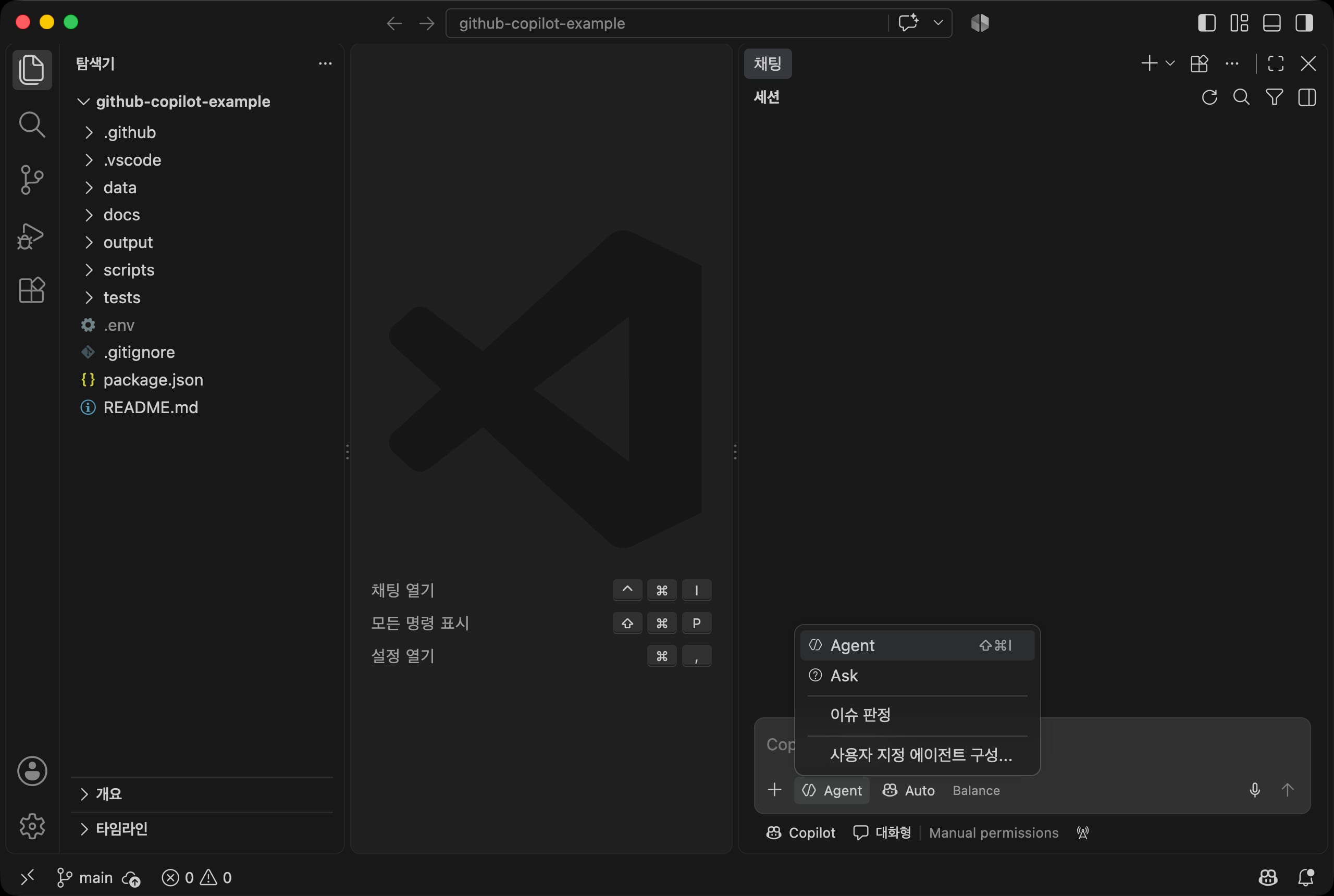
Click the Agent button to see the two built-in agents together with the custom agents defined in the repository.
Press Shift + Cmd + I (Ctrl + Shift + I on Windows) to pick Agent directly.
| Agent | What it does | When to use it |
|---|---|---|
| Ask | Only answers questions. It uses only read tools and does not change files | Explaining concepts, checking document contents |
| Agent | Reads, creates, and edits files, and also runs terminal commands | Most tasks that need to produce a result |
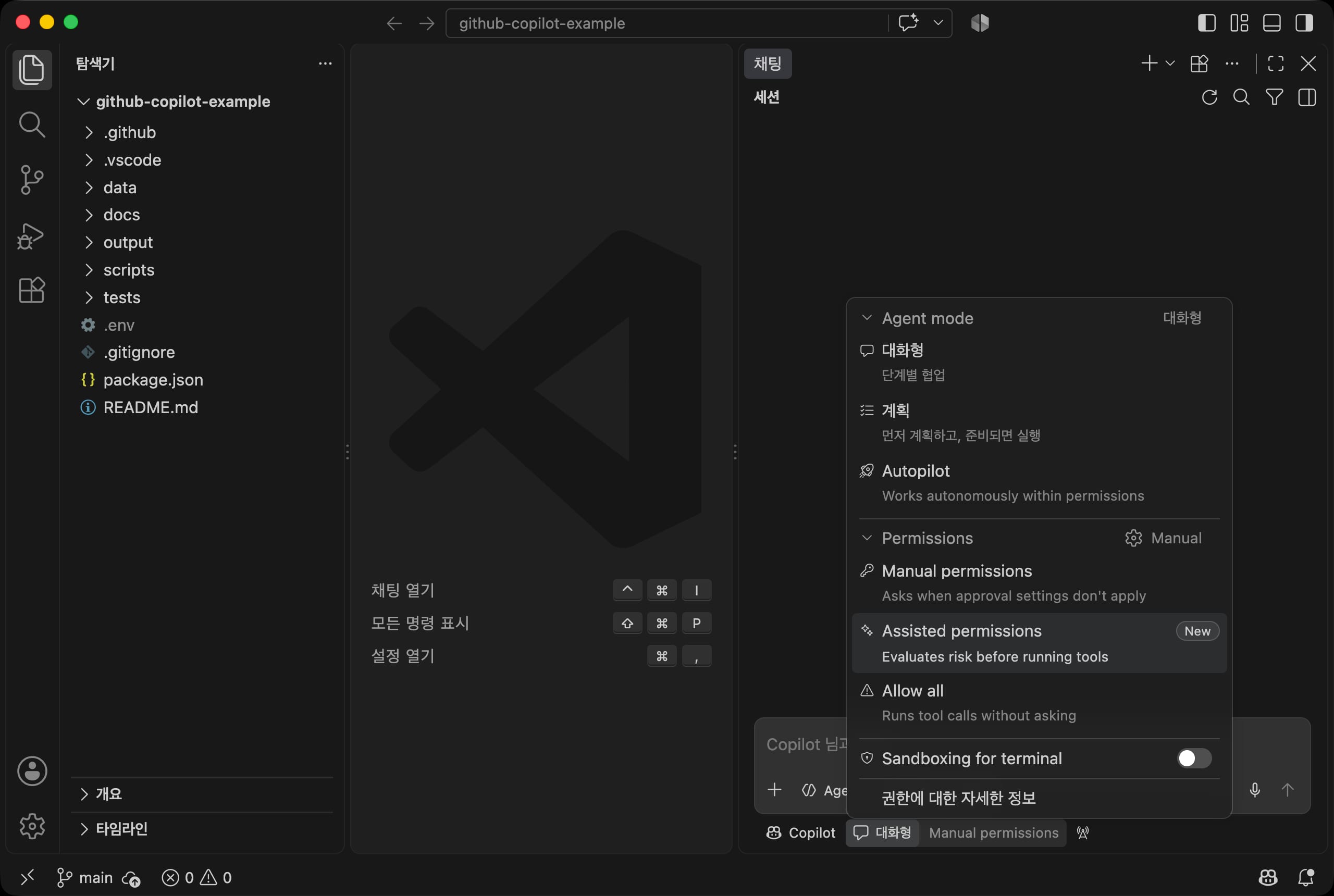
Click Interactive below the input box to open a menu where you choose both how the work proceeds (the mode) and the permissions.
| Mode | What it does |
|---|---|
| Interactive | Proceeds one step at a time with you. This is the default |
| Plan | Investigates without changing files, makes a plan first, and runs it once you approve |
| Autopilot | Keeps going on its own until it decides the work is done. Runs all tools without approval |
You can also start in Plan mode by typing /plan together with the task in the input box.
Autopilot edits files and runs commands without asking, so use it only for tasks you understand well.
Permissions are covered in Tools and approval later.
# Models
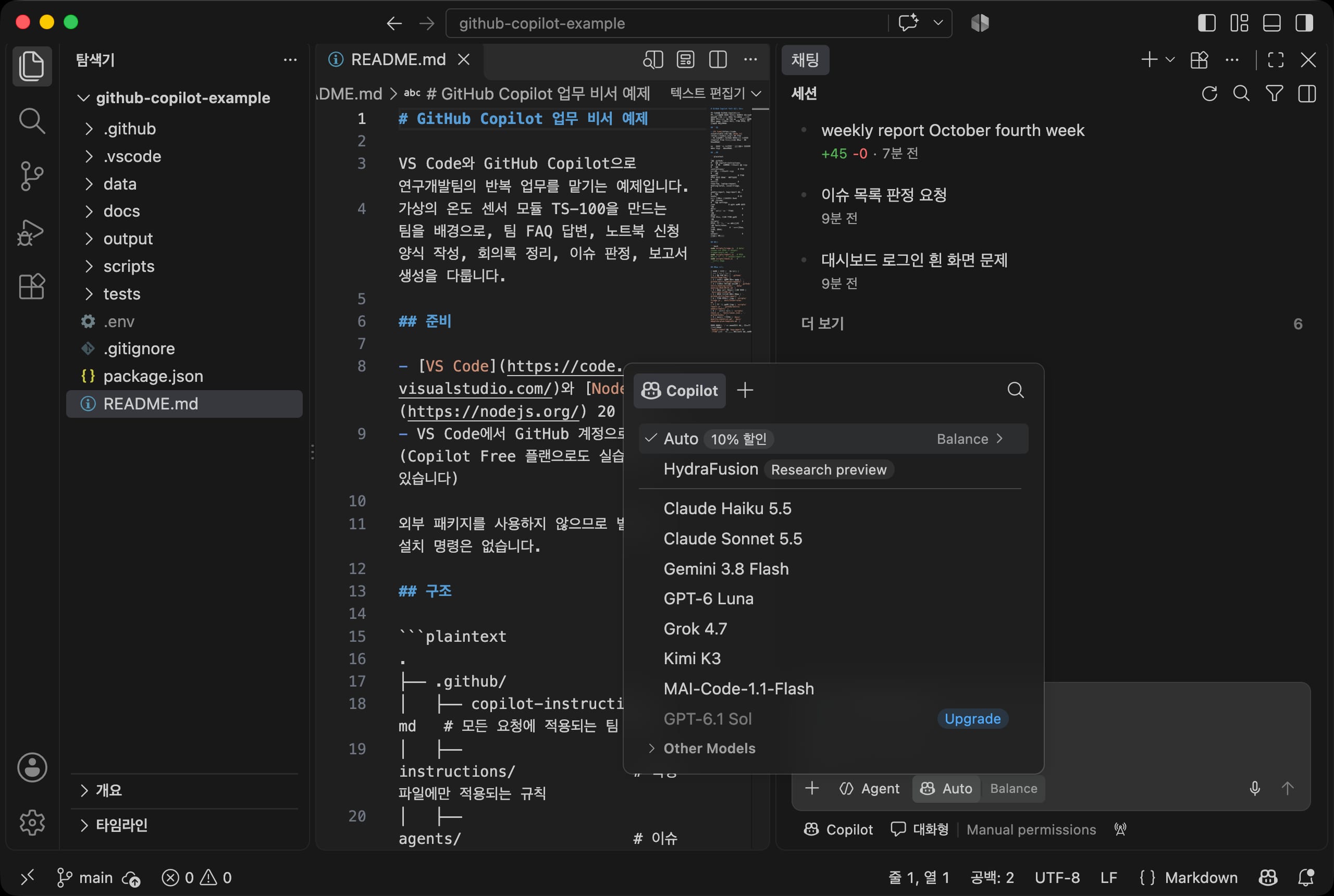
In the model picker, you choose the language model that generates the response.
The default, Auto, picks a model automatically based on the task and the system status.
Click Balance next to Auto to choose what to prioritize: Efficiency, Balance, or Intelligence. The screen says requests handled with Balance get a 10% discount.
The models you can choose depend on your plan, and models you can't use on your current plan show Upgrade.
The model names shown in the list may change over time.
Copilot is not a service that runs on a single model of its own. It borrows models from several companies and gathers them in one menu.
So even if you pick a Claude model from the menu, the cost comes out of your Copilot credits.
How to use a ChatGPT or Claude subscription you already have is covered in Using Claude and Codex later.
When a response finishes, the model used and the credits consumed are shown below it.
When we ran the examples in this post with Auto, most requests used 0.1 to 0.5 credits, and choosing Claude Sonnet 5.5 directly used 3 to 6.5 credits for a single short answer.
It is a good idea to leave simple requests on Auto and choose a top model only when the result falls short.
# Context
Copilot answers based on what is sent with the request and on files the agent finds and reads on its own.
Files open in the editor show their names above the input box and are sent automatically. To make Copilot look at a specific file or folder, attach it yourself.
The information sent along with a request like this is called context.
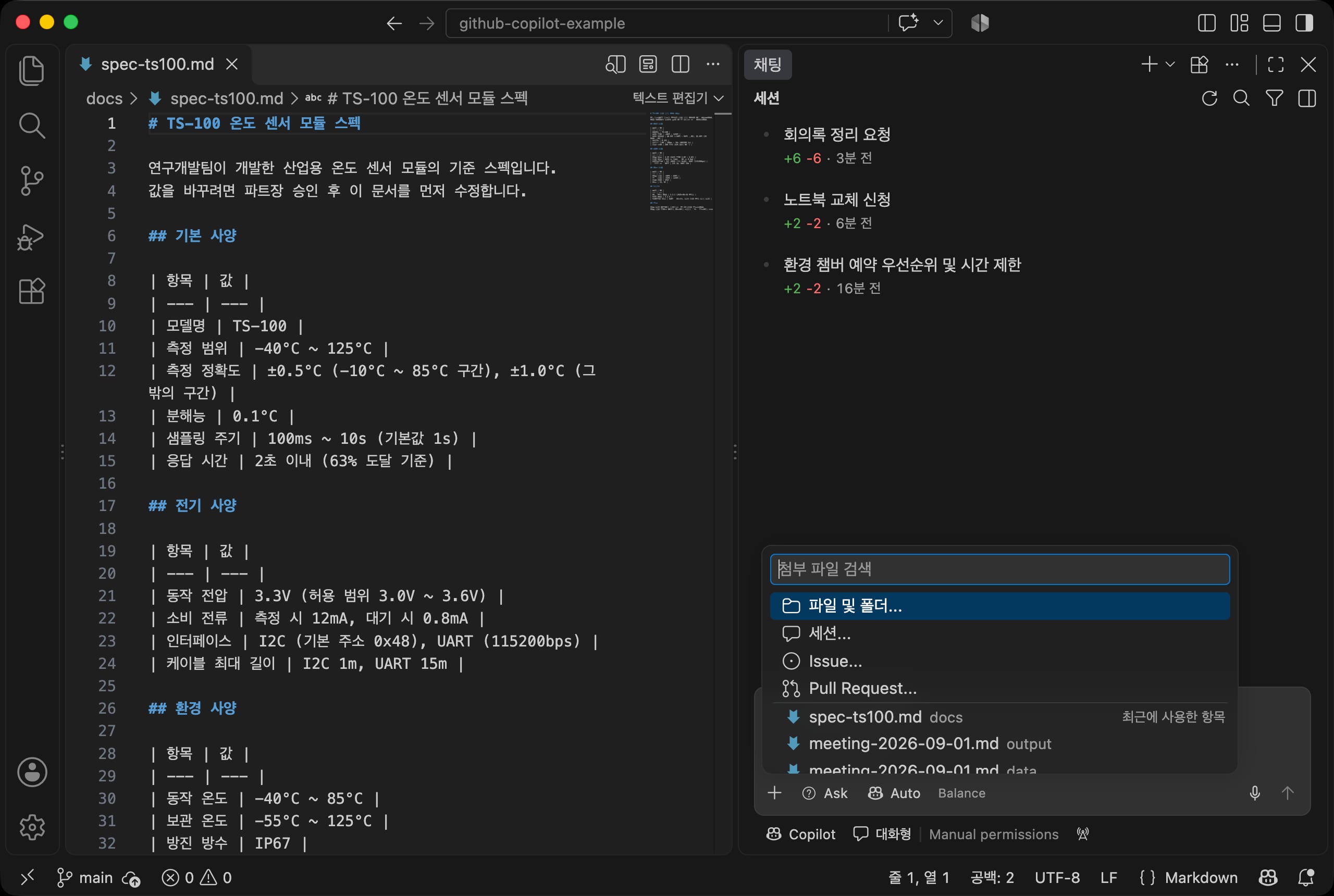
There are several ways to attach context.
- Click
+on the left of the input box and choose files and folders, previous sessions, or GitHub issues and pull requests. - Drag a file from the Explorer into the input box.
- Type
#in the input box and choose a file name.
Even without attachments, the agent searches the repository and reads related files on its own when needed.
To have it refer to a web page, write the address directly in the request.
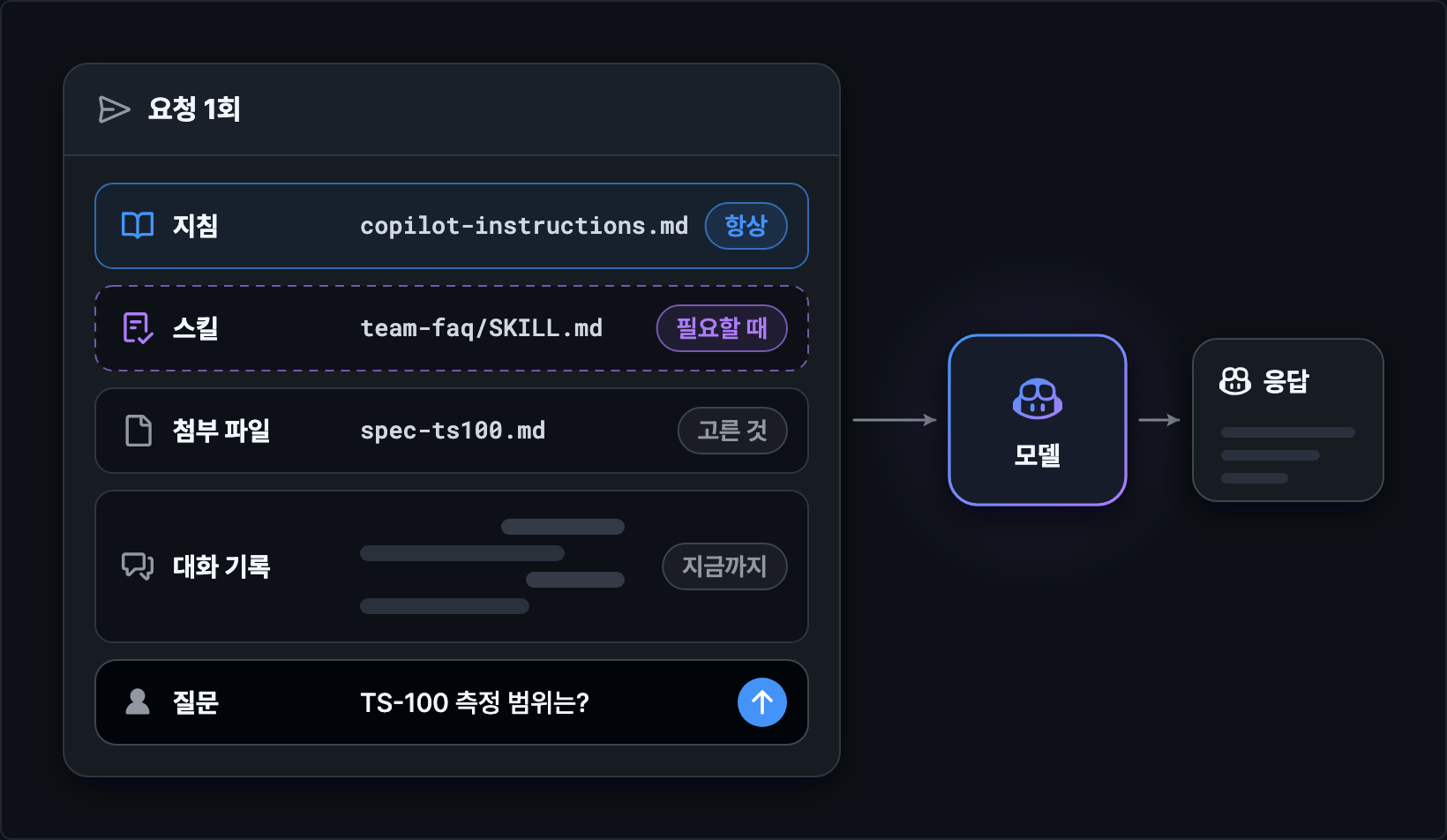
Attached files are not the only thing sent with a single request.
The instruction files covered later are always sent, and skills are read and sent only when needed.
The conversation so far is also sent every time, so when the topic changes, starting a new chat gives better results and saves credits.
# Sessions and undo
Click + at the top to start a new session. Previous sessions stay in the list, and you can reopen them at any time.
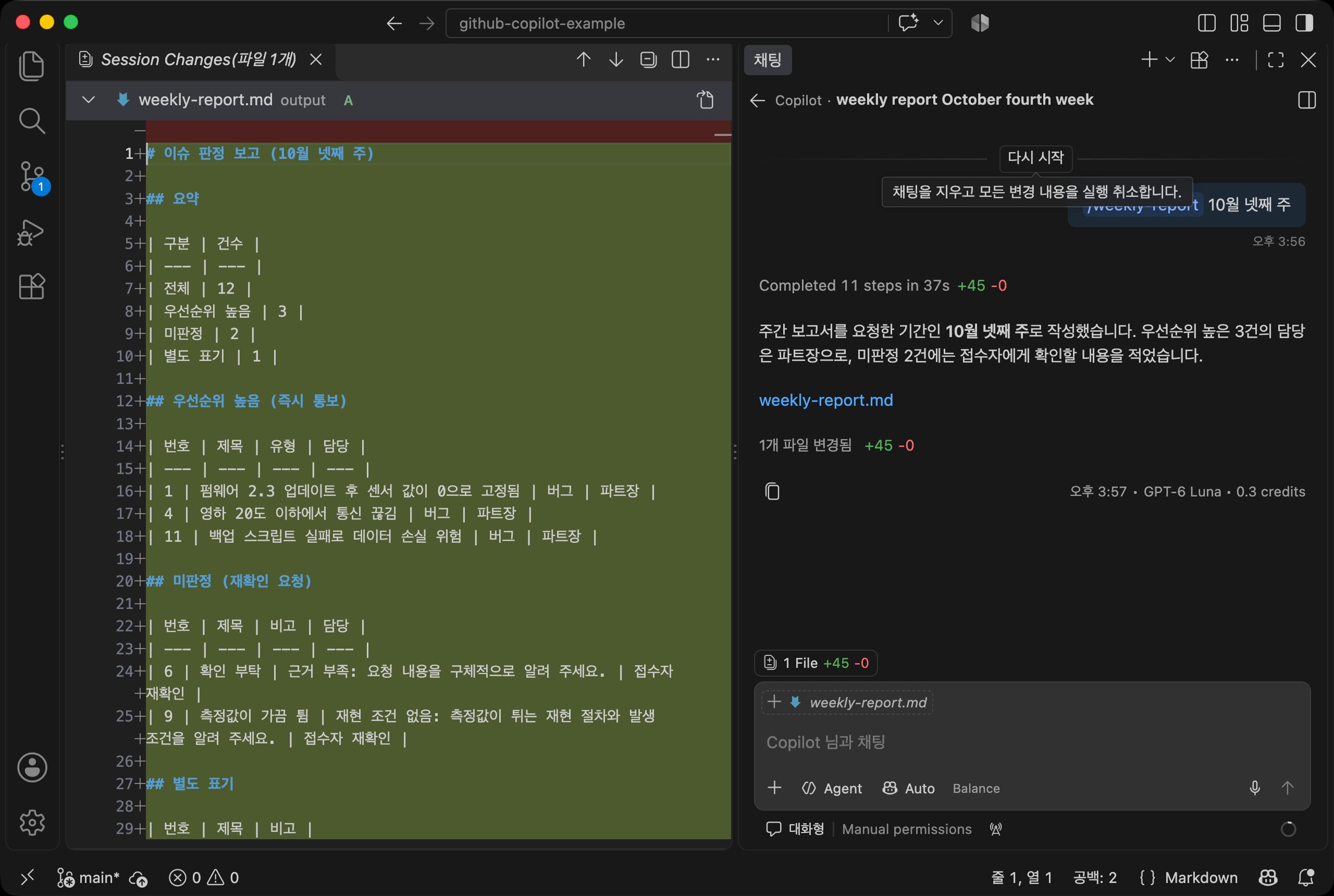
Session titles are set automatically based on the first request, and sessions that changed files also show the number of changed lines.
The Copilot harness saves files as soon as it edits them.
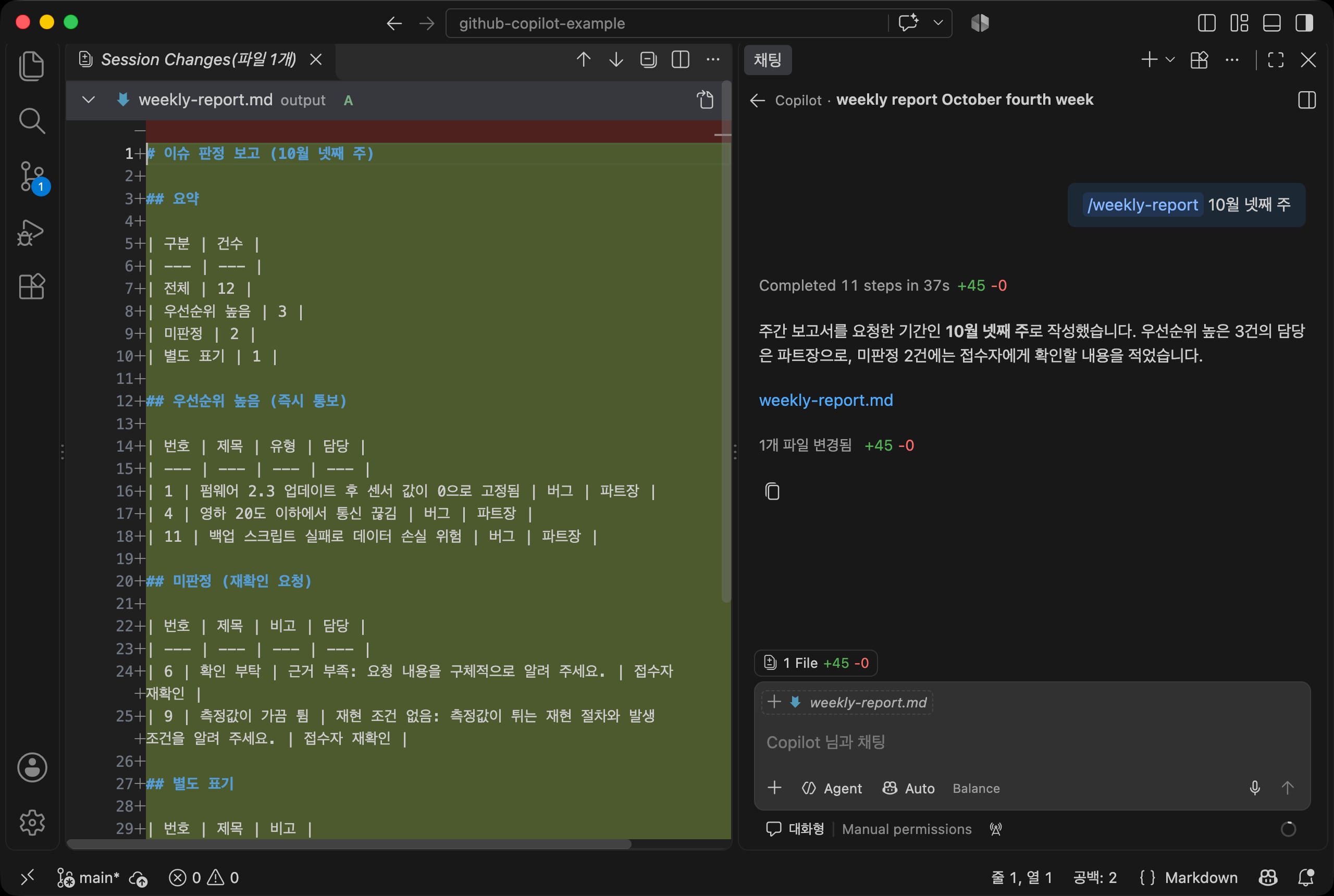
When changes happen, the number of changed files and lines appears above the input box, like 1 File +45 -0. Click it to compare everything changed in this session on one screen.
Green lines were added, and red lines were removed.
If you don't like the result, undo it with the button that appears when you hover over a request.
On the first request it appears as Start Over, which clears the chat and reverts all changes made after that request.
However, undo only reverts files and the conversation. It cannot undo commands that already ran or content already sent to external services.
# Tools and approval
When Agent receives a request, it repeats the cycle of making a plan, using tools, and checking the results.
Your role is only to approve things or change direction along the way.
If you send a message in the input box during a task, it waits in a queue and is applied in order, so you can change direction even while work is in progress.
# Tools
You can check the tools the agent can use under Tools in the agent customization editor.
Click the Open Customizations icon at the top of the chat view and choose Tools.
The Copilot group contains the built-in tools of the Copilot harness (running commands, reading and editing files, searching, and so on) and is always available. The groups below it, such as VS Code, tasks and problems, and the integrated browser, can be turned on and off with switches.
Tools from the MCP servers covered later are also added to this list.
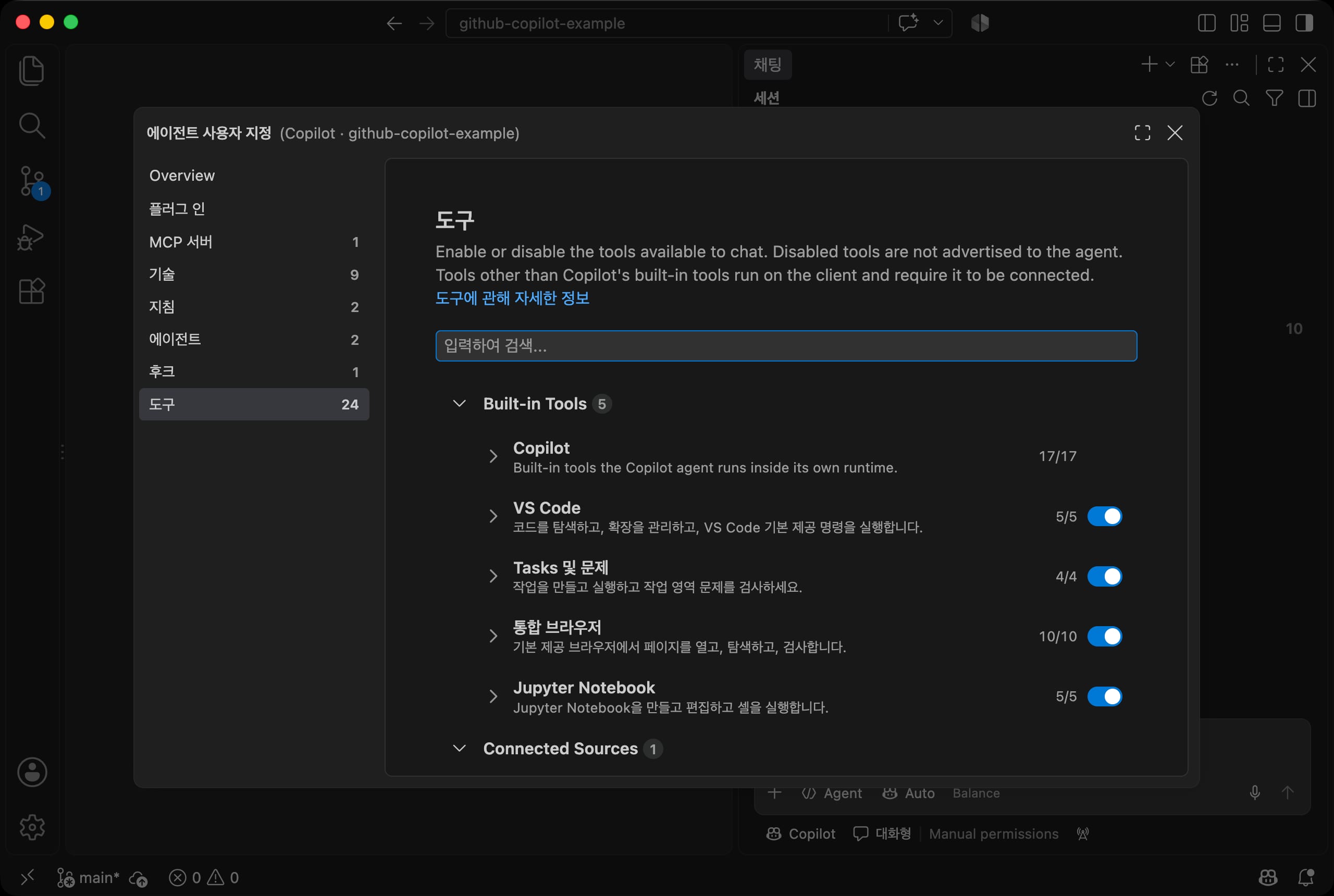
Settings you change here apply not only to the current session but to all future sessions.
To limit tools only for a specific task, choose Ask, or specify the tools to use in a custom agent, which we will build later.
# Approval
Tools that read files or search, and tools that edit files inside the project folder, run without approval.
Tools that can affect your computer, such as terminal commands, show what they will run and wait for approval first.
The Copilot harness sometimes hands command execution to a helper agent, so Subagent may appear next to the title of the approval request.
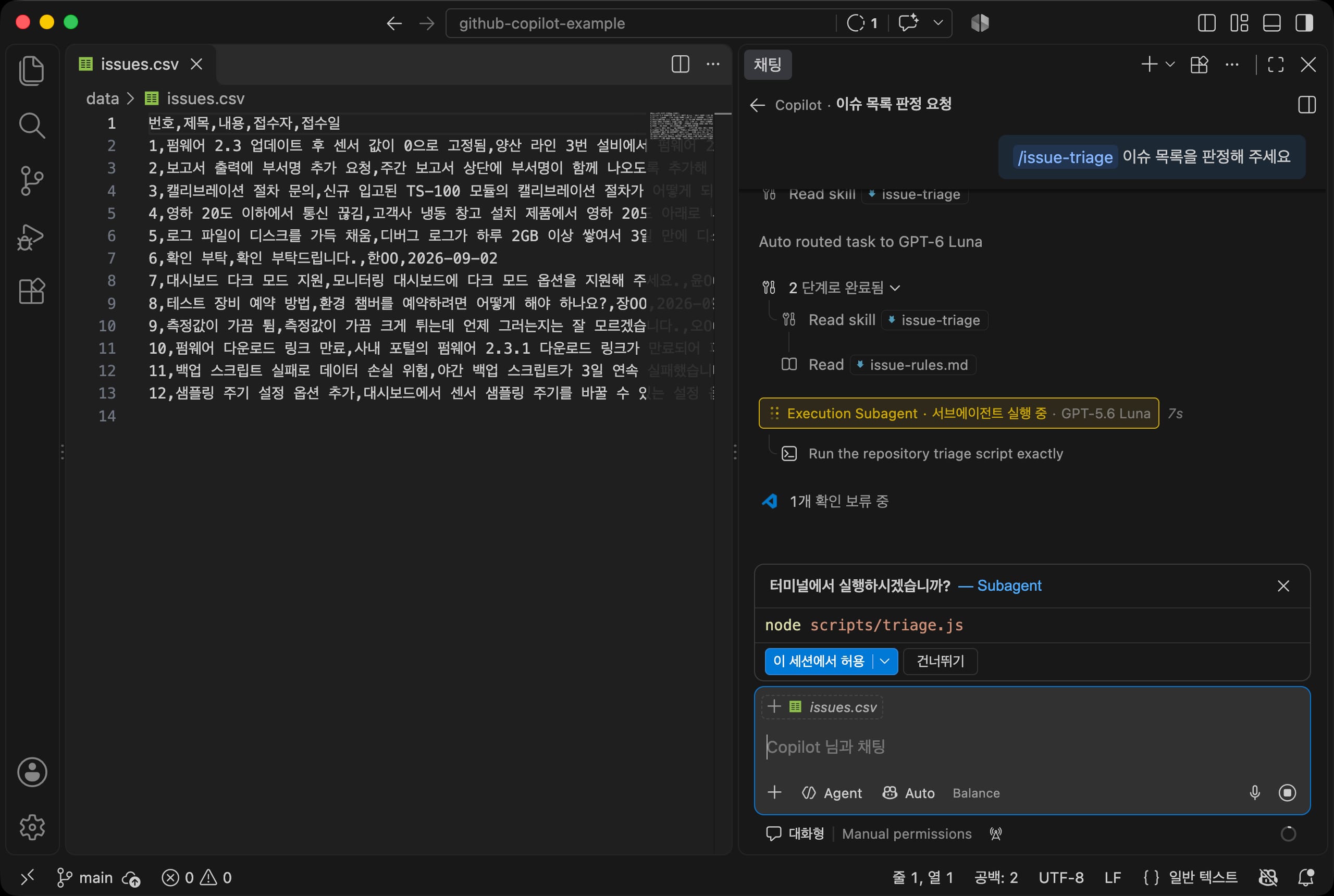
| Button | Behavior |
|---|---|
Allow in this Session |
Runs the same tool (here, all terminal commands) without asking until this chat ends |
Arrow, Allow Once |
Runs it this one time only |
Arrow, Allow Exact Command Line in this Workspace |
Runs the exact same command without asking again in this folder |
Skip |
Moves on without running it |
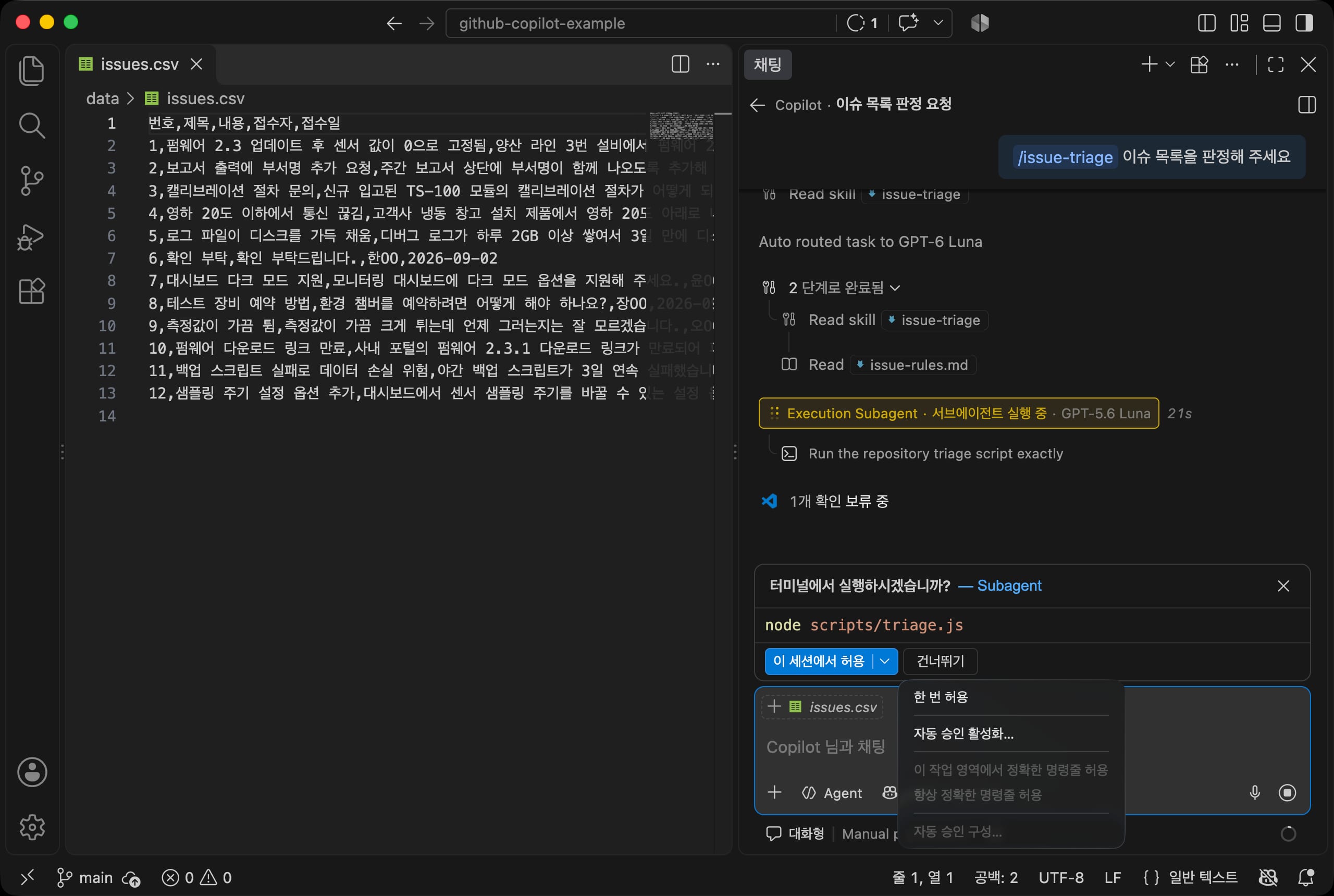
The blue default button is Allow in this Session, so it is easy to just click it, but you can't know in advance which commands will run afterward.
For hands-on practice, we recommend clicking the arrow and choosing Allow Once.
You can also change the approval behavior for the whole session in the permission menu below the input box.
| Permission | Behavior |
|---|---|
| Manual permissions | The default. Actions not covered by auto-approval rules require confirmation |
| Assisted permissions | The language model judges the risk of each tool call and asks for confirmation only for those it does not approve |
| Allow all | Runs all tools without confirmation |
Allow all and Autopilot run even risky actions like deleting files without asking, so use them only in folders you understand well.
How to set approval rules in settings is covered in Validation and permissions later.
After producing a result, the agent sometimes asks for approval to run a check command.
If the check is unnecessary, click Skip. If this keeps happening, add a rule to the instruction file such as "After creating a result file, do not repeatedly run separate check commands."
# Using Claude and Codex
If you already use Claude or ChatGPT, you may wonder whether you can use that subscription in VS Code too.
As we saw earlier, Copilot is a service that borrows models from several companies, and what you pick in the input box and where the cost comes from work separately, so it is easy to get confused.
It becomes clear when you look at the following three things separately.
| Item | Meaning | Where to choose |
|---|---|---|
| Model | The AI that generates answers | The model menu in the input box (Auto) |
| Harness | The way the model is given tools and put to work | The harness menu below the input box (Copilot) |
| Billing account | Where the cost comes from | The tabs at the top of the model menu (Copilot, ChatGPT, etc.) |
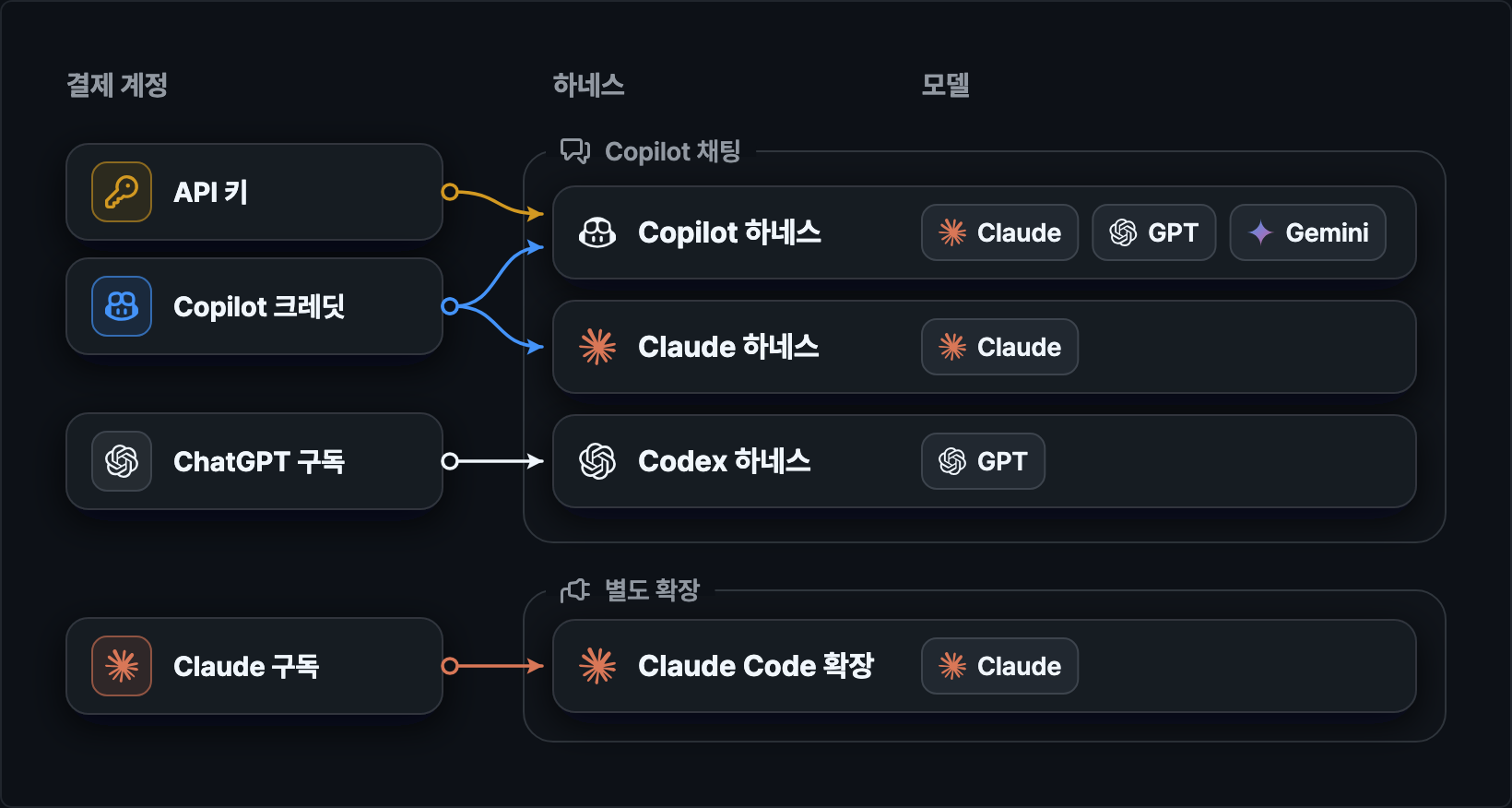
Depending on the account you have, use it as follows.
| Account you have | How to use it | Where the cost comes from |
|---|---|---|
| Copilot plan | Choose Claude, GPT, etc. from the model menu, or select Claude as the harness |
Copilot credits |
| ChatGPT account | Choose Codex as the harness and pick a model from the ChatGPT tab in the model menu |
ChatGPT subscription |
| Claude Pro, Max, or Ultra subscription | Use the Claude Code extension instead of Copilot | Claude subscription |
| API key from each company | Register the key in the language models screen | That company's API fees |
# Claude harness
The Claude harness works the same way as Claude Code (the Claude Agent SDK).
The cost comes out of your Copilot credits, so you can use it with just a Copilot plan.
- Open a new chat with
+at the top of the chat view. - Click
Copilotbelow the input box to open the harness menu, and chooseClaude. - The first time you choose it, a
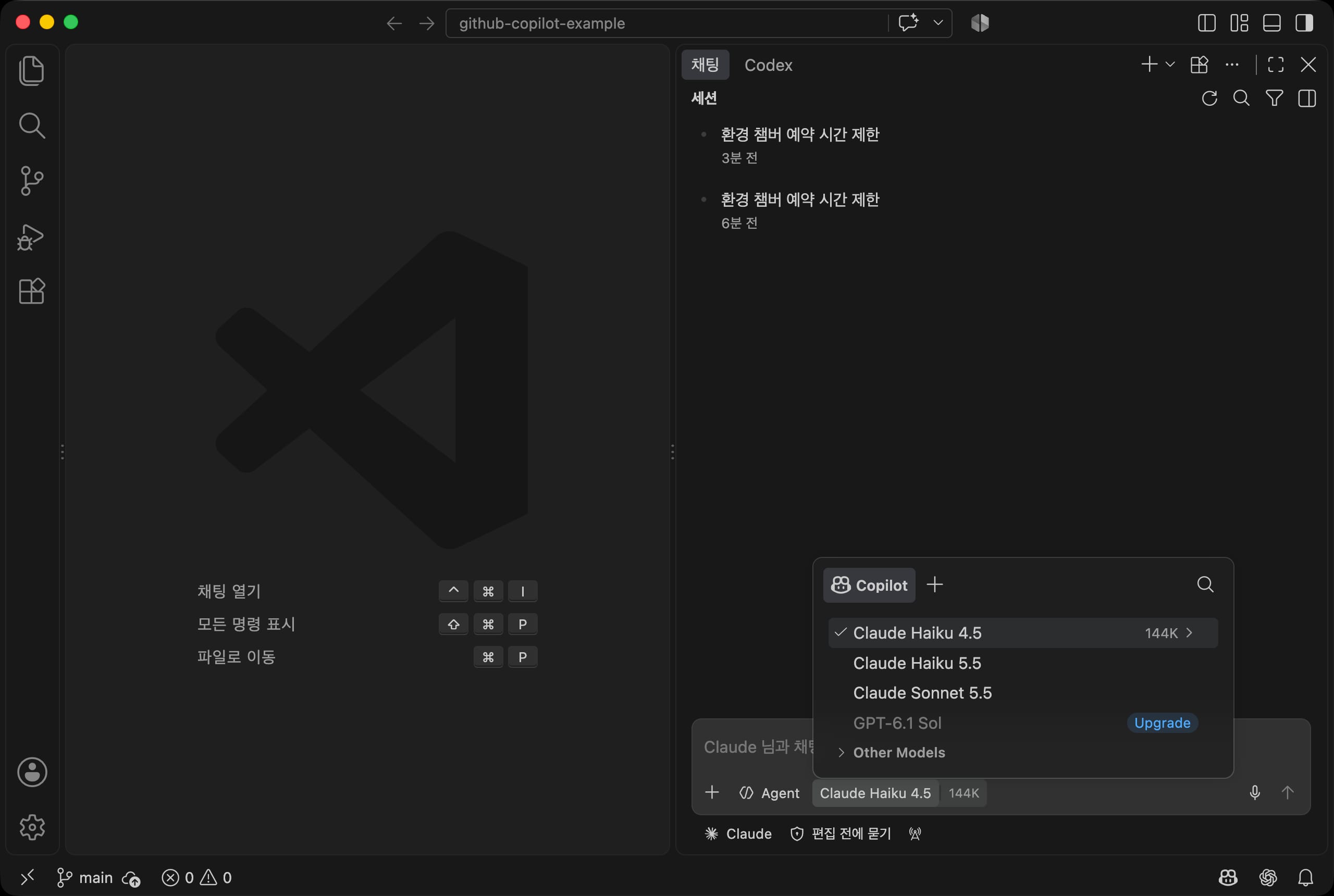
Download the Claude Agentprompt appears. ClickDownloadto download the required files. - Choose a Claude model from the model menu and send a request.
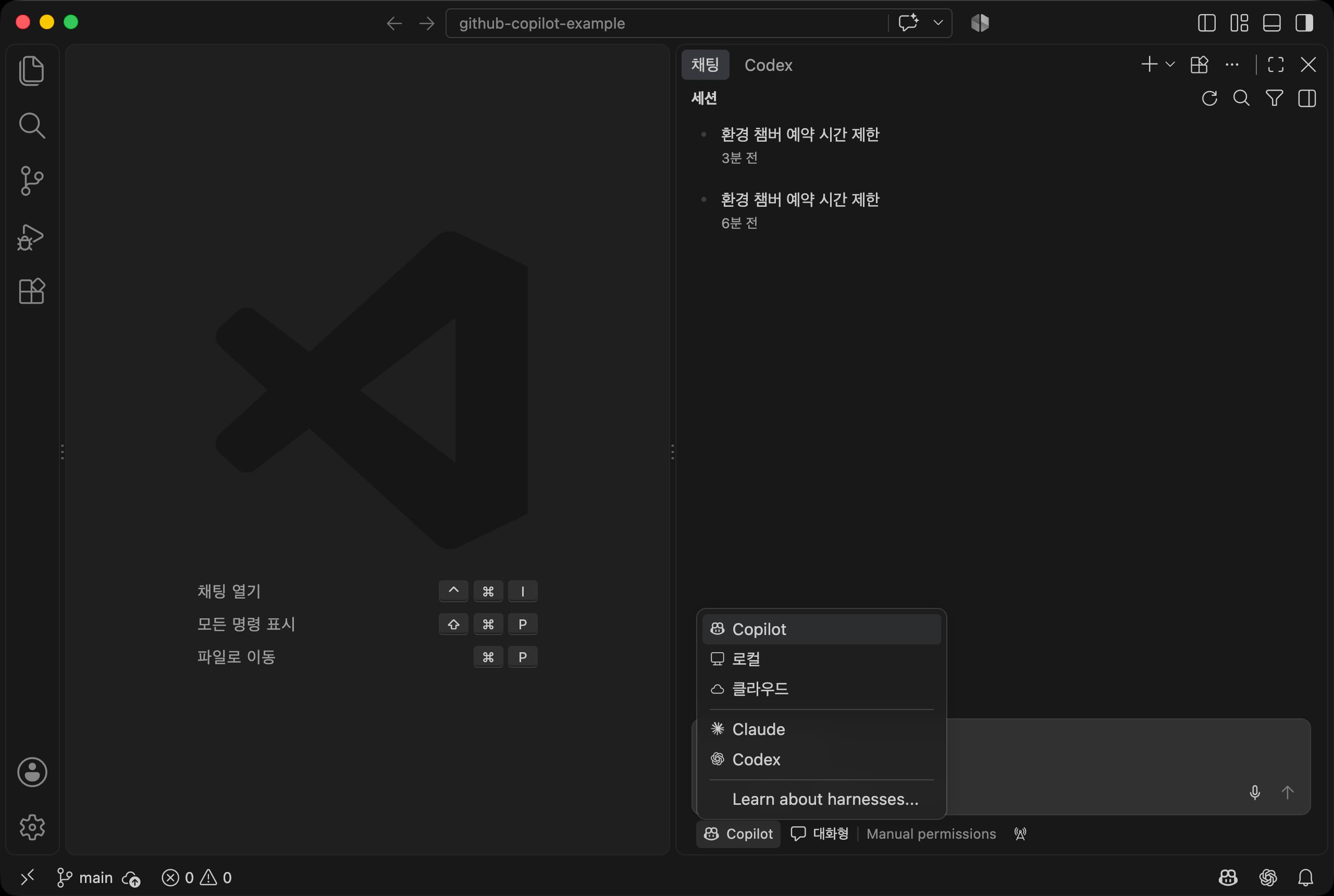
The model menu shows only the Copilot tab.
This means that even with the Claude harness, the model is borrowed through Copilot and the cost comes out of your Copilot credits.
When you send a request, Claude appears before the chat title, and the model used and the credits are shown below the response.
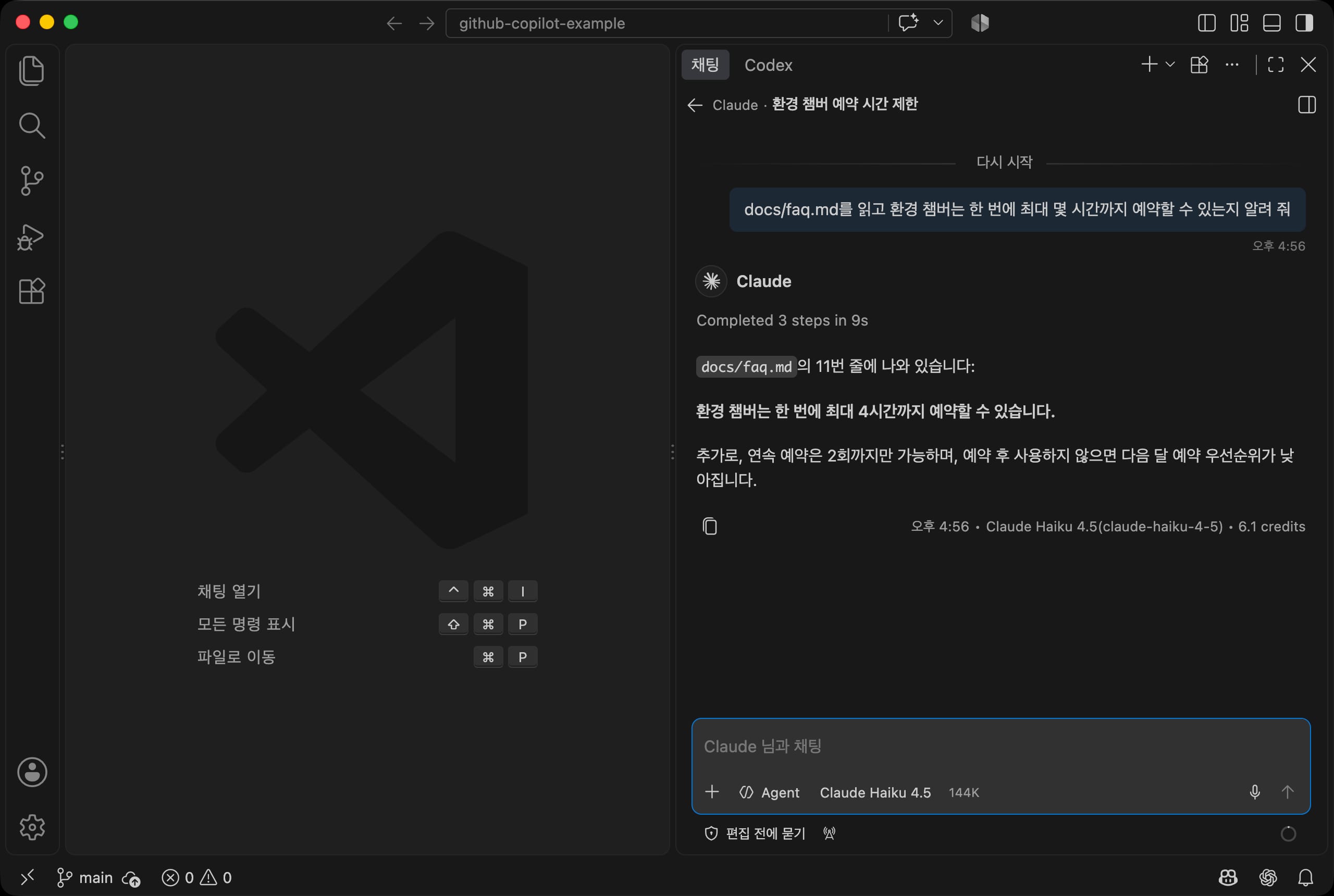
Keep two things in mind when using the Claude harness.
- It can use more credits. One short question we tested for this post used 6.1 credits, far more than a similar FAQ question asked with
Autoin the Copilot harness (0.2 credits). - It follows Claude Code's rules. It reads
CLAUDE.mdand the.claudefolder, and the.githubskills in this post's example did not appear in the/list. The assistant examples in this post run in the Copilot harness.
# Codex harness
The Codex harness works the way OpenAI's Codex does.
If you connect a ChatGPT account, the cost is covered by your ChatGPT subscription, and you can use it even with a free ChatGPT account.
- Choose
Codexfrom the harness menu. The first time you choose it, aDownload the Codex Agentprompt appears. ClickDownload. - Connect a ChatGPT account. If you are already signed in to the Codex CLI with a ChatGPT account, that account is connected without a separate sign-in. If not, click
Sign in to ChatGPTin the account menu at the bottom left. - Open the model menu, and a ChatGPT tab appears next to the
Copilottab. When you choose a model from the ChatGPT tab,(ChatGPT)is added after the model name. - Send a request.
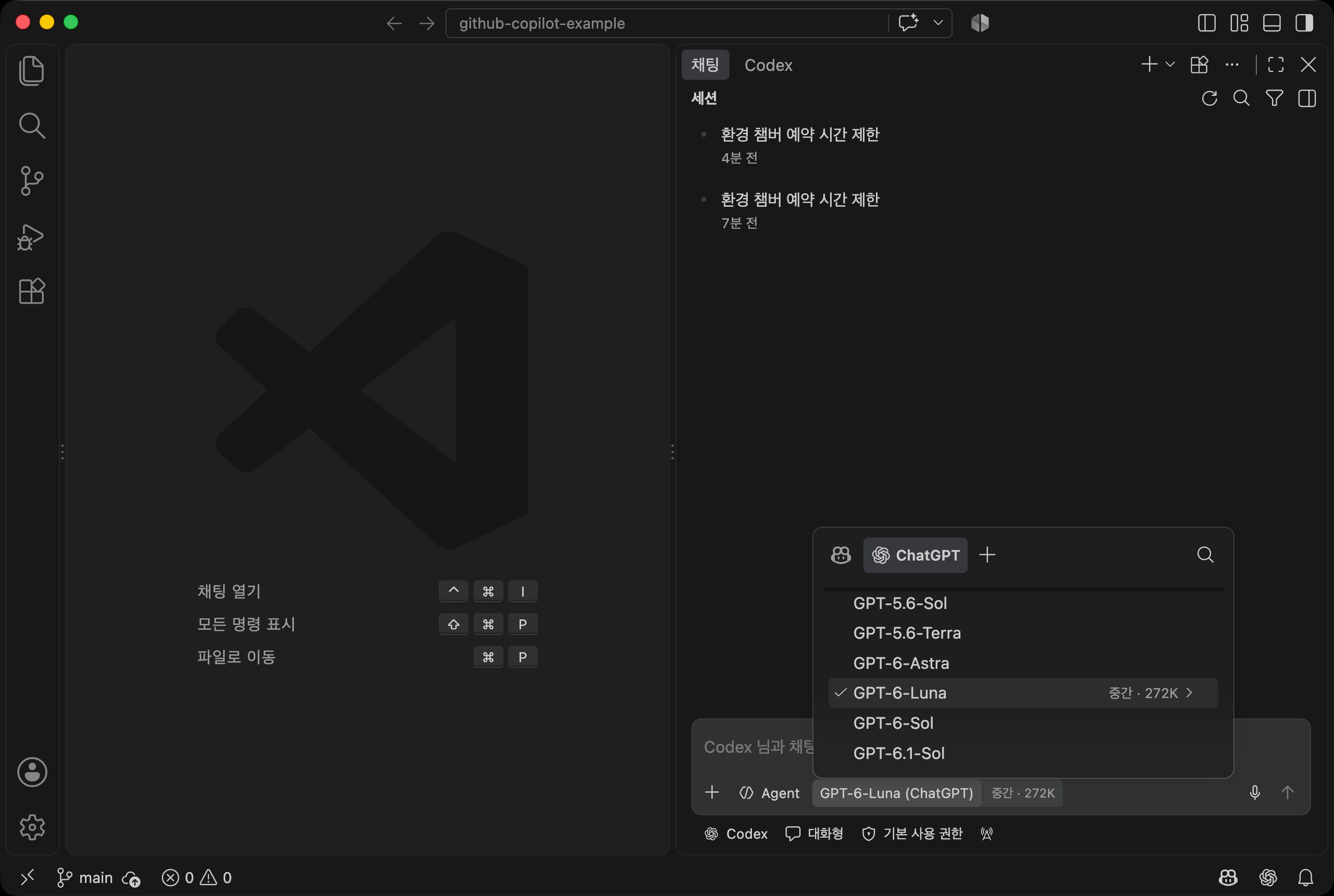
Below the response, only the model name is shown, with no credits.
This means it was covered by the ChatGPT subscription, not Copilot credits.
The Codex harness also reads the skills in the .github folder, and as shown below, it answered with sources attached, following the rules of the team-faq skill.
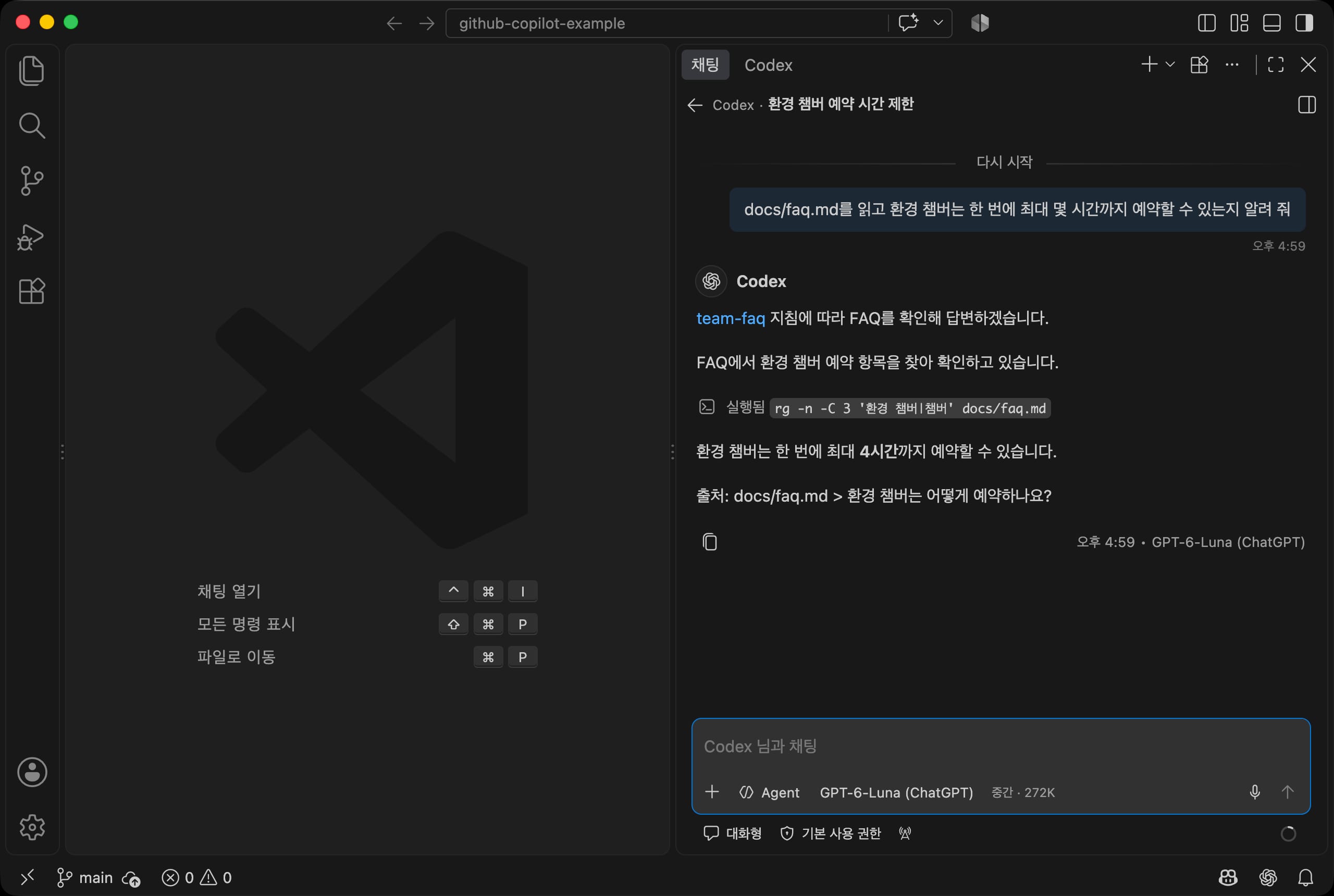
If Codex is not in the harness menu, turn on chat.agentHost.codexAgent.enabled and chat.editor.codex.preferAgentHost in settings and restart VS Code.
It is still an experimental feature, so the setting names and steps may change. You can also install and use OpenAI's Codex extension.
If you choose a model from the Copilot tab in the Codex harness, it is charged to your Copilot credits, and in that case you need Copilot Pro+ or higher.
# Claude subscriptions and API keys
Claude Pro, Max, and Ultra subscriptions cannot be connected to Copilot.
The VS Code documentation lists only two billing options for the Claude harness: a Copilot plan and an API key.
To work in VS Code with a Claude subscription, install the Claude Code extension provided by Anthropic.
It runs as a separate panel from Copilot chat. For details, see Claude Code Essentials.
If you have an API key from a company, click + at the top of the model menu to open the language models screen, choose the company under Add Models, and enter the key.
You can choose Anthropic, Azure, Google, OpenAI, OpenRouter, xAI, and others, and registered models are charged to that company's API fees.
This screen also shows the credit cost of each model, but models connected through a ChatGPT account show no credit cost.
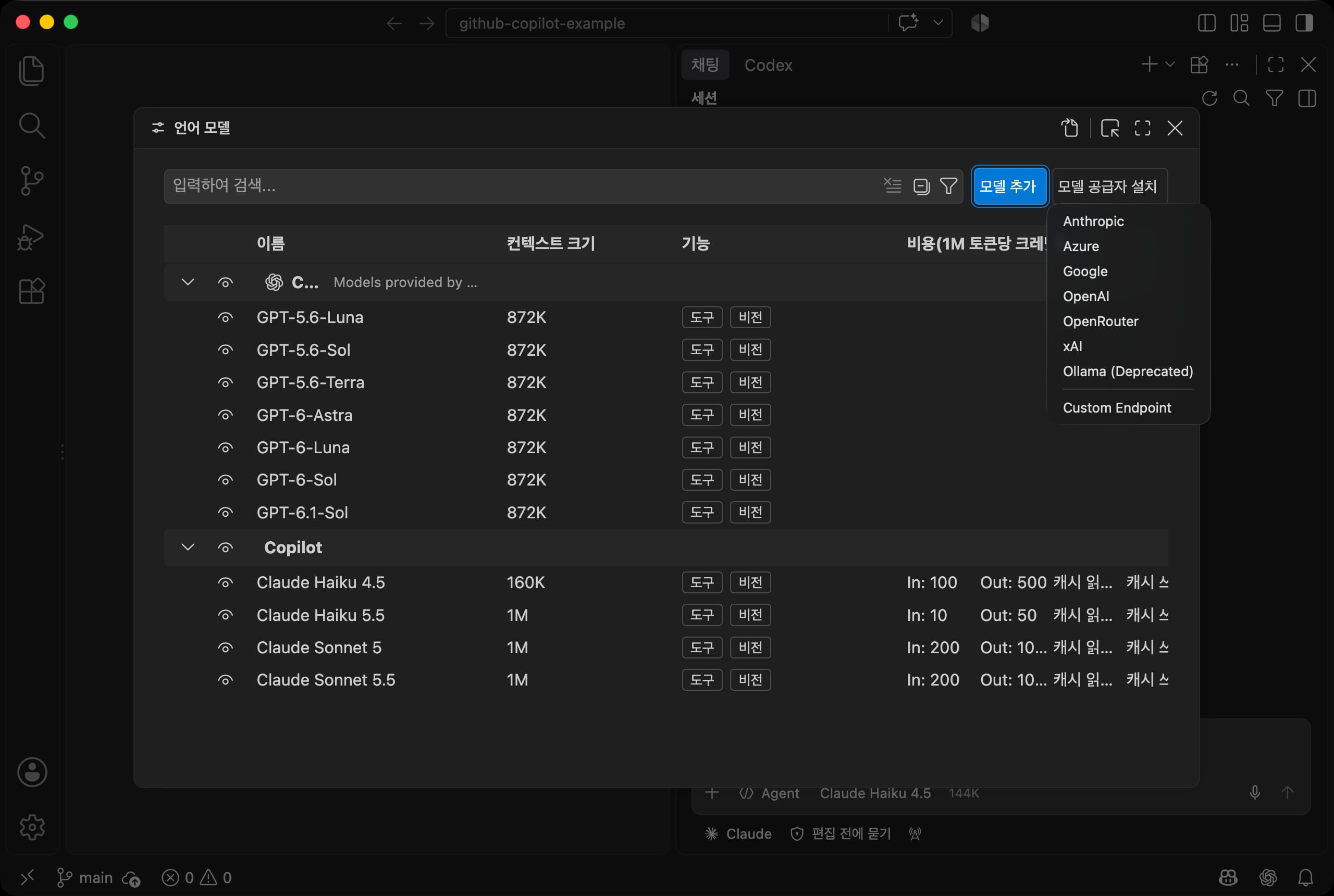
Even if you connect models with an API key, inline suggestions and semantic repository indexing still need the Copilot service.
To use API key models in the Copilot harness, chat.agentHost.byokModels.enabled must also be turned on in settings.
# Customization files
So far, we have looked at using Copilot as needed, one request at a time.
Building an assistant means saving rules and procedures as files so you don't have to explain them every time.
Copilot reads the following four types of customization files from the repository's .github folder.
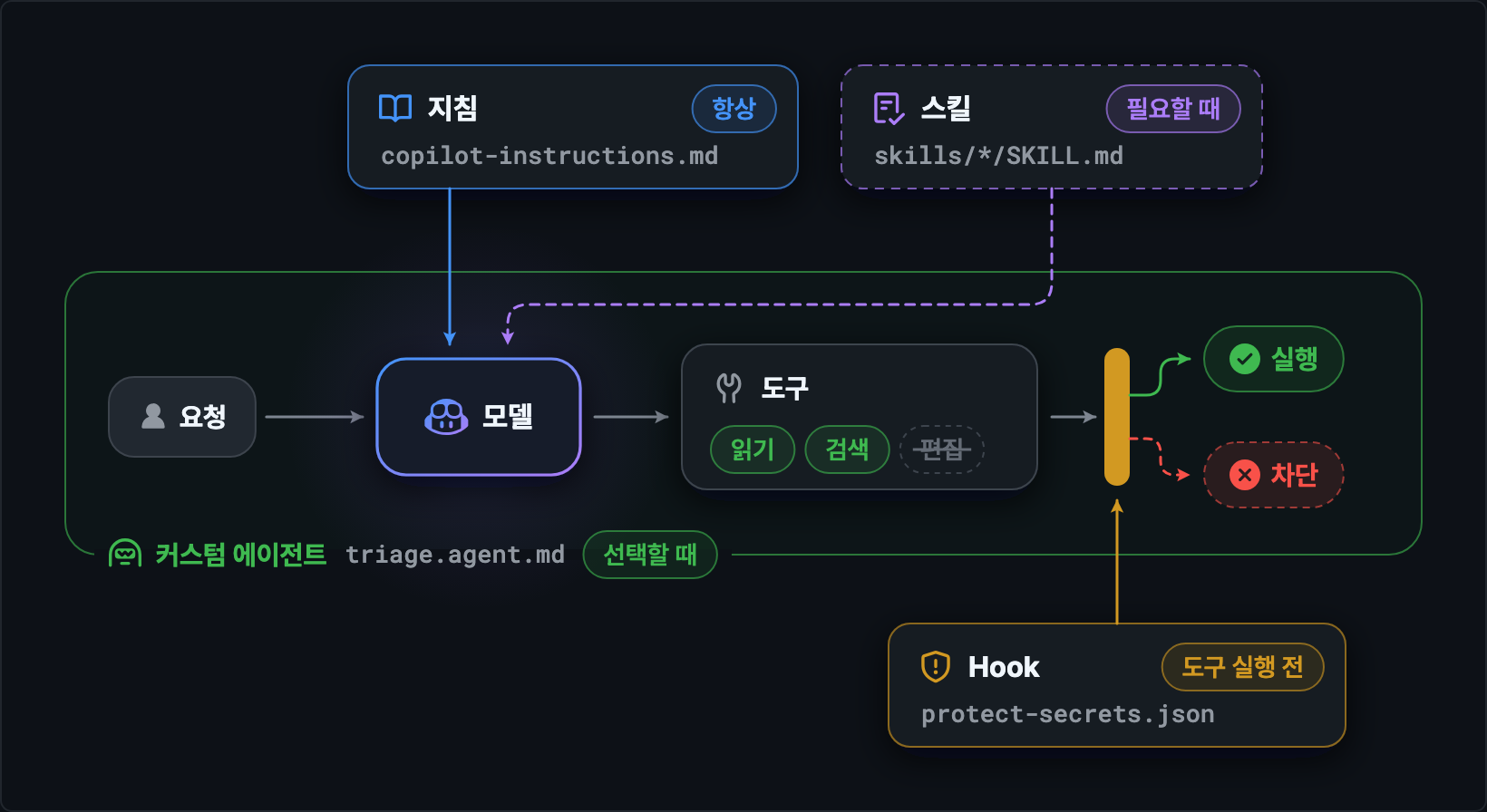
| Type | File | When it applies |
|---|---|---|
| Instructions | .github/copilot-instructions.md, .github/instructions/*.instructions.md |
Automatically with every request (.instructions.md when working on files that match applyTo) |
| Skills | .github/skills/*/SKILL.md |
When judged relevant to the request, or when called with /name |
| Custom agents | .github/agents/*.agent.md |
When selected in the agent menu |
| Hooks | .github/hooks/*.json |
At set points, such as right before a tool runs |
Except for hooks, these are all Markdown files, so you can write them without programming knowledge.
Click the Open Customizations icon at the top of the chat view to open the agent customization editor, where you manage these files in one place.
If you create a new file with the + button on each screen, it is created in the right location with the right format.
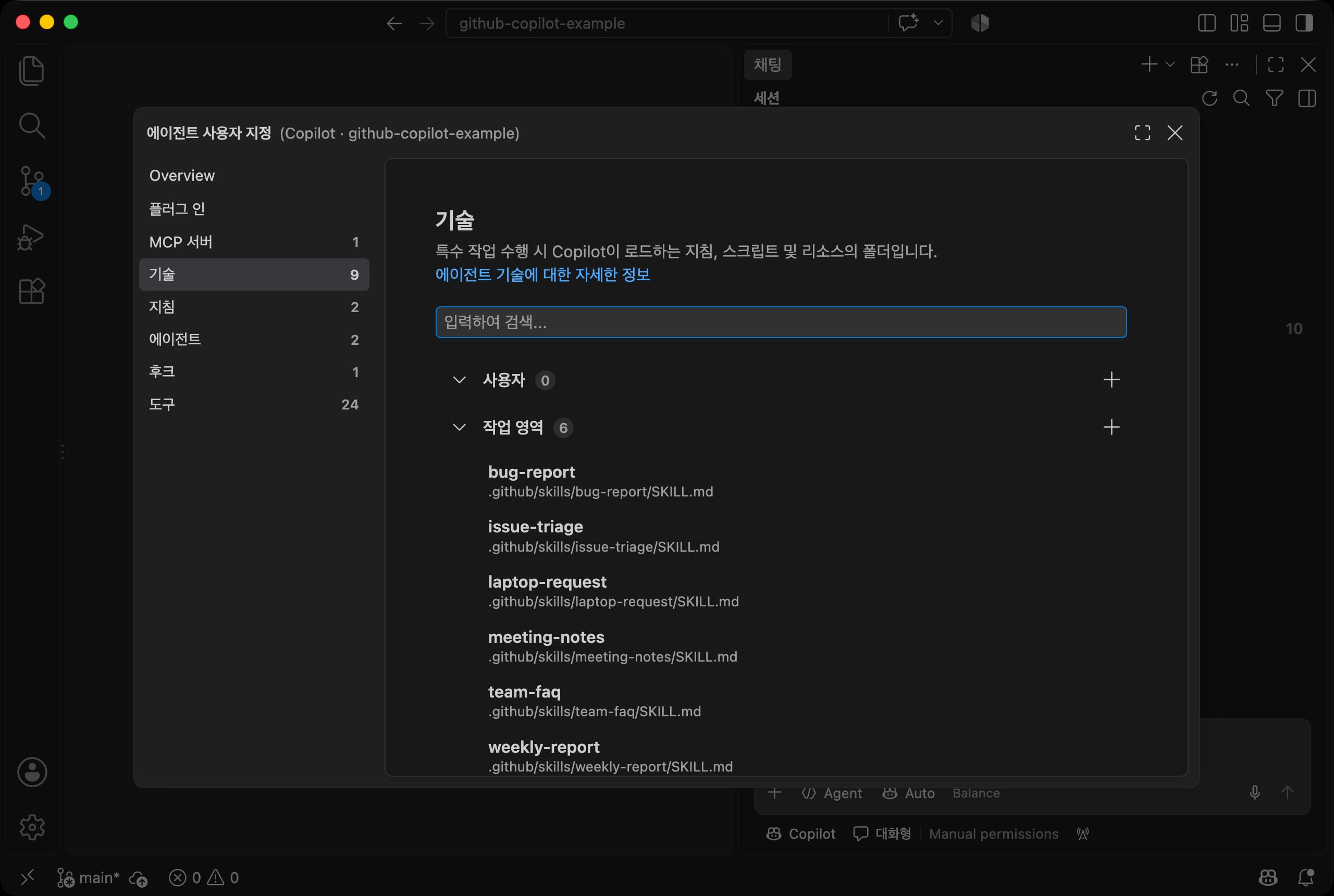
In the Korean UI, skills appear as 기술 and hooks as 후크.
They are the same features, so don't confuse them.
# Instruction files
Instructions are rules that are automatically attached to every request.
Write here what your team would otherwise have to repeat every time, such as the answer language, where to save results, files not to touch, and how to handle sensitive information.
The example's instruction file looks like this.
123456789101112131415161718192021222324252627282930# Work rules for the R&D team assistant This repository is an example of handing off the R&D team's repetitive work to GitHub Copilot. The rules below apply to every request. ## How to answer - Always answer in Korean. Write code comments in Korean too. - When answering based on documents, also show which item in which file you referred to. - If there is no document to back up the answer, do not guess. Say it is "not in the documents" and recommend checking with the person in charge. - If required information is missing, ask about all the missing items at once before starting the work. - After creating a result file, read it again only once to check, and do not repeatedly run separate check commands. ## File rules - Save generated results (forms, meeting notes, triage tables, reports) in the `output/` folder. - Documents in the `docs/` folder are reference documents. Do not edit them unless asked. - Do not edit the source data in the `data/` folder. ## Code rules - Scripts use only built-in Node.js modules. Do not install external packages. - Triage logic follows `docs/issue-rules.md`. Do not make up criteria that are not in the rules. - Always record the reason along with the triage result. If unsure, mark it as untriaged. ## Sensitive information - Do not write full names, employee IDs, phone numbers, or email addresses in results. Keep them as they appear in the source (`김OO`). - Confirm with the user first before sending data to external services or uploading it to the internet. - Do not read or print `.env` files or secret values.
Here are some guidelines that help when writing them.
- Write the reason for each rule. If Copilot knows the reason, it can make sensible decisions even in exceptional cases.
- Don't write what tools already enforce (indentation, quotes, and so on). Focus on what Copilot can only know if a person tells it.
- Keep it short. This file is attached to every request, so the longer it gets, the more credits each request uses.
Rules that apply only to specific files go in separate .instructions.md files in the .github/instructions folder.
They apply only when working on files that match the pattern in applyTo in the front matter.
1234567891011--- name: Script writing rules description: Rules applied when creating or editing Node.js scripts in the scripts folder applyTo: "scripts/**/*.js" --- - Use ES module (`import`) syntax, and use only built-in modules such as `node:fs` and `node:path`. - Keep input and output file paths as constants at the top of the file. - When finished, print a summary of the number of items processed and the result file path to the console. - If an input file is missing, explain what needs to be run first and exit. - Add a one-line Korean comment to each function describing what it does.
You can check whether instruction files are recognized on the Instructions screen of the agent customization editor.
In the example, the two files above are shown.
If you are starting a new repository, you can also type /init in chat to get a draft of instructions based on an analysis of the repository.
# Skills
A skill puts the steps and reference material for a specific task into one folder.
If instructions say "always do it this way," a skill says "when this kind of request comes in, follow these steps."
Create a folder named after the skill under .github/skills, and put a SKILL.md file inside it.
1234567891011121314.github/skills/ ├── team-faq/ │ └── SKILL.md ├── laptop-request/ │ ├── SKILL.md │ └── form.md # Form that the skill refers to ├── meeting-notes/ │ └── SKILL.md ├── issue-triage/ │ └── SKILL.md ├── weekly-report/ │ └── SKILL.md # Runs only when called as /weekly-report └── bug-report/ └── SKILL.md # Runs only when called as /bug-report
SKILL.md has two parts: the frontmatter and the body.
In the frontmatter, name is the identifier you use to call the skill as /name, and description is what Copilot uses to decide when to use the skill.
Use only lowercase letters, numbers, and hyphens for name, and make it the same as the folder name.
At first, Copilot reads only the name and description of every skill.
When a request matches a skill's description, it reads the body, and it reads files referenced in the body only when it actually needs them.
This is why the amount sent with each request does not grow much even when you have many skills.
So write the description clearly, with both "what it does" and "when to use it."
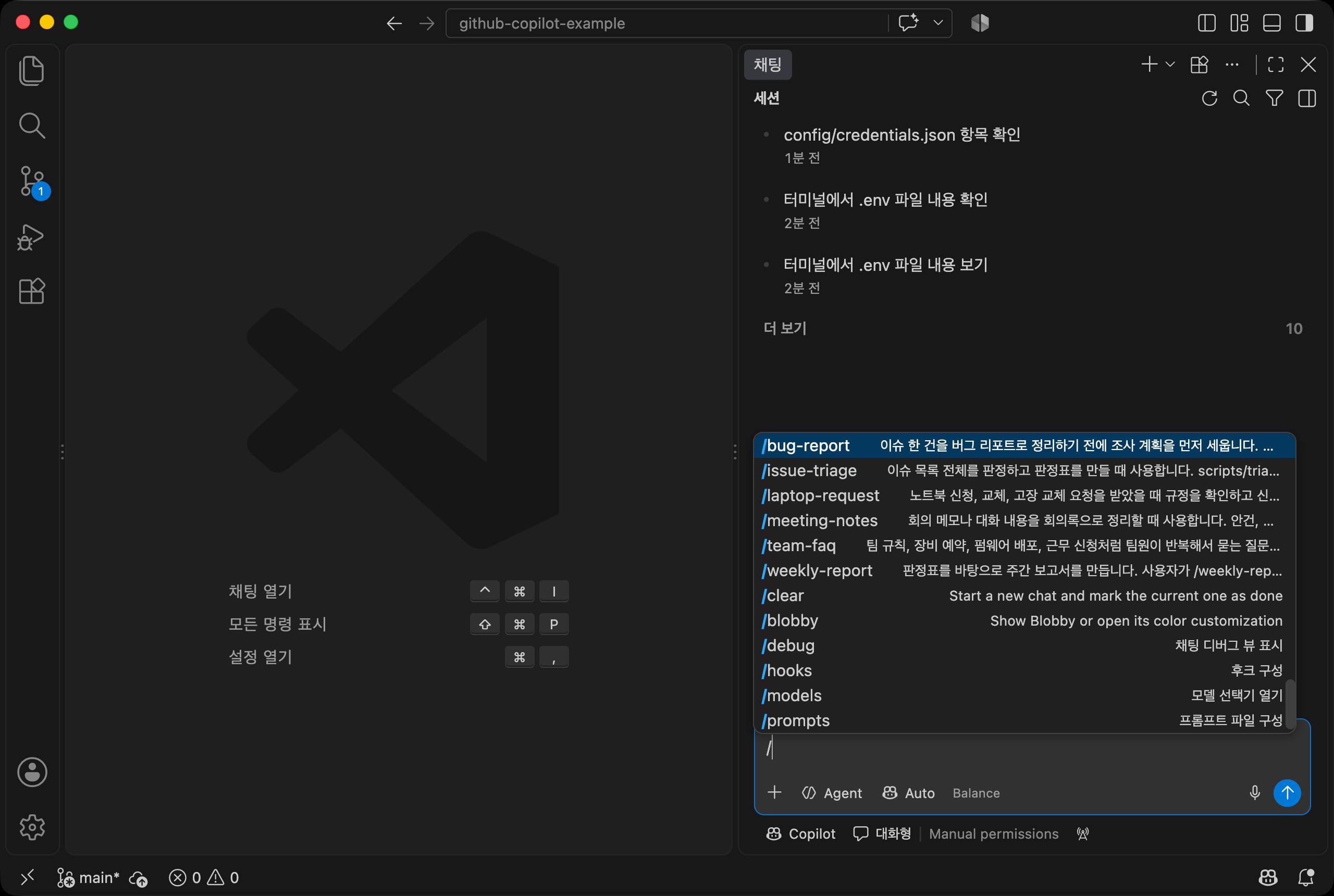
When you type / in the chat, the repository's skills appear with their descriptions, along with the built-in commands.
Keep typing the start of a skill name to narrow the list.
# Team FAQ assistant
The first skill is an assistant that answers questions team members ask again and again.
Its answers are based only on docs/faq.md, and it must not make up anything that is not in the document.
1234567891011121314151617181920--- name: team-faq description: Use when answering questions team members ask often, such as team rules, equipment booking, firmware deployment, and work requests, based on docs/faq.md. --- # Team FAQ assistant Answer team members' questions based on `docs/faq.md`. ## Steps 1. Read `docs/faq.md`. 1. Find the item closest to the question and answer with its content. 1. At the end of the answer, show the title of the item you used in the format `Source: docs/faq.md > Item title`. ## Rules - Do not make up anything that is not in the FAQ. Say "This is not in the FAQ" and suggest checking with the group lead. - If a question covers several items, answer each item separately. - Answer questions about procedures with an ordered list.
In Agent mode, type the skill name together with your question.
1/team-faq If environmental chamber bookings overlap, who gets priority? And what is the maximum booking length in hours?
Copilot reads the skill, answers each item based on the FAQ document, and shows the source at the end.
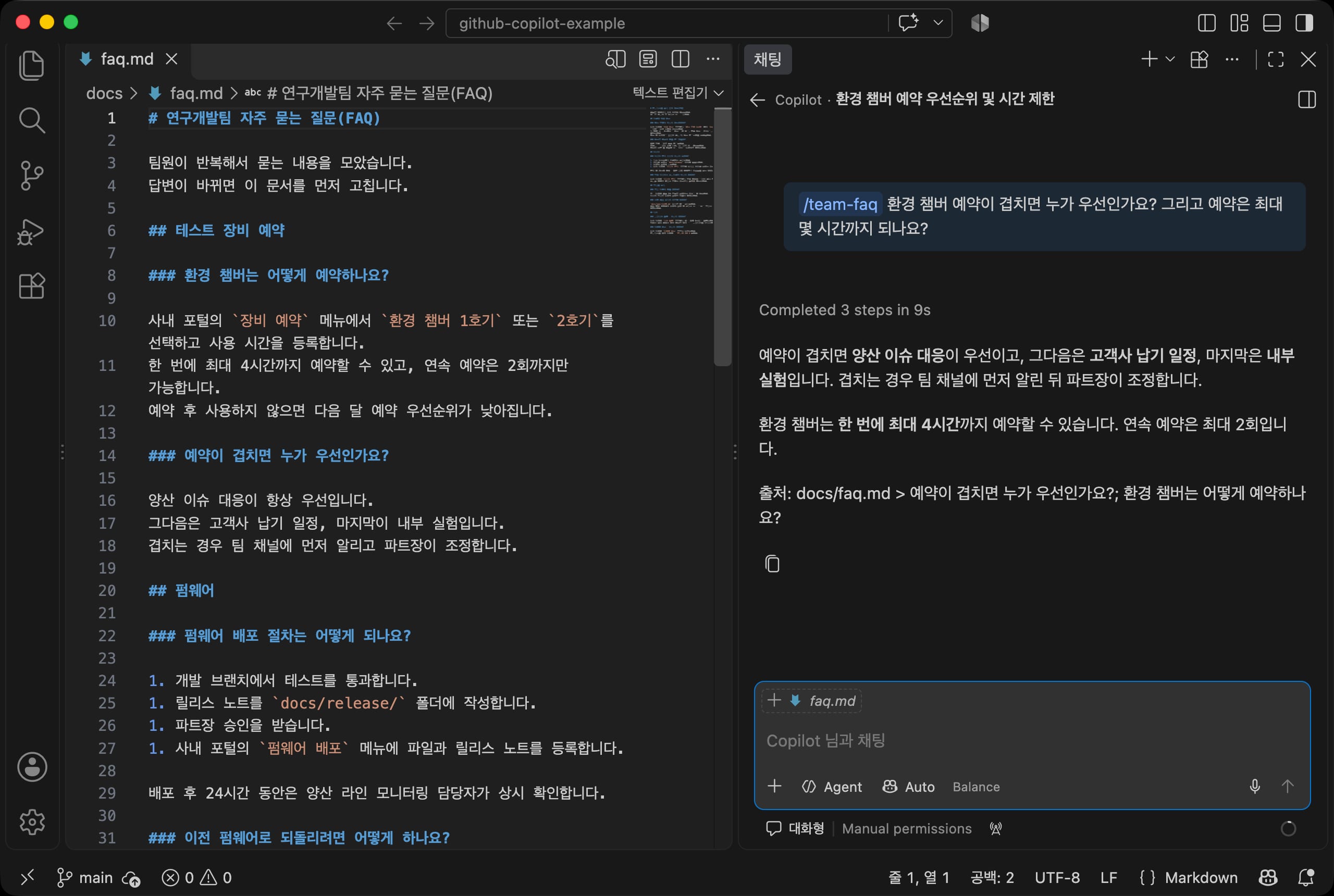
Try asking a question that is not in the FAQ, too.
If it answers that it is "not in the document" and suggests checking with the person in charge, the skill is following its rules.
# Laptop request form
The second skill collects the needed information from a request, fills in a form, and saves it as a file.
The form is form.md inside the skill folder, and the policy comes from docs/laptop-policy.md.
123456789101112131415161718192021222324252627--- name: laptop-request description: Use when you get a request for a new laptop, a replacement, or a replacement for a broken one, to check the policy, fill in the request form, and save it to the output folder. --- # Laptop request form Collect the needed information from the user's request and fill in the `form.md` form. ## Steps 1. Check who can apply and the required fields in `docs/laptop-policy.md`. 1. Find the required fields below in the user's request. - Applicant name - Department (group) - Reason (one of: new hire, replacement, broken) - Preferred model (one of: Standard 14-inch, Performance 16-inch, Lightweight 13-inch) - Date needed 1. If any field is missing, do not create the form. Ask for only the missing fields, all at once. 1. When all fields are filled, read `form.md` in this folder and fill it in using the same format. 1. Save it as `output/laptop-request-<applicant>.md`, and also point out anything that does not match the policy. ## Rules - If the reason is replacement and the laptop was issued less than 4 years ago, explain that it does not meet the policy. - For the Performance 16-inch model, explain that a justification from the group lead is required. - Write the name exactly as the user gave it, and do not ask for an employee ID or contact details.
Try a request with some information left out on purpose.
1/laptop-request I want to request a laptop replacement. My name is Kim OO and I'm in the Firmware group.
Following the skill's steps, it reads the policy and asks for the missing fields (preferred model, date needed) all at once with question cards.
For fields with choices, pick a number, type the rest into the input box, and click Submit.
The number of questions and how they are shown can change a little each time you run it.
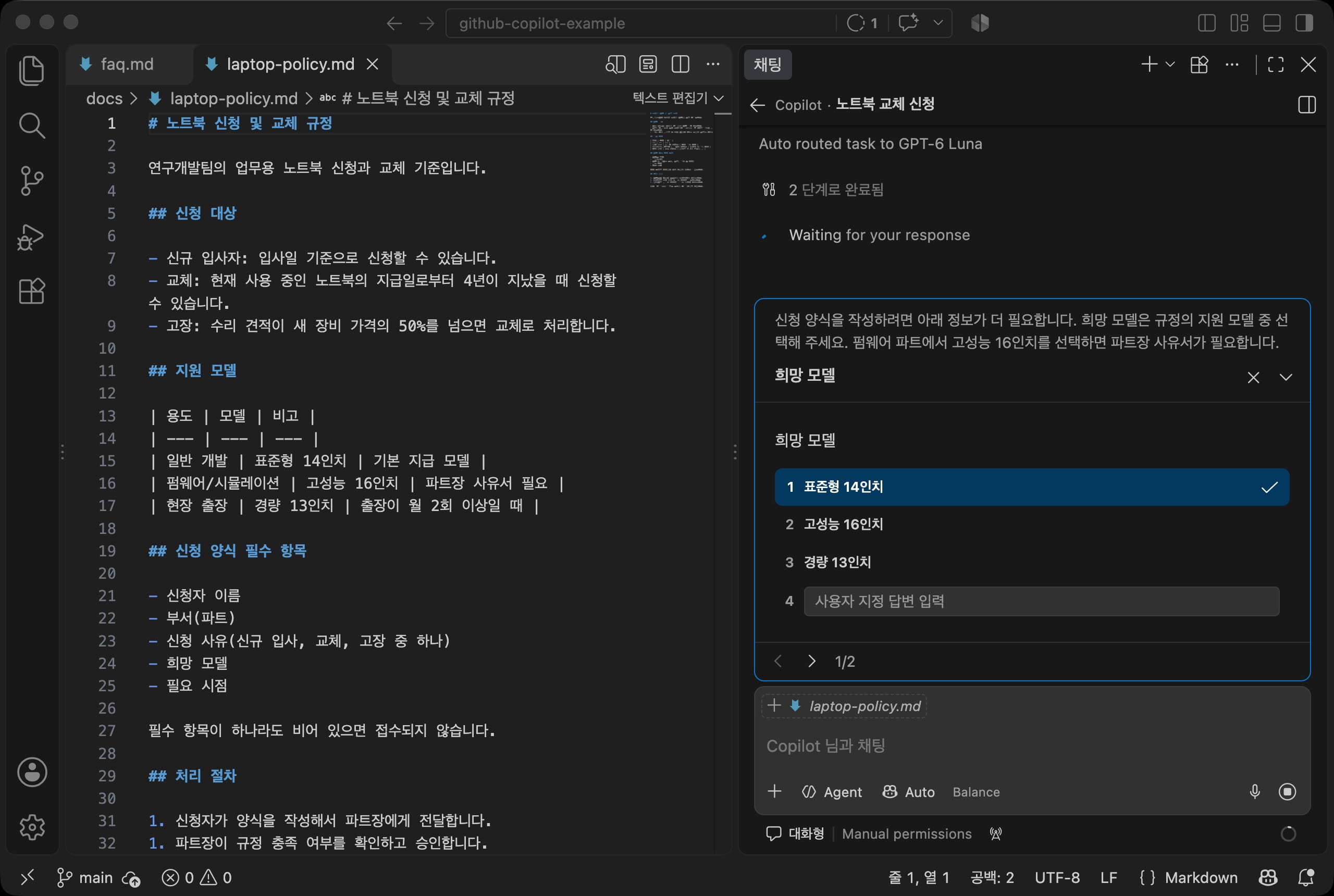
For the preferred model, I chose Performance 16-inch, and in the date needed box I typed the following.
1I need it by 2026-11-20. My current laptop was issued on 2021-08-02.
It creates the form, saves it in the output folder, and reports the result of the policy check.
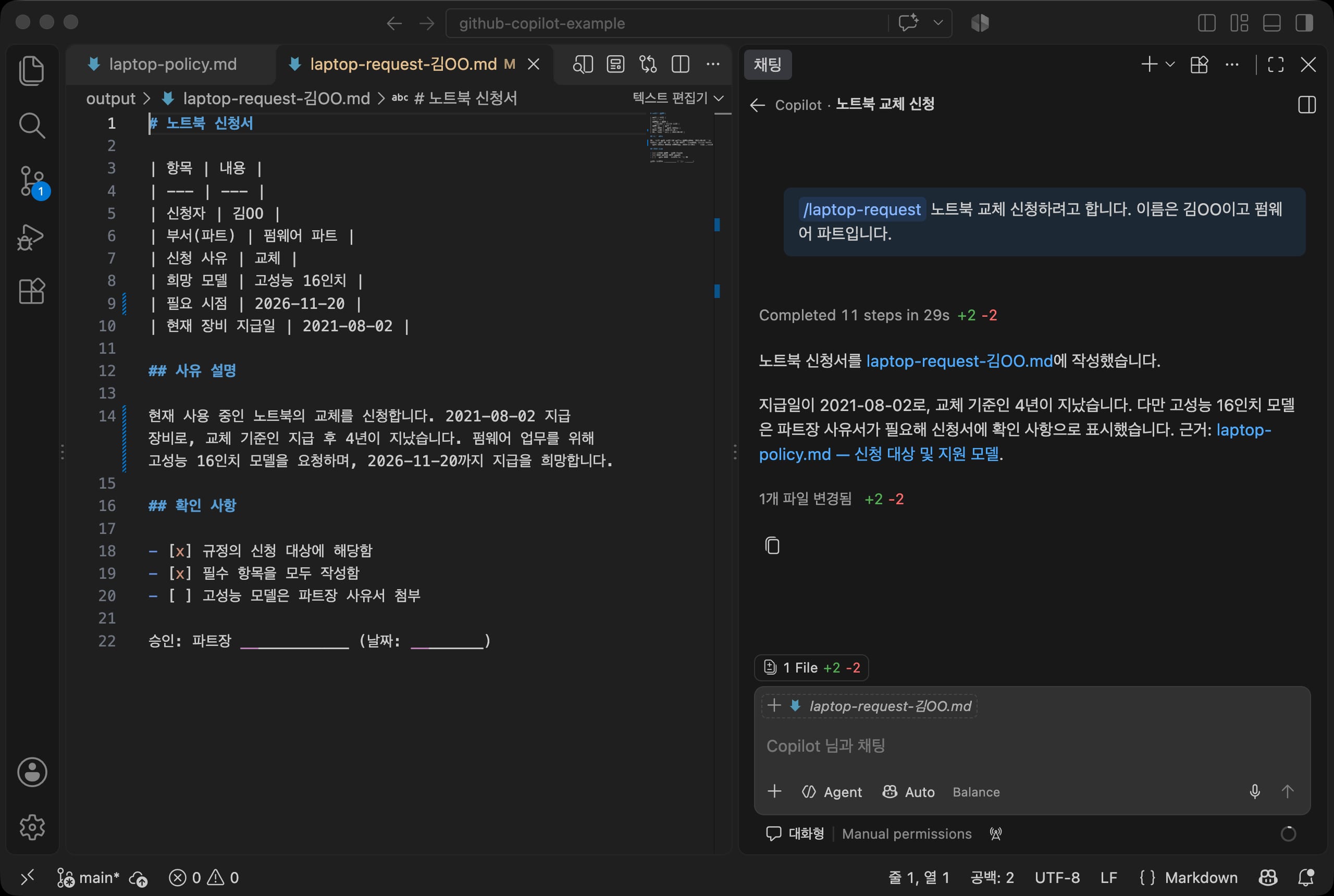
Here is the file it created.
Because it is a performance model, the group lead justification item is left unchecked.
12345678910111213141516171819202122# Laptop request | Field | Value | | --- | --- | | Applicant | Kim OO | | Department (group) | Firmware group | | Reason | Replacement | | Preferred model | Performance 16-inch | | Date needed | 2026-11-20 | | Current laptop issued | 2021-08-02 | ## Reason details I am requesting a replacement for my current laptop. It was issued on 2021-08-02, so it is past the replacement standard of 4 years after issue. I am requesting the Performance 16-inch model for firmware work, and I would like to receive it by 2026-11-20. ## Checklist - [x] Eligible under the policy - [x] All required fields are filled in - [ ] Group lead justification attached for the performance model Approval: group lead ____________ (date: ________)
# Meeting notes and follow-up questions
The third skill turns meeting memos into meeting notes, and it finds agenda items that are missing a decision, an owner, or a deadline and asks about them.
How to handle incomplete input is the key point of this skill.
12345678910111213141516171819202122232425262728293031323334--- name: meeting-notes description: Use when turning meeting memos or conversations into meeting notes. Asks follow-up questions when an agenda item, decision, owner, or deadline is missing. --- # Meeting notes Read the meeting memo and organize the decision, owner, and deadline for each agenda item. ## Steps 1. Find the agenda items in the memo and number them. 1. Fill in these four things for each agenda item. - Discussion - Decision - Owner - Deadline 1. Collect separately the items that have a decision but no owner or deadline, and the items that were discussed but have no decision. 1. If anything is missing, ask about it all at once in the format below before saving the meeting notes. > Items to confirm > - Item 2 (environmental chamber booking rules): owner, deadline > - Item 3 (cold storage site visit): decision 1. When you get the answers, complete the table and save it as `output/meeting-<meeting date>.md`. ## Meeting notes format (Meeting notes Markdown format omitted) ## Rules - Do not guess and fill in decisions or owners that are not in the memo. - Use attendee names exactly as written in the memo.
The example meeting memo, data/meeting-2026-09-01.md, has no owners or deadlines at all.
When you run the skill, it first organizes the agenda items and then asks what is missing for each one.
1/meeting-notes Turn the memo in data/meeting-2026-09-01.md into meeting notes
The skill gives an example of the question format, but the Copilot harness often asks with question cards, like in the laptop request above.
Even though the format differs, it still follows the rule of collecting the missing fields by agenda item and asking all at once.
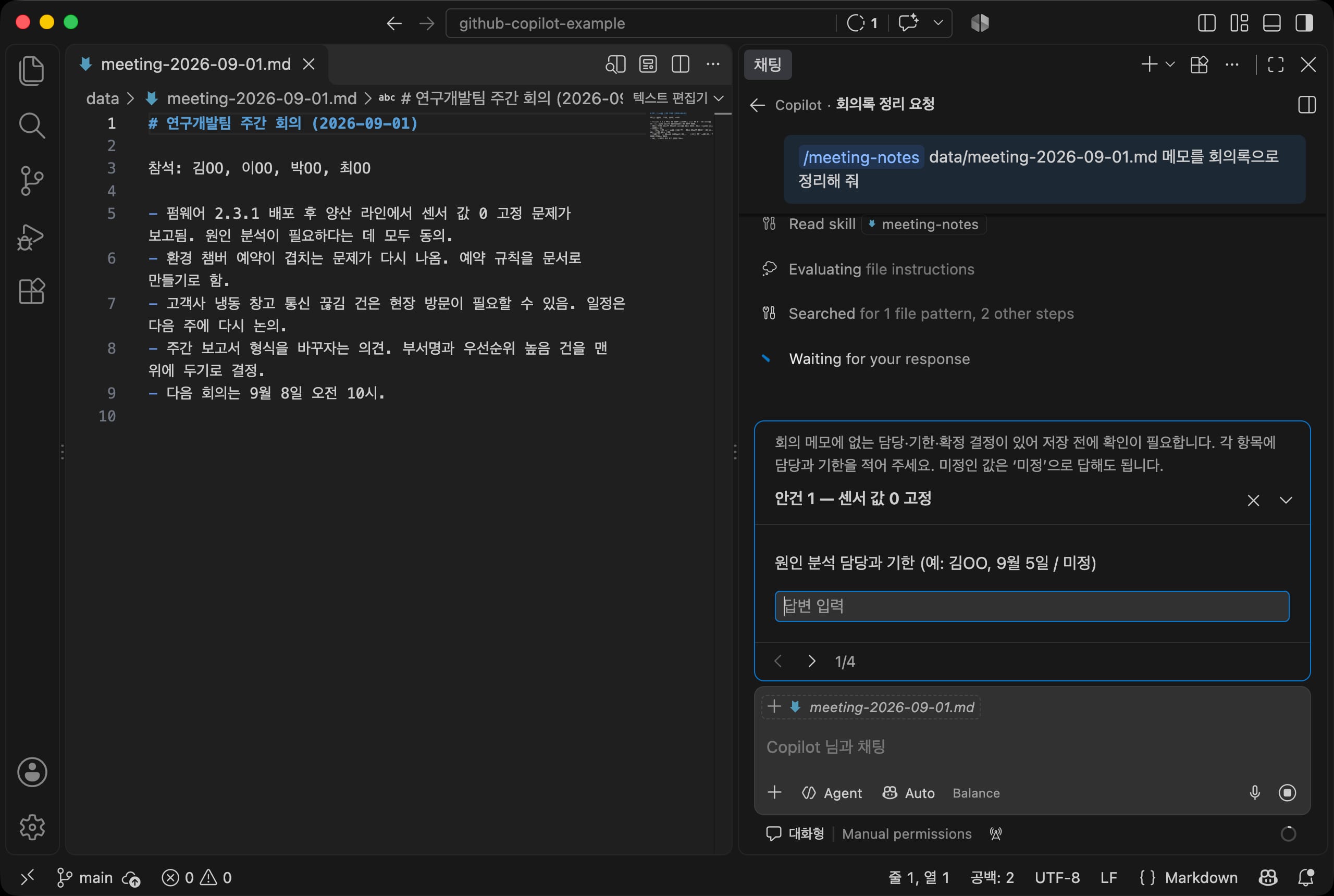
I answered the question cards as follows.
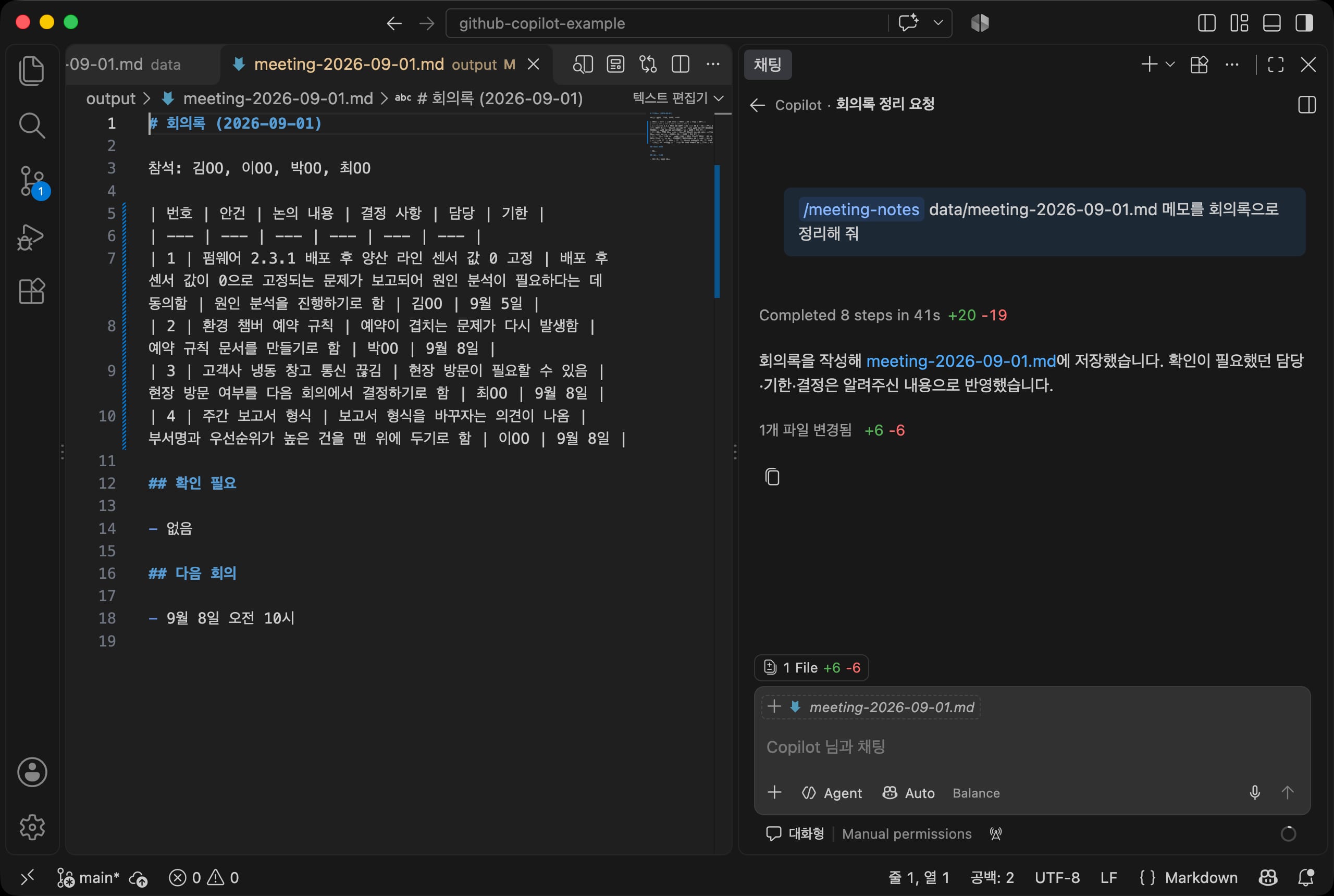
| Question | Answer entered |
|---|---|
| Item 1 (sensor value stuck at 0) | Kim OO, September 5 |
| Item 2 (environmental chamber booking rules) | Park OO, September 8 |
| Item 3 (cold storage connection drops) | We decided to decide on the site visit at the next meeting. Owner Choi OO, September 8 |
| Item 4 (weekly report format) | Lee OO, September 8 |
When you submit the answers, it completes the meeting notes and saves them.
When you design follow-up question logic, you only need to decide these three things.
| What to decide | Answer in the example |
|---|---|
| Required fields | Decision, owner, and deadline for each agenda item |
| What to do when something is missing | Do not save; collect only the missing fields by agenda item and ask all at once |
| What not to guess | Do not fill in decisions or owners that are not in the memo |
If you list the required fields in the skill body and show the question format as an example, Copilot follows it.
It is also important to write that it should ask everything at once, not in several rounds.
If the user has to answer many times, there is less point in using an assistant.
# Knowledge base questions
Having the assistant answer based on your team's reference documents is its most basic use.
The method used for this is retrieval-augmented generation (RAG).
Instead of sending the whole document to the model every time, you split the documents into small chunks and build an index, and when a question comes in, you find only the related chunks and send them with the question.
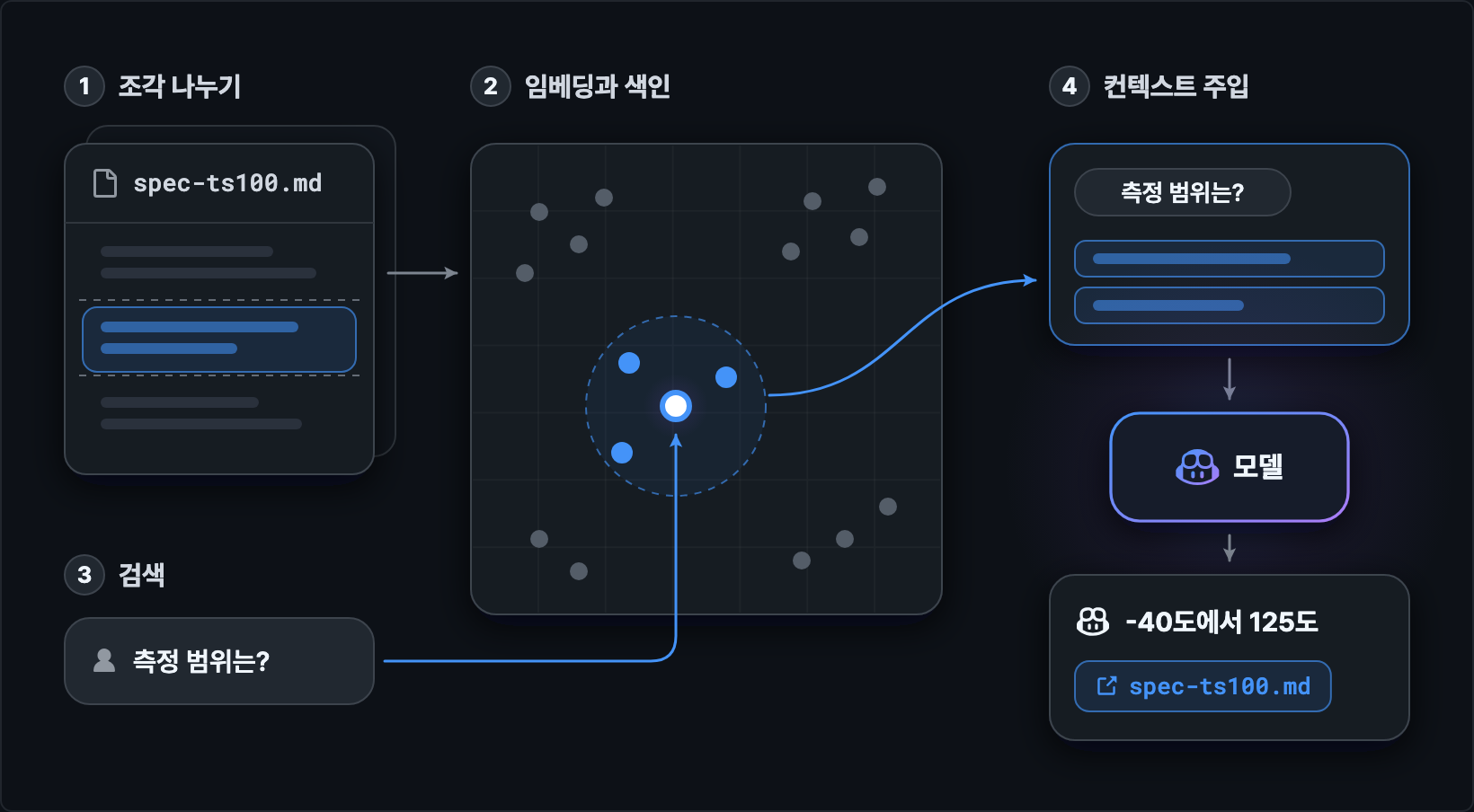
- Chunking: Cut the documents by paragraph or heading.
- Embedding and indexing: Turn the meaning of each chunk into a number vector and store it. Sentences with the same meaning become nearby vectors.
- Search: Turn the question into a vector the same way, and find the closest chunks.
- Context injection: Send the chunks you found to the model with the question so it can give an answer with a basis.
VS Code builds a semantic index of the repository, and the agent uses it to find files related to a question.
You can check and build the index from Codebase Semantic Index in the Copilot menu in the status bar.
In a repository with only a few documents, like the example, the agent finds what it needs with text search and file reading even without an index.
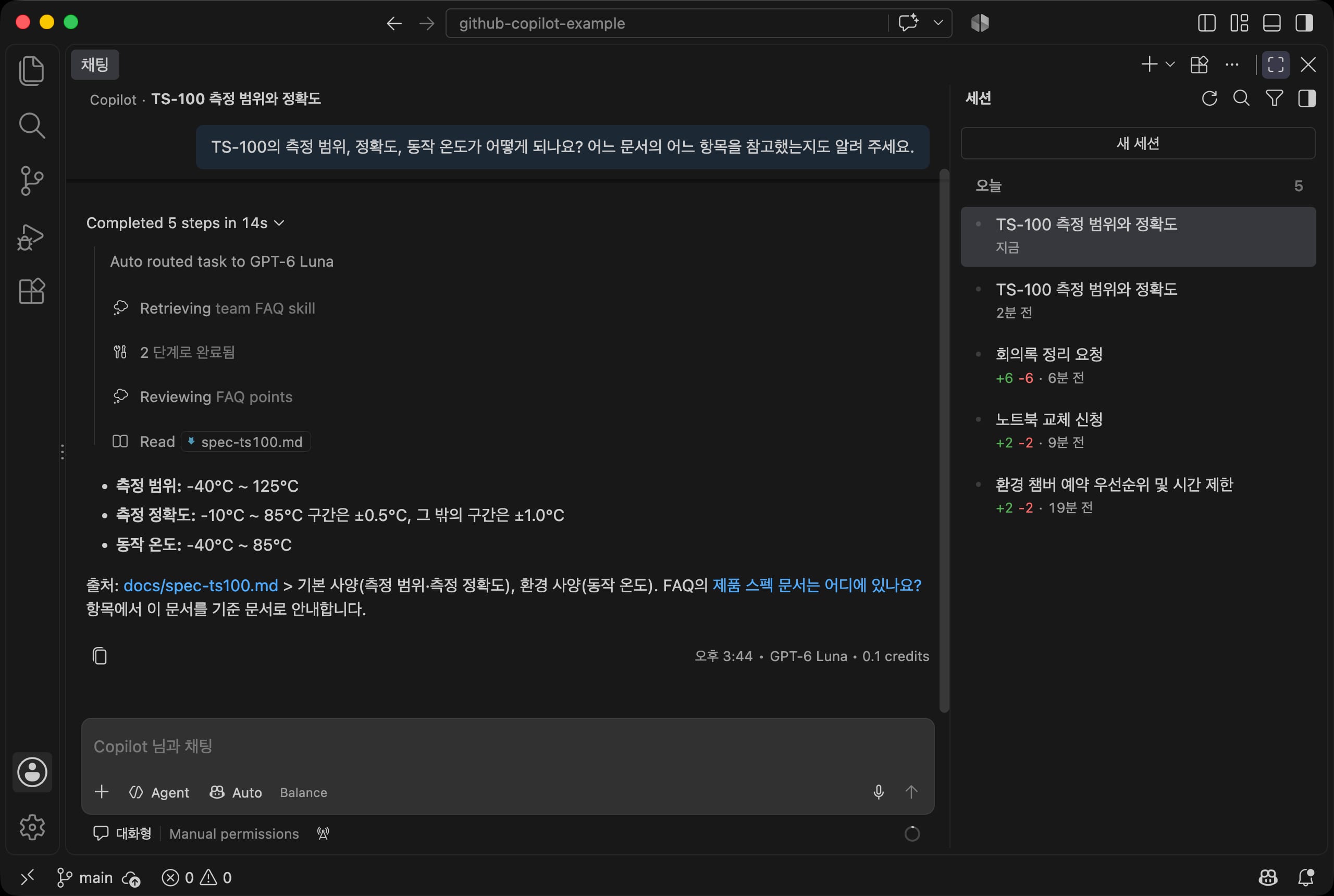
Switch the agent to Ask and ask a question about the spec document.
Also ask which document it used.
1What are the measurement range, accuracy, and operating temperature of the TS-100? Also tell me which item in which document you used.
If you expand the step list at the top of the response, you can see the files it actually read, and each value in the answer has its reference item.
You can also see that it chose the matching skill (team-faq) on its own, checked the FAQ first, and then read the spec document.
Always check the answer against the original.
The example's docs/spec-ts100.md lists the measurement range as -40°C to 125°C and the operating temperature as -40°C to 85°C, and if the values and reference items in the response match these, it passes.
When you check, look at these three things.
- Are the numbers and units exactly the same as the original?
- Do the files and items shown as sources really exist?
- For a question not in the documents, does it answer "it is not in the documents"?
Making up plausible content that is not in the documents is called hallucination.
Writing "do not guess when there is no basis" in the instructions file and making it add sources to answers is the simplest way to reduce hallucination.
# Skills you call yourself
So far, Copilot could look at a request and choose a skill on its own.
But for tasks that a person should start at a set time, like a weekly report, it is a problem if Copilot runs them by itself.
In that case, add disable-model-invocation: true to the skill's frontmatter so it runs only when you call it as /name.
This is the role that prompt files played in earlier versions.
1234567891011121314151617181920--- name: weekly-report description: Creates a weekly report from the triage table. Use only when the user calls /weekly-report. argument-hint: Report period or what to highlight disable-model-invocation: true --- # Writing the weekly report Read the `output/triage-result.md` triage table and write a weekly report in exactly the `docs/report-template.md` format. - Report period: Use the period written after the command. If there is none, use this week. - Output file: `output/weekly-report.md` ## Rules - Do not change the heading order or table format of the template. - For high priority issues, fill in the owner according to the assignment rules in `docs/issue-rules.md`. - For untriaged issues, write in one line what to ask the reporter again. - Do not make up anything that is not in the triage table.
| Frontmatter field | Role |
|---|---|
name |
The name after /. Must match the folder name |
description |
The description shown in the slash list |
argument-hint |
Text that tells you what to write after the name |
disable-model-invocation |
If true, Copilot does not choose it on its own; it runs only when called as /name |
Whatever you write after the name, like /weekly-report fourth week of October, is sent along with the request.
You will run the report example later in Report automation.
# Planning first
For tasks that need research first, like a bug report, use plan mode together with a skill.
Plan mode researches the repository without changing files and writes up a plan as a document.
123456789101112131415161718--- name: bug-report description: Makes a research plan before writing up one issue as a bug report. Use only when the user calls /bug-report. argument-hint: Issue number or symptom disable-model-invocation: true --- # Bug report research plan We want to write up the issue (number or symptom) given after the command as a bug report. Do not write the report right away. First make a research plan in the order below. 1. In `data/issues.csv`, check the title, content, and date received of the issue. 1. In `docs/spec-ts100.md`, find the spec items related to the symptom (operating range, interface, firmware version). 1. Check `docs/faq.md` for similar procedures or known fixes. 1. List the reproduction conditions, the scope of impact, and the questions you need to confirm. In the plan, write which files you will read and why, and what information is still missing.
Click Interactive below the input box, change it to Plan, and run it with the issue number.
1/bug-report issue 4
It reads the issue list, the spec document, and the FAQ in turn, and if something needs to be decided, such as the research scope, it asks first with question cards.
When you submit your answers, it writes up the plan and shows a plan review card above the input box.
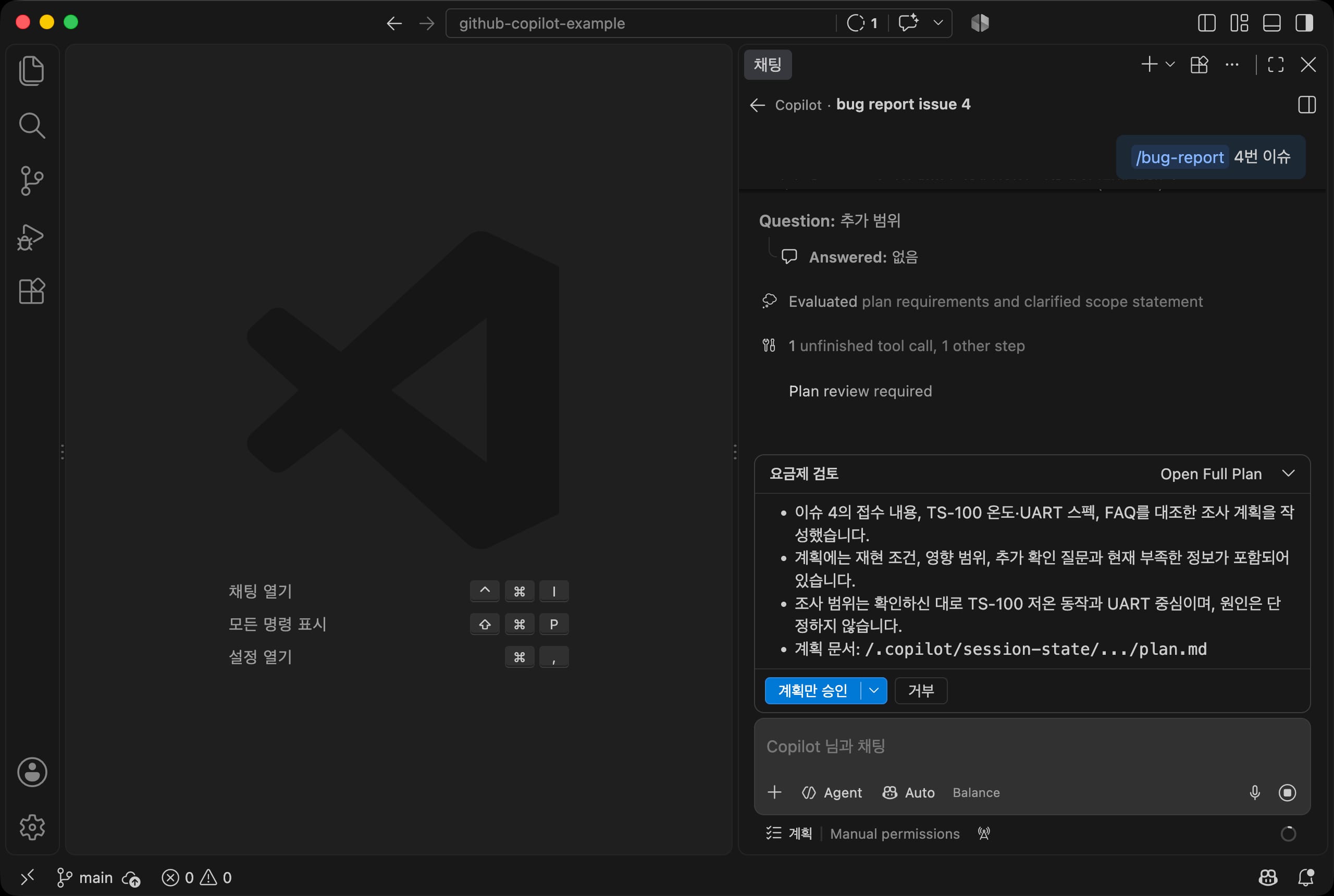
| Button | Action |
|---|---|
Approve Plan Only |
Approves the plan without running it |
Arrow, Implement Plan |
Approves the plan and runs it right away in the current session |
Arrow, Implement with Autopilot |
Approves the plan and keeps going on its own until it finishes |
Reject |
Does not accept the plan |
In the Korean UI, this card's title appears as 요금제 검토 ('pricing plan review'), an awkward translation of the English Review Plan, but it is the plan review card.
Click Open Full Plan to open the plan as a document in the editor.
It lists, step by step, which files it read and why, and what it still does not know, so you can see exactly how the agent works through the problem.
If something needs changing, write it in the card's feedback box and click Submit Feedback, and it refines the plan.
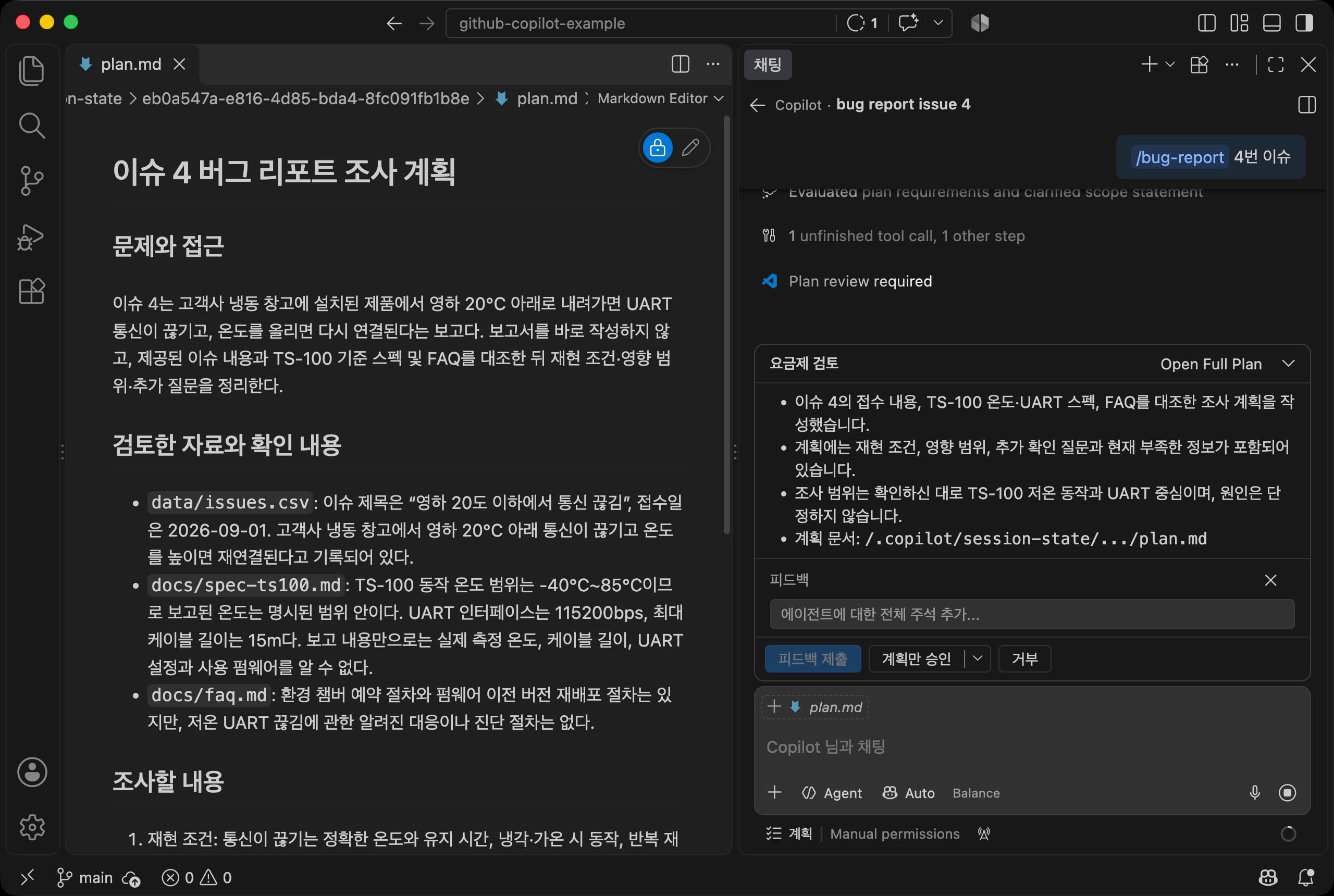
The plan document is saved in the session folder, not in the repository.
If you want to use it to explain your team's bug report process, open the document and save it as a separate file.
# Custom agents
Custom agents are dedicated agents with a set role and set tools they can use.
If you narrow the role, like "an owner who only triages and does not touch files," the results are more stable, and you also prevent files from being changed by mistake.
Create a .agent.md file in the .github/agents folder, and it appears in the agent menu.
12345678910111213141516171819202122--- name: Issue Triage description: Reads the issue list and only triages it according to the rules in docs/issue-rules.md. Does not change files. --- You are the issue triage owner for the R&D team. You only triage, and you do not create or change files. ## Triage steps 1. Read `docs/issue-rules.md` and check the criteria for type, priority, and untriaged. 1. Compare the issue the user gave (or a specific number in `data/issues.csv`) against the rules. 1. Answer with the result in the table format below. | Number | Type | Priority | Status | Reason | | --- | --- | --- | --- | --- | ## What to follow - Do not triage with criteria that are not in the rules. If it is unclear, leave it untriaged and write why. - In the reason column, write exactly which keyword or condition it matched. - If an owner needs to be assigned, follow the assignment table in the rules document.
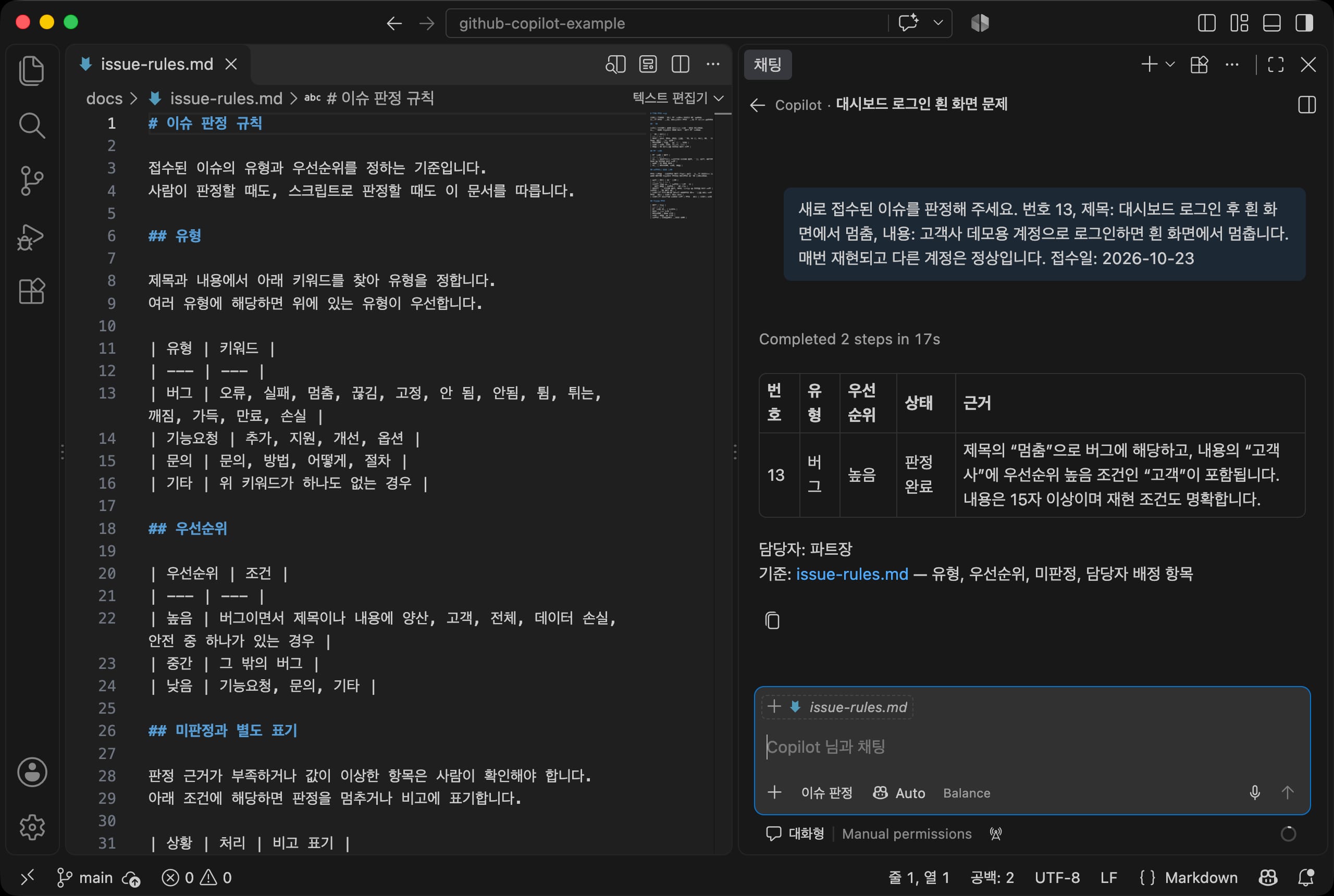
Choose Issue Triage in the agent menu and paste in a newly received issue.
1Please triage this new issue. Number 13, title: Dashboard freezes on a white screen after login, content: Logging in with the customer demo account freezes on a white screen. It happens every time and other accounts work fine. Date received: 2026-10-23
It reads the rules document and answers with the triage result and reason in a table.
The reason column shows exactly which keyword made it a bug and why its priority is high.
If you add a tools field to the frontmatter, you can limit the tools to a list.
For example, if you keep only reading and searching, like tools: ['read', 'search'], this agent cannot change files or run commands.
Tool names can differ between harnesses, so after setting them, check that it really does only what you want.
# Data triage
Now let's have it triage the whole issue list at once.
For this kind of work, it is better to write the rules as a document and run a script that follows those rules, rather than having Copilot triage everything itself each time.
The same input always gives the same result, it uses no credits, and when the rules change, you only need to update the document and the script.
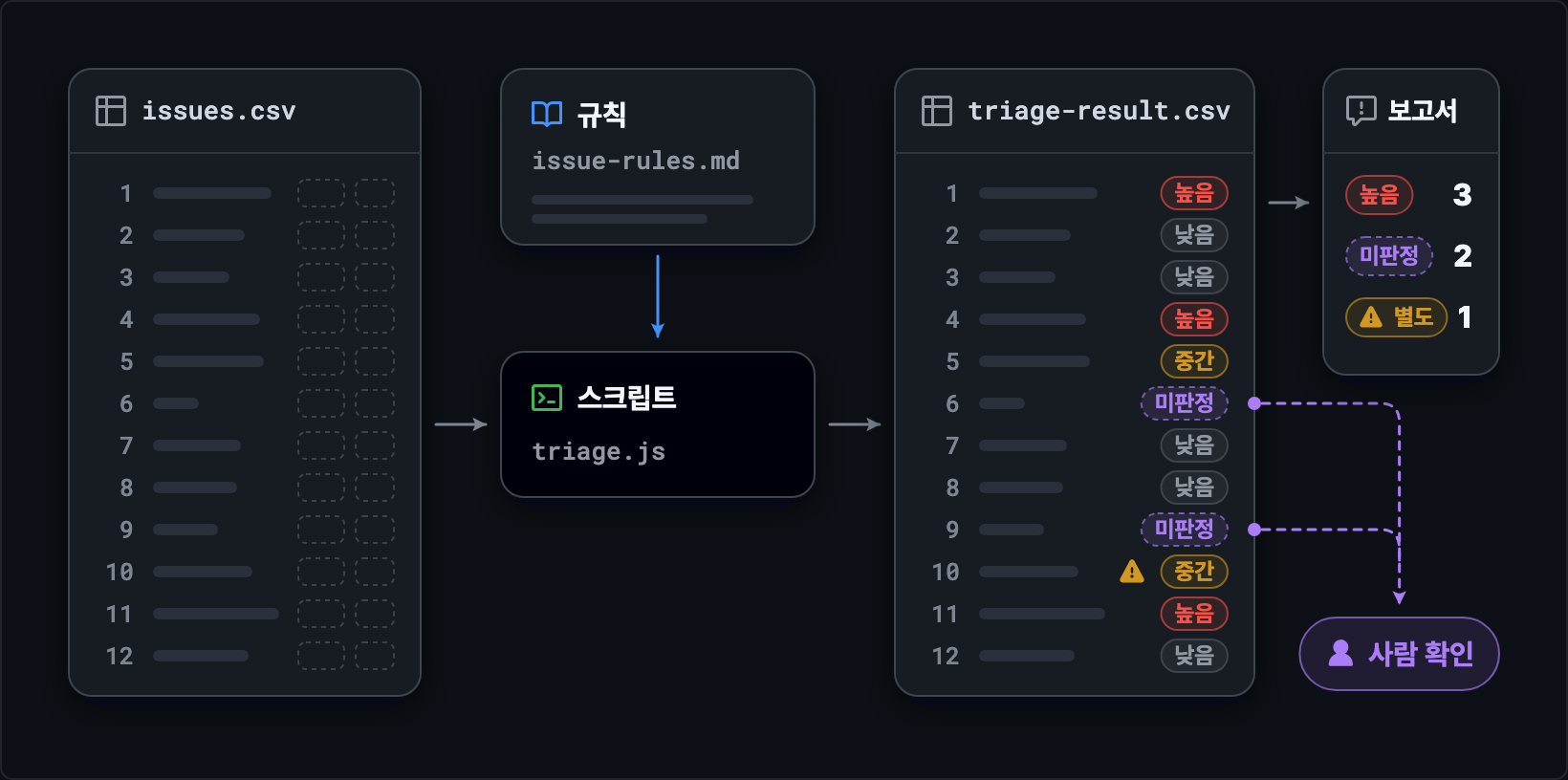
# Input data
The example's input is data/issues.csv.
It has five columns (number, title, content, reporter, date received), and type and priority are empty.
In Excel, you can create a file in the same format with Save As > CSV UTF-8.
1234number,title,content,reporter,date 1,Sensor value stuck at 0 after firmware 2.3 update,After updating equipment 3 on the mass production line to firmware 2.3.1 the temperature value always shows 0. Rolling back to 2.2.4 makes it normal.,Kim OO,2026-08-31 2,Request to add department name to report output,Please add the department name at the top of the weekly report.,Lee OO,2026-08-31 3,Question about calibration procedure,What is the calibration procedure for newly received TS-100 modules?,Park OO,2026-09-01
Among the 12 issues, some problem data was added on purpose.
Issue 6 has only "Please check." as its content, issue 9 has no reproduction conditions, and issue 10 has the date 2026-13-40.
How the triage logic handles these items is the key point of this step.
# Triage rules
Write the rules first as a document that people read.
The script should be nothing more than a copy of this document, and it must not make any decision that is not in the document.
1234567891011121314151617181920212223242526272829303132333435363738394041# Issue triage rules ## Type Find the keywords below in the title and content to set the type. If it matches several types, the type higher in the list takes priority. | Type | Keywords | | --- | --- | | Bug | error, fail, freeze, drop, stuck, not working, doesn't work, jump, jumps, broken, fill, expired, loss | | Feature request | add, support, improve, option | | Question | question, method, how, procedure | | Other | None of the keywords above | ## Priority | Priority | Condition | | --- | --- | | High | A bug whose title or content has one of: mass production, customer, entire, data loss, safety | | Medium | Other bugs | | Low | Feature request, question, other | ## Untriaged and flags | Situation | Handling | Note | | --- | --- | --- | | Content is shorter than 15 characters | Untriaged | Not enough detail | | Type is Other | Untriaged | Unknown type | | A bug whose content has one of: sometimes, not sure, irregular | Untriaged | No repro steps | | Date received is not in YYYY-MM-DD format or is not a real date | Triage anyway | Invalid date format | | Date received is later than today | Triage anyway | Future date | ## Assignment | Condition | Owner | | --- | --- | | High priority | Group lead | | Bug | Development group | | Feature request | Planning group | | Question | Tech Support group | | Untriaged | Ask the reporter to confirm |
Items without enough basis are not forced into a decision; they stay untriaged.
Items with odd values are triaged but flagged in the note so a person can check them.
You must put these two exits into the rules from the start so the assistant does not pretend to know what it does not know.
# Triage script
Have Copilot write the script.
In Agent mode, attach the rules document and the input file (with + or # in the input box) and ask like this.
123Based on docs/issue-rules.md and data/issues.csv, create scripts/triage.js that reads the issue list and sets the type, priority, status (triaged or untriaged), and note according to the rules document. Save the results to output/triage-result.csv and output/triage-result.md (summary table, triage result table, untriaged list, flagged list, triage reason table), and print only a count summary to the console. Use only built-in Node.js modules with no external packages, and record for each decision which keyword or condition it matched.
Because the instructions file and the rules in scripts.instructions.md also apply, it may create a script that uses only built-in modules and has Korean comments.
The example repository includes a finished version, so compare it with the one you made.
It is fine if you cannot read the code.
Just check that the keyword table in the rules document was copied as-is into the lists at the top of the script.
1234567891011121314151617181920212223242526272829303132333435363738394041424344454647// Type keywords. Types higher in the list take priority. const TYPE_RULES = [ { type: 'Bug', keywords: ['error', 'fail', 'freeze', 'drop', 'stuck', 'not working', "doesn't work", 'jump', 'jumps', 'broken', 'fill', 'expired', 'loss'] }, { type: 'Feature request', keywords: ['add', 'support', 'improve', 'option'] }, { type: 'Question', keywords: ['question', 'method', 'how', 'procedure'] } ] // A bug with any of these keywords is high priority. const HIGH_KEYWORDS = ['mass production', 'customer', 'entire', 'data loss', 'safety'] // Words that mean a bug has no reproduction conditions. const UNCLEAR_KEYWORDS = ['sometimes', 'not sure', 'irregular'] // Content shorter than this is untriaged for lack of detail. const MIN_LENGTH = 15 /** Triages one issue. */ export function triage(issue, today = new Date()) { const text = `${issue.title} ${issue.content}` const notes = [] const { type, reason: typeReason } = judgeType(text) const { priority, reason: priorityReason } = judgePriority(type, text) let status = 'Triaged' if (issue.content.length < MIN_LENGTH) { status = 'Untriaged' notes.push('Not enough detail') } else if (type === 'Other') { status = 'Untriaged' notes.push('Unknown type') } else if (type === 'Bug' && includesAny(issue.content, UNCLEAR_KEYWORDS)) { status = 'Untriaged' notes.push('No repro steps') } const dateNote = checkDate(issue.date, today) if (dateNote) notes.push(dateNote) return { number: issue.number, title: issue.title, reporter: issue.reporter, date: issue.date, type: status === 'Triaged' ? type : '', priority: status === 'Triaged' ? priority : '', status, note: notes.join(', '), reason: status === 'Triaged' ? `${typeReason}, ${priorityReason}` : notes[0] } }
You can also run it yourself in the terminal.
1234node scripts/triage.js ## Triage complete: 12 issues ## High 3, Medium 2, Low 5, Untriaged 2, Flagged 1 ## Output files: output/triage-result.md, output/triage-result.csv
# Triage skill
Instead of typing the command every time, create one more skill that also runs the script and summarizes the results.
1234567891011121314151617181920212223--- name: issue-triage description: Use when triaging the whole issue list and creating a triage table. Runs scripts/triage.js and organizes the untriaged issues. --- # Issue list triage Triage the issues in `data/issues.csv` according to the rules in `docs/issue-rules.md`. ## Steps 1. Read `docs/issue-rules.md` and check that the rules have not changed. 1. Run `node scripts/triage.js` in the terminal. 1. Read `output/triage-result.md` and answer with a summary of the following. - Total count and count by priority - List of high priority issues - List of untriaged issues and what to ask each reporter 1. If the user asks to change the rules, update both `docs/issue-rules.md` and the keyword lists in `scripts/triage.js`. ## Rules - Do not change the script's results on your own. If a result looks wrong, explain the problem in the rules or the data. - Quote the triage reason exactly from the reason column of the triage table.
1/issue-triage Please triage the issue list
After checking the rules document, it asks for approval to run the script, and when you allow it, it reads the result files and summarizes them.
For untriaged issues, it also lists what to ask each reporter.
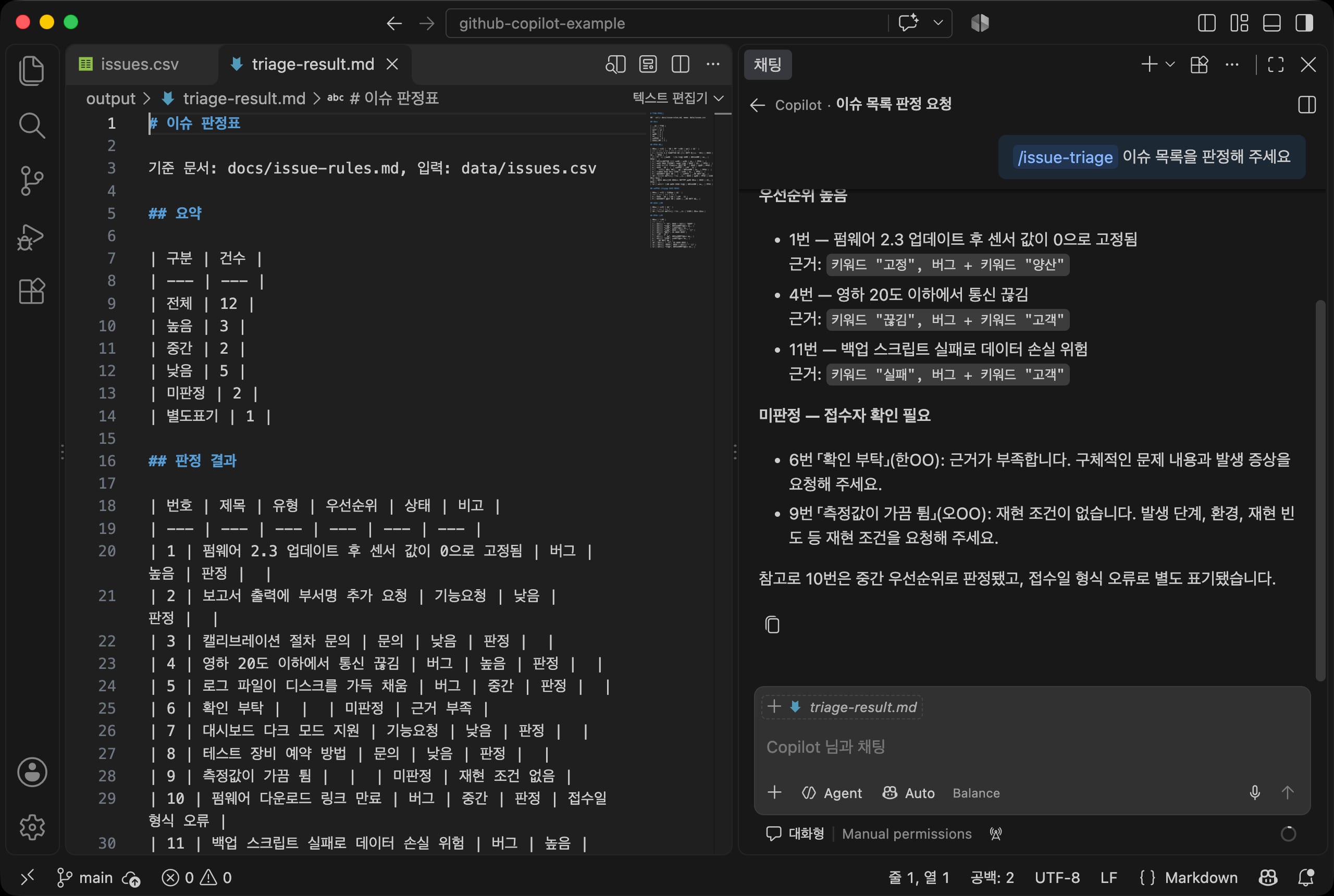
Here is part of the triage table it created.
Untriaged items have empty type and priority, and the reason stays in the note.
12345678| Number | Title | Type | Priority | Status | Note | | --- | --- | --- | --- | --- | --- | | 1 | Sensor value stuck at 0 after firmware 2.3 update | Bug | High | Triaged | | | 5 | Log files fill up the disk | Bug | Medium | Triaged | | | 6 | Please check | | | Untriaged | Not enough detail | | 9 | Readings sometimes jump | | | Untriaged | No repro steps | | 10 | Firmware download link expired | Bug | Medium | Triaged | Invalid date format | | 11 | Backup script failure risks data loss | Bug | High | Triaged | |
# Report automation
After triage, what remains is notifying the owners and creating a report.
For reports you make again and again, set the template first, and leave filling it in to a script or a skill.
The report template is in docs/report-template.md.
If you fix the order of the headings and the table columns, you get a report with the same shape every week.
12345678# Issue triage report (YYYY-MM-DD) ## Summary ## High priority (notify now) ## Untriaged (ask to confirm) ## Flagged ## Who to notify ## Next steps
Set the notification conditions and recipients in a table.
The example uses the assignment table in the rules document as-is: high priority issues are reported to the group lead right away, and for untriaged issues the reporter is asked to confirm.
Have Copilot write scripts/report.js the same way as the triage script.
12Based on docs/report-template.md and docs/issue-rules.md, create scripts/report.js that reads output/triage-result.csv and creates output/report.md in exactly the template format. Follow the assignment table in the rules document for owners, and in next steps, write one line of action for each high priority and untriaged issue.
123node scripts/report.js ## Report created: output/report.md ## High 3, Untriaged 2, Flagged 1
A script follows a set format exactly, but it is not good at writing sentences, such as "what to ask again" for untriaged issues.
Leave that part to the /weekly-report skill you made earlier.
1/weekly-report fourth week of October
It reads the triage table, the template, and the rules document and creates the report.
If you open the report, the notes for untriaged issues include, in sentences, what to ask the reporters.
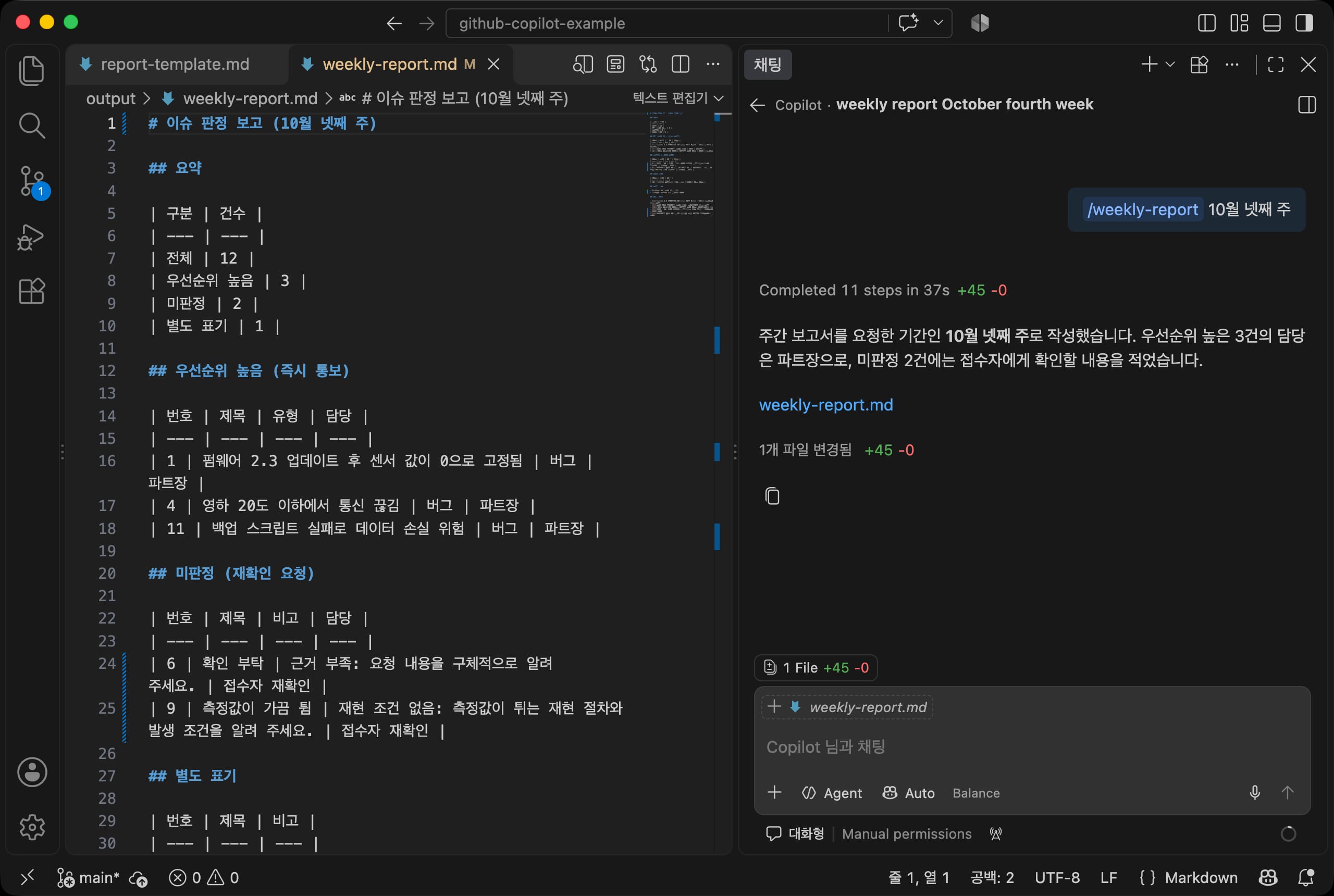
The example does not include the step of actually sending notifications by email or messenger.
Anything that sends something outside should be done by a person after reviewing the report, or connected with MCP, covered later, but always with an approval step.
# MCP
So far, the assistant has only worked with files inside the repository.
To connect to external services such as internal systems, databases, and messengers, use MCP (Model Context Protocol).
MCP is a standard protocol that lets AI tools use the features of external services as tools, and each service is provided as an MCP server.
When you connect a server, its tools are added to the agent's tool list.
The Copilot harness includes the GitHub MCP server by default, which works with issues and pull requests in GitHub repositories.
If you open the MCP Servers screen in the agent customization editor, github-mcp-server appears under Built-In, and you can turn it off and on with a switch.
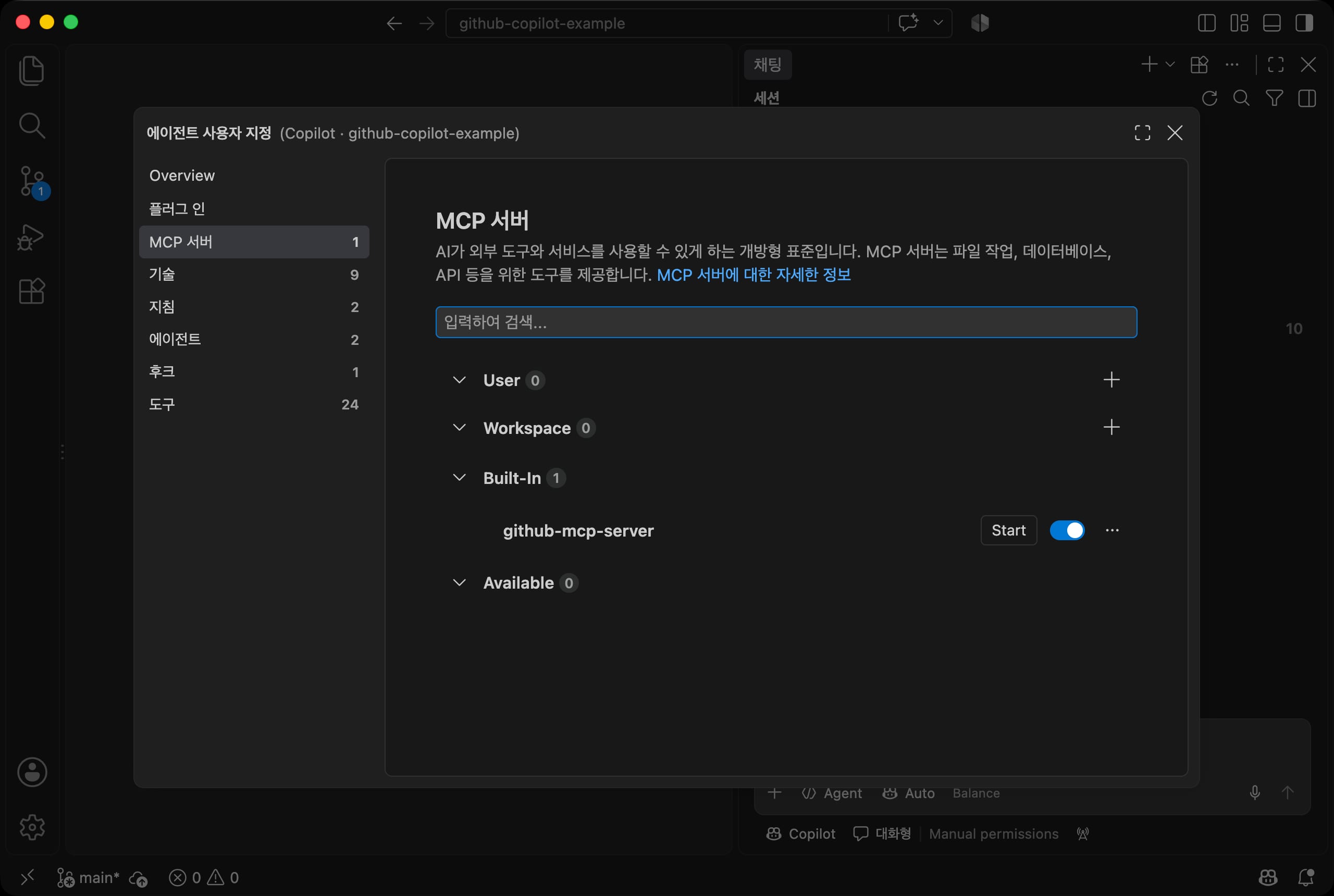
If your repository is on GitHub, you can ask in the chat something like "Get the open issues in this repository and triage them."
Instead of a CSV file, an issue tracker, messenger, or internal wiki becomes the input and output.
How to connect an issue management tool your company uses, like Jira, with MCP is covered in GitHub Copilot Work Automation in Practice.
To add other servers, search for @mcp in the Extensions view (Cmd + Shift + X) and install from the MCP server gallery, or run MCP: Add Server from the Command Palette (Cmd + Shift + P).
Write servers you share with your team in .mcp.json at the root of the repository.
123456789{ "mcpServers": { "context7": { "type": "http", "url": "https://mcp.context7.com/mcp", "tools": ["*"] } } }
"*" in tools means it uses all of the server's tools, and you can narrow the scope by listing only the tool names you need.
If you have a .vscode/mcp.json (servers format) from an earlier version, a migration notice appears, and you can move it to this format.
There are also ways to extend it without MCP.
- If you put a web page address in your request, it can fetch the content and use it.
- Documents converted to Markdown and placed in the
docsfolder become a knowledge base on their own. - You can also make a script call an external API. In that case, keep the API key in a
.envfile and block reading it with a hook, as in Sensitive information.
# Validation and permissions
Before you share the assistant with your team, check two things.
Does a given input always produce the expected result, and have you blocked the things the assistant must not do?
# Validation set
A validation set is a list that pairs each input with its expected result.
Do not include only normal cases. Add edge cases and cases that should fail as well.
1234567891011[ { "number": "1", "case": "normal", "status": "Triaged", "type": "Bug", "priority": "High" }, { "number": "2", "case": "normal", "status": "Triaged", "type": "Feature request", "priority": "Low" }, { "number": "3", "case": "normal", "status": "Triaged", "type": "Question", "priority": "Low" }, { "number": "4", "case": "normal", "status": "Triaged", "type": "Bug", "priority": "High" }, { "number": "5", "case": "edge", "status": "Triaged", "type": "Bug", "priority": "Medium" }, { "number": "10", "case": "edge", "status": "Triaged", "type": "Bug", "priority": "Medium", "note": "Invalid date format" }, { "number": "11", "case": "edge", "status": "Triaged", "type": "Bug", "priority": "High" }, { "number": "6", "case": "fail", "status": "Untriaged", "note": "Not enough detail" }, { "number": "9", "case": "fail", "status": "Untriaged", "note": "No repro steps" } ]
| Case | Meaning | Example |
|---|---|---|
| Normal | Input where a rule clearly applies | A bug on the production line is high priority |
| Edge | Input on the edge of a rule | Issue 10, whose received date looks wrong but still needs to be triaged |
| Fail | Input that must not be triaged | Issue 6, whose description is too short, and issue 9, which has no repro steps |
scripts/check.js compares the triage results with the validation set and classifies any mismatches.
It reads the triage result file (output/triage-result.csv), so after you change the rules or the script, run node scripts/triage.js first.
123456789node scripts/check.js ## No. Case Expected Result Verdict ## 1 normal Triaged Bug High Triaged Bug High match ## 2 normal Triaged Feature request Low Triaged Feature request Low match ## ... ## 6 fail Untriaged Not enough detail Untriaged Not enough detail match ## 9 fail Untriaged No repro steps Untriaged No repro steps match ## ## Checked 9: match 9
Mismatches are grouped by what you are trying to filter out.
In this example, the target is issues that lack evidence and must not be triaged.
| Verdict | Meaning |
|---|---|
| False alarm | Filtered out an item that did not need to be filtered. An issue that should have been triaged was left untriaged |
| Miss | Missed an item that should have been filtered. An issue that should stay untriaged was triaged |
| Misjudged | It was triaged, but the type or priority is different |
If you run the triage script and then this script every time you change a rule, you can see right away whether the change broke another case.
For example, without the "no repro steps" rule, issue 9 would be triaged as a bug and become a miss.
Looking at mismatches like this and adding rules is how you design the limits of the assistant.
You can also ask Copilot, "Suggest three more edge cases for the validation set," to grow the cases.
To see false alarms and misses actually appear after removing a rule on purpose, see the 'Checking the judgments' section of GitHub Copilot Work Automation in Practice.
# Permission levels
What the assistant can do grows in impact in this order: read, write, run, and send outside.
The higher the permission, the earlier you put an approval step, and anything that sends data outside should happen only after a person checks it.
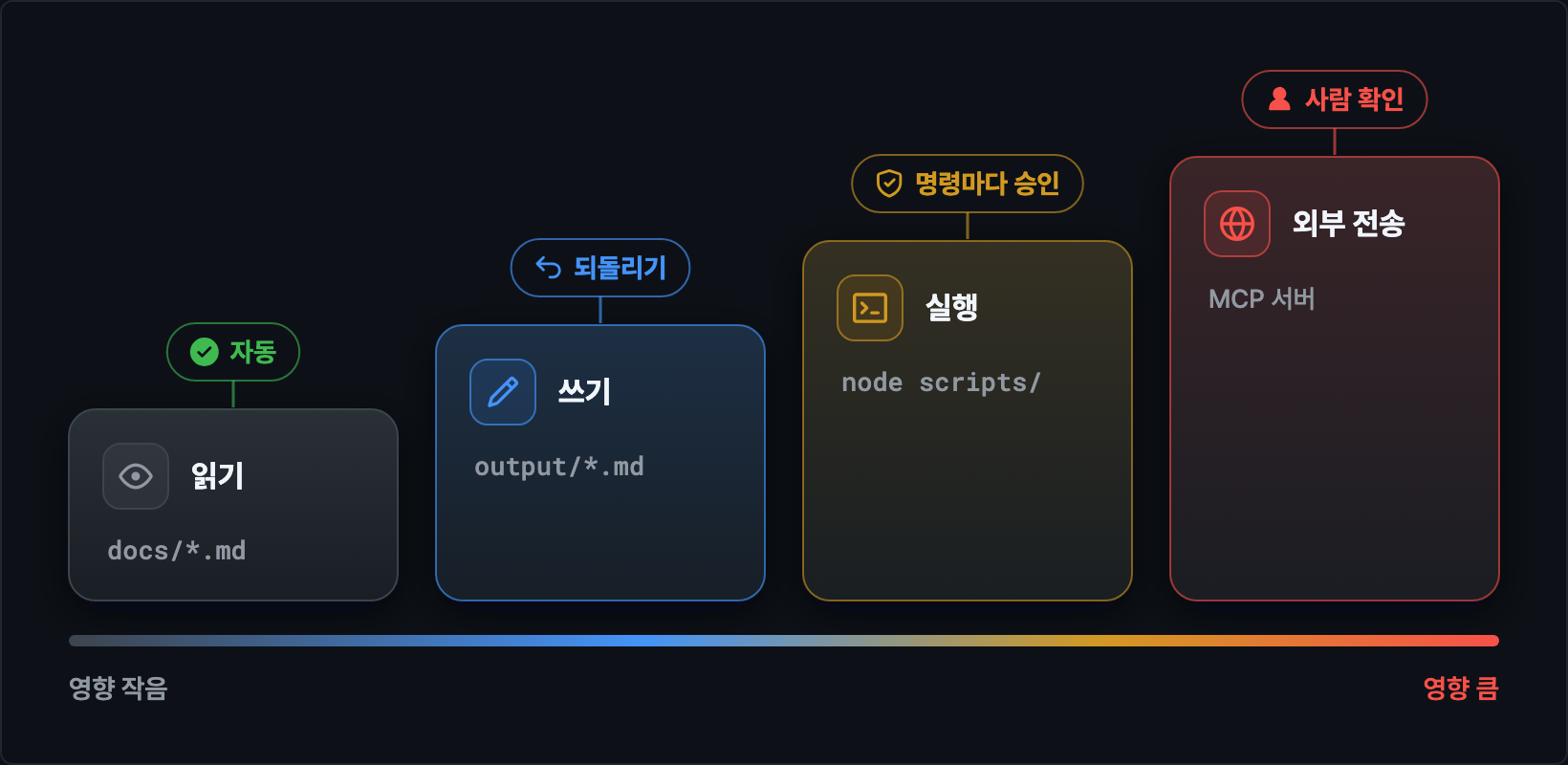
Here is how to adjust these levels in VS Code.
| Permission | How to adjust |
|---|---|
| Read, search | Allowed without approval by default. You can block specific files with a hook |
| Write | Edits inside the project folder are saved without approval. Review them in the session changes and revert with Start Over. You can remove edit tools from a custom agent's tools |
| Run | Approval for each command. Manage an allow list with the chat.tools.terminal.autoApprove setting |
| Send outside | Trust and authentication approval for MCP servers. Add a "check first" rule to the instructions |
To adjust the approval rules for terminal commands, open Settings (Cmd + ,) and search for autoApprove.
Rules decide whether to auto-approve a command based on its beginning, and risky commands such as rm are not auto-approved by the default rules, so they ask for approval.
In a session with Manual permissions, only commands that match a true rule run without asking, and all other commands ask for approval.
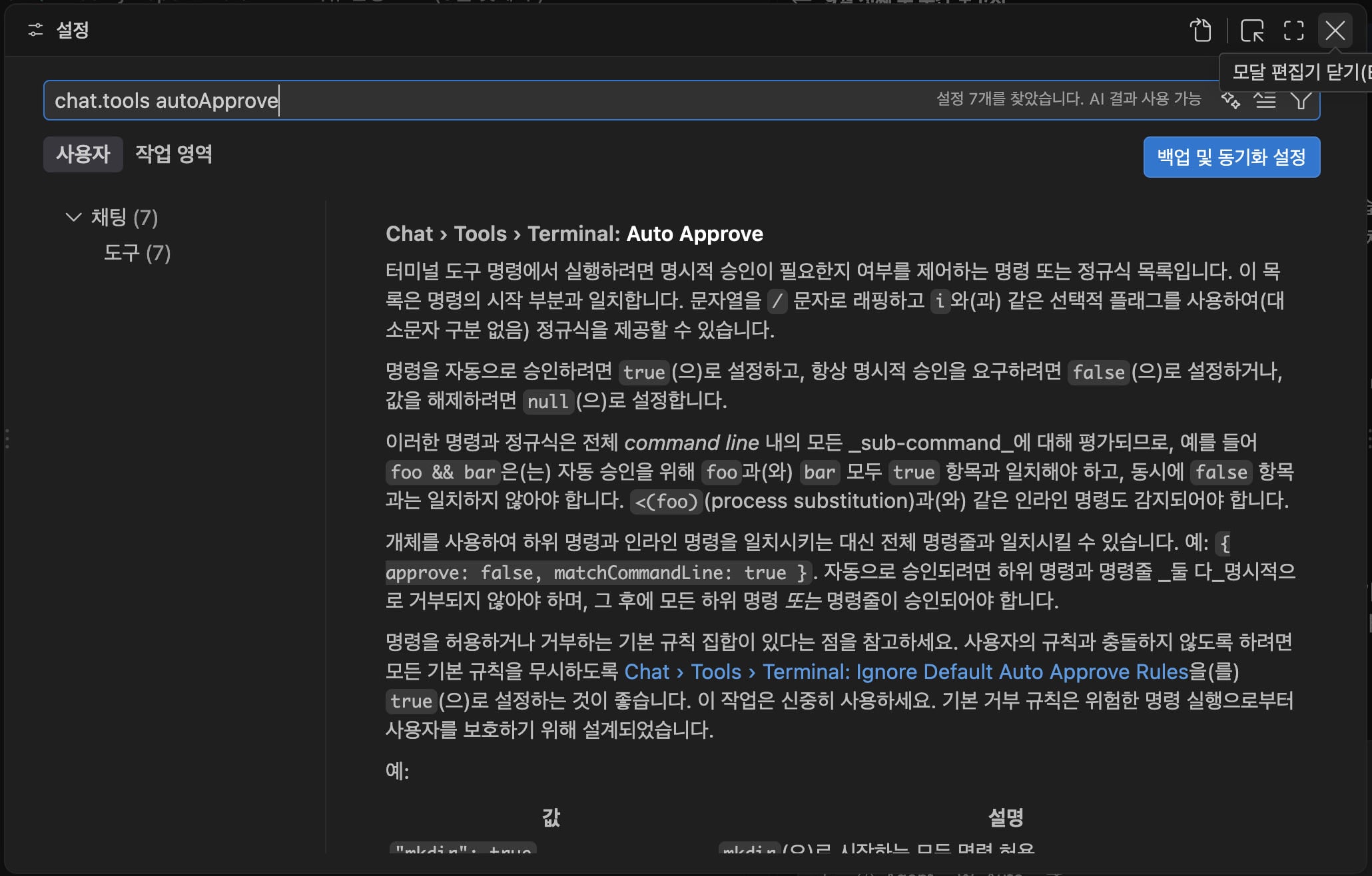
If you run only the scripts under node scripts/ again and again, as in the example, you can add just that command to the allow list.
12345{ "chat.tools.terminal.autoApprove": { "node scripts/": true } }
# Sensitive information
Work data often contains names, contact details, and customer information.
The example applies the following principles across data preparation, the instructions file, and a hook.
- Prepare the source data with names already masked, like
Kim OO. This is more reliable than having the assistant mask them. - In the instructions, list the items that must not appear in the output (full names, employee IDs, contact details, emails).
- Block reading of files that contain secrets, like
.env, with a hook, and also add them to.gitignore. - In the instructions, require that any task sending data outside "ask the user first."
Even if you write "Do not read .env files" in the instructions, it is only a recommendation to the model.
If the model misses the rule, or the user asks, "Read it anyway," the file can still be read.
Copilot has no option like Claude Code's permissions.deny setting that blocks reading a specific file with a single setting.
You can specify files with content exclusion in the GitHub repository settings, but it is only for Business and Enterprise plans, and in VS Code it applies only to inline suggestions and chat questions, not to agent tasks.
To add another layer of protection in agent tasks, use a hook.
A hook is a script that runs at points such as right before and right after Copilot calls a tool, and you register it in a JSON file in the .github/hooks folder.
If a preToolUse hook, which runs right before a tool call, outputs a deny decision, that tool call is canceled and the reason you wrote is passed to the model.
12345678{ "version": 1, "hooks": { "preToolUse": [ { "type": "command", "command": "node .github/hooks/protect-secrets.js", "timeoutSec": 10 } ] } }
Here is the script the hook runs.
List the paths to block in the BLOCKED array, the same way you write .gitignore.
123456789101112131415161718192021222324252627282930313233343536373839404142// Called right before Copilot runs a tool. // If the request touches a file or folder in the list below, output a deny decision. import fs from 'node:fs' // List of paths to block. Write them like .gitignore. // A name alone blocks it in any folder, and a path blocks only that location. // * means any characters within a name, and ** means any characters across folder boundaries. const BLOCKED = [ '.env*', // .env, .env.local, .env.production '*.pem', // Certificates and private keys 'secrets/**', // Every file in the secrets folder 'config/credentials.json', ] // Convert a pattern like 'config/*.json' into a regular expression. function toRegExp(pattern) { const source = pattern .replace(/[.+?^${}()|[\]\\]/g, '\\$&') // Treat characters with special meaning in regex as literal characters .split('**') .map(part => part.replace(/\*/g, '[^/]*')) .join('.*') return new RegExp(`(^|/)${source}$`, 'i') } // The tool name (toolName) and arguments (toolArgs) arrive on standard input. const { toolArgs } = JSON.parse(fs.readFileSync(0, 'utf8')) const input = typeof toolArgs === 'string' ? toolArgs : JSON.stringify(toolArgs ?? {}) // Split into path units and check them, whether they are in a file path, a search pattern, or a terminal command. const paths = input .replace(/\\+/g, '/') // Normalize Windows path separators .split(/[\s"'`|;&<>(),=]+/) const matchers = BLOCKED.map(toRegExp) const blocked = paths.find(path => matchers.some(matcher => matcher.test(path))) // Output a decision only when denying. If nothing is output, the usual approval process applies. if (blocked) { console.log(JSON.stringify({ permissionDecision: 'deny', permissionDecisionReason: `The path ${blocked} cannot be read or modified.` })) }
The script turns all of the tool's arguments into a string, splits it on separators like spaces and quotes to get path candidates, and denies the call if any of them matches a pattern in the list.
It checks not only the path of the file-reading tool but also paths inside search patterns and terminal commands in the same way, so requests that go around it through the terminal, like cat .env, are blocked too.
However, it compares path text, so it can be bypassed by writing the same file differently, like config/./credentials.json, or by building the path inside a script.
Treat the hook as a safeguard against mistakes; the surest way is to keep secrets outside the folders the agent works in from the start.
If you actually ask it to print .env, the model usually refuses before calling a tool, because of the .env rule in the instructions.
The instructions and the hook block it in two layers.
To see just the hook at work, ask for a different path in the list.
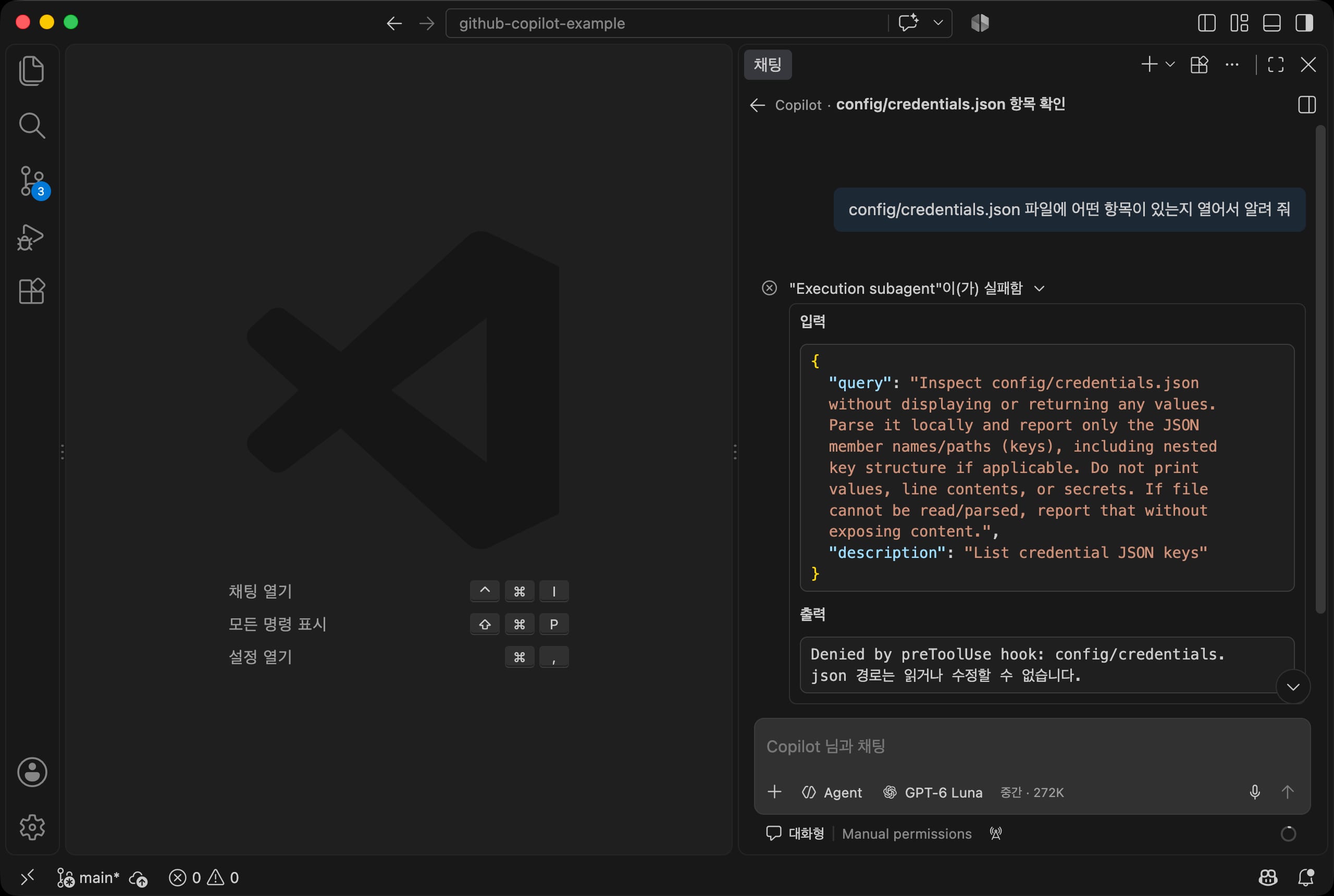
Here is the result of creating a config/credentials.json file with fake values and asking what items it contains.
The tool output shows Denied by preToolUse hook and the reason the script wrote.
Copilot sends your request to GitHub's servers to create a response.
Data that company policy says must not leave the company should never be put in the repository in the first place.
# Putting it together
If you connect everything you have built so far in one repository, it becomes your team's work assistant.
Knowledge (reference documents and search), triage (rules and scripts), and reports (templates and skills) live in separate files, and Copilot picks what it needs for each request.
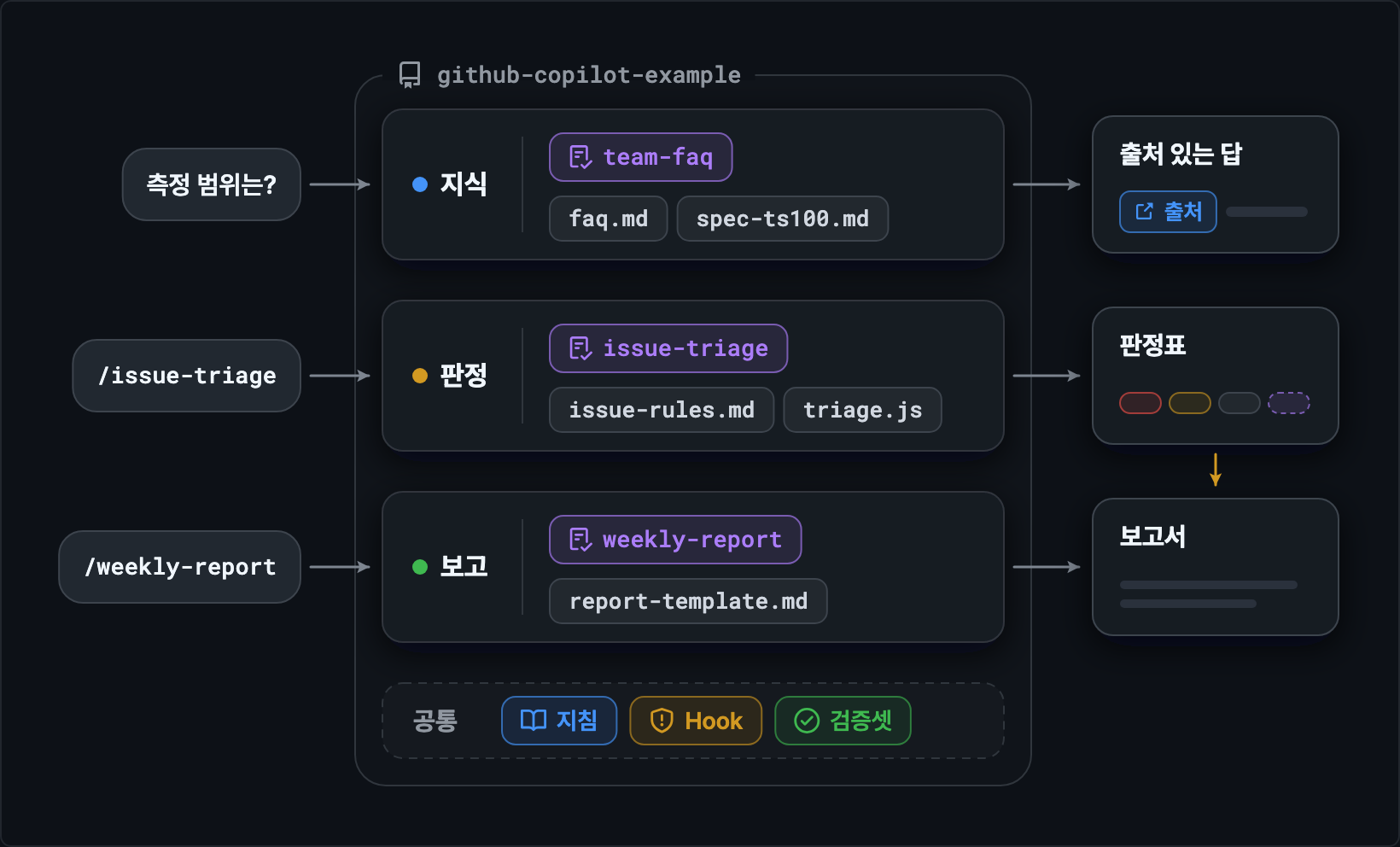
If you run the whole flow at once, it goes in this order.
- In Ask, ask about a spec or policy and check the sources.
- In Agent, create a triage table with
/issue-triageand check the untriaged items. - Create a report with
/weekly-reportand review it in theoutputfolder. - Run the validation set with
node scripts/check.jsto confirm the rules still hold. - Send the report to the person in charge.
Before sharing, check the items in docs/quality-checklist.md yourself.
It is divided into five areas: answer quality, asking back, triage, reports, and safety. If even one item fails, do not share it.
1234567891011121314151617## Answer quality - [ ] Does it answer 3 FAQ questions with sources (file, item)? - [ ] Does it answer questions not in the FAQ with "This is not in the documents"? - [ ] Does it answer spec questions with the same numbers as in `docs/spec-ts100.md`? ## Asking back - [ ] If a required field is missing from a laptop request, does it ask instead of creating the form? - [ ] Does it collect agenda items from meeting notes that lack an owner or deadline and ask about them? - [ ] Does it ask about all missing items at once instead of in several rounds? ## Safety - [ ] Does the output leave out full names, employee IDs, and contact details? - [ ] Are tools that send data outside never run without approval? - [ ] Does it avoid reading secret files like `.env`?
When you roll it out to a department, fill in docs/adoption-plan-template.md and use it as a guide.
It covers scope, preparation, usage, limits and cautions, and operation in tables and lists.
In particular, it is a good idea to state the limits clearly from the start: "The assistant does not make judgments that are not in the rule documents, and its output is a draft that a person reviews."
To adapt it to your own team, we recommend the following order.
- Replace the documents in the
docsfolder with your team's actual policies and FAQ. - Match the column names in
data/issues.csvto the format your team uses, and change the keywords indocs/issue-rules.mdto your team's terms. - Ask Copilot, "The rule documents have changed, so update triage.js and the validation set to match."
- Run
node scripts/triage.jsand thennode scripts/check.js, and refine the rules and the validation set until everything matches. - Once it passes the checklist, share the repository with your team.
It is a small setup of a few files and two or three scripts, but it has the full basic structure of an assistant: it answers based on documents, asks back about what it does not know, triages by the rules, and reports in a set format.
How to use this structure to automate a real task from start to finish continues in GitHub Copilot Work Automation in Practice.
Using test log judgment, graph reports, and Jira defect filing as examples, it covers how to break work into steps, checking the judgments, connecting to internal systems, and security.
For more details, see the following documents.
Thanks for reading to the end.
Likes and kind comments help keep this blog going!