The Complete Guide to CSS Multi-Column

CSS multi-column is a layout feature that splits an element's content (such as text) into several columns, like a newspaper or magazine, so you can see more content at a glance and read it more easily.
In the simplest case, you only set the number of columns, but you can also set a variety of styles such as the minimum column width, the gap between columns, divider lines, and other optimizations; in particular, setting a minimum width makes it easy to provide a responsive layout.
You can split the content of a single block element into multiple columns.
It doesn't apply to inline elements.
# Multi-column containers
The basic multi-column properties are used on a single container (a block element).
In the examples that follow, the <article> element is the multi-column container.

# columns
columns is a shorthand property that sets the minimum width (column-width) and the maximum number (column-count) of columns at once.
The default value is auto, which lets the browser decide the width and number of columns; if you don't set a width or number, multi-column layout isn't applied.
| Value | Meaning | Default |
|---|---|---|
auto |
The browser decides the width and number of columns | auto |
Value of the column-width property |
Sets the minimum width of the columns | auto |
Value of the column-count property |
Sets the maximum number of columns | auto |
1columns: min-width max-count;
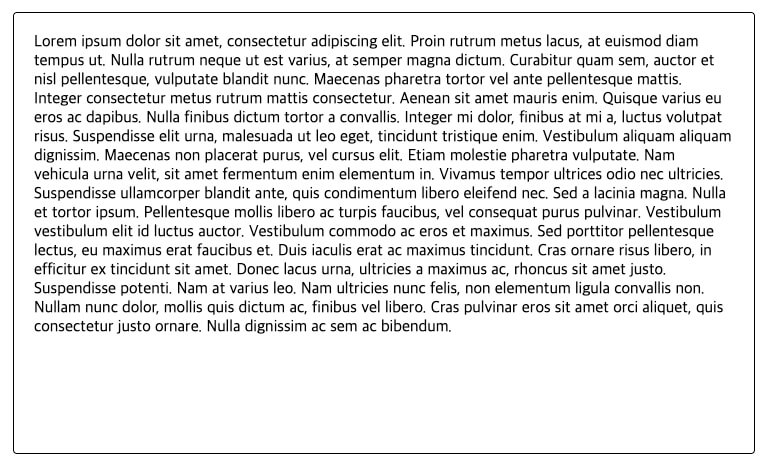
Here's an example without multi-column layout applied.
1234567<article> <p> Lorem ipsum dolor sit amet, consectetur adipiscing elit. Proin rutrum metus lacus, at euismod diam tempus ut. Nulla rutrum neque ut est varius, at semper magna dictum. Curabitur quam sem, auctor et nisl pellentesque, vulputate blandit nunc. Maecenas pharetra tortor vel ante pellentesque mattis. Integer consectetur metus rutrum mattis consectetur. Aenean sit amet mauris enim. Quisque varius eu eros ac dapibus. Nulla finibus dictum tortor a convallis. Integer mi dolor, finibus at mi a, luctus volutpat risus. Suspendisse elit urna, malesuada ut leo eget, tincidunt tristique enim. Vestibulum aliquam aliquam dignissim. Maecenas non placerat purus, vel cursus elit. Etiam molestie pharetra vulputate. Nam vehicula urna velit, sit amet fermentum enim elementum in. Vivamus tempor ultrices odio nec ultricies. Suspendisse ullamcorper blandit ante, quis condimentum libero eleifend nec. Sed a lacinia magna. Nulla et tortor ipsum. Pellentesque mollis libero ac turpis faucibus, vel consequat purus pulvinar. Vestibulum vestibulum elit id luctus auctor. Vestibulum commodo ac eros et maximus. Sed porttitor pellentesque lectus, eu maximus erat faucibus et. Duis iaculis erat ac maximus tincidunt. Cras ornare risus libero, in efficitur ex tincidunt sit amet. Donec lacus urna, ultricies a maximus ac, rhoncus sit amet justo. Suspendisse potenti. Nam at varius leo. Nam ultricies nunc felis, non elementum ligula convallis non. Nullam nunc dolor, mollis quis dictum ac, finibus vel libero. Cras pulvinar eros sit amet orci aliquet, quis consectetur justo ornare. Nulla dignissim ac sem ac bibendum. </p> </article>
12345678910article { width: 700px; height: 450px; padding: 20px; border: 1px solid; border-radius: 4px; } p { margin: 0; }
Use the columns property on the container element where you want to apply multi-column layout, as follows.
Each column has a minimum width of 200px, and there are at most 3 columns.
123456article { /* ... */ columns: 200px 3; /* column-width: 200px; */ /* column-count: 3; */ }
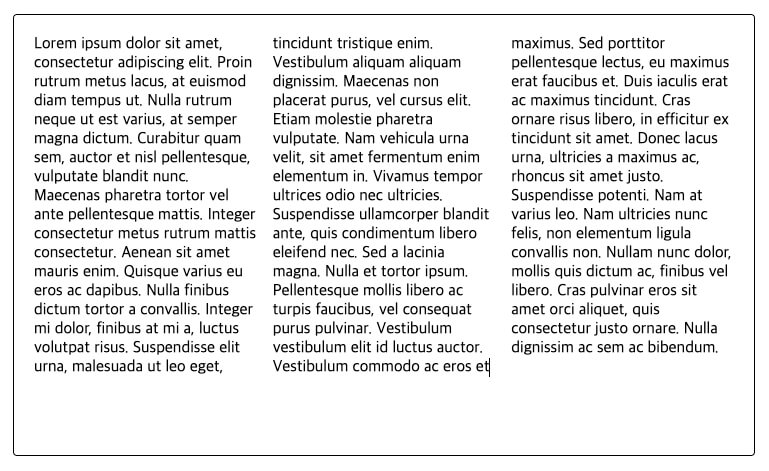
If the container's width shrinks, the number of columns adjusts to fit the minimum width of each column.
Note that the element's height must be large enough for the number of columns to adjust, so in this part only, we set the height property to its default value (auto).
The default value of the height property, which sets the element's height, is auto, and the height can change to fit the size of the content.
1234567article { width: 700px; /* height: 450px; */ padding: 20px; border: 1px solid; border-radius: 4px; }


# column-width
An individual property of columns that sets the minimum width each column can shrink to.
If a column would become narrower than the minimum width within the element's width, the number of columns changes automatically.
| Value | Meaning | Default |
|---|---|---|
auto |
Set automatically by the browser | auto |
| Units | Set in units such as px, em, and cm |
1234article { /* ... */ column-width: 200px; }
# column-count
An individual property of columns that sets the maximum number of columns to divide the element's content into.
The optimal number of columns changes automatically based on the specified minimum column width (column-width).
| Value | Meaning | Default |
|---|---|---|
auto |
Set automatically by the browser | auto |
| Number | Sets the maximum number of columns |
1234article { /* ... */ column-count: 3; }
# column-gap (gap)
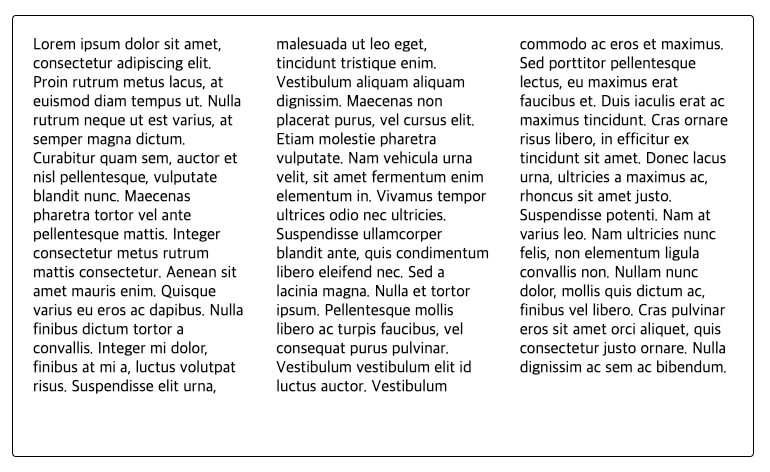
Sets the gap between columns in a multi-column layout.
The default gap is proportional to the font size.
| Value | Meaning | Default |
|---|---|---|
normal |
Sets the default gap (1em) |
normal |
| Units | Set in units such as px, em, and cm |
123456article { /* ... */ column-gap: 30px; /* gap: 30px; */ /* gap: 0 30px; */ }
# column-rule
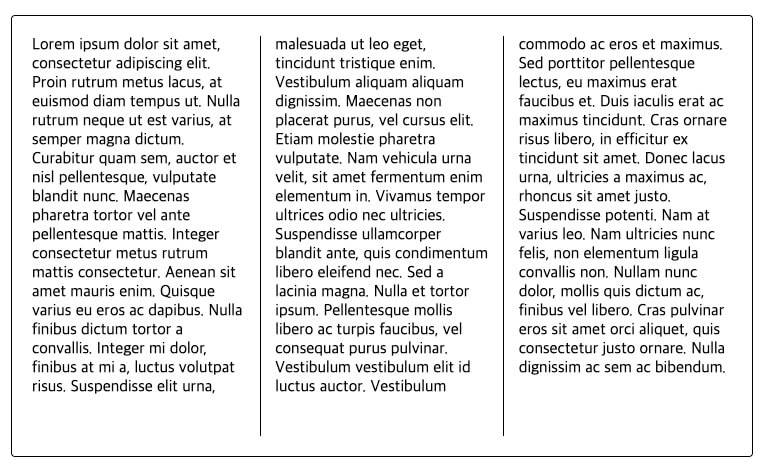
Sets a divider line between columns in a multi-column layout.
The divider sits in the middle of the gap between columns.
| Value | Meaning | Default |
|---|---|---|
column-rule-width |
Sets the line's width | medium |
column-rule-style |
Sets the line's style | none |
column-rule-color |
Sets the line's color | Same as the element's text color |
1234article { /* ... */ column-rule: 1px solid; }
# column-rule-width
An individual property of column-rule that sets the width of the multi-column divider.
| Value | Meaning | Default |
|---|---|---|
medium |
Medium line | medium |
thin |
Thin line | |
thick |
Thick line | |
| Units | Set in units such as px, em, and cm |
1234article { /* ... */ column-rule-width: 1px; }
# column-rule-style
An individual property of column-rule that sets the style of the multi-column divider.
| Value | Meaning | Default |
|---|---|---|
none |
No line | none |
hidden |
Same as no line (used in table elements) |
|
solid |
Solid line (a regular line) | |
dotted |
Dotted line | |
dashed |
Dashed line | |
double |
Double line | |
groove |
Grooved shape (line) | |
ridge |
Raised ridge shape (line, the opposite of groove) |
|
inset |
The whole element looks sunken (line) | |
outset |
The whole element looks raised (line) |
1234article { /* ... */ column-rule-style: solid; }
# column-rule-color
An individual property of column-rule that sets the color of the multi-column divider.
| Value | Meaning | Default |
|---|---|---|
| Color | Sets the line's color | Same as the element's text color |
1234article { /* ... */ column-rule-color: red; }
# column-fill
The column-fill property sets whether content is balanced across the columns or filled in sequence.
| Value | Meaning | Default |
|---|---|---|
balance |
Fills the columns evenly | balance |
auto |
Fills the columns in sequence |
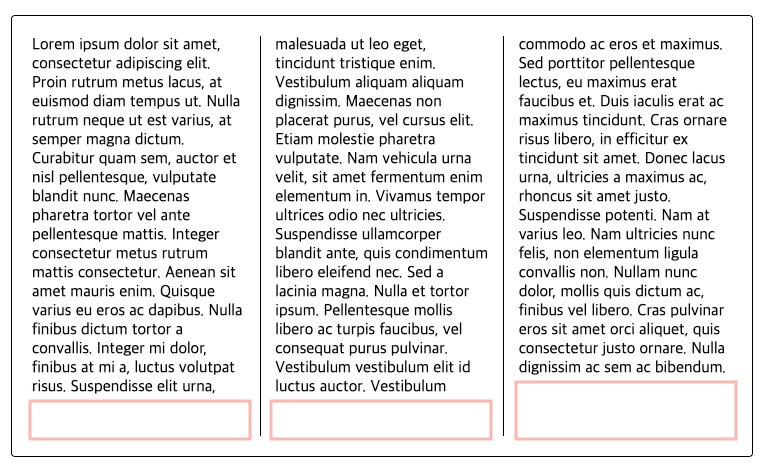
When the element's height (height) is set, space may be left at the bottom by default, because the content is balanced (balance) across the columns.
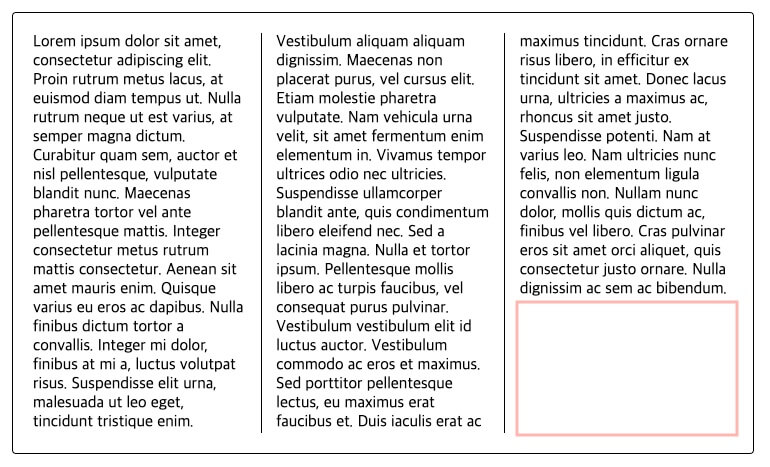
If you want to simply fill the columns in sequence instead of balancing the content, you can use the auto value.
1234article { /* ... */ column-fill: auto; }
# Multi-column items
A container with multi-column layout applied can have several elements as its content (children).
All the properties we'll look at from here on are used on the content elements, not on the container.
# column-span
You can make an element span across all columns.
It can be used to display the title of a multi-column area.
| Value | Meaning | Default |
|---|---|---|
none |
The element doesn't span | none |
all |
The element spans all columns |
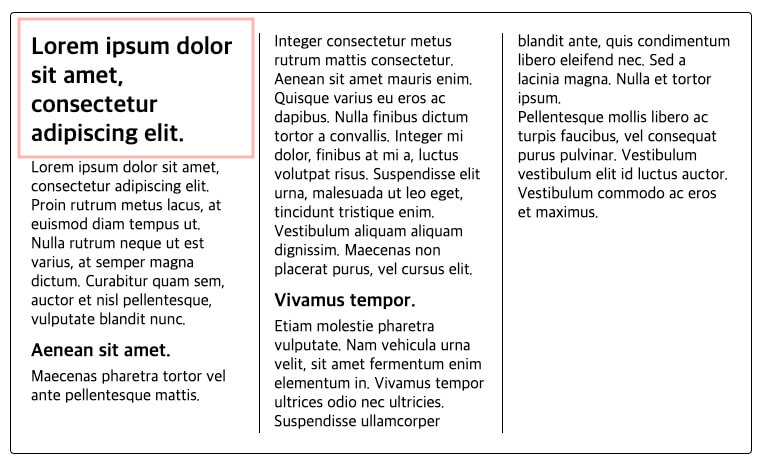
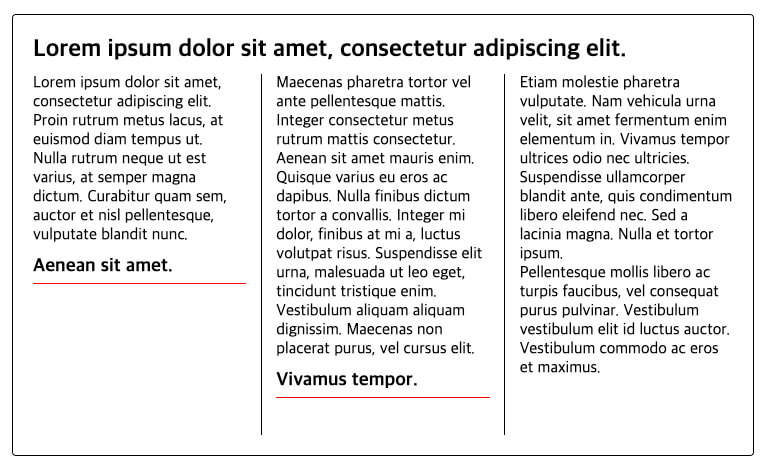
The multi-column area in the following example has an <h2> element for the area's title and <h3> elements for subheadings of parts of the content, and each paragraph is a <p> element.
The title and paragraphs flow through the columns in order.
12345678910111213<article> <h2>Lorem ipsum dolor sit amet, consectetur adipiscing elit.</h2> <p>Lorem ipsum dolor sit amet, consectetur adipiscing elit. Proin rutrum metus lacus, at euismod diam tempus ut.</p> <p>Nulla rutrum neque ut est varius, at semper magna dictum. Curabitur quam sem, auctor et nisl pellentesque, vulputate blandit nunc.</p> <h3>Aenean sit amet.</h3> <p>Maecenas pharetra tortor vel ante pellentesque mattis. Integer consectetur metus rutrum mattis consectetur.</p> <p>Aenean sit amet mauris enim. Quisque varius eu eros ac dapibus. Nulla finibus dictum tortor a convallis. Integer mi dolor, finibus at mi a, luctus volutpat risus. Suspendisse elit urna, malesuada ut leo eget, tincidunt tristique enim. Vestibulum aliquam aliquam dignissim. Maecenas non placerat purus, vel cursus elit.</p> <h3>Vivamus tempor.</h3> <p>Etiam molestie pharetra vulputate. Nam vehicula urna velit, sit amet fermentum enim elementum in. Vivamus tempor ultrices odio nec ultricies. Suspendisse ullamcorper blandit ante, quis condimentum libero eleifend nec. Sed a lacinia magna. Nulla et tortor ipsum.</p> <p>Pellentesque mollis libero ac turpis faucibus, vel consequat purus pulvinar. Vestibulum vestibulum elit id luctus auctor. Vestibulum commodo ac eros et maximus.</p> </article>
1234567891011121314151617181920212223article { width: 700px; height: 400px; padding: 20px; border: 1px solid; border-radius: 4px; column-width: 200px; column-count: 3; column-gap: 30px; column-rule: 1px solid; column-fill: auto; } h2 { margin: 0; padding-bottom: 10px; } h3 { margin: 0; padding: 10px 0 5px; } p { margin: 0; }
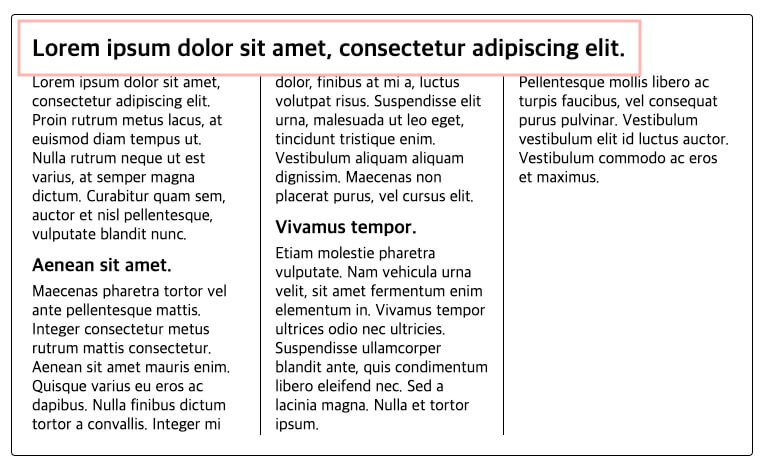
If you want to emphasize the area's title even more, you can create a title that spans all columns, as follows.
Use the column-span: all; property on that heading element.
1234h2 { /* ... */ column-span: all; }
# break-before
You can break to the next column at the start (before) of an element.
By default, auto behaves like avoid.
| Value | Meaning | Default |
|---|---|---|
auto |
Set automatically by the browser | auto |
column |
Breaks to the next column at the start of the element | |
avoid |
Doesn't break at the start of the element |
Each subheading breaks to the next column at its start.
The red line marks where the break happens.
12345h3 { /* ... */ border-top: 1px solid red; break-before: column; }

# break-after
You can break to the next column at the end (after) of an element.
| Value | Meaning | Default |
|---|---|---|
auto |
Set automatically by the browser | auto |
column |
Breaks to the next column at the end of the element | |
avoid |
Doesn't break at the end of the element |
The red line marks where it breaks to the next column.
12345h3 { /* ... */ border-bottom: 1px solid red; break-after: column; }
# break-inside
You can set whether an element can break to the next column inside it.
By default, breaks inside an element are allowed.
| Value | Meaning | Default |
|---|---|---|
auto |
Set automatically by the browser | auto |
avoid |
The inside of the element doesn't break to the next column |
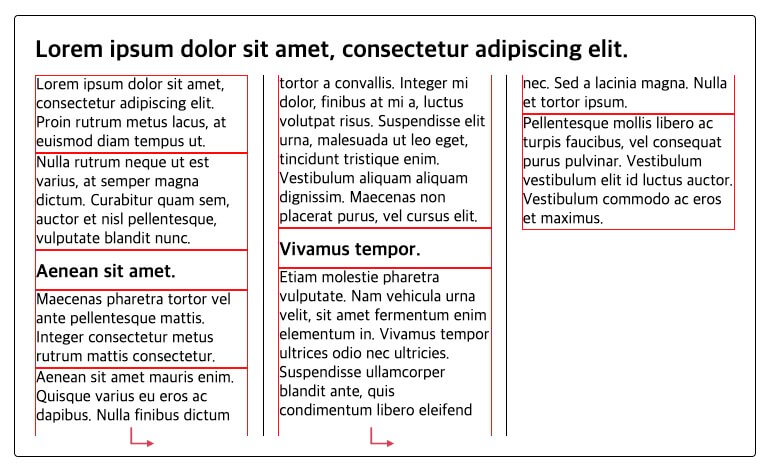
In the following example, red borders are used to show the areas of the subheadings and paragraphs.
The 4th and 5th paragraphs in the example each break across to the next column.
123456789101112/* ... */ h3 { margin: 0; padding: 10px 0 5px; border: 1px solid red; /* border-bottom: 1px solid red; */ /* break-after: column; */ } p { margin: 0; border: 1px solid red; }
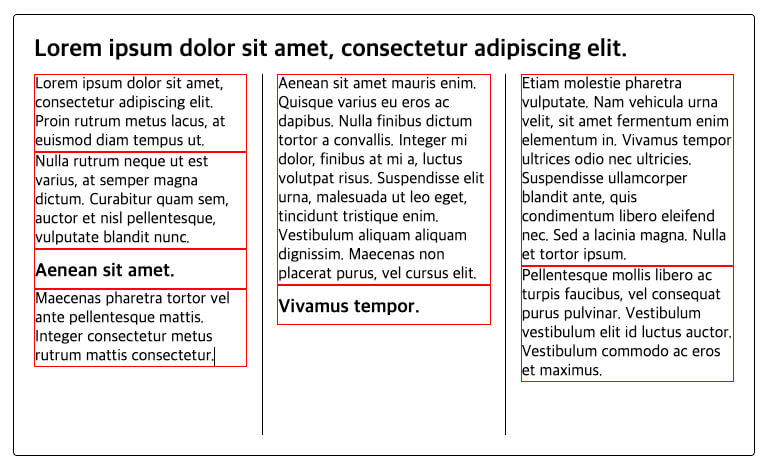
If you don't want each paragraph to break between columns, you can disallow breaks inside the element, as follows.
Then, if an element can't be displayed without a break, it's displayed in the next column.
12345/* ... */ p { /* ... */ break-inside: avoid; }
Thanks for reading to the end.
Likes and kind comments help keep this blog going!