The srcset and sizes Attributes for HTML Images

# Overview
To support images on the responsive web, you usually reach for the CSS media rule (@media), better known as a media query, and handling responsive images means thinking about everything from the viewport size to the resolution of the user's screen.
With the srcset and sizes attributes of HTML img, though, you can hand most of that work to the browser, in the simplest case just by specifying image sizes.
# Before you start testing
There's one thing to set up before testing.
Images can get cached and fail to reload, so check disable cache in Chrome DevTools.

You'll find the images used in the examples at the bottom of this post.
# A simple example
123456789<img srcset="images/heropy_small.png 400w, images/heropy_medium.png 700w, images/heropy_large.png 1000w" sizes="(max-width: 500px) 444px, (max-width: 800px) 777px, 1222px" src="images/heropy.png" alt="HEROPY" />
Here's how to read the example above.
The srcset attribute lists the paths of the images to use, separated by commas (,), each with the image's original size,
and the sizes attribute lists media conditions (optional), separated by commas (,), each with the optimized display size of the image for that condition.
123456789<img srcset="path original-size, path original-size, path original-size" sizes="(media-condition) optimized-display-size, (media-condition) optimized-display-size, default-display-size" src="path" alt="alt-text" />
This isn't the usual way to write an img, so it may look a little unfamiliar.
But don't worry, it's not as hard as it looks!
Let's go through it step by step.
The
srcattribute is the fallback for environments that don't supportsrcset!
# srcset
srcset specifies the images to offer the browser (the candidates it can use) and the original size of each one.
It's simple to use.
Prepare the same image in two or more sizes and list them in the srcset attribute.
Just note that you must give each size as a w descriptor or an x descriptor rather than in px, and list the images from smallest to largest.
# W descriptor
The w descriptor (width descriptor) is the image's original width.
For example, a 400x300 (px) image has a w value of 400w.
The browser (user agent) uses the
wdescriptors you give it to calculate the best pixel density for each image.
Take a look at the following example.
123456<img srcset="images/heropy_small.png 400w, images/heropy_medium.png 700w, images/heropy_large.png 1000w" src="images/heropy.png" alt="HEROPY" />
With the example above,heropy_small.png (400px) is used when the viewport is 400px wide or less.heropy_medium.png (700px) is used when the viewport is 401-700px wide.heropy_large.png (1000px) is used when the viewport is 701px wide or more.
In all the examples below, viewport width means the horizontal width of the viewport.
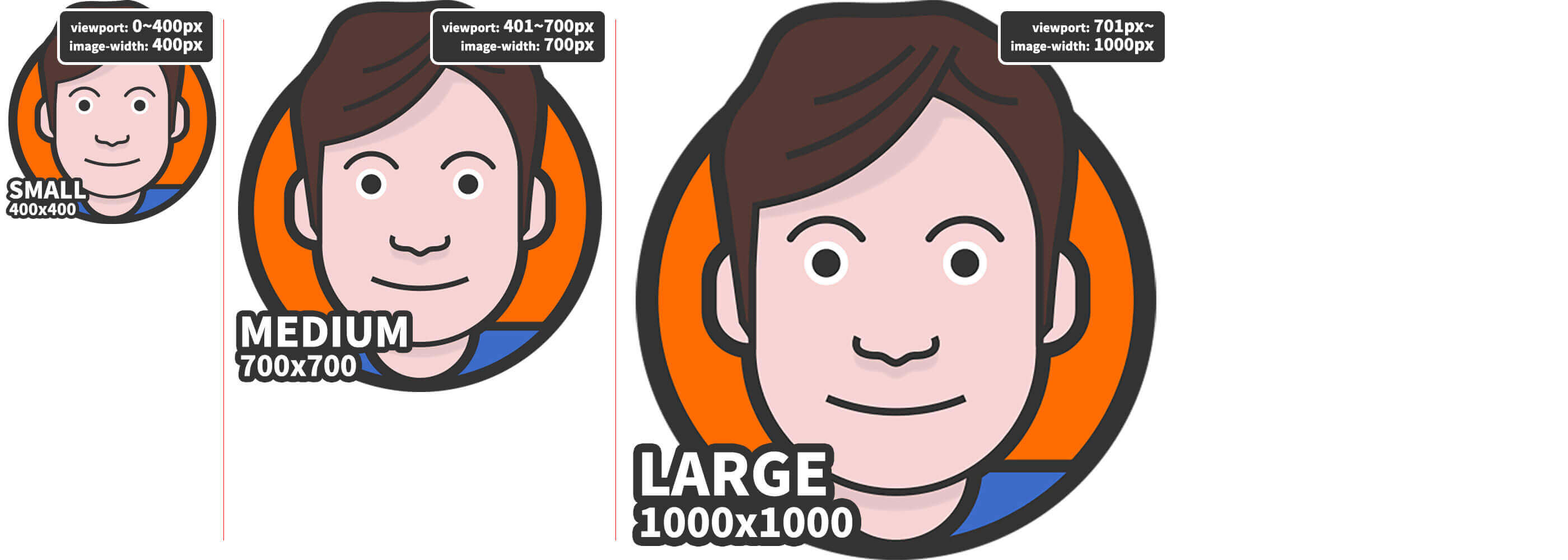
All we did was list three images and their sizes in srcset, and the browser picks the one that best fits the current viewport width.
It works much like the following CSS media queries.
1234567891011121314151617181920.some-image { width: 400px; height: 400px; background-image: url("images/heropy_small.png"); background-repeat: no-repeat; } @media (min-width: 401px) { .some-image { width: 700px; height: 700px; background-image: url("images/heropy_medium.png"); } } @media (min-width: 701px) { .some-image { width: 1000px; height: 1000px; background-image: url("images/heropy_large.png"); } }
To keep the image at a fixed size, you can add the width attribute.
(This is a different concept from the sizes attribute!)
1234567<img srcset="images/heropy_small.png 400w, images/heropy_medium.png 700w, images/heropy_large.png 1000w" width="400" src="images/heropy.png" alt="HEROPY" />
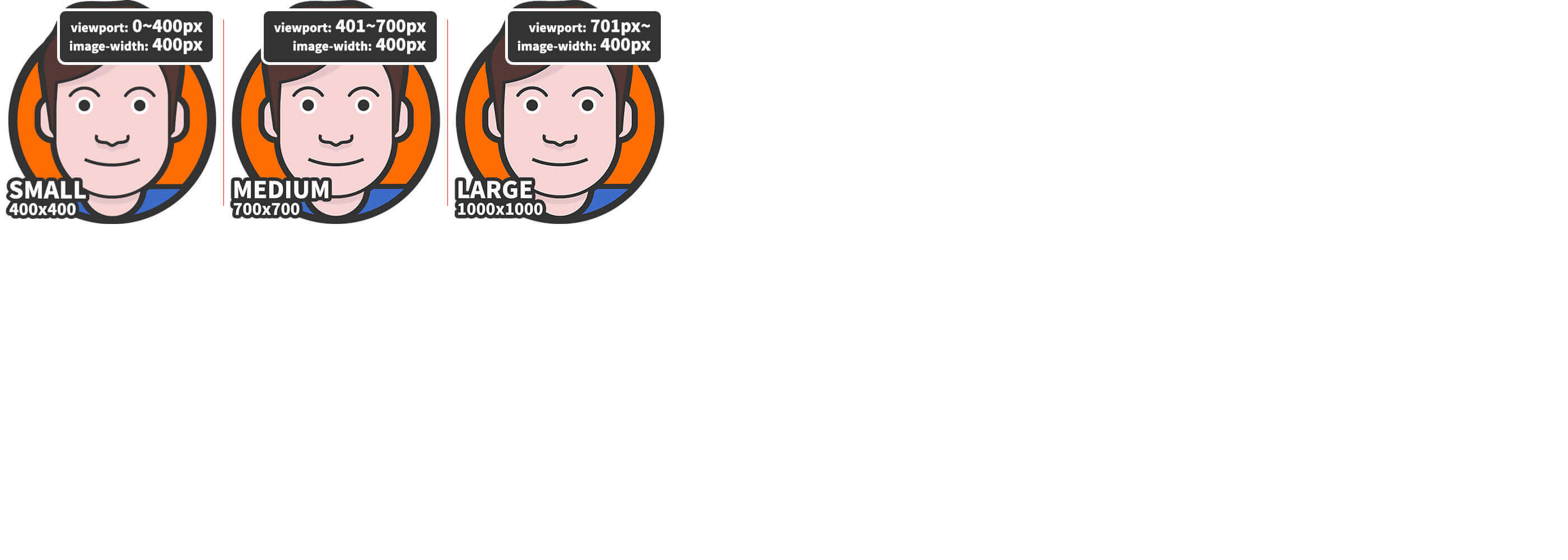
This is similar to the following.
1234567891011121314151617.some-image { width: 400px; height: 400px; background-image: url("images/heropy_small.png"); background-repeat: no-repeat; background-size: cover; } @media (min-width: 401px) { .some-image { background-image: url("images/heropy_medium.png"); } } @media (min-width: 701px) { .some-image { background-image: url("images/heropy_large.png"); } }
# X descriptor
The x descriptor (device pixel ratio descriptor) indicates the pixel ratio the image is meant for.
You can rewrite the example from the w descriptor section like this.
123456<img srcset="images/heropy_small.png 1x, images/heropy_medium.png 1.75x, images/heropy_large.png 2.5x" src="images/heropy.png" alt="HEROPY" />
With x descriptors, the browser picks the image whose value matches the device pixel ratio.
You can check the values for your current screen at mydevice.io.
It's generally best to use integer values.
If you use
wdescriptors, you don't needxdescriptors.
In most cases,wdescriptors are the recommended choice.
# sizes
sizes specifies media conditions and the 'optimized display size' of the image for each condition.
Take a look at the following example.
1234567<img srcset="images/heropy_small.png 400w, images/heropy_medium.png 700w, images/heropy_large.png 1000w" sizes="(min-width: 1000px) 700px" src="images/heropy.png" alt="HEROPY" />
With the example above,heropy_small.png (400px) is used when the viewport is 400px wide or less.heropy_medium.png (700px) is used when the viewport is 401-700px wide.heropy_large.png (1000px) is used when the viewport is 701-999px wide.heropy_medium.png (700px) is used when the viewport is 1000px wide or more.
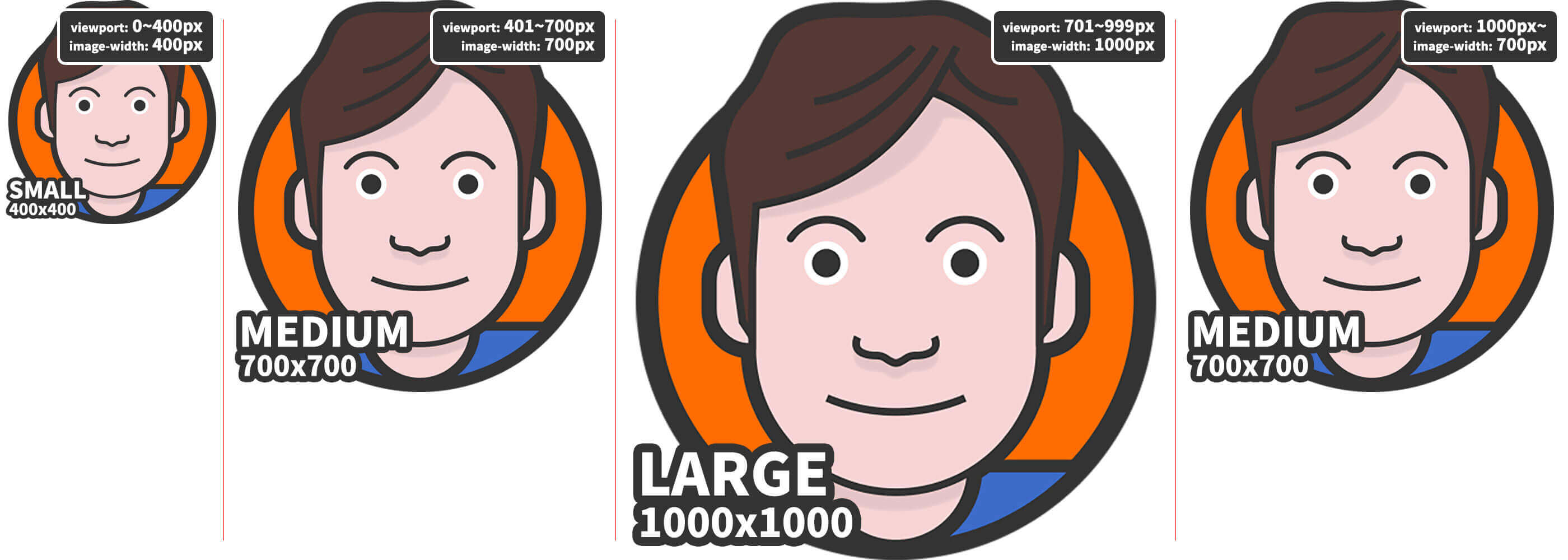
In sizes="(min-width: 1000px) 700px", (min-width: 1000px) means 'when the viewport is 1000px wide or more', and the 700px that follows means 'display the image optimized for 700px' under that condition.
The best image in the srcset list for displaying at 700px is heropy_medium.png, so heropy_medium.png was used when the viewport was 1000px wide or more.
Let's look at another example.
This time, the media condition is left out.
1234567<img srcset="images/heropy_small.png 400w, images/heropy_medium.png 700w, images/heropy_large.png 1000w" sizes="500px" src="images/heropy.png" alt="HEROPY" />
With the example above,
only heropy_medium.png is used, no matter how wide the viewport is ('Wait, it doesn't matter?!').heropy_medium.png is also displayed at 500px. (It's originally a 700px image.)

It may not be clear yet why only one image is used regardless of the viewport width, so let's compare it with the next example.
This time there's no sizes, but there is a width.
1234567<img srcset="images/heropy_small.png 400w, images/heropy_medium.png 700w, images/heropy_large.png 1000w" width="500" src="images/heropy.png" alt="HEROPY" />
With the example above,heropy_small.png is used when the viewport is 400px wide or less.heropy_medium.png is used when the viewport is 401-700px wide.heropy_large.png is used when the viewport is 701px wide or more.
The image changes with the viewport width, but its size stays fixed at 500px.
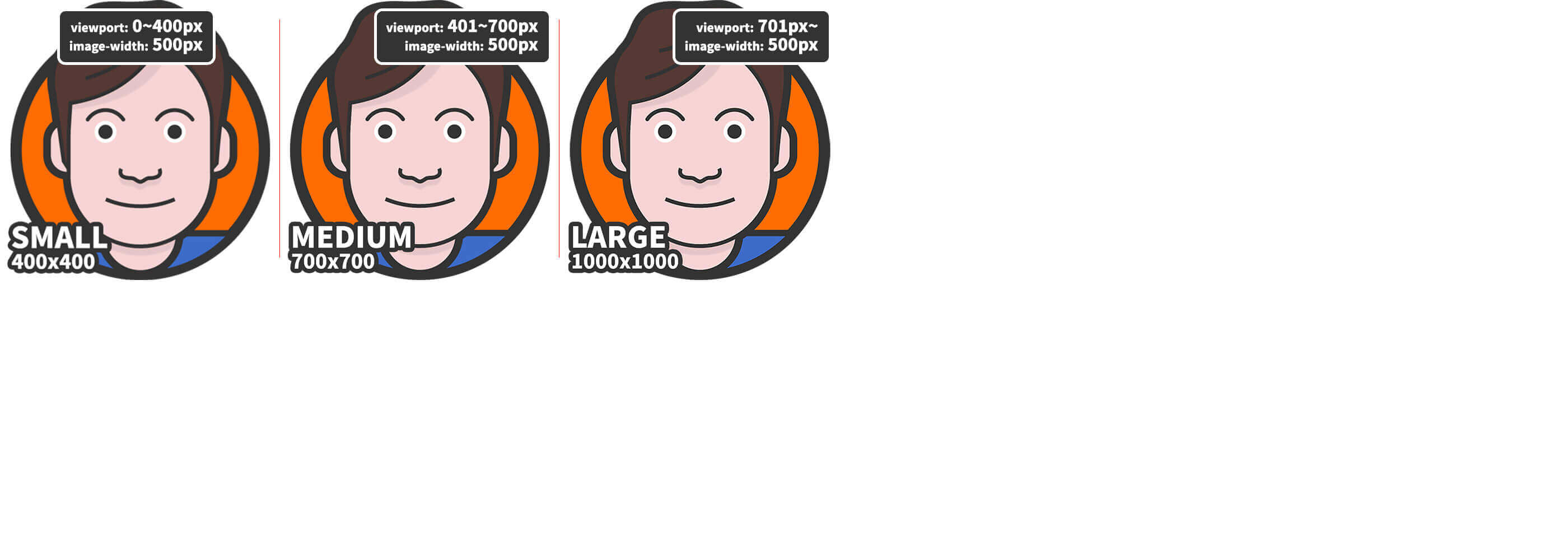
See the difference now?width sets only the image's 'display size', whereas sizes sets both its 'display size' and its 'optimal size'.
That's why the first example, with sizes="500px", used heropy_medium.png as the image best suited to 500px and also displayed it at 500px.
If you write both
sizesandwidth,widthtakes precedence.
Once the concept clicks, you can also write multiple conditions like this.
Note that the conditions are separated by commas (,).
123456789<img srcset="images/heropy_small.png 400w, images/heropy_medium.png 700w, images/heropy_large.png 1000w" sizes="(min-width: 701px) 1000px, (min-width: 401px) 700px, 400px" src="images/heropy.png" alt="HEROPY" />
# Polyfill
https://github.com/aFarkas/respimage
# Sample images




Thanks for reading to the end.
Likes and kind comments help keep this blog going!