Understanding Bundlers and Build Tools

Bundlers such as Webpack, Parcel, and Rollup are essential tools in modern web development.
These days, bundlers are more often used indirectly through build tools like Vite.js or Snowpack.js, or through frameworks like Next.js, Nuxt, and SvelteKit, rather than directly. Even so, it is still important to understand the basic concepts of bundlers and how they work.
In this post, we will look at the basic concepts of bundlers along with simple examples that show how they work, and then we will also look at build tools.
# Bundlers
Before the browser module system was standardized, people simply connected multiple JavaScript files with HTML <script> tags. This approach had several problems, such as polluting the global scope and making dependencies hard to manage.
So module systems such as CommonJS, AMD, and UMD appeared, and bundlers appeared to use these module systems efficiently in the browser.
A bundler is a tool that gathers the fragmented (modularized) resources needed to build a web application, such as HTML, CSS, and JS, and combines (bundles) them into one file or a small, optimal number of files.
While interpreting the project to combine it, a bundler can do basic jobs such as removing unnecessary comments and whitespace, obfuscating code, and compressing files. Bundlers have also been extended to convert the latest syntax and other special features that make development convenient into a form that browsers support.
In the end, modern bundlers help a lot in making developers more productive and improving browser compatibility and performance.
bundle - to tie or wrap things together.
Browsers support HTML, CSS, and JavaScript (JS) as standards, and with them we can build web applications.
Developing with these standard languages is basic and intuitive, but as a project grows, managing it becomes much more complex and difficult.
In the following example, each JavaScript file uses the same title variable, and they are all connected to a single HTML file, so the title variable is declared twice and an error occurs.
1234567891011<link rel="stylesheet" href="./main.css"> <script defer src="./containerH1.js"></script> <script defer src="./containerH2.js"></script> <div class="container"> <button>Toggle!</button> <h1></h1> </div> <div class="container"> <h2></h2> </div>
1234567.container { max-width: 1200px; margin: 0 auto; } .container h1 { font-weight: bold; }
123456789101112let title = 'JavaScript!' const h1El = document.querySelector('.container h1') h1El.textContent = title let isShow = true const buttonEl = document.querySelector('.container button') buttonEl.addEventListener('click', () => { isShow = !isShow isShow ? h1El.style.display = 'block' : h1El.style.display = 'none' })
123let title = 'Bundler!' // Error: Identifier 'title' has already been declared const h2El = document.querySelector('.container h2') h2El.textContent = title
As a simple fix, you can avoid the duplicate declaration by scoping the code with an immediately invoked function expression (IIFE) as follows. But once the project grows even a little, it is hard to manage every file in the project this way.
1234567891011121314;(() => { let title = 'JavaScript!' const h1El = document.querySelector('.container h1') h1El.textContent = title let isShow = true const buttonEl = document.querySelector('.container button') buttonEl.addEventListener('click', () => { isShow = !isShow isShow ? h1El.style.display = 'block' : h1El.style.display = 'none' }) })()
12345;(() => { let title = 'Bundler!' // OK! const h2El = document.querySelector('.container h2') h2El.textContent = title })()
Now let's go back to the code before the IIFE and change it to use a bundler this time.
Connect only the main script file (main.js) in the HTML, and import each file you need from that file.
Because we now use a bundler, you can import not only JavaScript (*.js) files but also various other files such as *.css, *.scss, *.vue, and *.ts, depending on your configuration.
123456789<script src="./main.js"></script> <div class="container"> <button>Toggle!</button> <h1></h1> </div> <div class="container"> <h2></h2> </div>
12345678import './main.css' import './containerH1.js' import './containerH2.js' // import { fade } from './animate.ts' import App from './App.vue' import data from './data.json' // ...
In an environment that uses a bundler like this, you can, for example, use special files with the .vue extension (SFC, Single File Component) to quickly apply TypeScript or SCSS as follows. With components, you can easily create, reuse, and efficiently manage each part of the project.
1234567891011121314151617181920212223242526<script setup lang="ts"> import { ref } from 'vue' const title = ref('Hello World!') const isShow = ref(true) </script> <template> <div class="container"> <button @click="isShow = !isShow"> Toggle! </button> <h1 v-show="isShow"> {{ title }} </h1> </div> </template> <style scoped lang="scss"> .container { max-width: 1200px; margin: 0 auto; h1 { font-weight: bold; } } </style>
12345678910<script setup lang="ts"> import { ref } from 'vue' const title = ref('Bundler!') </script> <template> <div class="container"> <h2>{{ title }}</h2> </div> </template>
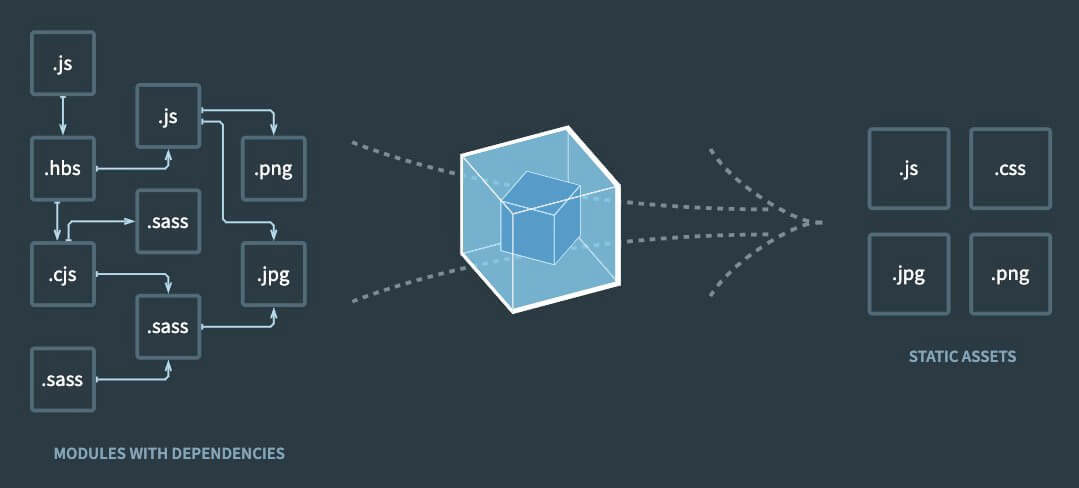
However, browsers do not directly support .vue files, TypeScript, SCSS, and so on, so .vue files must be converted into the standards (HTML, CSS, JS) that browsers understand!
The Webpack bundler's website illustrates this concept well with the following image.
# Webpack

Webpack is a popular JavaScript bundler. With its many features and extensibility, it helps you manage modules efficiently even in more complex projects.
Webpack mainly provides the following features.
- Module Bundling: Bundles the files connected to the entry point into a single file.
- Automatic Bundle Optimization: Through bundle optimization, it creates smaller bundles that load that much faster.
- Code Splitting: Splits modules into chunks so that only the modules you need are loaded dynamically.
- Tree Shaking: Removes unused code to reduce bundle size and improve performance.
- Development Server: Runs a development server that reflects changes in the browser (HMR) every time the code changes.
Let's set up the following React project on top of Webpack.
123456789101112├─src/ │ ├─App.jsx │ ├─index.html │ ├─main.js │ └─main.scss ├─static/ │ ├─favicon.ico │ └─favicon.png ├─.swcrc ├─package.json ├─package-lock.json └─webpack.config.js
123456789101112<!DOCTYPE html> <html lang="ko"> <head> <meta charset="UTF-8"> <meta name="viewport" content="width=device-width, initial-scale=1.0"> <title>React x Webpack</title> <script defer src="main.js"></script> </head> <body> <div id="app"></div> </body> </html>
123456import { createRoot } from 'react-dom/client' import App from './App.jsx' import './main.scss' const root = createRoot(document.querySelector('#app')) root.render(<App />)
1234567891011import { useState } from 'react' export default function App() { const [count, setCount] = useState(0) return ( <> <button onClick={() => setCount(count + 1)}>Increase!</button> <h1>Count: {count}</h1> </> ) }
1234$color: red; h1 { color: $color; }
First, install the basic packages needed to use the Webpack bundler.
webpack: The core package of the module (package) bundlerwebpack-cli: Lets you use Webpack commands (CLI) in the terminalwebpack-dev-server: Runs a live server for development (HMR)
1npm i -D webpack webpack-cli webpack-dev-server
Add scripts that run Webpack to the package.json file as follows.
123456{ "scripts": { "dev": "webpack serve --mode development --open", "build": "webpack --mode production" } }
Webpack sets up the project's configuration through the webpack.config.js file.
There are many configuration options, but the basic ones are as follows.
- Entry
- Output
- Loaders
- Plugins
123456789module.exports = { entry: '', // Entry point output: {}, // Output module: { // Loaders (modules) rules: [] }, plugins: [], // Plugins // Other options... }
# Entry
The entry point is the location (file) where Webpack starts interpreting the project.
You can set the entry point with the entry property, and it is usually a JavaScript file.
123module.exports = { entry: './src/main.js' }
If needed, you can also use multiple entry points.
12345678module.exports = { entry: { main: './src/main.js', sub: './src/sub.js', hi: './src/hi.js', // ... } }
# Output
Output is the option that sets the name and path of the bundle files that Webpack creates.
12345678module.exports = { output: { // Default values, // path: path.resolve(__dirname, 'dist'), // Creates the output in the dist folder, based on the absolute path of the current file // filename: '[name].js', // [name] uses the entry point's file name as is clean: true // Deletes the previous output before creating new output } }
# Loaders
Loaders are how Webpack processes modules (files) other than *.js files, and you configure them with the module property.
You write them as an array in the module.rules property, and each rule has test and use properties by default.
Write the test property as a regular expression (RegExp) to specify which files to process,
and use the use property to specify the loader that processes those files.
The following example is configured to process SCSS, CSS, JSX files, and several image file types.
style-loader: Injects loaded styles (CSS) into<head>as<style>css-loader: Loads CSS filessass-loader: Loads SCSS/Sass filessass: Interprets SCSS/Sass syntax (style preprocessor)swc-loader: Loads JS/JSX files@swc/core: Interprets JS/JSX files (transpiles)
1npm i -D style-loader css-loader sass-loader sass swc-loader @swc/core
1234567891011121314151617181920212223module.exports = { module: { rules: [ { test: /\.s?css$/, use: [ // Order matters! 'style-loader', 'css-loader', 'sass-loader' ] }, { test: /\.jsx?$/, use: 'swc-loader' }, { test: /\.(png|jpe?g|svg|gif|webp)$/i, // i flag - case-insensitive type: 'asset/resource' // Specifies a loader built into Webpack (builtin loader) via type } ] } }
You can provide the options SWC needs when it interprets JS/JSX files.
With "runtime": "automatic", you can use JSX in React 17 and later while omitting some code (import React from 'react').
12345678910111213{ "jsc": { "parser": { "syntax": "ecmascript", "jsx": true }, "transform": { "react": { "runtime": "automatic" } } } }
# Plugins
You can connect external plugins that process the bundled output.
Loaders process individual files to build the bundle, whereas plugins process the bundled result.
The following example connects the bundled output to an HTML file, copies the files in the static folder into the output, and sets things up so that React can be used as a global variable.
html-webpack-plugin: Connects the HTML file (template) that runs firstcopy-webpack-plugin: Copies static files (favicons, images, etc.) into the production (dist) folder
1npm i -D html-webpack-plugin copy-webpack-plugin
12345678910111213const HtmlPlugin = require('html-webpack-plugin') const CopyPlugin = require('copy-webpack-plugin') module.exports = { plugins: [ new HtmlWebpackPlugin({ template: './src/index.html' }), new CopyPlugin({ patterns: [{ from: 'static' }] }) ] }
# Parcel

Unlike Webpack, Parcel is a bundler that you can use simply, without a separate configuration file, and it aims for minimal configuration (zero config).
It automatically installs and handles commonly used or needed features, so you can set up a project quickly and easily.
Let's set up the following React project on top of Parcel.
1234567891011├─src/ │ ├─App.jsx │ ├─index.html │ ├─main.scss │ └─main.js ├─static/ │ ├─favicon.ico │ └─favicon.png ├─.parcelrc ├─package.json └─package-lock.json
1npm i -D parcel
# Entry
By default, Parcel uses an HTML file as the entry point, not a JavaScript file.
123456{ "scripts": { "dev": "parcel ./src/index.html", "build": "parcel build ./src/index.html" } }
To keep configuration minimal, the Parcel bundler has you connect SCSS, JS, JSX, TS files and so on directly in index.html, and it handles all of them automatically.
12345678910111213<!DOCTYPE html> <html lang="ko"> <head> <meta charset="UTF-8"> <meta name="viewport" content="width=device-width, initial-scale=1.0"> <title>React + Parcel</title> <link rel="stylesheet" href="./main.scss"> <script type="module" defer src="./main.js"></script> </head> <body> <div id="app"></div> </body> </html>
1234567import { createRoot } from 'react-dom/client' import App from './App.jsx' // import './main.scss' const app = document.querySelector('#app') const root = createRoot(app) root.render(<App />)
# Output
Output also needs no separate configuration.
By default, Parcel creates the output in the dist folder. If you want to use a different folder, you can use the --out-dir CLI option.
123456{ "scripts": { "dev": "parcel ./src/index.html", "build": "parcel build ./src/index.html --out-dir hello-world" } }
# Plugins
You can add features that Parcel does not handle automatically with plugins.
A typical example is a plugin that copies the files in the static folder.
parcel-reporter-static-files-copy: Copies static files (favicons, images, etc.) into thedistfolder
1npm i -D parcel-reporter-static-files-copy
When you use plugins, you need to create a .parcelrc file in the project root and provide the default configuration as follows.
Do not remove the "..." code!
1234{ "extends": ["@parcel/config-default"], "reporters": ["...", "parcel-reporter-static-files-copy"] }
# Build tools
A bundler gathers various resources and combines (bundles) them into one file or a small, optimal number of files.
A build tool is a tool for managing the overall flow of a project's build process. It usually includes a bundler and also has several other tools needed for development, such as a development server, linting, and testing.
# Vite

Vite is a build tool created by Evan You, the creator of Vue.js. It started out for Vue.js projects, but it has been extended so that other frameworks such as React and Svelte can use it too.
- It provides a development server (HMR) that stays very fast regardless of project size.
- It supports JSX, TS, TSX, SCSS, and more out of the box, without extra configuration.
- It is optimized so that there is no difference between the development server and the production build.
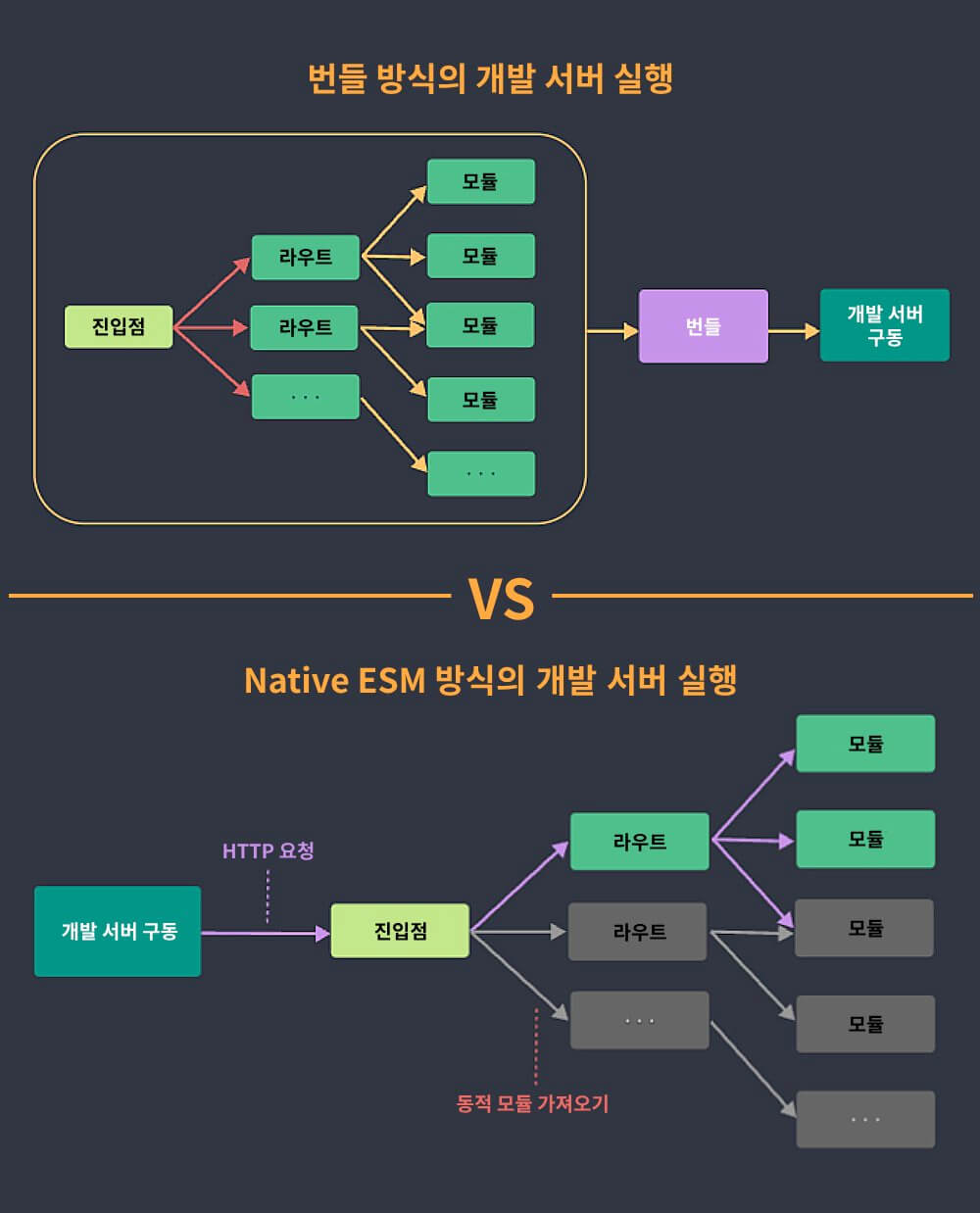
As you can see in the following image, the bundle-based approach has to rebuild everything whenever something changes, so build times grow as the project grows.
But with the browser's native ESM, only the changed modules are applied right away, so you can develop quickly regardless of project size.
Let's quickly set up a React project on top of Vite.
To use SCSS, also install the sass package. No separate configuration is needed.
1234567npm create vite@latest . # > Select React # > Select JavaScript + SWC # Install dependency packages npm i npm i -D sass
Vite starts with a basic project structure.
So if you modify it to look like the earlier Webpack or Parcel bundler projects, you get a structure like the following.
It is sample code that can run the development server right away, so modify it and use it however you like.
1234567891011├─src/ │ ├─App.jsx │ ├─main.jsx │ └─main.scss ├─public/ │ ├─favicon.ico │ └─favicon.png ├─index.html ├─package.json ├─package-lock.json └─vite.config.js
Thanks for reading to the end.
Likes and kind comments help keep this blog going!