Claude Code Desktop Essentials

Claude Code Desktop is Claude Code that you use in the Code tab of the Claude desktop app (Claude Desktop).
It runs the same engine as the CLI you start with the claude command in a terminal, but through a graphical interface, so you can open a folder on your computer and give Claude coding tasks even if you are not familiar with the command line.
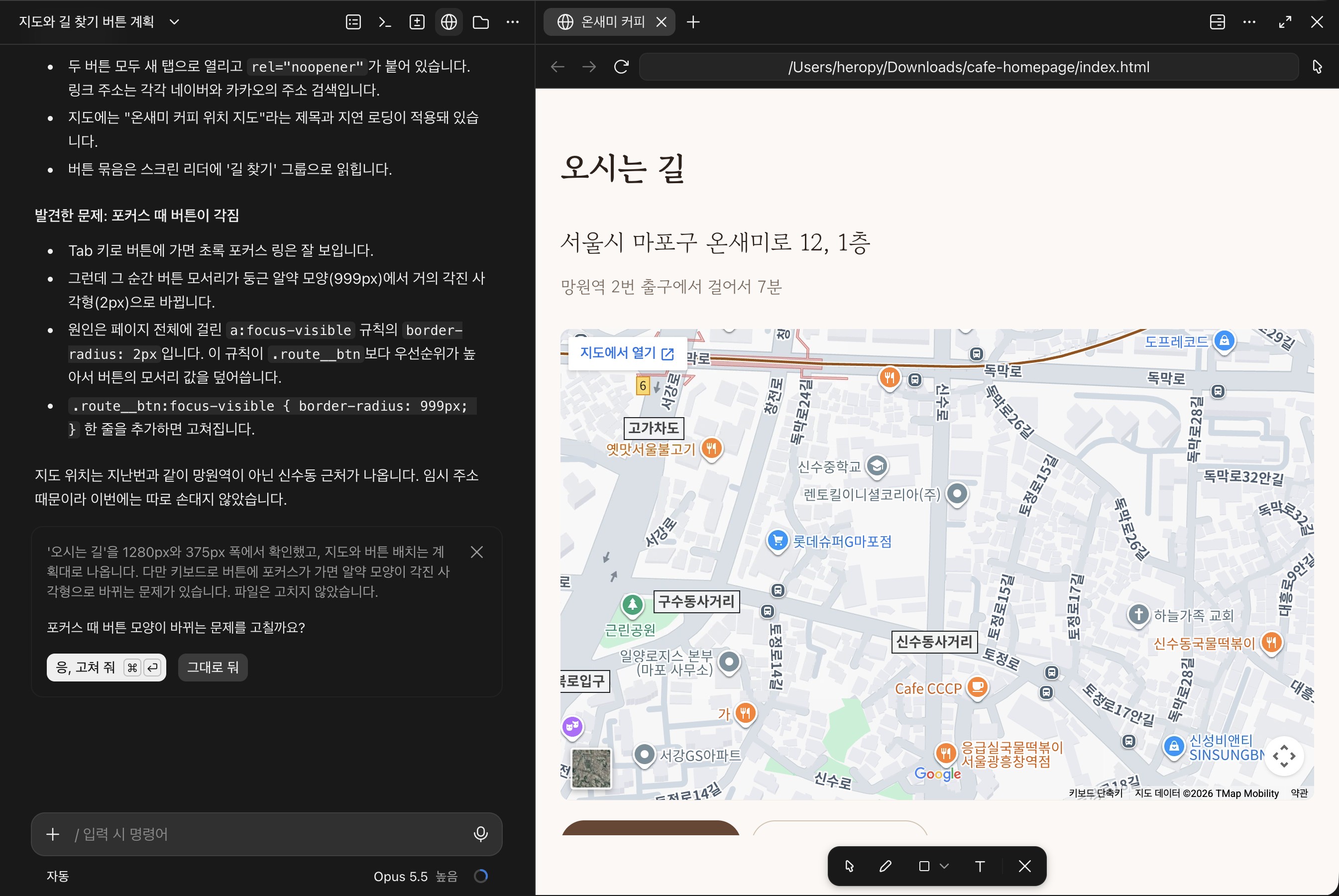
When Claude creates or edits files, you can compare the changes on screen right away, check the web pages it builds in a browser inside the app, and run several tasks side by side.
To use Claude Code Desktop, you need a paid Claude subscription.
Usage is counted together across all Claude Code environments, including the terminal, the web, and the desktop.
| Plan | Price (excl. tax) | Features |
|---|---|---|
| Claude Pro | $20/month | Standard usage |
| Claude Max | $100/month | 5x the usage of Pro |
| Claude Ultra | $200/month | 10x Pro weekly usage, no 5-hour limit |
| Team, Enterprise | Per seat | Organization management features |
# Installation and sign-in
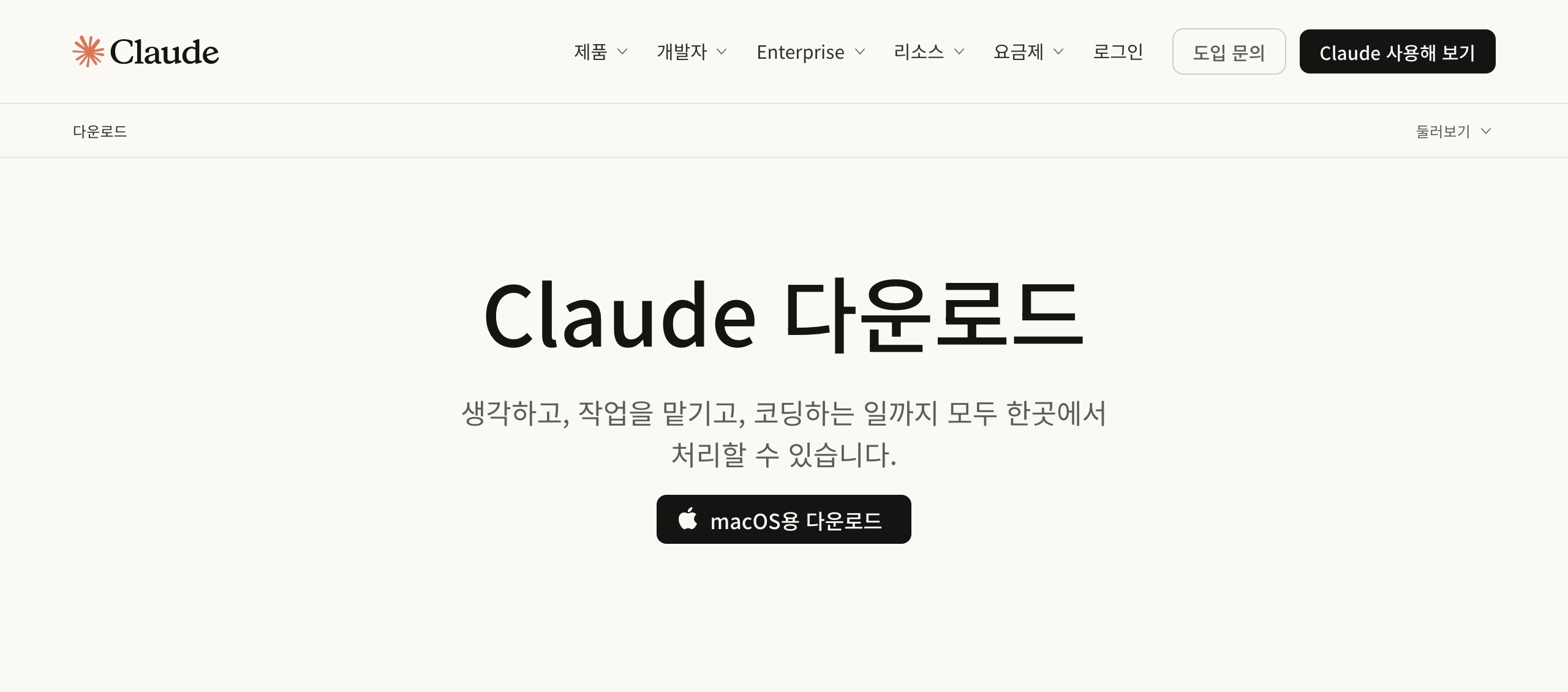
Download the installer for your operating system from the Claude download page.
macOS has a single installer that supports both Intel and Apple Silicon, and Windows has separate installers for x64 and ARM64.
Linux (Ubuntu, Debian) is available in beta and is installed with apt.
Launch the installed app and sign in with your Claude account.
The desktop app includes Claude Code, so you do not need to install Node.js or the CLI separately.
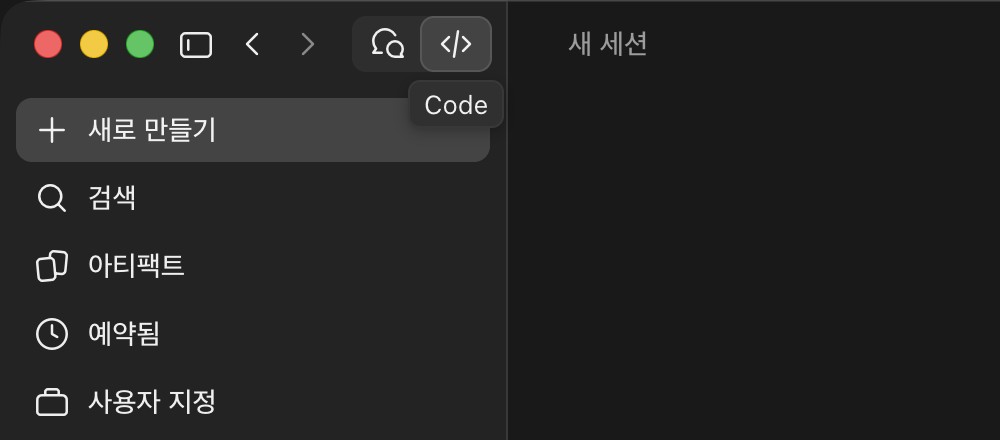
After you sign in, the two icons at the top of the sidebar switch between the Claude screen, where you use chat and Cowork, and the Code screen.
Select the </> icon (Code) on the right to open Claude Code Desktop.
On the free plan, you will see an upgrade prompt, so you need to subscribe to a paid plan first.
# Screen layout
On the Code screen, a single conversation with Claude is called a session.
Each session keeps its own conversation history, working folder, and changes, and the screen is laid out as follows.
- Sidebar: Shows the New menu for creating a session, Search, Artifacts, Scheduled for managing scheduled tasks, Customize for managing skills, connectors, and plugins, and the list of sessions grouped by project folder
- Title bar: Shows the session title and session menu on the left, and on the right, buttons that open and close the session details panel, terminal, changes, browser, and files panels
- Conversation area: Shows your requests and the responses, summaries of the tools Claude used, approval request cards, and task lists
- Session details panel: Shows cards for the environment and folder the session runs in, the Git branch, context usage, connected connectors, changes, outputs Claude created, and running servers and background tasks
- Prompt box: Where you write requests, and in the row below it you select the permission mode and model
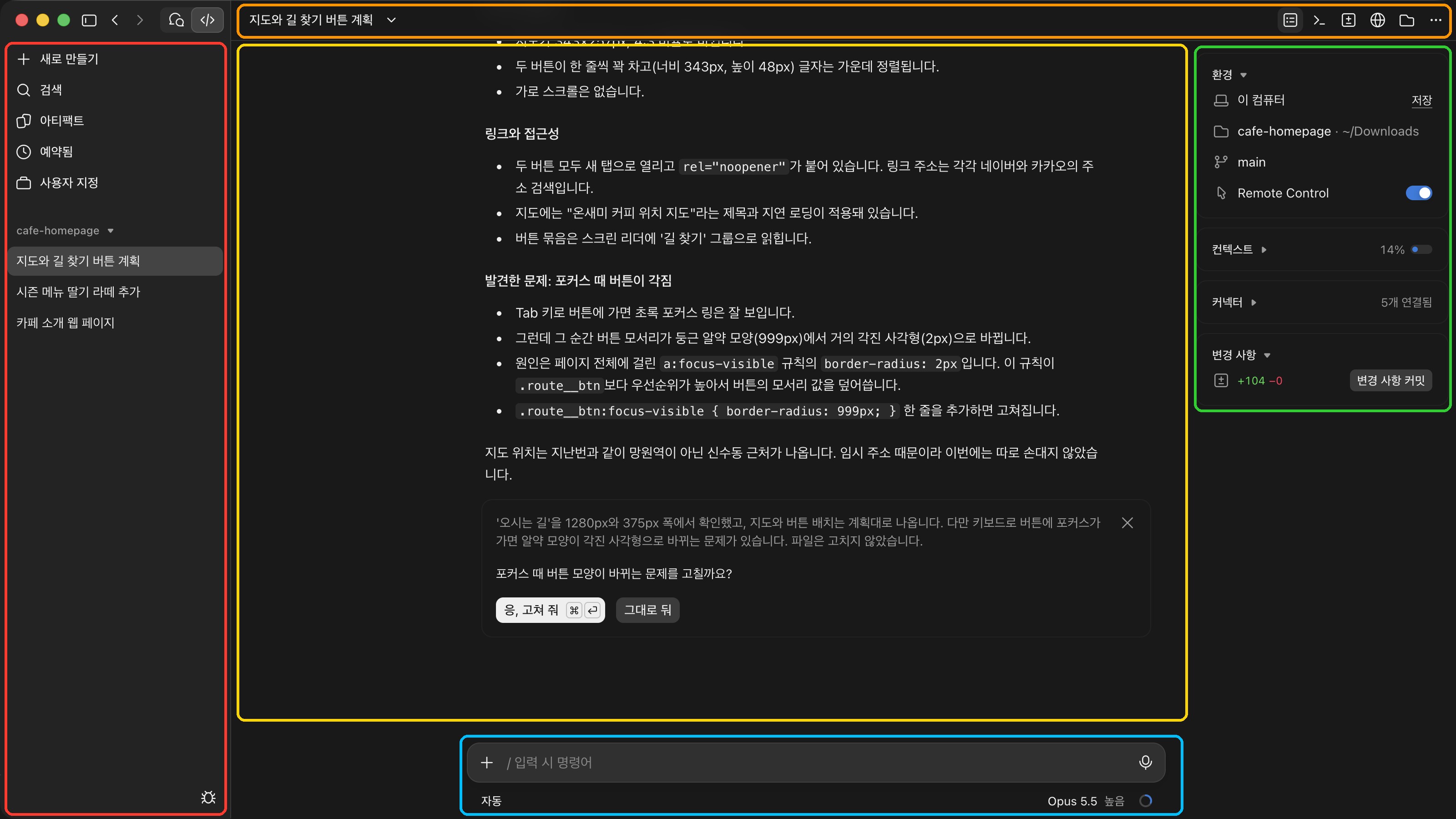
The session details panel appears when the conversation area is wide enough, and you can hide or show it again with the first button on the right side of the title bar.
Right-click a card header to choose which cards to show in the panel.
If the window is narrow, some title bar buttons move into the ⋯ menu.
# Starting your first session
When you start a new session, decide where, in which folder, and in what way to work, using the row below the prompt box, before you send a message.
From the left are the environment, project folder, and worktree buttons, and on the right are the permission mode, model and effort, and usage indicator.

The environment is where Claude runs its work.
You usually select the local This computer, and we will look at running in the cloud later.
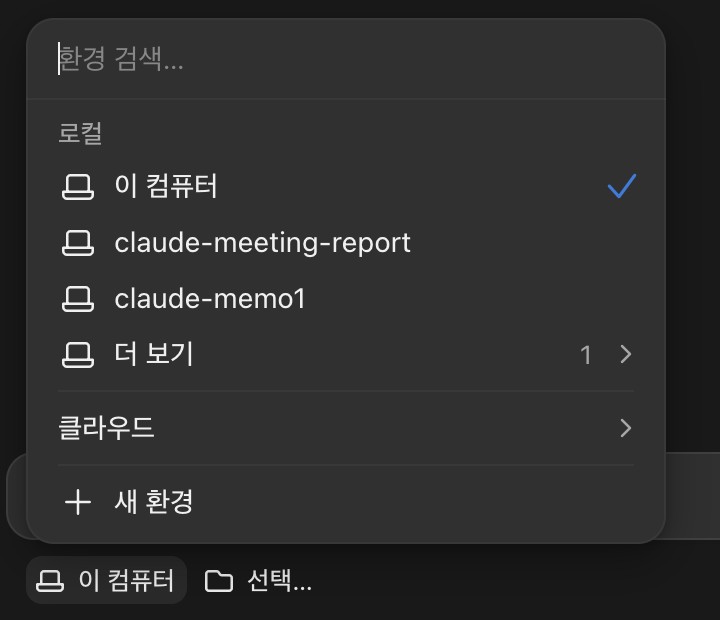
| Environment | Where it runs |
|---|---|
| Local | Your computer, with direct access to files |
| Cloud | Anthropic servers, keeps running even if you close the app |
| SSH | A remote computer or server connected over SSH |
| WSL | A WSL 2 Linux distribution on Windows |
If you see items other than This computer in the local list, they are environments that save folders you use often.
When you first open the Code tab, the desktop app automatically creates up to 8 of them from the folders you used most in the past month, and you can create one yourself with New environment at the bottom of the menu.
When you select a saved environment, you do not need to choose the folder again.
Click the folder button next to the environment to see a list of recent folders and Open folder....
Here, we select a cafe-homepage folder that contains a single menu.md file with information about a small cafe.
You can follow along by creating a folder with the same content.
12345678910111213141516171819202122232425# Onsaemi Coffee A small roastery cafe tucked away in a neighborhood alley. Every Monday, we roast our own beans for the coffee we brew. ## Opening hours - Tuesday-Sunday: 9 AM-9 PM - Monday: Closed (bean roasting) ## Menu | Name | Price | Description | | --- | --- | --- | | Americano | KRW 4,000 | House blend with low acidity | | Cafe Latte | KRW 4,800 | Espresso with rich, nutty milk | | Vanilla Bean Latte | KRW 5,300 | Madagascar vanilla bean syrup | | Hand Drip | KRW 6,000 | This week's single origin | | Lemonade | KRW 5,000 | Made with our own lemon syrup | | Butter Scone | KRW 3,500 | Baked fresh every morning | ## Directions 1F, 12 Onsaemi-ro, Mapo-gu, Seoul 7-minute walk from Exit 2 of Mangwon Station
When you are just starting out, set the permission mode to Manual so Claude asks for confirmation every time before changing a file, which helps you understand how it works.
Type the following request in the prompt box and press Enter.
1Based on menu.md, create a cafe introduction web page as a single index.html file. I'd like it to feel warm and clean.
Claude breaks the request into a task list and works through it step by step, reading files and running commands.
If your account has related skills, it can also load the ones it needs on its own, such as a design skill.
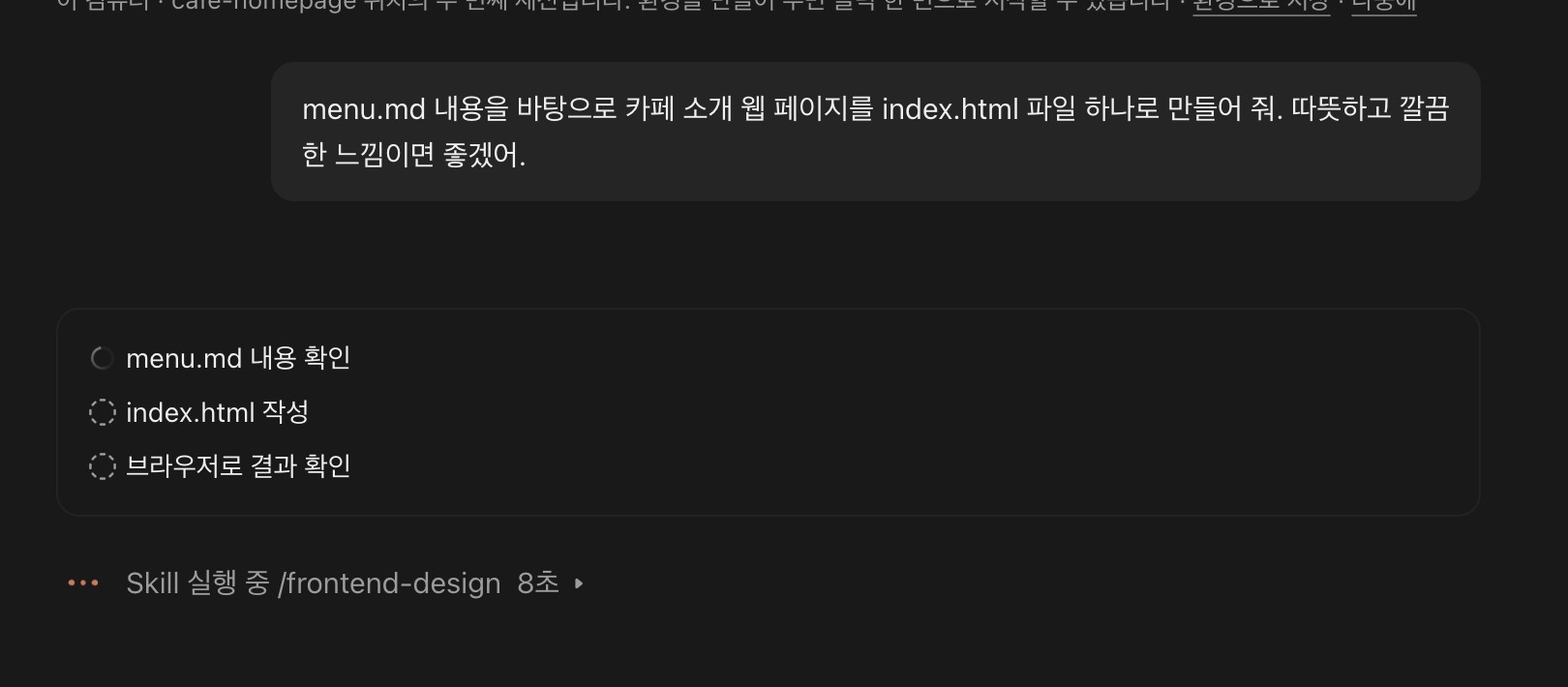
In Manual mode, an approval request card appears right before a file is created.
On the card, you preview what will be created or changed and choose between Deny and Allow once.
In the arrow menu on the right, Always allow switches this session to Accept edits mode so you are no longer asked about file edits, and Allow and switch to Auto continues the remaining work in Auto mode.
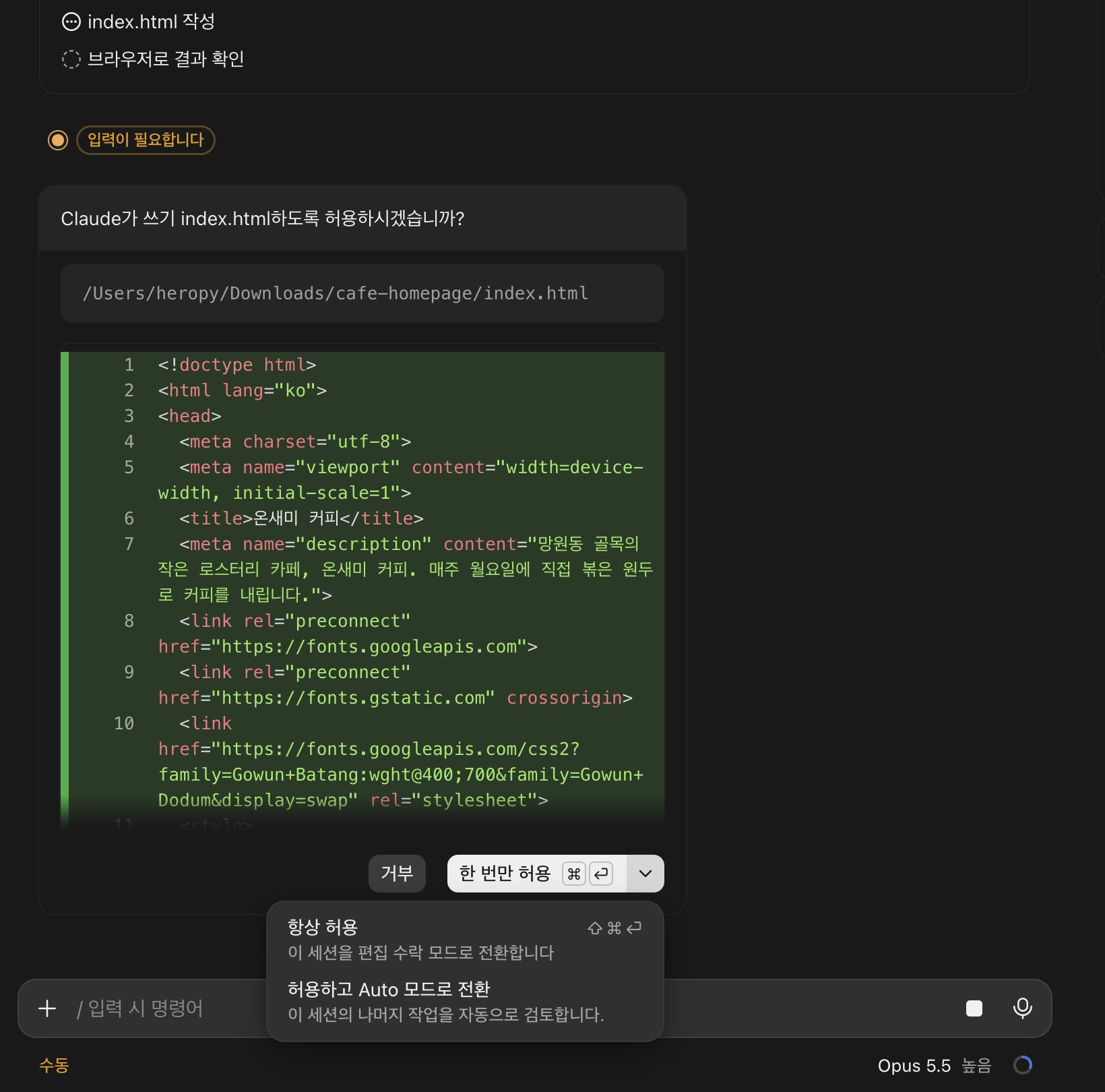
After creating the file, Claude opens the browser panel on the right and checks the resulting page itself.
It can take screenshots and switch to a mobile width, fix any problems it finds, and then report the result.
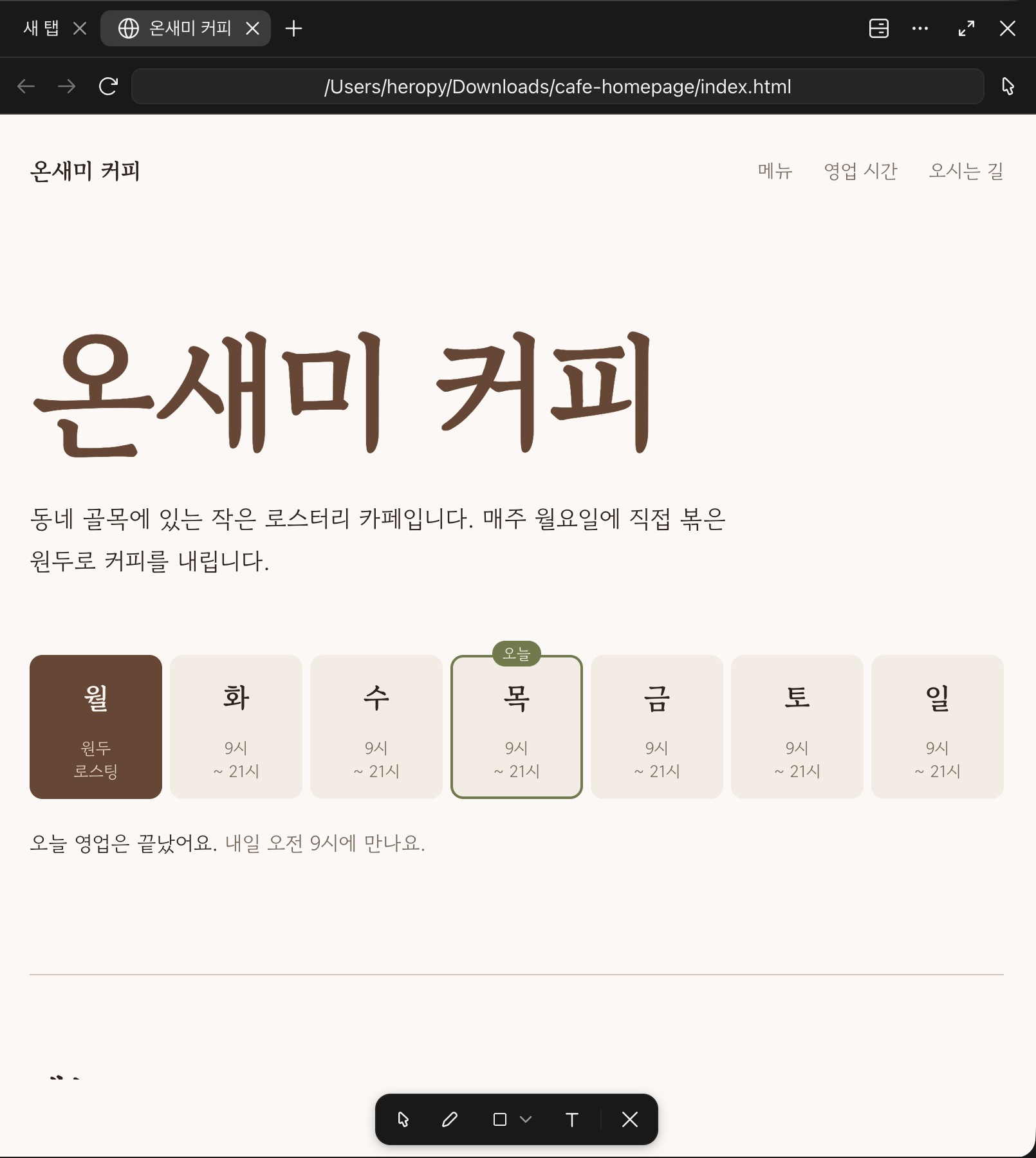
When the work is done, a card summarizing what was changed appears at the end of the conversation, and Claude may suggest next steps as buttons.
For example, a Commit changes button may appear along with a question like 'Should I commit the changes so far?'.
# Entering prompts
Click the + button on the left of the prompt box to add material to your request.
- Add files or photos (
Cmd+U): Attach files such as screenshots, design mockups, or PDFs - Add folder: Add a folder for the session to work with
- Import GitHub issue: If the folder is a GitHub repository, bring an issue's content into the request
- Slash commands: The list of available commands and skills
- Connectors: Connect external services such as Google Drive and Slack
- Add plugin: Install plugins that bundle skills, agents, and MCP servers
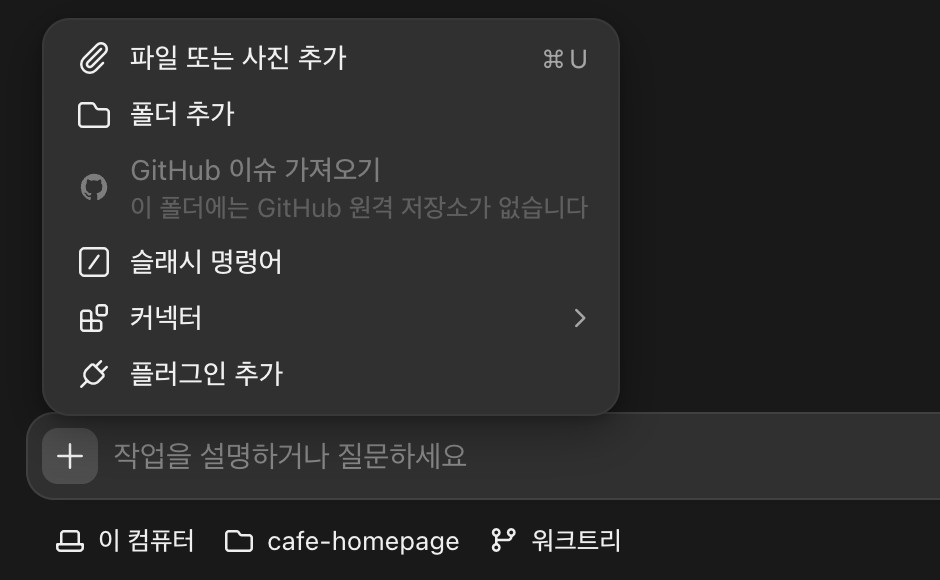
You can also attach files by dragging them onto the prompt box.
To point to a file in the working folder, type @ followed by the file name and pick it from the autocomplete list.

Type / in the prompt box to see built-in commands, your own skills, and plugin skills together, and keep typing to narrow the list.
Hover over an item to see its description, and write your request after the command you selected.
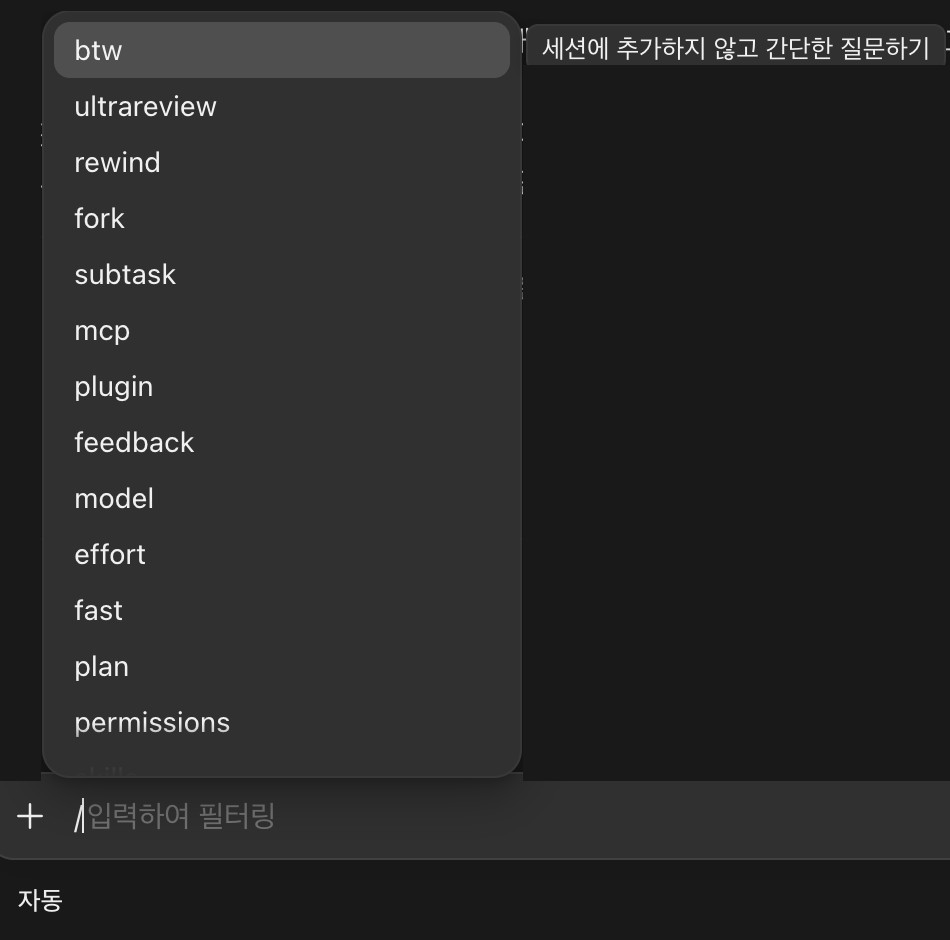
Some commands that open dialogs in the terminal behave differently on the desktop.
For example, /config opens the Settings > Claude Code screen, and commands that need a terminal-only screen, such as /permissions run without arguments, show a message that they are not available in this environment.
For these settings, edit the settings file directly or ask Claude to edit it.
You can change direction at any time while Claude is working.
- Stop: Click the stop button in the prompt box or press
Esc - Send now: Type your correction and press
Enter, and Claude reads it right after finishing its current action and applies it to the next step - Add to queue: Press
Cmd+Enterto queue a message that is sent after the current work is done
After a response finishes, a next request may be suggested in gray text in the empty prompt box.
Press Tab or → to fill the prompt box with the suggestion, then edit and send it, or ignore it and type your own.
The short requests that create suggestions also count toward your plan usage, and you can turn them off with Prompt suggestions in Settings > Claude Code.
You can also use voice input with the microphone button on the right of the prompt box.
# Permission modes
The permission mode decides whether Claude asks for confirmation before editing files or running commands.
You can change it at any time in the row below the prompt box, and you can also open the menu with Cmd + Shift + M.
Unlike the terminal, Shift + Tab does not cycle through modes.
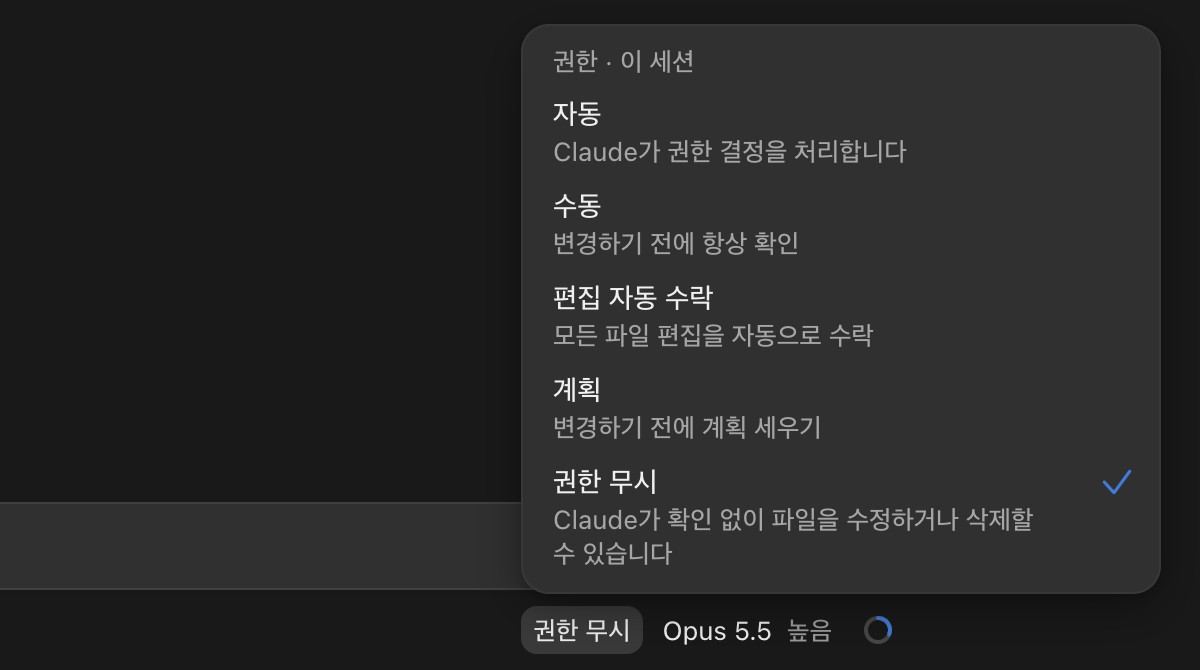
| Mode | Setting value | Behavior |
|---|---|---|
| Auto | auto |
Proceeds without asking, a classifier checks that commands and network requests match your request |
| Manual | default |
Always asks before editing files and running commands |
| Accept edits | acceptEdits |
Automatically accepts file edits and file commands such as mkdir and mv, asks for other commands |
| Plan | plan |
Reads and explores files, then only proposes a plan without modifying source code |
| Bypass permissions | bypassPermissions |
Does everything without asking |
In Auto mode, Claude proceeds with routine work without asking, but before running things like shell commands or network requests, a classifier in the background checks that they match your request and blocks risky actions.
It is convenient because there are very few confirmation requests, but at first it is a good idea to use Manual or Accept edits to see what Claude does.
The mode you pick from the menu is remembered per folder and applies to the next session in the same folder, and only Plan mode applies to the current session alone.
To set the default mode for new sessions, set permissions.defaultMode in the settings file (~/.claude/settings.json) to one of the setting values in the table above.
# Plan mode
For large changes, it is a good idea to agree on the direction first in Plan mode.
Change the permission mode to Plan and make a request like this.
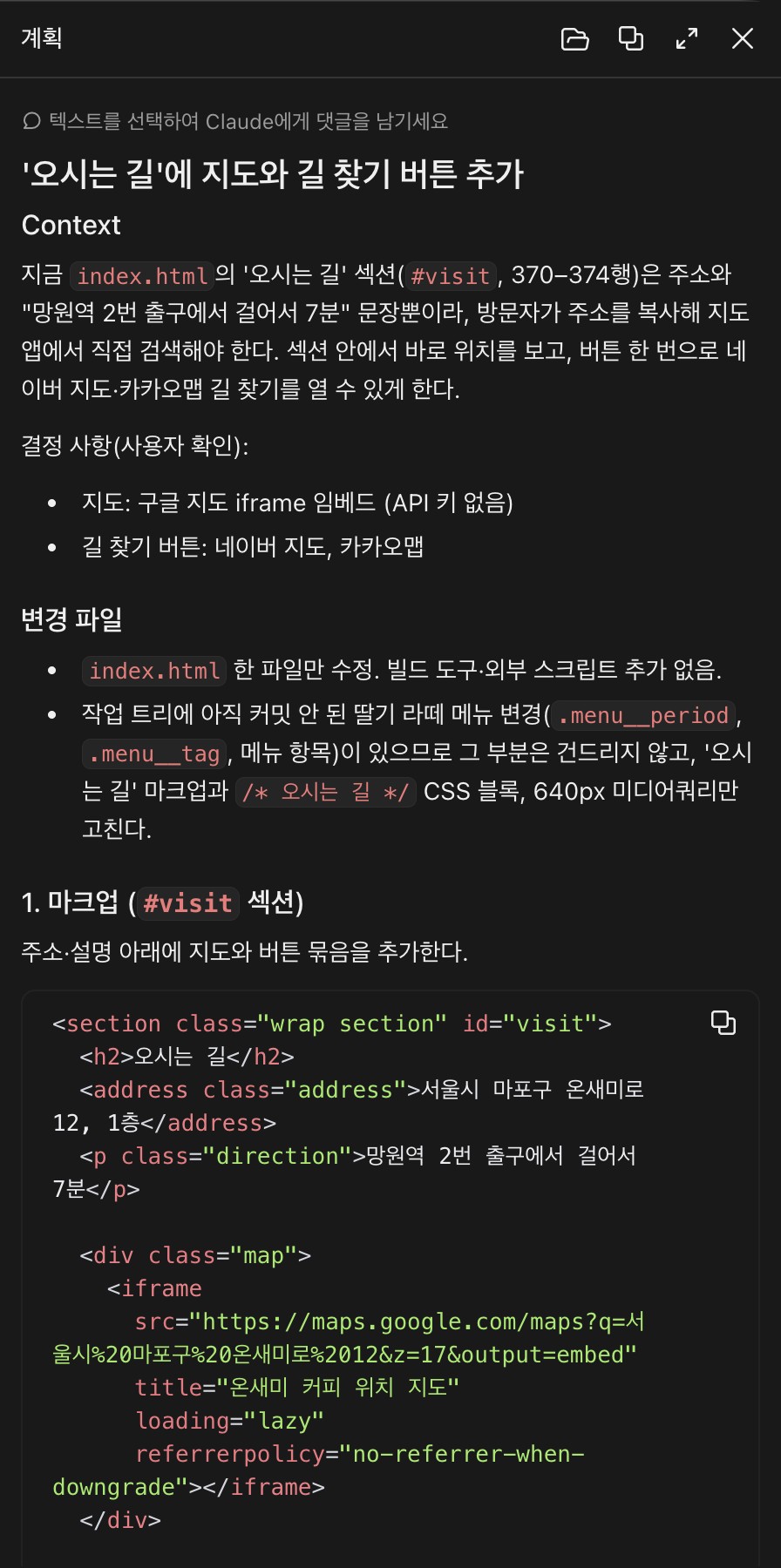
1I want to add a map and a directions button to the 'Directions' section. Make a plan for how to change it first.
Claude reads and explores the files, then asks about decisions it needs in question cards.
Pick one of the options or type your own in Other, and if there are several questions, move on with Next.
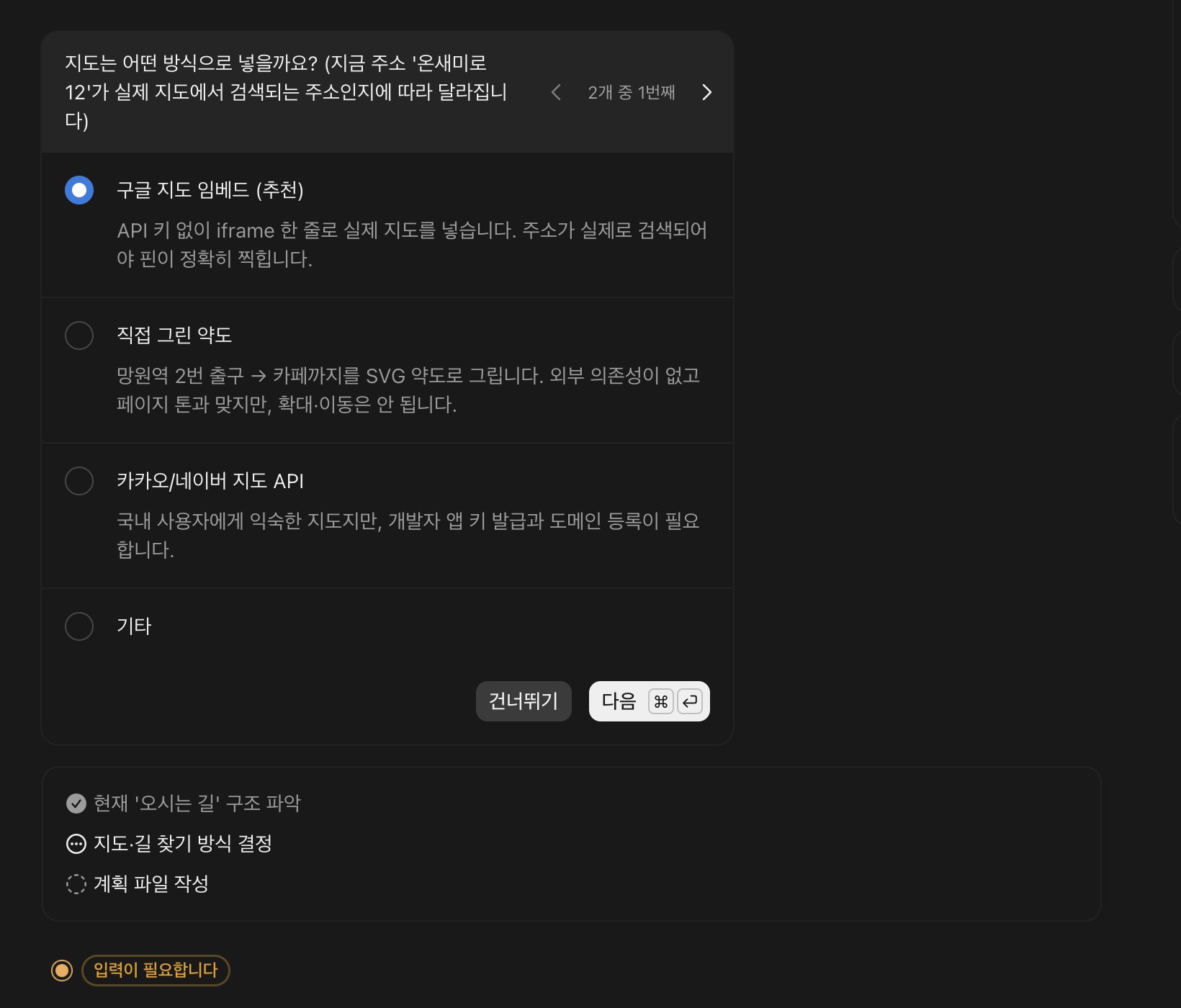
After receiving your answers, Claude writes a plan and shows a plan proposal card.
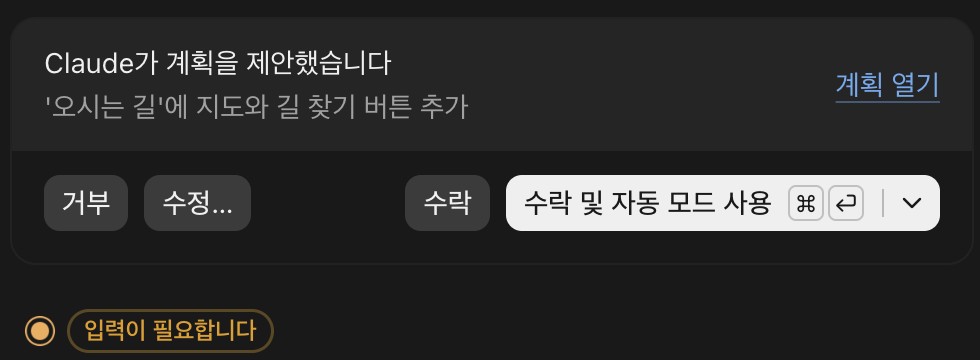
Click Open plan to see the full content in the plan panel on the right, and you can also select part of the plan text to leave a comment for Claude.Accept on the card starts the work as planned, and Accept and use auto mode switches to Auto mode and starts.
If something needs changing, send your feedback with Revise, and if you do not like the plan, choose Reject.
# Models and effort
Click the model name in the row below the prompt box or press Cmd + Shift + I to choose the model for the session.
The default model is Opus 5.5.
Choose Fable 5.1 for the hardest and longest tasks, Opus 5.5 for everyday work, Sonnet 5.5 to handle well-scoped tasks faster and cheaper, and Haiku 5.5 for simple tasks such as summarizing or classifying.
Older models that are not in the list can be found under More models, and you can change the model even in the middle of a session.
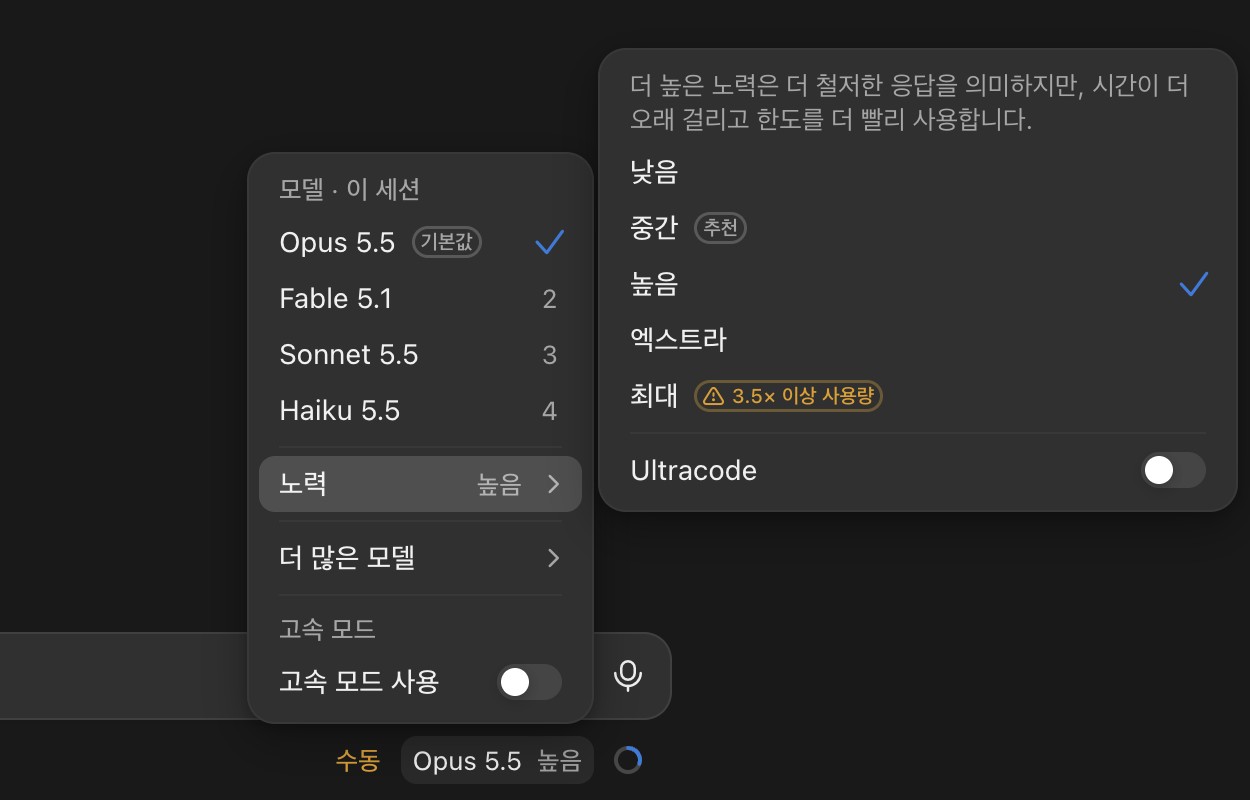
Effort is a thinking depth setting that decides how deeply Claude reasons before responding, and you can also open its menu with Cmd + Shift + E.
As the menu notes, higher levels give more thorough answers, but take more time and use up your usage faster.
| Menu | Level | When to use |
|---|---|---|
| Low | low |
Simple edits, quick questions |
| Medium | medium |
Everyday work, Opus 5.5 default value |
| High | high |
Work that edits several files |
| Extra high | xhigh |
Hard-to-trace bugs, design decisions |
| Max | max |
The hardest tasks, usage increases a lot |
For a graph comparing how performance and cost change with effort level for each model, see Adjusting the effort level in Key Optimization Strategies for a Claude Code Token Diet.
With Opus 5.5, it is efficient to use Medium or High normally and use higher levels only for truly hard tasks.
If you turn on Ultracode below the effort menu, Claude decides on its own whether to run large tasks as a workflow where multiple agents split the work.
The results can be more thorough, but it uses up usage quickly, so it is best to turn it on only for large tasks.Use fast mode at the bottom of the model menu runs the same Opus model with up to 2.5x faster output, has a higher per-token price, and on subscription plans is billed to usage credits separately from your plan usage.
# Reviewing changes
When Claude changes files, the changes card in the session details panel shows the number of added and removed lines, like +14 -0.
Click this number or the changes button in the title bar (Cmd + Shift + D) to open a panel that compares the changes file by file.main → working tree at the top of the panel means it compares the last commit with the current state of the working folder.
Let's look at reviewing changes with the following request, which adds a seasonal item to the menu.
1Add a strawberry latte (KRW 5,800, a spring-only drink made with fresh blended strawberries) to the menu as a seasonal item. Also add a 'Seasonal' label so it stands out from the other items.
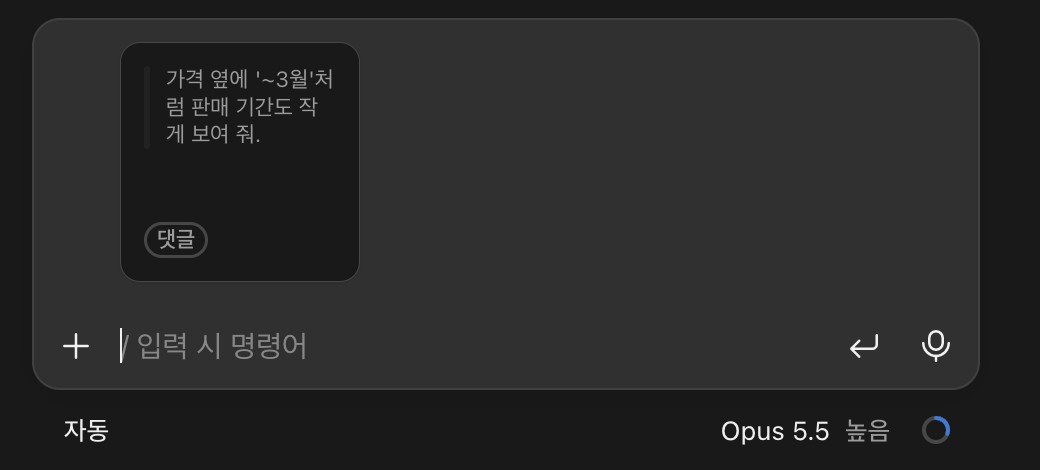
In the changes panel, hover next to a line number to see a + button.
Click it, write your comment on that line, and press Enter to add the comment.
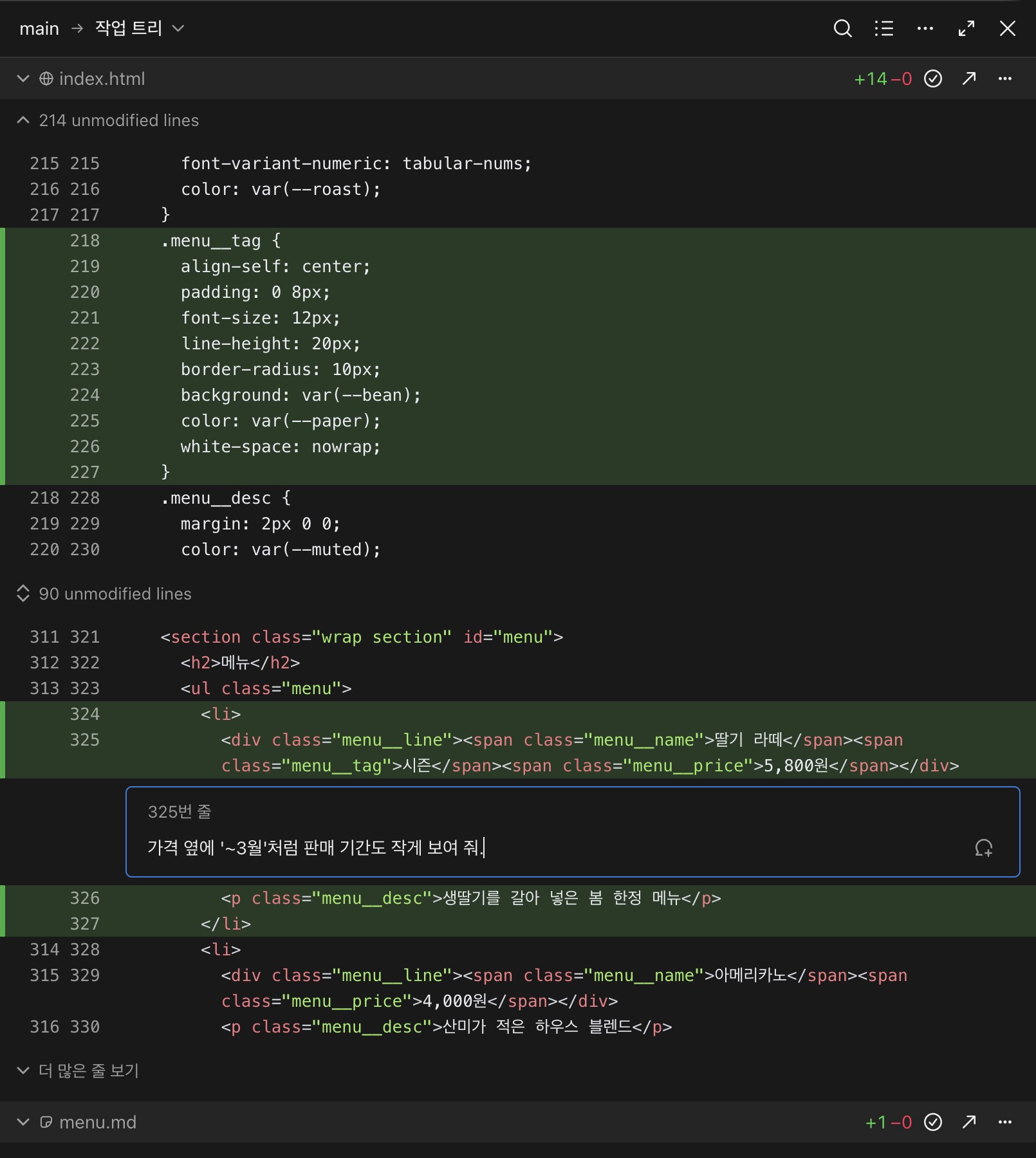
Your comments are attached to the prompt box, so you can comment on several lines and send them all at once.
When you send the message, Claude reads the comments and fixes those parts, and you can check the result in the changes panel again.
To have Claude review the changes before you commit, type /code-review in the prompt box.
When the review is done, a card groups the issues by file, and you can go through the findings one by one in the changes panel or ask Claude to fix the remaining issues all at once.
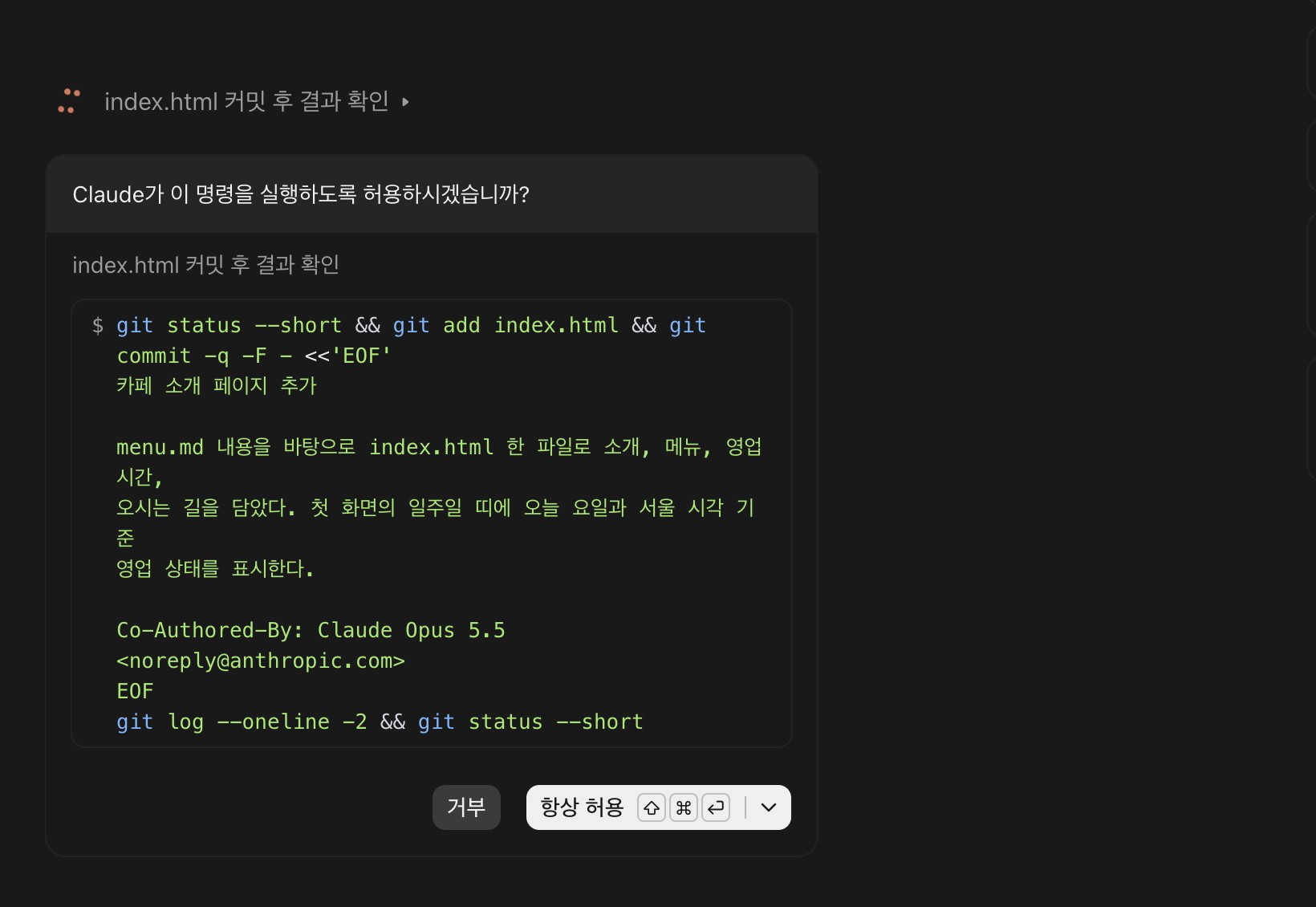
Click the Commit changes button on the changes card to send Claude the request "Commit the working tree changes with a sensible message.", and Claude writes a commit message that fits the changes and commits.
Unless you are in Auto mode, an approval request card appears before the commit command runs.
If you are working in a GitHub repository, you can also ask Claude to create a pull request (PR).
Once the PR is created, the changes card shows the CI check status, and from the ⋮ menu next to the PR title you can turn on Auto-fix, where Claude automatically fixes failed checks, or Merge when ready, which merges automatically when it is ready.
To use PR features, GitHub CLI (gh) must be installed and signed in on your computer, and if it is not, you will see install instructions the first time you create a PR.
# Arranging your workspace
On the Code screen, you can open panels such as conversation, changes, browser, terminal, files, plan, and background tasks in any arrangement you like.
Open panels with the buttons in the title bar, drag a header to move a panel, or drag an edge to resize it.
Close the focused panel with Cmd + \, and use the expand button in a panel header to pop the panel out into its own window and put it on another monitor.
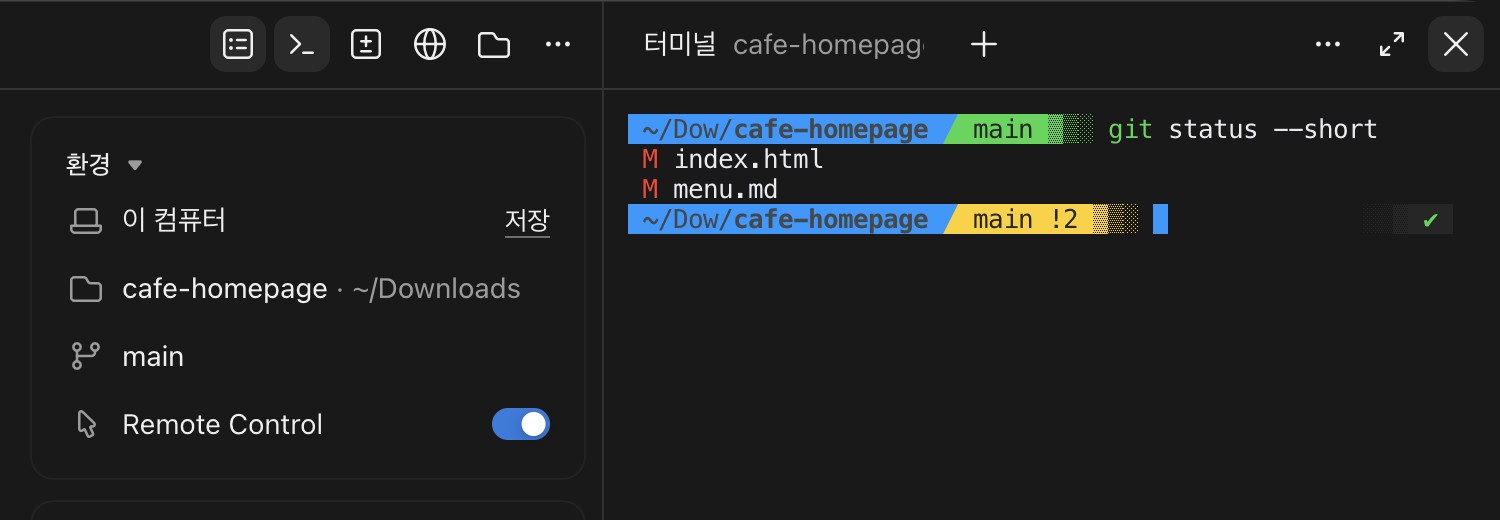
The terminal panel (Ctrl + `) opens in the session's working folder and uses the same environment as Claude.
You can watch the files Claude is editing and run commands like git status yourself, and add terminal tabs with + in the panel header.
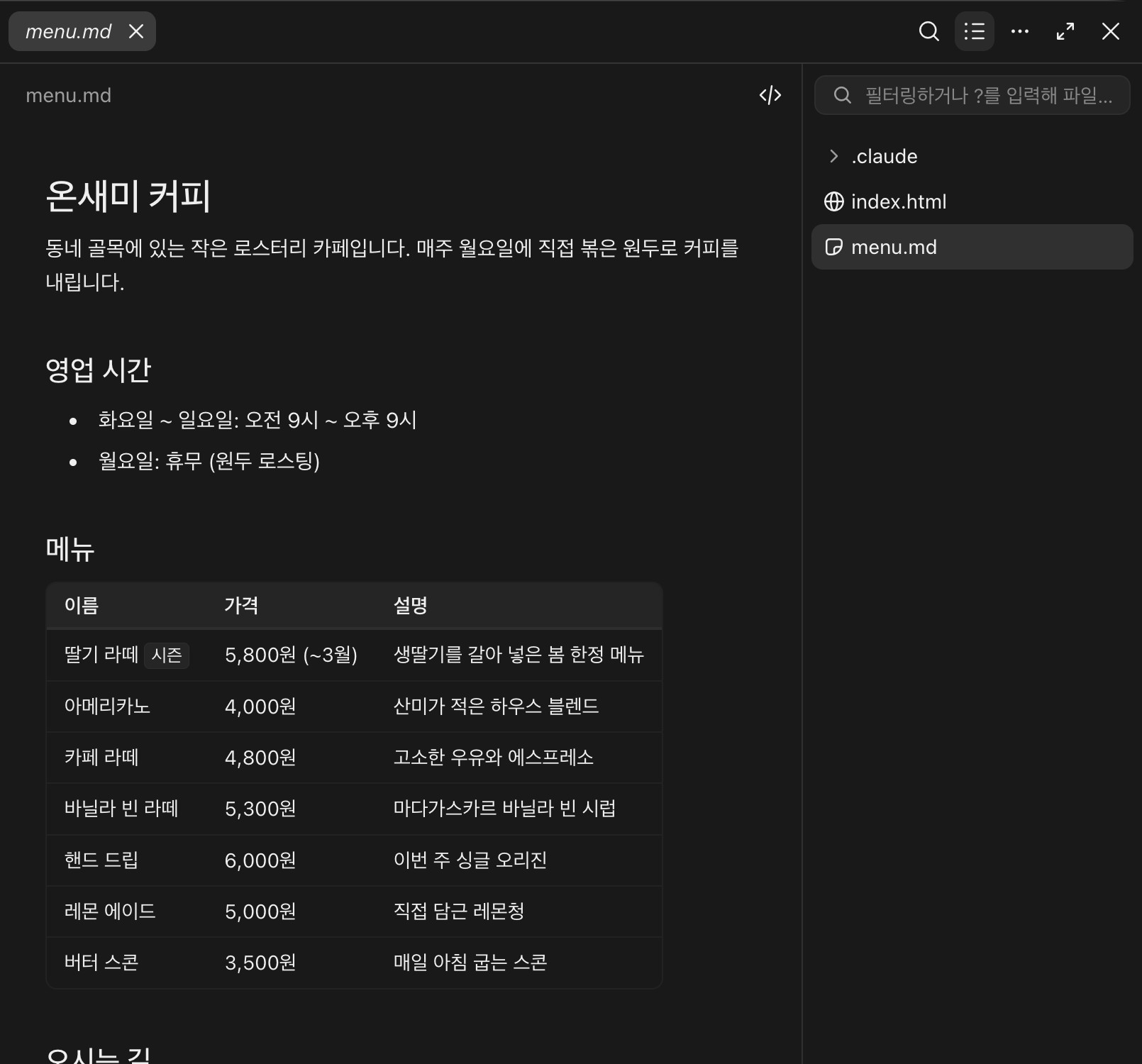
In the files panel, you can see the files in the working folder and open them to edit directly.
Clicking a file path that Claude mentions in the conversation also opens it in the files panel, and Markdown files are shown rendered.
Edits are saved automatically by default, and if you turn off auto save in the panel's ⋮ menu, you save with the Save button.
Right-click a file path in the conversation, changes, or files panel to choose one of the following actions.
- Attach as context: Attach the file to your next request
- Copy: Copy the absolute path, relative path, or file name
- Open in: Open it in an installed editor such as VS Code or Cursor
- Show in Finder: Open the folder that contains the file
You control how much is shown in the conversation with the view mode.
Choose Transcript view from the arrow menu next to the session title, or cycle with Ctrl + O.
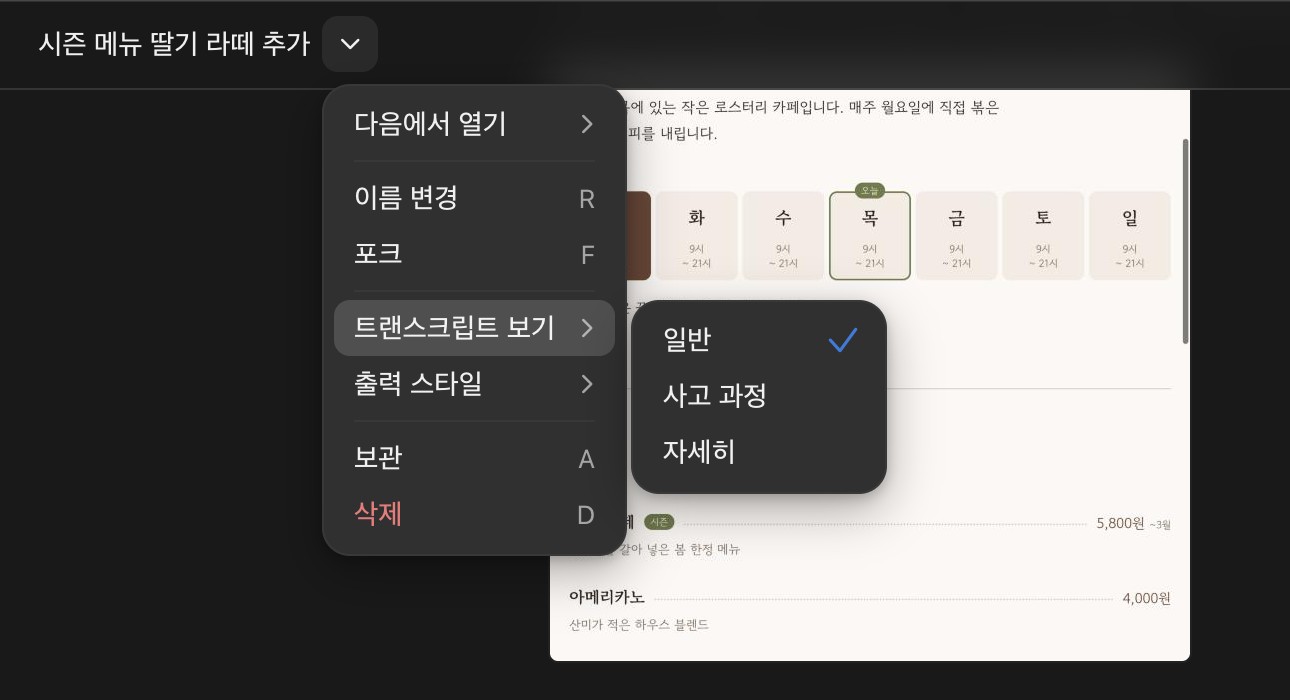
| View mode | What it shows |
|---|---|
| Normal | Collapses tool use into summaries and shows full responses |
| Thinking | Normal view plus Claude's thinking |
| Verbose | All tool calls, intermediate steps, and thinking |
When you wonder why Claude did something, switch to Verbose to check.
Set the default view mode for new sessions with Default transcript view in Settings > Claude Code.
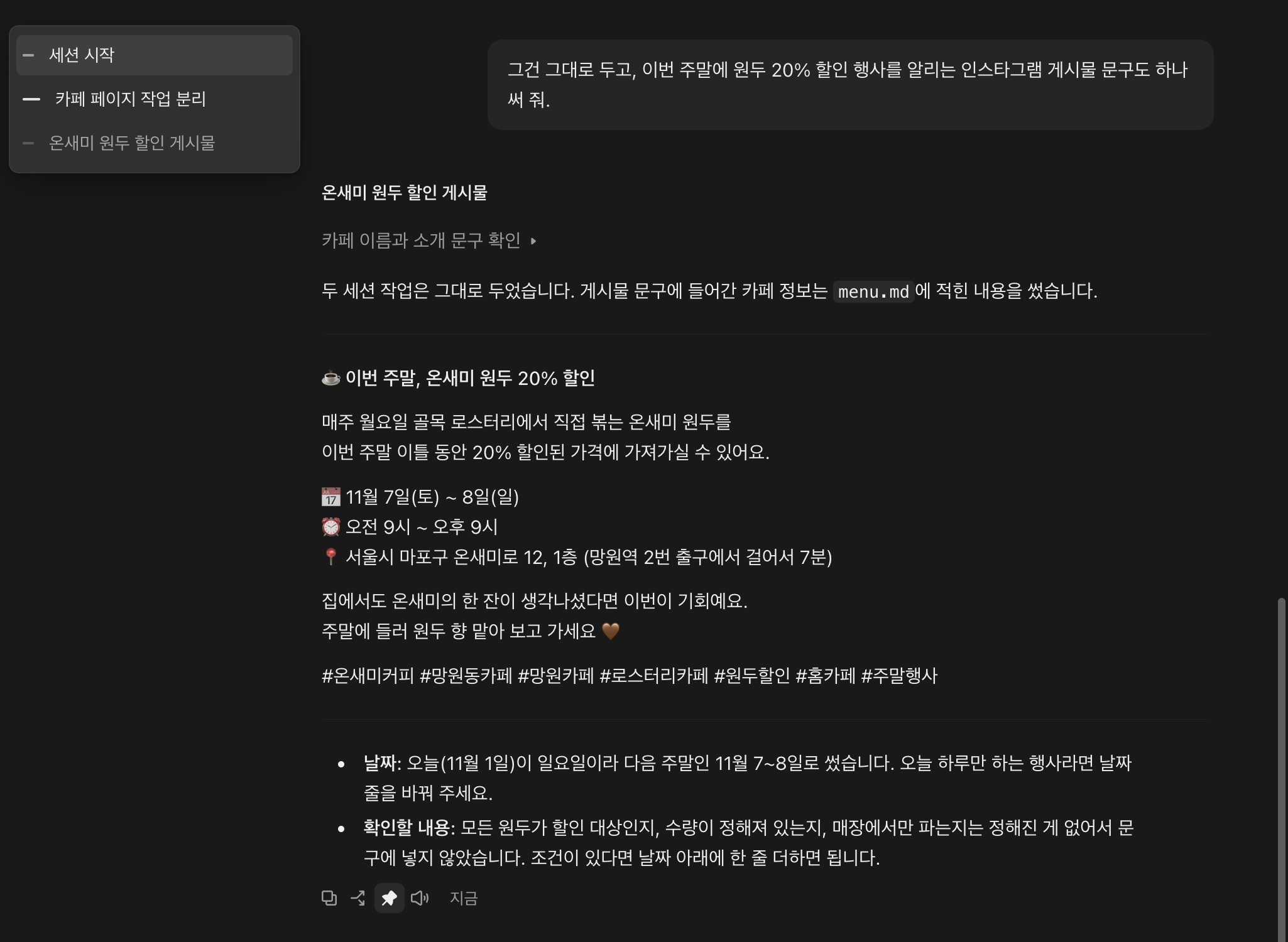
When a conversation gets long, chapters help you find a spot quickly.
Claude shows a chapter title in the conversation when the work changes phase, such as when it finishes exploring and starts implementing.
Hover over the table of contents icon at the top left of the conversation area to see the chapter list, and select a chapter to jump to it.
If there is a response you want to come back to, click the pin-shaped Pin as chapter button below it to add it as a chapter yourself.
Press Cmd + / to search through all available shortcuts.
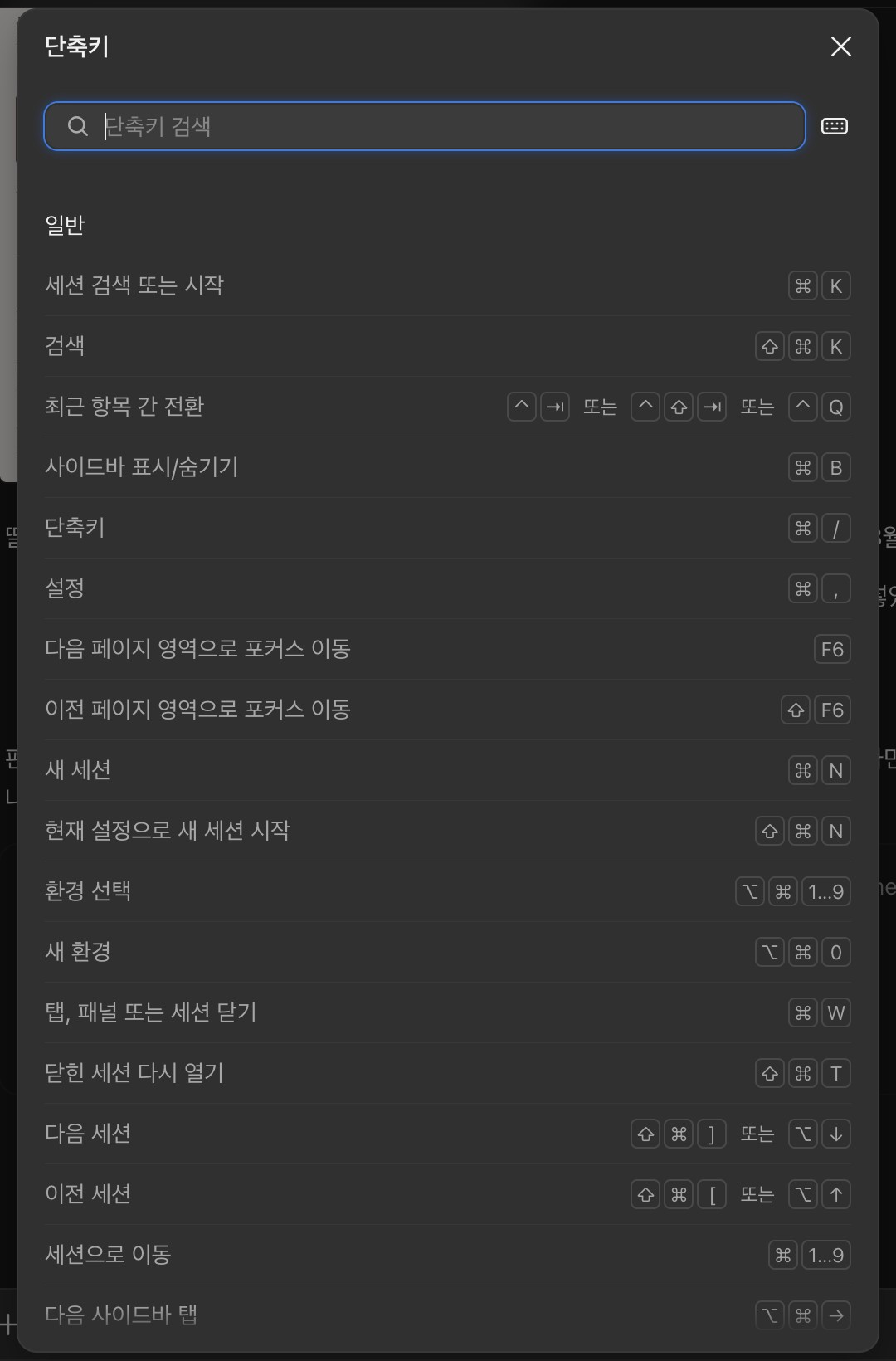
Commonly used shortcuts are as follows.
| Shortcut | Action |
|---|---|
Cmd + N |
New session |
Ctrl + Tab |
Switch sessions |
Esc |
Stop Claude's response |
Cmd + Shift + D |
Changes panel |
Cmd + Shift + B |
Browser panel |
Ctrl + ` |
Terminal panel |
Cmd + ; |
Side chat |
Ctrl + O |
Cycle view modes |
Cmd + Shift + M |
Permission mode menu |
Cmd + Shift + I |
Model menu |
Cmd + Shift + E |
Effort menu |
# App preview
The browser panel (Cmd + Shift + B) is a tabbed browser built into the Code screen.
When Claude creates or edits a web page, it opens the HTML file or development server in the browser panel, takes screenshots, and clicks elements or fills in forms to check on its own that the changes work.
As in the screen at the start of this post, you can work with the conversation and the resulting page side by side, and you can also interact with the page in the browser panel yourself.
With the toolbar at the bottom of the browser panel, you can point Claude to a specific part of the page.
Pick an element on the page with Select element (Cmd + Shift + S), or leave marks on the page with the pen, shapes, and text, so you can make requests with a clear location, like 'make this button bigger'.
The browser panel's ⋯ menu offers the following features.
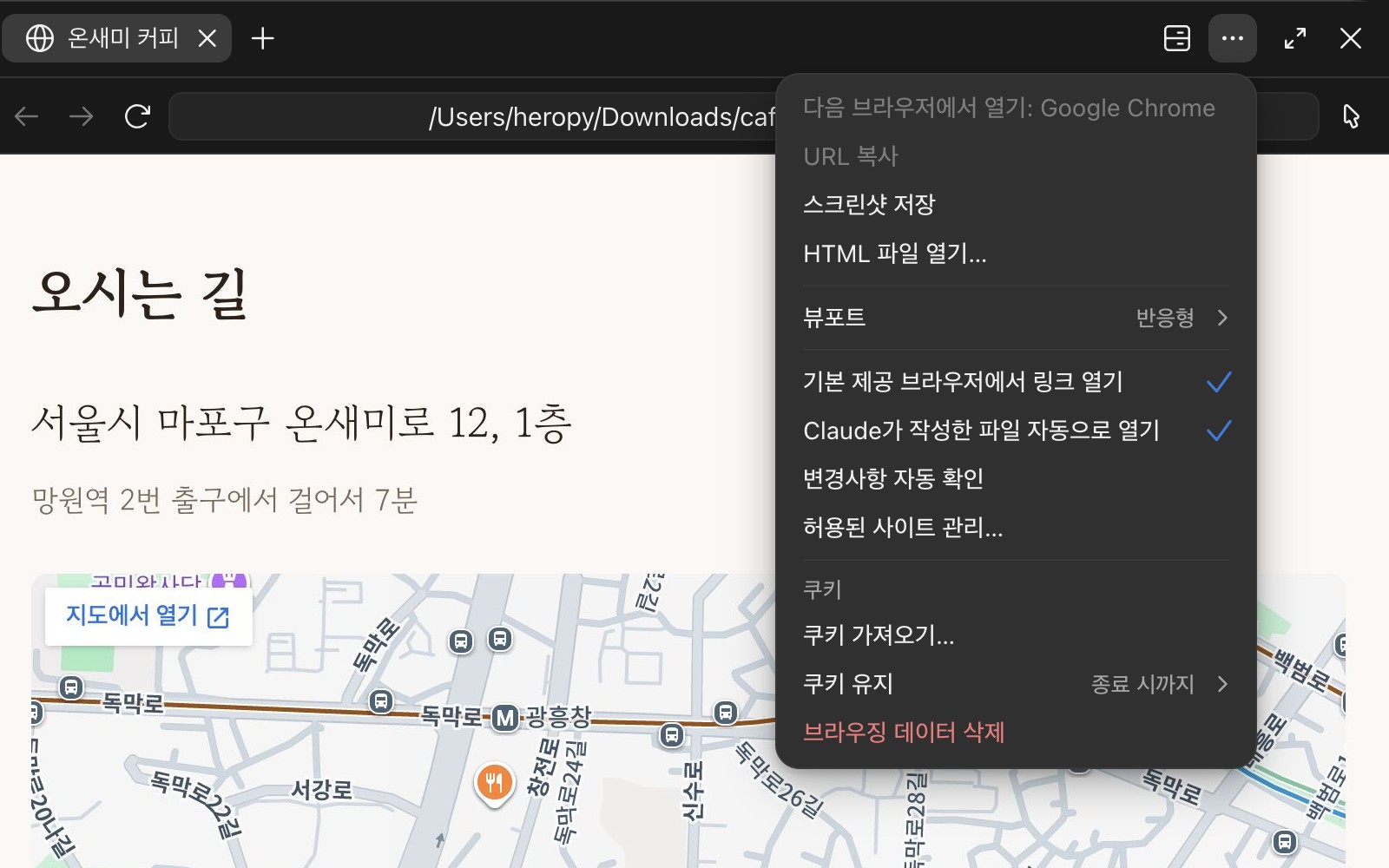
- Save screenshot, open HTML file
- Viewport: Change the page width to a responsive or mobile size
- Open links in built-in browser: Open links from the conversation in the browser panel instead of your default browser
- Auto-open files Claude writes: Open HTML, images, PDFs, and videos Claude creates in the browser panel right away
- Auto-verify changes: Claude checks the result in the browser every time it edits a file
- Import cookies, keep cookies, clear browsing data
For projects that need a development server, such as React or Vue, Claude creates a launch configuration that fits the project and saves it in the .claude/launch.json file in the working folder.
To use a different command such as yarn dev or change the port, edit this file yourself or ask Claude.
1234567891011{ "version": "0.0.1", "configurations": [ { "name": "web", "runtimeExecutable": "npm", "runtimeArgs": ["run", "dev"], "port": 5173 } ] }
You can start or stop running servers from the Dev servers menu in the browser panel header.
If you do not need the automatic check every time a file is edited, add "autoVerify": false to launch.json or turn off Auto-verify changes in the ⋯ menu.
The browser panel uses a clean profile separate from your personal browser, so it has no information from sites you are normally signed in to.
When Claude first tries to click or type on an external site, a card asks you to allow once, always allow, or deny, and you need to approve each site separately.
Even on approved sites, Claude does not make payments, create accounts, or bypass CAPTCHAs without your confirmation.
For sites that require you to be signed in, import cookies from a browser such as Chrome with Import cookies... in the ⋯ menu, or use the Claude in Chrome extension, which uses your own browser as is.
# Managing sessions
You can create multiple sessions with New in the sidebar or Cmd + N and run different tasks at the same time.
The session list in the sidebar is grouped by project folder, and you switch sessions with Ctrl + Tab.
When a session you are not looking at finishes its work, an operating system notification appears.
Open the session menu with the ⋯ button that appears when you hover over a session, or by right-clicking it.
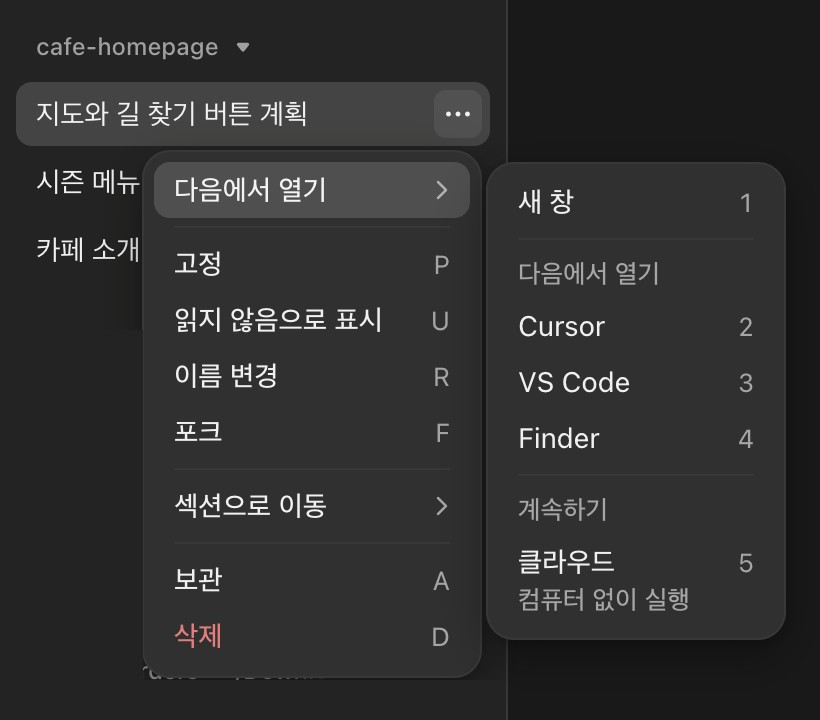
- Open in: Open in a new window, an editor such as Cursor or VS Code, or Finder, or move to the cloud to continue
- Pin, mark as unread, rename
- Fork: Create a new session that copies the conversation so far and take it in a different direction
- Move to section: Move it to another group in the session list
- Archive: Hide it from the list, and see archived sessions with
View allin the sort icon menu next to the folder name - Delete
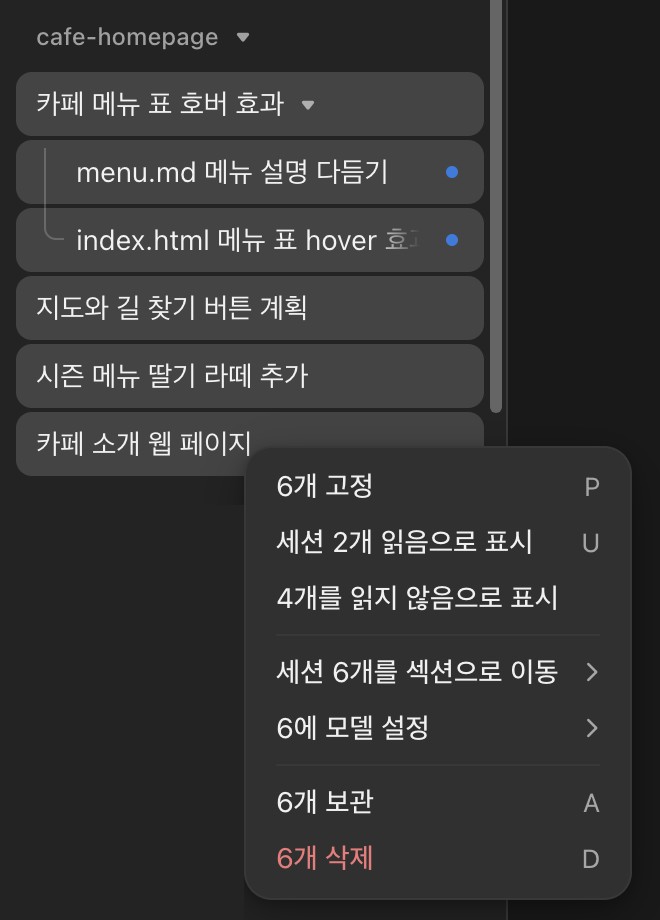
Hold Shift and click another session to select all the sessions in between.
Right-click the selected sessions to pin, mark as read or unread, move to a section, set the model, archive, or delete them all at once.
To view two sessions at once, hold Option and click a session in the sidebar.
The screen splits and shows the two sessions side by side, and holding Cmd while clicking opens it in a new window.
Hold Option and click more sessions to show three or more sessions side by side on one screen.
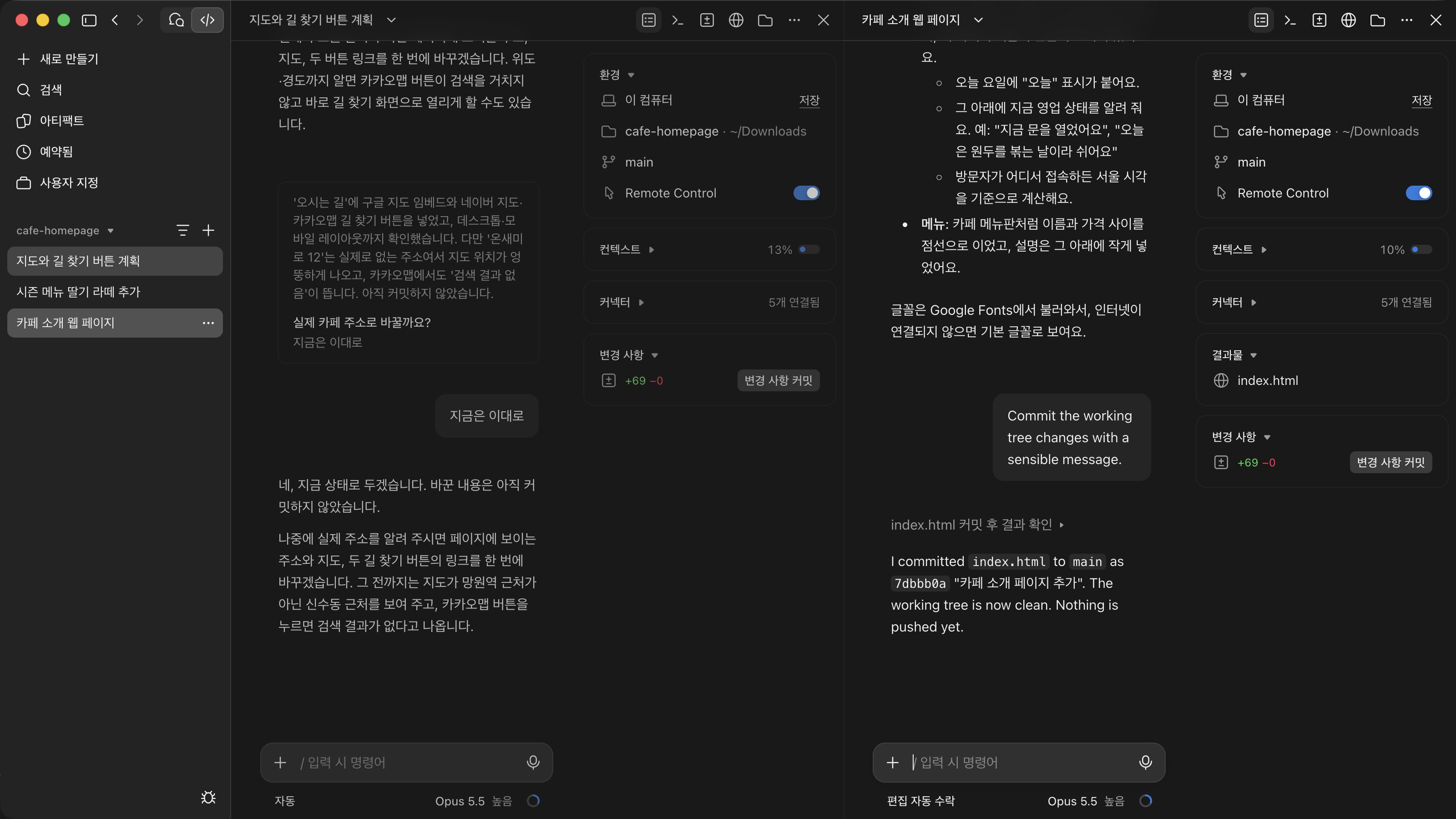
To change the split layout, choose a position such as Move split view down from the ⋯ menu in each session's title bar.
To remove a session from the split view, choose Close split view from the same menu or press Cmd + Ctrl + W.
When several sessions edit files in the same folder at the same time, their changes can get mixed up.
In a folder that is a Git repository, turn on Worktree in the row below the prompt box before starting the session, and the session works in a Git worktree, an isolated copy of the project.
Worktrees are created in the <project>/.claude/worktrees/ folder by default, and you can change this with Worktree location in Settings > Claude Code.
Before archiving a worktree session, commit the changes you want to keep first.
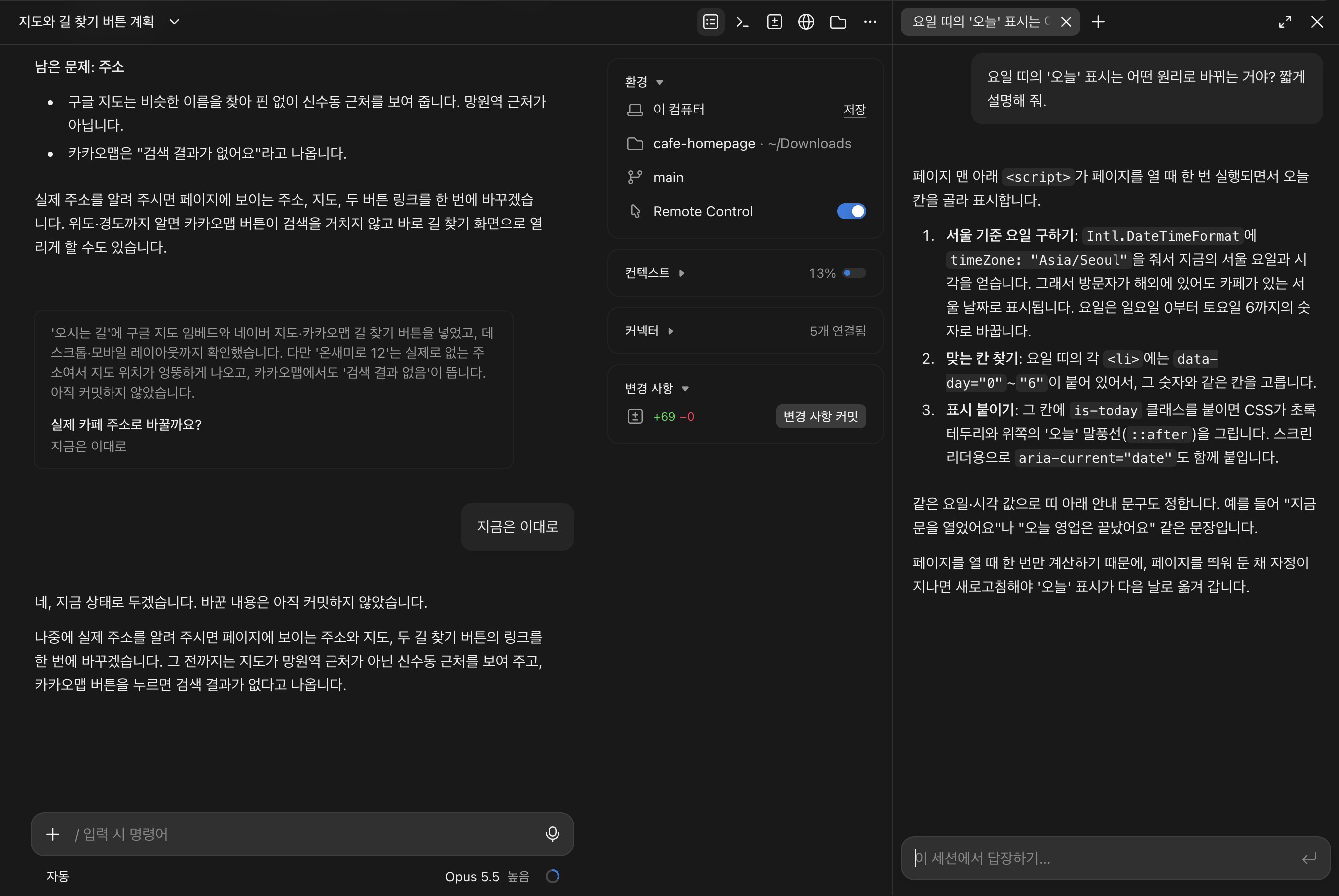
When you want to ask a quick question without breaking your workflow, use side chat.
Press Cmd + ; or type /btw in the prompt box to open a side chat on the right.
Side chat reads the main conversation to answer, but what you discuss in side chat is not added to the main conversation.
Side chats open as tabs, so you can open several with the + button next to the tabs and ask about separate topics, such as progress and code explanations.
Side chats disappear when you close the app.
# Nested sessions
When you run different kinds of work in one session, the conversation gets long and the work gets mixed up.
In this case, Claude can start a task as a separate session, and a session started this way is called a nested session.
Nested sessions appear indented under the original session in the sidebar, and they report their results to the original session when they finish.
Unlike subagents, they are regular sessions with their own conversation history, so you can also select one in the sidebar and continue the conversation directly.
If you ask Claude to split the work like this, it starts a nested session for each task.
1Split two tasks on the cafe page into separate sessions. One is adding a hover effect that changes the row color in the menu table in index.html, and the other is polishing the menu descriptions in menu.md so they are easier for customers to read.
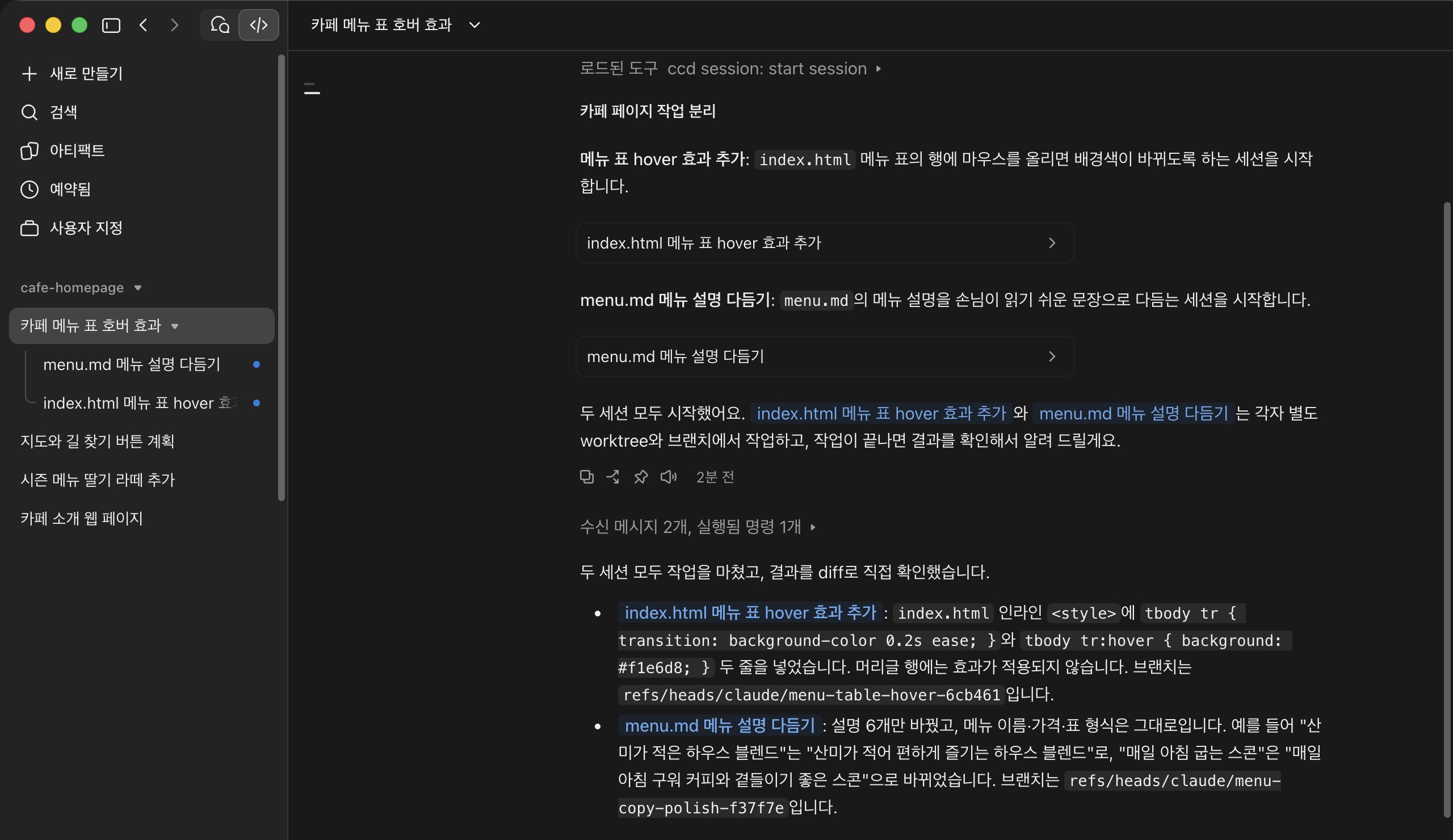
In a Git repository, each nested session can work in its own worktree, so changes do not get mixed up even when several sessions edit the same file.
You can also ask the original session for additional work for a nested session, and Claude passes it on to that nested session and summarizes the reports it gets back.
Each nested session sends its own requests to the model, so your plan usage is used up faster as the number of sessions grows.
Even if you do not ask it to split the work, when you request something unrelated to the current work, Claude may ask with a Start this in its own session? card whether to continue in a new session.
Choosing a new session on the card starts a nested session, and choosing Do it here continues in the current session.
To stop being asked every time, change When you ask for an unrelated task in Settings > Claude Code to Always do it here or Always start a new session.
When you have many nested sessions, right-click the original session and choose Hide nested sessions to collapse the list.
If any hidden nested session is waiting for approval or an answer, it is shown under the original session.
Claude can also check on, or send messages to, other sessions that are not nested sessions.
Ask in plain language, like "What did the session working on the checkout screen end up concluding?" or "Archive the sessions whose PRs were merged."
This feature covers local, SSH, and WSL sessions run by the desktop app, and does not include sessions started in the terminal or the cloud.
# CLAUDE.md
CLAUDE.md is a project guide that Claude reads every time a session starts.
If you write down things that are tedious to explain every time, such as the project structure, common commands, and rules to follow, Claude knows them from the start.
Type /init in the prompt box, and Claude looks through the folder and creates a CLAUDE.md for you.
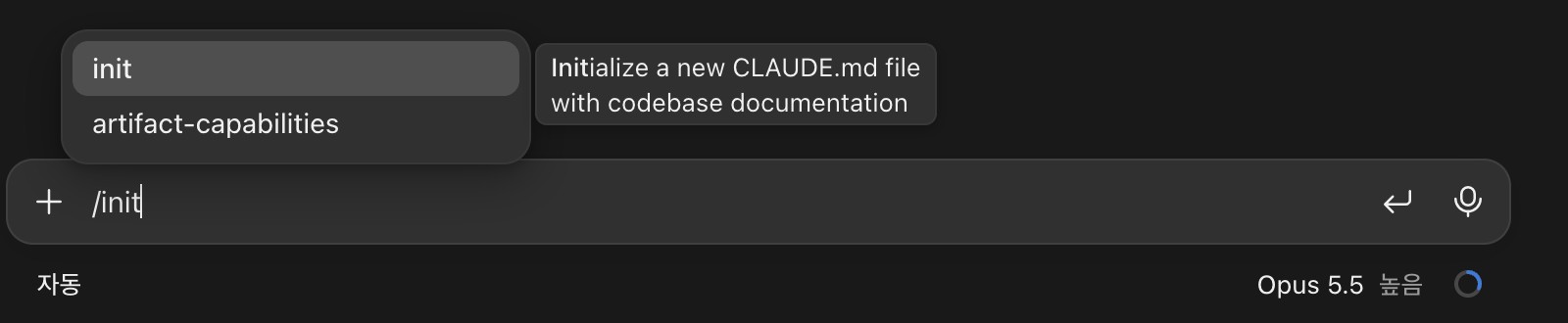
If you run it in the cafe page folder, Claude may summarize things like an overview, the file structure, the places to update together when the menu or address changes, CSS writing rules, and how to check the result.
You can click the file path in the conversation to view the created CLAUDE.md in the files panel and edit it yourself.
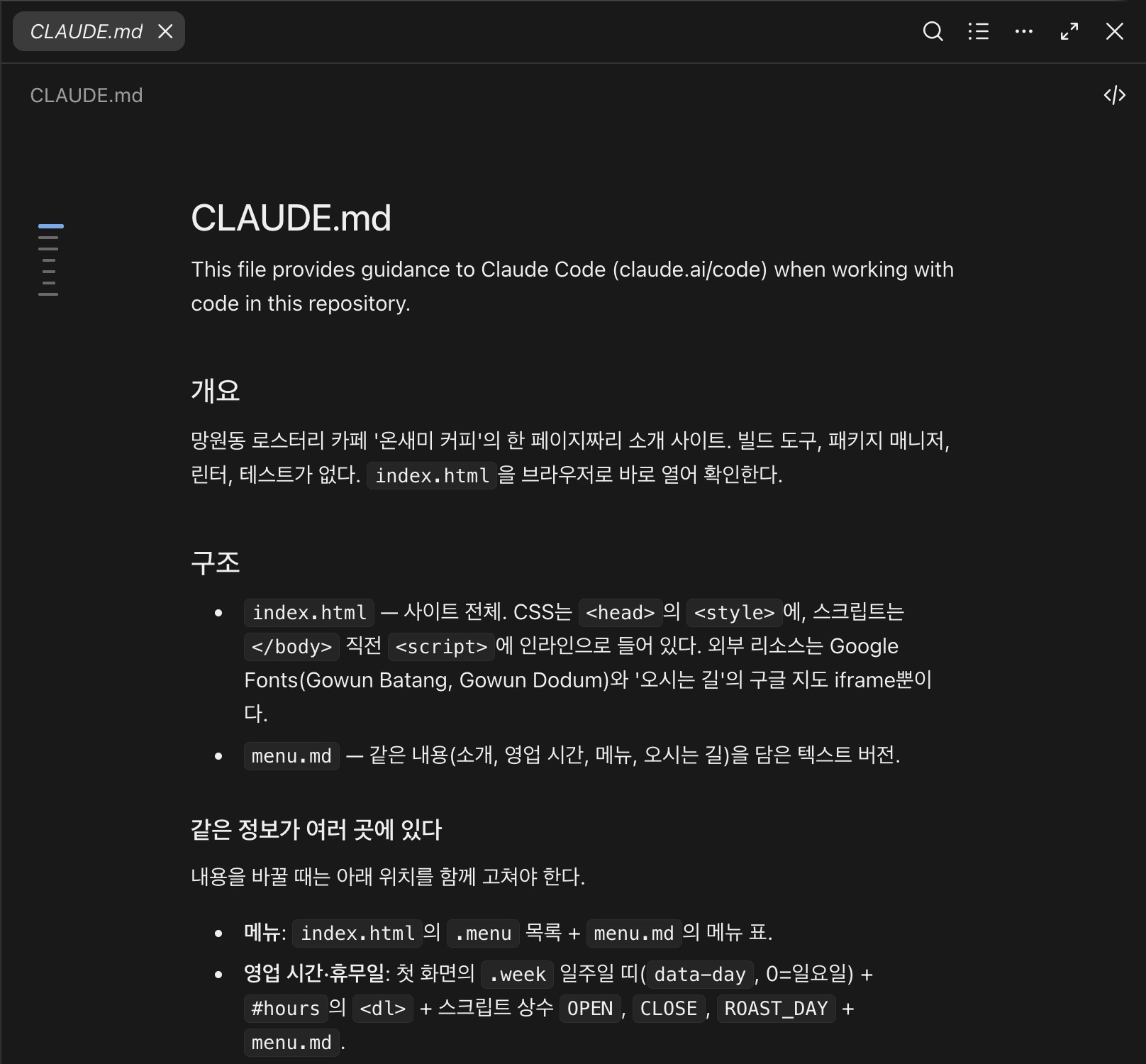
CLAUDE.md applies to a different scope depending on where it is.
| Location | Scope |
|---|---|
project/CLAUDE.md |
This project, shared with your team through Git |
project/CLAUDE.local.md |
This project, just for you |
~/.claude/CLAUDE.md |
All projects on your computer |
The desktop app and Claude Code in the terminal read the same CLAUDE.md, so rules written in one also apply in the other.
To add a rule, you do not need to open the file yourself; you can ask like this.
1Add a rule to CLAUDE.md that from now on, whenever the menu changes, menu.md and index.html are always updated together.
CLAUDE.md is included in the context of every session, so it is best to keep it short and specific.
For more on how to write it, see CLAUDE.md in Claude Code CLI Essentials.
# Context and usage
Context is the amount of conversation, files, and tool information Claude can keep in mind at once while working.
The context card in the session details panel shows the percentage used, and if you expand the card, you can see how much each item takes up, such as messages, system tools, MCP tools, skills, and memory files.
Typing /context in the prompt box shows the same information in the conversation.
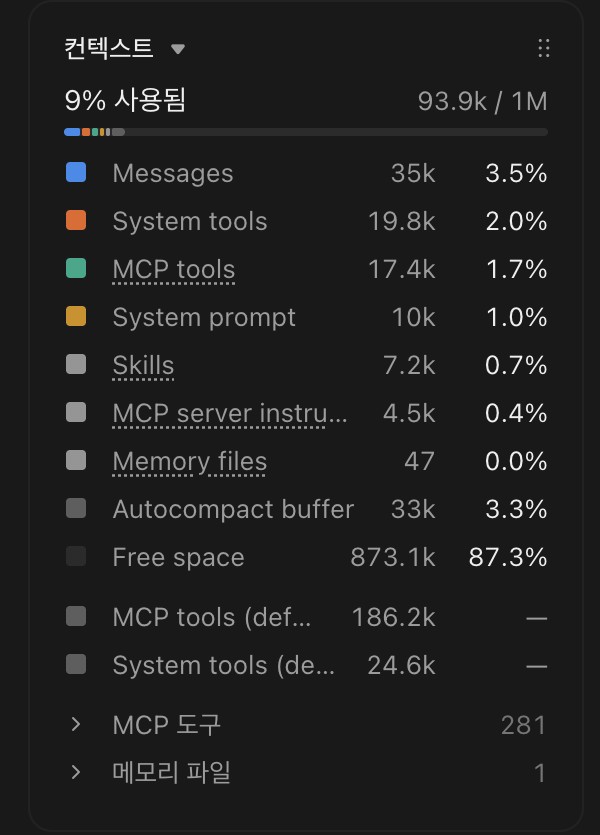
When the context fills up, Claude automatically summarizes the conversation so far and continues working.
Type /compact to summarize at any point you choose and free up space, and it is best to start work on a different topic in a new session.
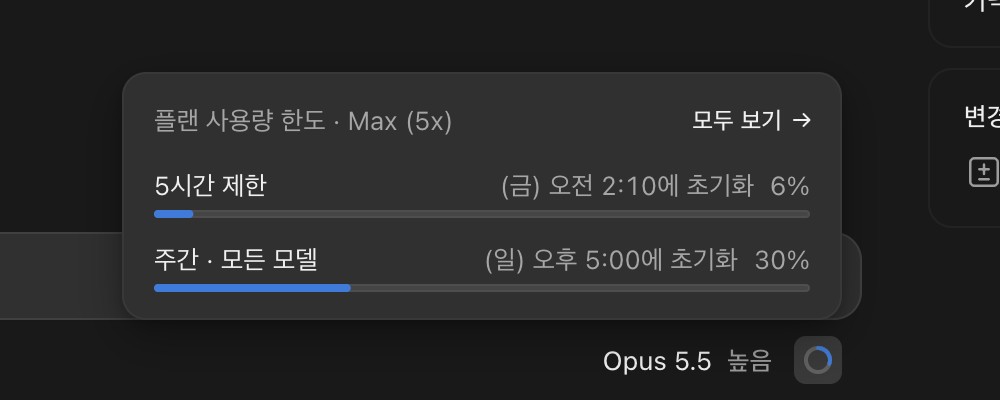
Click the circular indicator at the far right of the row below the prompt box to check your plan usage.
It shows the usage limit that resets every 5 hours (not on the Ultra plan) and the weekly usage limit, and Claude Code usage from the terminal, the web, and the desktop is all added together.
Click View all to see the details on the Settings > Usage screen.
# Customize
Customize in the sidebar is where you manage skills, connectors, and plugins that extend what Claude can do, all in one place.
Choose a type with the tabs at the top, find installed items in Yours and new ones in Discover, and create or import your own with the + Add menu.
The items you manage here are synced to your claude.ai account, so you can use them in Cowork and in Claude Code in the terminal signed in with the same account.
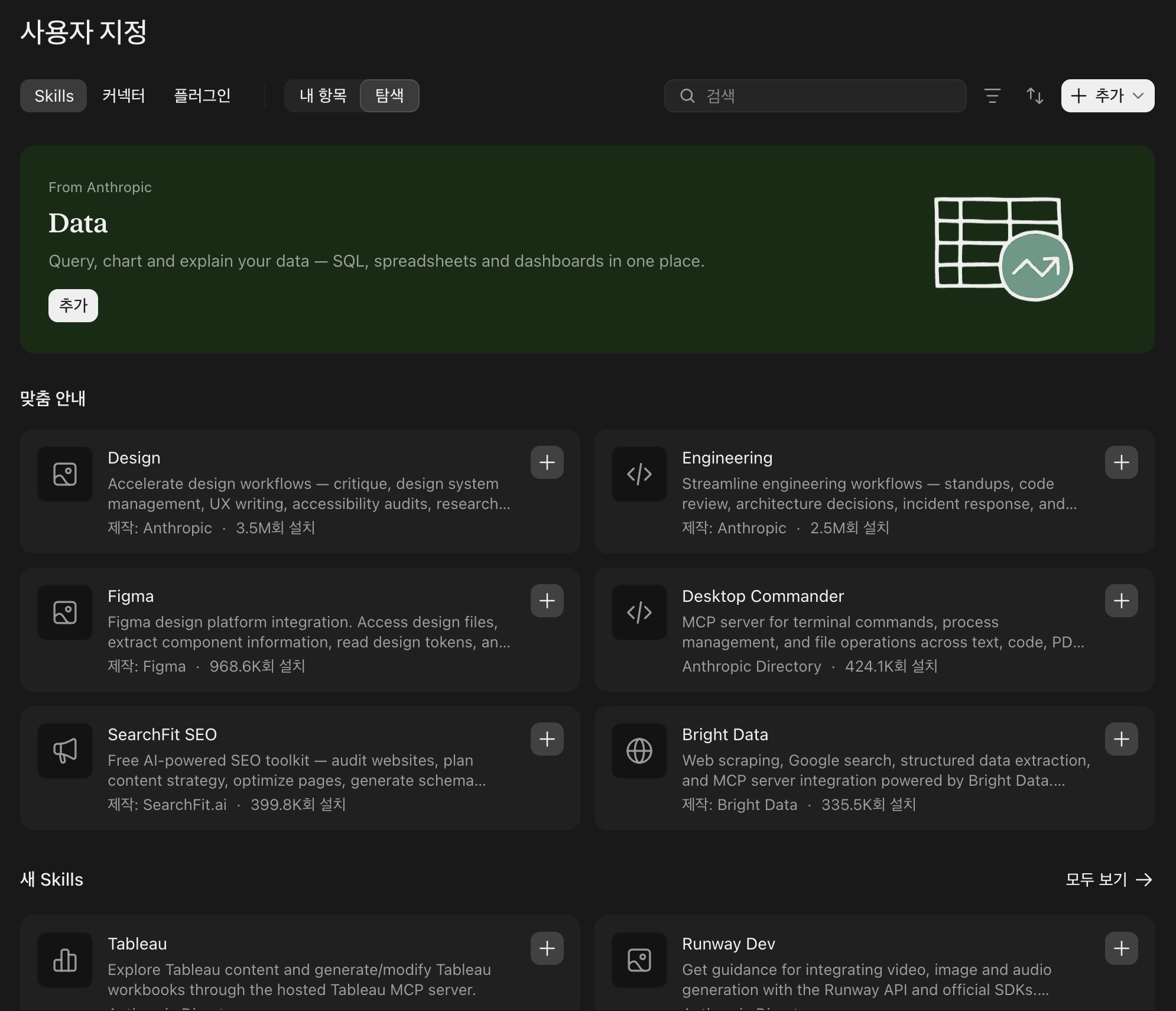
Skills are bundles of instructions for how to handle a specific task.
Claude loads skills related to your request on its own, and you can also run one directly by typing /skill-name in the prompt box.
In local sessions, along with account skills, Claude also uses skills in the ~/.claude/skills/ folder on your computer and the .claude/skills/ folder in the project.
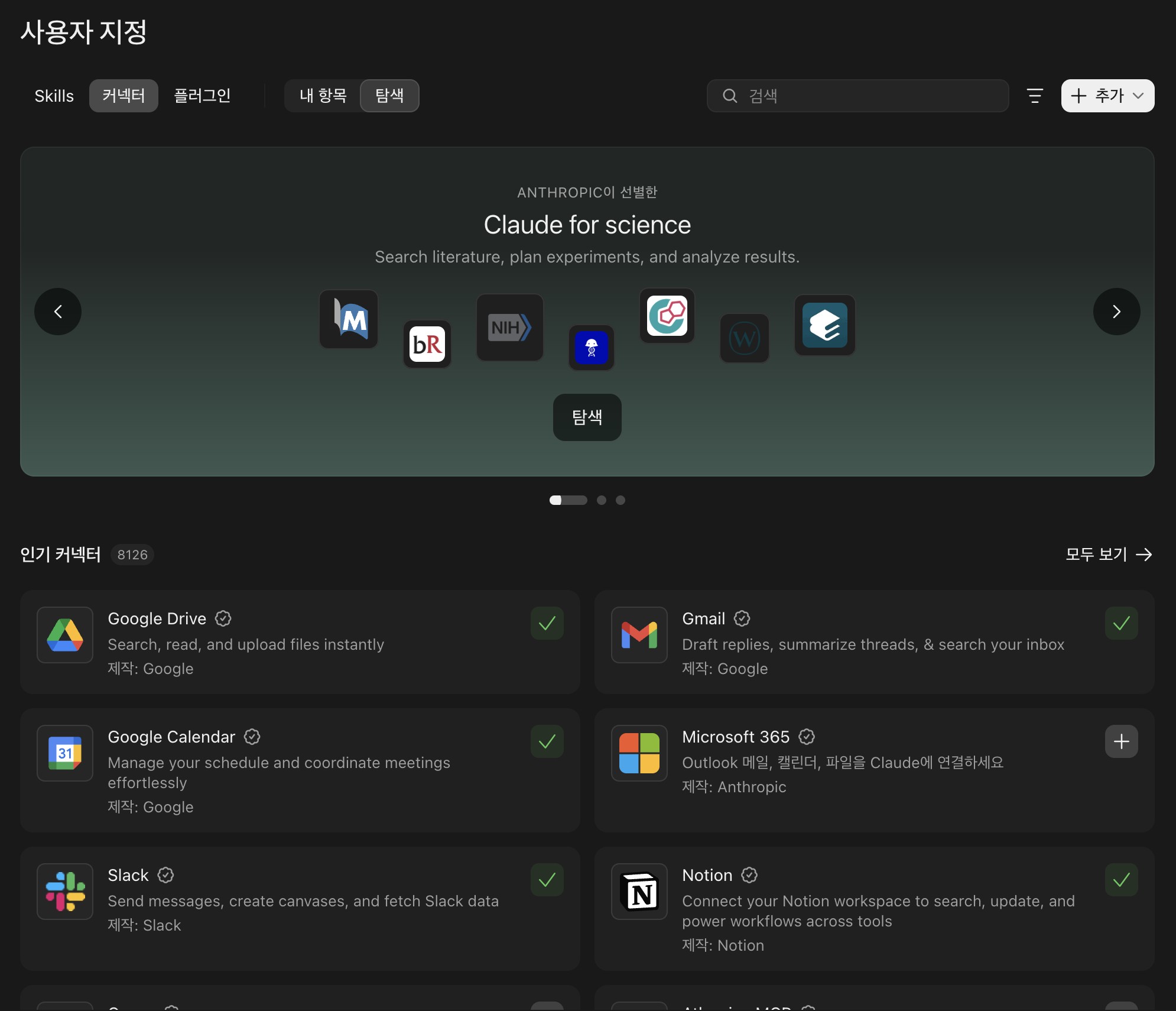
Connectors connect external services such as Google Drive, Gmail, Notion, and Slack, and they are MCP servers that you set up through a graphical interface.
Connect them from the + > Connectors menu in the prompt box or the Connectors tab in Customize, and once connected, Claude works with the service directly, such as checking your calendar, reading documents, or creating issues.
For services that are not in the list, add a custom connector with a remote MCP server URL, or register the MCP server in a settings file (~/.claude.json, .mcp.json).
Plugins are packages that bundle skills, agents, hooks, and MCP servers for distribution.
Open the plugin list with + > Add plugin in the prompt box to install them, and choose the install scope: user scope for all projects, project scope shared with your team, or local scope just for you.
Plugins installed in the desktop app are not available in cloud sessions or WSL sessions.
Some plugins are Mods that change the Claude Code interface, such as showing usage above the prompt box or adding buttons below responses.
Mods work in both the terminal and the Code tab of the desktop app, and they run without a sandbox with the same permissions as you, so only install Mods from authors you trust.
For how to create your own skills and plugins, see Skills and Plugins in Claude Code CLI Essentials, and for how to install and create Mods, see Mods.
# Scheduled tasks
Scheduled tasks let Claude handle repeated work automatically in a new session at a set time and interval.
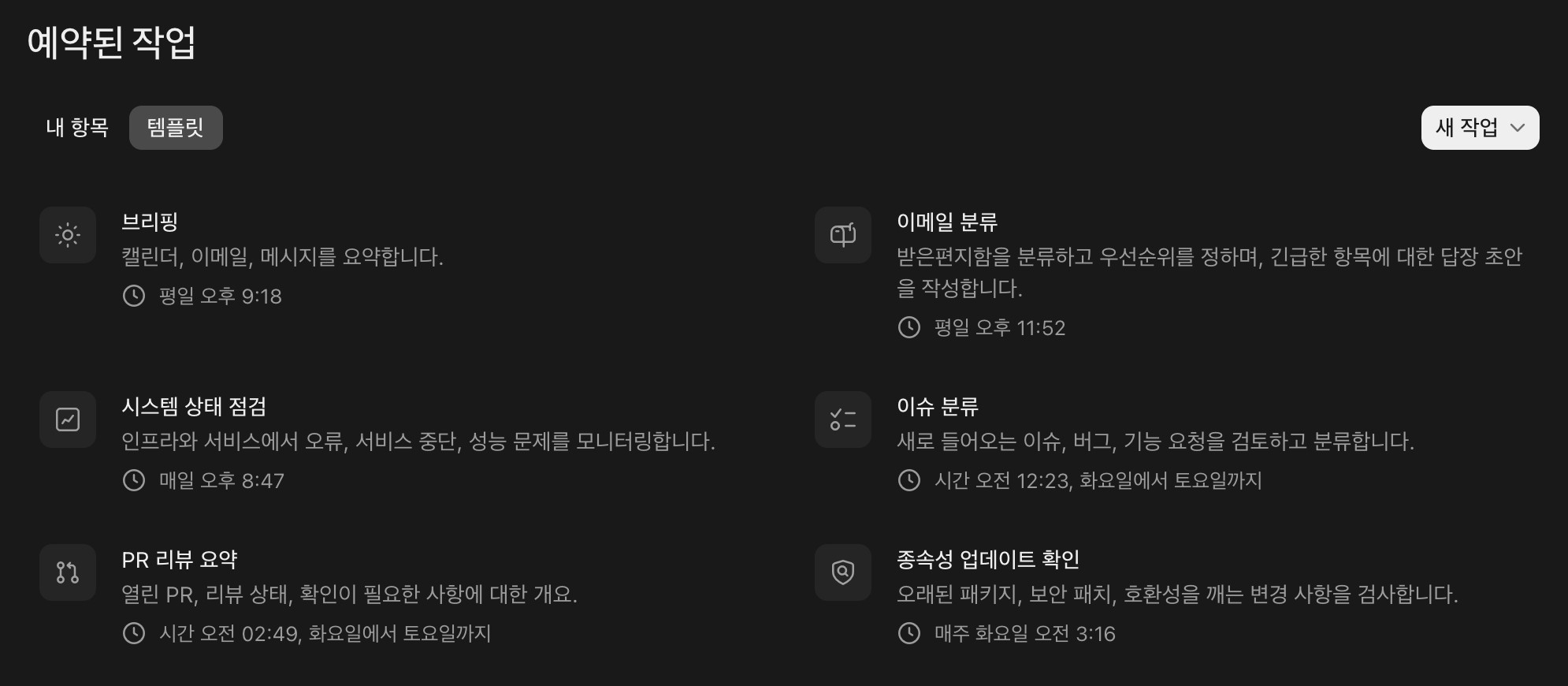
In the sidebar, Scheduled shows your task list and templates.
The templates include examples such as a briefing, email triage, a PR review digest, and a dependency update check, so you can pick one and edit it before you use it.
In the New task menu, choose Create with Claude to build the task through a conversation, or choose Set up manually to open a form.
In the form, enter a task name and the instructions Claude will run, then pick a permission mode and a model below the instructions box.
For the trigger, choose a schedule that runs at set times, a GitHub event, or an API call.
For a schedule, pick a frequency (hourly, daily, weekdays, or weekly) and set the time.
After you create the task, you can edit it to switch to manual, which runs only when you start it yourself, or to a custom schedule that uses a cron expression.
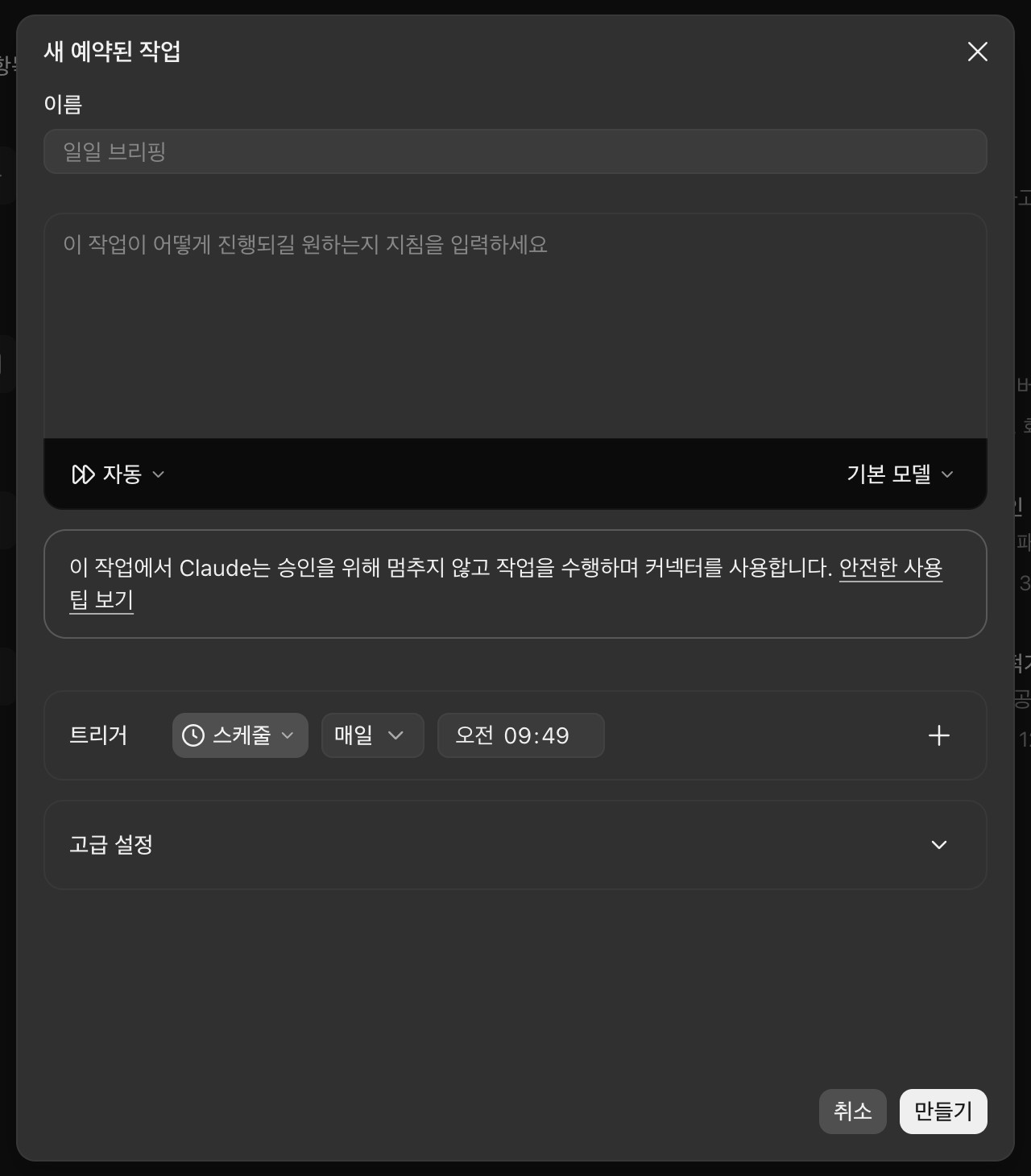
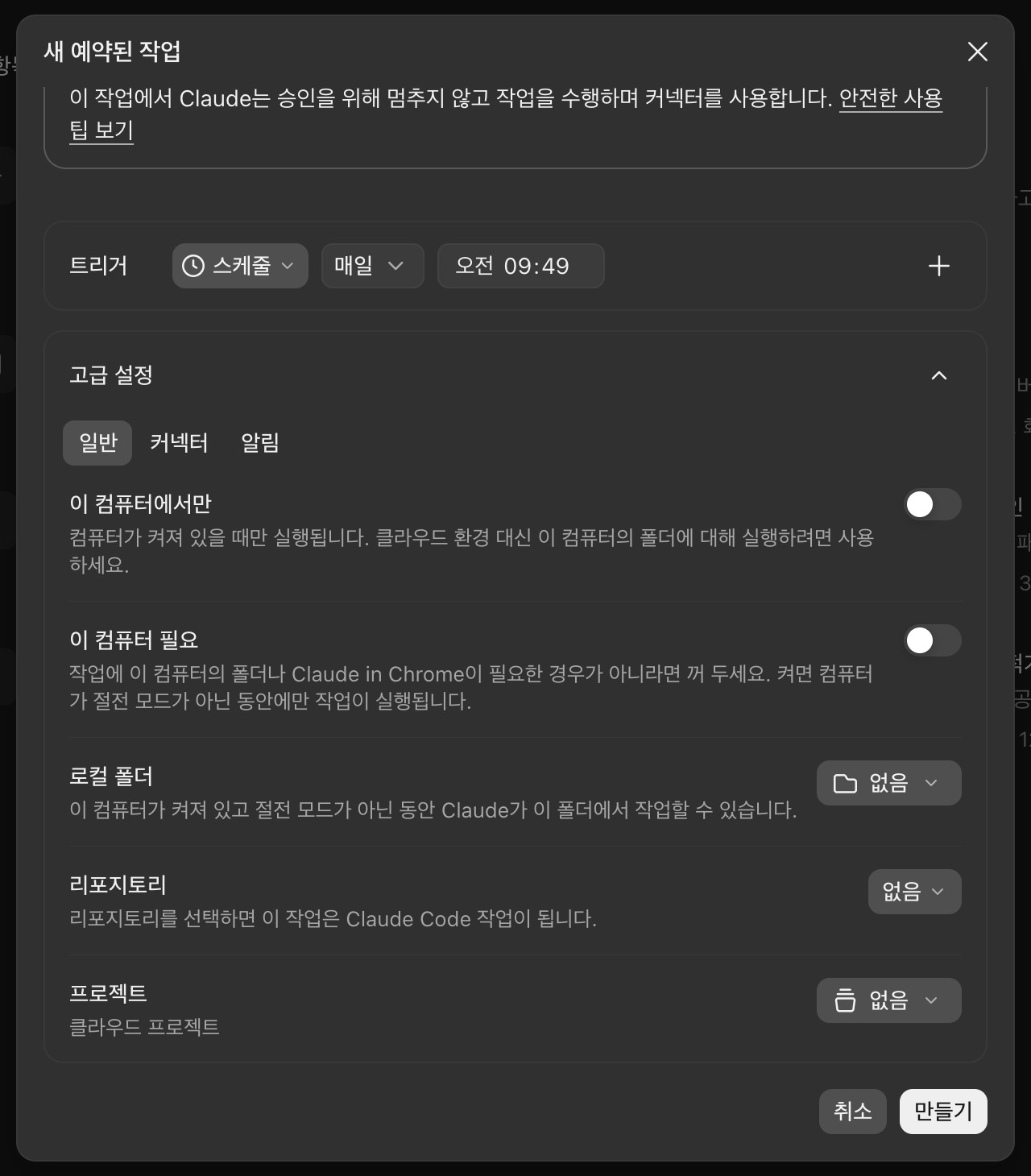
Scheduled tasks come in two kinds: cloud tasks, which run in the cloud, and local tasks, which run on your computer.
Turn on Only on this computer in Advanced settings to make a local task, then choose the folder to work in under Local folder.
| Local task | Cloud task | |
|---|---|---|
| Runs on | Your computer | Anthropic cloud |
| Computer state | App must be open and awake | Runs even when it is off |
| Local files | Accessible | Not accessible, clones the repository fresh |
| Trigger | Schedule | Schedule, GitHub event, API |
Local tasks don't run while your computer is asleep or the app is closed, so a cloud task is a better fit for work that must run.
You can also create a scheduled task by asking in a session in plain words.
1Schedule a task for every Monday at 9 AM that checks whether the menu items and prices in menu.md and index.html match, and tells me what is different if they don't.
If you ask for a task that runs only once, such as "Remind me to check the deployment status tomorrow at 3 PM," it is created as a task that turns itself off after it runs.
# Computer use
Computer use lets Claude open apps on your computer, look at the screen, click, and type.
Use it to hand off work in apps that have no command line or API and can only be operated through the screen.
It is available as a research preview on macOS (14 or later) and Windows for the Pro, Max, and Ultra plans, and is not available on the Team and Enterprise plans.
Computer use is off by default.
Turn on Enable computer use in the computer use section of Settings > This computer > System.
On macOS, you also need to allow the Accessibility permission, which Claude needs to click and type, and the Screen Recording permission, which it needs to see the screen.
The settings screen shows the status of each permission, and clicking a denied permission opens the matching screen in System Settings.
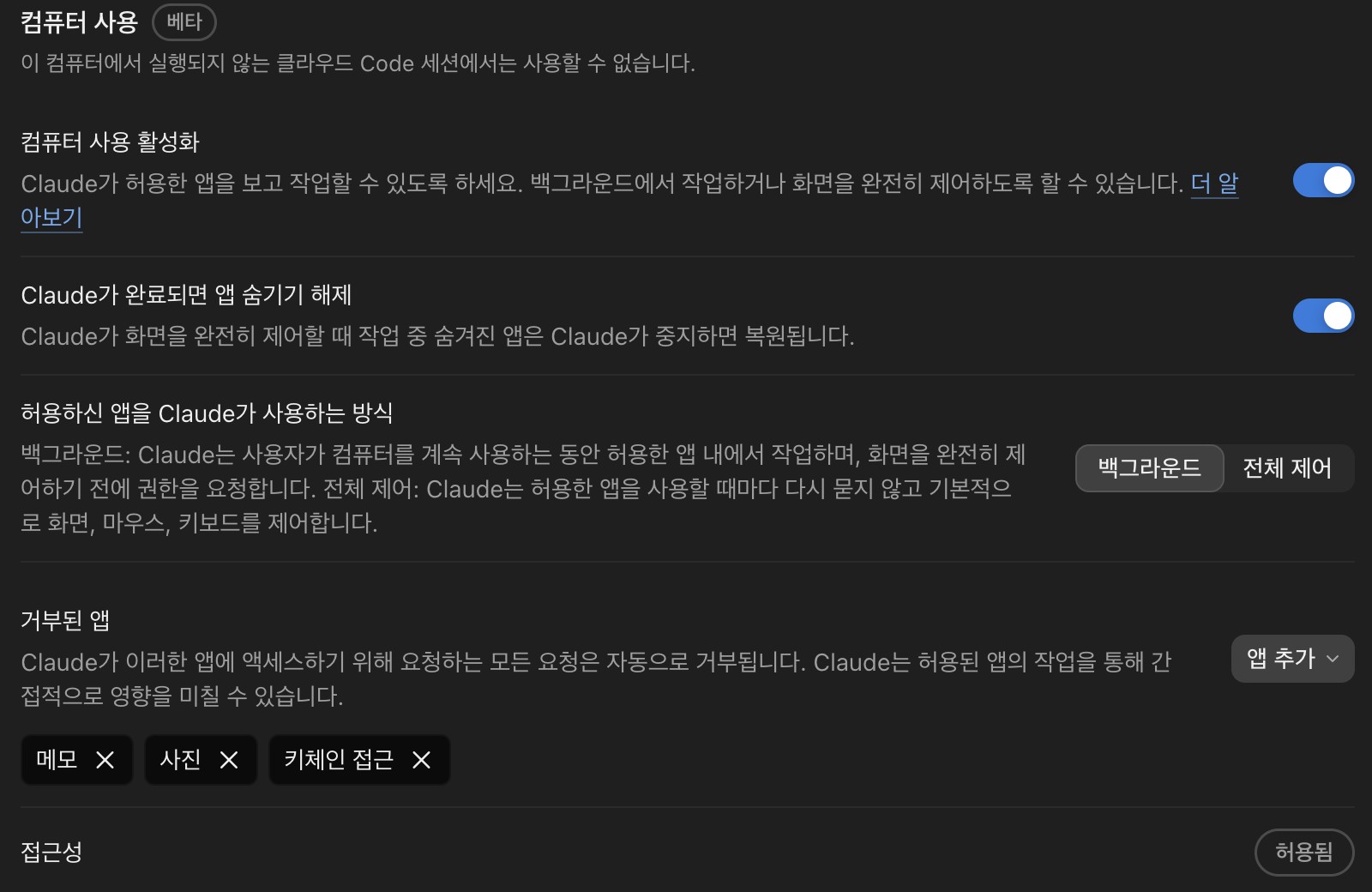
On macOS, you can choose how Claude uses apps.Background works only inside the apps you allow while you keep using your computer, and Full control lets Claude control the screen, mouse, and keyboard directly.
Claude's access requests to apps in Denied apps are rejected automatically, so it is a good idea to add apps with a lot of personal information, such as Notes or Photos.
The first time Claude tries to use an app, an approval request appears in the session, and the approval lasts for that session.
What Claude can do depends on the kind of app.
| Level | What Claude can do | Apps |
|---|---|---|
| View only | See the app through screenshots | Browsers, stock trading apps |
| Click only | Click and scroll, no typing or shortcuts | Terminals, code editors |
| Full control | Click, type, drag, shortcuts | All other apps |
Computer use is the broadest but slowest method, so Claude first uses more precise tools such as connectors, shell commands, and Claude in Chrome, and operates the screen only when there is no other way.
Unlike commands that run inside a sandbox, it works on your real desktop, so it is best not to approve apps that have sensitive information open.
If you develop iOS apps on macOS, Claude can run and check your app in the iOS Simulator panel even without turning on computer use.
# Cloud and Remote Control
You can run long tasks in the cloud.
Choose Cloud in the environment menu of a new session and pick the GitHub repository to work on.
The session then runs on Anthropic's servers, so the work continues even if you close the app or turn off your computer.
You can check progress and send more instructions at any time from the desktop app, claude.ai/code, or the Claude mobile app, and usage counts toward your plan limits.
A session you already started locally can be moved with Open in > Cloud in the session menu, and the conversation is summarized when it moves.
For large work that needs to be split across several cloud sessions, use Projects (rolling out in beta to the Pro, Max, and Ultra plans).
From a single conversation, Claude starts a cloud session for each task and summarizes the progress, and the project's instructions apply to every new session it starts.
Split work you will finish today into nested sessions, and use Projects for work that keeps coming over several days or needs to continue while your computer is off.
Because a project runs several sessions at once, it uses up your plan's usage faster than a single session.
Remote Control lets you continue a local session running on your computer from your phone or from a browser on another computer.
Turn on the Remote Control switch on the environment card in the session details panel, or type /remote-control in the prompt box, and the session appears in the session list on claude.ai/code and in the Claude app.
The work keeps running on your computer, so it uses your local files and tools as they are.
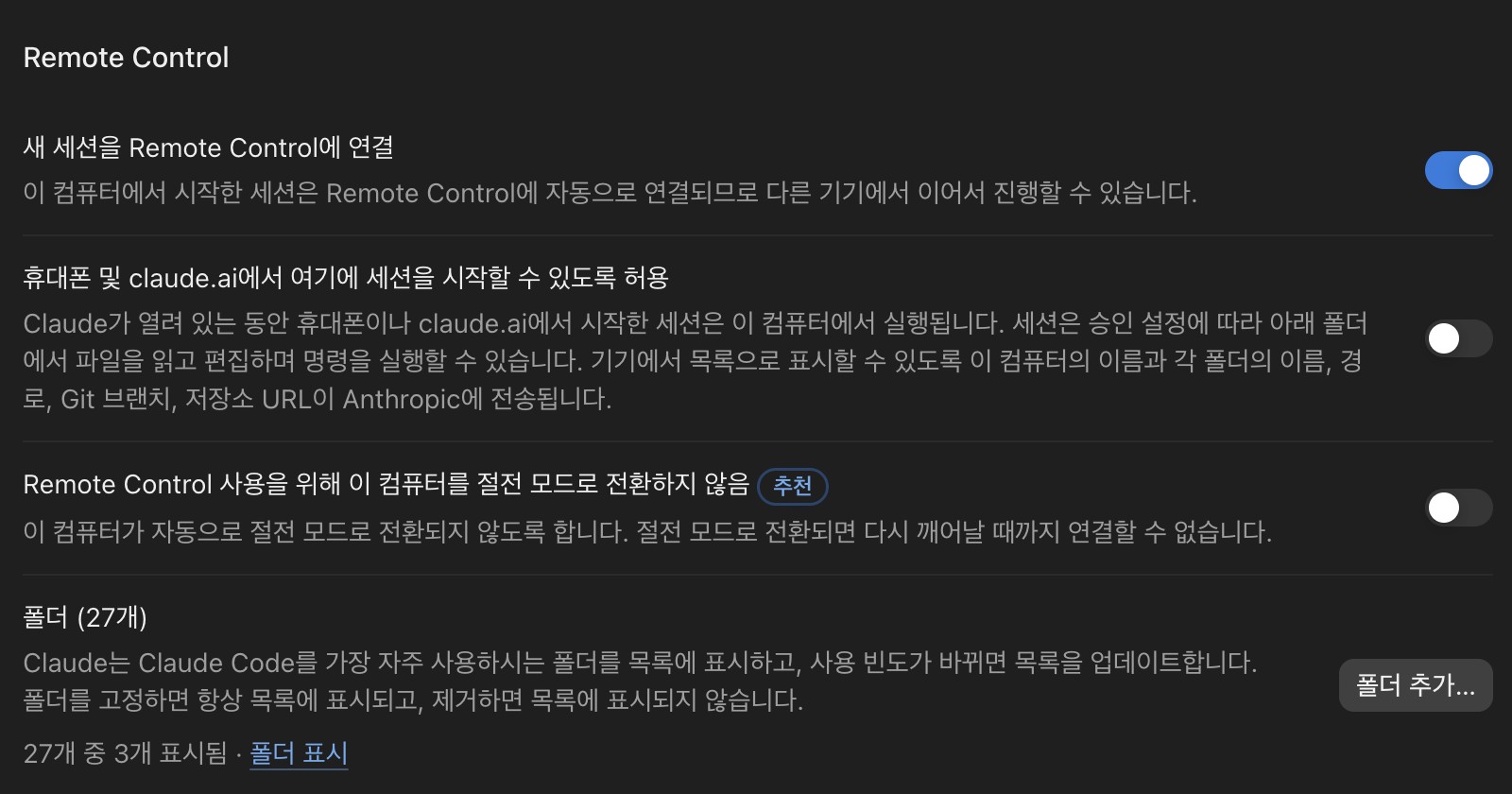
Set how it behaves in the Remote Control section of Settings > Claude Code.
- Connect new sessions to Remote Control: connect automatically when a new session starts
- Allow starting sessions here from your phone and claude.ai: start a new session in a folder on this computer from another device
- Keep this computer from sleeping for Remote Control: prevent sleep while connected
While Remote Control is on, the conversation history is stored on Anthropic's servers and passed to your other devices.
If you don't want a session to appear on other devices, turn off the session's switch or turn off the automatic connection setting above.
To work on a personal server or a cloud virtual machine, add an SSH connection from New environment in the environment menu.
On the first connection, Claude Code is installed on the remote computer automatically, and after that you work with the remote computer's files in the same screen as a local session.
# Key settings
Settings > Claude Code collects the settings that change how the Code screen behaves.
Open the settings screen by choosing Settings from the profile menu at the bottom of the sidebar or by pressing Cmd + ,, and use the search box at the top left to find an item by name.
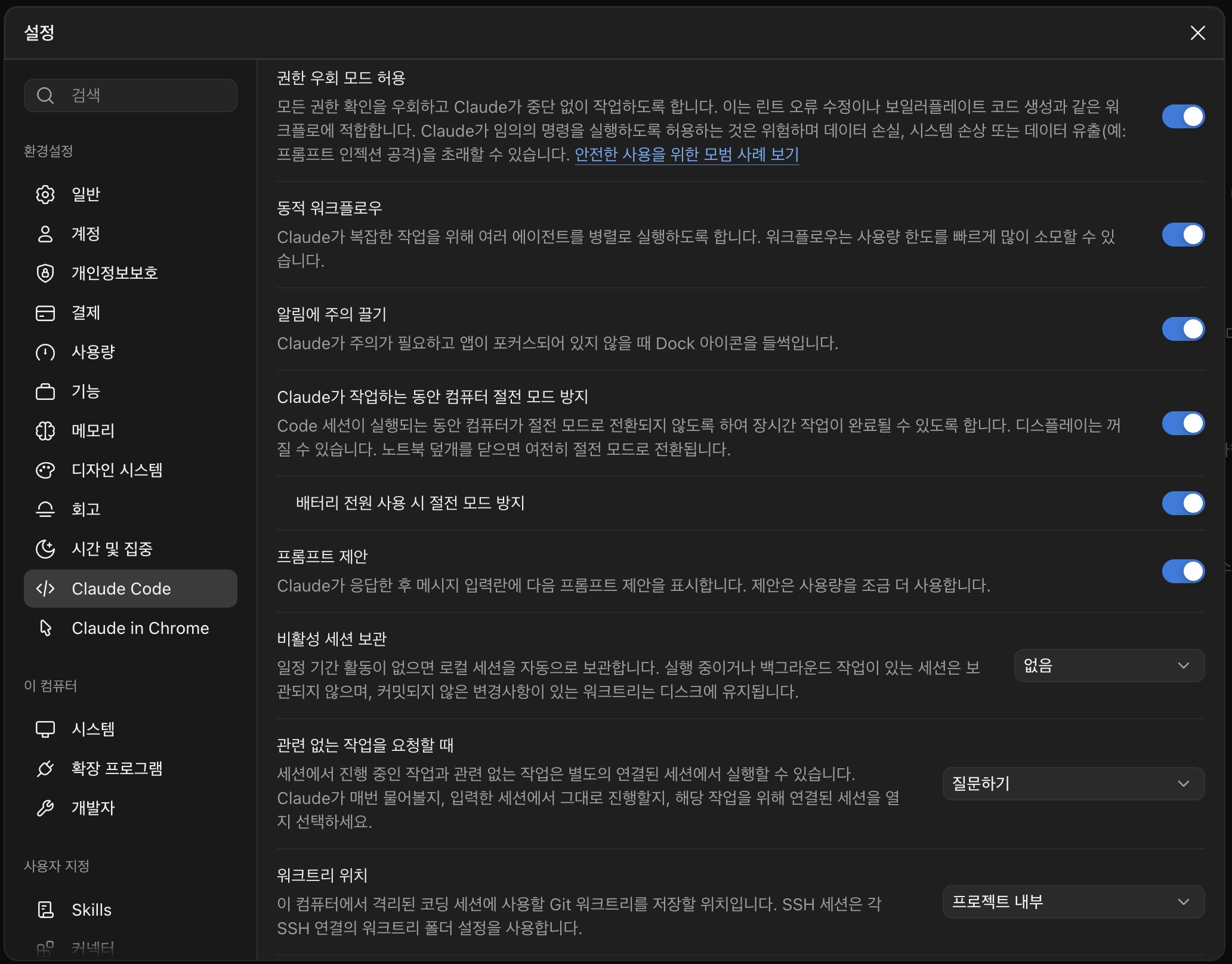
| Setting | Description |
|---|---|
| Allow bypass permissions mode | Shows Bypass permissions in the permission mode menu |
| Dynamic workflows | Uses several agents in parallel for complex tasks |
| Draw attention on notifications | Bounces the Dock icon when your input is needed |
| Keep awake | Prevents sleep while Claude is working |
| Prompt suggestions | Suggests your next request in gray text after a response |
| Archive inactive sessions | Automatically archives sessions you haven't used for a long time |
| Worktree location | The folder where worktrees are created |
| Browser tools | Lets Claude use the browser panel |
| Keep cookies | How long the browser panel stays logged in |
The desktop app also reads the same settings files as Claude Code in the terminal (~/.claude/settings.json, .claude/settings.json).
Settings that aren't on screen, such as permission rules and hooks, also apply to desktop sessions when you write them in a settings file.
# Using it with the CLI
The desktop app and Claude Code in the terminal use the same engine, so you can use them at the same time on one computer, even in the same project.
The two share the following settings.
- CLAUDE.md and CLAUDE.local.md
- Permission rules and hooks in settings files (
~/.claude/settings.jsonand others) - MCP servers registered in
~/.claude.jsonand.mcp.json - Skills in
~/.claude/skills/and.claude/skills/
The session lists are managed separately, but you can continue a terminal session in the desktop app.
Type /desktop in a terminal session to save the session, open it in the desktop app, and close the terminal session.
In the other direction, type /resume in the desktop prompt box to see the sessions started in this computer's terminal, and the session you choose continues with its full conversation.
12345# Open the desktop app in the current folder claude --desktop # Continue the most recent conversation in this folder in the desktop app claude --desktop --continue
Local sessions in the desktop app use a separate copy of Claude Code bundled with the app, so its version can differ from the terminal's claude command.
Type /status in the Code tab to check the version a session uses.
When you update the app, the new version applies from the next new session.
| Feature | Terminal | Desktop |
|---|---|---|
| Permission modes | All modes, including dontAsk |
All modes except dontAsk |
| Multiple sessions | Run several terminals | Sidebar, split view, nested sessions |
| Reviewing changes | /diff, Git commands |
Changes panel and line comments |
| Attaching files | Type the path | Attach images and PDFs, drag and drop |
| Repeated tasks | /loop, cron, CI |
Scheduled tasks |
| Script automation | claude -p, Agent SDK |
Not available |
| Agent Teams | Available | Not available |
The desktop app is handy when you want to manage several sessions in one window and review changes visually, and the terminal is handy when you work with scripts or automation.
You can find the features and flags that are only in the terminal in Claude Code CLI Essentials.
Thanks for reading to the end.
Likes and kind comments help keep this blog going!