Starting a Vue Project with Vite

This post explains how to start a Vue project with the Vite.js build tool.
The configuration for JavaScript and TypeScript projects is explained separately.
# Creating a basic project
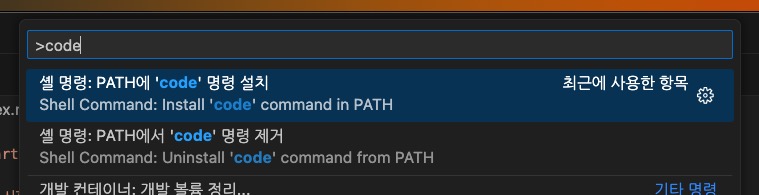
Open the project folder in VS Code and run the following commands in the terminal in order.
123456# Set up the project in the current path npm create vite@latest . Select a framework: Vue Select a variant: TypeScript or JavaScript Install with npm and start now? Yes
Or, in the terminal, move to the path where you want to create the project and run the following commands in order.
123456789101112131415161718192021# Create and set up a project folder in the current path npm create vite@latest <project_folder_name> Select a framework: Vue Select a variant: TypeScript or JavaScript Install with npm and start now? No # Move to the project path cd <project_folder_name> # Install dependency packages npm i # Open the current path in a new VS Code window code . # Or open it in the current VS Code window code . -r # Or open the project manually # Run the development server npm run dev
# Configuring ESLint + Prettier
- ESLint: Checks code quality and detects bugs and anti-patterns
- Prettier - Code formatter: Manages code style and formatting, and lets you apply a consistent code style
# Installing VS Code extensions
To use ESLint and Prettier, install each extension in VS Code.
It is a good idea to restart VS Code after installing them.
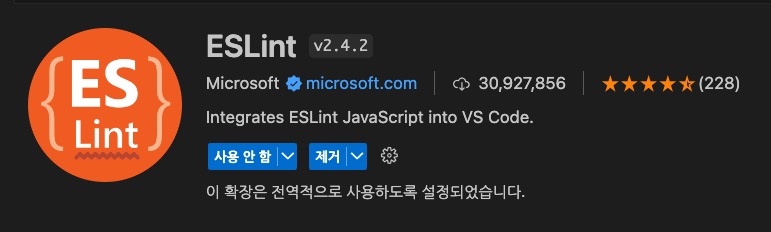

Because this is a Vue project, you can also install the following extension for extra help.
- Vue - Official: Supports syntax highlighting, autocompletion, error checking, and more for Vue projects

# Installing and configuring packages
Install each dependency package so you can use it in the project.
None of these packages are needed at runtime because they are all for development, so install them as 'dev dependencies' with the -D flag.
1npm i -D eslint @eslint/js globals eslint-plugin-vue prettier eslint-config-prettier eslint-plugin-prettier
1npm i -D eslint @eslint/js eslint-plugin-vue @vue/eslint-config-typescript prettier eslint-config-prettier eslint-plugin-prettier
| Package | Description |
|---|---|
eslint |
ESLint core package / Checks code quality and detects bugs and anti-patterns |
@eslint/js |
ESLint's default set of recommended rules |
globals |
A list of global variables for runtime environments such as the browser |
eslint-plugin-vue |
Vue support plugin, supports syntax analysis and linting |
@vue/eslint-config-typescript |
Connects TypeScript rules along with a parser that analyzes the inside of *.vue files |
prettier |
Prettier core package / Manages code style and formatting, and lets you apply a consistent code style |
eslint-config-prettier |
Turns off ESLint rules that conflict with Prettier, mostly formatting rules that eslint-plugin-vue turns on |
eslint-plugin-prettier |
Integrates Prettier rules into ESLint rules |
When the installation is complete, create an eslint.config.js file in the project root and add the following content.
1234567891011121314import js from '@eslint/js' import globals from 'globals' import pluginVue from 'eslint-plugin-vue' import prettierRecommended from 'eslint-plugin-prettier/recommended' import { defineConfig, globalIgnores } from 'eslint/config' export default defineConfig([ { files: ['**/*.{vue,js,mjs,jsx}'] }, globalIgnores(['**/dist/**']), { languageOptions: { globals: globals.browser } }, js.configs.recommended, pluginVue.configs['flat/recommended'], prettierRecommended ])
1234567891011121314import js from '@eslint/js' import pluginVue from 'eslint-plugin-vue' import { defineConfigWithVueTs, vueTsConfigs } from '@vue/eslint-config-typescript' import prettierRecommended from 'eslint-plugin-prettier/recommended' import { globalIgnores } from 'eslint/config' export default defineConfigWithVueTs( { files: ['**/*.{vue,ts,mts,tsx}'] }, globalIgnores(['**/dist/**']), js.configs.recommended, pluginVue.configs['flat/recommended'], vueTsConfigs.recommended, prettierRecommended )
If needed, you can override the rules used in <template>, <script>, and so on in *.vue files with custom rules.
Just add the following object at the very end of the configuration.
You can find the full list of rules in ESLint plugin for Vue.js / Rules.
123456789101112131415161718192021222324// ... export default defineConfigWithVueTs( // ... { rules: { 'vue/html-closing-bracket-newline': ['error', { singleline: 'never', multiline: 'never' }], 'vue/html-self-closing': ['error', { html: { void: 'always', normal: 'never', component: 'always' }, svg: 'always', math: 'always' }], 'vue/comment-directive': 'off', 'vue/no-v-html': 'off' } } )
Also, create a .prettierrc file in the project root and add the following content.
You can find the full list of options in Prettier / Options.
12345678910{ "semi": false, "singleQuote": true, "singleAttributePerLine": true, "bracketSameLine": true, "endOfLine": "auto", "trailingComma": "none", "arrowParens": "avoid", "printWidth": 100 }
# Setting up automatic formatting
You can use automatic formatting through user settings (local) that apply only to the current project.
Create a .vscode/settings.json folder and file in the project root, and add the following content.
1234{ "editor.formatOnSave": true, "editor.defaultFormatter": "esbenp.prettier-vscode" }
This applies not only to *.vue, *.js, and *.ts files but to every file Prettier supports, such as *.json, *.css, *.html, and *.md.
If you want a specific language to behave differently, you can override it with language-specific settings such as "[vue]": { ... }.
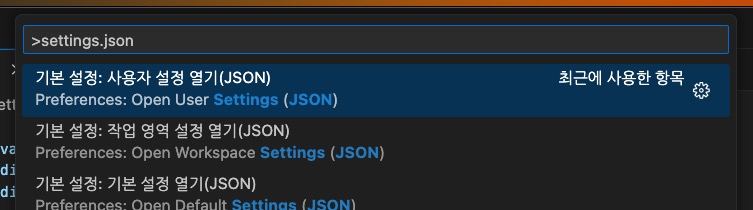
You can open the user settings (global) by searching for settings.json in the Command Palette.
# Configuring path aliases
Path aliases are convenient because they make it easy to reference files in your project.
12345678910111213import { defineConfig } from 'vite' import vue from '@vitejs/plugin-vue' // https://vite.dev/config/ export default defineConfig({ plugins: [vue()], resolve: { alias: [ { find: '@', replacement: '/src' }, { find: 'node_modules', replacement: '/node_modules' } ] } })
123456789<script setup lang="ts"> // import { useMovieStore } from '../../../../store/movie' import { useMovieStore } from '@/store/movie' </script> <style> @import 'node_modules/swiper/swiper.css'; @import 'node_modules/swiper/modules/navigation.css'; </style>
So that TypeScript can also recognize the paths, add the following configuration options.
The tsconfig.json file that Vite creates only references other configuration files, so add the options to the tsconfig.app.json file.
123456789{ "compilerOptions": { // ... "paths": { "@/*": ["./src/*"], "node_modules/*": ["./node_modules/*"] } } }
If you use TypeScript 5 or earlier, you may need the baseUrl option.
12345678910{ "compilerOptions": { // ... "baseUrl": "./", "paths": { "@/*": ["./src/*"], "node_modules/*": ["./node_modules/*"] } } }
# Official Vue Starter
Instead of doing all of the configuration so far yourself, you can also get it in one go with the official Vue starter.
Unlike Vite's Vue template, which provides only a minimal setup, it lets you choose and set up a router, state management, testing, a linter, and a formatter together.
It also includes the @ path alias, .editorconfig, and .vscode/settings.json.
The command to create the project is the same. Just select Official Vue Starter ↗ at Select a variant:.
123456789101112131415# Create and set up a project folder in the current path npm create vite@latest <project_folder_name> Select a framework: Vue Select a variant: Official Vue Starter ↗ Use TypeScript? Yes or No Select features to include in your project: JSX Support Router (SPA development) Pinia (state management) Vitest (unit testing) End-to-End Testing Linter (error prevention) Prettier (code formatting)
When you finish selecting, only the project folder is created, so install the dependencies and run the development server yourself.
123cd <project_folder_name> npm i npm run dev
If you select Linter (error prevention), eslint.config.ts and .oxlintrc.json are created together, and the following scripts are added to package.json.
12345678{ "scripts": { "lint": "run-s \"lint:*\"", "lint:oxlint": "oxlint . --fix", "lint:eslint": "eslint . --fix --cache", "format": "prettier --write --experimental-cli src/" } }
Also, add rules to the .prettierrc file as follows.
1234567891011{ "$schema": "https://json.schemastore.org/prettierrc", "semi": false, "singleQuote": true, "singleAttributePerLine": true, "bracketSameLine": true, "endOfLine": "auto", "trailingComma": "none", "arrowParens": "avoid", "printWidth": 100 }
# ESLint and oxlint
oxlint is a linter written in Rust, and it runs faster than ESLint.
However, it cannot replace rules that use type information or the Vue-specific rules of eslint-plugin-vue, so it is used together with ESLint.npm run lint runs oxlint first and then runs ESLint.
By default, the two linters check overlapping things, so if you leave them as they are, the same problem gets reported twice.
The buildFromOxlintConfigFile call in eslint.config.ts is what solves this.
1234567891011121314import { globalIgnores } from 'eslint/config' import { defineConfigWithVueTs, vueTsConfigs } from '@vue/eslint-config-typescript' import pluginVue from 'eslint-plugin-vue' import pluginOxlint from 'eslint-plugin-oxlint' import skipFormatting from 'eslint-config-prettier/flat' export default defineConfigWithVueTs( { files: ['**/*.{vue,ts,mts,tsx}'] }, globalIgnores(['**/dist/**', '**/dist-ssr/**', '**/coverage/**']), ...pluginVue.configs['flat/essential'], vueTsConfigs.recommended, ...pluginOxlint.buildFromOxlintConfigFile('.oxlintrc.json'), skipFormatting )
It reads .oxlintrc.json and turns off the ESLint rules that oxlint already checks.
This removes the duplicate reports and also reduces how much ESLint has to check.
# Matching linter versions
eslint-plugin-oxlint and oxlint must be pinned to the same version, but because of a problem in the template configuration, their versions may differ.
In that case, an error like the following may appear while you install packages with npm i.
1234npm error code ERESOLVE npm error Found: oxlint@1.74.0 npm error Could not resolve dependency: npm error peer oxlint@"~1.73.0" from eslint-plugin-oxlint@1.73.0
Then you need to change the two packages to the same version, and when you match them, change to the lower version.
123456{ "devDependencies": { "eslint-plugin-oxlint": "~1.73.0", "oxlint": "~1.73.0" } }
After the change, run npm i again and the installation completes.
# File nesting
The official starter turns on file nesting in .vscode/settings.json.
It is a feature that shows related files as children of a main file in the VS Code Explorer.
12345678910111213{ "explorer.fileNesting.enabled": true, "explorer.fileNesting.patterns": { "tsconfig.json": "tsconfig.*.json, env.d.ts, typed-router.d.ts", "vite.config.*": "jsconfig*, vitest.config.*, cypress.config.*, playwright.config.*", "package.json": "package-lock.json, pnpm*, .yarnrc*, yarn*, .eslint*, eslint*, .oxlint*, oxlint*, .oxfmt*, .prettier*, prettier*, .editorconfig, bun.lock, nub.lock" }, "editor.codeActionsOnSave": { "source.fixAll": "explicit" }, "editor.formatOnSave": true, "editor.defaultFormatter": "esbenp.prettier-vscode" }
If you find it inconvenient, you can turn it off by changing the option to false.
If you set it explicitly to false instead of removing the option, this project never uses file nesting, regardless of your global settings.
123{ "explorer.fileNesting.enabled": false }
# Configuring SCSS
Vite supports SCSS (Sass) out of the box, so you can use it without any extra configuration once you install a compiler package.
1npm i -D sass-embedded
The compiler comes in two packages: sass and sass-embedded.
If sass-embedded is installed, Vite uses sass-embedded. Otherwise, it uses sass.
| Package | Description |
|---|---|
sass |
A package that converts the compiler written in Dart into JavaScript |
sass-embedded |
A package that uses a native Dart executable, and compiles faster in most situations |
When the installation is complete, you can use it by adding the lang="scss" attribute to the <style> element in *.vue files.
1234567891011121314<template> <div class="card"> <h2 class="title">Title</h2> </div> </template> <style lang="scss" scoped> .card { padding: 20px; .title { color: #2f6fed; } } </style>
You can also change the extension of the global style file created with the project to .scss.
If you change the extension, also update the import path in the entry file.
123456import { createApp } from 'vue' import './style.css' import './style.scss' import App from './App.vue' createApp(App).mount('#app')
To use variables or mixins in several components, you have to import them with @use in each file every time.
With Vite's css.preprocessorOptions option, you can automatically add the code you want at the very top of every SCSS file.
First, create a file for your variables and mixins.
If a file name starts with an underscore (_), it becomes a partial that is not compiled on its own and is used only when other files import it.
12345678$color-primary: #2f6fed; $breakpoint-tablet: 768px; @mixin flex-center { display: flex; align-items: center; justify-content: center; }
Then add the additionalData option to the Vite configuration.
You can use the @ path alias you configured earlier as is.
1234567891011121314151617181920import { defineConfig } from 'vite' import vue from '@vitejs/plugin-vue' // https://vite.dev/config/ export default defineConfig({ plugins: [vue()], resolve: { alias: [ { find: '@', replacement: '/src' }, { find: 'node_modules', replacement: '/node_modules' } ] }, css: { preprocessorOptions: { scss: { additionalData: '@use "@/assets/scss/variables" as *;' } } } })
You can omit the underscore and the extension from the name of the file you import.as * imports without a namespace, so you can use $color-primary instead of variables.$color-primary.
Now you can use the variables and mixins in every component without @use.
123456789101112131415<style lang="scss" scoped> .card { @include flex-center; padding: 20px; .title { color: $color-primary; } } @media (min-width: $breakpoint-tablet) { .card { padding: 40px; } } </style>
Thanks for reading to the end.
Likes and kind comments help keep this blog going!