Claude Code Essentials

Claude Code is a terminal-based AI coding tool developed by Anthropic.
Instead of a typical chat interface, it works directly in the terminal environment developers already use.
Claude Code can edit files directly, run commands, and create commits, and it can also connect easily to external tools such as Figma, Notion, and Slack.
The terminal is the default, but you can use it the same way in the desktop app (macOS, Windows), on the web (claude.ai/code), and in the VS Code and JetBrains extensions.
When it receives a request, it decides what to do, uses tools to read files or run commands, checks the results, and decides on the next action, repeating this process until the task is done.
To use Claude Code, you need a Claude subscription (Pro, Max, Team, Enterprise) or a Claude Console account.
| Plan | Price (excl. VAT) | Notes |
|---|---|---|
| Claude Pro | $20/month | Standard usage |
| Claude Max 5x | $100/month | 5x usage |
| Claude Max 20x | $200/month | 20x usage |
| Claude Console | Token-based | API-based billing |
# Installation and setup
Following the Claude Code Quickstart docs, run the following command for your operating system and terminal to install it.
12345678# macOS, Linux, WSL curl -fsSL https://claude.ai/install.sh | bash # Windows PowerShell irm https://claude.ai/install.ps1 | iex # Windows CMD curl -fsSL https://claude.ai/install.cmd -o install.cmd && install.cmd && del install.cmd
Once the installation is done, restart the terminal and check the Claude Code CLI version as follows.
If you see a version, it was installed correctly.
12claude -v # 2.1.294 (Claude Code)
If the installation succeeded but you get a command not found or not recognized error when running claude, first restart the terminal and try again.
If that still doesn't fix it, you need to check the PATH environment variable for the install directory.
Run the following command for your operating system and terminal.
Then restart the terminal and check the Claude Code CLI version again.
1234567891011121314# macOS - Zsh echo 'export PATH="$HOME/.local/bin:$PATH"' >> ~/.zshrc source ~/.zshrc # macOS - Bash echo 'export PATH="$HOME/.local/bin:$PATH"' >> ~/.bashrc source ~/.bashrc # Windows - PowerShell $currentPath = [Environment]::GetEnvironmentVariable('PATH', 'User') [Environment]::SetEnvironmentVariable('PATH', "$currentPath;$env:USERPROFILE\.local\bin", 'User') # Windows - CMD echo %PATH% | findstr /i "local\bin"
# First run and sign-in
The first time you run the claude command, a sign-in prompt appears automatically.
1claude
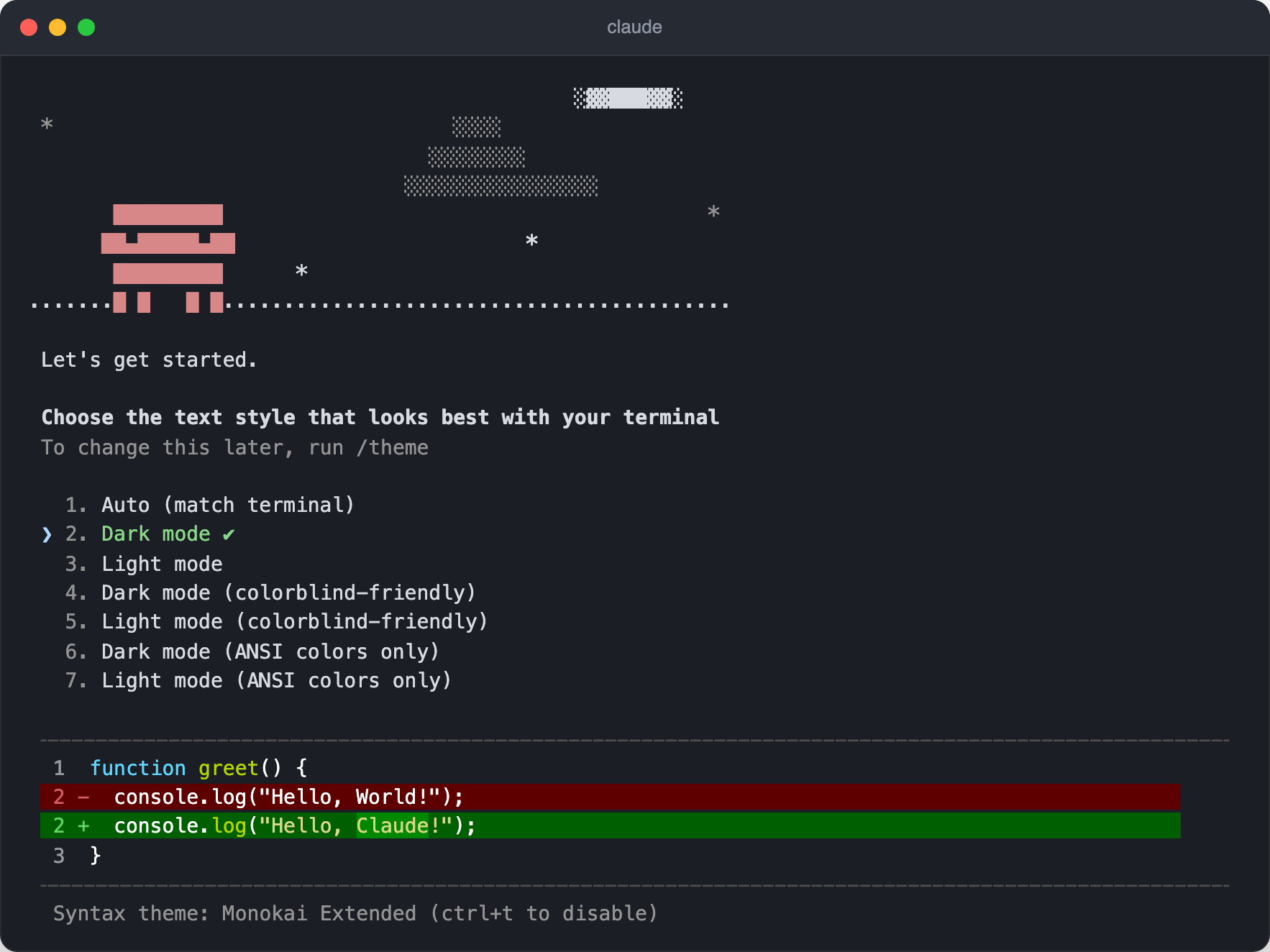
First, choose a theme.
Pick the one that is easy to read in your terminal based on the code preview shown below, and you can change it later with the /theme command.
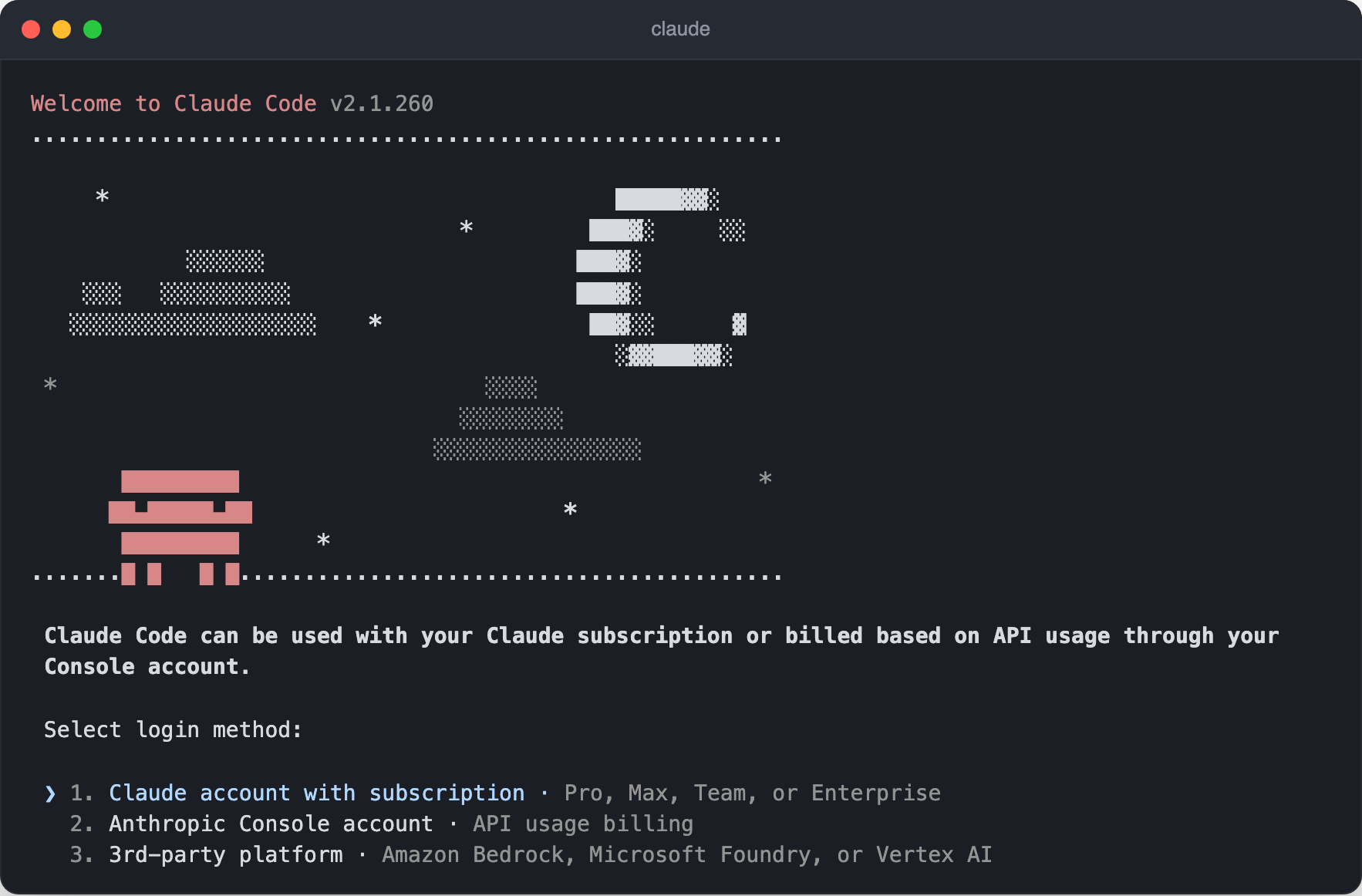
Next, you need to connect your Claude account.
Choose from a subscription account, a Console account billed by API usage, or a third-party platform such as Amazon Bedrock or Vertex AI.
Here we connect a subscription account, and it helps to sign in through your browser before you try.
When you choose a connection method, your browser opens and asks for approval.
Once you approve, the connection is complete.
When you go back to Claude Code, sign-in is complete.
Press the Enter key to start.
Once you start, you see a welcome screen like the following.
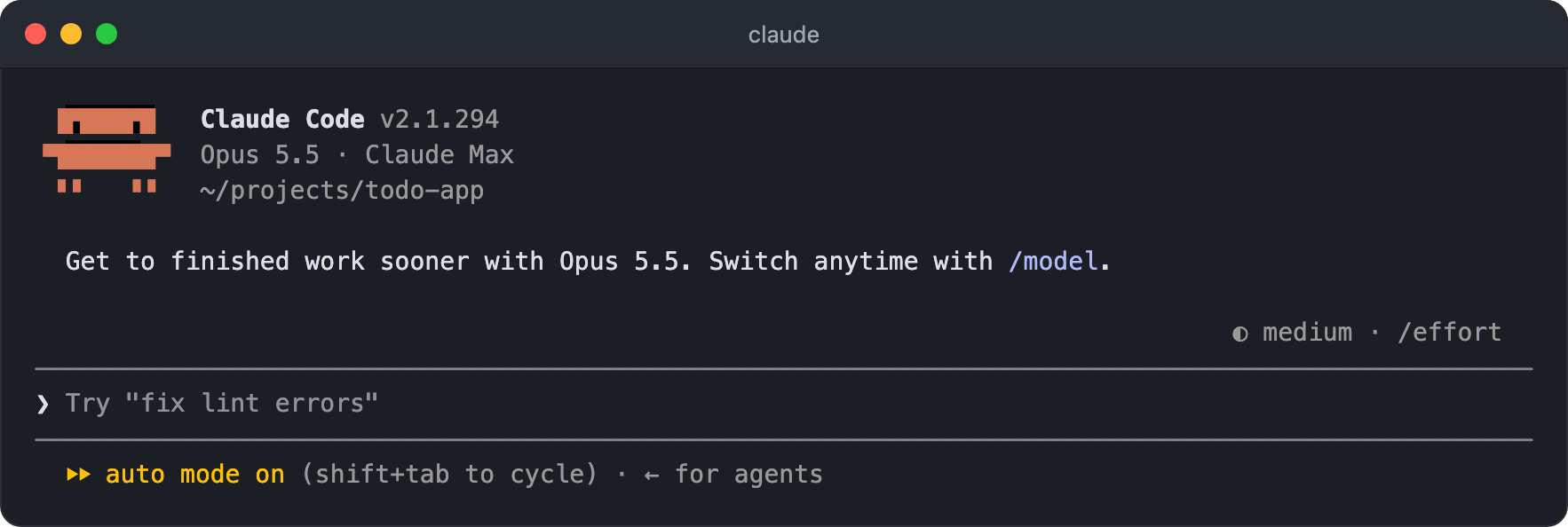
The top of the Claude Code screen shows the version, the current model and plan, and the working directory.
The spot marked ❯ at the bottom is the prompt input, and the status line below it shows the current permission mode, hints for frequently used shortcuts, and more.
Your credentials are stored securely (in the system keychain on macOS, and in the C:\Users\username\.claude\.credentials.json file on Windows), so you don't need to sign in again in later sessions.
You can sign in and sign out with the /login and /logout commands.
12345# Type inside an interactive session /login # Sign out /logout
# Built-in slash commands
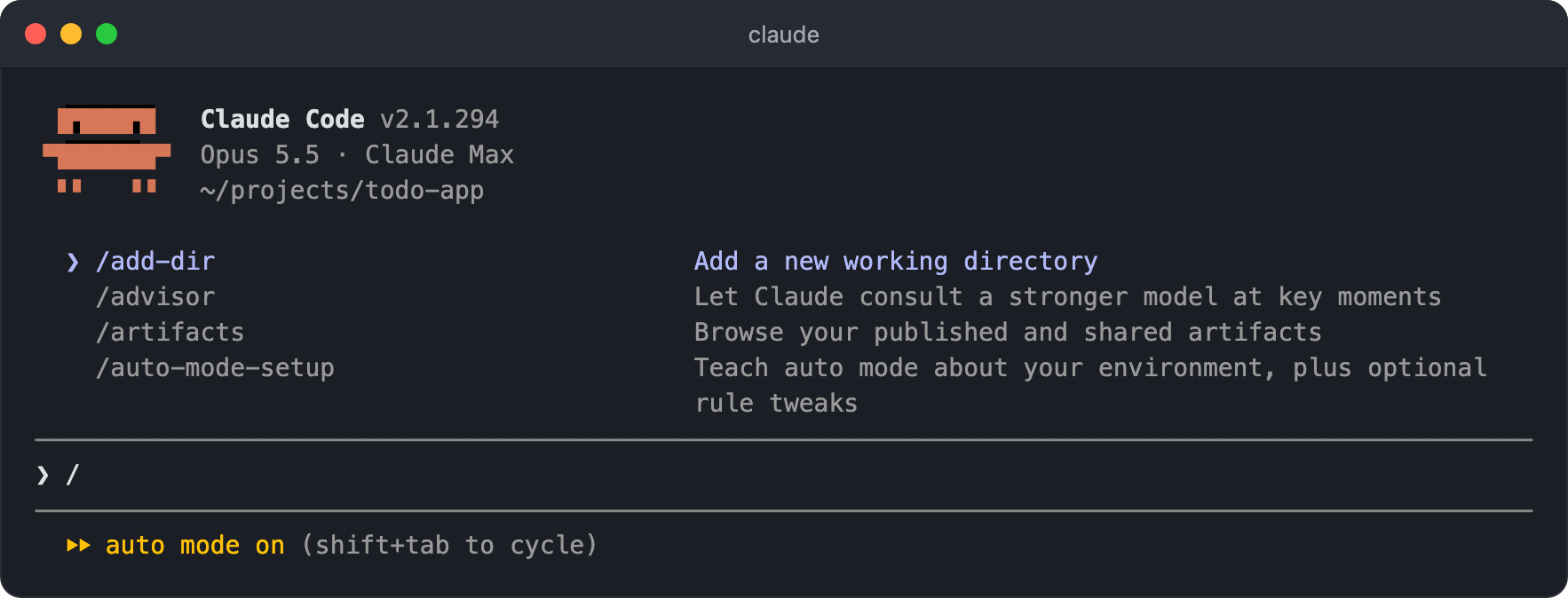
In Claude Code, commands that start with / are called built-in slash commands.
Just typing / in the input shows an autocomplete list of available commands with descriptions, so you don't need to memorize them all.
Most built-in commands are handled directly by the client (CLI), not by the Claude model, so they don't use up conversation context.
The basic commands you'll use often are as follows.
Commands used in similar situations are grouped in this order: session, conversation, model, status and account, and settings.
| Category | Command | Description |
|---|---|---|
| Session | /resume |
Pick a previous session from a list and continue it |
/rename |
Rename the current session (if you omit the name, one is generated from the conversation) | |
/clear |
Clear the conversation history and start a new conversation with an empty context (you can reopen the previous conversation with /resume) |
|
/exit |
Exit Claude Code | |
| Conversation | /compact |
Summarize the conversation so far to free up context space (add instructions after it to set the focus of the summary) |
/rewind |
Roll back the code or conversation to an earlier point | |
/btw |
Ask a quick side question without leaving it in the conversation history | |
/copy |
Copy the last response to the clipboard (/copy 2 copies the second-to-last response) |
|
/export |
Export the current conversation as text (save to a file or copy to the clipboard) | |
| Model | /model |
Change the model to use |
/effort |
Adjust the effort level | |
/advisor |
Set an advisor model to consult when a judgment call is needed | |
| Status and account | /status |
Check the version, model, account, and connection status |
/usage |
Check plan usage limits and token usage | |
/login, /logout |
Sign in to or out of an account (use it when switching accounts) | |
| Settings | /config |
Open the settings screen to change the theme, model, language, and more |
/color |
Change the prompt bar color of the current session (useful for telling several sessions apart) | |
/statusline |
Set up the status line below the input (describe what you want and Claude writes it) | |
/scroll-speed |
Adjust the mouse wheel scroll speed (available only with full-screen rendering) |
For more commands, arguments, and aliases, see Claude Code Built-in Slash Commands Essentials.
# Resuming previous sessions
Claude Code can continue a previous conversation session.
The --continue flag automatically loads the most recent session.
This is useful when you accidentally close the terminal during work, or when you want to pick up where an earlier conversation left off.
Session history is stored locally, so you can only resume previous sessions on the same device.
12claude --continue claude -c # Short form
To choose a specific session to resume, use the --resume flag.
Without an argument, it shows a list of recent sessions so you can pick the one you want.
Or pass a session ID or name as an argument to resume that session directly.
1234567# Use without an argument to pick from the session list claude --resume claude -r # Short form # Resume directly by session ID or name claude --resume "session-id" claude -r "session-id"
Inside an interactive session, the /resume command shows the same session list.
If you give the current session a name with the /rename command, it is easier to find later.
# Special character shortcuts
These are special characters you can use in prompts.
| Feature | Character | Example |
|---|---|---|
| Reference a folder/file | @ |
@src/utils.ts analyze this file |
| Run a terminal command directly | ! |
! npm test |
| Insert a line break | \ then EnterAlt + Enter |
Line break in the prompt |
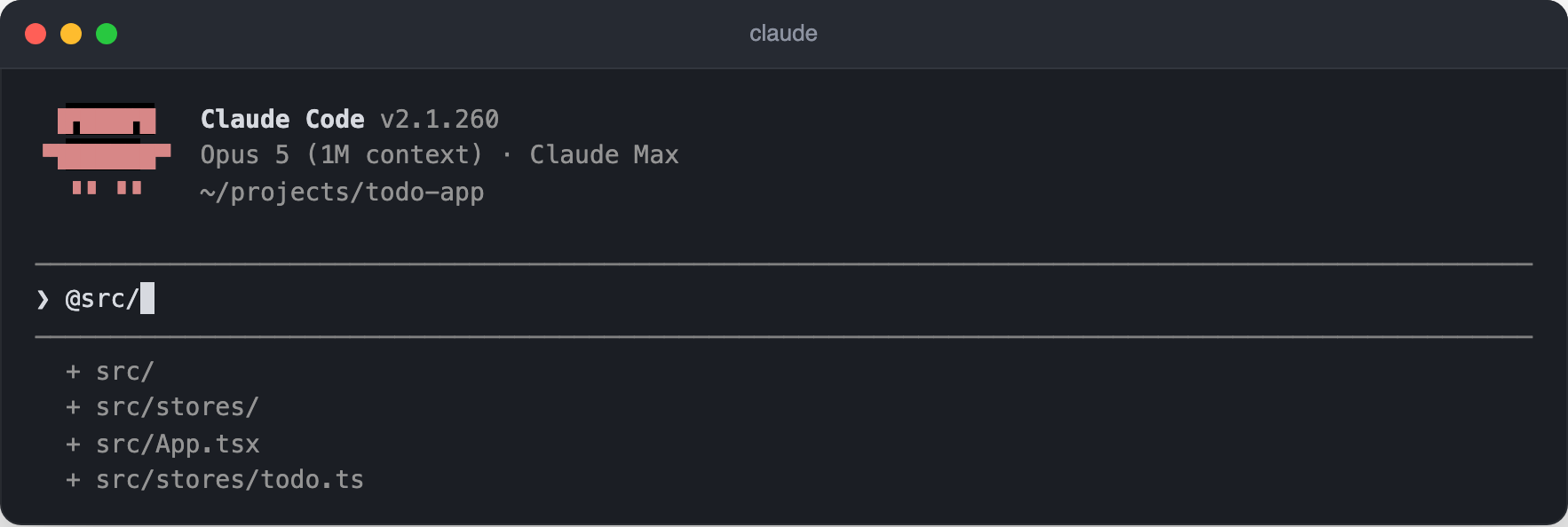
12@src/components/Header.tsx add a button that goes to the movie search page @src/stores/ refactor the store files to TypeScript
When you start typing a path after @, matching files and folders appear in an autocomplete list, so you can pick one even if you don't know the exact path.
The output of a terminal command run with ! is automatically added to the conversation context.
If you don't want it added, cancel with the ESC key.
12! npm test ! git status
# CLAUDE.md
CLAUDE.md is a memory file in which Claude Code remembers instructions and context about your project.
It lets you keep style guidelines, common commands, project information, and more across sessions.
In a typical AI chat, you have to explain the project structure, coding style, special rules, and so on again every time you start a new session.
With a CLAUDE.md file, however, this information is passed to Claude automatically in every session.
If you write a CLAUDE.md file in the project root, Claude reads it at the start of each session and understands the project's context.
Instruction files are loaded from the broadest scope to the narrowest, and they are all concatenated instead of overwriting each other.
So the further down the list, the more specific the instructions, and the later Claude reads them.
| Load order | Scope | Location | Sharing |
|---|---|---|---|
| 1 | User | macOS: ~/.claude/CLAUDE.mdWindows: C:\Users\username\.claude\CLAUDE.md |
Personal, global |
| 2 | Project | ./CLAUDE.md, ./.claude/CLAUDE.md (recommended)./.claude/rules/rule-name.md |
Personal, team |
| 3 | Local | ./CLAUDE.local.md |
Personal (add to .gitignore) |
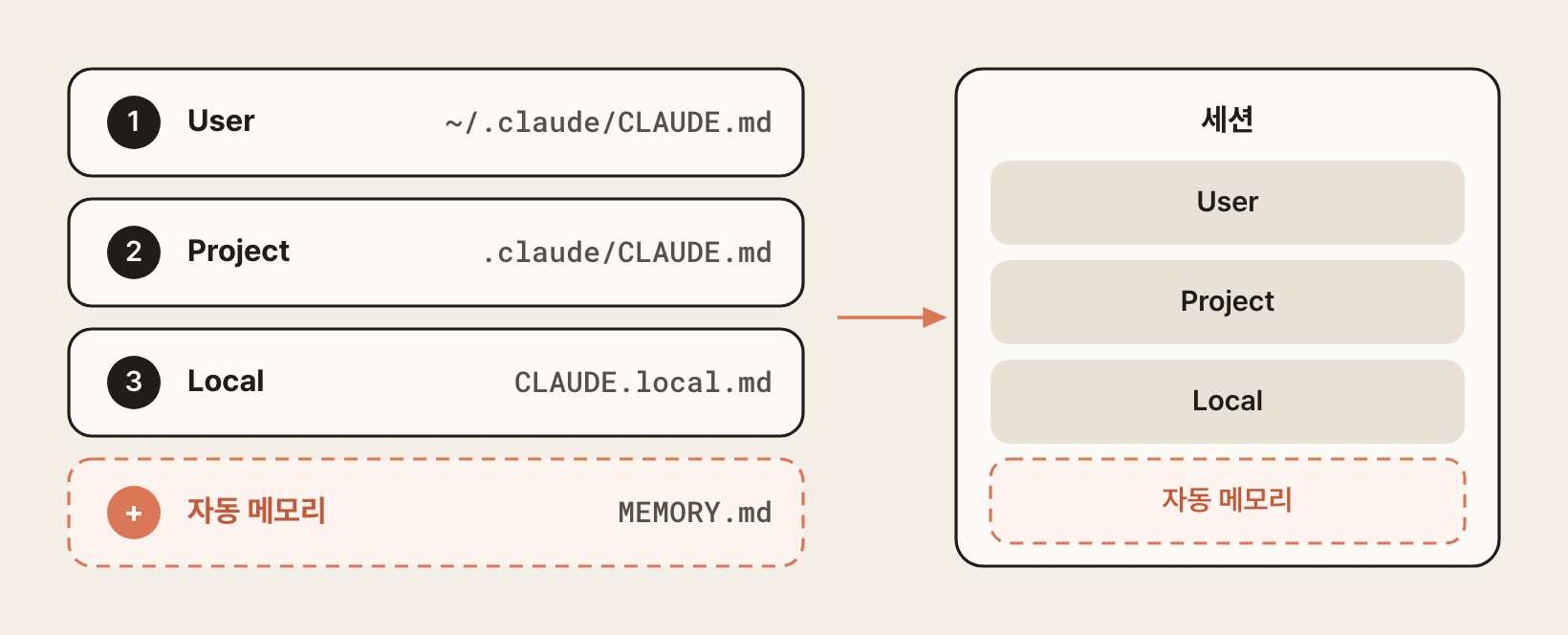
Besides the CLAUDE.md family in the table above, Claude Code's memory has one more type: auto memory.
Unlike CLAUDE.md, which people write, it is a file where Claude itself records the build commands and debugging tips it learns while working.
It is stored at ~/.claude/projects/project-name/memory/MEMORY.md and loaded at the start of every session, but only the first 200 lines or 25KB are read, not the whole file.
Its location is determined per Git repository, so there is no scope distinction such as user or project, and it is not synced between devices.
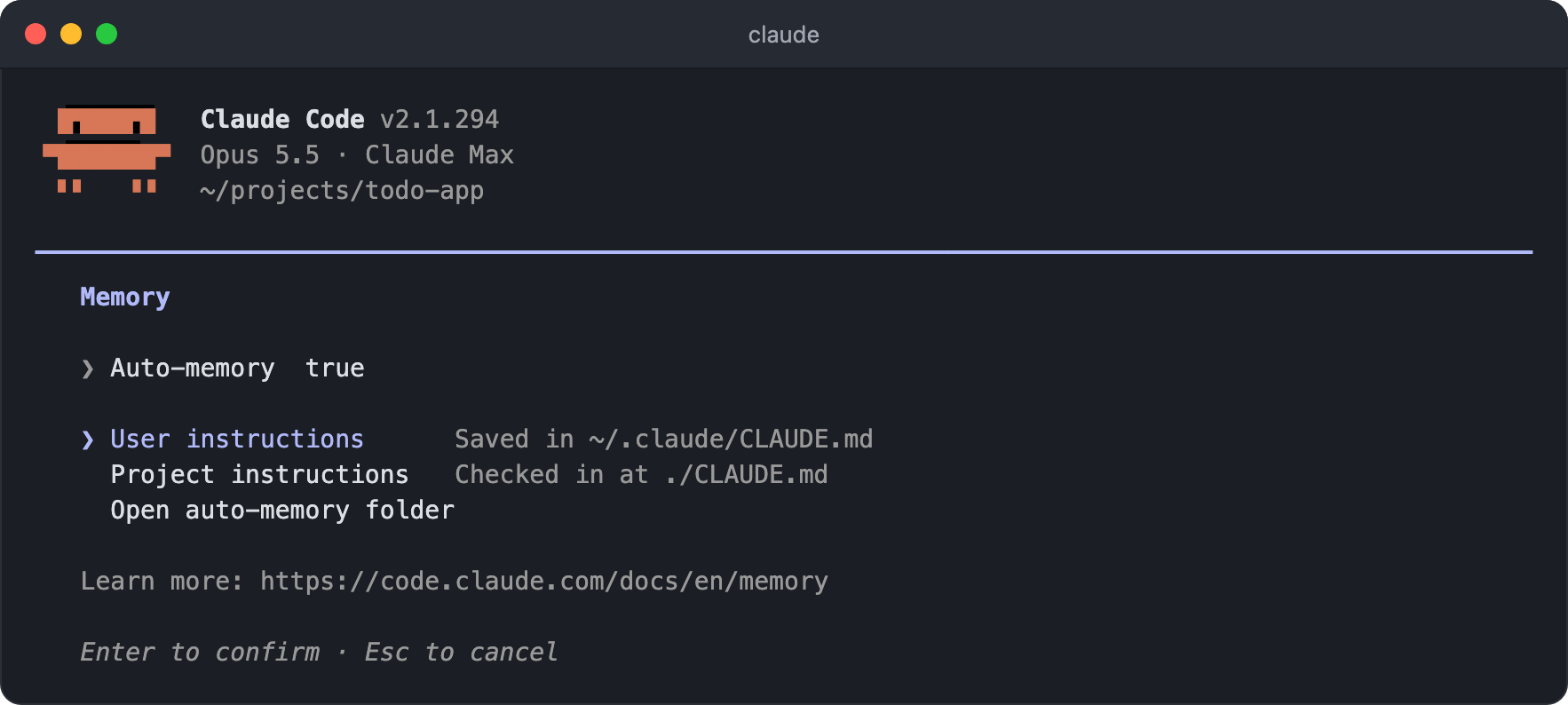
You can check its contents or turn the feature off with the /memory command.
This screen also shows where the instruction files loaded in the current session are located.
# Initializing a project
You can initialize a project with the /init command.
In this process, Claude analyzes the project at the current path and can create a CLAUDE.md file in the project root.
This is a memory file that remembers instructions and context for the project, so the project's guidelines, common commands, and other information are kept in every conversation session.
If CLAUDE.md already exists, it suggests improvements instead of overwriting it, and if there are rule files from other tools such as .cursorrules or .github/copilot-instructions.md, it reflects their contents too.
If you are moving over from another AI coding tool such as Cursor, there is also the /import command, which brings over instructions, MCP servers, and skills all at once.
1/init
If you start from an empty project, Claude Code prompts you to create a new project as follows.
Write a prompt describing the project you want and press the Enter key to submit it.
Once you enter the prompt, the initialization starts.
1Build a Todo app with sign-in using TypeScript and Next.js.
# Importing files
In CLAUDE.md, you can import other files with the @path/to/file syntax.
Both relative and absolute paths work.
An imported file can in turn import other files through its own paths, up to a maximum depth of 4 levels.
12345See @README for the project overview. See @package.json for npm commands. ## Additional instructions - Git workflow @docs/git-instructions.md
# Writing tips
A well-written CLAUDE.md helps Claude understand your project better and produce consistent results.
1234567891011121314151617181920212223242526272829303132333435363738# Project overview This project is an e-commerce platform built on React + TypeScript. ## Tech stack - Frontend: React 18, TypeScript, Tailwind CSS - State: Zustand - API: REST, React Query - Testing: Jest, React Testing Library ## Coding conventions - Write components as function components - Use Zustand for state management - Keep API calls separate in the src/api/ folder - Use Tailwind CSS classes for styling ## Project structure src/ ├── components/ # Reusable components ├── pages/ # Page components ├── api/ # API-related code ├── stores/ # Zustand stores └── utils/ # Utility functions ## Common commands - `npm run dev`: Start the development server - `npm run test`: Run tests - `npm run build`: Production build ## Notes - Never commit .env files - Manage API keys with environment variables - When you add a new component, write its Storybook stories too
Keep the following in mind when writing it.
- Keep it concise: include only key information, since a file that is too long wastes context
- Be specific: use concrete expressions such as 'keep functions under 20 lines' rather than abstract ones such as 'write good code'
- Include examples: attach examples if you have a preferred code style
- Use file references: put details in referenced files, such as
@docs/guide.md - Update it regularly: when the project changes, update
CLAUDE.mdtoo
To check whether the instructions you wrote have gone stale, run the /doctor prompt-audit command (2.1.283 or later).
It looks through CLAUDE.md, AGENTS.md, rules, skills, and agent files for instructions written for older models, references to files or commands that don't exist, and instructions that contradict each other, and reports them along with suggested fixes.
It only reports and does not change any files, so review the suggested fixes and then ask Claude to apply them.
1/doctor prompt-audit
# Karpathy Guidelines
This is a CLAUDE.md that turns the problems with LLM coding pointed out by Andrej Karpathy, a founding member of OpenAI and former head of AI at Tesla, into four guidelines.
- State your assumptions before coding, and if something is unclear, stop and ask.
- Don't build features or abstractions that weren't requested.
- Don't touch code unrelated to the request.
- Set verifiable success criteria and iterate until they pass.
Because it deals with how code is written in general rather than with a specific project, it works well in the User scope alongside your project-specific instructions.
https://github.com/multica-ai/andrej-karpathy-skills/blob/main/CLAUDE.md
# Built-in tools
Claude Code accesses the file system, terminal, and web through a variety of built-in tools.
These tools let Claude go beyond simply generating code and actually explore and modify your project.
Each tool is optimized for a specific task, and Claude automatically picks the right tool for the situation.
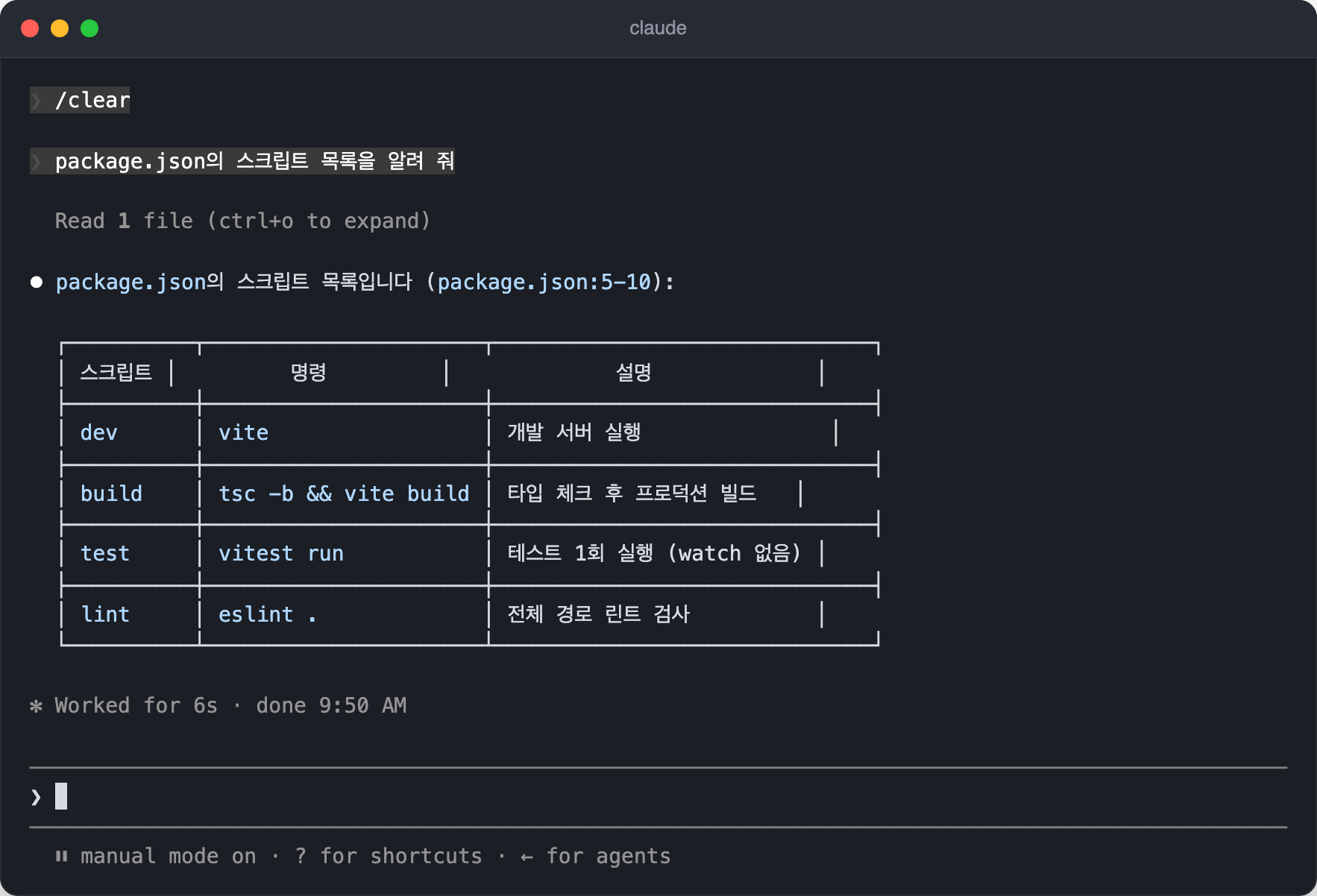
For example, if you ask for the project's list of scripts, Claude first reads package.json with the Read tool and then answers based on its contents.
On screen, the tools used and their targets are shown collapsed, and you can select them to expand the details.
| Tool | Description |
|---|---|
Bash |
Run shell commands |
Read |
Read files (including images, PDFs, and Jupyter notebooks) |
Write |
Create/overwrite files |
Edit |
Edit part of a file |
Glob |
Search for files by pattern |
Grep |
Search file contents |
WebFetch |
Fetch web content |
WebSearch |
Search the web |
Agent |
Create a subagent |
Skill |
Invoke a skill |
AskUserQuestion |
Present choices to the user and ask for an answer |
The table above lists only the commonly used tools; there are actually more built-in tools than this.
You can limit the available tools with the --tools flag.
12345678# Allow only the specified tools claude --tools "Bash,Edit,Read" # Disable all built-in tools claude --tools "" # Allow all built-in tools (default) claude --tools "default"
# Permission modes
Claude Code runs in several modes, depending on how it asks for your approval before carrying out actions.
Interactive sessions started in the terminal and VS Code start in Auto mode regardless of your plan unless you specify otherwise (2.1.283 or later), while non-interactive runs such as claude -p start in Manual mode.
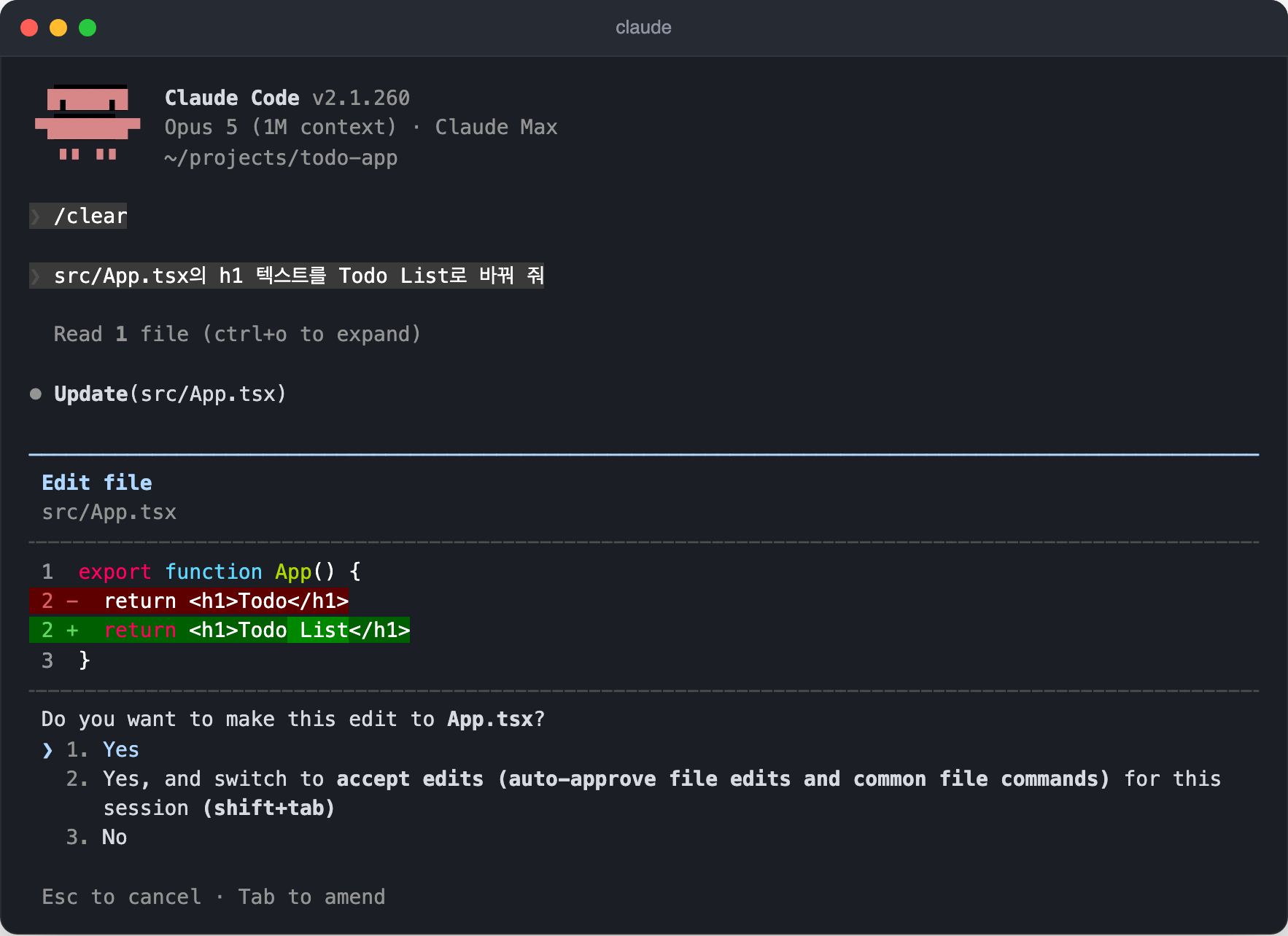
In Manual mode, when Claude tries to modify a file, it first shows you the changes and asks for approval, as follows.
Choosing Yes allows it just this once, and choosing the second option switches to Accept Edits mode, which automatically approves file edits for the rest of this session.
| Mode | Setting value | Description |
|---|---|---|
| Manual | default |
Asks for permission on every tool call (the default mode for claude -p) |
| Accept Edits | acceptEdits |
Automatically approves file edits and basic file commands such as mkdir and mv |
| Plan | plan |
Only makes a plan and doesn't execute it (read-only) |
| Auto | auto |
A separate classifier model judges the risk and handles permission requests automatically (the default mode for interactive sessions) |
| Don't Ask | dontAsk |
Runs only pre-approved tools and automatically denies the rest (for CI and scripts) |
| Bypass Permissions | bypassPermissions |
Skips permission requests and approves everything automatically |
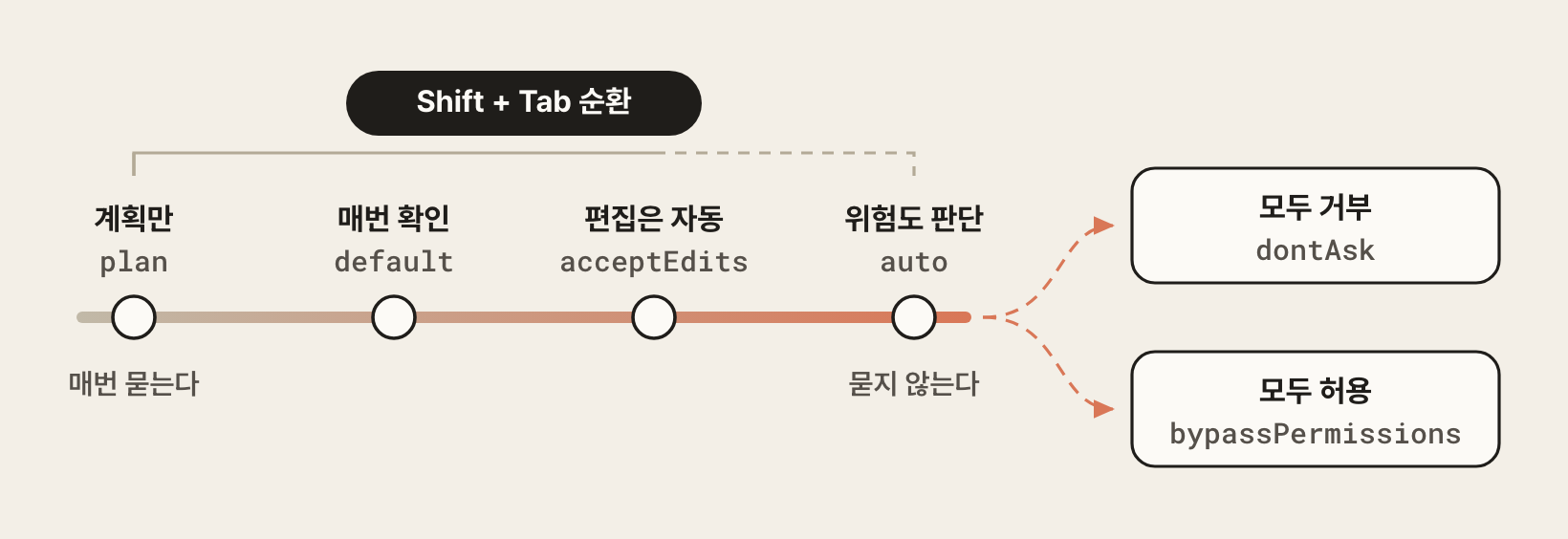
Each time you press Shift + Tab, the mode cycles through default, acceptEdits, and plan in that order, and pressing it in Auto mode first switches to default.auto joins the cycle after plan only when your model and environment can use it, and bypassPermissions only when you started the session with the matching flag or setting.dontAsk doesn't appear in the cycle, so you have to set it with a CLI flag.
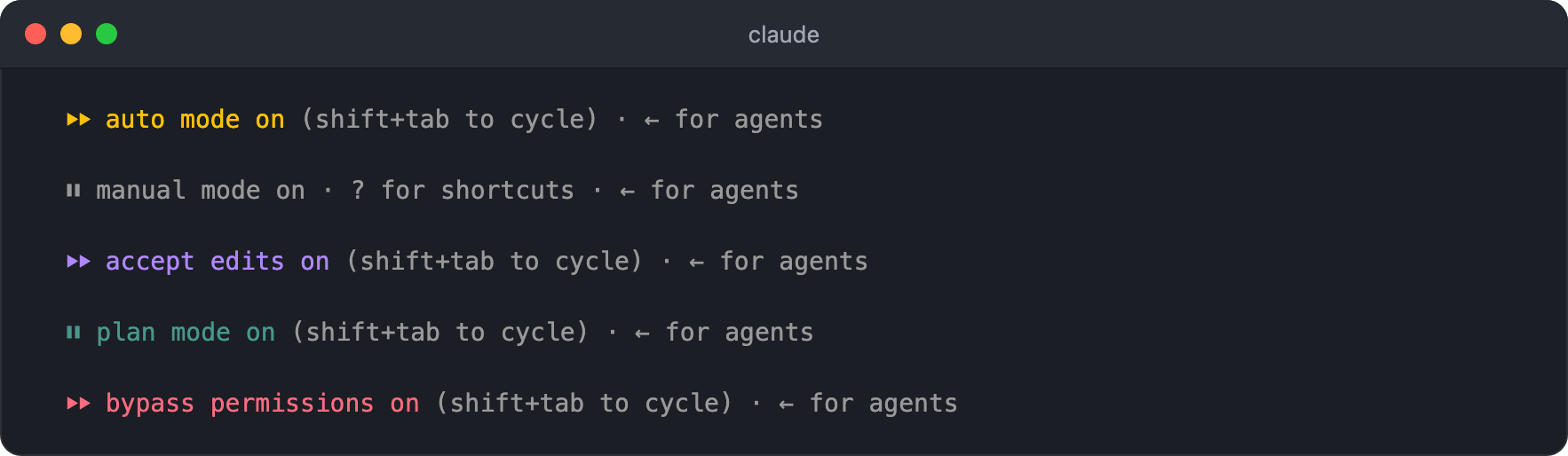
When you change modes, the indicator in the bottom status line changes too, so check the status line to see which mode you're in.
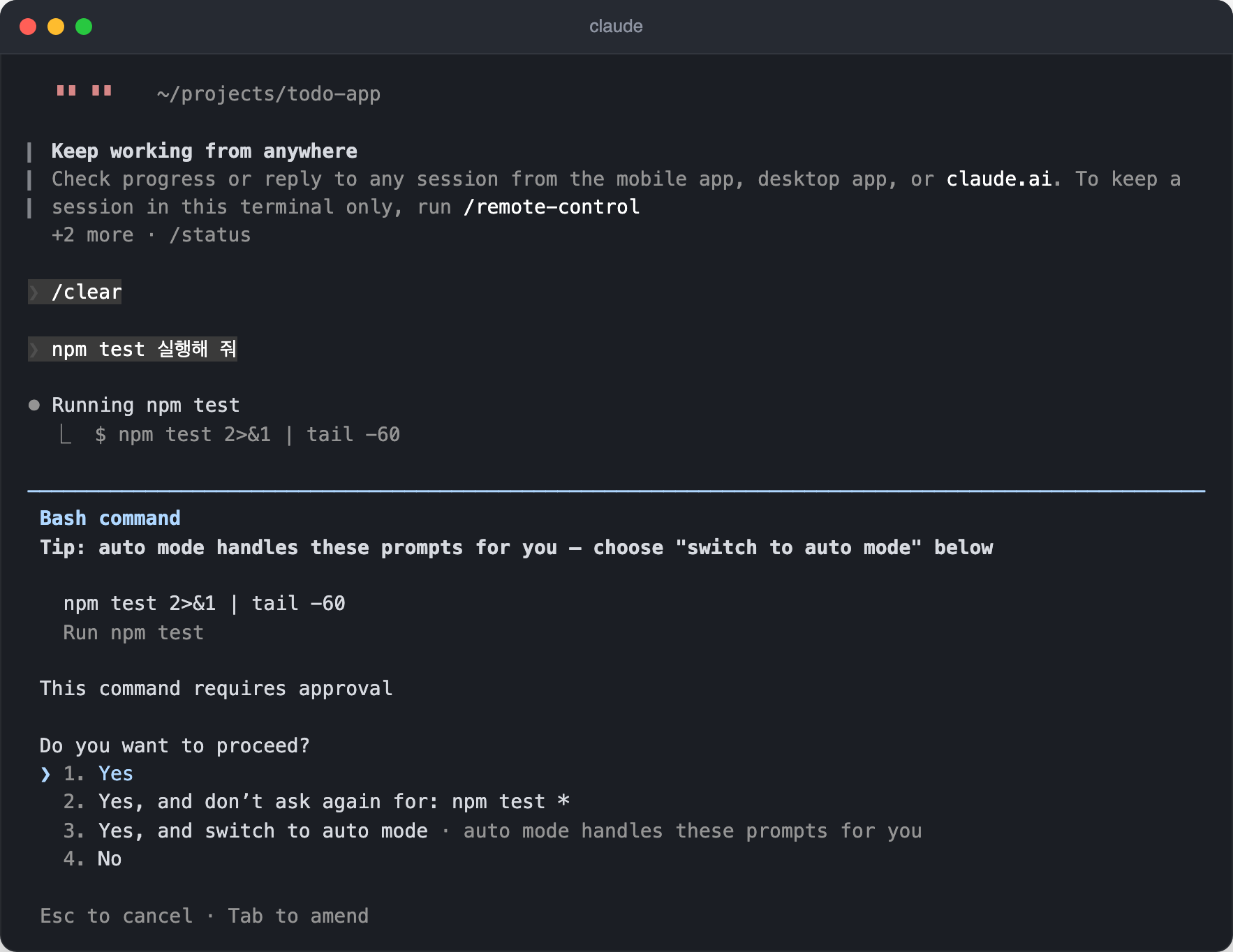
Shell commands ask for approval even in Accept Edits mode.
If you choose the second option here, the command is saved as an allow rule so that you aren't asked about it again in this project, and the rule is written to the local settings (.claude/settings.local.json).
If you allow the test or build commands you run often once like this, your later work won't be interrupted.
You can also set the mode with a CLI flag when you start Claude Code.
123456789# Start in Plan mode claude --permission-mode plan # Start in Don't Ask mode claude --permission-mode dontAsk # Start in Bypass Permissions mode claude --permission-mode bypassPermissions claude --dangerously-skip-permissions
You can set the default permission mode that applies every time Claude Code starts with the permissions.defaultMode option in a settings file.
To start in a mode that asks for approval every time instead of Auto mode, set it to default (or manual).
The auto and bypassPermissions values don't take effect in project or local settings, so set them in the user settings (~/.claude/settings.json).
12345{ "permissions": { "defaultMode": "bypassPermissions" } }
Both dontAsk and bypassPermissions skip permission prompts, but they handle situations that need approval in opposite ways.dontAsk automatically denies tool calls that weren't pre-approved, while bypassPermissions automatically approves them.
Use dontAsk when you want to make sure only the actions on your allowlist run, and use bypassPermissions when you want to run everything without restrictions in an isolated environment such as a container or virtual machine (VM).
# Models and effort levels
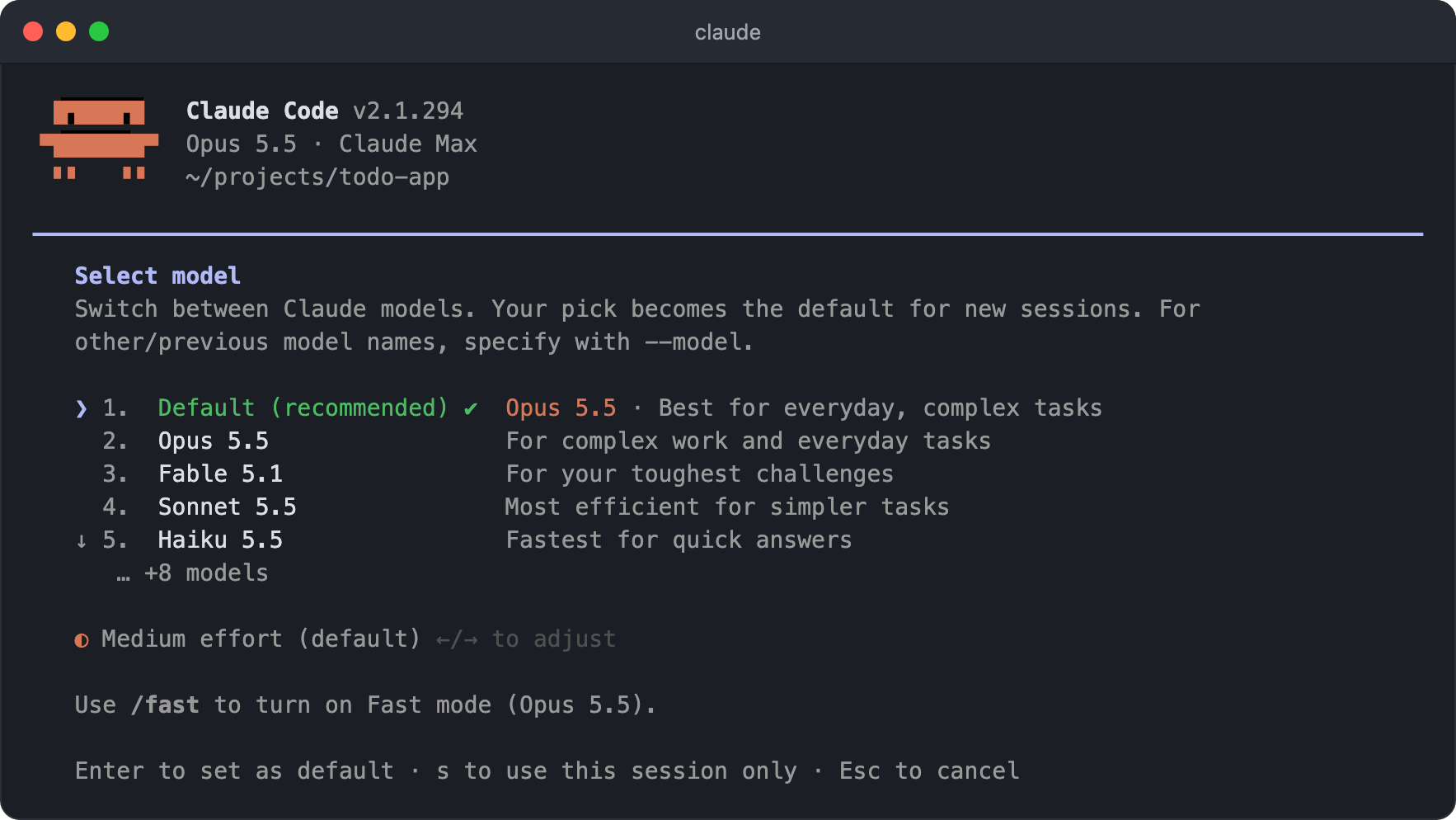
You can change the model used in the session with the /model command.
The default model is Opus 5.5 on all plans, and starting with version 2.1.280, the Pro and Team Standard plans also use Opus by default instead of Sonnet.
Choose Fable 5.1 for the hardest and longest tasks, Opus 5.5 for everyday tasks, Sonnet 5.5 to handle well-scoped tasks faster and more cheaply, and Haiku 5.5 for simple, repetitive tasks such as summarizing or classifying.
The sonnet and haiku aliases point to Sonnet 5.5 and Haiku 5.5 starting with versions 2.1.284 and 2.1.293, respectively.
Depending on your account, older models such as Sonnet 5 and Opus 5 also appear at the bottom of the list, and for a model not on the list, you specify its full model name, as in /model claude-opus-4-5.
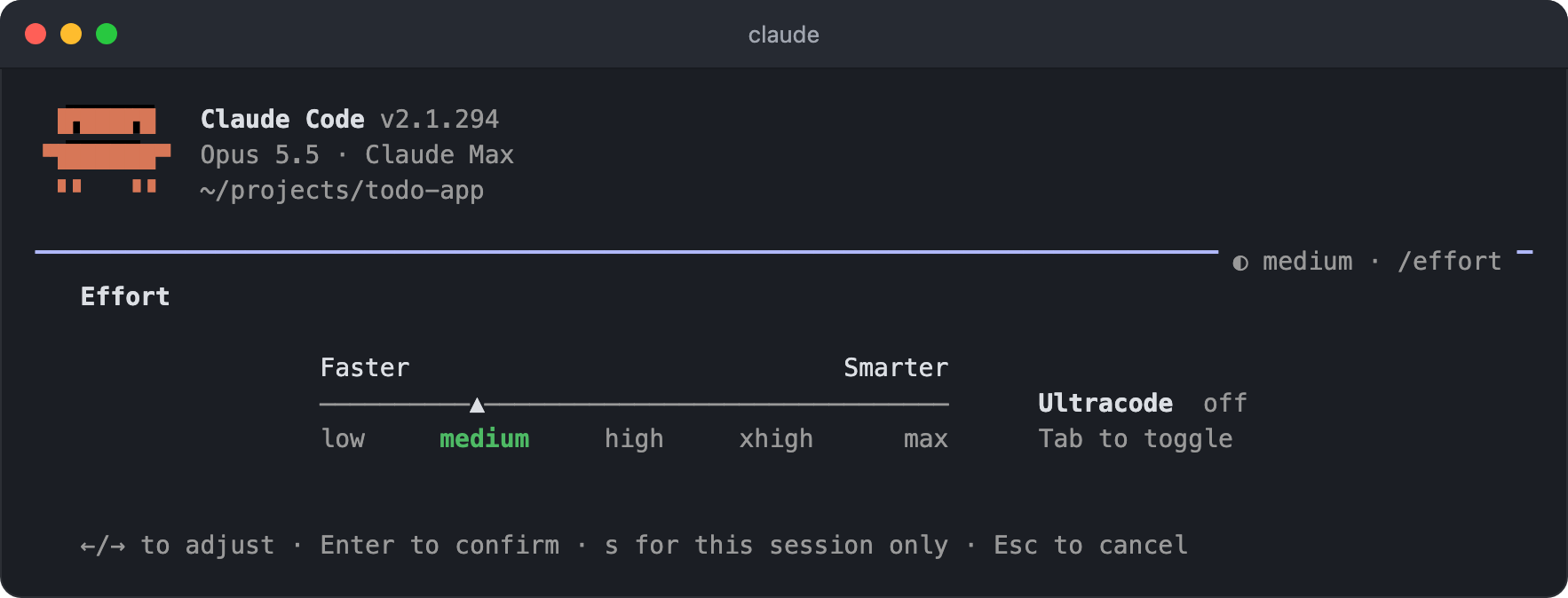
On the same screen, you can also adjust the effort level with the ← and → keys; Enter saves it as the default for new sessions, and s applies it to this session only.
Extended thinking is the process in which Claude reasons before it responds.
It is on by default in models that support it, and how deeply Claude reasons is determined by the effort setting.
In Opus 5.5, Sonnet 5.5, Haiku 5.5, and the Fable models, you can't turn off extended thinking, and the model decides how much to reason at each step based on the effort level.
You set the effort level for the whole session with the /effort command or the claude --effort flag, choosing one of the levels from low to max.
The default for Opus 5.5, Sonnet 5.5, and Haiku 5.5 is medium, and Haiku 5.5 is the first Haiku model whose effort level you can adjust.
Pressing Tab on the /effort screen turns ultracode, which uses workflows automatically, on and off, and starting with version 2.1.284 it is a toggle separate from the effort level, so you can turn it on at any level.
Higher levels reason more deeply and improve performance, but they use more tokens, so the cost goes up too.
The following charts take the effort-level benchmark graphs from each model's announcement page, drop the other models shown alongside, and overlay only that model's results in a single chart.
Because each benchmark uses a different score unit and cost scale, performance is scaled so that the model's best score is 100, and cost per task is scaled so that the model's max cost is 100%.
The bold line is the median of the per-benchmark results, and each point shows both performance and cost.
The Fable 5.1 announcement page has four benchmarks: Terminal-Bench-Science 0.1, Terminal-Bench 4.0, Humanity's Last Exam, and CursorBench 3.2.0, and Humanity's Last Exam is drawn as two separate lines, one for results with tools and one for results without.
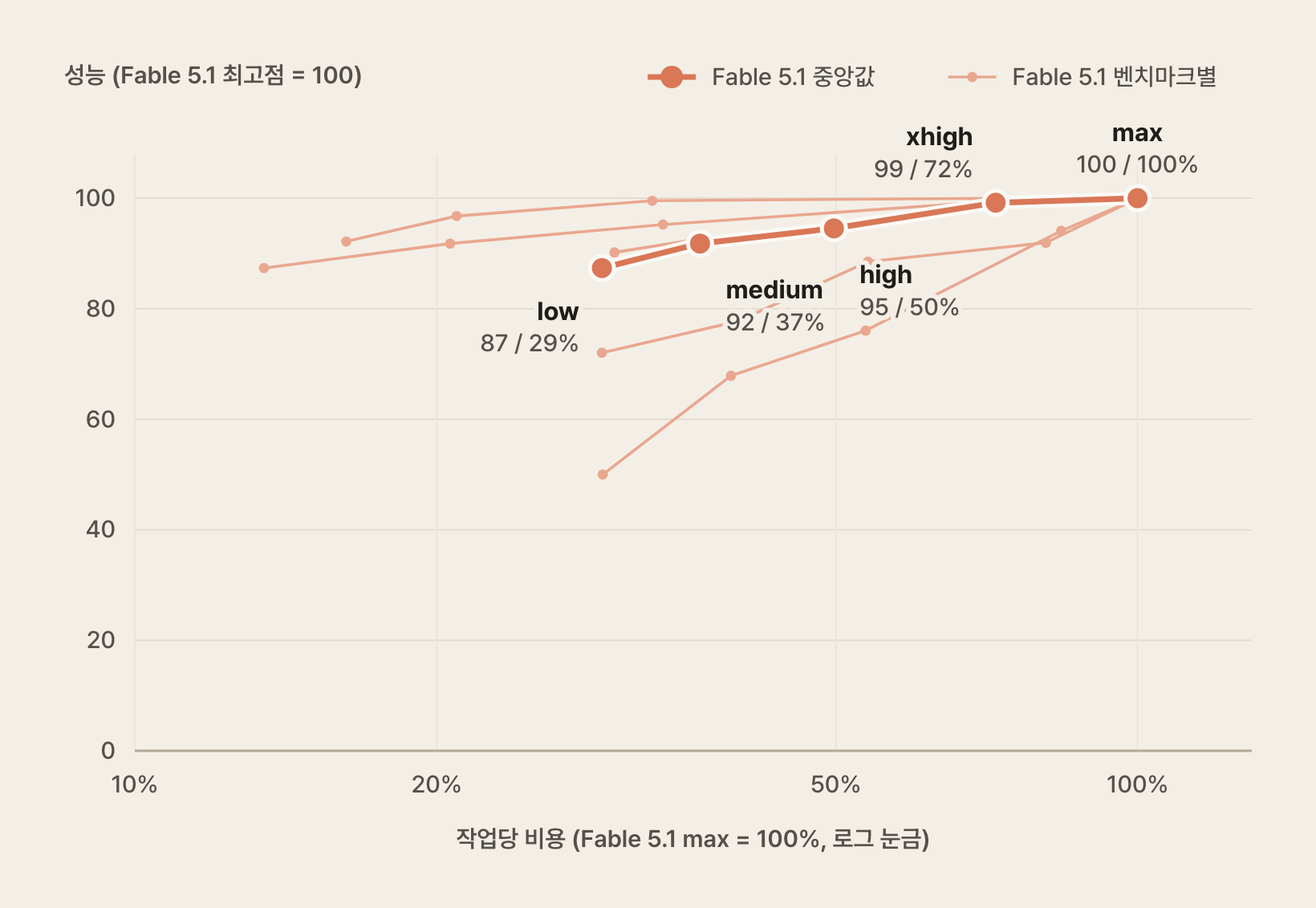
Fable 5.1 reaches about 87% of its best performance even at low, and performance rises only a little as you raise the level.
On the other hand, low still costs about 29% of max, so choosing a lower level saves less than it does with the other models.
The Opus 5.5 announcement page has six benchmarks: Terminal-Bench 4.0, FrontierCode, CursorBench, GDPval-AA, AutomationBench, and WANDR.
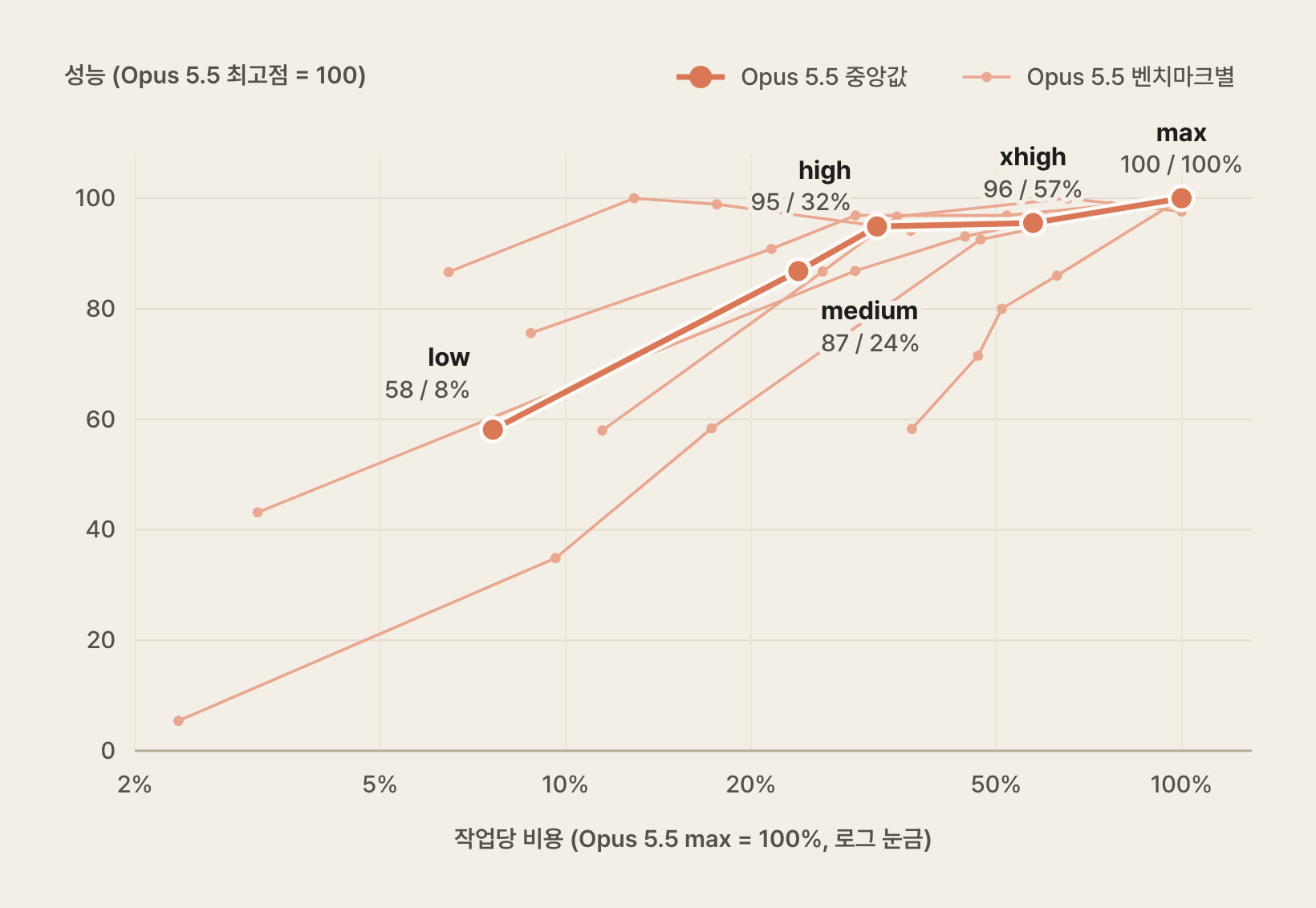
The default, medium, reaches about 87% of the best performance at about a quarter of the max cost, and high reaches about 95% at about a third of the cost.xhigh and max raise the cost 2-3 times, but performance goes up by only about 5%.
The Sonnet 5.5 announcement page has four benchmarks: Terminal-Bench 4.0, FrontierCode, CursorBench, and AA-Briefcase.
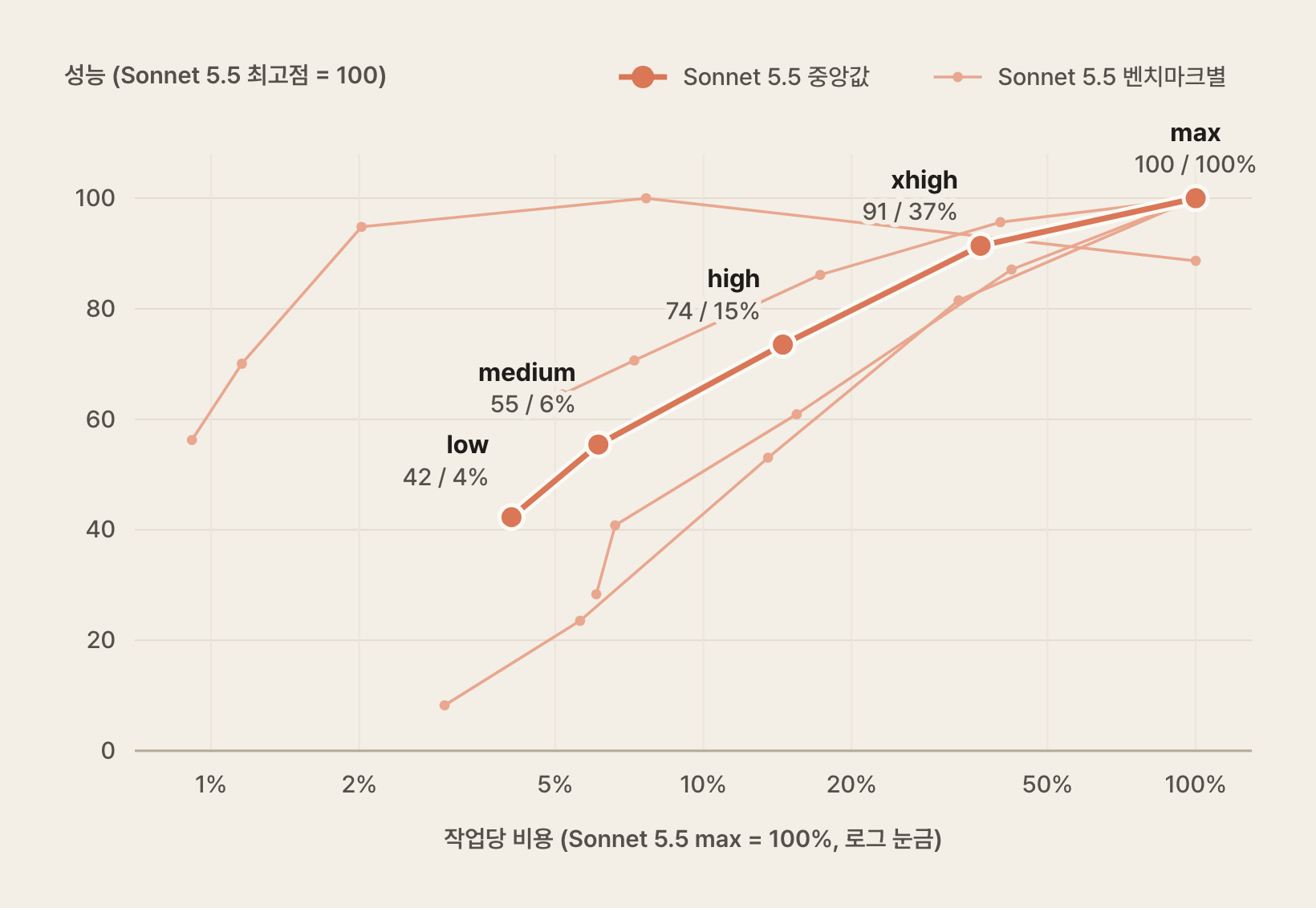
Sonnet 5.5's medium reaches about 55% of its best performance at about 6% of the max cost.
Performance rises sharply with each level, to 74% at high and 91% at xhigh, and even xhigh costs only about 37% of max.
The Haiku 5.5 announcement page has four benchmarks: OSWorld 2.1, GDPval-AA, Humanity's Last Exam, and Terminal-Bench 4.0.
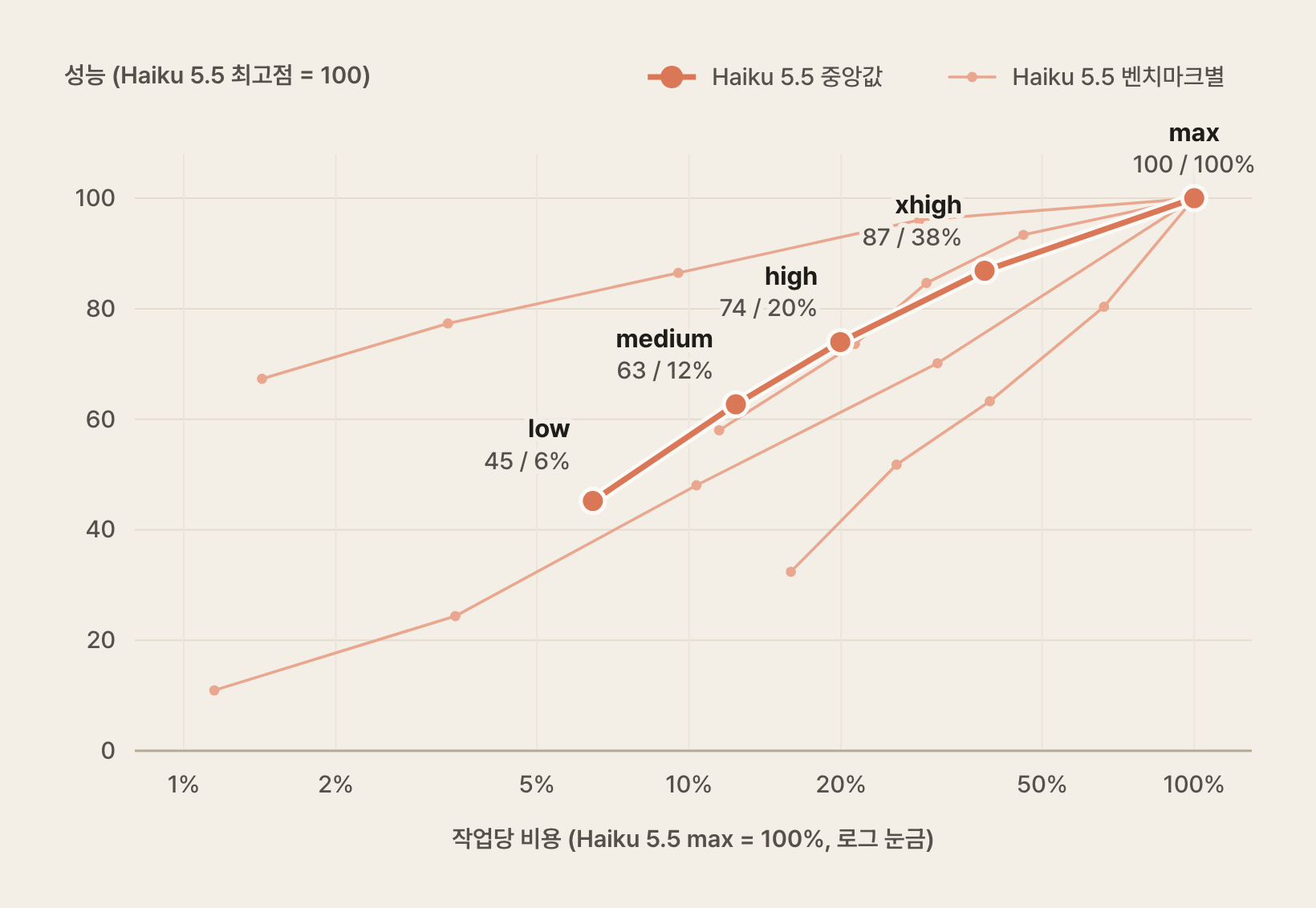
Much like Sonnet 5.5, Haiku 5.5's medium reaches about 63% of its best performance at about 12% of the max cost, and it rises to 87% at xhigh.
In short, with Opus 5.5 it is efficient to use medium or high normally and use higher levels only for really hard tasks.
When you give Sonnet 5.5 a hard task, you need to raise the effort level to xhigh or above to expect results close to Opus 5.5.
Haiku 5.5 trails the other models by a wide margin on coding tasks, but for general work it is efficient because it costs little even at high levels.
However, these are the results of two benchmarks, so the order may change depending on the type of task.
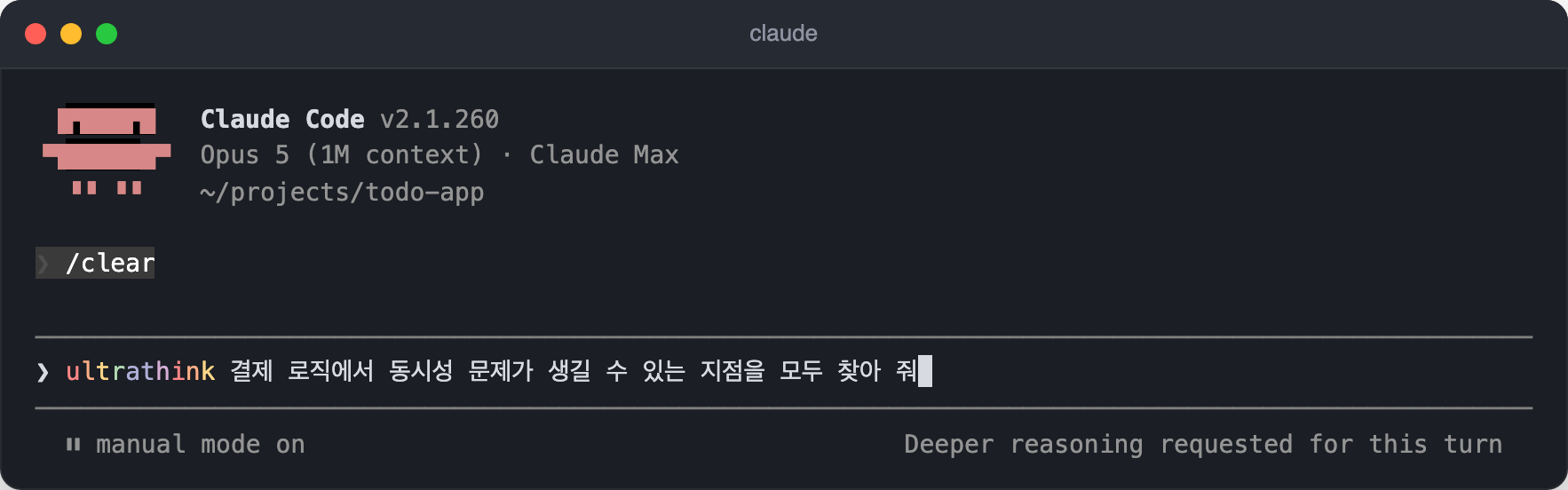
If only a single request needs deeper reasoning, include the ultrathink keyword in the prompt.
1ultrathink find every spot in the payment logic where concurrency issues could occur
You can put the keyword anywhere in the prompt, and it is not case-sensitive.
It leaves the session's effort setting as is and adds an instruction to the context to reason more deeply for this request only.
If the keyword is highlighted in the input, it has been applied; its effect ends with that one request, so type it again if the next request needs it too.
Thinking content also counts as output tokens, so it takes up context and adds to the cost.
Rather than using it on every request, use it for hard tasks such as bugs whose cause is hard to pin down or design decisions.
The thinking process is collapsed on screen by default, and you can see it in gray text by turning on the detailed view with Ctrl + O.
ultracode, which has a similar name, is a setting and keyword that makes Claude use workflows rather than an effort level, and we look at it in detail in Dynamic Workflows.
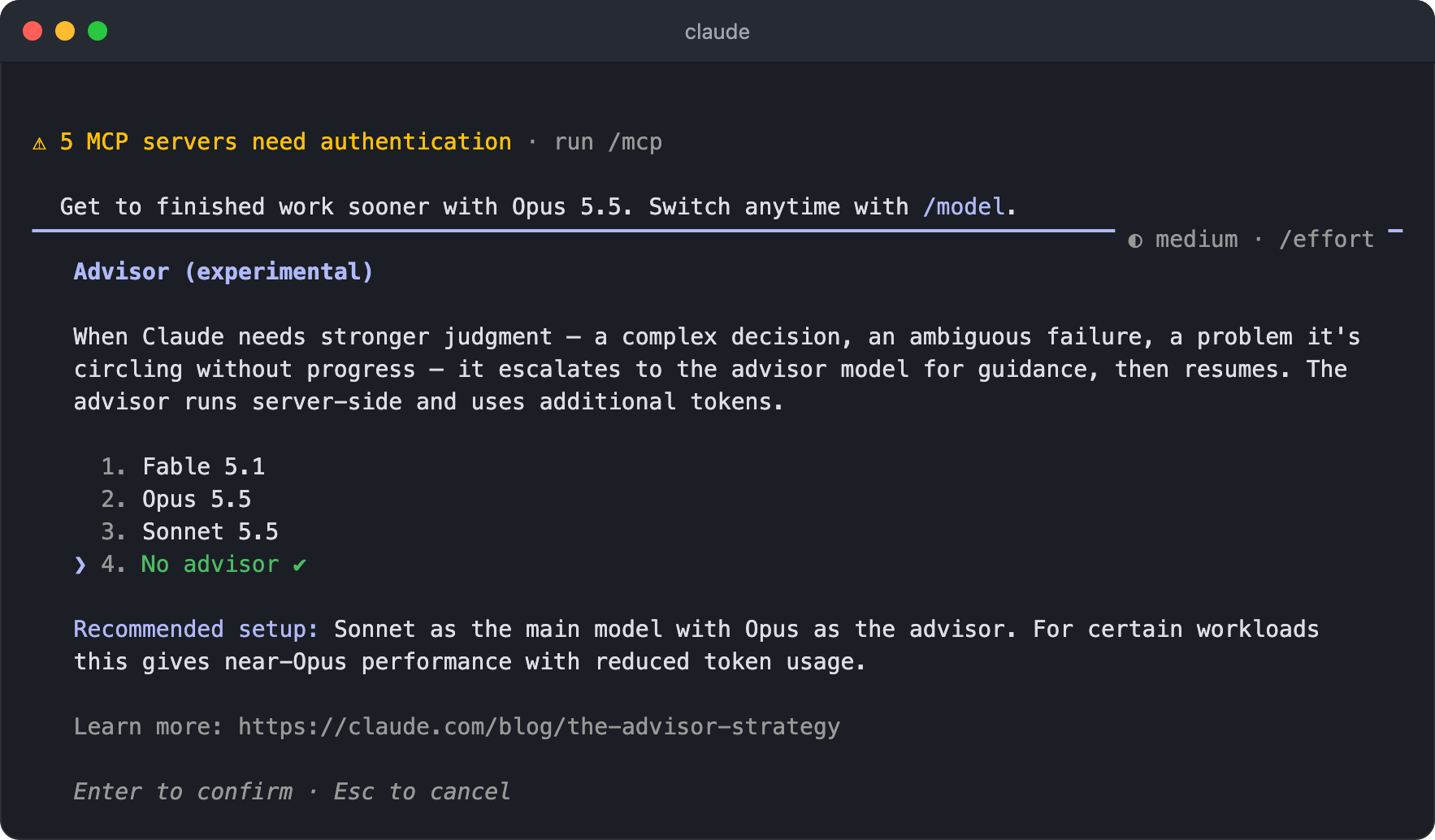
Instead of switching the whole model, you can also borrow a stronger model's opinion only at the moments that need judgment.
If you set an advisor model with the /advisor command, Claude asks that model for advice at points that need judgment, such as complex decisions or failures whose cause is unclear, and then continues the work.
The advisor model must be the same as or stronger than the main model, and Anthropic gives Sonnet as the main model with Opus as the advisor as a typical combination.
It is an experimental feature that uses extra tokens; on subscription plans, advisor usage counts toward your plan usage, but if you set Fable as the advisor, it may be billed to usage credits depending on your plan.
Conversely, if response speed matters more, you can turn on fast mode with the /fast command.
It doesn't switch to a smaller model; it uses the same Opus model with up to 2.5x faster output, and it is supported only on Opus 5.5, Opus 5, and Opus 4.8, with Opus 5.5 as the default.
The token price is higher (for Opus 5.5, $8 per million input tokens and $40 per million output tokens), and on subscription plans it is billed to usage credits separately from your plan usage, so it's best to turn it on only when response speed matters more than cost, such as during fast iteration or real-time debugging.
# Configuration files
Claude Code's settings are written in a settings.json file, and depending on the scope you want, you can place this file in the following three locations.
In this post, the three files are called the user settings, project settings, and local settings.
| Scope | Name | Location | Applies to | Git tracking |
|---|---|---|---|---|
| User | User settings | ~/.claude/settings.json |
All my projects | N/A (home directory) |
| Project | Project settings | .claude/settings.json |
Everyone on the team for this project | |
| Local | Local settings | .claude/settings.local.json |
Only me, in this project | ❌ gitignore |
123# Claude Code personal files (not committed) .claude/settings.local.json CLAUDE.local.md
- Project settings (
.claude/settings.json): Define the permission rules, allowed tools, and other settings the whole team needs to share. Commit it to Git so everyone on the team uses the same settings. - Local settings (
.claude/settings.local.json): Store personal API key paths, personal preferences, and so on. Add it to.gitignoreso it isn't committed.
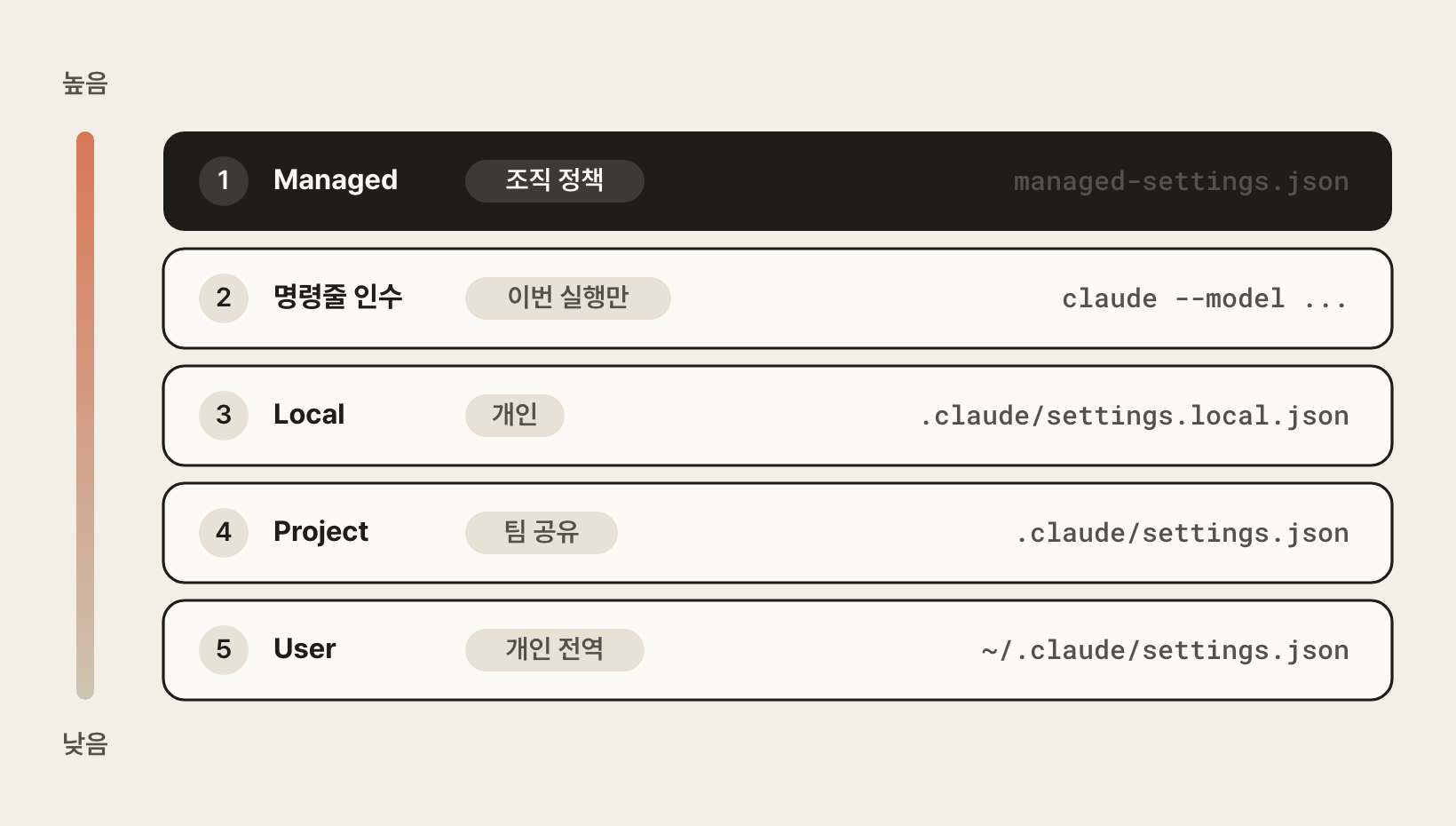
If the same setting exists in several places, they take precedence in the following order.
- Managed (highest, can't be changed)
- Command-line arguments
- Local
- Project
- User (lowest)
The following is an example of managing tool permissions in the project settings.
1234567891011121314{ "permissions": { "allow": [ "Bash(npm run *)", "Bash(git *)", "Read(src/**)" ], "deny": [ "Read(.env*)", "Read(secrets/**)", "Bash(curl *)" ] } }
The full directory structure:
1234567891011121314~/.claude/ ├── settings.json # User settings ├── CLAUDE.md # User global memory ├── agents/ # User custom agents │ └── my-agent.md ├── skills/ # User skills (including slash commands) │ └── my-skill/ │ └── SKILL.md ├── rules/ # User global rules │ └── my-rule.md ├── output-styles/ # User custom output styles │ └── my-style.md └── hooks/ # User hook scripts └── my-hook.sh
123456789101112131415161718192021222324./your-project/ ├── .claude/ │ ├── settings.json # Project settings │ ├── settings.local.json # Local settings ❌ gitignore │ ├── CLAUDE.md # Project memory │ ├── agents/ # Project custom agents │ │ └── code-reviewer.md │ ├── skills/ # Project skills (including slash commands) │ │ └── pdf-processing/ │ │ ├── SKILL.md # Required: metadata and instructions │ │ ├── scripts/ # Optional: utility scripts │ │ │ └── extract.py │ │ └── references/ # Optional: reference docs │ │ └── api-guide.md │ ├── rules/ # Project rules │ │ ├── code-style.md │ │ └── testing.md │ ├── output-styles/ # Project custom output styles │ │ └── verbose.md │ └── hooks/ # Project hook scripts │ └── pre-commit.sh ├── .mcp.json # MCP server settings ├── CLAUDE.md # Project memory └── CLAUDE.local.md # Personal project memory ❌ gitignore
Here is what each file and folder is for.
| Path | Purpose | Git tracking |
|---|---|---|
settings.json |
Project settings (permissions, model, etc.) | |
settings.local.json |
Local settings | ❌ gitignore |
CLAUDE.md |
Project context and instructions | |
CLAUDE.local.md |
Personal project notes | ❌ gitignore |
agents/ |
Custom subagents (@agent-name) |
|
skills/ |
Skills and slash commands (/skill-name) |
|
rules/ |
Conditional rules (match files with paths) | |
output-styles/ |
Customize response styles | |
hooks/ |
Hook scripts | |
.mcp.json |
Project MCP server settings |
# Context management
Context is all the information Claude remembers in the current conversation.
The context window is 1M (one million) tokens, and it includes both input (messages, files, CLAUDE.md) and output (responses, code).
Models of version 5 and later (Opus from 4.7) all run with a 1M window regardless of model type or plan, so you don't need to check the window size for each model.
Only older models such as Opus 4.6 and Sonnet 4.6 default to 200K tokens, and you have to choose the [1m] variant to use 1M.
The token price stays the same past 200K, except that Haiku 5.5's API price goes up when the prompt exceeds 100K tokens.
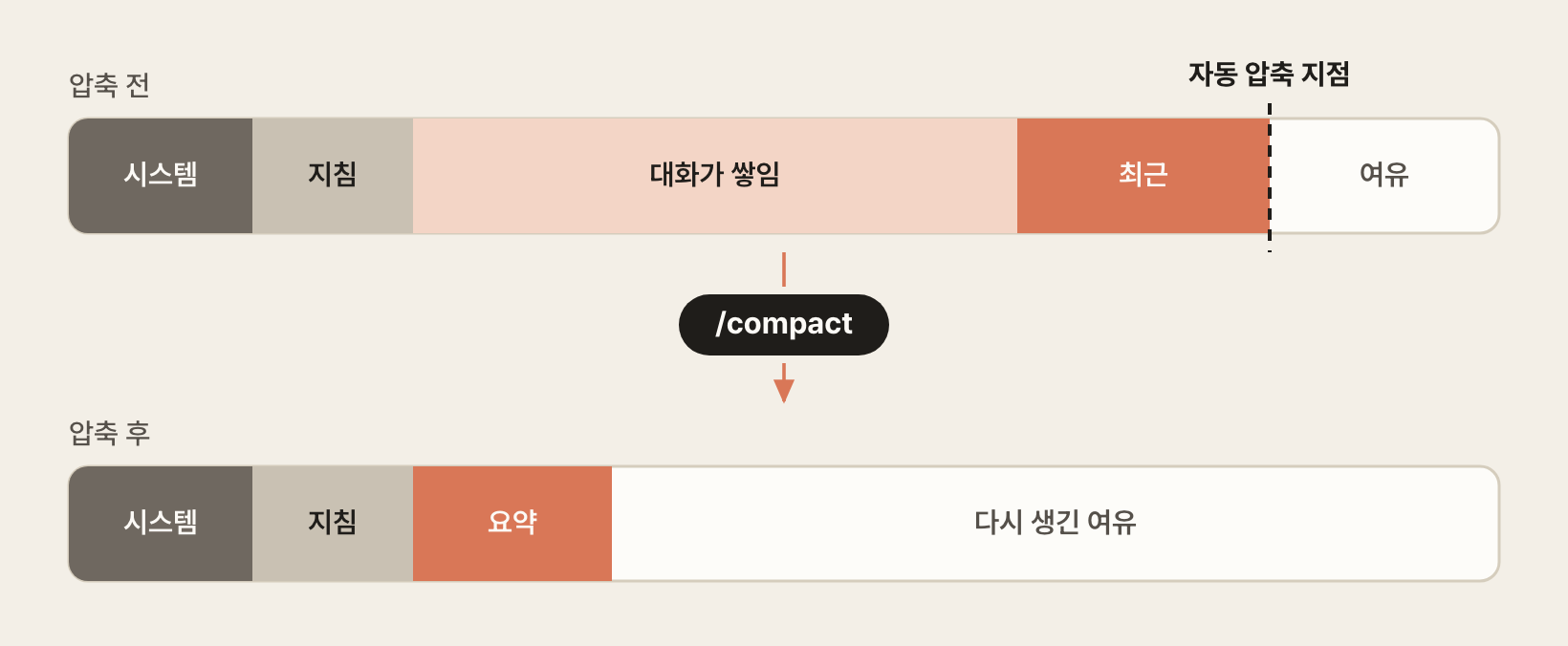
There is a fixed part that is sent with every request, such as the system prompt, tool descriptions, and instruction files, and after it the conversation and tool results keep piling up.
When the accumulated amount reaches the auto-compact point, the earlier conversation is replaced with a summary to free up space.
| Command | Description |
|---|---|
/clear |
Reset the context (start a new task) |
/compact |
Compact the context (free up space) |
/context |
Check the current context usage |
/autocompact |
Set the window size at which auto-compact starts (saved per model) |
/rewind |
Roll back the code and conversation to a specific point |
/usage |
Check plan usage and session token usage |
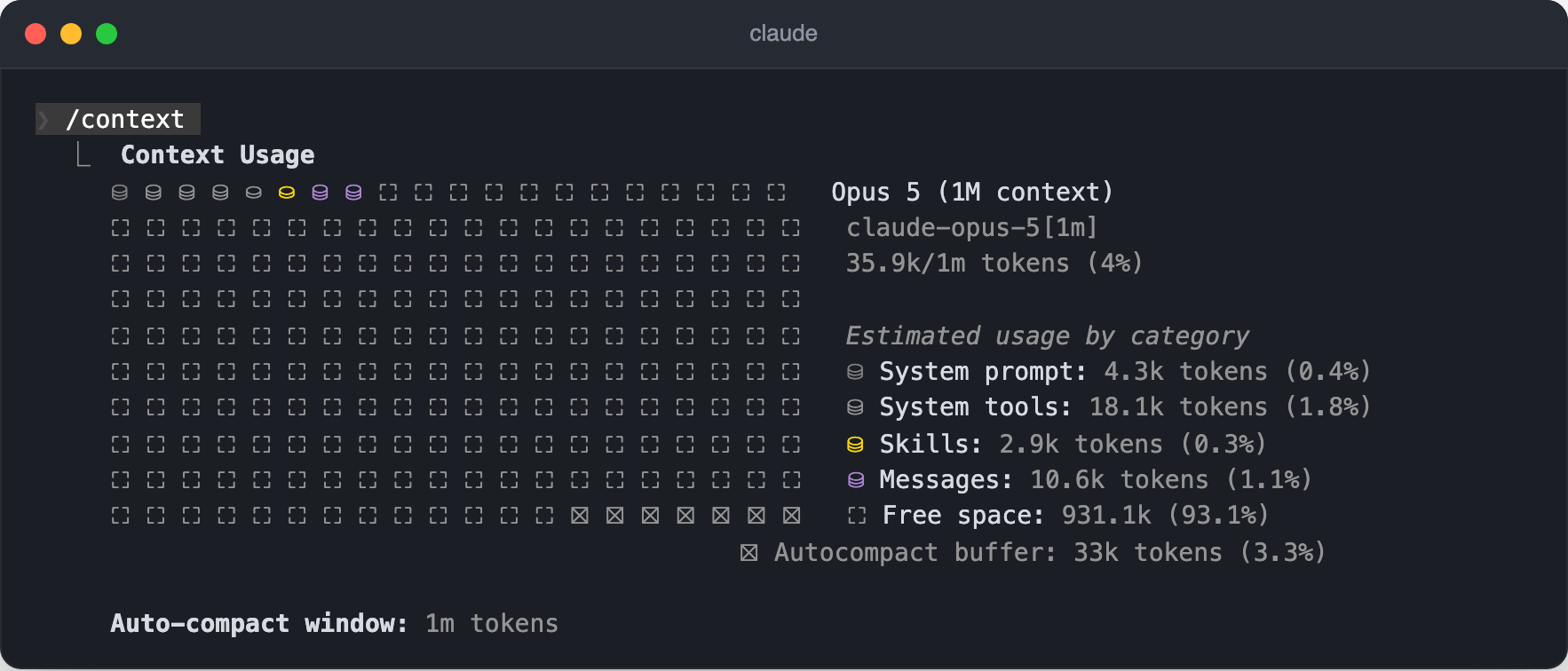
Running /context shows how much the system prompt, tool descriptions, skill list, and conversation each take up.
The more MCP servers you connect and skills you install, the bigger the fixed part gets before the conversation even starts, so if your context seems to fill up quickly, check this screen first.
When token usage reaches a threshold, Autocompact compacts the context automatically.
This threshold is not a fixed percentage but is determined by the tokens left free in the context window, and you can adjust it with the /autocompact command (saved separately for each model starting with version 2.1.288).
It triggers at about 84% for a 200K window and at about 97% for a 1M window.
The Context is 80% full warning is only a heads-up that compaction is near, not the actual point of compaction.
If auto-compaction happens often, context can get muddled in the summaries, so once a piece of work is wrapped up, start a new session with /clear.
You can add instructions after /compact to set the focus of the summary, but /compact itself doesn't create a file.
To keep the content in a file, ask Claude to save it, and then reference that file in a new session.
12Summarize the progress so far in a session_history.md file Then analyze the current state by referring to @session_history.md
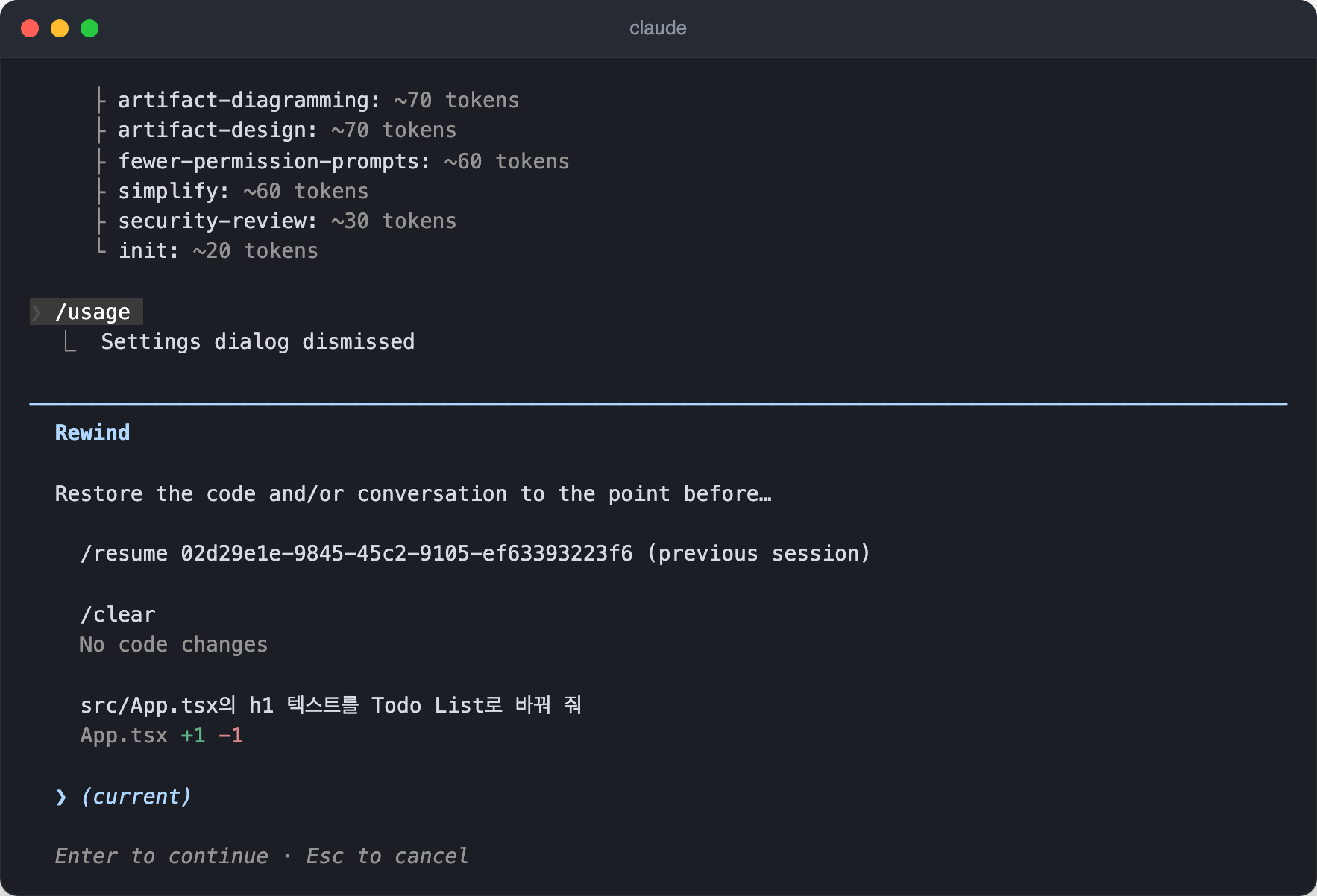
When the conversation has gone in the wrong direction, you can roll back to a specific point with the /rewind command.
The state of the code and conversation is recorded for each prompt, so you can restore just the code, just the conversation, or both to that point.
Undoing a bad edit also cleans up the conversation that came after it, so it is useful as a way to manage context as well.
# Prompt caching
Prompt caching is a feature that lowers costs by putting repeated context in a cache and reusing it.
Claude Code manages it for you, so you don't need to turn it on or off, but knowing when the cache stays alive and when it breaks lets you do the same work for less.
Claude Code sends the entire conversation so far every time it sends a request.
The idea behind caching is that if the beginning matches the previous request, that part is read from the cache, and only the newly added part is processed at the full price.
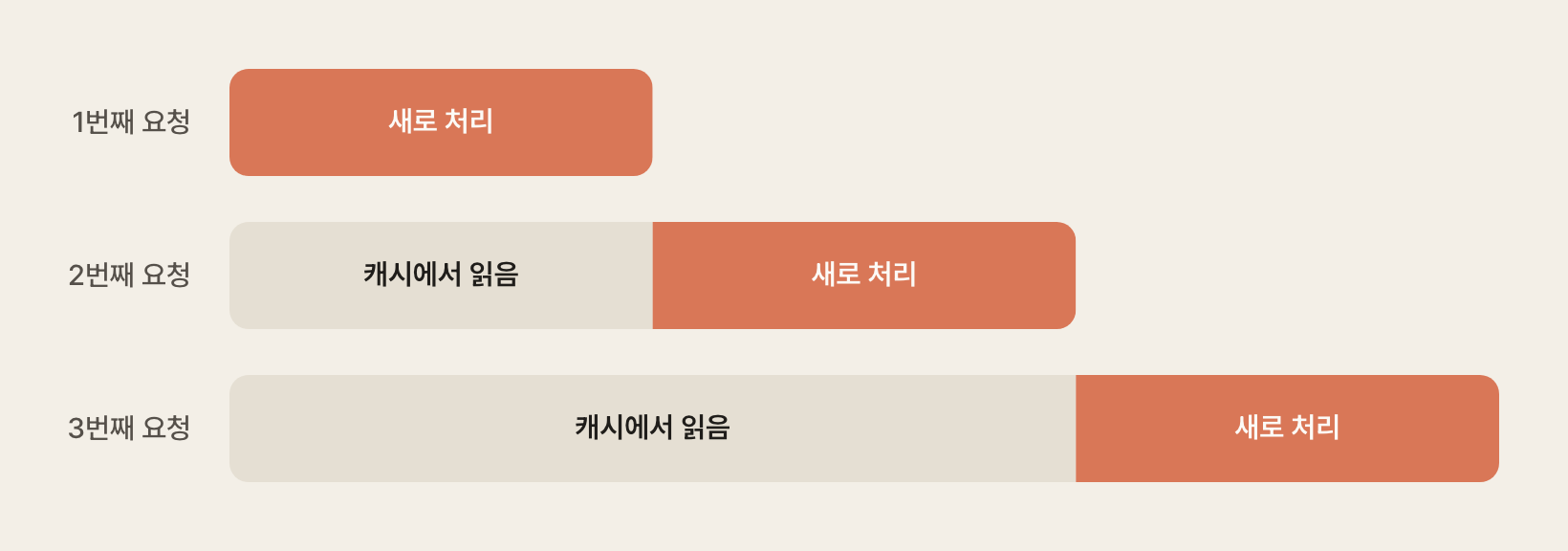
A cache write, which puts content in the cache for the first time, costs more than regular input, while a cache read, which reads back what's already cached, costs much less.
| Item | Relative to input cost |
|---|---|
| 5-minute TTL cache write | 1.25x |
| 1-hour TTL cache write | 2x |
| Cache read (cache hit) | 0.1x by default 0.05x for Opus 5.5 and Sonnet 5.5 0.025x for Fable 5.1 |
Let's calculate how costs add up over three simple conversation turns.
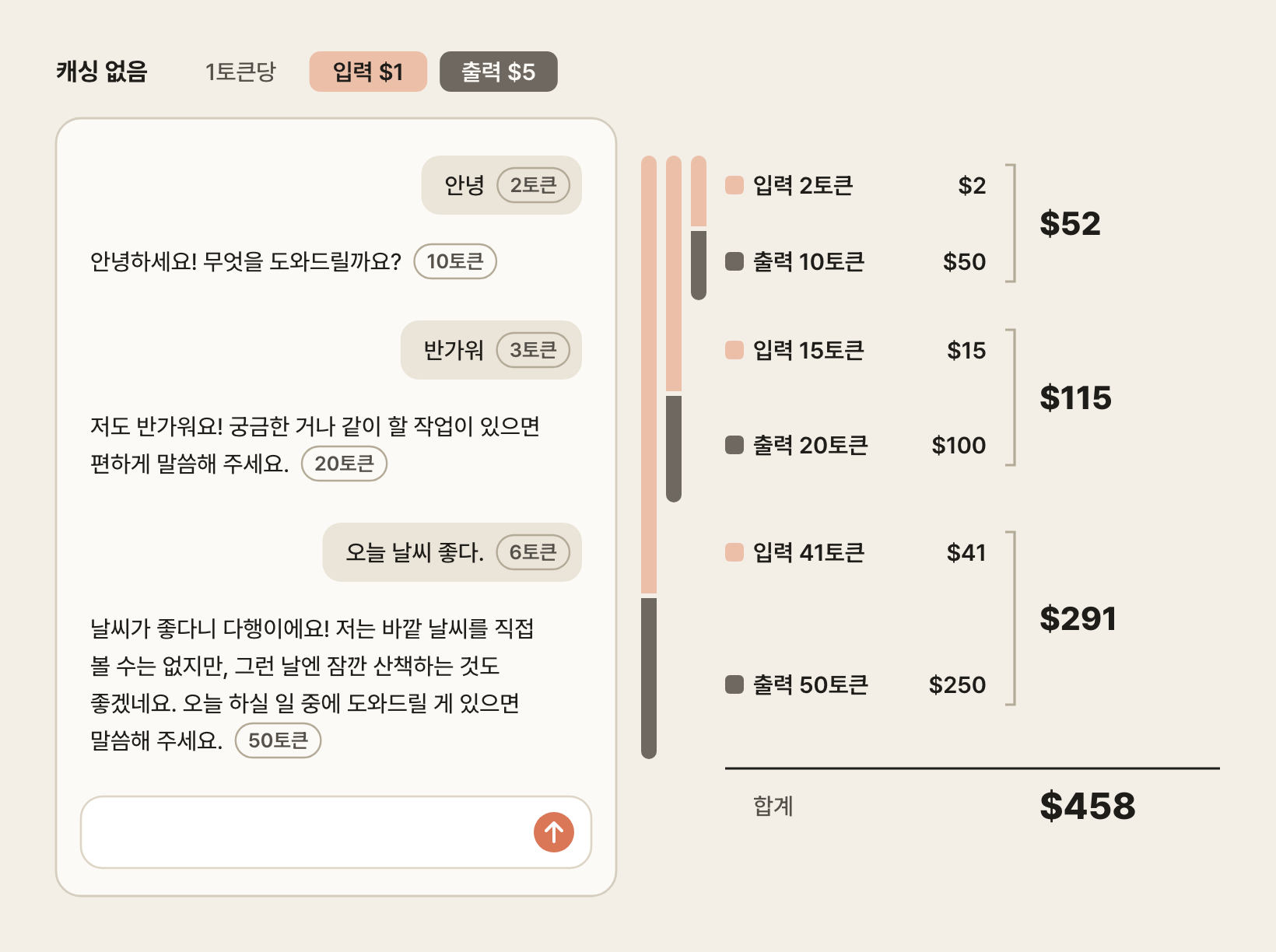
The token counts of the messages are rough numbers for illustration, and the price per token is simplified to $1 for input and $5 for output to make the math easy.
Real prices are set per million tokens, but output costing 5 times as much as input is the same ratio as in actual model pricing.
Without caching, the entire conversation so far is processed again as input on every request.
The third message is only 6 tokens, but it includes all of the earlier conversation, so the input for the third request is 41 tokens.
Add the output cost of the responses, and the cost per request grows to $52, $115, and $291, for a total of $458 over the three turns.
With caching, the part sent in the previous request is read from the cache, and only the previous response and the new message added after it are written to the cache.
Cache writes use the 5-minute TTL rate of 1.25x, and cache reads use the table's default of 0.1x.
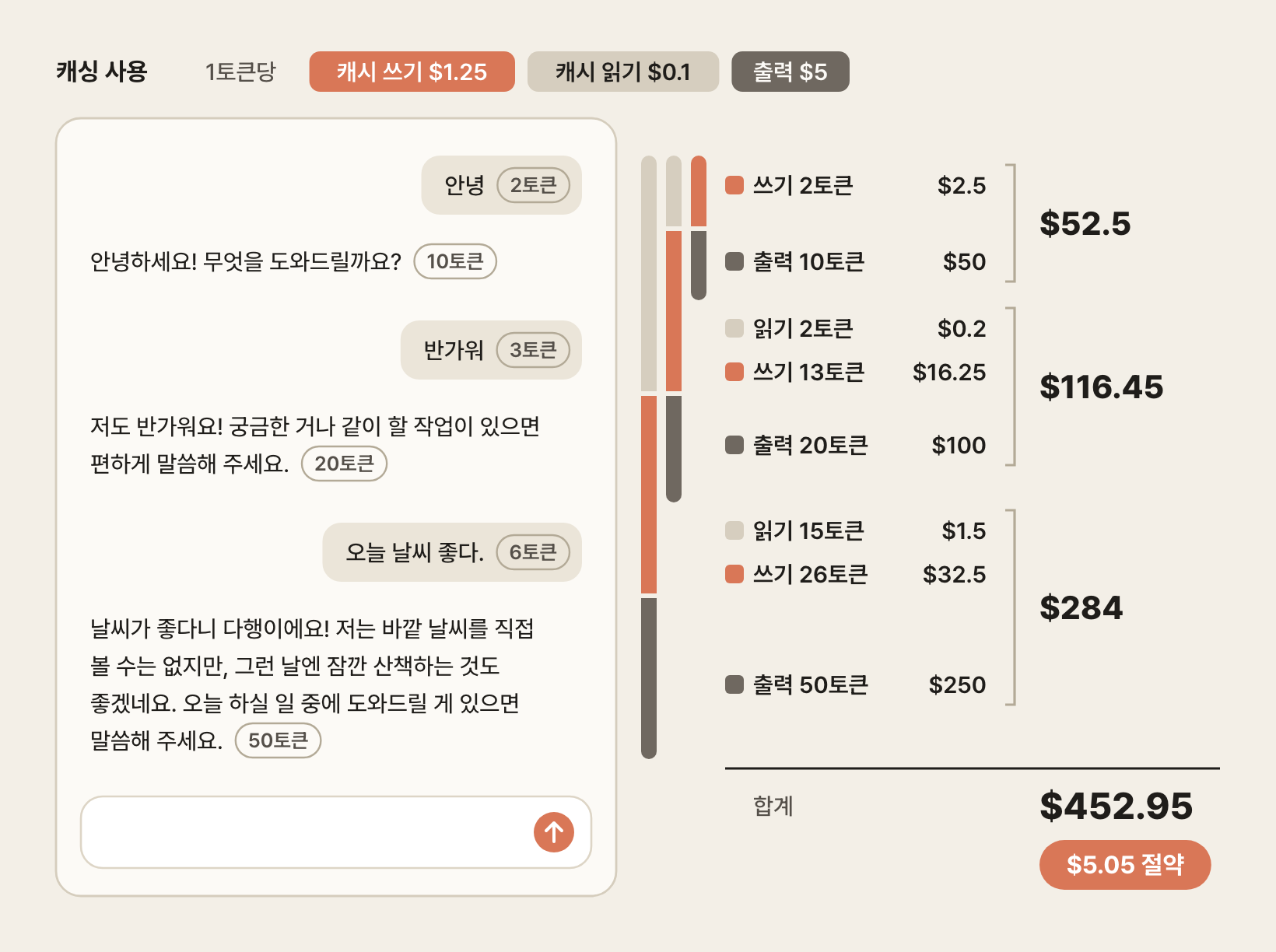
The first and second requests actually cost $0.5 and $1.45 more, respectively, because of the extra cost of cache writes.
In the third request, where the part read from the cache is larger, the cost drops by $7, for a total saving of $5.05.
In this example the savings are small because the conversation is short and output makes up a large share of the cost, but the longer the conversation, the larger the part read from the cache, so the savings grow along with it.
Real Claude Code requests resend far more input every time than this example, such as the system prompt, tool descriptions, instruction files, and files that were read, so caching cuts costs by that much more.
In other words, the cache pays off only when reuse actually happens.
The 5-minute TTL breaks even from 1 read, and the 1-hour TTL from 2 reads.
There are two TTLs, 5 minutes and 1 hour, and Claude Code uses each depending on the kind of request and the billing method.
The main conversation within your subscription plan usage uses 1 hour, and requests made outside the main conversation, such as subagents, workflows, and compaction, use 5 minutes.
Once you go over your plan limit and start being billed to usage credits, the main conversation also drops to 5 minutes, and if you connect with an API key, it is 5 minutes from the start.
Each cache hit renews the TTL for free, so the cache stays alive while you keep working.
Conversely, if there is no hit before the TTL runs out, the cache expires, and on your next question all the accumulated tokens are billed again at the write cost.
Besides time, certain actions during a session also invalidate the cache.
If you change the model with /model or the effort level with /effort, each one has its own cache, so the entire conversation is read again.
However, for Opus 5.5, Sonnet 5.5, Haiku 5.5, and Fable 5.1, the cache is kept even when you change the effort level, with both subscriptions and API keys./compact also replaces the structure of the conversation itself, so all the accumulated cache is invalidated.
So when you roll back a conversation that went the wrong way, using /rewind instead of /compact is better for keeping the cache.
You can check how much the cache is actually being used in the Prompt cache (main) line in the session block of /usage.
It shows the number of requests, the share of input tokens read from the cache, and whether the cache is still alive (warm).
The full list of actions that invalidate or keep the cache, along with other strategies for reducing token usage, is covered in Key Optimization Strategies for a Claude Code Token Diet.
# MCP
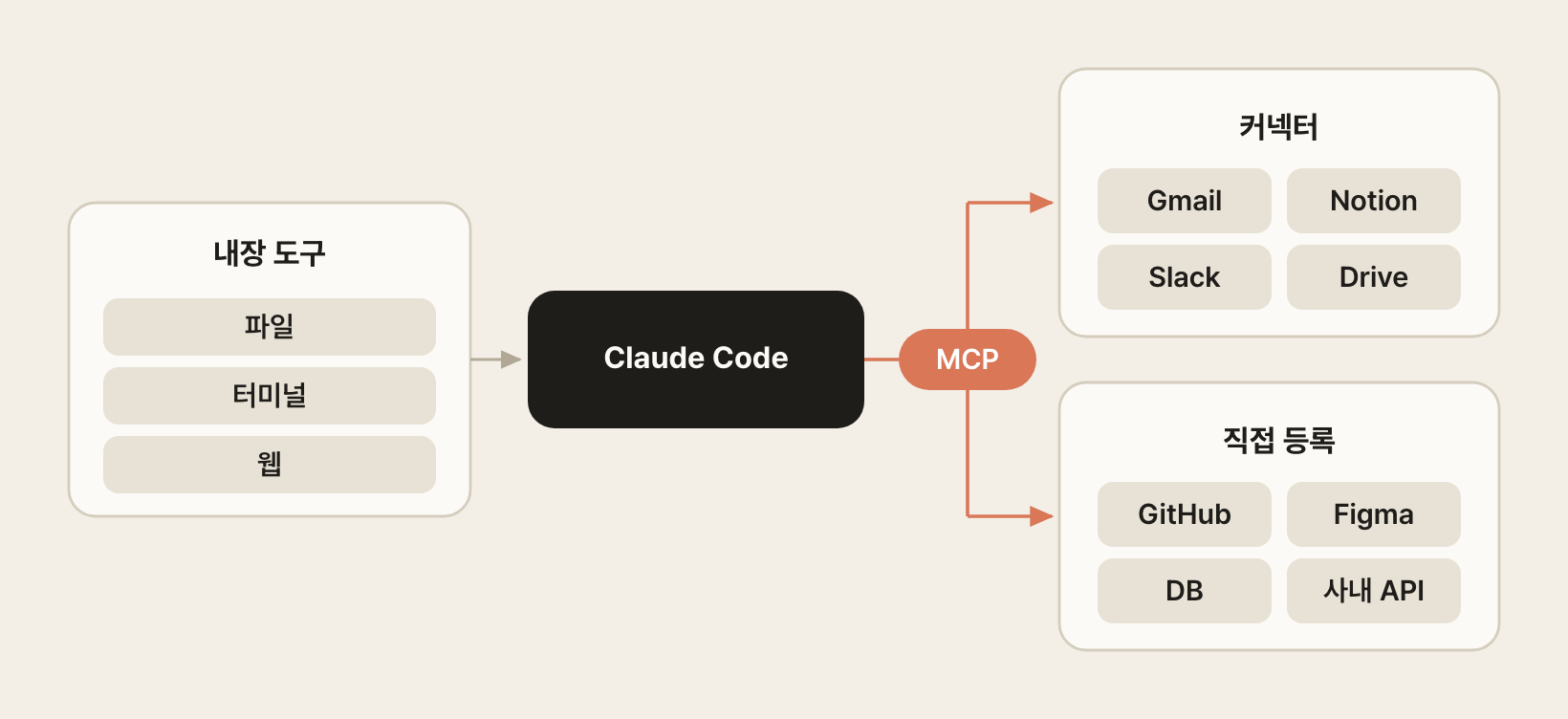
MCP (Model Context Protocol) is an open standard for connecting AI to external tools.
Claude Code handles files, the terminal, and the web with built-in tools, but tasks such as reading a Notion page, sending a message to Slack, or querying a database go through servers connected with MCP.
The features of a connected server are used the same way as built-in tools, so you just make requests as usual, such as "Find this week's meeting notes in Notion and summarize them."
# Connectors
The simplest way to connect is to use connectors on claude.ai.
Once you connect a service such as Gmail, Google Calendar, Google Drive, Notion, or Slack in the claude.ai settings, you can use it as is, with no extra setup, in Claude Code signed in with the same account.
Authentication is handled once on claude.ai, and you never have to deal with server addresses or API keys yourself.
It works only when you sign in with a subscription account, and connectors don't appear in sessions connected with an API key.
Running the /mcp command shows your connected connectors, and the number of tools each one provides, under the claude.ai entry.
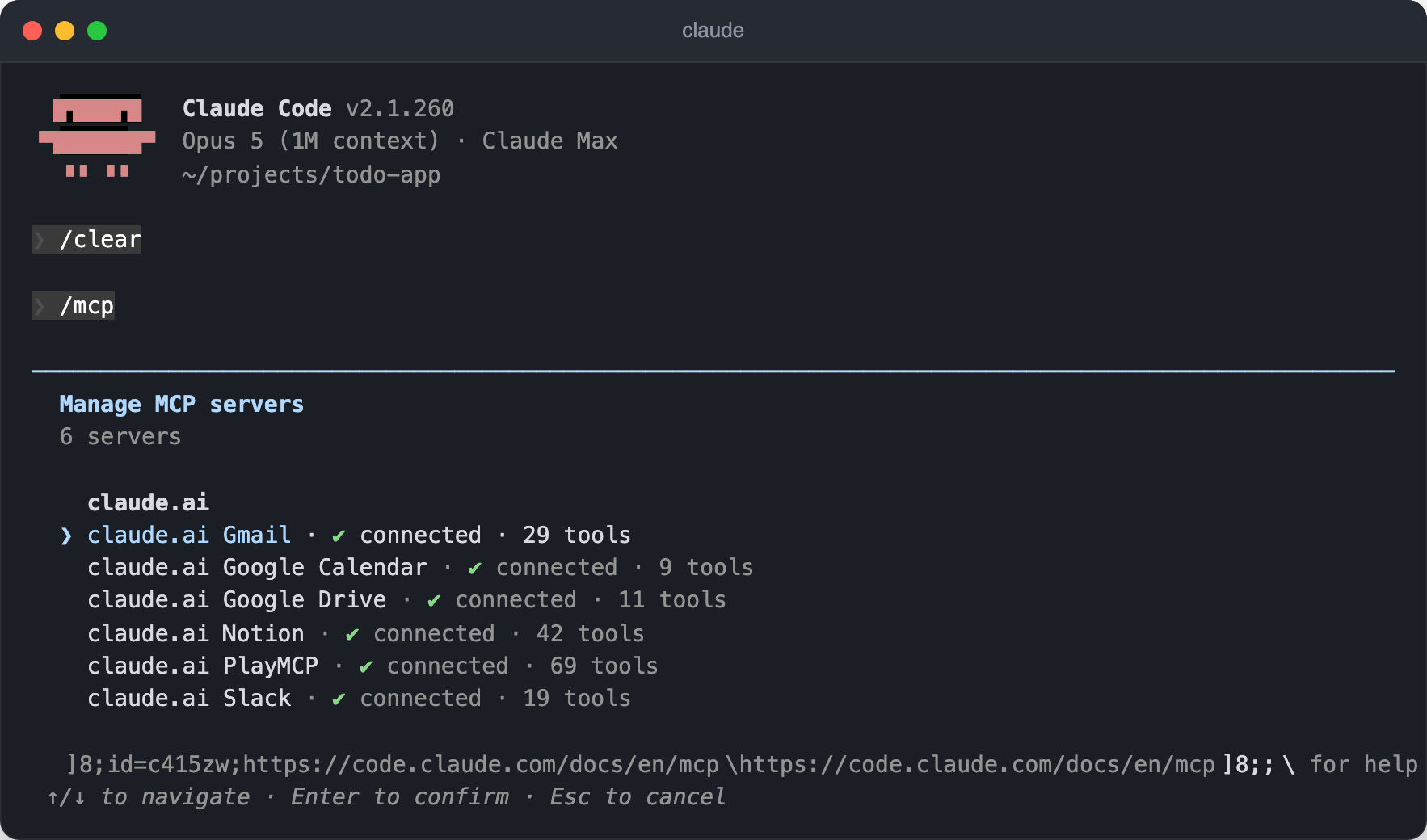
Selecting a connector lets you see the list of tools it provides, authenticate again, or turn it off so it isn't used in this project.
The detailed tool descriptions are loaded only when the tools are actually used, but the list of tool names is always in the context, so it's a good idea to turn off connectors you don't need for coding work.
To stop using connectors entirely, set the disableClaudeAiConnectors setting to true.
12Find the bug we discussed yesterday in the #frontend channel on Slack and write up the steps to reproduce it Write the client code in src/api/ based on the API spec in Google Drive
# Registering servers directly
For services that aren't in the connector list, or for your team's internal tools, register them yourself with the claude mcp add command.
A remote server only needs an HTTP address, and for a local server that runs on your computer, you also specify the command that runs it.
1claude mcp add --transport http notion https://mcp.notion.com/mcp
12claude mcp add --transport stdio --env AIRTABLE_API_KEY=YOUR_KEY airtable \ -- npx -y airtable-mcp-server
For a remote server that requires sign-in, after registering it, select the server in /mcp or run the claude mcp login server-name command to authenticate in the browser.
If several servers failed to connect or need authentication, you can run /mcp reconnect all inside a session to reconnect them all at once.
Check and manage registered servers with the following commands.
1234567891011# List servers claude mcp list # Show server details claude mcp get notion # Remove a server claude mcp remove notion # Import MCP servers from Claude Desktop claude mcp add-from-claude-desktop
When you register a server, you can choose how widely to share it.
| Scope | Description | Location | Flag |
|---|---|---|---|
| Local (default) | Only I use it, in the current project | ~/.claude.json (under the project path) |
--scope local |
| Project | Shared with the team (committed to Git) | .mcp.json |
--scope project |
| User | Only I use it, in all projects | ~/.claude.json |
--scope user |
12345# Add a project-scope server (shared with the team) claude mcp add --transport http paypal --scope project https://mcp.paypal.com/mcp # Add a user-scope server (personal, all projects) claude mcp add --transport http hubspot --scope user https://mcp.hubspot.com/anthropic
In the .mcp.json file shared at the project scope, you can reference environment variables with the ${VAR} syntax, so values such as API keys can differ for each team member without being written in the file.
1234567891011{ "mcpServers": { "api-server": { "type": "http", "url": "${API_BASE_URL:-https://api.example.com}/mcp", "headers": { "Authorization": "Bearer ${API_KEY}" } } } }
# Browser control
Claude in Chrome is a feature that connects Claude Code to your browser through a Chrome extension.
Once connected, Claude opens a new tab and navigates pages, clicks buttons, fills in forms, takes screenshots, and checks console logs and network requests.
It shares the browser's sign-in state as is, so for services you're already signed in to, it can work right away without a separate API integration.
When it runs into a sign-in page or a CAPTCHA, it stops and asks you to handle it yourself.
You need the following to use it.
- Google Chrome, Microsoft Edge, or a Chromium-based browser such as Brave, Arc, Vivaldi, or Opera (WSL isn't supported)
- The Claude in Chrome extension 1.0.36 or later from the Chrome Web Store
- A Pro, Max, Team, or Enterprise plan and a subscription account connected with
/login(it doesn't work with an API key or a token issued withclaude setup-token)
The steps for setting it up the first time are as follows.
- In your browser, go to claude.ai/chrome, install the extension, and sign in to your Claude account in the extension.
- In the terminal, start Claude Code with
claude --chrome. The first time, a screen like the following appears, and pressingEnterconnects to the extension. - Ask for a browser task. For each browser action, an approval request starting with
Claude in Chrome wants toappears, along with an option to allow all actions on that site for this session.
1claude --chrome
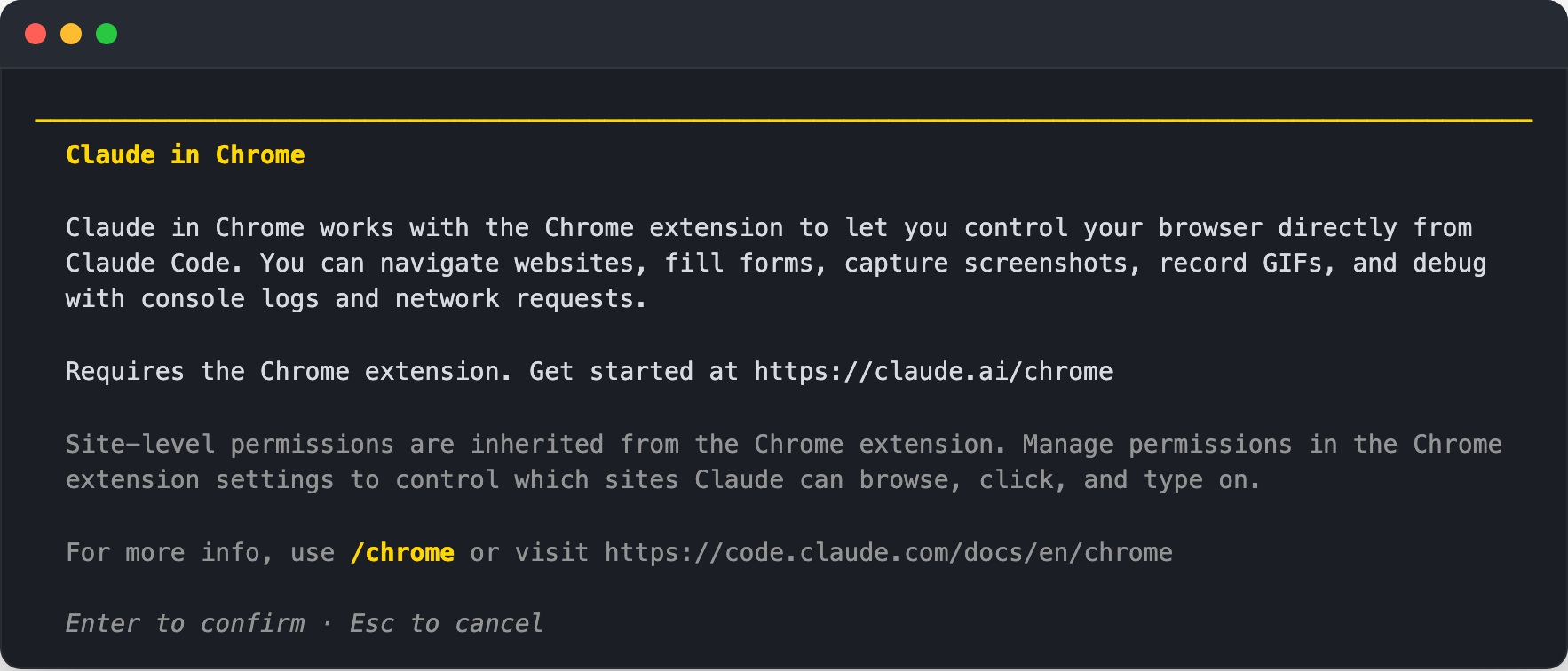
12Open localhost:3000, enter invalid values in the sign-in form, and check that the error messages appear correctly Open the dashboard page and check whether any errors show up in the console when it loads
Check and manage the connection status with the /chrome command.
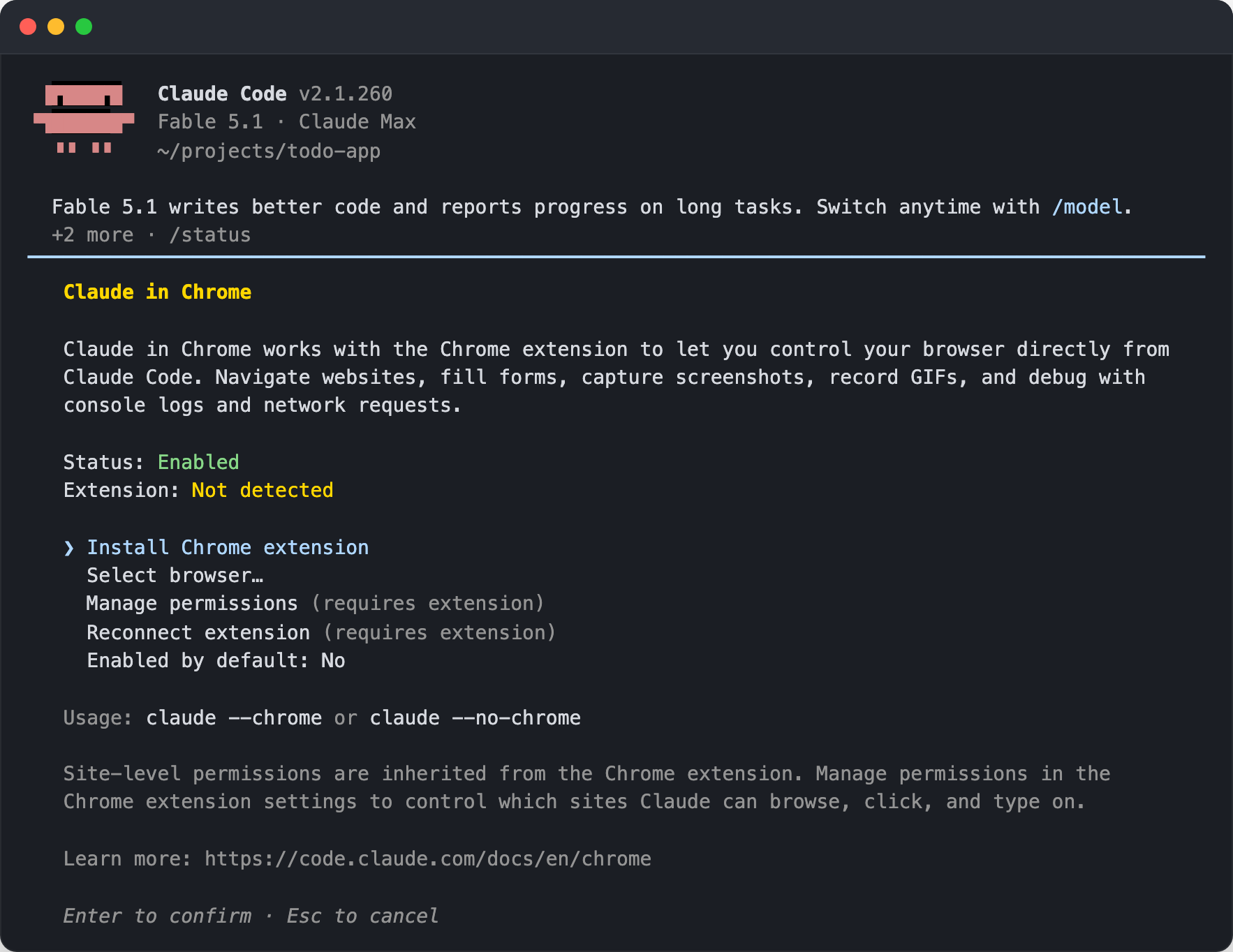
If it shows Status: Enabled and Extension: Installed, everything is working, and if the extension isn't detected, the install option appears first, as follows.
| Item | Description |
|---|---|
| Install Chrome extension | Open the extension install page (shown only when the extension isn't detected) |
| Manage permissions | Open the extension's per-site permission settings |
| Reconnect extension | Reconnect when the connection drops |
| Enabled by default | Always load the browser tools, even when starting without the --chrome flag |
| Select browser | Choose which browser to use when several browsers are connected |
Turning on Enabled by default saves you from adding the flag every time, but the browser tool descriptions are then loaded into the context of every session.
If you only need browser tasks once in a while, starting with --chrome only when you need it saves context.
When Claude Code starts and detects an installed extension, it asks once whether to turn on the browser tools, and if a task needs a browser but the extension isn't installed, a Claude wants to use your browser install prompt appears.
What Claude can do on which sites follows the extension's per-site permission settings, not Claude Code's.
In Plan mode, only read-only calls such as reading a page or taking a screenshot run without approval, and calls that change state, such as clicking, typing, and navigating, ask for approval.
To see the full list of available browser tools, select claude-in-chrome in /mcp and choose View tools.
The Playwright and Chrome DevTools MCP plugins also control a browser, but they launch a separate browser instance, so they don't share your sign-in state.
Use Claude in Chrome when you need to work with services you're already signed in to or see exactly the screen the user is looking at, and use the plugins when you need an isolated environment, such as for headless testing or performance measurement.
# Computer use
Computer use is a feature in which Claude looks at the screen and operates macOS apps directly with the mouse and keyboard.
Work that you used to do by hand outside the terminal can be handed off in the same conversation, such as building and running the Swift app you just wrote and pressing its buttons one by one, swiping through onboarding screens in the iOS Simulator, or working with GUI tools that have no CLI or API.
Claude tries the most precise tools first, in order, so computer use is used only when there is no other way.
- If there is an MCP server for the service, it uses MCP.
- If a shell command can handle it, it uses the Bash tool.
- If it is a browser task and Claude in Chrome is set up, it uses browser control.
- For other native apps, simulators, and tools with no API, it uses computer use.
Computer use is provided as a built-in MCP server named computer-use and is off by default.
Run /mcp and you can find it under Built-in MCPs at the bottom of the list.
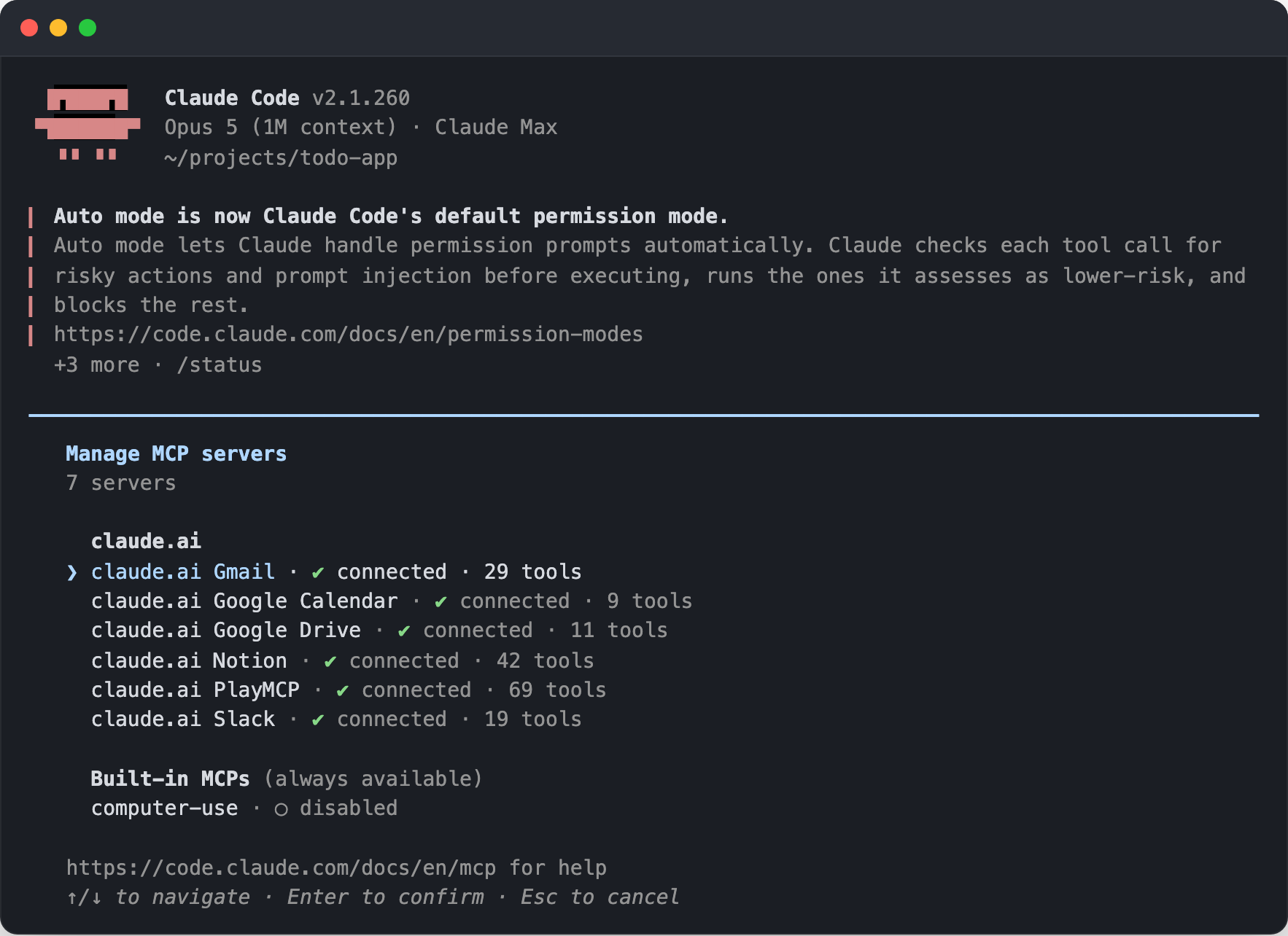
Select computer-use and choose Enable to turn it on.
This setting is saved per project, so you only need to turn it on once in each project where you'll use computer use.
If your environment doesn't meet the requirements, this entry doesn't appear at all.
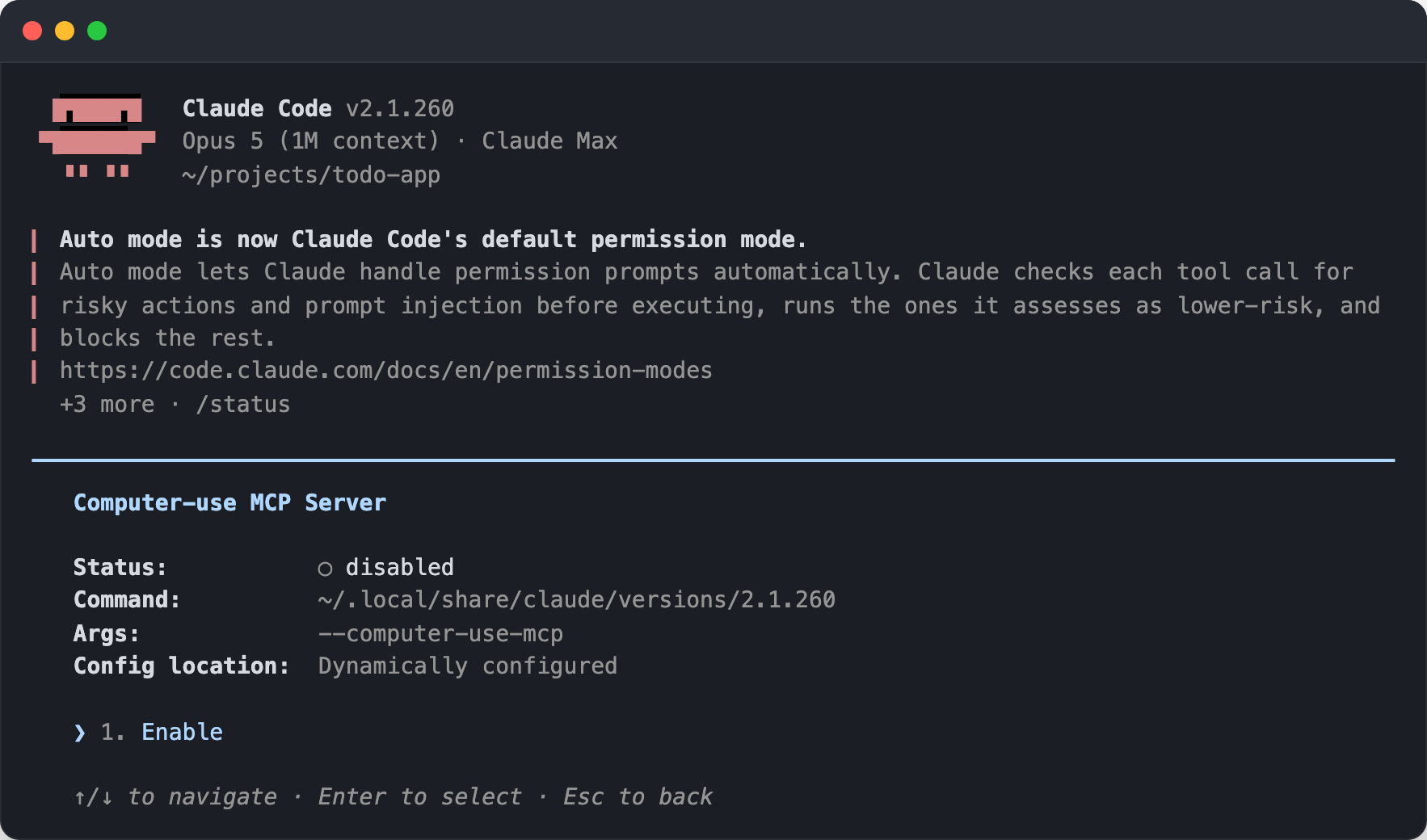
When Claude tries to use the screen for the first time, a prompt asking for two macOS permissions appears in the terminal.
Accessibility is needed for clicking, typing, and scrolling, and Screen Recording is needed to see the screen.
Selecting an item in the prompt opens the matching screen in System Settings; allow both, then choose Try again.
The Screen Recording permission sometimes takes effect only after you restart Claude Code.
Even with these permissions, Claude can't freely control every app.
Each time a session needs a particular app for the first time, an approval prompt like the following appears; check which app it wants to control, whether it is asking for extra permissions such as the clipboard, and how many other apps will be hidden during the work, then choose Allow for this session or Deny.
The approval lasts only for the current session.
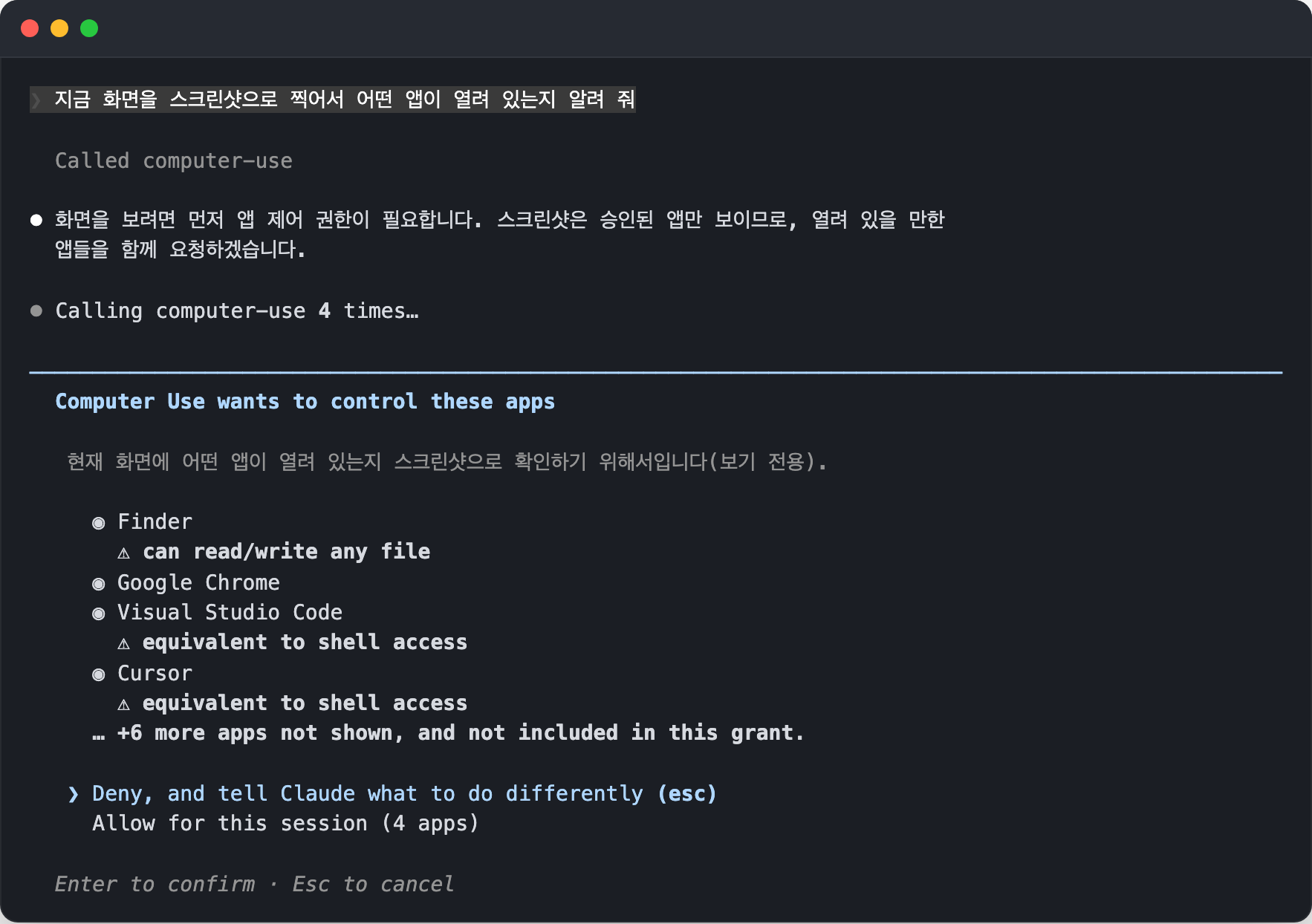
Apps with a wide reach, such as the terminal, IDEs, Finder, and System Settings, also show a warning.
They aren't blocked, but decide whether the task really needs that level of access before you approve.
| Warning | Applies to |
|---|---|
| Equivalent to shell access | Terminals and IDEs such as Terminal, iTerm, VS Code, and Warp |
| Can read or write any file | Finder |
| Can change system settings | System Settings |
The level of control also depends on the type of app.
Browsers and trading platforms are view-only, terminals and IDEs allow clicks only, and all other apps allow full control.
To control a browser, you need to use browser control, not computer use.
Once approval is done, make a request like the following.
12Build and run the app target, then tap each tab one by one to check for crashes. If there are any error screens, take screenshots The footer of the settings modal gets cut off in a narrow window. Shrink the window to reproduce it, take a screenshot, then check the CSS of the modal container
While working, it behaves as follows.
- Only one session can control the computer at a time. It takes a lock on the first action and releases it when the session ends, so to use it from another session, end the session holding the lock first.
- While Claude controls the screen, apps you haven't approved are hidden, and they are restored automatically when the work is done. The terminal window stays visible but is excluded from screenshots, so Claude doesn't see its own output.
- Screenshots are automatically scaled down before being sent to the model, so you don't need to lower your display resolution. If text is too small to read, increase the font size inside the app.
- When control starts, a
Claude is using your computernotification appears, and pressingEscanywhere orCtrl+Cin the terminal stops it immediately.
There are a few differences from the desktop app, which uses the same engine.
| Item | Desktop app | CLI |
|---|---|---|
| Supported platforms | macOS, Windows | macOS |
| Enabling | Toggle in Settings > General | Enable computer-use in /mcp |
| App deny list | Managed in settings | Not available yet |
| Restoring apps after work | Optional | Always |
# Hooks
Hooks are user-defined shell commands or LLM prompts that run automatically at specific points in Claude Code's lifecycle.
Similar to Git's pre-commit and post-commit hooks, they let you run scripts automatically before or after Claude performs certain actions.
With them, you can build all kinds of automation, such as blocking dangerous commands, checking code style, logging, and notifications.
Think of it as inserting hooks at each point in the flow where a session starts, a prompt is submitted, a tool runs, and a response ends.
In particular, PreToolUse, which runs before a tool runs, can block the execution itself, so it is used to block dangerous commands.
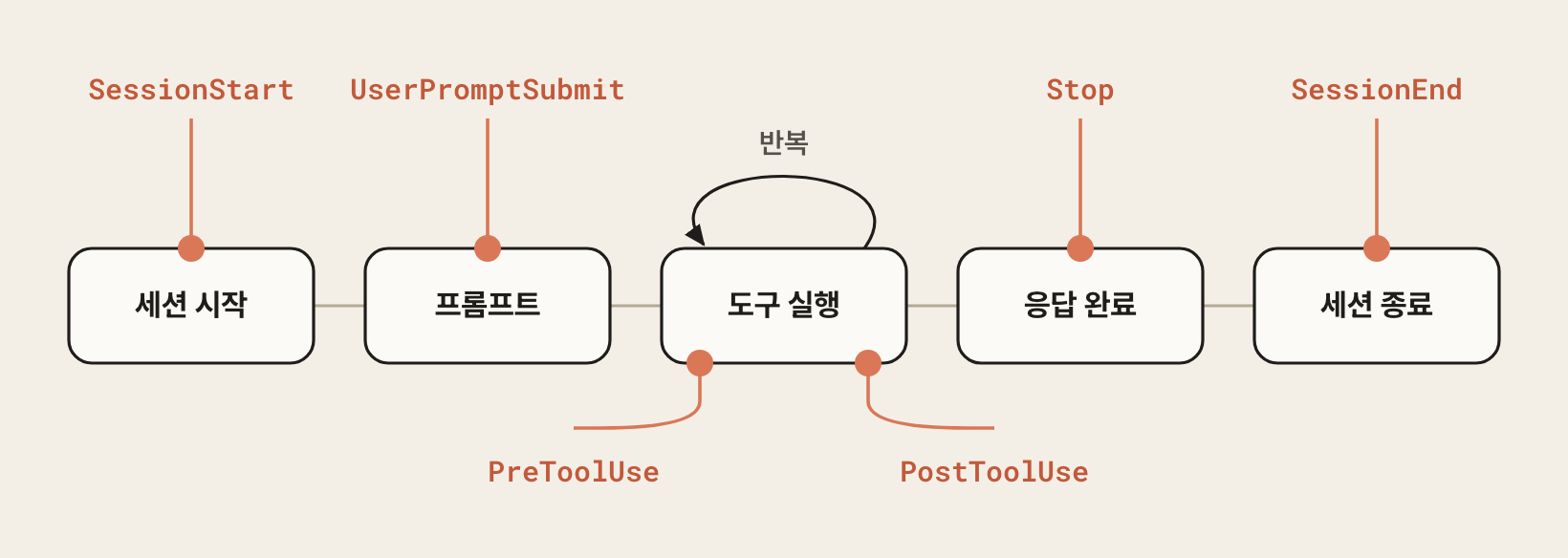
The events are grouped along the flow of a session as follows.
| Category | Event | When it fires |
|---|---|---|
| Session | SessionStart, SessionEnd, Setup |
When a session starts and ends, and when repository setup runs with the --init or --maintenance flag |
| Prompt | UserPromptSubmit, UserPromptExpansion |
When a prompt is submitted, and when a slash command expands into a prompt |
| Tool | PreToolUse, PostToolUse, PostToolUseFailure, PostToolBatch |
Before a tool runs (can block it), after it succeeds, after it fails, and after a batch completes |
| Permission | PermissionRequest, PermissionDenied |
When a permission dialog is shown, and when Auto mode denies a tool call |
| Response | Stop, StopFailure, Notification, MessageDisplay |
When a response completes, when it stops due to an API error, when a notification is sent, and when response text is displayed |
| Agent | SubagentStart, SubagentStop, TeammateIdle, TaskCreated, TaskCompleted |
When a subagent starts and finishes, when a teammate goes idle, and when a task is created and completed |
| Context, model | PreCompact, PostCompact, PreModelSwitch, PostModelSwitch |
Before and after compaction, and before and after a model switch |
| MCP | Elicitation, ElicitationResult |
When an MCP server asks for user input, and after it is answered |
| Environment | ConfigChange, CwdChanged, DirectoryAdded, FileChanged, WorktreeCreate, WorktreeRemove, InstructionsLoaded |
When settings change, the working directory changes, a watched file changes, a worktree is created or removed, or an instruction file is loaded |
Running the /hooks command shows the registered hooks grouped by event, along with where each one is defined, and selecting All events at the end of the list shows the full list, including events that have no hooks.
This screen is read-only, so to add or change a hook, edit the settings file yourself or ask Claude.
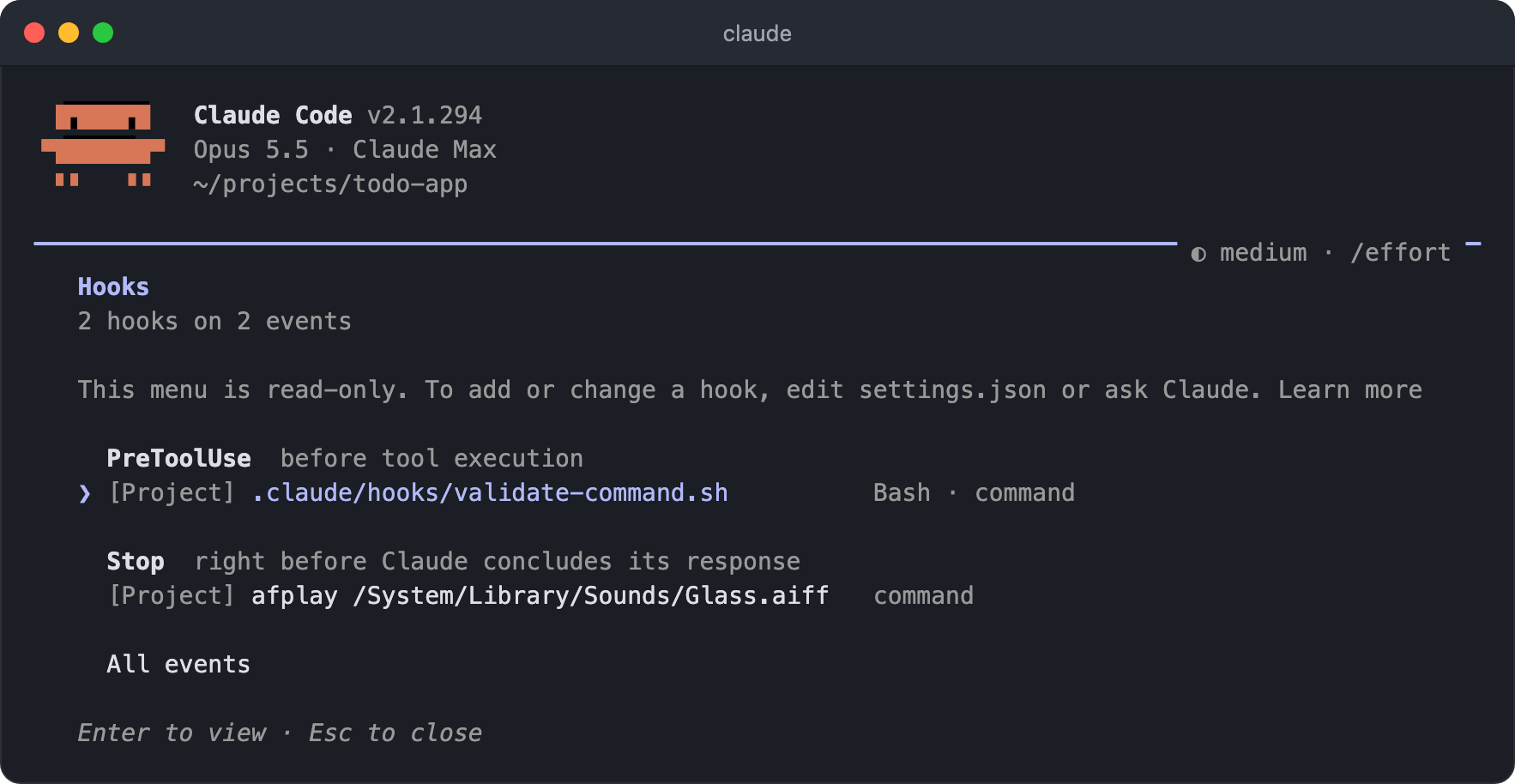
Hooks support several types of handlers.
| Type | Description |
|---|---|
command |
Runs a shell command. Receives JSON input through stdin |
http |
Sends the event to the specified HTTP endpoint |
mcp_tool |
Runs the specified MCP tool |
prompt |
Sends a prompt to a Claude model for a single-turn evaluation |
agent |
Creates a subagent that can use tools |
Hook settings are stored in one of the user settings (~/.claude/settings.json), project settings (.claude/settings.json), or local settings (.claude/settings.local.json).
The following configuration runs a validation script before a Bash command runs.
123456789101112131415{ "hooks": { "PreToolUse": [ { "matcher": "Bash", "hooks": [ { "type": "command", "command": ".claude/hooks/validate-command.sh" } ] } ] } }
# Getting completion notifications with a Stop hook
When you hand off a long-running task and work on something else in the meantime, it's easy to miss that the response has finished.
If you register a hook that runs at Stop, the point when a response completes, you won't miss the end of the work.Stop isn't an event that reacts to a specific tool; it fires when a response ends, so you don't need to specify a matcher.
First, let's play a system sound when a response completes.
- Open the project settings (
.claude/settings.json) and register a command that plays a sound in theStophook. - Write it so that a system sound plays with the
afplaycommand on macOS and thepowershellcommand on Windows. - Run Claude Code and check with the
/hookscommand that theStophook is registered. - Give it a light task and check that the sound plays when the response completes.
1234567891011121314{ "hooks": { "Stop": [ { "hooks": [ { "type": "command", "command": "afplay /System/Library/Sounds/Glass.aiff" } ] } ] } }
1234567891011121314{ "hooks": { "Stop": [ { "hooks": [ { "type": "command", "command": "powershell -WindowStyle Hidden -c \"(New-Object Media.SoundPlayer 'C:/Windows/Media/Windows Notify System Generic.wav').PlaySync()\"" } ] } ] } }
This time, let's send a completion message to a Slack channel when a response completes.
That way, you get notified that the work is done even while you're away from your desk.
- Create an Incoming Webhook in your Slack workspace and copy its URL.
- Write the
.claude/hooks/notify-slack.mjsfile. - In the
Stophook of the project settings (.claude/settings.json), register thenodecommand that runs this file. - Run Claude Code and check with the
/hookscommand that theStophook is registered. - Give it a light task and check that the completion message arrives when the response completes.
1234567891011121314151617181920212223242526272829303132333435import { readFileSync } from 'node:fs' import https from 'node:https' // Read the hook input (JSON) let input = '' try { input = readFileSync(0, 'utf8') } catch {} let data = {} try { data = JSON.parse(input) } catch {} const msg = (data.last_assistant_message || '(no response text)').slice(0, 3000) const payload = JSON.stringify({ text: `✅ Claude Code task complete\n\n${msg}` }) // Send with the https module const req = https.request( 'https://hooks.slack.com/services/<YOUR_WEBHOOK>', { method: 'POST', headers: { 'Content-Type': 'application/json', 'Content-Length': Buffer.byteLength(payload) }, agent: false }, (res) => { res.resume() // Consume the response body so the socket closes } ) req.on('error', () => {}) // Ignore errors so a failed notification doesn't block the work req.end(payload)
1234567891011121314{ "hooks": { "Stop": [ { "hooks": [ { "type": "command", "command": "node ~/.claude/hooks/notify-slack.mjs" } ] } ] } }
1234567891011121314{ "hooks": { "Stop": [ { "hooks": [ { "type": "command", "command": "node C:/Users/username/.claude/hooks/notify-slack.mjs" } ] } ] } }
On Windows, ~ may not be expanded, so specify an absolute path, such as node C:/Users/username/.claude/hooks/notify-slack.mjs.
# Skills
Skills are modular capabilities that extend what Claude can do.
Each skill packages instructions, metadata, and optional resources (scripts, templates) that Claude uses automatically for related tasks.
If you define complex tasks you do repeatedly (for example, creating documents in a specific format, your team's code review process, or deployment procedures) as skills, you get consistent results without typing detailed instructions every time.
Skills work in a Model-invoked way.
That is, Claude automatically discovers and uses skills that fit the context, even if you don't call them explicitly.
You can also call one directly with /skill-name, so both automatic discovery and explicit invocation are supported.
You can see the list of skills available in the current session with the /skills command.
How to install published skills instead of writing your own, or have Claude write a skill for you, is explained in Installing and creating skills.
12345Extract the tables from this PDF # -> The pdf-processing skill is activated automatically /my-skill arguments # -> Invoke a skill explicitly
Using skills gives you the following benefits.
- Specialize Claude: tailor its capabilities to domain-specific tasks
- Less repetition: create a skill once and it is used automatically
- Combine capabilities: combine skills to build complex workflows
# Skill structure
12345your-skill-name/ ├── SKILL.md # Required: metadata and instructions ├── scripts/ # Optional: utility scripts ├── references/ # Optional: reference docs └── assets/ # Optional: images and other resources
Store skill folders in the following locations.
| Scope | Location |
|---|---|
| Personal (all projects) | ~/.claude/skills/ |
| Project (shared with the team) | .claude/skills/ |
| Claude account (synced automatically) | ~/.claude/skills/synced/ (don't save here yourself) |
Claude Code automatically downloads the skills you turn on in your Claude account, as explained in Syncing Claude account skills.
To use the same skills with other AI agents, you can keep the originals in .agents/skills/ and link them, as explained in Sharing skills with other agents.
The naming rules are as follows.
SKILL.mdfile name: must be exactlySKILL.md(case-sensitive,skill.mddoesn't work)- Skill folder name: use kebab-case only (
notion-project-setup✅,Notion_Setup❌) - No
README.md: don't include aREADME.mdin the skill folder - No
synced: it is a name reserved for syncing, so a folder namedsyncedis skipped without an error, regardless of case
# Writing SKILL.md
SKILL.md consists of YAML frontmatter and a Markdown body.
123456789101112131415161718--- name: my-skill description: What it does. When to use it. --- # Skill name ## Instructions 1. First step 2. Second step ## Examples User: "Use the skill" Behavior: 1. ... 2. ...
The main frontmatter fields are as follows.
| Field | Description |
|---|---|
name |
The name shown in the skill list; if omitted, the folder name is used |
description |
(Recommended) The skill description, referred to when deciding whether to invoke it automatically; if omitted, the first paragraph of the body is used |
when_to_use |
An extra description of when to invoke it automatically; shown in the list together with description, up to 1,536 characters |
disable-model-invocation |
Disables automatic invocation (default: false) |
user-invocable |
Shows it in the slash command menu (default: true) |
allowed-tools |
Tools that can be used without permission requests during the turn in which the skill is invoked |
disallowed-tools |
Tools that can't be used while the skill is active |
model |
The model to use (haiku, opus, etc. / default: inherited from the session) |
effort |
The effort level, one of low, medium, high, xhigh, max (default: inherited from the session) |
paths |
Invokes it automatically only when working with folders or files that match a pattern (glob) |
context |
Set to fork to run it in a separate subagent context |
argument-hint |
The argument hint shown in autocomplete |
To turn off automatic invocation and use a skill only through /skill-name, set disable-model-invocation: true.
Conversely, to allow only automatic invocation without showing it as a slash command, set user-invocable: false.
The description is what Claude uses to choose skills automatically.
For a skill's auto-discovery to work accurately, you need to write a good description.
Always write it in the third person, and include both what it does and when to use it.
You can write it in a language other than English, but adding the key English keywords that users are likely to say improves matching accuracy.
1234567# Good example description: | Extracts text and tables from PDF files, fills in forms, and merges documents. Use when working with PDF files or when the user mentions PDFs. PDF, extract, merge. # Bad example description: Helps with documents # Too generic
Elements worth including in the description:
- What it does: "Extract text and tables from PDFs"
- When to use it: "When working with PDF files, forms, or document extraction"
- Trigger keywords: "PDF", "text extraction", "document"
If the description of when to use the skill gets long, you can move it into the when_to_use field as a supplement.
With the allowed-tools field, you can limit the tools a skill can use to make it safer.
For example, you can limit a code review skill so that it only reads files and never modifies them.
123456789101112--- name: safe-code-reviewer description: | Reviews code from a best-practices perspective without changing it. Use when a code review is requested or when analysis without changes is needed. code review, read-only. allowed-tools: Read, Grep, Glob --- # Safe code reviewer This skill only reads files and never modifies them. It provides only analysis and suggestions for improvement, without making changes.
When you set allowed-tools, the tools in the list can be used right away without approval while that skill is active.
It doesn't block the use of other tools, and to restrict use, you use disallowed-tools or deny rules in the permission settings.
# Progressive loading
Skills are loaded in three levels so that they use context efficiently.
When a session starts, only the names and descriptions of all installed skills are loaded; the body is read when the skill is invoked, and reference files are read when the body decides they are needed.
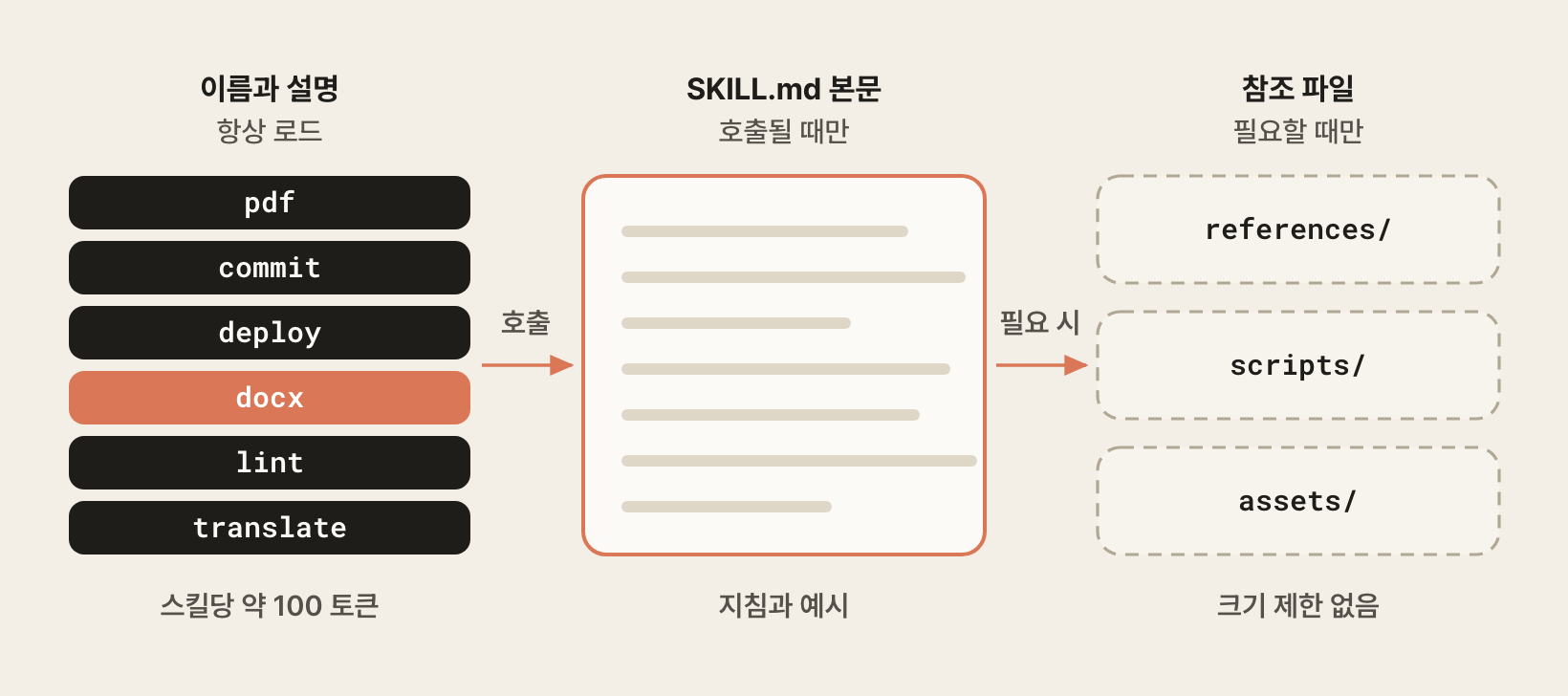
| Level | When loaded | Token cost | Content |
|---|---|---|---|
| Level 1: Metadata | Always (at startup) | About 100 tokens per skill | name and description in the YAML frontmatter |
| Level 2: Instructions | When the skill is triggered | Under 5k tokens | Instructions and guidance in the SKILL.md body |
| Level 3+: Resources | When needed | Effectively unlimited | Bundled files run with bash, reference docs, etc. |
Thanks to this structure, even if you install many skills, only the skills that are actually used consume context.
For reference files, write their paths in the SKILL.md body along with when to read them.
Claude reads only the files the task needs.
12- If you need color codes, read `references/colors.md`. - If you need font information, read `references/fonts.md`.
# Writing tips
Security considerations:
- Use only skills from trusted sources
- Review the
SKILL.mdand script contents before installing - If you need to restrict tools, use
disallowed-toolsor permissiondenyrules (allowed-toolsis a pre-approval list, not a restriction)
Best practices:
- Keep the
SKILL.mdbody under 500 lines, and move details into thereferences/folder - Gerund forms are recommended for folder names (
processing-pdfs✅,helper❌) - Define complex tasks as checklists
# Syncing Claude account skills
Chat and Cowork in the Claude app share the skills saved in your Claude account.
When Claude Code is signed in with the same account (2.1.273 or later), it also automatically downloads the skills you turned on in your account to ~/.claude/skills/synced/.
Besides the skills you made or turned on yourself, it also downloads skills deployed by your organization and Anthropic's built-in skills such as pdf and xlsx.
| Session | Skills loaded |
|---|---|
| Local sessions in the terminal and desktop app | ~/.claude/skills/, .claude/skills/, plugin skills, account skills |
| Cloud sessions on the web and in the desktop app | The repository's .claude/skills/, account skills (~/.claude/skills/ isn't read) |
| Chat and Cowork in the Claude app | Account skills |
Syncing runs in the background when a session starts, and during a session it checks for changes about every 10 minutes while you work and about every 40 minutes while the session isn't in use.
If you add, edit, or turn off a skill on claude.ai, the change is reflected without restarting Claude Code.
In the /skills list, these skills appear under the claude.ai sync entry, and sessions connected with an API key or a third-party platform such as Amazon Bedrock don't sync.
Synced skills are invoked with /anthropic-skills:skill-name, and if there is no other skill or command with the same name, you can also invoke them with /skill-name.
For example, if there is also a frontend-design skill in ~/.claude/skills/, /frontend-design runs the local skill and /anthropic-skills:frontend-design runs the account skill.
Syncing is one-way: it only downloads from your account.
Skills made in Claude Code are not uploaded to your account, and editing files in ~/.claude/skills/synced/ doesn't save them to your account; they are overwritten at the next sync.
If you put a skill folder you made yourself in this folder, it isn't recognized as a skill and is moved to ~/.claude/skills/.trash/ at the next sync.
To change account skills, edit or turn them off under Customize > Skills on claude.ai, and to use a local skill in chat or Cowork as well, compress the skill folder into a ZIP file and upload it to your account.
The frontmatter requirements for uploaded skills are explained in Claude Cowork Essentials.
To turn off syncing, set syncClaudeAiSkills to false in the user settings (~/.claude/settings.json).
Skills that were already downloaded are moved to ~/.claude/skills/.trash/ on the next run and are no longer loaded.
Setting it in .claude/settings.local.json turns it off only for that project, and false set in the project settings shared with the team (.claude/settings.json) is ignored.
123{ "syncClaudeAiSkills": false }
When you share skills, also consider the sharing scope and runtime constraints of the environment you use.
Skills uploaded to the Claude API are managed separately from the skills in your Claude account.
| Environment | Sharing scope | Runtime environment |
|---|---|---|
| Claude app (chat, Cowork) | Personal account; on Team and Enterprise, share with coworkers or publish to the organization | Network access varies with settings |
| Claude API | The whole workspace (all members can access) | No network access, no installing packages at runtime |
| Claude Code | Personal, project, plugin, account sync | Full network access |
# Sharing skills with other agents
Agent Skills, developed by Anthropic, is an open standard for extending the capabilities of AI agents.
Because the SKILL.md format is the same, skills made in Claude Code can also be used in OpenAI Codex, Gemini CLI, Cursor, GitHub Copilot, xAI's Grok Build, and more.
The problem is that each tool reads skills from a different folder.
The locations most tools read in common are .agents/skills/ in the project and ~/.agents/skills/ for personal skills.
But Claude Code reads only .claude/skills/ and ~/.claude/skills/, not .agents/skills/.
| Tool | Project skills | Personal skills | .agents/skills/ |
Invocation |
|---|---|---|---|---|
| Claude Code | .claude/skills/ |
~/.claude/skills/ |
Not read | /skill-name |
| OpenAI Codex | .agents/skills/ |
~/.agents/skills/ |
Default location | $skill-name, /skills |
| Gemini CLI | .gemini/skills/ |
~/.gemini/skills/ |
Read as an alias | /skills list, /skills enable skill-name |
| Cursor | .cursor/skills/ |
~/.cursor/skills/ |
Read (also reads .claude/skills/) |
/skill-name |
| GitHub Copilot | .github/skills/ |
~/.copilot/skills/ |
Read (also reads .claude/skills/) |
Automatic |
| Grok Build | .grok/skills/ |
~/.grok/skills/ |
Reads ~/.agents/skills/ (also detects .claude/ setups automatically) |
/skill-name, /skills |
So to use skills across several tools, we recommend keeping the originals in .agents/skills/ and adding only symbolic links for Claude Code.
Claude Code follows the link and reads SKILL.md even when an entry in .claude/skills/ is a symbolic link that points to another folder.
The files live in only one place, so you only need to edit them once.
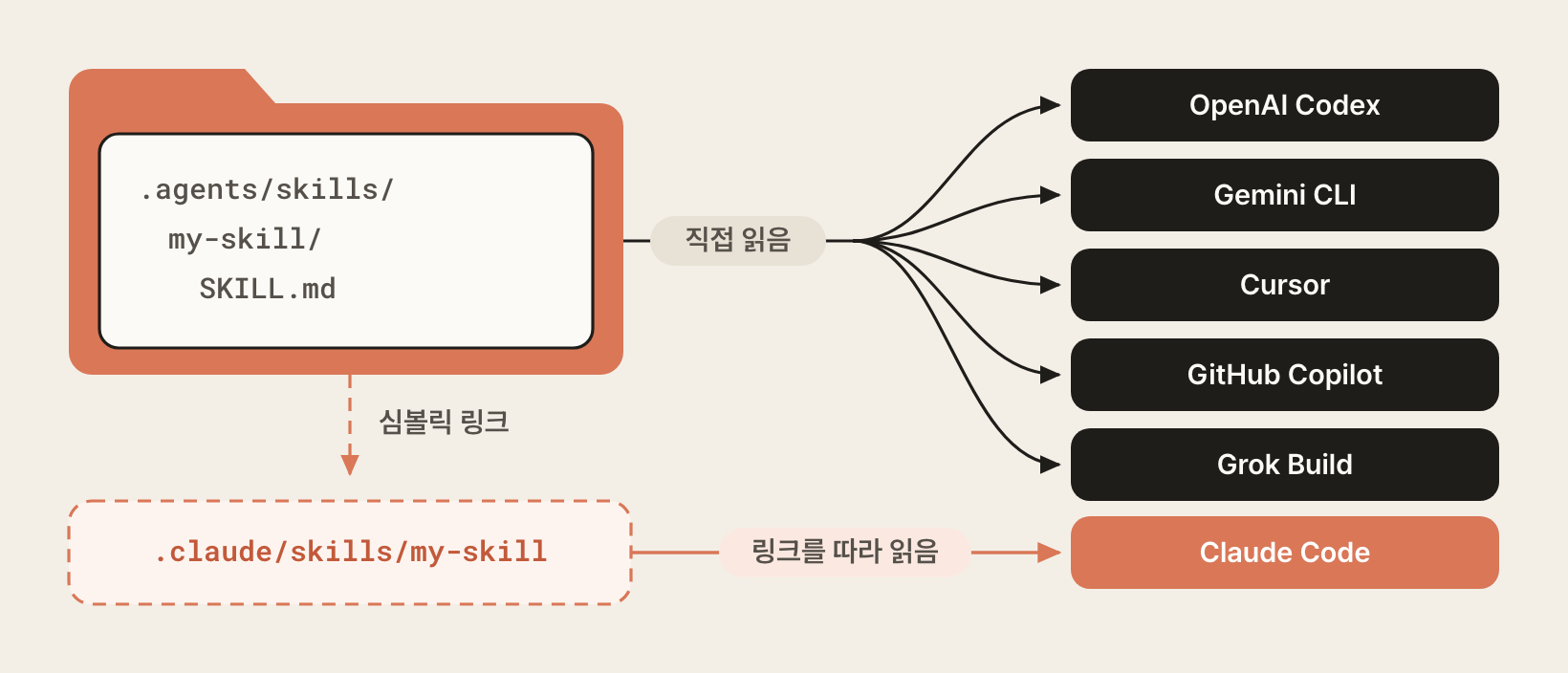
You can make symbolic links yourself with the ln -s command, but it works only on macOS and Linux, and you have to get the relative path from the link's location right for each skill.
With @heropy/symlink, you can link the skills in two folders all at once, regardless of the operating system.
You can run it with npx without installing it, and it requires Node.js 20.19 or later.
For more about the library, see Syncing One Skill Across Multiple AI Agents.
Set up project skills as follows.
1234567# After writing .agents/skills/commit-helper/SKILL.md npx @heropy/symlink .agents/skills .claude/skills ## mkdir .claude/skills ## link .claude/skills/commit-helper -> ../../.agents/skills/commit-helper ## ## 1 linked
A link is created in .claude/skills/ for each skill in .agents/skills/, and the .claude/skills/ folder is created too if it doesn't exist.
On macOS and Linux, links are created with relative paths, so they don't break even if you clone the committed repository to a different location.
If you add a skill, run the same command again.
Skills that are already linked stay as they are, and only the new skills are linked.
In the same way, on macOS, keep User scope skills in ~/.agents/skills/ and link them to ~/.claude/skills/.
In Windows PowerShell, use the $HOME variable, which holds your home path, instead of ~.
12345# macOS npx @heropy/symlink ~/.agents/skills ~/.claude/skills # Windows PowerShell npx @heropy/symlink $HOME\.agents\skills $HOME\.claude\skills
If you created the .claude/skills/ folder in the middle of a session, you need to restart Claude Code for it to be recognized.
If the linked skills show up in /skills with the project or user scope, everything is working.
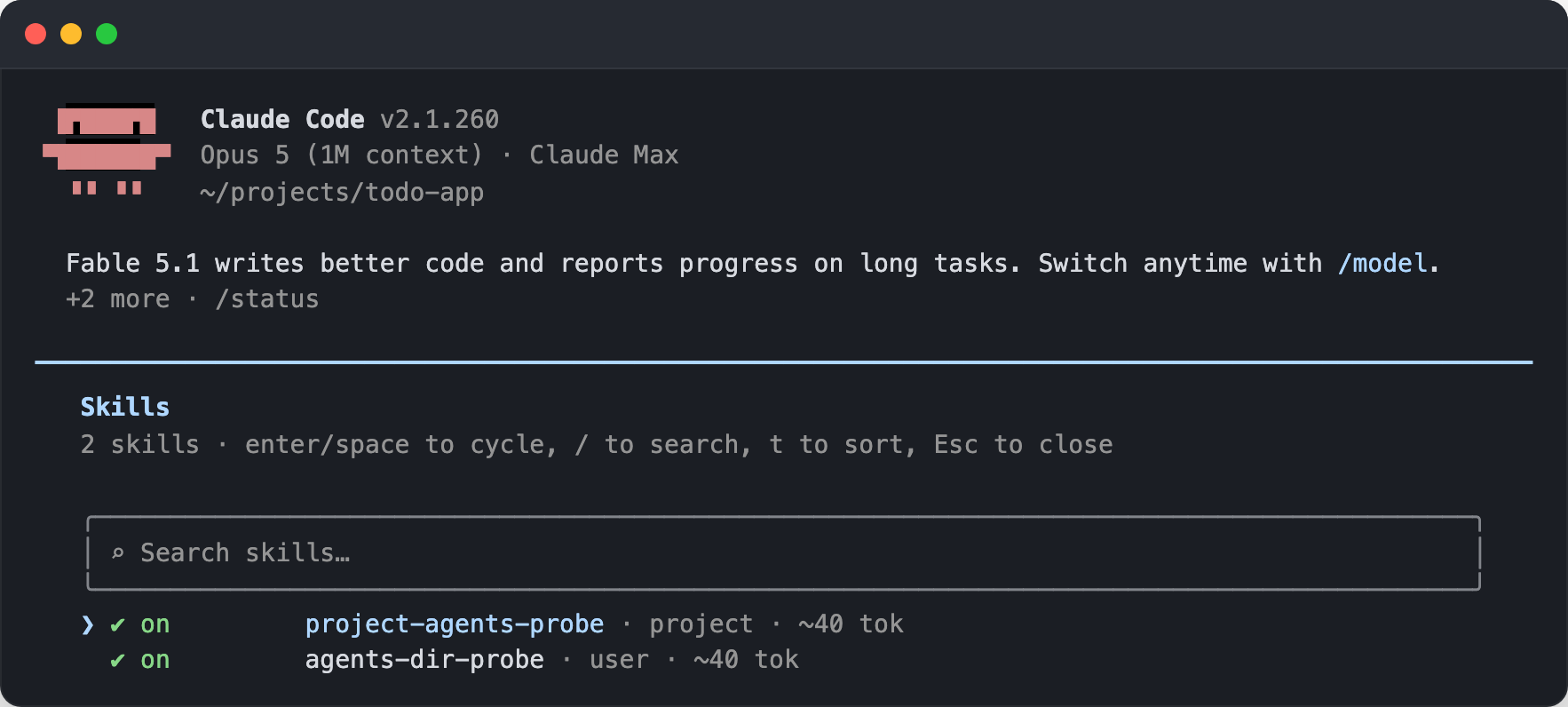
So that other tools can read it without problems, use only the six fields defined in the standard in the SKILL.md frontmatter: name, description, license, compatibility, metadata, and allowed-tools.
Fields that work only in Claude Code, such as disable-model-invocation, context, and paths, are ignored by other tools or cause an error when you upload the skill to claude.ai.
Write shell scripts to be POSIX-compatible, and write the instructions in general-purpose Markdown that doesn't assume any particular tool's features.
12345678910111213--- name: commit-helper description: Analyzes Git changes and generates messages in the Conventional Commits format --- ## Role Expert in writing Git commit messages ## Types - feat: New feature - fix: Bug fix - docs: Documentation changes - refactor: Code refactoring
# Installing and creating skills
You don't need to write every skill you need yourself.
You can find and install skills that others have published, or use a skill that makes skills to have Claude write one for you.
skills.sh is a public skill directory run by Vercel.
It ranks skills published in GitHub repositories by install count, and the rankings are compiled from anonymous statistics collected when skills are installed with the skills CLI.
On a skill's page, you can see the install command, the SKILL.md content, the source repository, and the security scan results.
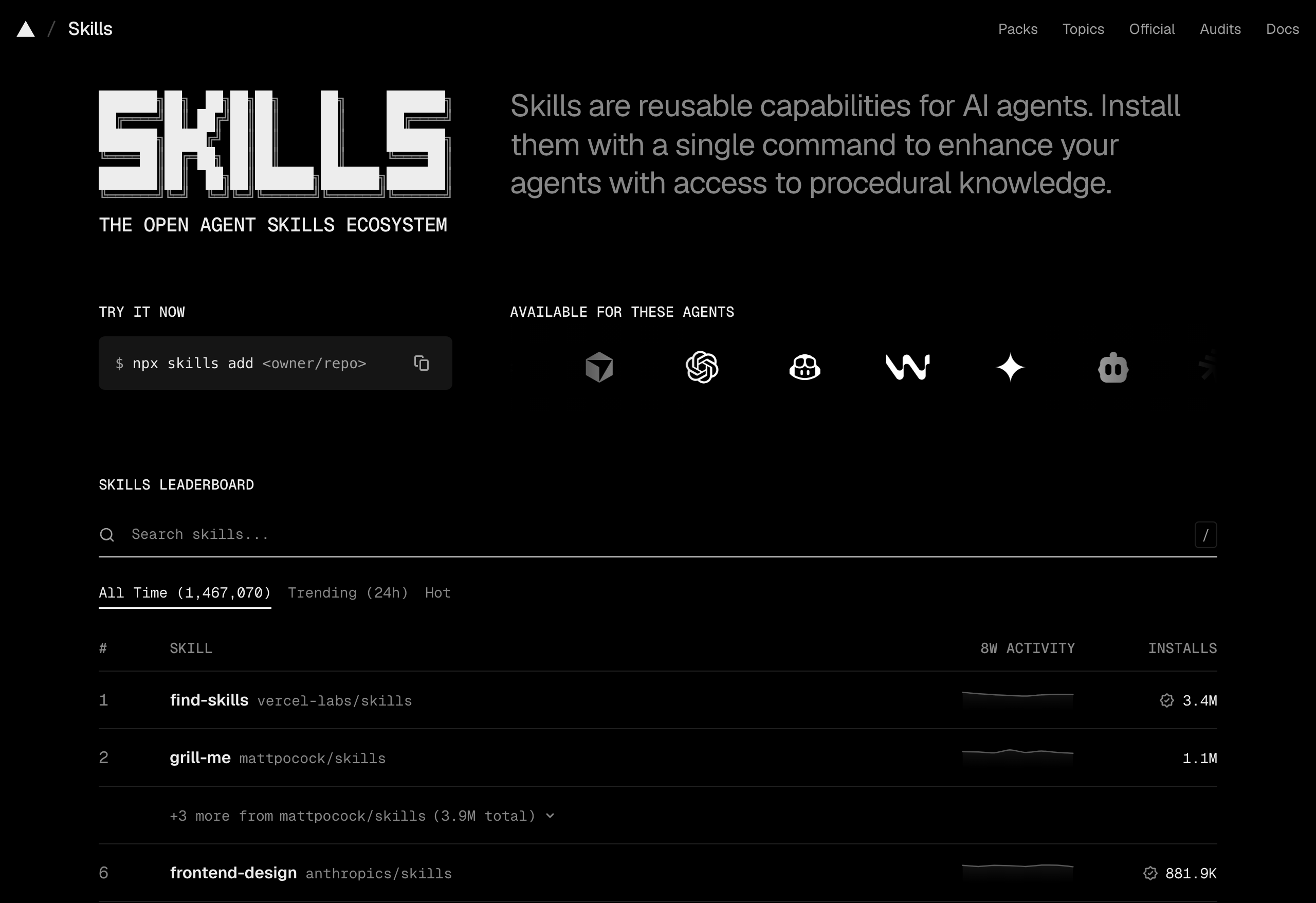
Skills on skills.sh are installed with the skills CLI.
Specify a GitHub repository in the owner/repo format, and if the repository has several skills, specify the skill to install with the --skill option.
Skills and agents you don't specify with options are chosen while the command runs.
12345678910111213# Install in the current project npx skills add vercel-labs/skills --skill find-skills # Install in the personal scope to use it in all projects npx skills add vercel-labs/skills --skill find-skills -g # Only list the skills in a repository npx skills add anthropics/skills --list # Check, update, and remove installed skills npx skills list npx skills update npx skills remove find-skills
The install location depends on the agents you choose.
If you choose only Claude Code, the skill is copied directly into .claude/skills/, and if you choose it along with other agents, the original is installed in .agents/skills/ and a symbolic link is created in .claude/skills/.
This builds the setup described in Sharing skills with other agents automatically, and with the -g option, the same setup is built in ~/.agents/skills/ and ~/.claude/skills/.
When you install in a project, the sources of the installed skills are recorded in the skills-lock.json file.
find-skills, the most installed skill on skills.sh, is a skill that finds the skills you need.
After you install it, if you ask whether there is a skill worth using for a particular task, Claude can invoke this skill and search for related skills with the npx skills find command.
The skill's instructions tell Claude to check the skills.sh rankings first, recommend skills after checking the install counts and repository sources in the search results, and run the install command too if the user wants.
1Find out whether there are any skills I could use when designing frontend screens.
The install command in the instructions installs to the personal scope (-g) without a confirmation step (-y).
To install only in the current project, tell Claude the install scope when you ask it to install.
You can also search directly in the terminal without the skill.
12345npx skills find frontend design ## anthropics/skills@frontend-design 882.1K installs ## leonxlnx/taste-skill@design-taste-frontend 473.8K installs ## pbakaus/impeccable@frontend-design 54.5K installs ## smithery.ai@frontend-design 6.2K installs
skill-creator is a skill published by Anthropic that helps you create new skills and improve existing ones.
When you describe the skill you want to make, Claude asks about its purpose, when it should be invoked, and the output format, and then writes a draft SKILL.md.
If you ask it to turn the work you just did in the conversation into a skill, it writes a draft based on the tools used in the conversation, the order of the work, and the changes the user made.
In Claude Code, you can install it as a plugin from the official marketplace.
1/plugin install skill-creator@claude-plugins-official
To use it with other agents too, install it with the npx skills add anthropics/skills --skill skill-creator command.
If you installed it as a plugin, you invoke it directly with /skill-creator:skill-creator, and if you installed it with the skills CLI, with /skill-creator; it is also invoked automatically when you ask for a skill to be made.
1Use skill-creator to make a skill that analyzes Git changes and writes commit messages in the Conventional Commits format.
After the draft is written, you can go on to evaluate it.
It runs test prompts in subagents, both with and without the skill, and shows the results comparing pass rate, time taken, and token usage in a browser view.
Test cases are saved in the skill folder's evals/evals.json, and it also includes a feature that repeatedly refines the description so that the skill is invoked automatically on requests that need it.
1Use skill-creator to evaluate the commit-helper skill.
# Agents
There are four ways Claude Code handles several tasks at once.
What separates the four is who coordinates the work.
If Claude splits off side tasks within one conversation and gathers the results, it's Sub Agents; if a script takes over that coordination instead of Claude's turn-by-turn judgment, it's Dynamic Workflows.
If Claude makes a plan, divides the work among several sessions, and supervises the progress, it's Agent Teams; if you hand off independent tasks and check their status later, it's Agent View.
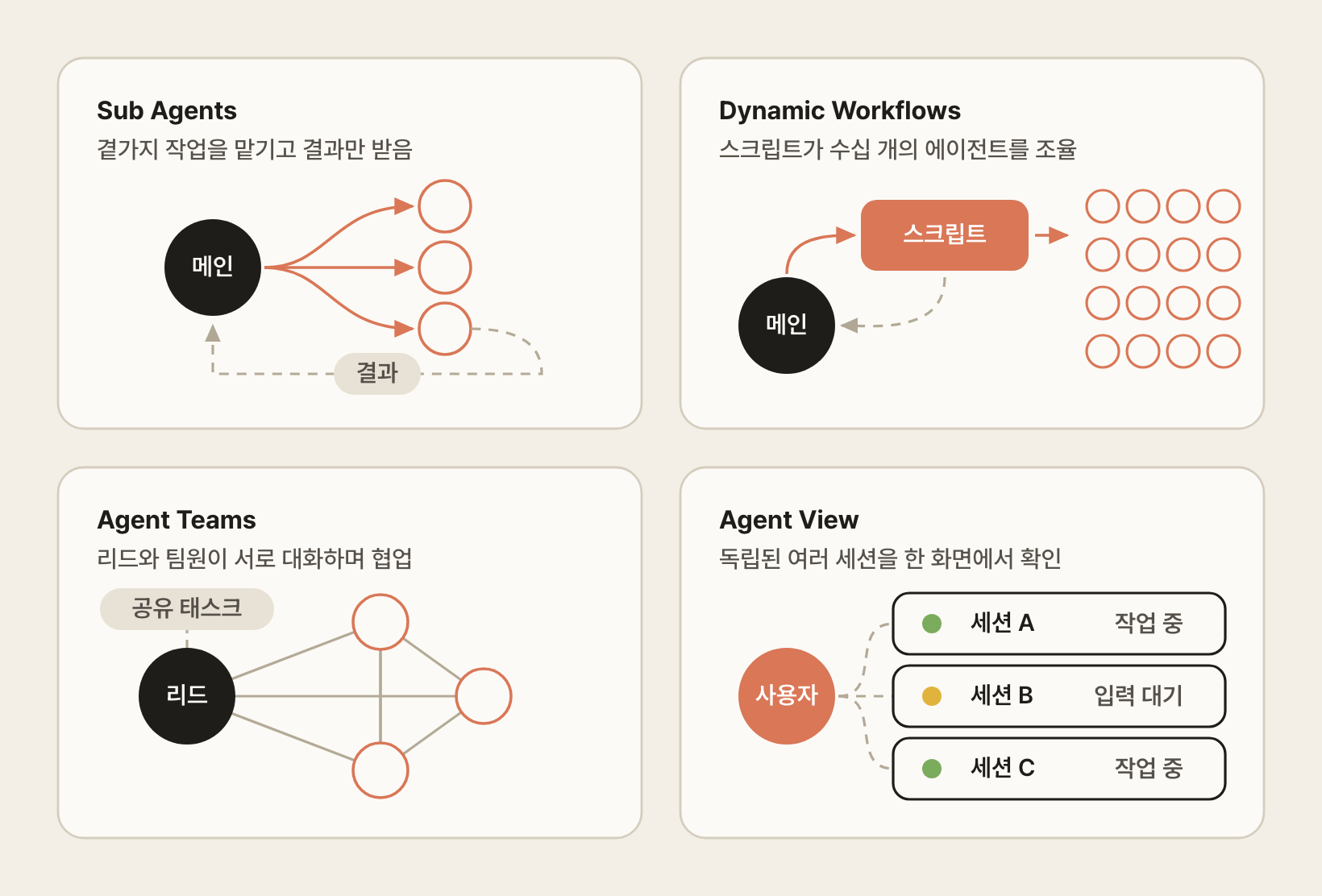
# Sub Agents
Sub Agents are specialized, independent AI assistants for specific tasks.
They run in an environment separate from the main Claude session, so they keep the main context from being polluted with unnecessary information during complex tasks.
For example, when exploring a large codebase or running repeated tests, a subagent does the work independently and passes only the key results to the main session.
A subagent works in its own context window, separate from the main conversation.
What it starts with is the agent's system prompt, the task instructions Claude wrote, and CLAUDE.md (except for the built-in Explore and Plan); it doesn't get the conversation history so far, or the files read and skills used in the main conversation.
The files it reads and the command output it gets during the work pile up only in the subagent's context, and only its final report is passed to the main conversation.
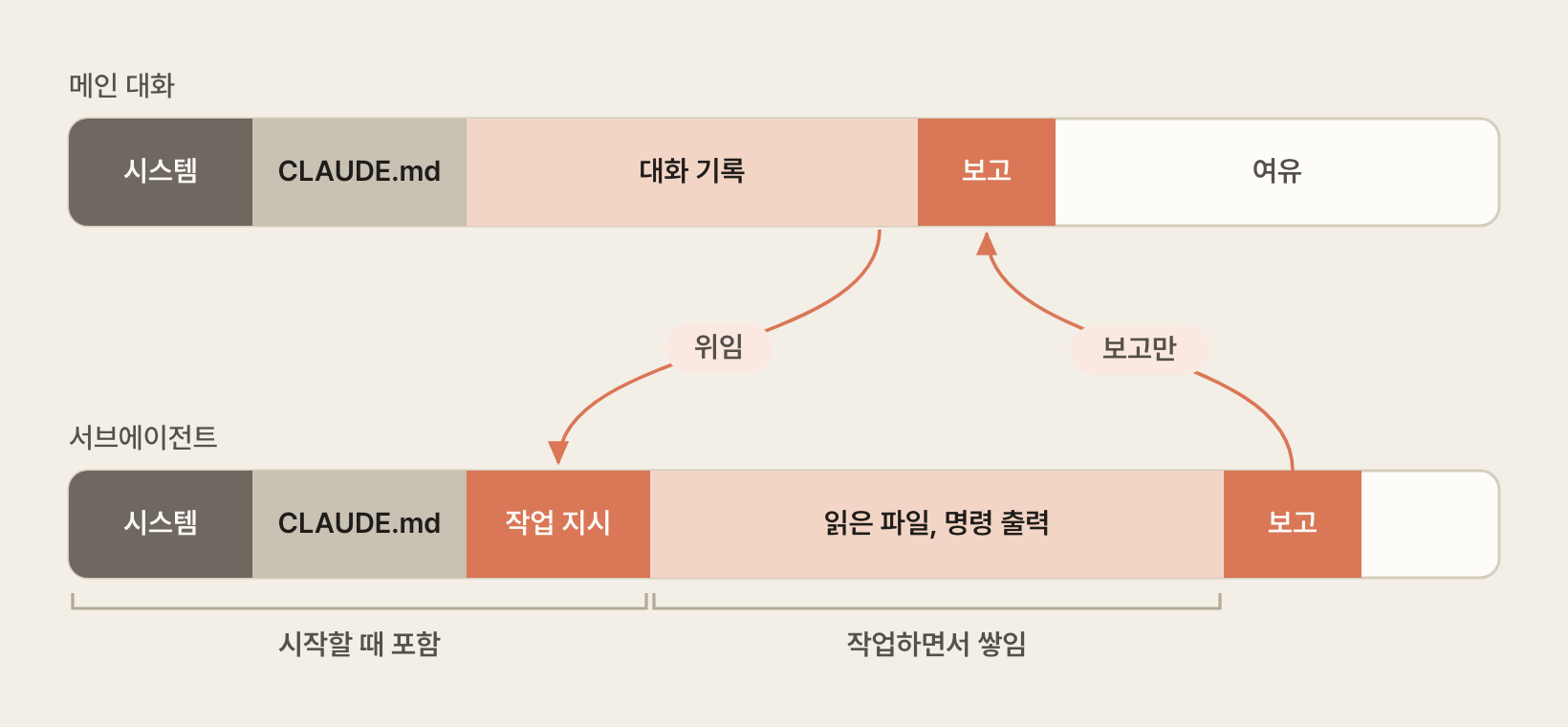
For a side task that also needs to know the conversation history, you can start a subagent that inherits the conversation so far with /subtask task description, and in this case too, only the final result is passed to the main conversation.
Keeping the work out of the main context doesn't mean it uses no tokens.
Even files already read in the main conversation have to be read again if needed, so it is more efficient to handle small tasks directly in the main conversation.
The main benefits are as follows.
- Prevents context pollution: runs in an independent session without affecting the main conversation
- Delegates repetitive work: hand off recurring tasks such as code reviews and test generation
- Parallel processing: handles several tasks at the same time
The built-in agents are as follows.
| Agent | Description |
|---|---|
Explore |
A fast, read-only agent optimized for searching and analyzing codebases |
Plan |
A research agent used to gather context before presenting a plan in Plan Mode |
general-purpose |
A capable agent for complex, multi-step tasks that need both exploration and action |
claude-code-guide |
An agent for answering questions about Claude Code features |
statusline-setup |
An agent used when setting up the status line with the /statusline command |
How to define the workers you need yourself is covered in Custom Agents.
# Dynamic Workflows
A dynamic workflow is a script that orchestrates subagents at scale.
When you describe a task, Claude itself writes an orchestration script for that task, and the runtime runs it in the background.
You can keep using the session while it runs, and you check its progress with the /workflows command.
The key point is that the script itself holds the loops, branches, and intermediate results.
Each agent's result is stored in a script variable instead of piling up in Claude's context, so only the final result comes into Claude's context.
Thanks to this structure, a single run can scale to tens or hundreds of agents.
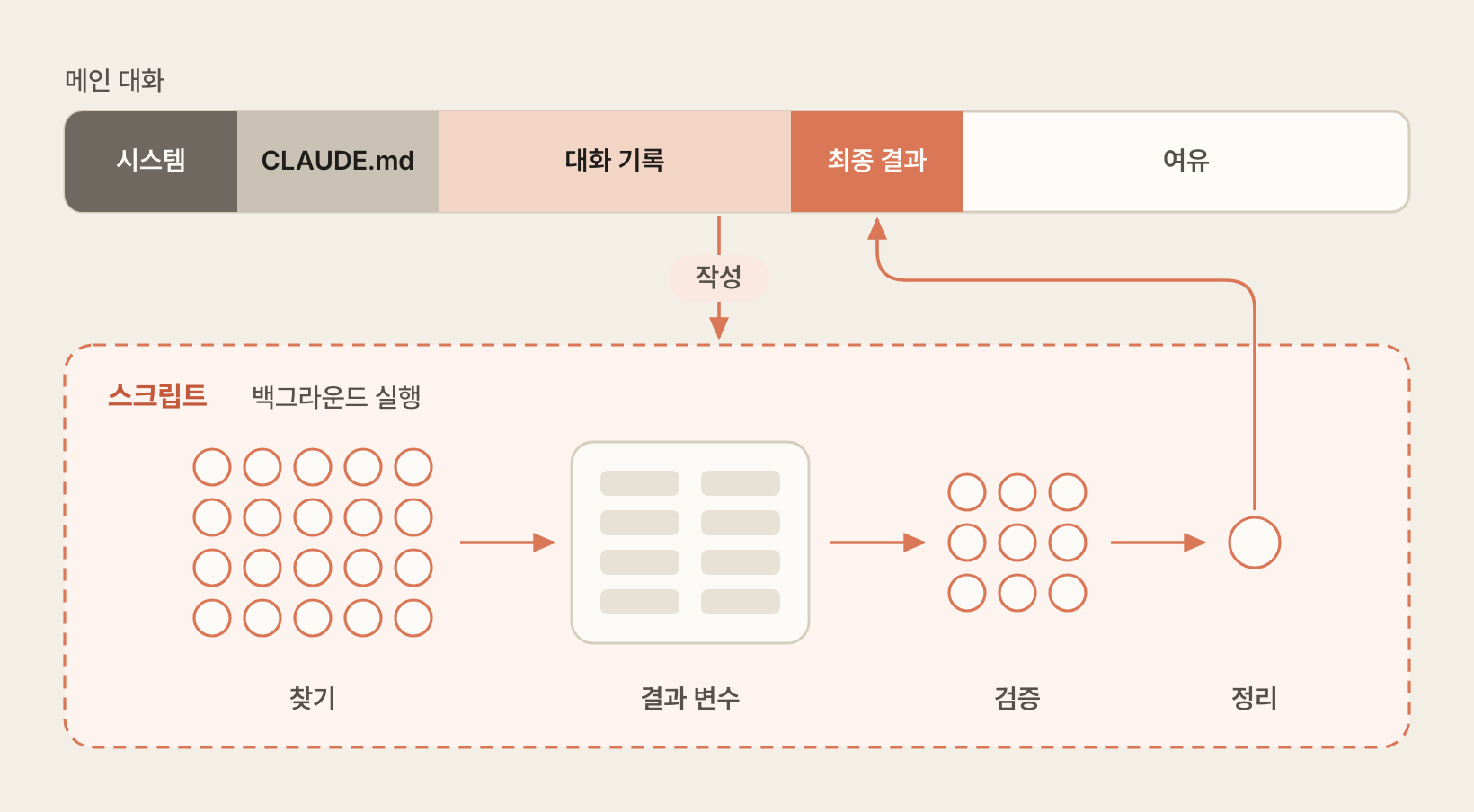
- Concurrency is limited to
min(16, number of CPU cores - 2)agents. - A single run can create up to 1,000 agents.
- Agents in a workflow don't communicate with each other; each one reports its results only to the script.
- The execution structure is fixed in code before the run starts, so you can't change direction through conversation while it runs.
It is suited to large batch jobs, such as a bug sweep across the whole codebase, migrating hundreds of files, or research that cross-checks several sources.
| How to run | Script | Scope |
|---|---|---|
Include ultracode in the prompt |
Claude writes it on the spot | That one prompt |
/effort ultracode or Tab on the /effort screen |
Claude writes it each time | The whole session |
Workflow commands such as /deep-research |
Already written | Whenever you run the command |
If you put the ultracode keyword in a prompt, only that one prompt is handled as a workflow, and the session's effort setting is left untouched.
A natural-language request such as "Use a workflow" is handled the same way.
1ultracode find missing input validation in all API endpoints
/effort ultracode is a session setting that turns on automatic decisions about using workflows.
Starting with version 2.1.284, it became a toggle separate from the effort level, so it turns on at the current level without changing the effort level to xhigh.
On the /effort screen, switch the Ultracode toggle with Tab and apply it with Enter.
From then on, Claude decides for itself whether to use workflows for every task, and a single request can lead to several workflows for understanding, modifying, and verifying, so it consumes a lot of tokens.
When you go back to everyday work, turn it off with /effort ultracode off.
You can also start with it turned on from the beginning with claude --effort ultracode, in which case the effort level is set to xhigh as well.
To start every session with ultracode on, set "ultracode": true in a settings file.
/deep-research is a workflow script built into Claude Code that runs web searches from several angles, cross-checks them, and organizes only the content that passes into a report with citations.
It is tailored to one specific task: web research.
1/deep-research Trends in frontend state management libraries in 2026
Once a run starts, check and control its progress in /workflows.
It shows both running and completed workflows, and you can check the progress of each phase and the status of each agent.
There are seven statuses: Queued, Running, Completed, Failed, Skipped, Blocked, and Stopped.
| Shortcut | Function |
|---|---|
↑, ↓ |
Select a phase or agent |
→, Enter |
Expand the selected item |
←, Esc |
Go back up a level |
j, k |
Move through the list and scroll the content |
p |
Pause and resume |
x |
Stop the workflow (phase view) or skip the selected agent (agent view) |
r |
Retry a failed agent |
f |
Filter by status |
s |
Save the workflow |
Saving with s keeps the script Claude wrote as a file, with a name and scope you choose.
The project scope saves it to .claude/workflows/name.js and the user scope to ~/.claude/workflows/name.js, and in later sessions you run it right away with the /name command.
It is a way to turn tasks you do often into your own workflow commands, like /deep-research.
You control how many agents are created at once with the "Dynamic workflow size" item in /config.
The default, medium, aims for fewer than 10 (the default on the Pro plan is small), small for fewer than 5, and large for fewer than 50, while unrestricted lets Claude decide based on the size of the task.
You can also set it in a settings file as follows.
123{ "workflowSizeGuideline": "large" }
# Agent Teams
Agent Teams is a feature in which several Claude Code instances work together as one team.
One session acts as the lead, coordinating the work, assigning tasks, and combining the results.
Teammates each work in their own independent context window and can message each other directly.
- The lead and teammates manage the work with a shared task list.
- The lead can assign tasks directly, or teammates can pick up the remaining tasks themselves (self-claim).
- A team of 3-5 is recommended for most tasks.
- By default, teammates run inside the same terminal, and you select one in the agent panel below the input to talk to it. If you set
teammateModetoauto, you can open each teammate in its own split pane in tmux or iTerm2.
It is suited to debugging split across different hypotheses, implementing features that need coordination across layers such as the frontend and backend, and research and review work.
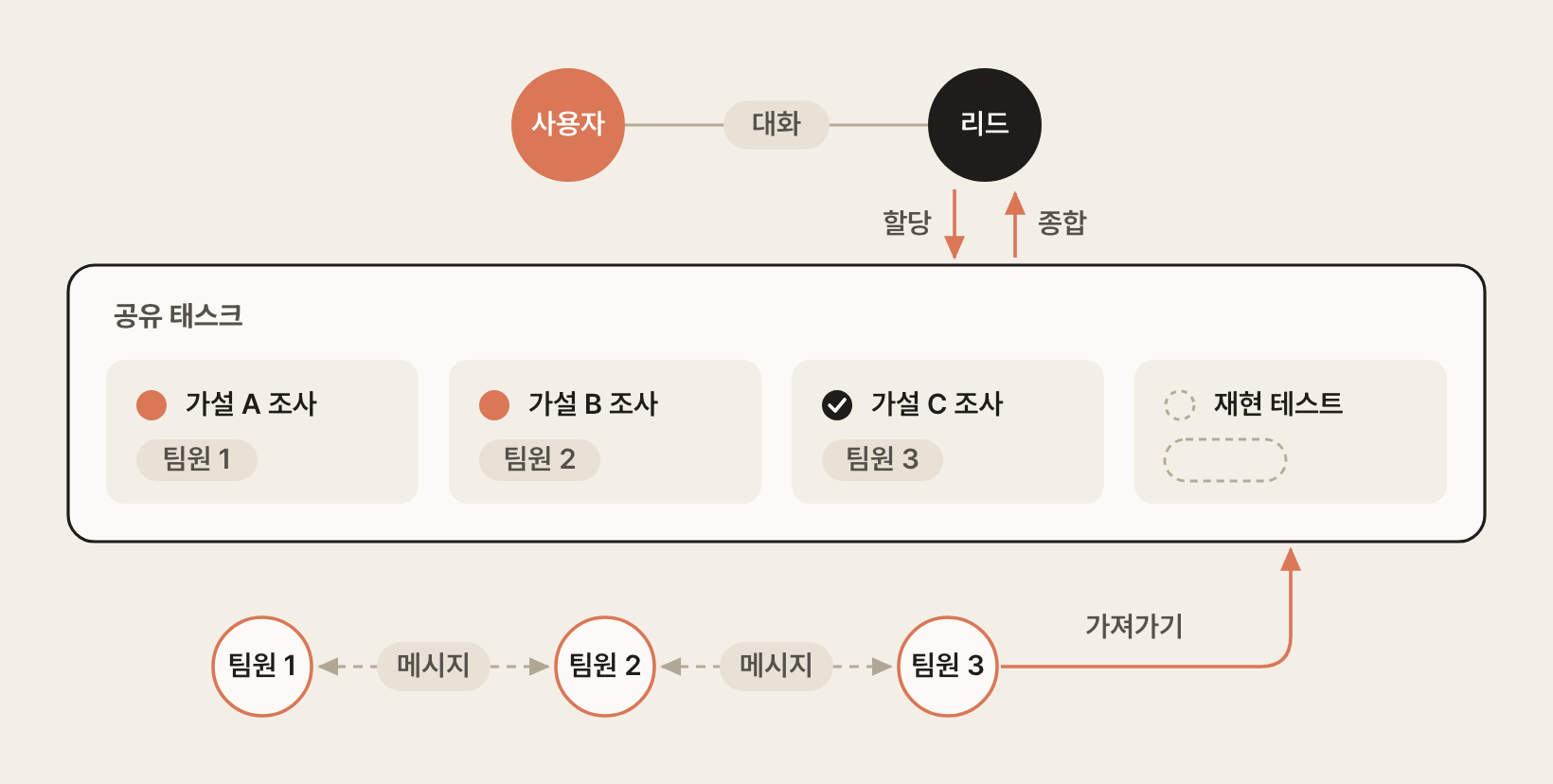
Enable it by setting the CLAUDE_CODE_EXPERIMENTAL_AGENT_TEAMS environment variable.
12345{ "env": { "CLAUDE_CODE_EXPERIMENTAL_AGENT_TEAMS": "1" } }
You don't need a special command; just ask for a team in natural language.
1Create 3 teammates and have each of them investigate the cause of this bug with a different hypothesis
Compared with Dynamic Workflows, both features use multiple agents, but they differ in who holds the plan.
A dynamic workflow is a plan turned into code.
The script itself holds the loops, branches, and intermediate results, so only the final result remains in Claude's context.
In Agent Teams, on the other hand, the lead agent acts as the orchestrator, deciding what to do next on each turn and managing progress with a shared task list.
| Aspect | Dynamic Workflows | Agent Teams |
|---|---|---|
| Who holds the plan | Script (code) | Lead agent (turn-by-turn decisions) |
| Scale | Tens to hundreds of agents at once | A small number (3-5) of long-running teammates |
| Communication between agents | None (results reported only to the script) | Direct messaging between teammates |
| Where intermediate results live | Script variables | Shared task list |
| User intervention during a run | Only pausing, stopping, and skipping agents | Possible (talk to the lead) |
| Suited for | Large batch jobs (bug sweeps, migrations, cross-checking research) | Work that needs collaboration (debugging split by hypothesis, coordination across layers) |
# Agent View
Agent View is an interface for starting and managing several background sessions on one screen.
It shows a list of what each session is doing and which sessions are waiting for your input.
Sessions run detached from the terminal, so they keep running in the background even after you exit Agent View.
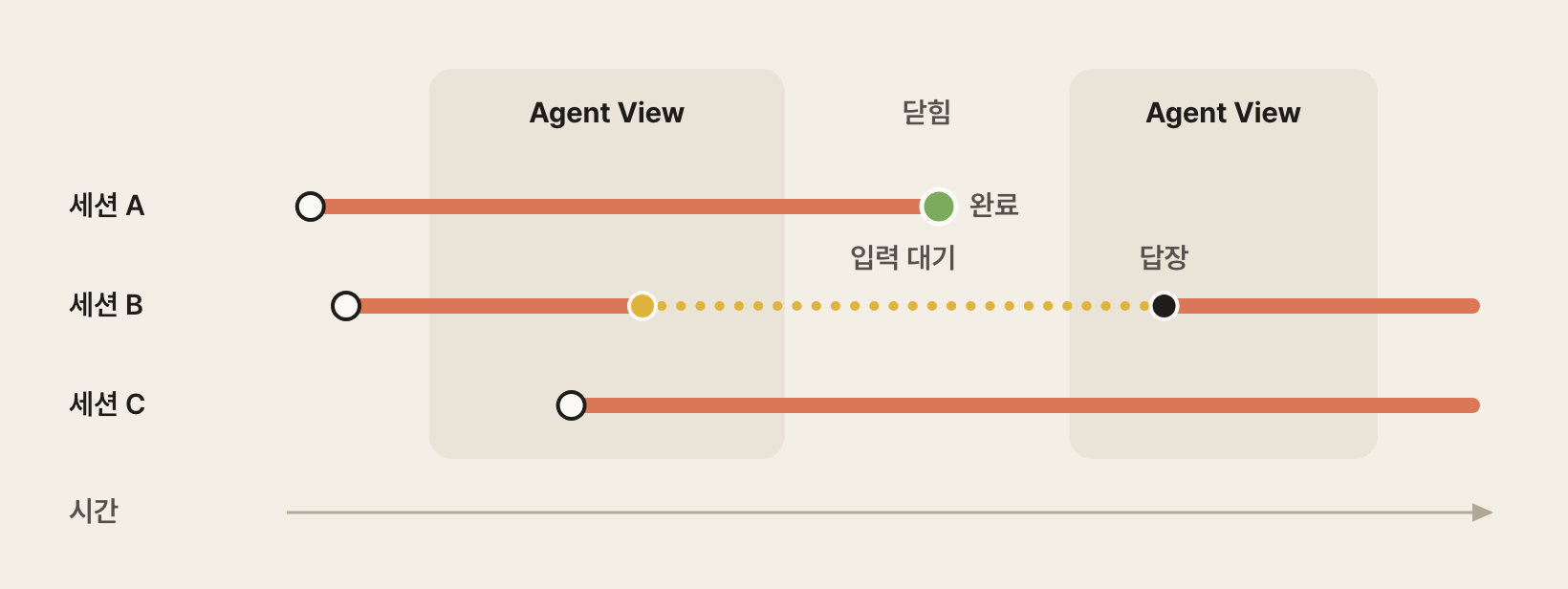
Run it with the following command in the terminal.
1claude agents
Or, in a regular session, you can press the ← key to switch it to a background session and move into the Agent View interface.
You can also start a background session from the command line with claude --bg "task description", or create a new session by describing a task in Agent View's input.
Each session shows its status and a summary of its progress, so you can easily find the sessions that need your attention.
The following screen shows two background sessions, each waiting for approval of a shell command.
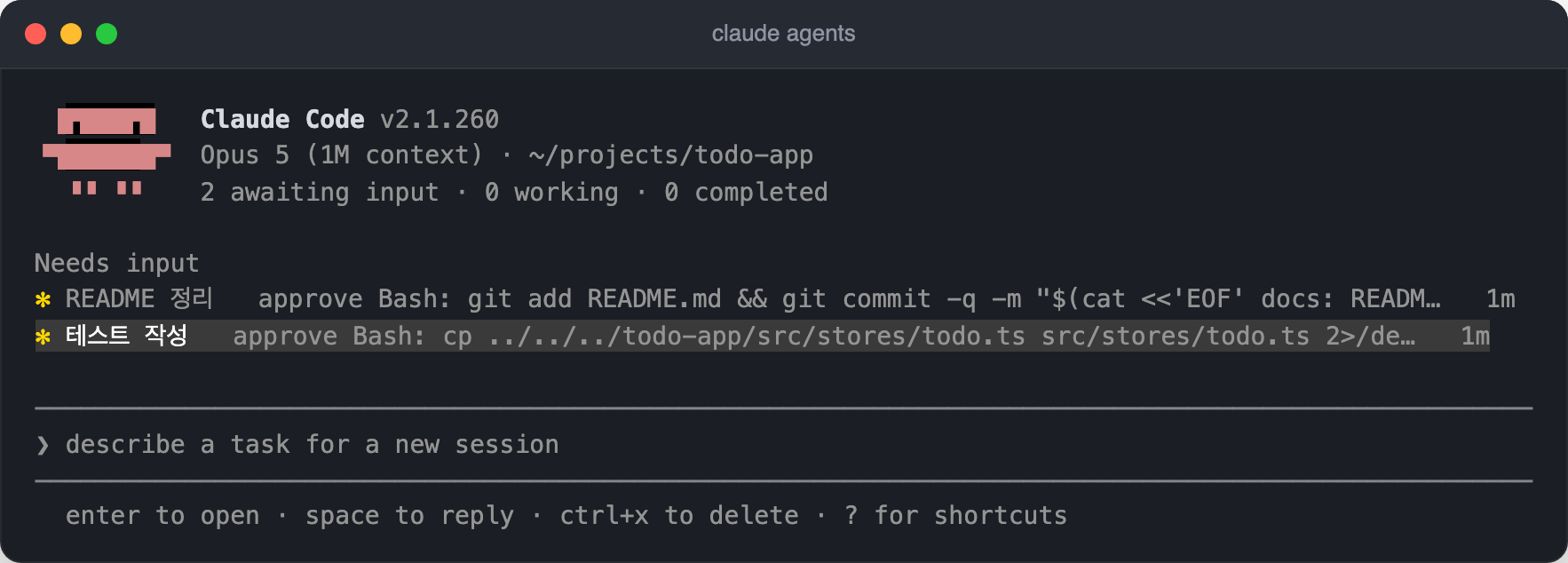
| Status | Display | Meaning |
|---|---|---|
| In progress | Working | The session is running a task |
| Waiting for input | Needs input | Waiting for user input, such as an answer to a question or a permission approval |
| Idle | Idle | Waiting for the next prompt |
| Done | Completed / Done | The task completed successfully |
| Failed | Failed | Ended with an error |
| Stopped | Stopped | Stopped with Ctrl + X or the claude stop command |
The main shortcuts are as follows.
| Shortcut | Function |
|---|---|
↑, ↓ |
Move between sessions |
→, Enter |
Attach to the selected session |
Space |
Check the session's status and reply in the preview panel |
Esc |
Close the panel or exit Agent View |
Ctrl + R |
Rename the session |
Ctrl + T |
Pin to or unpin from the top of the session list |
Ctrl + S |
Switch between grouping by status and by directory |
Ctrl + F |
Find a session by name (type an n:text filter in the input) |
Ctrl + X |
Stop the session (press again within 2 seconds to delete it) |
? |
Show all shortcuts |
# Custom Agents
Besides the built-in agents in Sub Agents, you can also define the workers you need yourself.
A custom agent is defined in a single .claude/agents/name.md file.
Like SKILL.md in Skills, the file consists of YAML frontmatter and a Markdown body, but its role is different.
A skill loads instructions into the conversation that is in progress, while an agent creates a separate worker with its own context.
In the frontmatter, you write what this worker does, when it should be called, and which tools it can use.
The body becomes the system prompt passed to that worker.
An agent's job doesn't have to be development work such as code review or testing.
Let's take the process of writing and reviewing business documents such as announcements, reports, and proposals as an example.
First, turn your team's document writing rules into a skill, the way we saw in Skills.
12345678910--- name: writing-guide description: The team's rules for writing business documents. Use when writing or editing business documents such as announcements, reports, and proposals. document, report, writing. --- - Put the conclusion and what the reader needs to do first, in the opening paragraph. - Write sentences in the formal polite style (합쇼체, ending in -합니다), with only one point per sentence. - Write dates as `Sep 25 (Fri)` and amounts as `KRW 12,000,000`. - Spell out abbreviations the first time they appear. Example: key performance indicator (KPI) - Instead of vague expressions such as 'as soon as possible' or 'will actively review', write a date and a person in charge.
This skill is useful on its own, even without an agent.
If you make a request like the following in the main conversation, Claude loads the skill and writes a draft that follows the rules, and you finish the document in the same conversation by fixing the wording or adding content.
Refining a document back and forth with the user like this needs the earlier conversation, so it is handled in the main conversation.
1Write a draft announcement for the second-half workshop based on meeting_notes.md
Once the document is finished, it needs a review.
But the main conversation that helped write the draft knows all the writing intent and the editing process, so as it reads, it can fill in explanations missing from the document with what it already knows.
As we saw in Sub Agents, a subagent receives only the document and the task instructions, without the conversation history, so it reviews under the same conditions as someone seeing the document for the first time.
So define the review as a separate agent, as follows.
1234567891011121314151617181920212223242526272829303132--- name: doc-reviewer description: Reviews business documents such as reports, proposals, emails, and announcements from the perspective of a first-time reader and reports suggested fixes. Use when a review, critique, or feedback on a document is requested. review, proofread, feedback. model: sonnet skills: - writing-guide --- You are a planning and communications expert with 15 years of experience reviewing proposals, reports, and external announcements. Assume you don't know the author's intent, and judge only by what is written in the document, from the perspective of a reader seeing it for the first time. ## Understanding the document Before reviewing, determine the document type (report, proposal, email, announcement), the target readers, and the purpose (requesting a decision, sharing information, requesting cooperation). If this is hard to determine, also state the basis for your guess. ## Review criteria - Places that break the rules of the writing-guide skill - Unsupported claims, and places where the evidence and the conclusion don't connect - Places where the same term, number, or date is written differently within the document - Places where readers can't tell what they need to do and by when - Expressions that could cause problems if made public - Checks by type: for reports, the sources of figures and the basis for comparison; for proposals, the flow from problem definition to expected benefits and costs; for emails, whether the subject line alone tells readers what it's about; for announcements, the date and time, place, audience, and contact ## Report format On the first line, write the document type, readers, and purpose, and judge in two sentences or fewer whether it can be sent as is. Report problems split into 'Must fix' (problems that lead to misunderstandings or wrong decisions) and 'Recommended fix' (problems that weaken how well the message gets across). For each problem, write the original text, the problem, and an example fix, one line each. ## Notes - Don't edit the document or rewrite the whole thing; write only example fixes for the parts you point out. - For a category with no applicable problems, write "None" and don't force anything in. - Don't judge figures or claims whose accuracy you can't verify; mark them as "Needs checking".
Each part of the agent file is loaded in a different place and at a different time.
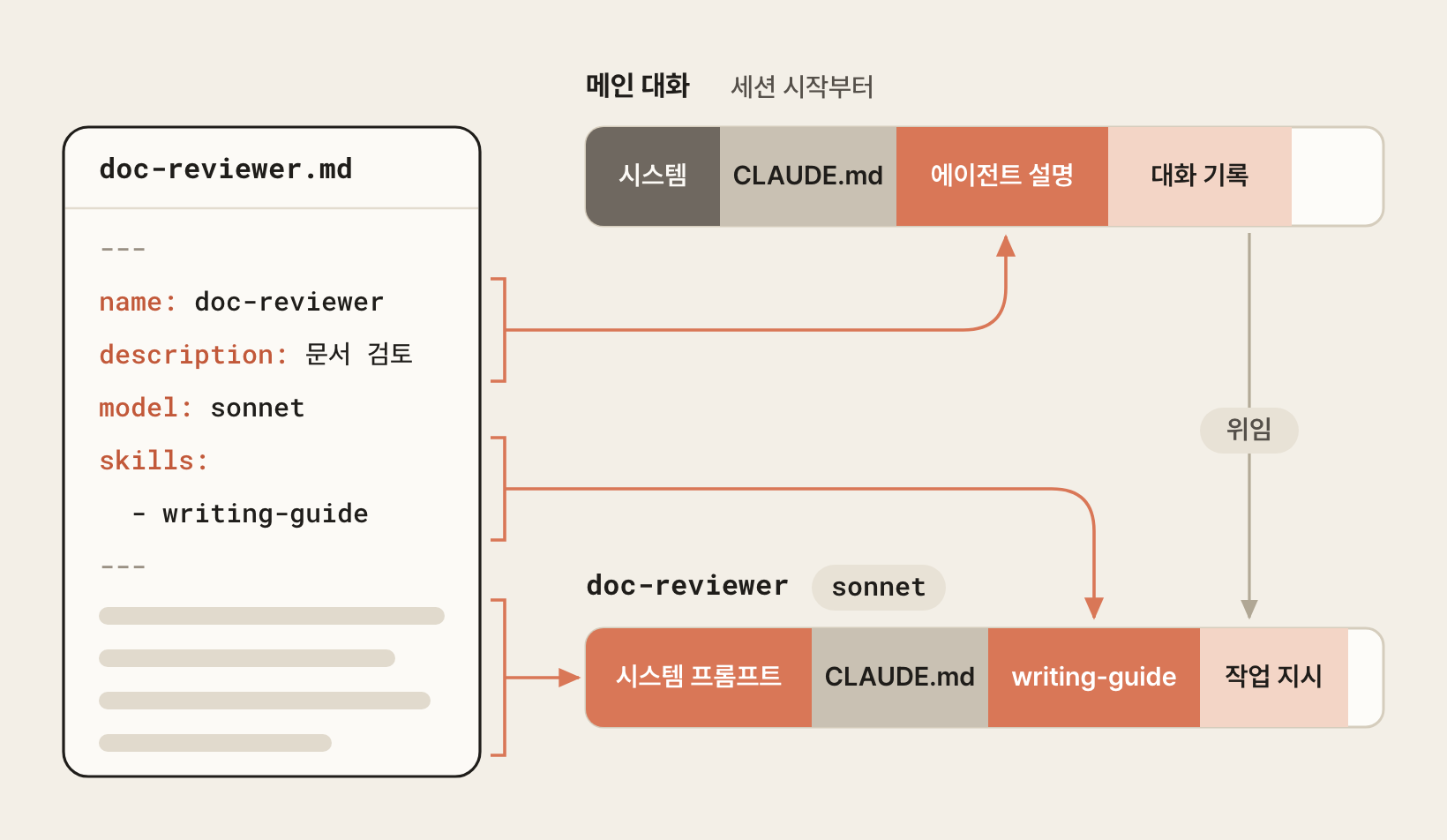
As with skills, the description is what Claude uses to decide, from a request, whether to delegate to this agent.
The descriptions of all agents are always loaded into the context when a session starts, so write only what the agent does and when to use it, concisely.
This agent has no tools field, which lists the tools it can use.
If you omit tools, it inherits all the built-in tools and MCP tools available in the main conversation, so if you connected Google Drive or Notion through connectors, it can also review Google Docs, Word, and PDF documents and Notion pages without any extra setup.
Conversely, if you write tools, only the tools on that list can be used, so you also have to specify connector tools by server name, such as mcp__claude_ai_Notion.
Keeping the reviewer from editing the document is handled by the instructions in the body's 'Notes', and to block the tools themselves, list the tools to exclude, such as Edit, Write, in the disallowedTools field.
Even when a tool is available, actually running it may ask for approval depending on the permission mode and permission rules.
For an MCP server that only this agent uses and the main conversation doesn't, you can also define it in the mcpServers field in the same format as .mcp.json, instead of registering it for the session.
The server connects when the agent starts and disconnects when the work is done, and the server's tool descriptions aren't loaded into the main conversation, which saves context.
The writing-guide specified in skills is the skill we made earlier.
A subagent starts without the conversation history, so skills used in the main conversation aren't passed to it either, but for skills specified in skills, the entire SKILL.md body is loaded into the context when the agent starts.
Because the rules are split out into a skill, the same rules serve as the standard both when the document is written in the main conversation and when the agent reviews it.
If you had written the rules only in the agent's body, they wouldn't apply to drafts written in the main conversation, and you'd have to edit both places every time the rules changed.
| Aspect | writing-guide skill | doc-reviewer agent |
|---|---|---|
| What it holds | Document writing rules | Review criteria and report format |
| Where it runs | Main conversation | Separate context |
| Conversation history | Used | Not used |
| When it's used | When writing and editing a draft | When reviewing a finished document |
If you omitted tools, as in this example, or included the Skill tool in tools, the agent can also invoke skills you didn't specify when it needs them.
Skills whose automatic invocation is turned off with disable-model-invocation: true can't be specified in advance.
The body is the agent's system prompt, so write concretely what it should base its judgments on and in what form it should report the results.
Subagents aren't given the AskUserQuestion tool, so they can't ask the user questions during the work.
That's why, like 'Understanding the document' in the example, the body decides in advance how to proceed in situations that are hard to judge.
When the agent finishes its work, it passes only its final report to the main conversation, so also write in the body what to report and in what order, as in 'Report format'.
The main frontmatter fields are as follows.
| Field | Description |
|---|---|
name |
(Required) A unique name made of lowercase letters and hyphens |
description |
(Required) What it does and when to delegate to it; the basis Claude uses to decide on automatic delegation |
tools |
The tools it can use (default: inherits the main conversation's built-in and MCP tools); use mcp__server-name to specify a whole MCP server |
disallowedTools |
The inherited tools to exclude |
model |
The model to use: haiku, sonnet, opus, fable, inherit (default: the main conversation's model) |
effort |
The effort level, one of low, medium, high, xhigh, max (default: inherited from the session) |
permissionMode |
The permission mode (default: inherits the main conversation's mode) |
skills |
The skills whose entire body is preloaded at startup |
mcpServers |
Inline definitions of MCP servers used only by this agent, or the names of registered servers |
memory |
Set to one of user, project, or local to use a memory folder that persists after the session ends |
maxTurns |
The maximum number of turns; the agent stops when it goes over |
background |
Set to true to always run in the background (in interactive sessions, background is the default even if you don't set it) |
omitClaudeMd |
Set to true to start without the user, project, and local CLAUDE.md, while keeping managed policy files (v2.1.271 or later) |
hooks |
Hooks that work only in this agent |
You use agents the same way as skills.
If you make a request such as "Review the workshop announcement," Claude looks at the description and delegates to doc-reviewer.
To make sure a particular agent runs, type @ in the input and pick the agent from the list, or write @agent-name directly.
123@agent-doc-reviewer review the workshop_announcement.md file @agent-doc-reviewer review the 'Second-Half Workshop Guide' document in Google Drive @agent-doc-reviewer review the 'Q3 Marketing Plan' page in Notion
If you put @ in front of a document file, its content is loaded into the main conversation first, so pass only the path and let the agent read the file itself.
The following is part of the report from reviewing an announcement that has no reply deadline and gives the budget differently in two places.
The content and format of the report may differ each time it runs.
123456789101112131415161718192021Document type: Announcement (internal workshop notice) / Readers: All employees (estimated, no audience explicitly stated in the document) / Purpose: Announce the second-half workshop schedule and ask for RSVPs (request for cooperation) Verdict: The workshop date and the budget amount are written differently within the document, and there is no reply deadline, method, or contact, so it should not be sent as is. It needs another review after the above is corrected and the missing information is filled in. Must fix ... 3. Original: "Budget: KRW 120,000 per person" / "The budget per person, including meals, is KRW 150,000, and any excess cost is paid by the individual." Problem: The same item (budget per person) is written as both KRW 120,000 and KRW 150,000, so the exact base amount is unclear. Example fix: Unify it as "Budget: KRW 150,000 per person (including meals)" and delete "KRW 120,000" from the later sentence. 4. Original: "Please reply about your attendance as soon as possible." Problem: 'As soon as possible' is a vague expression that the writing-guide explicitly says to avoid, and with no reply deadline, method, or person in charge, readers can't tell by when and to whom they should reply. Example fix: "Please reply about your attendance to [name of person in charge, email/phone] by Sep 18 (Fri)." ... Recommended fix ... 3. Original: "Each team's KPI sharing and team-building programs have been prepared." Problem: The abbreviation KPI is not spelled out where it first appears (violates a writing-guide rule). Example fix: "Each team's key performance indicator (KPI) sharing and team-building programs have been prepared." ...
Once the review report reaches the main conversation, ask for the fixes right in the conversation where you were writing the draft.
The fixes are also made in the main conversation, so the document is edited based on the writing-guide skill's rules, just as when the draft was written.
1Revise the announcement to reflect the reply deadline and the budget mismatch pointed out in the review
Instead of writing the file yourself, you can also ask Claude to make it.
The /agents wizard that used to exist has been removed, so these two methods are the only ones you use now.
123Make a doc-reviewer agent in .claude/agents/. Its role is to review finished business documents from the perspective of a first-time reader, as a planning and communications expert with 15 years of experience, and to report problems split into 'Must fix' and 'Recommended fix' with the original text, the problem, and an example fix. Preload the writing-guide skill and use the sonnet model.
# Remote Control
Remote Control is a feature that lets you keep operating a Claude Code session running on your computer from claude.ai/code or the Claude mobile app (iOS, Android).
The session keeps running on your computer, so you can move away and continue the conversation from your phone or a browser on another computer, while still using your file system, MCP servers, and project settings as is.
Where it runs is exactly what sets it apart from Claude Code on the web, which runs in the cloud.
You need the following to use it.
- A Pro, Max, Team, or Enterprise plan (on Team and Enterprise, an admin must first turn on Remote Control in the Claude Code admin settings)
- A subscription account connected with
/login(it doesn't work with an API key or a token issued withclaude setup-token) - An environment that connects directly to
api.anthropic.com(Bedrock, Vertex AI, LLM gateways, and proxies aren't supported) - Having run
claudeat least once in the project folder to complete the folder trust check
Running /remote-control in an interactive session shows the session URL and a QR code, and /rc active appears in the bottom status line.
Open the URL in a browser or scan the QR code with your phone, and the same conversation continues as is.
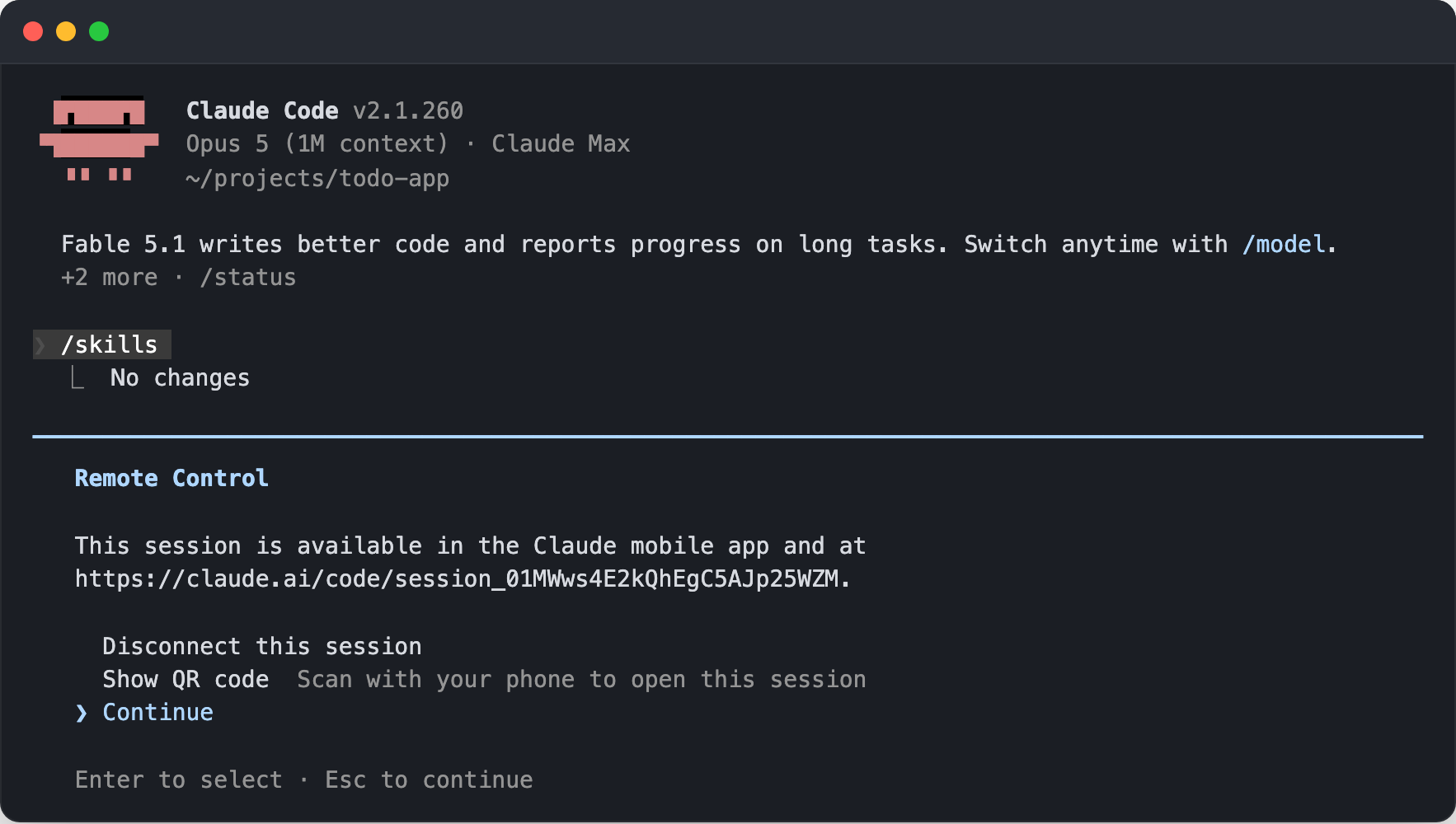
12345# Turn on Remote Control from the start claude --remote-control # Run in server mode and wait for remote connections (serves several sessions at once) claude remote-control
To turn it on automatically in every session, turn on Enable Remote Control for all sessions in /config, or set remoteControlAtStartup in the user settings.
For this setting, true takes effect only in the user settings (~/.claude/settings.json); true in project and local settings is ignored, and only false applies there.
123{ "remoteControlAtStartup": true }
Keeping the option on all the time makes almost no difference to token usage or response speed.
Remote Control simply relays the conversation to another device, so the requests sent to the model are the same, and while no device is connected, only light periodic communication happens to check whether there are messages to relay.
If anything, turning on Remote Control in the middle of a session changes how the prompt is composed at that point, which can make prompt caching start over once, so if you plan to use it, it's best to turn it on at startup.
When you use Remote Control:
- The conversation is stored on Anthropic's servers. Code execution and file access still happen only on your computer. The retention period follows the data usage policy.
- A
Claude-Session:link is automatically added to the commits and PRs Claude creates, so you can return to the conversation behind the work. The link is visible only from your account, and if you don't want it, addattribution.sessionUrl = falseto a settings file. To hide all Claude attribution in commits and PRs, set"attribution": false(2.1.281 or later).
On a connected device, you can follow the progress of the conversation and its subagents as is, send messages, answer permission requests, check diffs of the changes, and change the model and effort level.
Commands that need the terminal screen, such as /plugin and /resume, work only in the terminal, while commands that answer in text, such as /compact, /clear, /context, and /usage, and commands that take a value as an argument, such as /model sonnet and /effort high, also work on the device.
You can use the 1M context in Remote Control sessions as well.
The session runs on your computer, so the context window also follows the model setting of the terminal session as is.
The model menus on claude.ai/code and in the mobile app have no [1m] variant, but models of version 5 and later have a 1M window built in, so even if you pick one from the device's menu, it runs with 1M on all plans.
# Plugins
Plugins extend Claude Code by bundling custom commands, agents, Skills, Hooks, and MCP servers into a single package.
They are a good format for sharing with a team or the community, and they can be distributed through marketplaces.
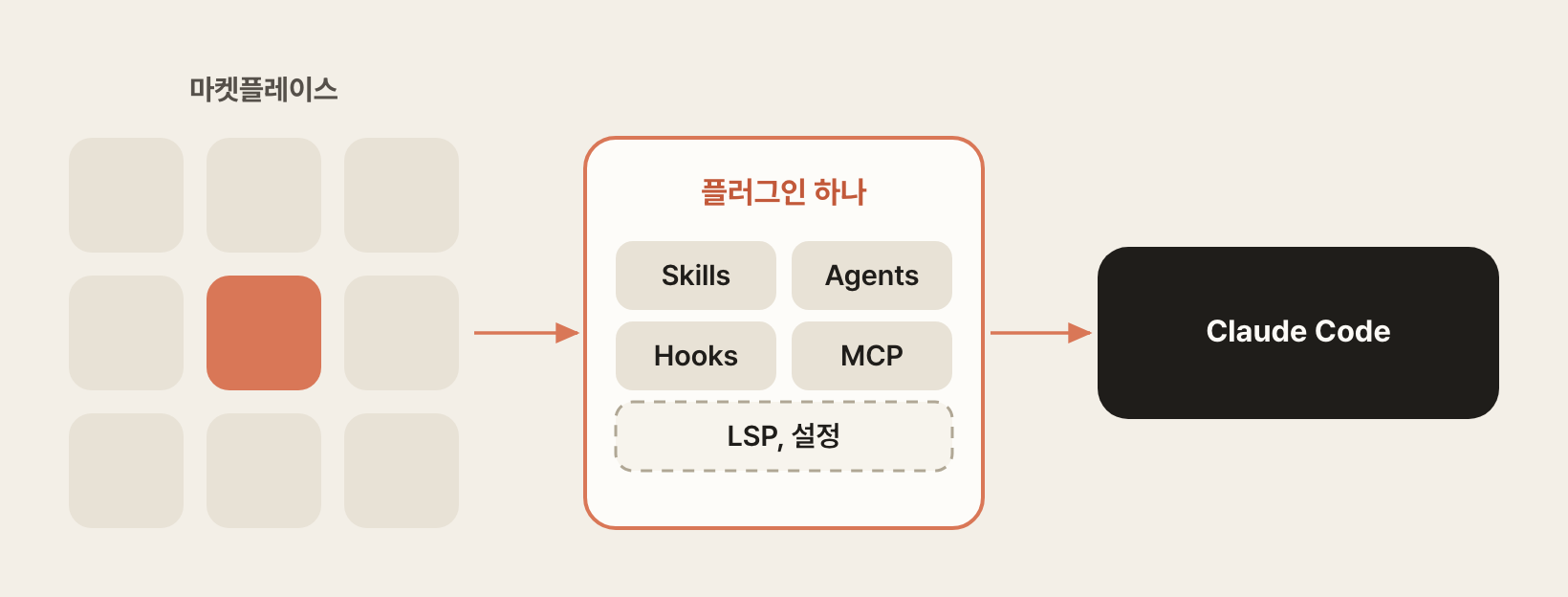
# Skills vs Plugins
| Feature | Skills | Plugins |
|---|---|---|
| Invocation | Model-invoked (automatic) | Installing/enabling is explicit, internal components are automatic |
| Core file | SKILL.md | plugin.json |
| Contents | Instructions + examples | Agents, Skills, Hooks, MCP, LSP servers, etc. |
| Location | ~/.claude/skills/ or .claude/skills/, Claude account |
Marketplace, Claude account |
| Complexity | Medium | High |
| Sharing scope | Personal/project | Community/marketplace |
The essence of a plugin is not "adding features" but "bundling + distribution + version management."
| Situation | Need a plugin? | Reason |
|---|---|---|
| Developing alone | Not needed | Managing Skills/Hooks individually is enough |
| Sharing within a team | Optional | You can share .claude/ through Git, but a plugin is cleaner |
| Organization/community | Recommended | Version management, marketplace distribution, central control |
# Plugin structure
A plugin can include the following components (it also supports LSP servers, Monitors, Mods, and more).
- Agents: subagents that take on delegated complex tasks
- Skills: skills Claude discovers and uses automatically (including slash commands)
- Hooks: event handlers that run before/after tool calls
- MCP Servers: integrations with external tools/services
12345678910111213my-plugin/ ├── .claude-plugin/ │ └── plugin.json # Plugin manifest ├── agents/ # Optional: subagents │ └── code-reviewer.md ├── skills/ # Optional: Skills (including slash commands) │ └── log-analyzer/ │ └── SKILL.md ├── hooks/ # Optional: Hooks │ └── hooks.json ├── scripts/ # Optional: utility scripts │ └── notify-slack.sh └── .mcp.json # Optional: MCP server settings
Put all the component folders in the plugin root, and put only the plugin.json manifest in the .claude-plugin/ folder.
The manifest must be at the .claude-plugin/plugin.json path; a plugin.json placed in the plugin root isn't read.
Write the plugin.json manifest as follows.
12345678910111213{ "name": "my-plugin", "description": "Plugin description (for marketplace search)", "version": "1.0.0", "author": { "name": "Your Name", "email": "your@email.com" }, "homepage": "https://github.com/your/plugin", "repository": "https://github.com/your/plugin", "license": "MIT", "keywords": ["devops", "automation", "deployment"] }
The manifest is optional.
If you put the components in their default locations, the plugin loads even without a manifest, and the plugin's name is taken from the folder name.
So for a plugin only you use, you can omit the manifest, depending on how you load it.
| Loading method | Manifest | Notes |
|---|---|---|
claude --plugin-dir ./my-plugin |
Optional | Loads for this session only, for testing during development |
Place the plugin folder inside ~/.claude/skills/ |
Required | Loads automatically in every session without installing |
| Register a local marketplace and install | Optional | Installed like other plugins, with its enabled state managed |
A folder inside ~/.claude/skills/ is recognized as a plugin only if it has .claude-plugin/plugin.json; otherwise, it is treated as a regular skill folder.
Running the claude plugin init my-plugin command creates a plugin folder with a manifest and a SKILL.md in ~/.claude/skills/my-plugin/.
A local marketplace needs .claude-plugin/marketplace.json in the marketplace folder instead of the plugin's manifest.
For plugins you'll distribute to others, it's best to write a manifest that states the name, version, and description, so that updates can be managed by version.
You can distribute a finished plugin by registering a GitHub repository as a marketplace, or, if you're on a paid plan, apply to have it listed in Anthropic's Claude directory through the directory submission portal.
# Installing and managing plugins
Running the /plugin command opens a screen for searching and installing plugins from marketplaces and managing the plugins you've installed.
The official marketplace run by Anthropic (claude-plugins-official) is registered by default, so you can search it right away without any setup.
Along with the official marketplace, the Discover tab also shows thousands of plugins listed in the Anthropic Directory, and pressing Ctrl + S in the list below the search box filters them by marketplace.
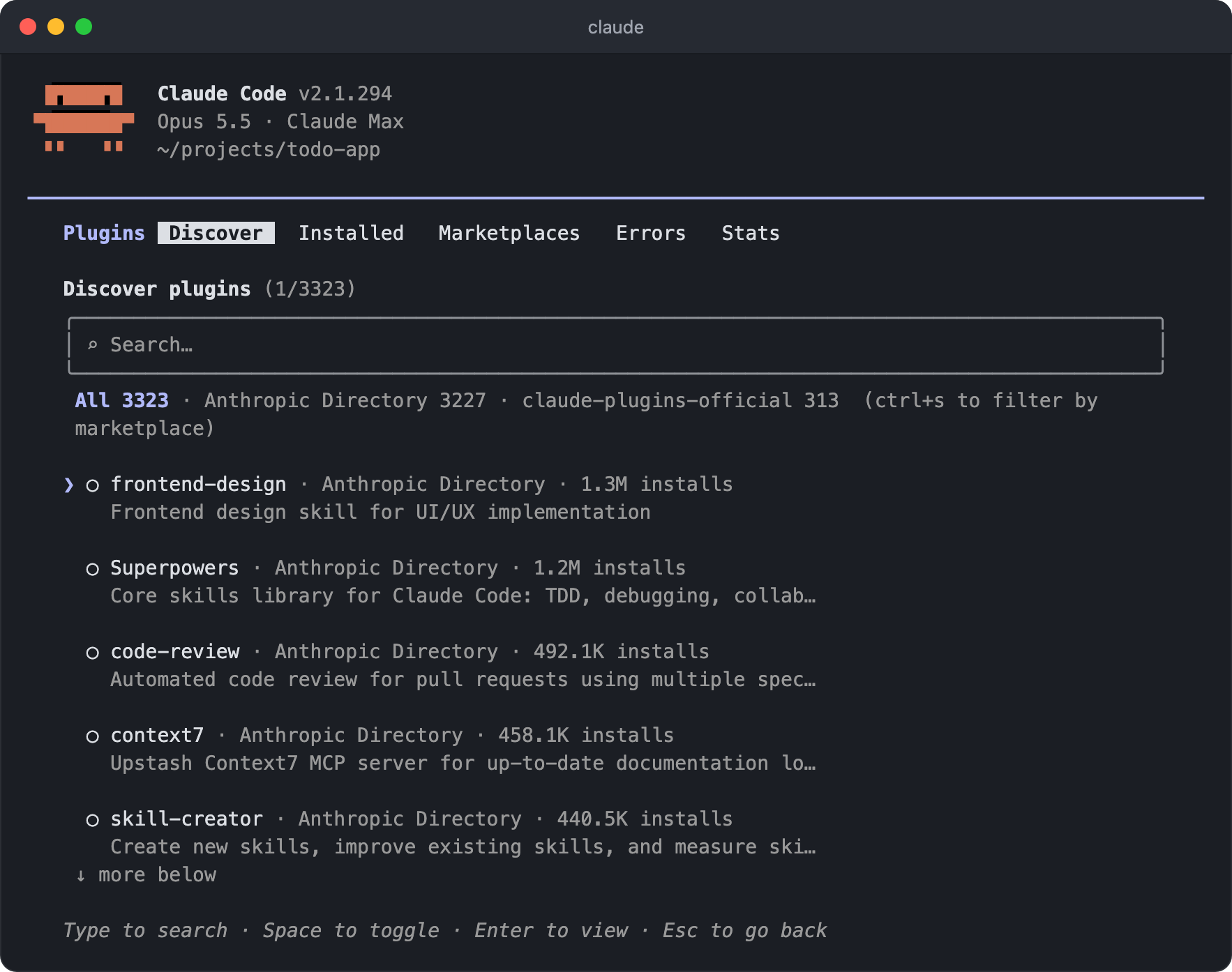
You can also install and manage plugins directly with commands.
For plugins outside the official marketplace, first register a GitHub repository, URL, or local path as a marketplace.
123456789101112# Register a marketplace (GitHub repository, URL, local path) /plugin marketplace add jarrodwatts/claude-hud # Install a plugin /plugin install plugin-name@marketplace-name # Enable/disable /plugin enable plugin-name@marketplace-name /plugin disable plugin-name@marketplace-name # Remove /plugin uninstall plugin-name@marketplace-name
You can also run the same tasks in the terminal as subcommands, such as claude plugin install plugin-name@marketplace-name.
If the marketplace isn't registered yet, use the --marketplace option, as in /plugin install plugin-name --marketplace owner/repo, to register and install in one step.
You can also manage the enabled state directly in the project settings.
123456{ "enabledPlugins": { "formatter@acme-tools": true, "deployer@acme-tools": true } }
# Syncing Claude account plugins
Plugins you turn on under Customize > Plugins in the Claude app are also synced to Claude Code, just like skills.
Claude Code signed in with the same account (2.1.273 or later) checks your account every time it runs, downloads new plugins and updates to ~/.claude/plugins/synced/, and removes plugins you turned off in your account.
It also downloads plugins your organization turned on for its members, and just like plugins installed from a marketplace, all of their skills, agents, Hooks, and MCP servers are loaded.
Synced plugins load under the name plugin-name@synced, and you can find them under the Synced from claude.ai entry of claude plugin list and in the Installed tab of /plugin.
For example, the engineering plugin installed in Cowork appears in the terminal as follows, and you invoke the plugin's skills like /engineering:code-review.
1234567claude plugin list ## Synced from claude.ai: ## ## engineering@synced ## Version: 1.2.0 ## Path: ~/.claude/plugins/synced/.../engineering ## Status: loaded
The sync check runs in the background, so changes that come in during a session are applied either right away with the /reload-plugins command or on the next run.
Synced plugins aren't managed with the claude plugin install, update, and uninstall commands; updates are downloaded automatically at the next sync, and to remove one, you turn it off on claude.ai.
To turn one off only on this computer, disable it, as in claude plugin disable engineering@synced, and to turn off syncing itself, set syncClaudeAiPlugins to false in the user settings.
Plugins your organization has made required can't be disabled.
# Useful plugins
If you don't know what to install first, the install counts shown in the Discover tab are a good guide.
The following plugins have many installs and are often used in real work.
| Plugin | Main components | Use |
|---|---|---|
frontend-design |
Skills | Instructions for designing frontend UIs that don't look templated |
superpowers |
Skills, Agents, Hooks | Provides work procedures such as brainstorming, writing plans, and test-driven development as skills |
code-review |
Agents | Several specialized agents split up a PR and review it |
context7 |
MCP | Searches the latest library documentation for reference |
skill-creator |
Skills | A tool for making and evaluating skills |
playwright, chrome-devtools-mcp |
MCP | Opens a browser directly to check and operate screens |
claude-hud |
Skills, status line script | Shows context usage, tool activity, and agent status in the status line |
Of these, claude-hud is a plugin that changes the status line at the bottom of the screen.
The default status line shows little more than the permission mode, but with claude-hud installed, you can always see context usage, plan usage and its reset time, the tools used in this session, and running agents.
You no longer need to run /context during work to check how full the context is.
123/plugin marketplace add jarrodwatts/claude-hud /plugin install claude-hud@claude-hud /claude-hud:setup
/claude-hud:setup is a skill provided by the plugin that writes the status line settings to the user settings (~/.claude/settings.json).
After setup, the status line changes starting with the next message, and you adjust which items to show with /claude-hud:configure.
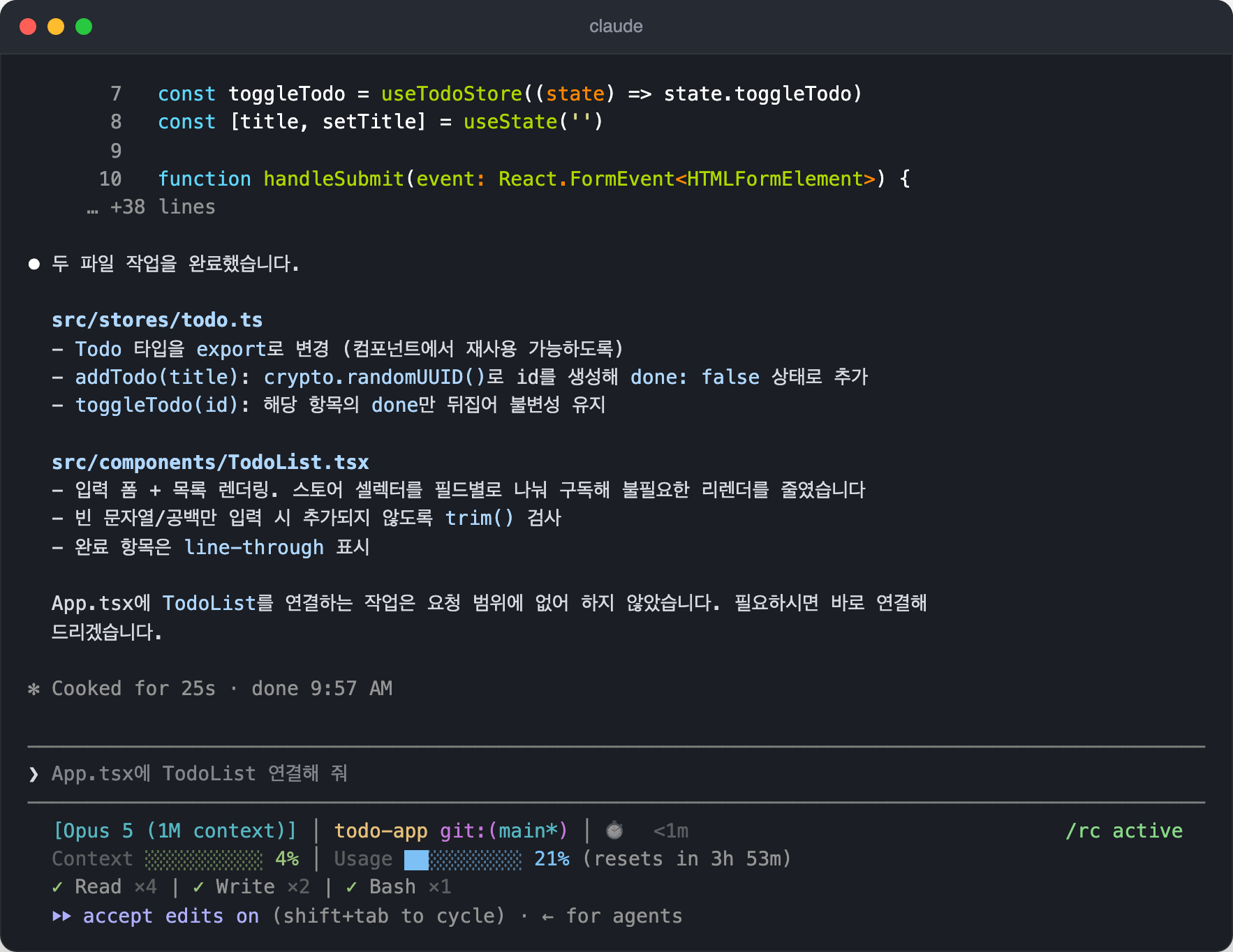
# Mods
A Mod is a JavaScript or TypeScript function that changes how Claude Code behaves and what it shows on screen, and you install and share it packaged in a plugin (2.1.287 or later).
Claude Code fires events whenever things like tool calls, prompt submissions, and screen drawing happen, and a Mod watches those events, changes their content, or handles them itself.
It looks similar to Hooks, but it runs in a different place.
Hooks run shell commands or HTTP requests registered in a settings file outside Claude Code, while a Mod is a function that runs inside Claude Code, so it can draw a panel next to the conversation or change existing screen elements.
| Aspect | Mods | Hooks |
|---|---|---|
| Written as | JavaScript, TypeScript functions | Shell commands, HTTP requests, prompts |
| What it can change | Tool calls, prompts, commands, the screen | Whether tool calls and prompts proceed, tool input and results |
| Drawing on screen | Possible | Not possible |
You can install and use Mods that others have published, or ask Claude to make a Mod of your own.
# Installing a Mod
A Mod is a plugin too, so you install it exactly the way we saw in Installing and managing plugins.
For example, let's install the next-steps Mod, which suggests follow-up requests as buttons every time Claude finishes a response.
1/plugin install next-steps --marketplace pawandeepdhall/claude-mods
When asked whether to add the marketplace, press y, and a screen appears that shows the plugin information and lets you choose the install scope.
If only you will use it, choose Install for you (user scope).
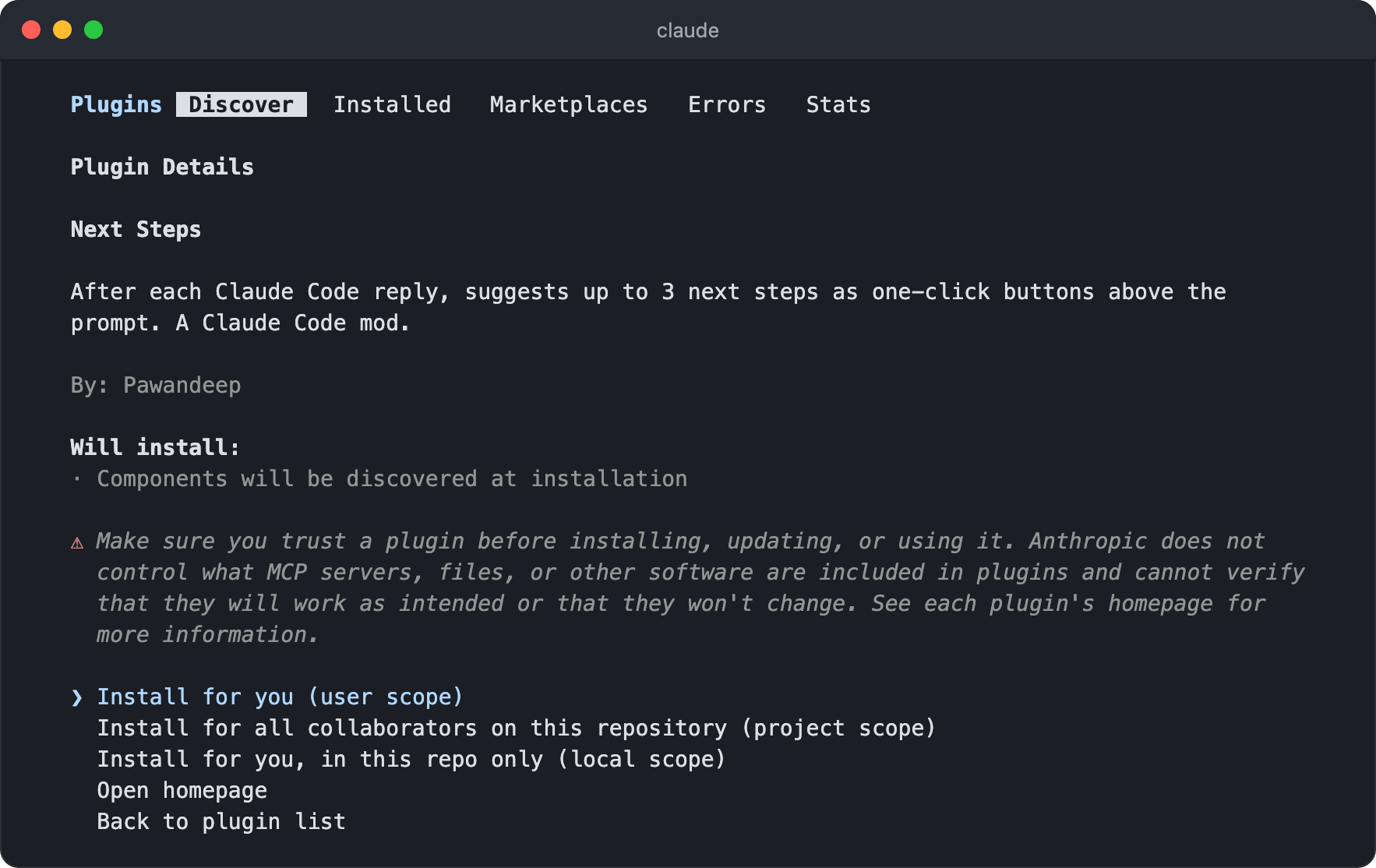
An installed Mod works right away without restarting the session.
If you ask Claude to summarize meeting notes, buttons with requests you might make next appear above the input when the response ends.
Press Ctrl+X and then Tab to move to the area above the input, pick items with Tab, and select them with Enter.
Select items and press Send to send the request to Claude, and you can select several items together.
When you press Send, instead of the button's short label, a specific request written to reflect the conversation so far is sent.
When the response ends, the next-step buttons are shown again to fit the new conversation.
It uses the Haiku model to pick the next steps and write the requests, so it uses a little more of your usage.
When you no longer need the Mod, remove it in the Installed tab of /plugin or with the following command.
After @, write the marketplace name, not the repository name; you can find the marketplace name in the Installed tab.
1/plugin uninstall next-steps@my-claude-mods
Once it's removed, the buttons above the input disappear as soon as you close the menu, and the screen goes back to normal.
However, requests the Mod sent on your behalf stay in the conversation history, and if the Mod created files or changed settings, those stay as they are too.
The marketplace added along with it also remains, so if you don't need it, remove it separately with /plugin marketplace remove my-claude-mods.
If you download the repository and check it before installing, as in claude plugin validate ./plugins/next-steps, you can see the events the Mod handles (hooks) and the functions it calls (calls).
You can also look for other Mods in the example Mods published by Anthropic or in the community's list of Mods.
# Making a Mod
You can make a Mod by describing the feature you want to Claude, without writing any code yourself.
When you share or record your screen, it can be awkward when a client's email address, phone number, or amounts show up in the conversation as is.
So let's make a Mod that hides this kind of information on screen only.
1Make a Mod that hides email addresses, phone numbers, and amounts in the conversation on screen only, for when I share or record my screen. Claude should keep working with the original values, and I want to turn it on and off with a /share-mode command. When it's on, show "Share mode" above the input.
Claude loads the built-in /plugin-authoring skill and writes the Mod files to match the Claude Code version you're using.
Mod files are saved in the ~/.claude folder, which is a protected path, so in Manual mode or Accept Edits mode, Claude asks for approval every time it creates a file.
When the first file is saved, it asks whether to turn on hot reload for this session; choose Enable for this session.
With hot reload on, the Mod is loaded when the response ends, and after that, every time Claude edits the Mod, it is reloaded when that response ends.
If you choose Not now, only the files remain, and the Mod is loaded when you restart the same session.
After the Mod is loaded, if you ask Claude to organize a client list into a table, the email addresses, phone numbers, and amounts are still shown as is.
Running /share-mode hides email addresses, phone numbers, and amounts, even in the conversation already on screen, and shows above the input that share mode is on.
It changes only what is drawn on screen, so Claude keeps working with the original values, and running /share-mode again shows everything as it was.
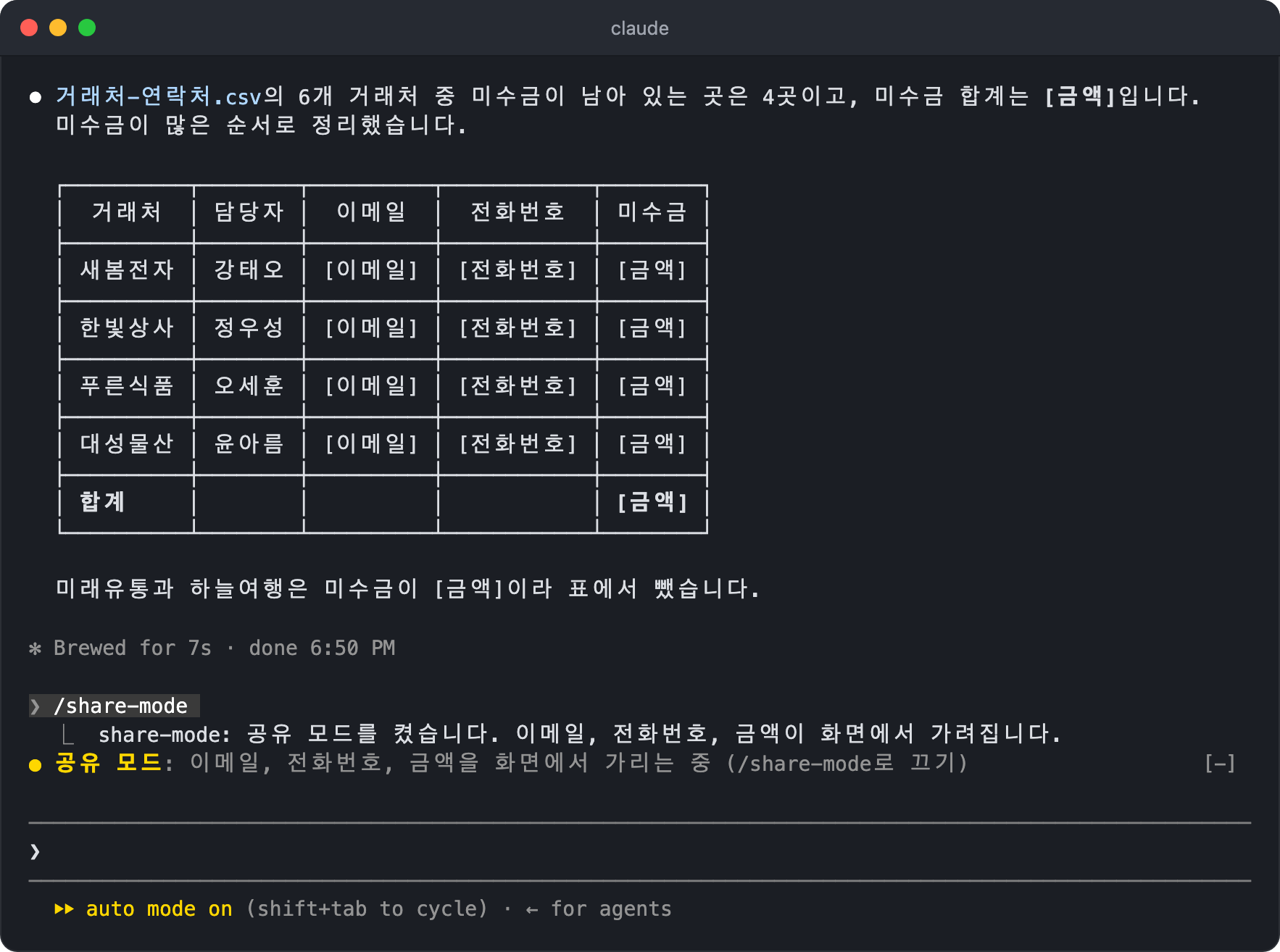
If you don't like how it hides things or the wording it shows, just ask Claude, and when the response ends, the fixed Mod is loaded again.
In fact, a problem where the ** symbols stayed visible when amounts inside bold text were hidden was fixed by asking this way.
It finds and hides values by fixed patterns, so it can miss values in unusual formats; check once before you start recording.
Mods that Claude makes are saved in a session-only folder (~/.claude/dev-mods/session-id/), load only in this session, and are deleted once the retention period you set (cleanupPeriodDays) has passed.
To keep using one in other sessions, ask Claude.
1Make this Mod available so I can keep using it in other sessions too
Claude moves the Mod to a permanent folder and installs it as well.
In this case, for example, it moved the Mod to the ~/claude-mods/share-mode folder, then registered the ~/claude-mods folder as a local marketplace and installed it from there.
Where and how it moves the Mod may differ with each request, so check Claude's response.
In a new session, opening the Installed tab of /plugin shows the number and names of the loaded Mods (mods active) at the top.
Mods you installed appear under User and Mods built into Claude Code under Built-in, and you can turn them off or remove them here.
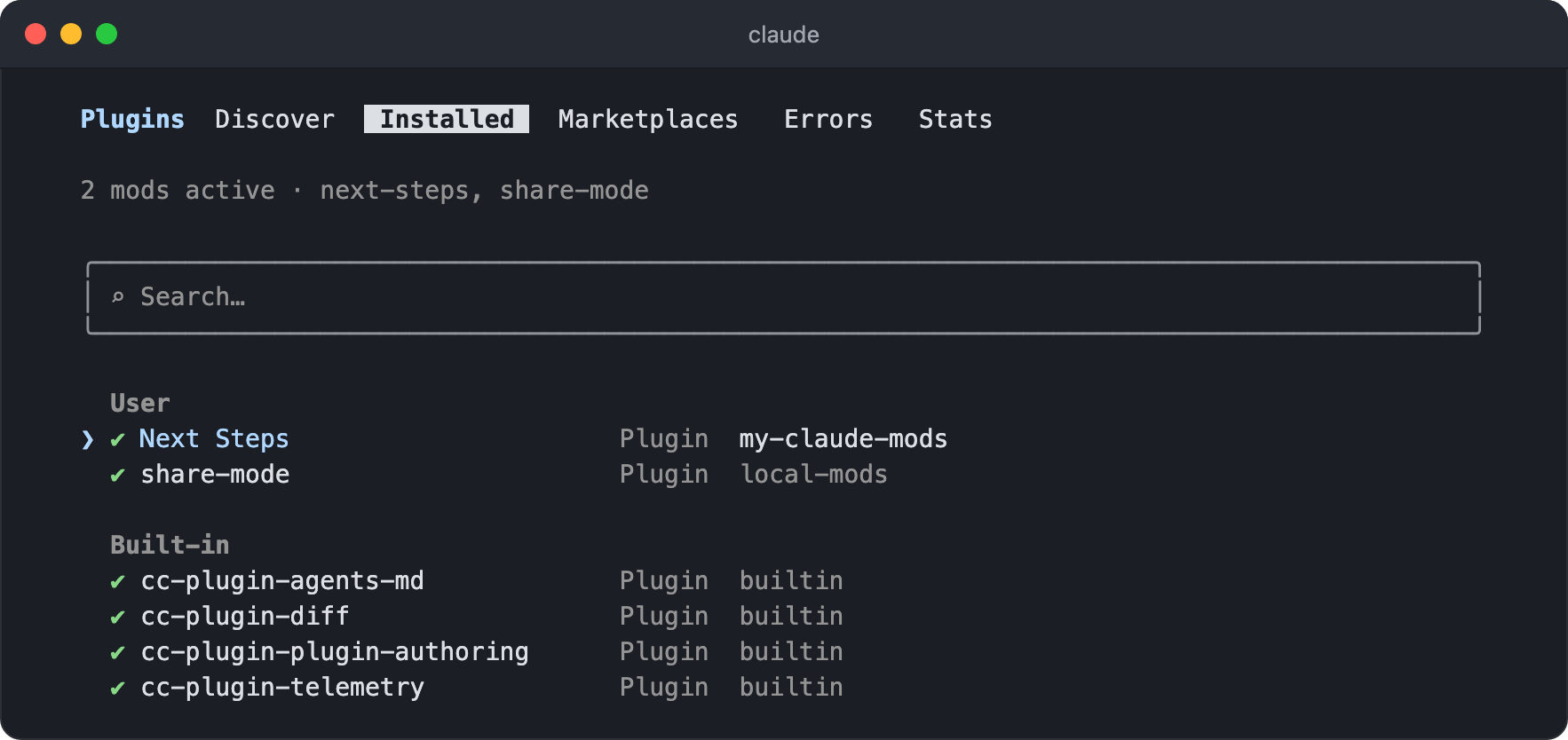
Some Claude Code features are also provided as Mods, such as the /diff screen (cc-plugin-diff) and reading AGENTS.md (cc-plugin-agents-md).cc-plugin-you-should-know, which watches your work and points out easy-to-miss things above the input, is off by default, and you turn it on with /plugin enable cc-plugin-you-should-know@builtin.
Screens drawn by Mods appear only in the terminal and in the Code tab of the desktop app; in the VS Code extension's chat panel and in claude -p, only the event handling works.
# GitHub PR automation
Claude can summarize a branch's changes, create a PR, and review it.
- Analyzes the branch's commit history and writes the PR title and description automatically
- Handles line-level reviews (comments), assigning reviewers, labels, merging, and more in natural language
- Runs
gh(GitHub CLI) commands internally, so GitHub CLI must be installed - Refines the PR description based on review feedback or writes comments automatically
Download and install GitHub CLI: https://github.com/cli/cli/releases
Install GitHub CLI from the terminal:
12345678# macOS brew install gh # Windows winget install --id GitHub.cli --source winget # Log in after installing GitHub CLI! gh auth login
1Analyze the changes in the current branch and create a PR.
# CLI flags
These are frequently used CLI flags.
| Flag | Description |
|---|---|
-c, --continue |
Continue the most recent session |
-r, --resume |
Resume a specific session by ID or name |
-n, --name |
Set the session name (used when resuming with --resume) |
--fork-session |
Branch off into a new session ID when resuming |
-p, --print |
Pass a prompt and print only the response (non-interactive) |
--output-format |
Output format for -p (text, json, stream-json) |
--permission-mode |
Set the permission mode (manual, plan, acceptEdits, auto, dontAsk, bypassPermissions) |
--dangerously-skip-permissions |
Skip all permission checks (isolated environments only) |
--allowedTools, --disallowedTools |
Specify tools that run without permission prompts and tools that are forbidden |
--tools |
Limit the available built-in tools (e.g., "Bash,Read,Edit") |
--model |
Set the model (fable, opus, sonnet, haiku, opusplan, or a full name) |
--effort |
Set the effort level (low, medium, high, xhigh, max); ultracode turns on xhigh together with ultracode |
--fallback-model |
Set a model to fall back to when the default model is unavailable |
--add-dir |
Additional working directories Claude can access |
-w, --worktree |
Create a new Git worktree for this session and work in isolation |
--bg, --background |
Start as a background session (can't be used with -p) |
--remote-control |
Start with Remote Control turned on |
--cloud |
Create a cloud session on claude.ai |
--teleport |
Bring a cloud session into this terminal and continue it |
--desktop |
Open in the Claude desktop app instead of the terminal (with --continue or --resume, opens that session) |
--chrome, --no-chrome |
Turn browser control (Claude in Chrome) on and off |
--ide |
Connect to the IDE automatically at startup |
--agent, --agents |
Set an agent for the current session, define subagents in JSON |
--mcp-config, --strict-mcp-config |
Load MCP servers from a JSON file, ignore all other MCP settings |
--plugin-dir, --plugin-url |
Load plugins for this session only |
--settings |
Load an extra settings file or JSON string |
--system-prompt, --append-system-prompt |
Replace the system prompt, append to the end of the default system prompt |
--max-budget-usd |
API cost cap (for -p) |
--json-schema |
JSON schema for structured output (for -p) |
--safe-mode |
Start with all customizations turned off (for diagnosing settings problems) |
--bare |
Minimal mode that skips Hooks, LSP, plugins, etc. |
--restricted |
Remove command execution tools and limit file access to the working directory |
-d, --debug |
Enable debug mode |
--verbose |
Print detailed logs |
-v, --version |
Print the version number |
1234567891011121314151617# Continue the previous session claude -c # Resume a specific session (by ID or name) claude -r "auth-refactor" "Finish this PR" # Ask non-interactively and print only the response (-p and --print are the same) claude -p "Explain the structure of this project" # Start in Plan mode claude --permission-mode plan # Use in a pipeline cat error.log | claude -p "Analyze this error" # Update to the latest version claude update
# Non-interactive mode
Besides interactive mode, Claude Code also supports a non-interactive mode that you can use in scripts and pipelines.
The -p or --print flag prints the response without entering interactive mode.
123456789101112131415# Get a response to a single question (-p and --print are the same) claude -p "What framework does this project use?" # Use in a pipeline cat error.log | claude -p "Analyze this error log" # Output in JSON format claude -p "Analyze the dependencies in package.json" --output-format json # Query non-interactively while continuing the previous session claude -c -p "Check for type errors" # Use in a script SUMMARY=$(claude -p "Summarize README.md in one sentence") echo "Project summary: $SUMMARY"
Non-interactive mode is useful in CI/CD pipelines, automation scripts, Git hooks, and more.
1234567#!/bin/bash # Automate code review before committing REVIEW=$(claude -p "Review the staged files and tell me about any problems") if echo "$REVIEW" | grep -q "critical issue"; then echo "$REVIEW" exit 1 fi
Thanks for reading to the end.
Likes and kind comments help keep this blog going!