React Core Patterns with TypeScript

# TSX component structure
In a React project, a single .tsx file is called a component.
It has the following basic structure, and component names are usually written in PascalCase.
123456export default function ComponentName() { return ( // HTML Template <div></div> ) }
Starting with React 17, you don't need to write import React from 'react' at the top of a component when you use types.
However, depending on the development tools or environment of a project, you may still need to write that code.
# Fragment
A React component cannot have multiple top-level elements.
You must specify only one top-level element (<div>), like this.
123456789export default function App() { return ( <div> <header>HEADER</header> <main>MAIN</main> <footer>FOOTER</footer> </div> ) }
However, this can become an unnecessary element that wraps the elements twice, as shown below.
123456789<body> <div id="root"> <div> <!-- Unnecessary div element --> <header>HEADER</header> <main>MAIN</main> <footer>FOOTER</footer> </div> </div> </body>
If you use a Fragment (<></>) as the top-level element of a component, you can group multiple elements and render them like a single child element without creating an extra element.
123456789export default function App() { return ( <> <header>HEADER</header> <main>MAIN</main> <footer>FOOTER</footer> </> ) }
Now it renders like this.
12345678<body> <div id="root"> <!-- No div element in between --> <header>HEADER</header> <main>MAIN</main> <footer>FOOTER</footer> </div> </body>
If you need to set an attribute on a Fragment, you must explicitly use the <Fragment> component instead of <></>.
1234567891011import { Fragment } from 'react' export default function App() { return ( <Fragment key={'123'}> <header>HEADER</header> <main>MAIN</main> <footer>FOOTER</footer> </Fragment> ) }
This is especially useful when you render a repeated group of several elements rather than a single element.
123456789101112131415161718192021222324252627import { Fragment } from 'react' const fruits = [ { id: 1, term: 'Apple', detail: 'A sweet fruit that is red or green' }, { id: 2, term: 'Banana', detail: 'A soft, sweet yellow fruit' } ] export default function App() { return ( <dl> {fruits.map(fruit => ( <Fragment key={fruit.id}> <dt>{fruit.term}</dt> <dd>{fruit.detail}</dd> </Fragment> ))} </dl> ) }
# Data interpolation
In a component template, you can easily output data with the {} symbols.
This is called interpolation.
1234567export default function App() { const name = 'ParkYoungWoong' return ( <h1>Hello, {name}!</h1> ) }
You can use simple expressions between the {} symbols in a template.
1234567891011121314export default function App() { const count = 1 function getFullName(firstName: string, lastName: string) { return `${firstName} ${lastName}` } return ( <> <h2>{count + 7}</h2> <h2>{getFullName('YoungWoong', 'Park')}</h2> </> ) }
# Reactive data
In React, when data changes and the view connected to it changes along with it, we call this the reactivity of data.
That data is called reactive data (or reactive state), or simply state.
You can create reactive data with the useState function, as follows.
1234567import { useState } from 'react' // Declare reactive data const [data, setData] = useState<DataType>(defaultValue) // Change reactive data setData(newValue)
1234567891011121314151617import { useState } from 'react' export default function App() { // const [count, setCount] = useState<number>(0) const [count, setCount] = useState(0) // You can omit a type that can be inferred function increment() { setCount(count + 1) } return ( <> <p>Current count: {count}</p> <button onClick={increment}>Increase count</button> </> ) }
# Event handling
In a template, you combine the on keyword with a DOM event name, write it as an attribute of the element, and connect the function to run.
The combined name must be written in camelCase, like onClick and onKeyDown.
123456<div onEventName={functionToRun}></div> // Examples <div onClick={handler}></div> <div onChange={handler}></div> <div onKeyDown={handler}></div>
As in the following example, you can bind text data to an <input> in both directions (two-way data binding) through the value and onChange attributes.
Here, you can write the handler (the function to run) for the change event inline in the TSX template.
123456789101112import { useState } from 'react' export default function App() { const [text, setText] = useState('') return ( <input value={text} onChange={e => setText(e.target.value)} /> ) }
You can also write the event handler as a separate function.
In that case, however, you must specify the type of the event object yourself.
React maps native DOM events to React events, and these event types are available in the React namespace.
You also need to pass the type of the HTML element where the event occurs as a generic.
1234567891011121314151617import { useState } from 'react' export default function App() { const [text, setText] = useState('') // React.EventType<ElementType> function handleChange(event: React.ChangeEvent<HTMLInputElement>) { setText(event.target.value) } return ( <input value={text} onChange={handleChange} /> ) }
When an event handler gets complex, it is a good idea to move it into a separate function.
12345678910111213141516171819202122232425262728293031import { useState } from 'react' export default function App() { const [count, setCount] = useState(0) const [text, setText] = useState('') function handleSubmit(event: React.FormEvent<HTMLFormElement>) { event.preventDefault() const formData = new FormData(event.currentTarget) const text = formData.get('text') console.log(text) // ... } return ( <> <div> <p>Current count: {count}</p> <button onClick={() => setCount(count + 1)}>Increase count</button> </div> <form onSubmit={handleSubmit}> <input name="text" value={text} onChange={e => setText(e.target.value)} /> <button type="submit">Submit</button> </form> </> ) }
To use native event information that you cannot access from the mapped React event, use the nativeEvent property.
1234567891011121314151617181920import { useState } from 'react' export default function App() { const [text, setText] = useState('') function handleKeyDown(event: React.KeyboardEvent<HTMLInputElement>) { // Check whether a CJK input method is still composing! if (event.key === 'Enter' && !event.nativeEvent.isComposing) { // ... } } return ( <input value={text} onChange={e => setText(e.target.value)} onKeyDown={handleKeyDown} /> ) }
# HTML class binding
class is a reserved word in JavaScript, so in JSX templates you must use className instead of class as the HTML attribute.
12345678910111213import { useState } from 'react' import './App.css' export default function App() { const [active, setActive] = useState(false) return ( <> <h1 className={`btn ${active ? 'active' : ''}`}>Hello world!</h1> <button onClick={() => setActive(!active)}>Toggle class name!</button> </> ) }
123.active { color: red; }
When you output several class names depending on data, you can also write code that applies each class name based on boolean data, as follows.
1234567891011121314151617181920212223242526272829import { useState } from 'react' import './App.css' export default function App() { const [btn, setBtn] = useState(false) const [active, setActive] = useState(false) const [size, setSize] = useState(false) function getClassNames(names: Record<string, boolean>) { return Object.keys(names) .filter(name => names[name]) .join(' ') } const classNames = getClassNames({ btn, active, size }) return ( <> <h1 className={classNames}>Hello world!</h1> <button onClick={() => setBtn(!btn)}>Toggle 'btn'</button> <button onClick={() => setActive(!active)}>Toggle 'active'</button> <button onClick={() => setSize(!size)}>Toggle 'size'</button> </> ) }
123456789.btn { border: 4px solid; } .active { color: red; } .size { font-size: 16px; }
# HTML style binding
You can apply inline styles with the style attribute.
You write the styles as object data, and CSS properties must be written in camelCase.
1234567891011121314151617import { useState } from 'react' export default function App() { const [size, setSize] = useState(16) const styles = { fontSize: `${size}px`, // Manage dynamic values with reactive data! fontWeight: '700' // It's better to manage static values in a separate CSS file. } return ( <> <button onClick={() => setSize(size + 3)}>Size up!</button> <button onClick={() => setSize(size - 3)}>Size down!</button> <p style={styles}>Hello world!</p> </> ) }
# Conditional rendering
# Logical operator
Use the logical operator (&&) to render or skip a template (HTML) depending on a condition.
123456789101112131415import { useState } from 'react' export default function App() { const [message, setMessage] = useState('') return ( <> <input value={message} onChange={e => setMessage(e.target.value)} /> {message.trim() && <div>You've typed something!</div>} </> ) }
# Ternary operator
Use the ternary operator to render a different template depending on a condition.
123456789101112131415161718import { useState } from 'react' export default function App() { const [isActive, setIsActive] = useState(false) function toggle() { setIsActive(!isActive) } return ( <> {isActive ? (<h1>Active - {String(isActive)}</h1>) : (<h1>Inactive - {String(isActive)}</h1>)} <button onClick={toggle}>Toggle</button> </> ) }
# More complex conditions
When there are two or more templates to choose from depending on a condition, you cannot use statements (as opposed to expressions) directly in a template, so create a separate function as follows and return a template with an if or switch statement.
123456789101112131415161718192021222324252627import { useState } from 'react' export default function App() { const [state, setState] = useState('') function renderStateMessage() { if (state === 'loading') { return <h2>Loading.</h2> } else if (state === 'success') { return <h2>Completed successfully.</h2> } else { return <h2>Waiting.</h2> } } return ( <> <button onClick={() => setState('loading')}> Loading! </button> <button onClick={() => setState('success')}> Success! </button> {renderStateMessage()} </> ) }
# List rendering
You can render a list based on data.
So that React can manage reactivity efficiently when data changes, you must give each repeated element a key attribute with a value that is unique to each item.
For the unique value of the key attribute, string or number data is generally recommended.
12345678910111213export default function App() { const fruits = ['Apple', 'Banana', 'Cherry'] const renderFruits = fruits.map((fruit, index) => ( <li key={index}>{fruit}</li> )) return ( <> <h1>Fruit list</h1> <ul>{renderFruits}</ul> </> ) }
You can also write it directly in the template without creating a separate function, like this.
1234567891011121314export default function App() { const fruits = ['Apple', 'Banana', 'Cherry'] return ( <> <h1>Fruit list</h1> <ul> {fruits.map((fruit, index) => ( <li key={index}>{fruit}</li> ))} </ul> </> ) }
# Computed data
With the useMemo function, you can create separate data that is automatically computed and updated from other data whenever that data changes.
The source data must be reactive!
1234import { useMemo } from 'react' // Declare computed data const computedData = useMemo(() => newValue, [sourceData])
1234567891011121314import { useState, useMemo } from 'react' export default function App() { const [count, setCount] = useState(0) const double = useMemo(() => count * 2, [count]) return ( <> <h1>count: {count}</h1> <h2>double: {double}</h2> <button onClick={() => setCount(count + 1)}>Increase</button> </> ) }
# Watching data
With the useEffect function, you can create a function (callback) that watches data and runs automatically when the data changes.
The data to watch must be reactive!
1234import { useEffect } from 'react' // Declare a watcher useEffect(functionToRun, [dataToWatch])
12345678910111213141516import { useState, useEffect } from 'react' export default function App() { const [count, setCount] = useState(0) useEffect(() => { console.log('The count value has changed:', count) }, [count]) return ( <> <h1>Count: {count}</h1> <button onClick={() => setCount(count + 1)}>Increase</button> </> ) }
If the useEffect callback runs twice in a row on the first render, consider not using <React.StrictMode>.
It is a tool that detects and warns you about problems in your project, and it can intentionally render twice.
It is enabled only in development mode and does not affect the build output (production), so it is fine to remove it.
123456789101112131415import React from 'react' import ReactDOM from 'react-dom/client' import App from '~/App' // ReactDOM.createRoot(document.getElementById('root')!).render( // <React.StrictMode> // <App /> // </React.StrictMode> // ) ReactDOM.createRoot(document.getElementById('root')!).render( <> <App /> </> )
# Form input bindings
Here are examples of several patterns for connecting form elements, such as input and textarea, with React's reactive data.
# Text
123456789101112131415import { useState } from 'react' export default function App() { const [text, setText] = useState('') return ( <> <input value={text} onChange={e => setText(e.target.value)} /> <h2>{text}</h2> </> ) }
# Multiline text
123456789101112131415import { useState } from 'react' export default function App() { const [text, setText] = useState('') return ( <> <textarea value={text} onChange={e => setText(e.target.value)} /> <pre>{text}</pre> </> ) }
# Editable elements
With the contenteditable attribute, you can turn a regular element into an editable element whose text can be edited.
1<div contenteditable>Content!</div>
However, using this attribute in React can cause problems such as virtual DOM conflicts and jumping events, so we recommend the react-contenteditable library, which solves most of the common problems.
1npm i react-contenteditable
Line breaks are handled with elements such as <div> and <br/>, so the content is emptied when nothing has been entered.
You can provide a hint with the aria-placeholder attribute instead of the placeholder attribute. (You also need to provide CSS code for it.)
123456789101112131415161718192021222324import { useRef, useState } from 'react' import ContentEditable from 'react-contenteditable' import type { ContentEditableEvent } from 'react-contenteditable' export default function App() { const [text, setText] = useState('') const ref = useRef<HTMLElement>(null) function onChange(event: ContentEditableEvent) { setText(event.target.value) } return ( <> <ContentEditable innerRef={ref as React.RefObject<HTMLElement>} html={text} onChange={onChange} aria-placeholder="Enter some text!" /> <h1>{text}</h1> </> ) }
1234[contenteditable]:empty::before { content: attr(aria-placeholder); color: #aaa; }
# Single checkbox
12345678910111213141516171819import { useState } from 'react' export default function App() { const [checked, setChecked] = useState(false) return ( <> <label> <input type="checkbox" checked={checked} onChange={(e) => setChecked(e.target.checked)} /> I agree. </label> <h2>Agreed: {checked ? 'Yes' : 'No'}</h2> </> ) }
# Multiple checkboxes
1234567891011121314151617181920212223242526272829303132333435import { Fragment, useState } from 'react' const fruits = ['Apple', 'Banana', 'Cherry', 'Strawberry'] export default function App() { const [checkedItems, setCheckedItems] = useState<string[]>([]) const handleCheckboxChange = (event: React.ChangeEvent<HTMLInputElement>) => { const { value, checked } = event.target return checked ? setCheckedItems([...checkedItems, value]) // When checked : setCheckedItems(checkedItems.filter(item => item !== value)) // When unchecked } return ( <> <p>Pick all the fruits you like!</p> {fruits.map(fruit => ( <Fragment key={fruit}> <label> <input type="checkbox" value={fruit} checked={checkedItems.includes(fruit)} onChange={handleCheckboxChange} /> {fruit} </label> <br /> </Fragment> ))} <h2>{checkedItems.join(', ')}</h2> </> ) }
# Radio buttons
12345678910111213141516171819202122232425262728import { Fragment, useState } from 'react' const fruits = ['Apple', 'Banana', 'Cherry', 'Strawberry'] export default function App() { const [text, setText] = useState('') return ( <> <p>Pick just one fruit you like!</p> {fruits.map(fruit => ( <Fragment key={fruit}> <label> <input type="radio" value={fruit} checked={text === fruit} onChange={e => setText(e.target.value)} /> {fruit} </label> <br /> </Fragment> ))} <h2>{text}</h2> </> ) }
# Single select
12345678910111213141516171819202122232425import { useState } from 'react' const fruits = ['Apple', 'Banana', 'Cherry', 'Strawberry'] export default function App() { const [selected, setSelected] = useState('') return ( <> <select value={selected} onChange={e => setSelected(e.target.value)}> <option value="">Select one</option> {fruits.map(fruit => ( <option key={fruit} value={fruit}> {fruit} </option> ))} </select> <h2>{selected}</h2> </> ) }
# Multiple select
12345678910111213141516171819202122232425262728293031323334353637import { useState } from 'react' const fruits = ['Apple', 'Banana', 'Cherry', 'Strawberry'] export default function App() { const [selected, setSelected] = useState<string[]>([]) function handleChange(event: React.ChangeEvent<HTMLSelectElement>) { const { options } = event.target const newSelected: string[] = [] Array.from(options).forEach(option => { if (option.selected) { newSelected.push(option.value) } }) setSelected(newSelected) } return ( <> <select multiple value={selected} onChange={handleChange} style={{ width: '100px' }}> {fruits.map(fruit => ( <option key={fruit} value={fruit}> {fruit} </option> ))} </select> <h2>{selected.join(', ')}</h2> </> ) }
# Template (element) refs
In React, instead of searching for elements with document.querySelector, you can reference a template (element) directly with the useRef hook.
The default value of the useRef hook, which returns a Ref object, is null, which means that no element was found.
Then, when you connect the Ref object to the element you want to reference through the ref attribute, you can access the referenced element through the current property of the Ref object, as in inputRef.current.
123456789101112import { useRef } from 'react' export default function App() { const inputRef = useRef<HTMLInputElement>(null) return ( <> <input ref={inputRef} /> <button onClick={() => inputRef.current?.focus()}>Focus!</button> </> ) }
When you use the ref attribute on a component, you need a separate type annotation.
123456789101112import { useRef } from 'react' import TextField from '@/components/TextField' export default function App() { const inputRef = useRef<HTMLInputElement>(null) return ( <> <TextField ref={inputRef} /> </> ) }
Specify the type of the ref prop with React.RefObject<ReferencedElementType | null>.
1234567891011interface Props extends React.InputHTMLAttributes<HTMLInputElement> { ref?: React.RefObject<HTMLInputElement | null> } export default function TextField({ ...restProps }: Props) { return ( <> <input {...restProps} /> </> ) }
# Components
# Lifecycle hooks
If you write code like the following example to automatically focus an input element when it appears on the screen, an error occurs.
This is because the point when a React component's JavaScript code runs (created) is different from the point when its template is rendered on the screen (mounted).
1234567891011import { useRef } from 'react' export default function App() { const inputRef = useRef<HTMLInputElement>(null) // Focus the input element! // Error - cannot read properties of null (reading 'focus') inputRef.current?.focus() return <input ref={inputRef} /> }
If you use the useEffect function as follows, you can run a function after the template is rendered on the screen.
The useEffect function is used to watch data, but it is also used like this to write a function that runs 'after the screen is ready'.
In this case, there is no data to watch, so the dependency array is empty.
123import { useEffect } from 'react' useEffect(functionToRun, [])
Now it works!
123456789101112import { useRef, useEffect } from 'react' export default function App() { const inputRef = useRef<HTMLInputElement>(null) // When the screen is ready, focus the input element! useEffect(() => { inputRef.current?.focus() }, []) return <input ref={inputRef} /> }
If you don't pass an array as the second argument of the useEffect function, as shown below, the callback runs every time the component re-renders, for example because reactive data was updated.
This is generally not recommended.
1234// The callback runs every time the component re-renders useEffect(() => { console.log('The count value has changed:') })
The function returned from the useEffect callback runs when the component is unmounted.
You can add logic that needs to run when the component is unmounted.
1234567891011121314import { useEffect } from 'react' export default function App() { useEffect(() => { window.addEventListener('click', offMenu) return () => { window.removeEventListener('click', offMenu) } }, []) function offMenu() {} return //... }
# Parent and child components
A component can import and use other components.
The imported component is called a child component, and the component that imports it is called the parent component.
In the following example, TextField.tsx is a child component of App.tsx, and App.tsx is the parent component of TextField.tsx.
It is the same concept as the parent/child relationship between HTML elements.
1234567export default function TextField() { return ( <> <input type="text" /> </> ) }
In a Vite project, you can omit the .tsx component extension in import paths.
1234567891011import TextField from './components/TextField' export default function App() { return ( <> <TextField /> <TextField /> <TextField /> </> ) }
# Props
You can pass data (reactive data, functions, and so on) from a parent component to a child component.
The data passed this way, or the attribute used to pass it, is called a prop.
123456789101112131415161718192021222324export default function TextField({ label = '', hint = '', value, onChange }: { label?: string hint?: string value: string onChange: (value: string) => void }) { return ( <div style={{ marginBottom: '10px' }}> <label> {label && <span>{label}</span>} <input value={value} onChange={e => onChange(e.target.value)} /> </label> {hint && <div>{hint}</div>} </div> ) }
When you use the component (<TextField>), you pass data by writing it like HTML attributes, as follows.
1234567891011121314151617181920212223242526272829303132import { useState } from 'react' import TextField from '@/components/TextField' export default function App() { const [name, setName] = useState('') const [age, setAge] = useState('') const [email, setEmail] = useState('') return ( <> <TextField label="Name" hint="Enter your name in Korean." value={name} onChange={setName} /> <TextField label="Age" hint="Enter your age in full years." value={age} onChange={setAge} /> <TextField label="Email" value={email} onChange={setEmail} /> <div> My name is {name}, I am {age} years old, and my email is {email}! </div> </> ) }
# Fallthrough props
Attributes that you write when using a component, but that are not defined as props in that component, are called fallthrough props.
123456789101112131415161718192021222324import { useState } from 'react' import TextField from '@/components/TextField' export default function App() { const [email, setEmail] = useState('') return ( <> <TextField label="Email" hint="Enter a valid email address." type="email" value={email} onChange={e => setEmail(e.target.value)} name="Email" placeholder="Please enter your email." minLength={5} maxLength={24} autoComplete="email" required /> </> ) }
As shown below, you can collect the fallthrough props with rest parameters and connect them to the element you want with the spread operator (...).value and onChange are native attributes of <input>, so you can omit them instead of writing them out as shown below.
123456789101112131415161718192021222324interface Props extends React.InputHTMLAttributes<HTMLInputElement> { label?: string hint?: string } export default function TextField({ label = '', hint = '', ...restProps }: Props) { return ( <div> <label> {label && <span>{label}</span>} <input {...restProps} value={restProps.value} onChange={e => restProps.onChange?.(e)} /> </label> {hint && <div>{hint}</div>} </div> ) }
# Slots
A slot is a feature that lets you insert other components or elements into a specific place in a component's template.
You can implement a slot with children, a predefined prop.
123456789101112131415export default function Button({ loading = false, children, ...props }: React.ButtonHTMLAttributes<HTMLButtonElement> & { loading?: boolean }) { return ( <button className={loading ? 'loading' : ''} {...props}> {loading ? 'Loading' : children} </button> ) }
123456789101112import { useState } from 'react' import Button from '@/components/Button' export default function App() { const [loading, setLoading] = useState(true) return ( <> <Button onClick={() => setLoading(false)}>Cancel</Button> <Button loading={loading}>OK</Button> </> ) }
# CSS modules
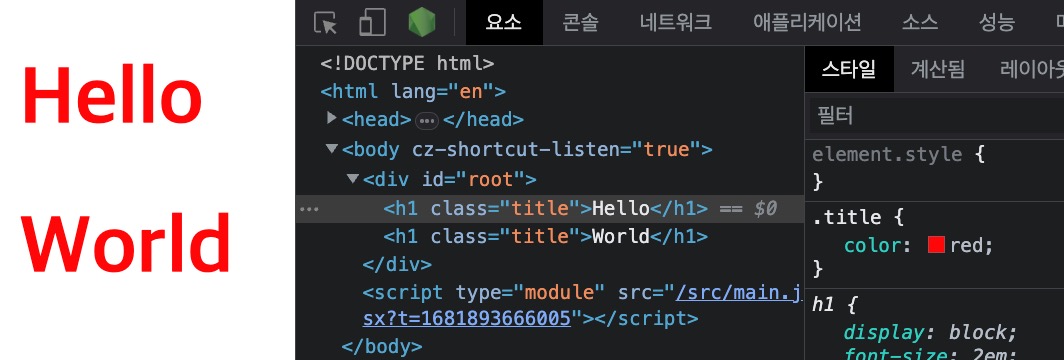
You can write the styles of a specific component in a separate CSS file and connect it, but by default that file is not a module, so its styles apply globally.
If a selector happens to match, the styles can unintentionally apply to elements in some other, unrelated component.
The following example shows the styles written for Hello.tsx (Hello.css) also being applied to World.tsx.
12345import './Hello.css' export default function Hello() { return <h1 className="title">Hello</h1> }
123.title { color: red; }
1234export default function Hello() { // The red text color is applied! return <h1 className="title">World</h1> }
1234567891011import Hello from '~/components/Hello' import World from '~/components/World' export default function App() { return ( <> <Hello /> <World /> </> ) }
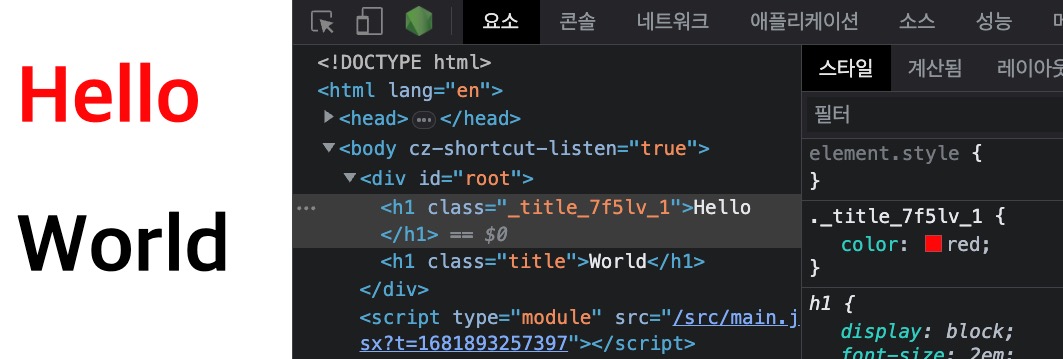
To manage styles efficiently, React lets you create styles that belong to each individual component.
If you rename Hello.css to Hello.module.css, you can write styles that are valid only in that specific component (scoped).
12345import styles from './Hello.module.css' export default function Hello() { return <h1 className={styles.title}>Hello</h1> }
123.title { color: red; }
# SCSS setup
In a Vite project, once you install the sass package, you can use Sass or SCSS right away without any extra configuration.
In particular, the SCSS nesting syntax lets you manage styles much more flexibly.
1npm i -D sass
1234567891011121314import styles from './Hello.module.scss' export default function Hello({ message = '' }) { return ( <> <h1 className={styles.title}> <span>Hello</span> Component~ </h1> <p className={styles.message}> {message} </p> </> ) }
1234567891011.title { font-size: 40px; span { font-weight: bold; color: royalblue; } } .message { font-size: 20px; opacity: .7; }
# Global styles
If you want to apply some global styles inside a module, you can use the :global selector, as follows.
1234567891011.title { font-size: 40px; span { font-weight: bold; color: royalblue; } } :global .message { font-size: 20px; opacity: .7; }
Thanks for reading to the end.
Likes and kind comments help keep this blog going!