Next.js 16 Essentials

# Overview
Here are the main updates in Next.js 16.
- Caching (important)
- Supports Partial Prerendering (PPR), which caches pages, components, and functions with the
'use cache'directive. revalidateTag()now requires a cache profile.- New caching APIs have been added.
updateTag(): Expires the cache for the given tag and fetches fresh data.refresh(): Refreshes only uncached data and doesn't affect the cache at all.
- Supports Partial Prerendering (PPR), which caches pages, components, and functions with the
- Middleware file renamed (important)
middleware.tshas been renamed toproxy.ts.
- Async request APIs enforced (important)
- The async APIs introduced in Next.js 15 are now fully enforced.
params,searchParams,cookies(),headers(), and others can only be accessed asynchronously.
- Stable React Compiler support (important)
- React Compiler, which provides automatic memoization, is now stable.
- Using React Compiler is highly recommended.
- Next.js DevTools MCP (important)
- Supports an AI MCP for features such as Next.js knowledge, unified logs, automatic error checking, and page awareness.
- Better access to up-to-date information is expected to greatly reduce problems caused by outdated information.
- Turbopack by default
- Turbopack is now stable and has replaced Webpack as the default bundler.
- If needed, you can opt out with the
--webpackflag.
- React 19.2 support
- You can use the latest React features, such as
useEffectEvent()and<Activity/>.
- You can use the latest React features, such as
- Parallel routes require a default
- Every parallel route slot needs an explicit
defaultcomponent.
- Every parallel route slot needs an explicit
- Improved logging
- Development logs show how long the build process, compilation, rendering, and so on take.
- Improved prefetch performance
- When prefetching several URLs that share a layout, the layout is downloaded only once.
- Only the needed parts are prefetched, excluding parts that are already cached.
- Image configuration defaults changed
- The default values of options in the
imagesconfiguration, such asminimumCacheTTL,qualities, andmaximumRedirects, have changed.
- The default values of options in the
- ESLint Flat Config by default
- ESLint v10 drops support for legacy configuration, and the ESLint Flat Config format is used by default for faster linting and easier management.
- Improved development performance
- The Turbopack file system cache became the default for
next devin v16.1 and then fornext buildin v16.3, so compilation results are reused from disk. - After a development server restart, the first compilation is 5-14x faster, and repeated builds are up to 5.5x faster.
- In v16.2, the startup time of
next devwas cut by about 87%, and in v16.3, memory eviction became the default, reducing the memory usage of long-running development servers by up to 90%.
- The Turbopack file system cache became the default for
- Improved runtime performance
- In v16.2, deserialization of Server Component payloads was improved, making HTML rendering 25-60% faster.
- In v16.3, the App Router's rendering layer was replaced with native Node.js streams, increasing request throughput under load by up to 22%.
Here are the main updates in Next.js 15.
- Automated upgrade CLI (
@next/codemod)- A CLI is provided to make upgrading your Next.js version easy.
- You can upgrade with the
npx @next/codemod@canary upgrade latestcommand. - It doesn't handle detailed code changes, so you still need to check things yourself.
- Async request APIs (important)
- Next.js changed to handle components that don't need data requests asynchronously, which speeds up the initial load.
- Key APIs such as
paramsandsearchParamsswitched to async usage.
- Caching defaults changed (important)
- Default caching for GET requests and client navigation has been turned off.
- This is nice because it doesn't overlap with the caching features of libraries like TanStack Query.
- You can turn caching back on with the
cache: 'force-cache'option.
- React 19 support (important)
- Supports React 19 compatibility while keeping partial backward compatibility with React 18.
<Form>component- An optimized component that extends the
<form>element; it prefetches the submission route and preserves submitted data as a query string.
- An optimized component that extends the
- Turbopack Dev stable
next dev --turbomode is now stable, providing a faster development environment and quicker responses.
- Static route indicator
- During development, a marker in the bottom corner of the screen shows whether a route is prerendered (⚡ Static route).
- API for running code after async work (
unstable_after)- A new API that lets you handle additional work asynchronously after streaming finishes.
- It isn't stable yet, so it's best to treat it as a reference only.
/instrumentation.jsAPI stable- You can observe the server lifecycle to monitor performance and track errors.
- TypeScript configuration support
- Config files written in TypeScript are supported, with autocompletion and type safety.
- Improved self-hosting
- You get more control over cache control headers, and image optimization performance has improved.
- Stronger security
- Security has been strengthened with features that prevent Server Actions from becoming public endpoints.
- Optimized bundling of external packages
- A configuration option for bundling external packages has been added.
- ESLint 9 support
- Supports ESLint 9 to reflect the latest rules and maintain compatibility.
- Improved build and development performance
- Static page generation has been optimized, and HMR for Server Components has been enhanced.
# What is Next.js?
Next.js is a React framework developed by Vercel that provides a variety of optimization features, such as server-side rendering (SSR), client-side rendering (CSR), and API routing.
With Next.js, you can extend the core features of React to build web applications faster and more reliably.
# Installation and setup
Create a Next.js project with the following command.
Answer each question with Yes or No.
1234567891011121314151617181920npx create-next-app@latest project-name ## v16 ✔ Would you like to use the recommended Next.js defaults? › No, customize settings ✔ Would you like to use TypeScript? … No / Yes # Whether to use TypeScript ✔ Which linter would you like to use? › ESLint # Choose from ESLint / Biome / None ✔ Would you like to use React Compiler? … No / Yes # Whether to use React Compiler ✔ Would you like to use Tailwind CSS? … No / Yes # Whether to use Tailwind CSS ✔ Would you like your code inside a `src/` directory? … No / Yes # Whether to use the src/ directory ✔ Would you like to use App Router? (recommended) … No / Yes # Whether to use App Router ✔ Would you like to customize the import alias (`@/*` by default)? … No / Yes # Whether to use a path alias other than `@/*` ✔ Would you like to include AGENTS.md to guide coding agents to write up-to-date Next.js code? … No / Yes # Whether to include AGENTS.md ## v15 ✔ Would you like to use TypeScript? … Yes # Whether to use TypeScript ✔ Would you like to use ESLint? … Yes # Whether to use ESLint ✔ Would you like to use Tailwind CSS? … Yes # Whether to use Tailwind CSS ✔ Would you like your code inside a `src/` directory? … No # Whether to use the src/ directory ✔ Would you like to use App Router? (recommended) … Yes # Whether to use App Router ✔ Would you like to customize the import alias (@/* by default)? … No # Whether to use a path alias other than `@/*`
# Prettier
The following VS Code extensions must be installed.
- ESLint: Checks code quality and detects bugs and anti-patterns
- Prettier - Code formatter: Manages code style and formatting, so you can apply a consistent code style
Install the Prettier-related packages.
1npm i -D prettier eslint-config-prettier eslint-plugin-prettier prettier-plugin-tailwindcss
Update the ESLint configuration as follows.
1234567import prettierRecommended from 'eslint-config-prettier' const eslintConfig = defineConfig([ { extends: [prettierRecommended] } ]) export default eslintConfig
Also, create a .prettierrc file in the project root and add the rules you want, like this.
You can find the detailed rules in Prettier / Options.
12345678910{ "semi": false, "singleQuote": true, "singleAttributePerLine": true, "bracketSameLine": true, "endOfLine": "lf", "trailingComma": "none", "arrowParens": "avoid", "plugins": ["prettier-plugin-tailwindcss"] }
# Auto-formatting settings
You can create the .vscode/settings.json folder and file in the project root and add the following content.
1234{ "editor.formatOnSave": true, "editor.defaultFormatter": "esbenp.prettier-vscode" }
# Using skills
If you use the Skills feature in AI coding tools such as Claude Code and Cursor, you can install and configure everything automatically and more easily through conversation.
Install the skill with the following command.
1npx skills add ParkYoungWoong/skills --skill react-next-scaffold
After installation, when you start a Next.js project in your AI coding tool, the skill activates automatically and creates a project that includes the setup above (ESLint, Prettier, path aliases, and so on).
Or you can invoke the skill manually in each tool, as in the following Claude Code example.
1❯ /react-next-scaffold
# AGENTS.md
AI coding agents write code based on the data they were trained on, so they sometimes use Next.js APIs that no longer exist.
To prevent this, starting with Next.js 16.2, documentation that matches the installed version is included in the package.
The documentation is in the node_modules/next/dist/docs/ path, so agents can read it right away without network requests.
And starting with 16.3, when you run next dev and an AI coding agent is detected in the environment, Next.js creates and maintains AGENTS.md and CLAUDE.md files in the project root.AGENTS.md contains a managed block like the following, which tells agents to read the bundled documentation before writing code.
1234567<!-- BEGIN:nextjs-agent-rules --> # This is NOT the Next.js you know <!-- Omitted.. instructions to read the docs for the installed version first --> <!-- END:nextjs-agent-rules -->
Write your own project instructions outside the area marked by BEGIN and END.
When Next.js updates the managed block, the content outside it stays as it is.
When you start a new project with create-next-app, both files are created automatically, and you can exclude them with the --no-agents-md option.
If you want to turn off automatic creation in an existing project, add the configuration option (agentRules) as follows.
1234567import type { NextConfig } from 'next' const nextConfig: NextConfig = { agentRules: false } export default nextConfig
# Dev Indicator
When you run the development server (next dev), the Dev Indicator, shaped like the Next.js logo, appears in the lower left of the browser screen.
It shows things like whether the current route is static (prerendered) or dynamic (rendered on request), and it works only in the development environment.
If it gets in the way by covering the screen, you can hide it by setting the devIndicators option to false, as follows.
This only hides the indicator, so compile and runtime errors still appear on screen as before.
1234567import type { NextConfig } from 'next' const nextConfig: NextConfig = { devIndicators: false } export default nextConfig
If you want to move it instead of hiding it, specify something like devIndicators: { position: 'bottom-right' }.
You can choose from 'bottom-left' (default), 'bottom-right', 'top-left', and 'top-right'.
The appIsrStatus, buildActivity, and buildActivityPosition options were removed in v16.
# Server vs Client
In Next.js, you can distinguish between Server Components and Client Components so that parts of your code are rendered on the server or on the client.
By default, every component you create is a Server Component!
To make a component a Client Component, you need the 'use client' declaration at the very top of the component, as follows; without it, the component is a Server Component.
12345'use client' export default function Component() { return <></> }
Server Components and Client Components differ in some of the APIs they can use, as follows.
Thanks to this distinction, Server Components give you benefits such as security, caching, performance, and SEO, while Client Components give you benefits such as interactivity ('click' and 'load' events, and so on) and access to browser APIs (window, document, and so on).
Server Components only:
- cookies
- headers
- redirect
- generateMetadata
- revalidatePath
- ...
Client Components only:
- useState
- useEffect
- onClick
- onChange
- useRouter
- useParams
- useSearchParams
- useFormState
- useOptimistic
- ...
If you use an API that doesn't match the type of component, an error appears right away, as in the following image, so you can quickly tell them apart.

# Routing
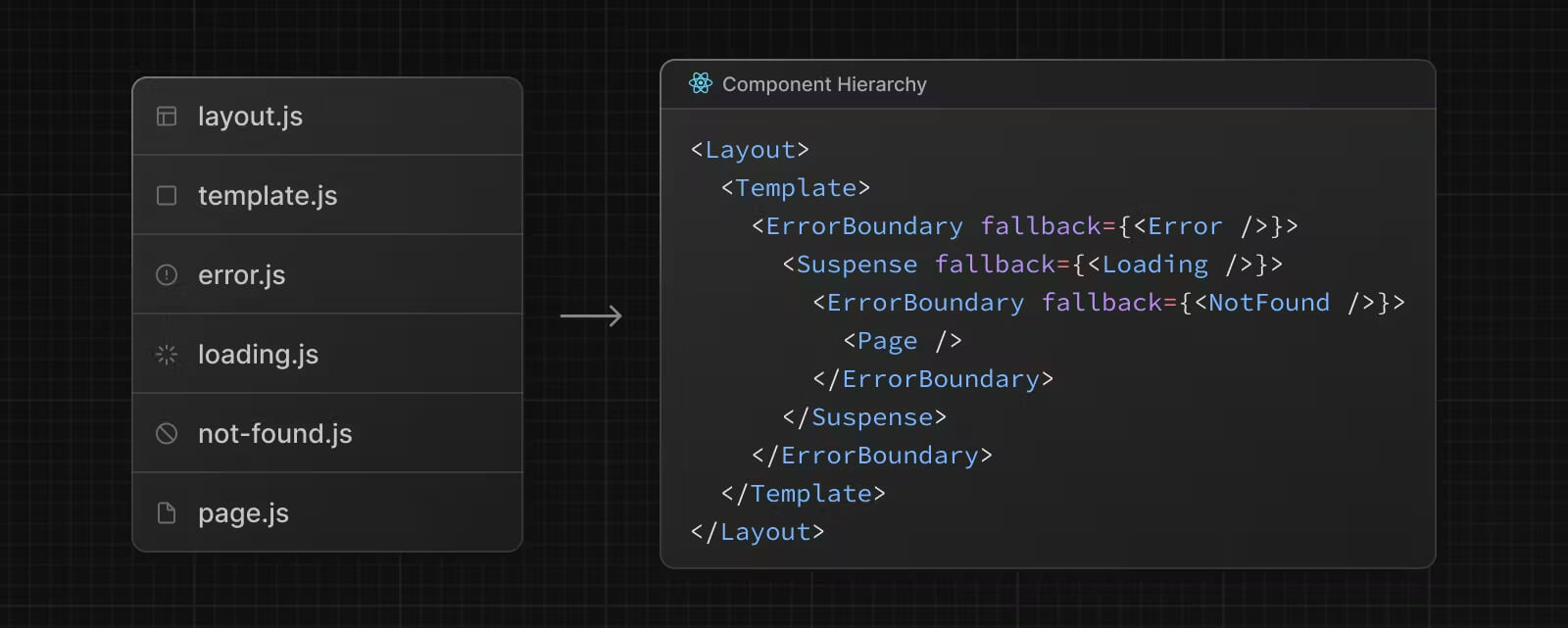
To use routing, you need to understand Next.js file conventions.
The basic files in the table below form a hierarchy in order starting from layout, and you use each one for its role to render each page.
These explicit file conventions help you keep your project structure clear.
| Basic file | Extensions | Description |
|---|---|---|
error |
.js, .jsx, .tsx |
Error page |
layout |
.js, .jsx, .tsx |
Fixed layout |
loading |
.js, .jsx, .tsx |
Loading page |
not-found |
.js, .jsx, .tsx |
Not found (404) page |
page |
.js, .jsx, .tsx |
Page content |
template |
.js, .jsx, .tsx |
Layout that re-renders (on navigation) |
| Additional file | Extensions | Description |
|---|---|---|
default |
.js, .jsx, .tsx |
Fallback page for parallel routes |
global-error |
.js, .jsx, .tsx |
Global error UI |
route |
.js, .ts |
API endpoint |
# Pages
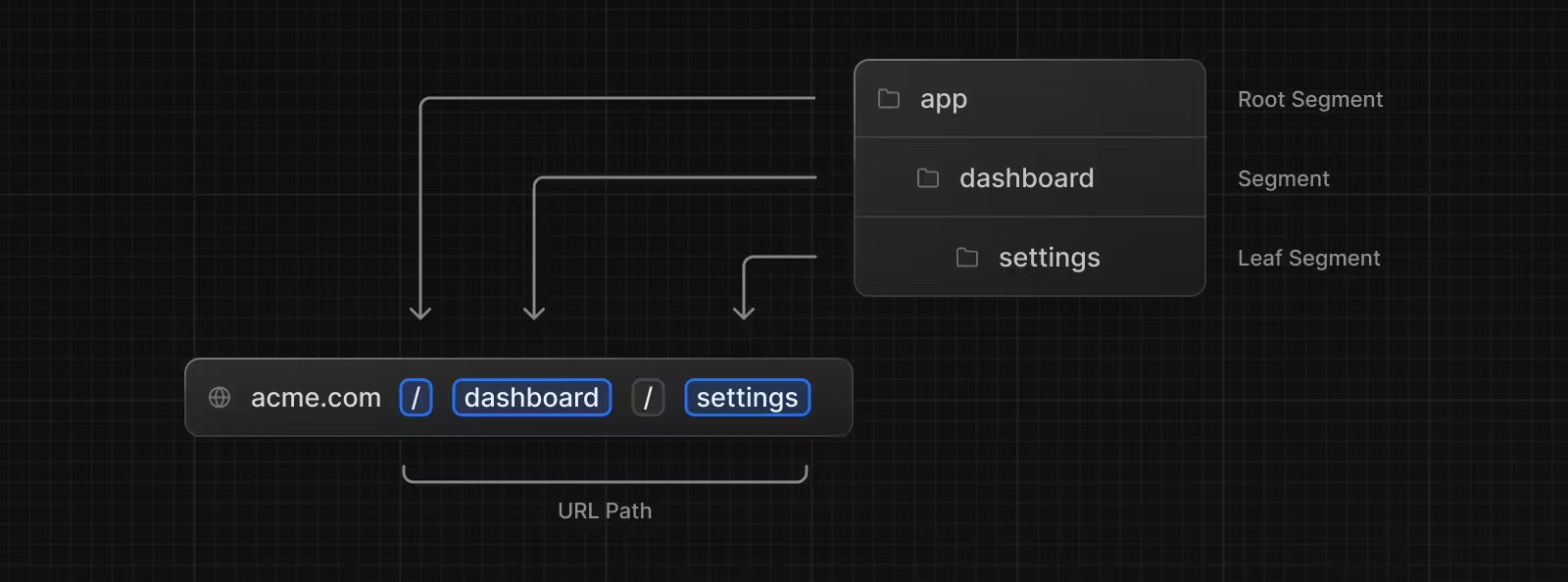
Next.js uses a file-system-based router that defines routes with folders, so each folder you create inside the /app folder represents a URL path by default.
For example, if you create an /app/movies folder in your project, you can access it at the /movies path, that is, http://localhost:3000/movies.
And the content to render at that path is written in each folder's page.tsx component by default.
Each route part mapped this way is called a segment.
1234├─app/ │ ├─movies/ │ │ └─page.tsx │ └─page.tsx
123export default function Home() { return <h1>Home page!</h1> }
123456789101112export default function Movies() { return ( <> <h1>Movies page!</h1> <ul> <li>Avengers</li> <li>Avatar</li> <li>Frozen</li> </ul> </> ) }
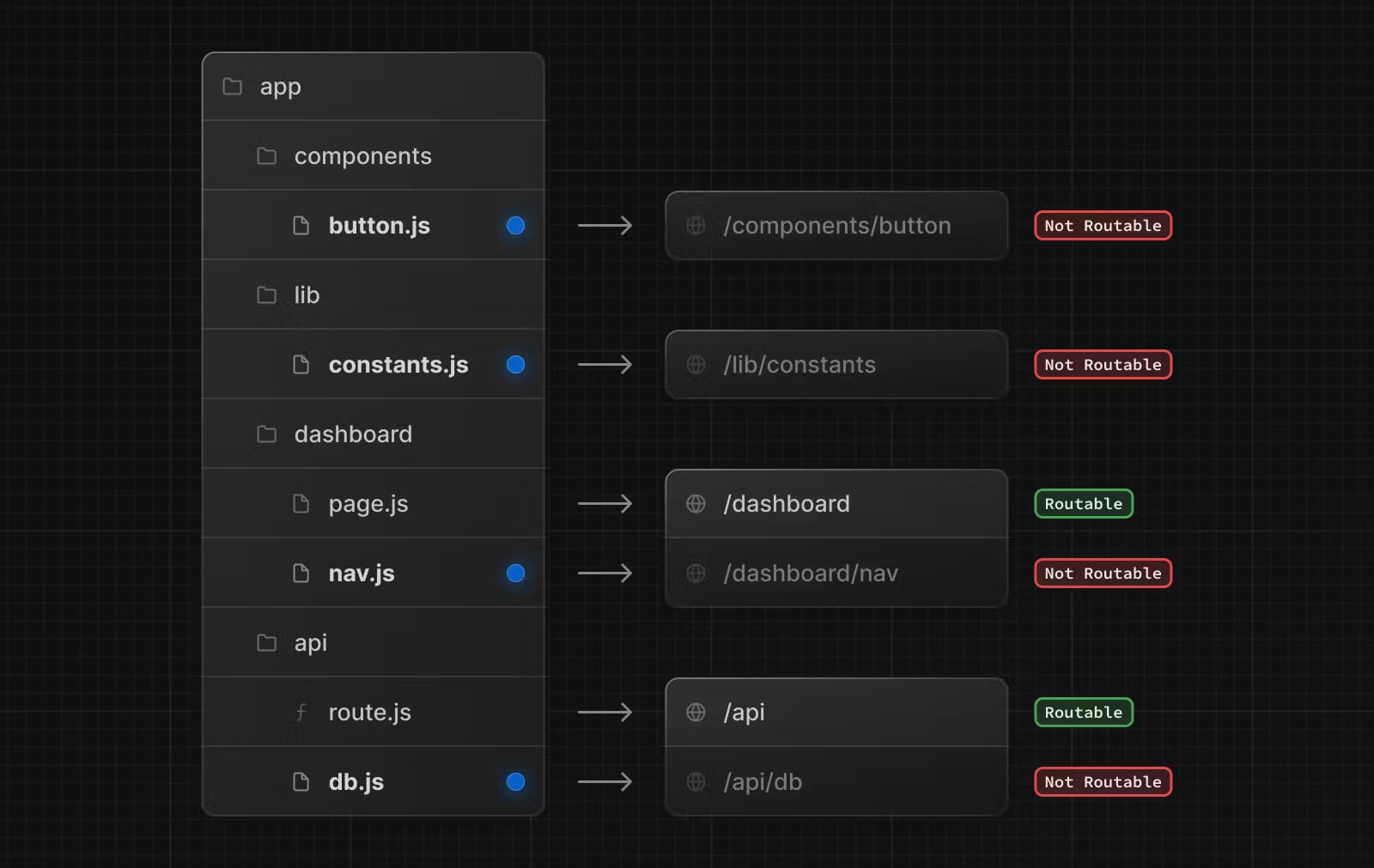
Also, files whose names don't match the routing file conventions above aren't defined as routes, so you can freely add them in the same folder.
In the following image, all files except page.js and route.js aren't defined as routes (Not Routable).
# Layouts
UI shared by several child routes is written in the layout.tsx component of each routing folder.
It uses the children prop as a slot, and the page.tsx component at the same level is rendered in place of {children}.
Layouts can also be nested.
12345678├─app/ │ ├─movies/ │ │ ├─layout.tsx │ │ └─page.tsx │ ├─layout.tsx │ └─page.tsx ├─components/ │ └─Header.tsx
The /app/page.tsx component is rendered in place of {children} in the following code.
1234567891011121314151617import './globals.css' import Header from '@/components/Header' export default function RootLayout({ children }: Readonly<{ children: React.ReactNode }>) { return ( <html lang="ko"> <body className="antialiased"> <Header /> <main className="p-2">{children}</main> </body> </html> ) }
The /app/movies/page.tsx component is rendered in place of {children} in the following code.
12345export default function MoviesLayout({ children }: Readonly<{ children: React.ReactNode }>) { return <section>{children}</section> }
# Component-based navigation
In Next.js, you use the <Link> component instead of the <a> tag to move between pages.
The <Link> component provides page navigation optimized for Next.js projects, such as loading only part of the optimized bundle without reloading the whole page and supporting server rendering.
Let's add links to each page in the /components/Header.tsx component we saw above.
12345678├─app/ │ ├─movies/ │ │ ├─layout.tsx │ │ └─page.tsx │ ├─layout.tsx │ └─page.tsx ├─components/ │ └─Header.tsx
123456789101112131415161718import Link from 'next/link' export default function Header() { return ( <header> <nav className="flex"> {links.map(({ href, label }) => ( <Link key={href} href={href} className="px-2"> {label} </Link> ))} </nav> </header> ) }
You can use the usePathname hook to compare the current path it returns (pathname) with the path of each <Link> component and add an active style to the current page.
1234567891011121314151617181920212223242526'use client' import { usePathname } from 'next/navigation' import Link from 'next/link' const links = [ { href: '/', label: 'Home' }, { href: '/movies', label: 'Movies' } ] export default function Header() { const pathname = usePathname() return ( <header> <nav className="flex"> {links.map(({ href, label }) => ( <Link key={href} href={href} className={`px-2 ${pathname === href ? 'bg-blue-600 text-white' : ''} `}> {label} </Link> ))} </nav> </header> ) }
# Prefetching
With the prefetch option, the <Link /> component can fetch the data of the linked route (href) in advance when it appears in the viewport, which greatly improves navigation performance.
null(default): For static routes, prefetches all child routes; for dynamic routes, prefetches only up to the nearest segment that hasloading.tsx.true: Prefetches both static and dynamic routes.false: Doesn't prefetch.
123456789export default function Links() { return ( <> <Link href={someLink}>null</Link> <Link prefetch={true} href={someLink}>true</Link> <Link prefetch={false} href={someLink}>false</Link> </> ) }
v16 sends prefetch requests separately for each segment of the route tree.
Shared layouts are received once and reused across routes, which improves cache efficiency, but the number of requests per link increases.
Starting with v16.3, bundling responses below a certain size into one request is the default behavior, so the number of requests went down again.
Large shared segments that can be reused across routes are still kept separate, so cache efficiency is maintained.
There's no code you need to change, but if needed, you can adjust the behavior with the prefetchInlining option.
If you set it to false, responses aren't bundled, and a separate request is sent for each segment.
123456789import type { NextConfig } from 'next' const nextConfig: NextConfig = { experimental: { prefetchInlining: false // Default: true } } export default nextConfig
# Programmatic navigation
Depending on the situation, you sometimes need to navigate programmatically instead of using the <Link> component.
In that case, you can implement navigation with the useRouter hook provided by Next.js, as follows.
123456789101112131415161718192021222324252627282930313233'use client' import { usePathname } from 'next/navigation' import { useRouter } from 'next/navigation' import Link from 'next/link' const links = [ { href: '/', label: 'Home' }, { href: '/movies', label: 'Movies' } ] export default function Header() { const pathname = usePathname() const router = useRouter() return ( <header className="flex items-center"> <nav className="flex"> {links.map(({ href, label }) => ( <Link key={href} href={href} className={`px-2 ${pathname === href ? 'bg-blue-600 text-white' : ''} `}> {label} </Link> ))} </nav> <button className="rounded bg-gray-800 px-2 py-1 text-sm text-white transition-colors hover:bg-gray-700" onClick={() => router.push('/movies')}> Movies(Push) </button> </header> ) }
The router object provides the following methods.
push(url): Navigate to a pagereplace(url): Navigate to a page (without leaving a history entry)back(): Go to the previous pageforward(): Go to the next pagerefresh(): Refresh the pageprefetch(url): Prefetch a page
# Prefetching
Unlike the <Link> component, where basic prefetching works automatically, programmatic navigation lets you implement prefetching with the useEffect hook and the router.prefetch() method.
123456789101112131415161718192021222324252627'use client' import { useEffect } from 'react' import { usePathname } from 'next/navigation' import { useRouter } from 'next/navigation' import Link from 'next/link' // Omitted.. export default function Header() { const pathname = usePathname() const router = useRouter() useEffect(() => { router.prefetch('/movies') }, [router]) return ( <header className="flex items-center"> {/* Omitted.. */} <button className="rounded bg-gray-800 px-2 py-1 text-sm text-white transition-colors hover:bg-gray-700" onClick={() => router.push('/movies')}> Movies(Push) </button> </header> ) }
# Dynamic routes
For dynamic routes that can't be defined in advance, write the folder name in square brackets ([]).
Then the URL segment value is passed through the params prop, and the folder name between the brackets becomes the property name.
If you use a query string, it's passed through the searchParams prop.
1234├─app/ │ ├─movies/ │ │ ├─[movieId]/ │ │ │ └─page.tsx
params and searchParams are both Promise objects.
In a Server Component, extract the values you need with the await keyword.
Starting with v16, params, searchParams, cookies(), headers(), and others can no longer be accessed synchronously, and they can only be accessed asynchronously.
1234567891011121314151617181920interface Movie { Title: string Plot: string } export default async function MovieDetails({ params, // Dynamic segment searchParams // Query string }: PageProps<'/movies/[movieId]'>) { const { movieId } = await params const { plot } = await searchParams const res = await fetch(`https://omdbapi.com/?apikey=7035c60c&i=${movieId}&plot=${plot || 'short'}`) const movie: Movie = await res.json() return ( <> <h1>{movie.Title}</h1> <p>{movie.Plot}</p> </> ) }
PageProps in the example above is a global type generated from your folder structure since v15.5, and you use it by specifying a route string, without importing it.
There are three global types of this kind, and each type accepts only routes that have the corresponding file.
| Global type | Used in | Included properties |
|---|---|---|
PageProps |
page.tsx |
params, searchParams |
LayoutProps |
layout.tsx |
params, children, slots (@folder) |
RouteContext |
route.ts |
params |
In a Client Component, extract the values you need with the use function.
1234567891011121314151617181920212223242526272829303132'use client' import { use, useState, useEffect } from 'react' interface Movie { Title: string Plot: string } export default function MovieDetails({ params, // Dynamic segment searchParams // Query string }: PageProps<'/movies/[movieId]'>) { const { movieId } = use(params) const { plot } = use(searchParams) const [movie, setMovie] = useState<Movie | null>(null) useEffect(() => { const fetchMovie = async () => { const res = await fetch(`https://omdbapi.com/?apikey=7035c60c&i=${movieId}&plot=${plot || 'short'}`) const movie: Movie = await res.json() setMovie(movie) } fetchMovie() }, [movieId, plot]) return ( <> <h1>{movie?.Title}</h1> <p>{movie?.Plot}</p> </> ) }
Let's add a link to a movie details page in the <Header> component.
12345678910// Omitted.. const links = [ { href: '/', label: 'Home' }, { href: '/movies', label: 'Movies' }, { href: '/movies/tt4154796', label: 'Movie(Avengers)' } ] export default function Header() { // Omitted.. }
Or go to a movie details page by entering the URL directly, like this.
123http://localhost:3000/movies/tt4520988?plot=full http://localhost:3000/movies/tt4154796 http://localhost:3000/movies/tt1630029
As we saw earlier, a [name] folder handles simple dynamic route matching, and you can also use catch-all matching for all child routes ([...name]) or optional catch-all matching ([[...name]]), as in the following examples.
| Example folder structure | Example URL | params value |
|---|---|---|
app/movies/[hello]/page.tsx |
/movies/foo |
{ hello: 'foo' } |
app/movies/[hello]/page.tsx |
/movies/bar |
{ hello: 'bar' } |
app/movies/[hello]/[world]/page.tsx |
/movies/foo/bar |
{ hello: 'foo', world: 'bar' } |
app/movies/[...hello]/page.tsx |
/movies/foo |
{ hello: ['foo'] } |
app/movies/[...hello]/page.tsx |
/movies/foo/bar |
{ hello: ['foo', 'bar'] } |
app/movies/[...hello]/page.tsx |
/movies/foo/bar/baz |
{ hello: ['foo', 'bar', 'baz'] } |
app/movies/[[...hello]]/page.tsx |
/movies |
{} |
app/movies/[[...hello]]/page.tsx |
/movies/foo |
{ hello: ['foo'] } |
app/movies/[[...hello]]/page.tsx |
/movies/foo/bar |
{ hello: ['foo', 'bar'] } |
# Loading
While a page is being prepared, you can show a loading state first.
Create a loading.tsx file in the same route (folder) as the page to render.
12345├─app/ │ ├─movies/ │ │ ├─[movieId]/ │ │ │ ├─loading.tsx │ │ │ └─page.tsx
12345import Loader from '@/components/Loader' export default function Loading() { return <Loader /> }
To implement an animated loading UI, write the <Loader> component as follows.
123456789101112131415161718192021222324252627282930interface LoaderProps { size?: number weight?: number color?: string duration?: number className?: string } export default function Loader({ size = 40, weight = 4, color = '#e96900', duration = 1, className = '' }: LoaderProps) { return ( <div className={`animate-spin rounded-full ${className} `} style={{ width: size, height: size, borderWidth: weight, borderStyle: 'solid', borderColor: color, borderTopColor: 'transparent', animationDuration: `${duration}s` }} /> ) }
Write a wait (delay) utility function to add latency.
123export default function wait(ms: number) { return new Promise(resolve => setTimeout(resolve, ms)) }
As follows, we'll delay fetching the movie details by 2 seconds so that the loading UI is clearly visible.
Now visit the http://localhost:3000/movies/tt4520988 page!
1234567891011import wait from '@/utils/wait' export default async function MovieDetails({ // Omitted.. }) { const { movieId } = await params const { plot } = await searchParams await wait(2000) const res = await fetch(`https://omdbapi.com/?apikey=7035c60c&i=${movieId}&plot=${plot || 'short'}`) // Omitted.. }
# Errors
If an error occurs while a page is rendering, you can show an error state.
Create an error.tsx file in the same folder as the page to render.
123456├─app/ │ ├─movies/ │ │ ├─[movieId]/ │ │ │ ├─error.tsx │ │ │ ├─loading.tsx │ │ │ └─page.tsx
123456789101112131415'use client' export default function Error({ error, retry }: { error: Error & { digest?: string } retry: () => void }) { return ( <> <h2>{error.message}</h2> <button onClick={() => retry()}>Try again</button> </> ) }
retry() became stable in v16.3.
It calls router.refresh() and reset() together inside startTransition(), which fetches the data from the server again and re-renders the segment, so it's recommended for most error recovery situations.
12345678910import wait from '@/utils/wait' export default async function MovieDetails({ // Omitted.. }) { // Omitted.. await wait(2000) throw new Error('Something went wrong..') // Omitted.. }
# Not found pages
If someone visits a route that isn't defined in your project, you can render a separate page with the not-found.tsx file.
12├─app/ │ └─not-found.tsx
12345678910import Link from 'next/link' export default function NotFound() { return ( <> <h1 className="text-2xl font-bold">404, page not found.</h1> <Link href="/">Go to the main page</Link> </> ) }
1http://localhost:3000/helloworld12345678
# Streaming async components
In the following example, the async/page.tsx file is an async component that renders the page after 1 second, and the Abc and Xyz components are also async components that render their content after 2 and 3 seconds, respectively.
Then when you visit http://localhost:3000/async, the loading animation is shown for 4 seconds, and after that, the Abc and Xyz components render at the same time.
The Abc component could render after 2 seconds, but because of the Xyz component, it renders together with it after 3 seconds.
123456├─app/ │ ├─async/ │ │ ├─Abc.tsx │ │ ├─loading.tsx │ │ ├─page.tsx │ │ └─Xyz.tsx
12345import Loader from '@/components/Loader' export default function Loading() { return <Loader /> }
123456import wait from '@/utils/wait' export default async function Abc() { await wait(2000) return <h2>Abc component!</h2> }
123456import wait from '@/utils/wait' export default async function Xyz() { await wait(3000) return <h2>Xyz component!</h2> }
1234567891011121314import wait from '@/utils/wait' import Abc from './Abc' import Xyz from './Xyz' export default async function Page() { await wait(1000) return ( <> <h1>Async page!</h1> <Abc /> <Xyz /> </> ) }
Let's add a link in the <Header> component to the test page for streaming async components.
1234567891011// Omitted.. const links = [ { href: '/', label: 'Home' }, { href: '/movies', label: 'Movies' }, { href: '/movies/tt4154796', label: 'Movie(Avengers)' }, { href: '/async', label: 'Async' } ] export default function Header() { // Omitted.. }
If you stream async components with the <Suspense> component, each async component can render as soon as it's ready.
You can also render a loading UI for each async component with the fallback prop of the <Suspense> component.
In the following example, the default loading animation is shown for 1 second, then the red and blue loading animations are shown for 2 and 3 seconds, respectively, and then the Abc and Xyz components render.
1234567891011121314151617181920import { Suspense } from 'react' import Loader from '@/components/Loader' import wait from '@/utils/wait' import Abc from './Abc' import Xyz from './Xyz' export default async function Page() { await wait(1000) return ( <> <h1>Async page!</h1> <Suspense fallback={<Loader color="red" />}> <Abc /> </Suspense> <Suspense fallback={<Loader color="blue" />}> <Xyz /> </Suspense> </> ) }
# Advanced routing patterns
# Route groups
Regular folders inside the /app folder always map to URL paths, but you can use parentheses (()) to create folder (route) groups that don't affect the URL path.
In particular, each of these groups can have its own layout (layout.tsx), so you can provide different layouts for different routes.
12345678910├─app/ │ ├─(movies)/ │ │ ├─movies/ │ │ │ ├─[movieId]/ │ │ │ │ ├─error.tsx │ │ │ │ ├─loading.tsx │ │ │ │ └─page.tsx │ │ └─layout.tsx <== Layout that works only in the (movies) group │ ├─layout.tsx <== Root layout │ └─page.tsx
12345678export default function Layout({ children }: { children: React.ReactNode }) { return ( <div className="border-2 px-3 py-2"> <p className="text-gray-500">Layout of the (movies) route group</p> {children} </div> ) }
# Parallel routes
Folders with the @ prefix are pages that don't affect the URL path, and they let a single layout render several routes in parallel (parallel routes).
This lets you load and render several pages or components in parallel, which shortens the total loading time compared to sequential loading and lets you show each component's loading state independently, for a better user experience.

12345678910111213├─app │ ├─async │ │ ├─@abc │ │ │ ├─default.tsx │ │ │ ├─loading.tsx │ │ │ └─page.tsx │ │ ├─@xyz │ │ │ ├─default.tsx │ │ │ ├─loading.tsx │ │ │ └─page.tsx │ │ ├─layout.tsx │ │ ├─loading.tsx │ │ └─page.tsx
The default component is what renders instead when a slot doesn't match the current URL.
During navigation with the <Link> component, Next.js remembers which child page each slot was showing.
But on a full page load, such as a refresh or entering the address directly, that state can't be restored.
In that case, the slots that match the URL render their own page.tsx, but the remaining slots that don't match have nothing to render.
For example, if only the @abc slot has an /async/detail child route, refreshing at that address leaves the @xyz slot unable to find a page to render.
That's why you put a fallback page in each slot for cases like this.
Starting with v16, named (@) slots in segments that have child routes need an explicit default component, and the build fails without one.
If you have nothing to show, you can call notFound() or return null.
However, slots in segments without child routes, like /async in the example above, and slots under a catch-all route ([...name]) are exceptions, so the build passes even without a default component.
Once you add a child route later, the component becomes required, so we recommend writing it ahead of time.
1234567import { notFound } from 'next/navigation' export default function Default() { notFound() // Or return null }
Write the content of each component in the order of the project structure, as follows.
12345import Loader from '@/components/Loader' export default function Loading() { return <Loader color="red" /> }
123456import wait from '@/utils/wait' export default async function Abc() { await wait(2000) return <h2>Abc component!</h2> }
12345import Loader from '@/components/Loader' export default function Loading() { return <Loader color="blue" /> }
123456import wait from '@/utils/wait' export default async function Xyz() { await wait(3000) return <h2>Xyz component!</h2> }
The page.tsx component at the same level as the layout.tsx component is passed as the children prop of layout.tsx, the @abc/page.tsx component as the abc prop, and the @xyz/page.tsx component as the xyz prop.
Then each passed component is rendered with JSX interpolation, like {children}.
If you use the LayoutProps type, the types of the slot props, along with children, are inferred from the folder structure.
12345678910111213export default function Layout({ children, abc, xyz }: LayoutProps<'/async'>) { return ( <> {children} {abc} {xyz} </> ) }
12345import Loader from '@/components/Loader' export default function Loading() { return <Loader /> }
123456import wait from '@/utils/wait' export default async function Page() { await wait(1000) return <h1>Async page!</h1> }
When you visit http://localhost:3000/async, you get the same loading animations and page results as in the <Suspense> example we saw in 'Streaming async components'.
The result is the same, but with parallel routes like this, each page component loads independently, and you can easily separate loading and error states for each component, which can reduce complex branching in your components.
1234567891011121314151617181920import { Suspense } from 'react' import Loader from '@/components/Loader' import wait from '@/utils/wait' import Abc from './Abc' import Xyz from './Xyz' export default async function Page() { await wait(1000) return ( <> <h1>Async page!</h1> <Suspense fallback={<Loader color="red" />}> <Abc /> </Suspense> <Suspense fallback={<Loader color="blue" />}> <Xyz /> </Suspense> </> ) }
# Intercepting routes
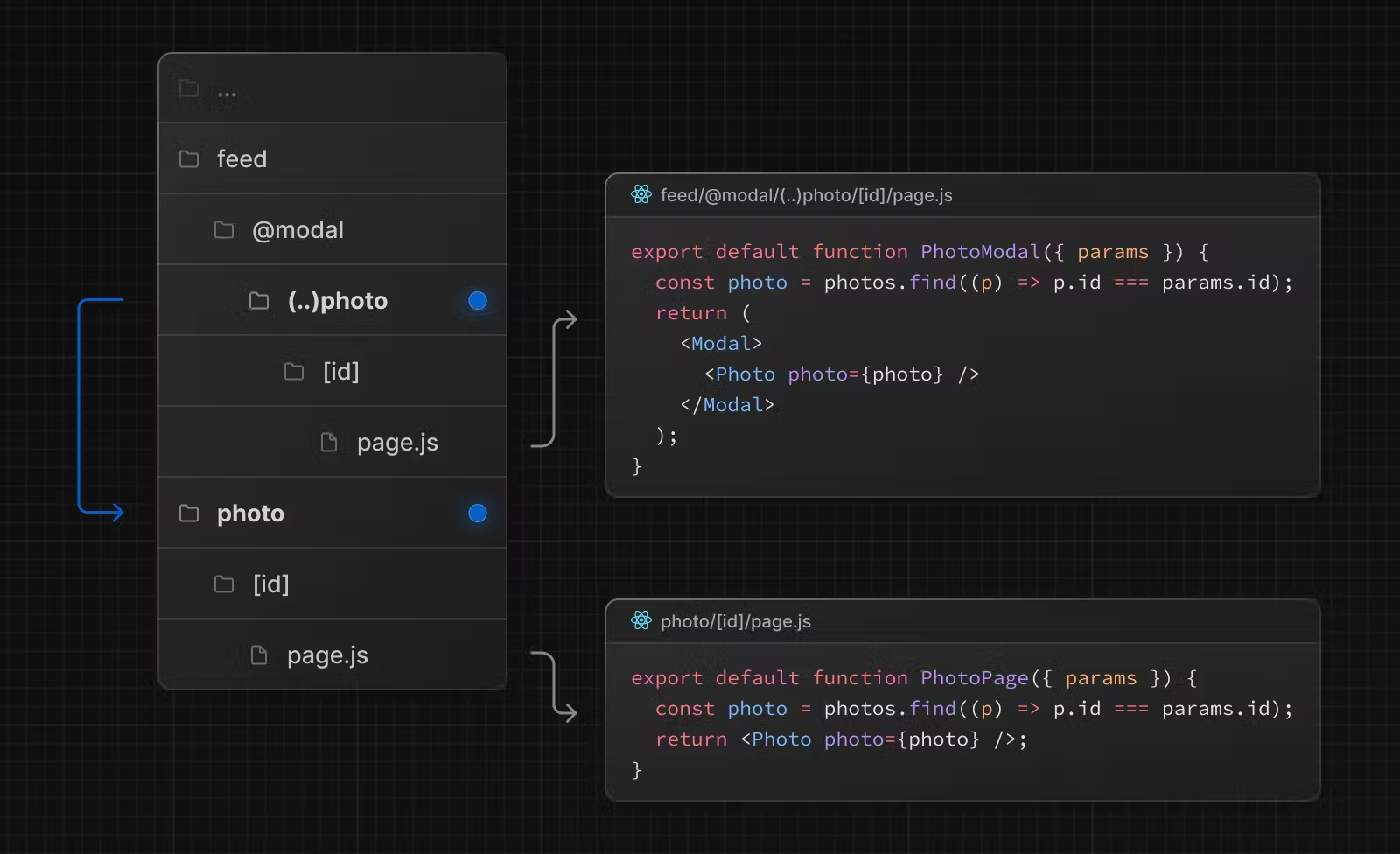
In Next.js, the intercepting routes feature lets you render a different URL path within the current layout.
Naming conventions for intercepting routes, such as (..), are similar to relative paths (../, ./), but they're based on segments, not folders.
For example, 'route groups' aren't mapped to URLs, so the folder path /app/a/b/(group)/(..)x matches the URL path /a/x.
| Folder path | Matching URL | Description |
|---|---|---|
/app/a/b/(.)x |
/a/b/x |
Same-level segment |
/app/a/b/(..)x |
/a/x |
Parent-level segment |
/app/a/b/(...)x |
/x |
Root-level segment |
123456789├─app │ ├─a │ │ └─b │ │ └─c │ │ ├─(...)x │ │ │ └─page.tsx │ │ └─page.tsx │ └─x │ └─page.tsx
123export default function XPage() { return <h1>Intercepted X Page!!</h1> }
12345678910import Link from 'next/link' export default function CPage() { return ( <> <h1>C Page</h1> <Link href="/x">Intercept!</Link> </> ) }
123export default function XPage() { return <h1>X Page..</h1> }
1http://localhost:3000/a/b/c
123456789101112├─app │ ├─a │ │ └─b │ │ └─c │ │ ├─@xWrap │ │ │ ├─(...)x │ │ │ │ └─page.tsx │ │ │ └─page.tsx │ │ ├─layout.tsx │ │ └─page.tsx │ └─x │ └─page.tsx
..@xWrap/page.tsx returns null so that it doesn't show anything on screen by itself, and it's used to render the page of the intercepted route (@xWrap/(...)x/page.tsx).
123export default function xWrap() { return null }
1234567891011121314export default function CLayout({ children, xWrap }: { children: React.ReactNode xWrap: React.ReactNode }) { return ( <> {children} {xWrap} </> ) }
# Proxy
With a single /proxy.ts file created in the root path, you can provide code that runs on the server before a request goes to a specific route.
It's mainly used to separate pages that need authentication and permission checks, and it can also set response headers and cookies, redirect, rewrite, and more.
Starting with Next.js 16, middleware.ts has been renamed to proxy.ts.proxy.ts makes the network boundary clear and runs in the Node.js runtime.
Proxy runs in the following process.
- Next.js Node.js runtime initialization
- Running the Proxy that matches the requested route (
config.matcher) - Static/dynamic route matching
- Layout and page rendering
123456789101112import { NextResponse } from 'next/server' import type { NextRequest } from 'next/server' export function proxy(request: NextRequest) { return NextResponse.next() } // Proxy is called only on routes that match the matcher property. // If you omit the `config` export, Proxy is called on every route. export const config = { matcher: ['/dashboard/:path*', '...'] // Match only specific routes }
By default, Proxy is called on every route request.
If you want to exclude specific routes, you can exclude certain patterns with a regular expression (RegExp) in the source property.
The (?!) expression means a negative lookahead, which excludes a specific pattern.
In other words, Proxy is called on all routes except the specified ones, and the following routes are excluded from Proxy.
api/*: API routes_next/static/*: Static files_next/image/*: Image optimization filesfavicon.ico: Favicon file
12345678910111213// ... export const config = { matcher: [ { source: '/((?!api|_next/static|_next/image|favicon.ico).*)', // Exclude prefetch requests from Proxy! missing: [ { type: 'header', key: 'next-router-prefetch' }, { type: 'header', key: 'purpose', value: 'prefetch' } ] } ] }
# API
You can define API endpoints through the structure inside the /app/api folder and handle requests for various HTTP methods, such as 'GET' and 'POST'.
This folder structure uses route.ts files instead of the basic file conventions such as page.tsx.
1234567├─app │ ├─api │ │ ├─movies │ │ │ └─[movieId] │ │ │ └─route.ts │ │ └─users │ │ └─route.ts
The value of a dynamic route is passed in the params property of the handler's second argument (context), and you write its type by specifying a route string for the RouteContext type, just like PageProps for pages.
123456789101112import { NextResponse } from 'next/server' import type { NextRequest } from 'next/server' export async function GET( request: NextRequest, context: RouteContext<'/api/movies/[movieId]'> ) { const { movieId } = await context.params // Dynamic route const res = await fetch(`https://omdbapi.com/?apikey=7035c60c&i=${movieId}`) const data = await res.json() return NextResponse.json(data) }
123456789101112131415161718192021222324252627282930import { NextResponse } from 'next/server' import type { NextRequest } from 'next/server' interface ResponseValue { total: number users: User[] } interface User { id: string name: string age: number isValid: boolean // ... } export async function POST(request: NextRequest) { // const body = await request.json() // Request body const searchParams = request.nextUrl.searchParams // Query string const sort = (searchParams.get('sort') || 'name') as keyof User // API: https://www.heropy.dev/p/5PlGxB const res = await fetch('https://api.heropy.dev/v0/users') const { users } = (await res.json()) as ResponseValue users.sort((a, b) => { const av = a[sort] || 0 const bv = b[sort] || 0 return av > bv ? 1 : -1 }) return NextResponse.json(users) }
12http://localhost:3000/api/movies/tt4520988 http://localhost:3000/api/users?sort=age
# Server Actions
Next.js lets you write functions that run only on the server (Server Actions).
A Server Action doesn't stop at changing data; if needed, the server also re-renders the screen with the change applied and sends it along in the response.
It differs from a simple API call in that the data change and the screen update are bundled together, and it must be called through a form submission, an event handler, and so on.
Add the 'use server' directive at the top of a module and add your Server Actions, as follows.
1234567'use server' export async function wait(duration = 1000): Promise<{ message: string }> { console.log(`Run 'wait' function`) return new Promise(resolve => setTimeout(() => resolve({ message: `Waited for ${duration}ms` }), duration) ) }
As follows, you can also import and use Server Actions in Client Components.
Here too, the Run 'wait' function message is printed only in the server console.
123456789101112131415'use client' import { wait } from '@/serverActions' import { useState, useEffect } from 'react' export default function ClientPage() { const [message, setMessage] = useState('') const [loading, setLoading] = useState(true) useEffect(() => { wait(3000).then(({ message }) => { setMessage(message) setLoading(false) }) }, []) return <h1>{loading ? 'Loading...' : message}</h1> }
In particular, Server Actions can be called through the action attribute of a <form> element, which makes them useful for working with forms.
The following example only shows how to connect a form to a Server Action.
For actual sign-in handling, see the Authentication section.
1234567891011121314151617181920212223242526272829import { signIn } from '@/serverActions' export default function Page() { return ( <> <form action={signIn} className="flex gap-4"> <input name="email" type="email" placeholder="Email" className="rounded px-2 py-1 text-gray-900 focus:outline-none focus:ring-2 focus:ring-blue-500" /> <input name="password" type="password" placeholder="Password" className="rounded px-2 py-1 text-gray-900 focus:outline-none focus:ring-2 focus:ring-blue-500" /> <button type="submit" className="rounded bg-blue-500 px-4 py-2 text-white hover:bg-blue-400"> Sign in </button> </form> </> ) }
123456789101112'use server' import { redirect } from 'next/navigation' export async function signIn(formData: FormData) { const email = formData.get('email') const password = formData.get('password') console.log(email, password) // await sign-in handling.. redirect('/') // On successful sign-in, go to the main page! } // ...
Calling it directly from a Server Component, as follows, is just a regular function call that runs on the server, and it doesn't work as a Server Action.
A Server Action exists only when it's called through React's action mechanisms, such as the action attribute of a <form> element or an event handler, as a request separate from page rendering.
123456import { wait } from '@/serverActions' export default async function ServerPage() { const { message } = await wait(3000) return <h1>{message}</h1> }
# Authentication
When you implement user authentication in Next.js, the first thing to decide is where to store the session token.
Server Components, Server Actions, and Proxy all need to be able to read it, so you store it in an httpOnly cookie.
This creates a structure where the browser doesn't talk to the authentication API directly, and the Next.js server makes the calls on its behalf in the middle.
A bonus is that you don't have to include values that must not be exposed, such as API keys, in the client bundle.
Let's integrate an external authentication API directly, without a library.
The API we'll use is as follows; every request header needs an issued API key, but it's omitted in this post.
| Endpoint | Description |
|---|---|
POST /auth/signup |
Sign up |
POST /auth/signin |
Sign in |
POST /auth/refresh |
Refresh the session |
POST /auth/me |
Check user information |
All endpoints return { token, user, message } as the response body, and token is an access token with a 10-minute lifetime.
And the responses for sign-up, sign-in, and session refresh also include a refresh token as an httpOnly cookie named _refresh.
# Session management
Gather the server-only code related to authentication in one file.
The server-only package we use with it causes a build error if the module is included in the client bundle, which prevents code that handles tokens from being exposed to the browser.
1npm i server-only
1234567891011121314151617181920212223242526272829303132333435363738394041424344454647484950515253545556575859606162636465666768697071727374757677787980818283import 'server-only' import { cache } from 'react' import { cookies } from 'next/headers' import { redirect } from 'next/navigation' export const SESSION = 'session' const BASE_URL = 'https://api.heropy.dev/v1' const baseHeaders = { 'Content-Type': 'application/json', apikey: process.env.AUTH_API_KEY! } export interface User { id: string email: string name: string photo: string | null } // Save the session cookie export async function setSessionToken(token: string) { const cookieStore = await cookies() cookieStore.set(SESSION, token, { httpOnly: true, // Can't be accessed with JS on the client! secure: process.env.NODE_ENV === 'production', sameSite: 'lax', path: '/', maxAge: 60 * 60 * 24 * 3 // Same lifetime as the refresh token! }) } // Delete the session cookie export async function clearSessionToken() { const cookieStore = await cookies() cookieStore.delete(SESSION) } // Extract the refresh token from the response export function readRefreshToken(res: Response) { const setCookie = res.headers.getSetCookie().find(c => c.startsWith('_refresh=')) return setCookie?.split(';')[0].replace('_refresh=', '') } // Get the session export const getSession = cache(async () => { const refreshToken = (await cookies()).get(SESSION)?.value if (!refreshToken) return null const res = await fetch(`${BASE_URL}/auth/refresh`, { method: 'POST', // fetch on the server doesn't send cookies automatically, so attach it yourself. headers: { ...baseHeaders, Cookie: `_refresh=${refreshToken}` }, cache: 'no-store' }) if (!res.ok) return null const { token, user }: { token: string; user: User } = await res.json() return { accessToken: token, user } }) // Get the session + go to the sign-in page if not authenticated export async function requireSession() { const session = await getSession() if (!session) redirect('/signin') return session } // API request that requires authentication export async function api<T>(path: string, init: RequestInit = {}): Promise<T> { const { accessToken } = await requireSession() const res = await fetch(`${BASE_URL}${path}`, { ...init, headers: { ...baseHeaders, Authorization: `Bearer ${accessToken}`, ...init.headers }, cache: 'no-store' // The response differs per user, so don't cache it! }) if (!res.ok) throw new Error(`API Error: ${res.status}`) return res.json() }
The setSessionToken and clearSessionToken functions save and delete the session cookie with the cookies function from next/headers.
The readRefreshToken function takes the refresh token out of the Set-Cookie header of the API response.fetch on the server doesn't store cookies automatically the way a browser does, so you have to read the token yourself.
These functions are called in sign-in and sign-out.
The getSession function calls /auth/refresh with the saved refresh token, checking whether the session is valid while receiving the user information and a new access token together.
The access token it receives exists only as the return value and disappears when request handling ends.
Wrapping the function in React's cache function means that even if it's called several times in one render, the request happens only once.
Thanks to this, the same access token is reused no matter how many times you call api within the same request.requireSession, which adds handling for unauthenticated users on top of this, is what you call in pages and Server Actions.
The api function handles API requests that require authentication.
It puts the access token received from requireSession in the Authorization header of the request.
The getSession function gets a new access token for each request.
# Signing in and out
Sign-in is handled with a Server Action.
It runs only on the server, so the email and password don't pass through JS in the browser.
When sign-in succeeds, take the refresh token out of the response with the readRefreshToken function, save it in a cookie, and move to the route the user was originally going to.
If it fails, the user is sent back to the sign-in page.
12345678910111213141516171819202122232425262728293031323334'use server' import { redirect } from 'next/navigation' import { readRefreshToken, setSessionToken, clearSessionToken } from '@/lib/auth' export async function signIn(formData: FormData) { // Make sure it's an internal path so we don't redirect to an external address! const redirectTo = String(formData.get('redirectTo') || '') const safe = redirectTo.startsWith('/') && !redirectTo.startsWith('//') ? redirectTo : '/' const res = await fetch('https://api.heropy.dev/v1/auth/signin', { method: 'POST', headers: { 'Content-Type': 'application/json', apikey: process.env.AUTH_API_KEY! }, body: JSON.stringify({ email: formData.get('email'), password: formData.get('password') }) }) const refreshToken = res.ok ? readRefreshToken(res) : null if (!refreshToken) { redirect(`/signin?error=1&redirectTo=${encodeURIComponent(safe)}`) } await setSessionToken(refreshToken) redirect(safe) } export async function signOut() { await clearSessionToken() redirect('/signin') }
Every function exported from a 'use server' file becomes a Server Action, which is an endpoint the client can call over the network, so functions used only inside the server, such as readRefreshToken and setSessionToken, must be placed in /lib/auth.ts.
For the sign-in form, you just connect the Server Action to the action attribute of the <form> element.
It doesn't use hooks, so the page stays a Server Component, and searchParams is read with await.
12345678910111213141516171819202122232425262728import { signIn } from '@/serverActions/auth' export default async function SignInPage({ searchParams }: PageProps<'/signin'>) { const { redirectTo, error } = await searchParams return ( <form action={signIn}> <input type="hidden" name="redirectTo" value={redirectTo || '/'} /> <input name="email" type="email" placeholder="Email" /> <input name="password" type="password" placeholder="Password" /> {error && <p>Please check your email or password.</p>} <button type="submit">Sign in</button> </form> ) }
# Protecting routes
In Proxy, separate pages that require authentication from pages that signed-in users shouldn't access.
It only checks whether the cookie exists, so it doesn't need to be an async function, and no network call is needed.
1234567891011121314151617181920212223242526272829import { NextResponse } from 'next/server' import type { NextRequest } from 'next/server' import { SESSION } from '@/lib/auth' const protectedRoutes = ['/dashboard', '/settings'] const guestOnlyRoutes = ['/signin', '/signup'] export default function proxy(request: NextRequest) { const hasSession = request.cookies.has(SESSION) const { pathname, search } = request.nextUrl // If the route requires authentication and there's no session, go to the sign-in page! if (!hasSession && protectedRoutes.some(route => pathname.startsWith(route))) { const url = new URL('/signin', request.url) url.searchParams.set('redirectTo', pathname + search) // Route to return to after sign-in return NextResponse.redirect(url) } // If already signed in and visiting the sign-in page, go to the main page! if (hasSession && guestOnlyRoutes.some(route => pathname.startsWith(route))) { return NextResponse.redirect(new URL('/', request.url)) } return NextResponse.next() } export const config = { matcher: ['/((?!api|_next/static|_next/image|favicon.ico).*)'] }
What Proxy does is an optimistic check.
An optimistic check assumes the token is valid and quickly checks only whether the cookie exists.
It's fast because it doesn't ask the API server or the database, but the cookie could be forged or expired, so passing the check doesn't mean the user is authenticated.
Proxy runs on almost every request, so sending a verification request here every time would be a heavy load.
So Proxy only filters out requests that are clearly unauthenticated, and the actual verification is handled by the requireSession function, which is close to the data.
Finally, don't check authentication in layouts (layout.tsx).
It's easy to think of blocking all child routes in one layout, as follows, but in Next.js it doesn't work as intended.
1234567import { getSession } from '@/lib/auth' export default async function DashboardLayout({ children }: { children: React.ReactNode }) { const session = await getSession() if (!session) return null // This doesn't stop child pages from rendering! return <div>{children}</div> }
In the end, authentication checks must be performed in the pages (page.tsx) that actually use the data.
Calling the requireSession function handles unauthenticated users and also gives you the user information.
1234567891011import { requireSession } from '@/lib/auth' export default async function DashboardPage() { const { user } = await requireSession() return ( <div> <h1>Hello, {user.name}!</h1> <p>{user.email}</p> </div> ) }
# Caching
# Cache components and functions
A cache component is a component, such as a page, that's cached with the 'use cache' directive.
You can also use the directive in regular functions such as Server Actions, and by default it caches the return value.
To use this feature, you need to add the Next.js configuration option (cacheComponents).
12345678import type { NextConfig } from 'next' const nextConfig: NextConfig = { // experimental: { ppr: true } // v15 (Partial Prerendering) cacheComponents: true // v16 } export default nextConfig
And before you test whether caching works, make sure the Disable cache option in your browser's developer tools is turned off.
If this option is on, or if you do a hard reload, the browser sends a Cache-Control: no-cache header, and when the development server receives this header, it ignores the cache and runs cache components or functions again.
This behavior exists only in the development server, and in production, you can't bypass the cache with this header.
Also, in development mode, the existing cache is invalidated every time you save a file, and since the default cache storage is memory, the cache disappears when you restart the development server.
When you test while editing code, it's normal for things to run again every time, so check whether caching works with a regular refresh or page navigation, without editing code.
Now you can define cache components with the 'use cache' directive.
This directive must be at the very top of a module or function, and cache components must be defined as async functions!
If you use the directive at the module level, every exported function must be an async function!
123456'use cache' // <= Module level export default async function Component() { 'use cache' // <= Function level return <></> }
Cache components serialize their arguments (props) to generate cache keys automatically, and serialize their return values to store them.
Besides the arguments, the cache key includes the build ID, a hash made from the function's location and signature, and variables from the outer scope referenced inside the function, and in development mode, an HMR (Hot Module Replacement) update hash is added.
So different arguments are cached as separate entries, and a new build or saving a file in development mode invalidates the existing cache.
Serializable values are as follows.
- String, Number, Boolean, Null, Undefined, Plain Objects, Arrays
- Dates, Maps, Sets, TypedArrays, ArrayBuffers
If you read or modify a non-serializable value inside the function, the function can't be cached.
However, you can use such a value if it's a pass-through (simply passed along without being read or modified).
12345678910'use cache' export async function Component({ children }: { children: ReactNode }) { // Don't read or modify children here. return <div>{children}</div> } export async function Form({ action }: { action: () => Promise<void> }) { // Don't call action here. return <form action={action}></form> }
What a cache component stores is the result of the work done inside the function body.
So if the fetch that gets the data is outside the cache component, the request happens every time, even with caching applied.
The following example passes movie information that the page has already fetched to a cache component.
123456789101112131415'use cache' interface Movie { Title: string Plot: string } export default async function MovieInfo({ movie }: { movie: Movie }) { return ( <> <h1>{movie.Title}</h1> <p>{movie.Plot}</p> </> ) }
12345678910import MovieInfo from './MovieInfo' export default async function MovieDetails({ params }: PageProps<'/movies/[movieId]'>) { const { movieId } = await params const res = await fetch(`https://omdbapi.com/?apikey=7035c60c&i=${movieId}`) const movie = await res.json() return <MovieInfo movie={movie} /> }
The example above has no syntax problems, and caching works correctly, but the cache key is the entire movie object, so to look up the cache, you first have to get movie with fetch.
In the end, the cache saves only the work of building the JSX, and the network request still happens.
To get the benefits of caching, pass only an identifier and move the fetch into the cache component, as follows.
1234567891011121314151617'use cache' interface Movie { Title: string Plot: string } export default async function MovieInfo({ movieId }: { movieId: string }) { const res = await fetch(`https://omdbapi.com/?apikey=7035c60c&i=${movieId}`) const movie: Movie = await res.json() return ( <> <h1>{movie.Title}</h1> <p>{movie.Plot}</p> </> ) }
12345678import MovieInfo from './MovieInfo' export default async function MovieDetails({ params }: PageProps<'/movies/[movieId]'>) { const { movieId } = await params return <MovieInfo movieId={movieId} /> }
Now the cache key is just movieId, and from the second visit to the same movie on, the stored result is used without running fetch.
Request-time values such as params and searchParams can't be read inside a cache component, so read them in the page and pass them as arguments, as in the example above.
When you use cache components or functions, test logs may be printed repeatedly in development mode even when caching is applied.
These are just development logs, and the function isn't actually running again.
You also can't tell whether caching works from the requests shown in the Network tab of the browser developer tools.
Dynamic pages that read params or searchParams request a Server Component payload (RSC Payload) from the Next.js server on every navigation, and these show up in the Network tab as requests with a ?_rsc= query string.
These requests happen every time regardless of caching, and because their responses contain the movie information, they look like data requests, but they're different from the fetch inside the cache component.
The fetch inside a cache component runs on the server, so it doesn't appear in the browser.
So check in the development server terminal whether the response time drops sharply from the second visit on, or turn on cache debug logs to check, as follows.
1NEXT_PRIVATE_DEBUG_CACHE=1 npm run dev
1234use-cache: Resume Data Cache entry not found ["development","c0be05f2...",[{"movieId":"tt6793710"}],"0"] GET /movies/tt6793710 200 in 803ms use-cache: Resume Data Cache entry found ["development","c0be05f2...",[{"movieId":"tt6793710"}],"0"] GET /movies/tt6793710 200 in 94ms
On the first visit, there's no cache entry (not found), so the function runs, and from the second visit on, the stored entry is found (found) and the response comes back right away.
You can also see in the log's cache key that the movieId value is included as an argument.
# Cache lifetime
By default, cache components are valid for 5 minutes on the client and 15 minutes on the server, and they have no separate expiration.
If needed, you can control this with the cacheLife function, using preset profiles or timing properties.
1234567cacheLife('hours') cacheLife('max') cacheLife({ stale: 60 * 10, revalidate: 60 * 60 * 24, expire: 60 * 60 * 24 * 30 })
1234567'use cache' import { cacheLife } from 'next/cache' export async function Component() { cacheLife('hours') return <></> }
The following preset profiles are available.
| Preset profile | Example use | stale |
revalidate |
expire |
|---|---|---|---|---|
default |
Standard content | 5 minutes | 15 minutes | No expiration |
seconds |
Real-time data (stock prices, live) | 30 seconds | 1 second | 1 minute |
minutes |
Frequently updated (social feeds, news) | 5 minutes | 1 minute | 1 hour |
hours |
Updated several times a day (product inventory, weather) | 5 minutes | 1 hour | 1 day |
days |
Updated daily (blog posts, articles) | 5 minutes | 1 day | 1 week |
weeks |
Updated weekly (podcasts, newsletters) | 5 minutes | 1 week | 30 days |
max |
Rarely changes (legal pages, archived content) | 5 minutes | 30 days | 1 year |
For finer control, you can use the following timing properties, specified in seconds.
| Timing property | Meaning | Default value |
|---|---|---|
stale |
How long the client uses cached data | 300 |
revalidate |
How long the server uses cached data in the background | 900 |
expire |
When the server must regenerate the cached data If you set it together with revalidate, expire must be longer! |
No expiration |
# Cache tags
You can use the cacheTag function to assign tags so that you can control the cache as needed.
Tags can only be strings, and you can specify up to 128 tags of up to 256 characters each.
1234567'use cache' import { cacheTag } from 'next/cache' export async function Component() { cacheTag('hello', 'world', 'tag') return <></> }
The updateTag function expires the cache that contains a specific tag, runs the cache component or function again (Read-Your-Writes), and caches the result.
So the latest data appears on screen right after the call, which is useful when changes must be shown immediately.
Unlike the cacheTag function, which can take multiple tags, the updateTag function takes only a single tag and can be used only in Server Actions.
123456'use server' import { updateTag } from 'next/cache' export async function action() { updateTag('world') }
The revalidateTag function can also expire the cache that contains a specific tag, but the cache component or function runs again only when there's another request (Stale-While-Revalidate).
So the latest data doesn't appear right away, which is useful in situations where a delay is acceptable, such as updating posts or other documents.
Revalidation doesn't start when you call the function; the content is refreshed only when someone visits a page that uses the tag again.
Thanks to this, even if many pages are connected to one tag, revalidation doesn't happen all at once.
It can be used not only in Server Actions but also in Route Handlers (API functions such as GET and POST).
And a cache profile is required as the second argument, and 'max' is generally recommended.
The cache profile decides how much longer stale data is served, so the updateTag function, which expires the cache immediately, doesn't have this argument.
123456'use server' import { revalidateTag } from 'next/cache' export async function action() { revalidateTag('world', 'max') }
# Optimization
Next.js has several built-in optimization features that can improve your application's speed and Web Vitals.
Let's look at a few commonly used ones.
# React Compiler
React Compiler automatically memoizes components to reduce unnecessary re-renders.
Starting with v16, built-in support for React Compiler is stable.
1234567import type { NextConfig } from 'next' const nextConfig: NextConfig = { reactCompiler: true } export default nextConfig
# Images
With the <Image /> component, you can very easily use features such as lazy loading, browser caching, and size optimization.
The src, alt, width, and height props are required, and images with the same source path are cached automatically.
123456789101112131415161718192021222324import Image from 'next/image' type Movie = { // Type the response Title: string Poster: string } export default async function MoviePoster({ params, searchParams // Query string }: PageProps<'/poster/[movieId]'>) { const { movieId } = await params const { plot } = await searchParams const res = await fetch(`https://omdbapi.com/?apikey=7035c60c&i=${movieId}&plot=${plot || 'short'}`) const movie: Movie = await res.json() return ( <Image src={movie.Poster} alt={movie.Title} width={300} height={450} /> ) }
If you use remote image paths, you need to add the remotePatterns option to your project configuration to protect your application.
You can also specify a port number (port) or a specific subpath (pathname).
123456789101112131415161718192021222324import type { NextConfig } from 'next' const nextConfig: NextConfig = { images: { remotePatterns: [ { protocol: 'https', hostname: 'heropy.dev' }, { protocol: 'https', hostname: 'm.media-amazon.com' // Domain of the `movie.Poster` path }, { protocol: 'https', hostname: '**.example.com', port: '80', pathname: '/account123/**', } ] } } export default nextConfig
You can use the onLoad prop to call a callback when the image finishes loading.
However, the onLoad prop must be used in a Client Component.
123456789101112131415'use client' // ... export default function Page() { const [loaded, setLoaded] = useState(false) // ... return ( <Image src={image.src} alt={image.name} width={100} height={200} onLoad={() => setLoaded(true)} /> ) }
You can also mark an image as important so that it loads first, or specify its quality.
12345678910111213export default function Page() { // ... return ( <Image src={image.src} alt={image.name} width={100} height={200} quality={100} // Default: 75 priority // LCP (Largest Contentful Paint) optimization /> ) }
# Fonts
Next.js has built-in automatic self-hosting for all supported font files.
By default, it supports self-hosting for all Google Fonts and doesn't send separate requests to the Google API.
Import and initialize a built-in font function, as in the following example.
1234567891011121314import { Roboto, Oswald } from 'next/font/google' export const roboto = Roboto({ subsets: ['latin'], // Font subsets to use weight: ['400', '700'], // Font weights to use display: 'swap', // Show a fallback font until the font downloads (performance optimization) variable: '--font-roboto' // CSS variable name to use }) export const oswald = Oswald({ subsets: ['latin'], weight: ['500'], display: 'swap', variable: '--font-oswald' })
You can apply a font with each element's className attribute.
1234567891011121314151617import { roboto, oswald } from '@/styles/fonts' export default function Headline() { return ( <> <h1 className={oswald.className}> OMDb API </h1> <p className={roboto.className}> The OMDb API is a RESTful web service to obtain movie information, all content and images on the site are contributed and maintained by our users. If you find this service useful, please consider making a one-time donation or become a patron. </p> </> ) }
You can also apply fonts with CSS variables.
First, register each font's CSS variable on the root element.
123456789101112131415161718import { roboto, oswald } from '@/styles/fonts' import '@/styles/global.scss' export default function RootLayout({ children }: Readonly<{ children: React.ReactNode }>) { return ( <html lang="ko" className={`${roboto.variable} ${oswald.variable}`}> <body> {children} </body> </html> ) }
Now you can use the CSS variables in CSS (SCSS).
123456body { font-family: var(--font-roboto); } h1, h2, h3 { font-family: var(--font-oswald); }
# Pretendard
If you use the Pretendard web font (a popular Korean font), you can set it up as follows.
1npm i pretendard
123import 'pretendard/dist/web/variable/pretendardvariable-dynamic-subset.css' import '@/styles/global.scss' // ...
123456789html { --font-pretendard: 'Pretendard Variable', Pretendard, -apple-system, BlinkMacSystemFont, system-ui, Roboto, 'Helvetica Neue', 'Segoe UI', 'Apple SD Gothic Neo', 'Noto Sans KR', 'Malgun Gothic', 'Apple Color Emoji', 'Segoe UI Emoji', 'Segoe UI Symbol', sans-serif; } body { font-family: var(--font-pretendard); }
# Metadata
You can very easily define metadata for search engine optimization (SEO) for each page.
# Static metadata
Just export a metadata object from each route's layout.tsx or page.tsx file.
1234567891011121314151617181920212223242526272829303132333435363738import Header from '@/components/Header' import type { Metadata } from 'next' export const metadata: Metadata = { // <title>Page title</title> title: 'Page title', // <meta name="description" content="Page description"> description: 'Page description', // Open Graph Protocol / <meta property="og:property" content="value"> openGraph: { type: 'website', siteName: 'Site name', title: 'Page title', description: 'Page description', images: 'Page main image' }, // Twitter Cards / <meta name="twitter:property" content="value"> twitter: { card: 'summary_large_image', site: 'Site name', title: 'Page title', description: 'Page description', images: 'Page main image' } } export default function RootLayout({ children }: Readonly<{ children: React.ReactNode }>) { return ( <html lang="ko"> <body> <Header /> {children} </body> </html> ) }
# Dynamic metadata
To generate metadata for dynamic routes, you need to use the generateMetadata function.
The generateMetadata function receives and can handle the same arguments as the page, so it can get the metadata to generate with an API request.
However, generateMetadata and the page component (MovieDetails) use the same API request, so to prevent duplicate requests, you can cache the request with the fetch function.
The fetch function is mapped to Next.js features, so specifying the cache: 'force-cache' option with a GET request enables caching.
1234567891011121314151617181920212223242526272829303132333435363738394041424344import type DetailedMovie from '@/stores/movies' async function fetchMovie(id: string, plot?: 'short' | 'full'): Promise<DetailedMovie> { const res = await fetch(`https://omdbapi.com/?apikey=7035c60c&i=${id}&plot=${plot || 'short'}`, { method: 'GET', cache: 'force-cache' }) return await res.json() } export async function generateMetadata({ params, searchParams }: PageProps<'/movies/[movieId]'>) { const { movieId } = await params const { plot } = await searchParams const movie = await fetchMovie(movieId, plot === 'full' ? 'full' : 'short') return { title: movie.Title, description: movie.Plot, openGraph: { type: 'website', siteName: process.env.NEXT_PUBLIC_SITE_NAME, title: movie.Title, description: movie.Plot, images: movie.Poster } } } export default async function MovieDetails({ params, searchParams }: PageProps<'/movies/[movieId]'>) { const { movieId } = await params const { plot } = await searchParams const movie = await fetchMovie(movieId, plot === 'full' ? 'full' : 'short') return ( <> <h1>{movie.Title}</h1> <p>{movie.Plot}</p> </> ) }
Or you can prevent duplicate requests by creating a cache function with the 'use cache' directive, as follows.
1234567'use cache' import type DetailedMovie from '@/stores/movies' export async function fetchMovie(id: string, plot?: 'short' | 'full'): Promise<DetailedMovie> { const res = await fetch(`https://omdbapi.com/?apikey=7035c60c&i=${id}&plot=${plot || 'short'}`) return await res.json() }
Declaring 'use cache' at the top of a file makes every exported function a cache function, and all of these functions must be async.
Inside a cache function, you can't use request-time APIs such as cookies, headers, or searchParams.
As in the example above, pass the values you need as arguments, and the arguments you pass become part of the cache key.
# Providing a template
You can specify title as an object to provide a template (template) and a default value (default).
This is useful for adding the site name or similar text as a prefix or suffix to titles defined in child routes.
The value is inserted dynamically in place of the %s placeholder.
1234567891011121314151617181920import Header from '@/components/Header' import type { Metadata } from 'next' export const metadata: Metadata = { title: { template: '%s | SiteName', default: 'SiteName' }, description: 'Description..', openGraph: { title: 'Title', // ... }, twitter: { title: 'Title', // ... } } // Omitted..
# Static assets
Static assets can be stored in the /public folder.
Files stored in this folder can be accessed from the / path.
123456├─public │ ├─images │ │ ├─logo.png │ │ └─main.jpg │ ├─next.svg │ ├─vercel.svg
1234http://localhost:3000/images/logo.png http://localhost:3000/images/main.jpg http://localhost:3000/next.svg http://localhost:3000/vercel.svg
# Environment variables
12345├─.env ├─.eslintrc.json ├─.gitignore ├─.prettierrc ├─next.config.ts
Environment variables, which you can access in each component with process.env.VARIABLE_NAME, are managed in the /.env file, and by default they can be accessed only in Server Components.
If you want them to be accessible in Client Components as well, add the NEXT_PUBLIC_ prefix to the variable name.
12OMDB_API_KEY=7035c60c NEXT_PUBLIC_SITE_NAME=Nextjs Movie App
12345678// Omitted.. async function fetchMovie(id: string, plot?: 'short' | 'full'): Promise<DetailedMovie> { const res = await fetch(`https://omdbapi.com/?apikey=${process.env.OMDB_API_KEY}&i=${id}&plot=${plot || 'short'}`) return await res.json() } // Omitted..
If you want autocompletion for environment variables, add types as follows.
123456789export declare global { namespace NodeJS { interface ProcessEnv { OMDB_API_KEY_KEY: string NEXT_PUBLIC_BASE_URL: string NEXT_PUBLIC_SITE_NAME: string } } }

# Deployment
Next.js projects can also be deployed to other cloud services such as AWS, GCP, and Azure, but
Next.js is a framework developed and maintained by the Vercel team, so deploying with Vercel is the most efficient and recommended approach.
First, upload your project to a remote repository (GitHub), log in to Vercel, and add a project.
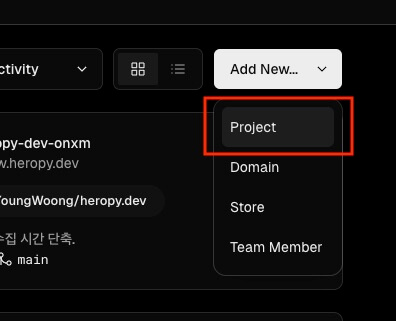
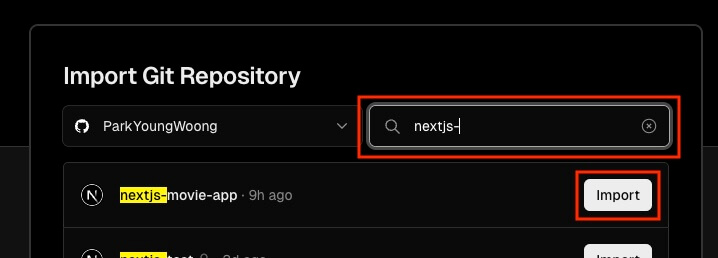
Search for the GitHub repository to connect, and select Import for that repository.
If you proceed with the deployment without adding or changing anything in particular, the deployment completes after a while, as in the following image.
You can check the deployed project right away by selecting the Visit button in the upper right.
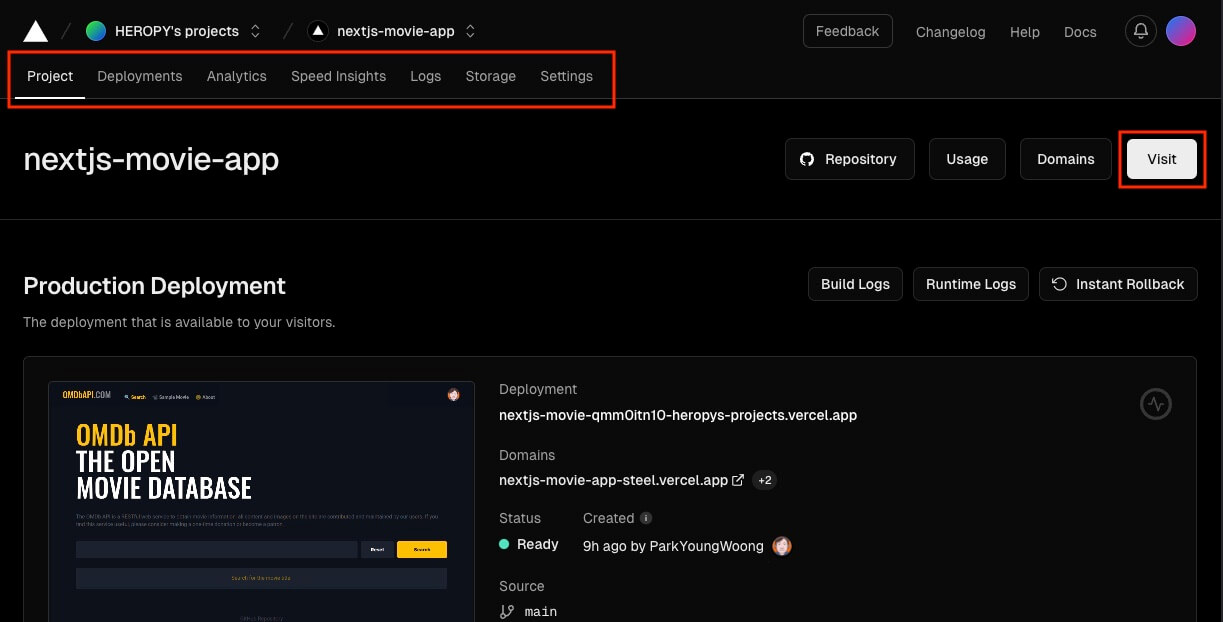
If your project uses environment variables, you need to add them directly in the Settings of the Vercel project.
Go to the project's Settings > Environment Variables page, enter each environment variable as a Key and a Value, and select the Save button.
And after you add or change environment variables, you need to deploy again to apply them to the project.
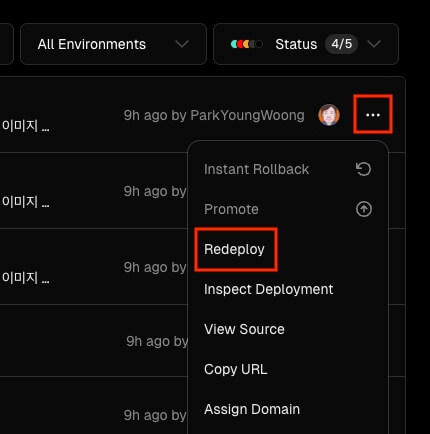
Go to the project's Deployments page and select the Redeploy menu on the latest deployment.
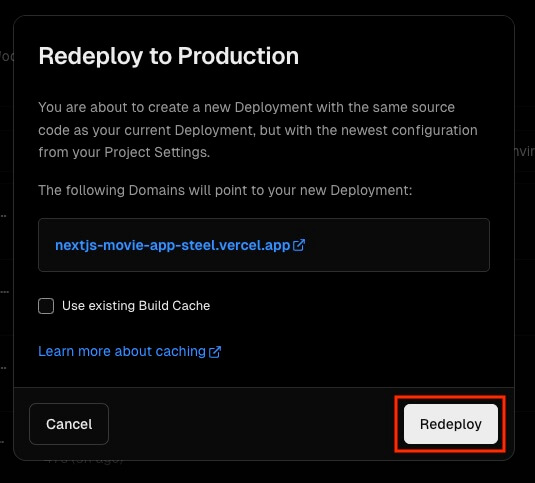
Select the Redeploy button in the modal that appears, and a new deployment with the environment variables applied starts.
When the deployment completes, select the Visit button again to check the deployed site.
# Movie search example

Here's a movie search example built with Next.js to help you understand it better.
You can visit the deployed example site and also check out the example code (GitHub repository).
Thanks for reading to the end.
Likes and kind comments help keep this blog going!