Understanding JS Blob

# What is a Blob
In JavaScript, a Blob (Binary Large Object) can be used to handle multimedia data such as images, sounds, and videos.
It is usually used for tasks such as finding the size (in bytes) and MIME type of data, or splitting data into small Blob objects for sending and receiving.
In this post, we look at how to create, read, and write Blobs.
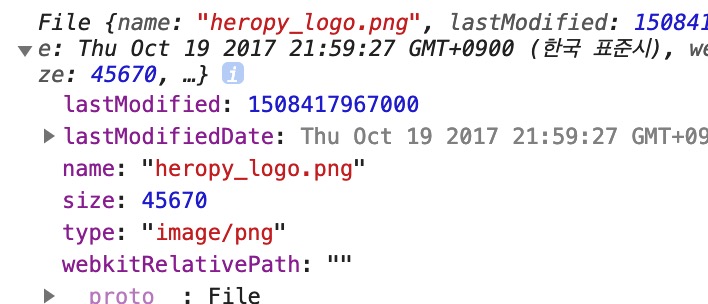
# Creating a Blob
The Blob constructor returns a new Blob object.
It takes array and options as arguments when creating one.
1const newBlob = new Blob(array, options)
# array
As the first argument of the Blob constructor, you can use ArrayBuffer, ArrayBufferView, Blob (File), and DOMString objects, or an Array that mixes these objects.
123456789101112131415new Blob( [new ArrayBuffer(data)], { type: 'video/mp4' } ) new Blob( new Uint8Array(data), { type: 'image/png' } ) new Blob( ['<div>Hello Blob!</div>'], { type: 'text/html', endings: 'native' } )
# options
You can set type and endings as options.
type: Sets the MIME type of the data, and the default value is"".endings: Specifies how strings containing\nare handled, as"transparent"or"native", and the default value is"transparent".
# The Blob object
# Properties
The following is a Blob object created from a PNG image of about 43KB.
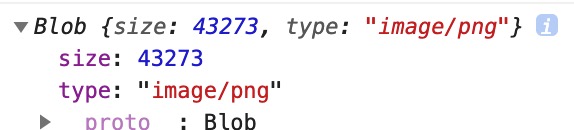
A Blob object created with the constructor has the size and type properties.size is the size of the Blob object in bytes, and type is the MIME type of the object.
If the MIME type is unknown, an empty string ("") is assigned.
# Methods
The slice method of a Blob object is used to create a new Blob object containing the data in a specified byte range.
It is useful when you split a large Blob object of 10MB or more into small pieces.
12const blob = new Blob() // New blob object blob.slice(start, end, type)
start specifies the start of the range (bytes, Number), end specifies the end of the range (bytes, Number), and type specifies the MIME type of the new Blob object (String).
12// Create a 1KB JPG Blob object (chunk) from the start of the Blob object (blob) const chunk = blob.slice(0, 1024, 'image/jpeg')
The following example splits the Blob object we looked at above (created from a PNG image of about 43KB) into 10 chunks.
Then it stores each chunk in order in the chunks array.
1234567891011121314const chunks = [] const numberOfSlices = 10 const chunkSize = Math.ceil(blob.size / numberOfSlices) for (let i = 0; i < numberOfSlices; i += 1) { const startByte = chunkSize * i chunks.push( blob.slice( startByte, startByte + chunkSize, blob.type ) ) } console.log(chunks) // This is as follows..
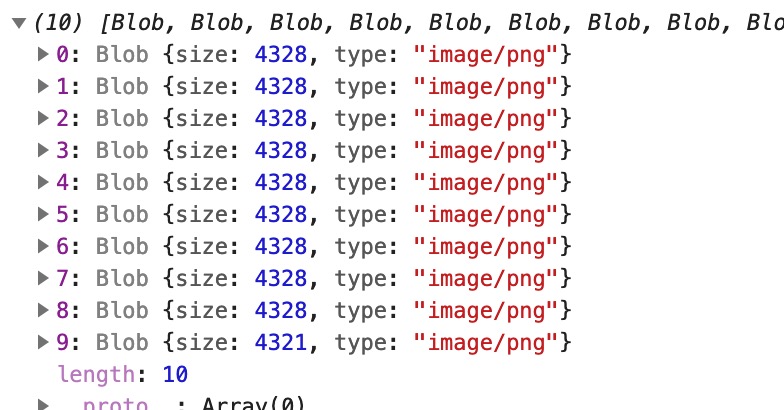
You can easily merge these split Blob objects (chunks) back together when needed.
12345678const mergedBlob = new Blob( chunks, { type: blob.type } ) document.getElementById('merged-image').src = window.URL.createObjectURL(mergedBlob) document.getElementById('chunk-image').src = window.URL.createObjectURL(chunk[0]) // Revoke Blob URL..
The image below is the result of the code above: the left image is the #merged-image element, and the right image is the #chunk-image element.
You can see that the right image is cut to about 1/10 when it is displayed.

At the end of the code above, we used URL.createObjectURL(), which creates a URL that points to the Blob object so that you can reference it in the DOM.
Let's take a quick look at Blob URLs.
# Blob URL
To create a URL that points to a Blob object, you can use createObjectURL and revokeObjectURL, the static methods of the URL object.
# createObjectURL
URL.createObjectURL() creates a DOMString like the following, containing a URL that represents the Blob object (blob:URL).
This Blob URL is valid only in the document of the window where it was created (the browser).
It cannot be reused in another window, and because the URL has a limited lifetime, it can avoid security issues, unlike file:URL.
1blob:http://localhost:1234/28ff8746-94eb-4dbe-9d6c-2443b581dd30
You can use it like this.
1<img src="blob:http://localhost:1234/28ff8746-94eb-4dbe-9d6c-2443b581dd30" alt="Blob URL Image" />
# revokeObjectURL
URL.revokeObjectURL() releases (revokes) an existing URL created with URL.createObjectURL().
If you don't release it with revokeObjectURL, the existing URL is considered valid and is not garbage collected by the JavaScript engine.
To prevent memory leaks, it is a good idea to release the created URL after binding it to the DOM.
12345// Create Blob URL const blobUrl = window.URL.createObjectURL(blob) // Revoke Blob URL after DOM updates.. window.URL.revokeObjectURL(blobUrl)
# Checking browser support
To check whether the browser supports Blob objects, you can write the following.
1const isBlobSupport = new Blob(['ä']).size === 2 // Boolean
# Example: receiving a Blob
This example receives an image as a Blob object and displays it in <img class="blob" /> elements.
12345678910111213141516171819async function renderBlob(selector, url) { try { const res = await fetch(url) if (!res.ok) { throw new Error(`Fetch error: ${res.statusText}`) } const blob = await res.blob() const objectURL = window.URL.createObjectURL(blob) const images = document.querySelectorAll(selector) images.forEach((image) => image.src = objectURL) // Revoke after the DOM updates! setTimeout(() => window.URL.revokeObjectURL(objectURL)) } catch (error) { console.error('Error::', error.message) } } // renderBlob('.blob', 'https://avatars3.githubusercontent.com/u/16679082?s=460&v=4')
Thanks for reading to the end.
Likes and kind comments help keep this blog going!