Claude Code Built-in Slash Commands Essentials

This post groups Claude Code's built-in commands, which start with /, by purpose.
For commands you operate on screen, it shows how to use them with real screenshots, and for commands with confusingly similar names, it compares the differences.
Session and context management commands, which everyone uses often, come first, and commands used mainly in development work, such as code review and conversation branching, come later.
If you're new to Claude Code, start with 'Claude Code Essentials'.
# Using commands
Type / in the input box to open the list of available commands.
As you keep typing, the list narrows by command name and alias, and pressing Enter runs the highlighted command.
Typing an alias still selects the original command, so typing /new, for example, highlights /clear (new).
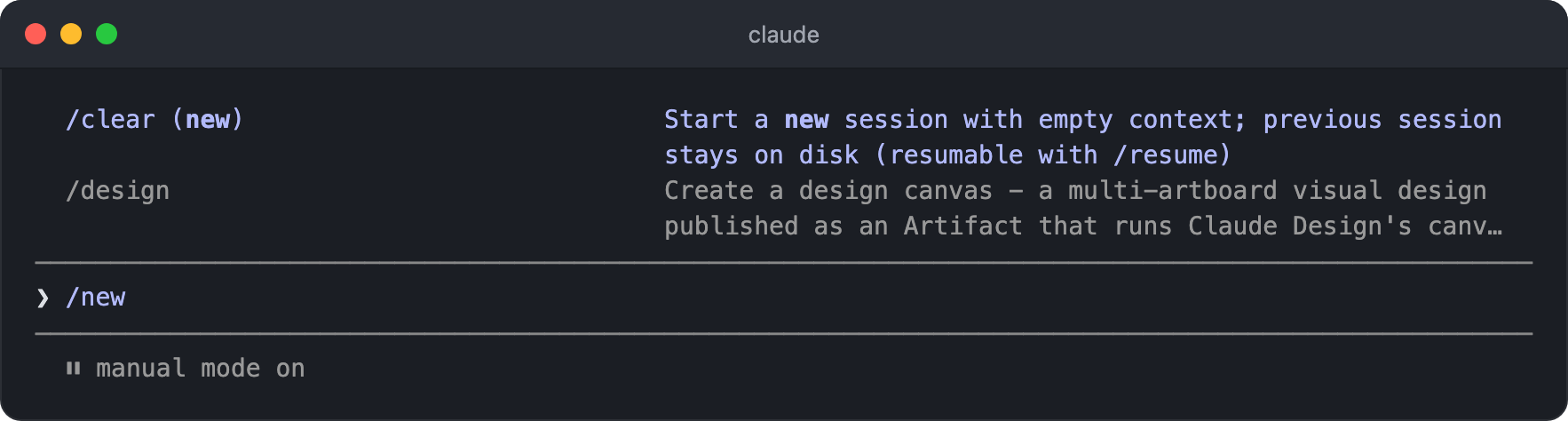
If you send a command while Claude is responding, it goes into a queue and runs after the current turn ends.
However, some commands such as /status, /tasks, and /usage run right away without waiting for the response, and /model, /effort, /permissions, and /add-dir apply their changes immediately even during a response./fast also runs without waiting, but the response in progress finishes at the original speed, and the new speed applies from the next turn.
With fullscreen rendering, settings screens such as /theme, /help, /config, /autocompact, and /advisor also open right away during a response.
Commands come in three kinds, depending on how they work.
Most are handled directly by the CLI and leave almost nothing in the conversation, but commands built as skills add their instructions to the conversation when you run them, so they use context.
The same goes for commands that ask Claude to do work, such as /init and /statusline.
| Kind | How it works | Examples |
|---|---|---|
| Built-in command | Handled directly by the CLI | /clear, /model, /context |
| Skill | Runs by passing prepared instructions to Claude | /code-review, /simplify, /loop |
| Workflow | Coordinates multiple subagents in parallel in the background | /deep-research |
In the list below, commands that work as skills or workflows are marked next to their names, and arguments are written as <required> and [optional].
A few more things worth knowing:
- Commands are recognized only at the very start of a message, and any text after the command name is passed as arguments. Skills are an exception: you can chain up to six at the start, as in
/skill-a /skill-b your request, and the text after them is passed to each as arguments. - If you make a typo, nothing is highlighted. Similar commands stay in the list so you can pick one with
Tabor the arrow keys, but if you pressEnteras is,Unknown commandappears. - Some commands such as
/heapdumpdon't appear in the list, and you must type the full name to run them. - You can also see all commands and their descriptions in the
Commandstab of/help.
# Session management
/clear [name],/reset,/new- Clears the conversation history and starts a new conversation with an empty context.
- If you pass a name, it gives that name to the previous conversation so it's easy to find in the
/resumelist. - The previous conversation stays on disk, so you can reopen it with
/resume, and until you quit Claude Code or pick up another conversation, you can also return to it through the(previous session)item at the top of the/rewindlist. - Project instructions such as
CLAUDE.mdare loaded into the new conversation as usual. - When you start a completely new task,
/clearis more token-efficient than/compact.
/resume [session],/continueContinues a previous conversation directly by session ID or name.
With no arguments, it opens the session picker. Sessions in the current project are listed with the most recent first. Named sessions show their names, other sessions show an auto-generated title or their first prompt, and each one also shows the last activity time, Git branch, and file size.
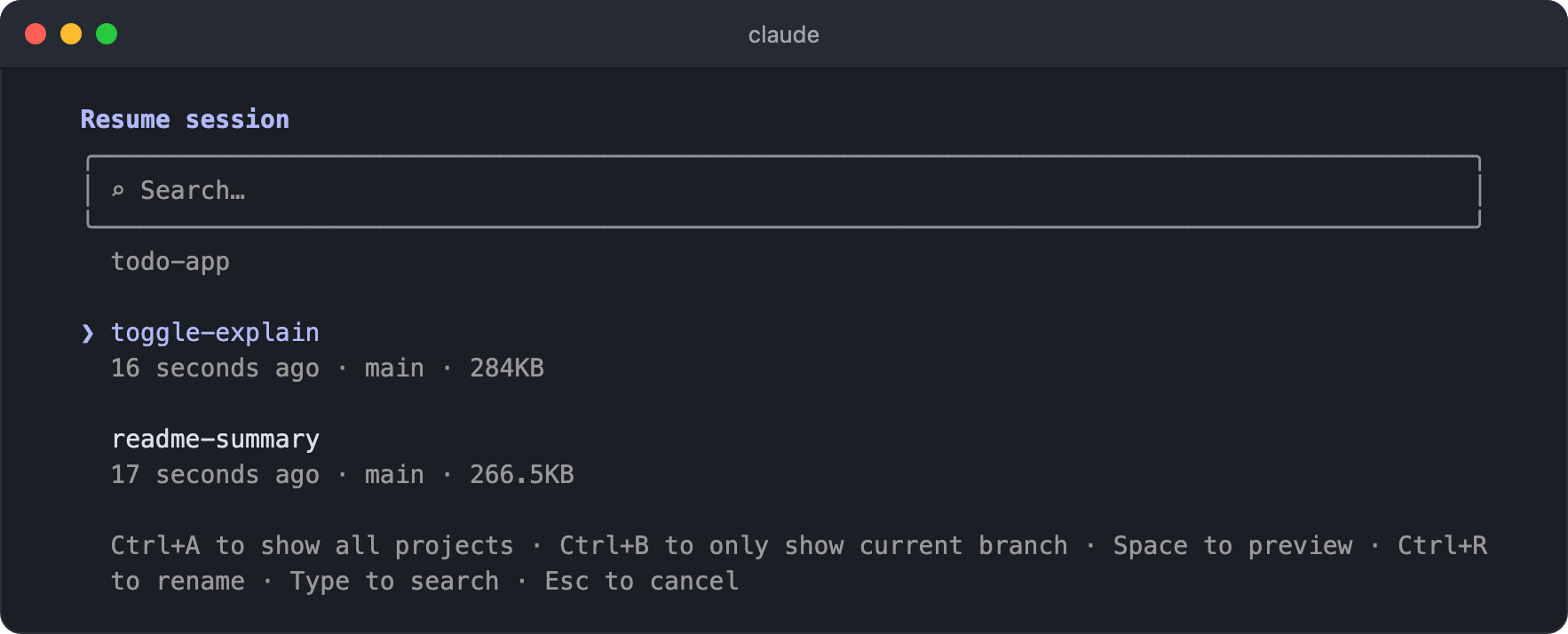
Key Action Type text Search sessions Up/down arrow keys, EnterPick a session and continue it SpacePreview the session's contents Ctrl+RRename the selected session Ctrl+AShow sessions from all projects Ctrl+BShow only sessions on the current Git branch Ctrl+WShow sessions from all worktrees of the repository (when there are multiple worktrees) EscClear the search or close the screen Background sessions are marked
bgin the list. If you pick a background session that is still running, your current conversation moves to the background and this terminal attaches to that session. Pressing the left arrow key while the input box is empty takes you back to the agent view, which also shows the conversation you just left.When you switch to another conversation with
/resumeinside a session, the permission mode that conversation used is not restored, and the current session's permission mode stays as it is.
/rename [name],/name- Renames the current session and shows the name on the right side of the input box's top border.
- With no arguments, it generates a name automatically from the conversation.
- Once a session has a name, you can continue it directly with
/resume <name>orclaude --resume <name>in the terminal. - If another session running on this machine already uses the same name, a slightly changed version of the name is applied instead.
/color [color|default]Changes the color of the input box border so you can tell sessions apart at a glance when you have several terminal windows open.
Choose from
red,blue,green,yellow,purple,orange,pink, andcyan, reset it withdefault, or run it without arguments to apply a random color.Used together with
/rename, the session name shown on the border is also highlighted in the same color.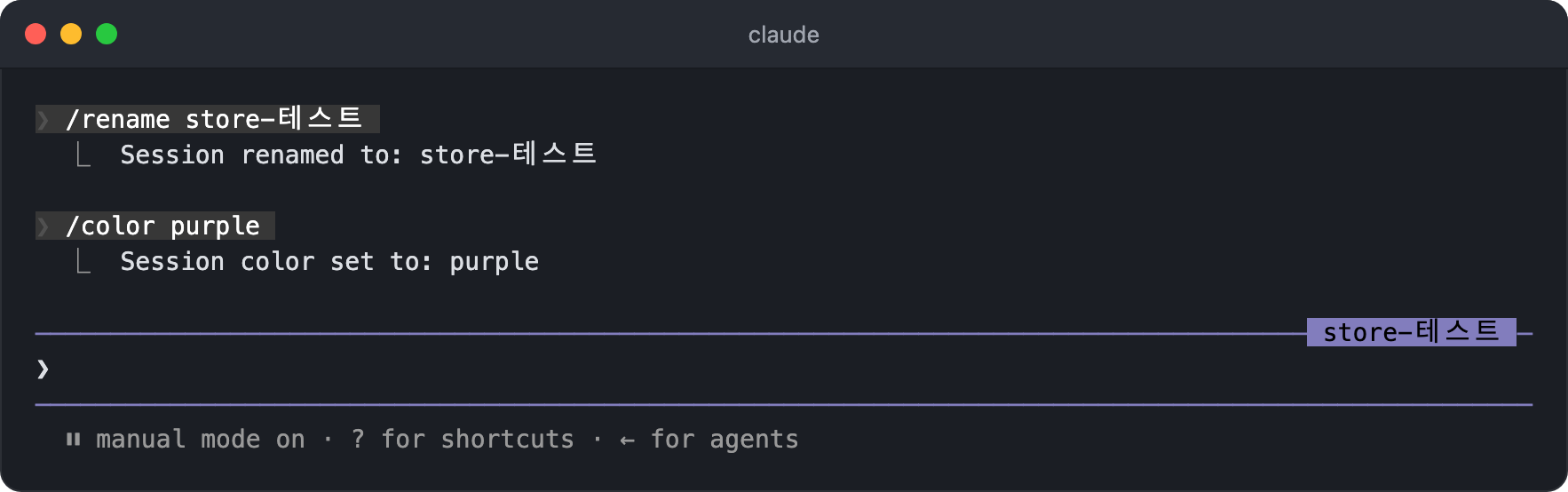
For a session connected through Remote Control, the color you choose is also applied on the claude.ai/code screen.
/copy [N]Copies the last response to the clipboard.
If you pass a number, as in
/copy 2, it copies the Nth most recent response instead.If the response contains code blocks, a screen opens where you choose what to copy.
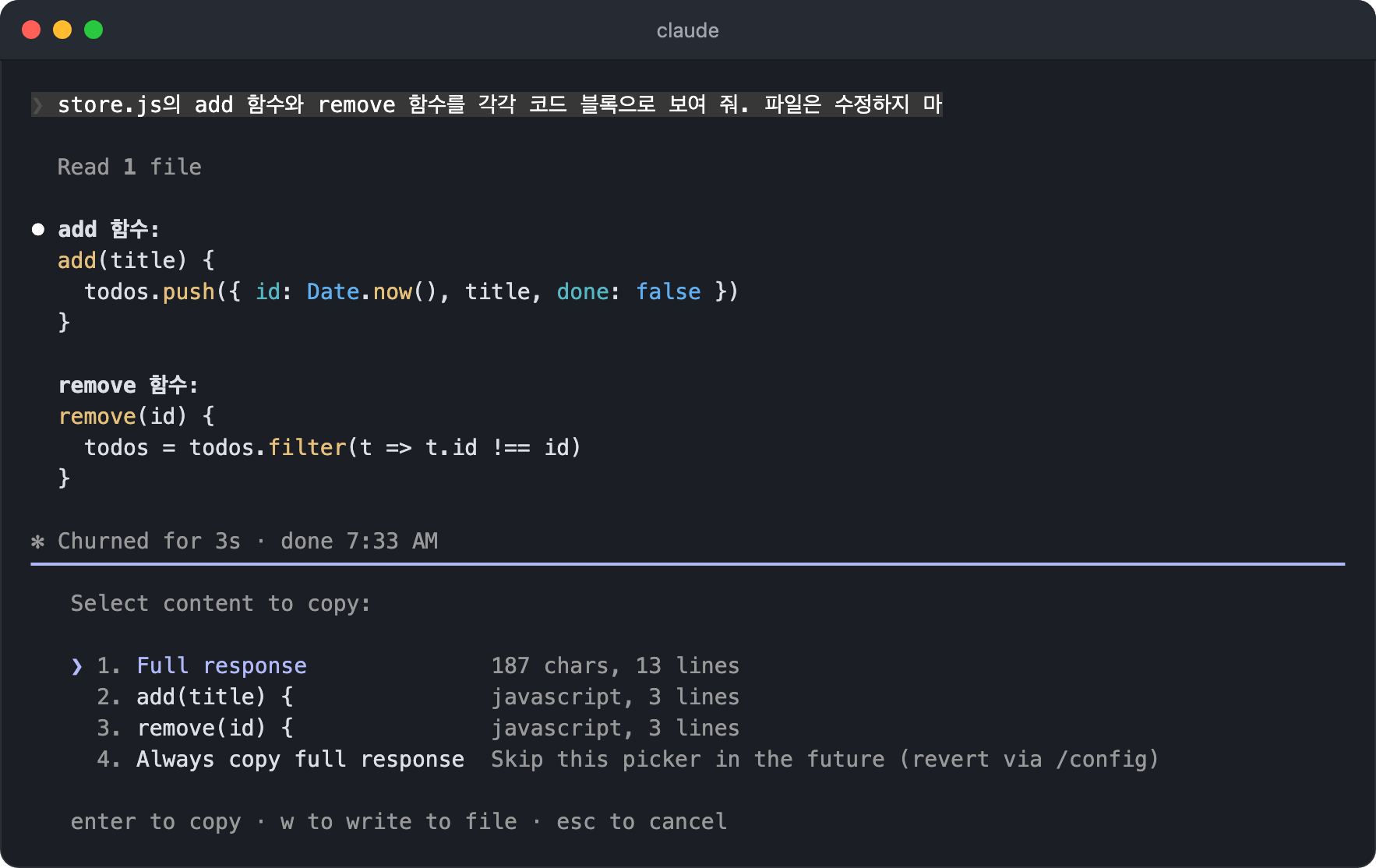
Pick the whole response (
Full response) or an individual code block and pressEnterto copy it.Pressing
wsaves to a file instead of the clipboard, which is useful in SSH environments where the clipboard isn't available.If you select
Always copy full response, it copies the whole response without this screen from then on, and you can undo that in/config.If copying doesn't work in iTerm2, allow clipboard access with
/terminal-setup.
/export [filename]- Exports the current conversation to a text file.
- If you give a filename, it saves right away; if you leave it out, you choose between copying to the clipboard and saving to a file.
/exit,/quit- Quits the CLI.
- If background work such as subagents, background shells, or workflows is still running, it asks whether to stop it all and quit, or to move the session to the background and close only the terminal. This choice doesn't appear in environments where the agent view is turned off.
- When you're attached to a background session, it only detaches without ending the session.
/cd <path>- Moves the current session to a different working directory while keeping the conversation.
- The new directory's
CLAUDE.md, project settings, hooks, skills, and agents apply right away, and MCP servers connect after approval as usual. - If it's a directory you haven't worked in before, the screen that asks whether you trust it lets you first check the allow rules and hooks that the directory's settings would turn on.
- You can find the moved session with
--resumefrom the new directory. - To keep the current directory and only add more directories you can access, use
/add-dir.
# Context management
As a conversation grows longer, the context window fills up, and auto-compact runs before it is full.
With the commands below, you can check the current usage, summarize the parts you don't need, or go back to an earlier point.
/context [all]Visualizes the current context usage as a colored grid.
It shows what is taking up the context, such as the system prompt, tools, memory, or the conversation, so it gives you a basis for deciding when to run
/clearor/compact.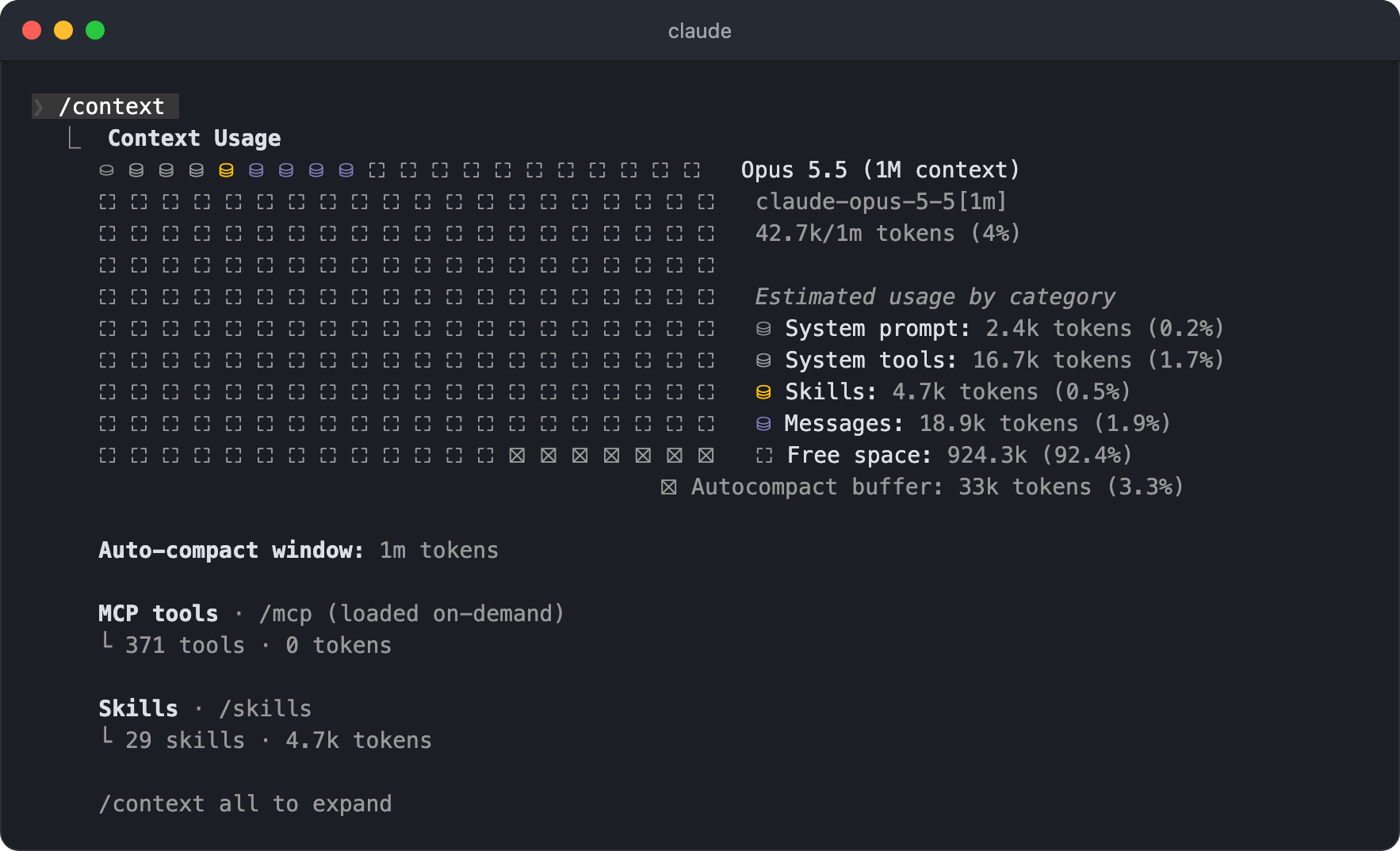
The grid on the left divides the whole context window into cells. Cells in use are filled with each item's color, and empty cells are the remaining space (
Free space). The cells marked with an X at the end of the grid are space kept free for auto-compact (Autocompact buffer).On the right, it shows the model and total usage (
42.7k/1m tokens (4%)), along with token counts for each item, such as the system prompt (System prompt), tools (System tools), skills (Skills), and the conversation (Messages).At the bottom, it shows the point where auto-compact starts (
Auto-compact window) and the tokens used by MCP tools and skills. MCP tools are loaded only when needed (loaded on-demand), so they may show 0 tokens even if you have many tools.It also shows optimization suggestions for tools that use a lot of context, bloated memory files, and capacity warnings.
With fullscreen rendering, the details for each item are collapsed, and passing
allexpands them.
/compact [instructions]- Replaces the conversation so far with a summary to free up context.
- If the next task is clear, it's a good idea to give the summary a focus as well, as in
/compact keep the focus on the refactoring. - Because the conversation is replaced with a summary, the prompt cache is invalidated, so the cost of the next request may go up temporarily.
/rewind,/checkpoint,/undoRewinds the code or conversation to an earlier point (checkpoint), or summarizes only part of the conversation.
A checkpoint is created automatically each time you send a prompt that starts a turn, and you can use it even after reopening the session. Messages you add during a response are merged into the same turn, so they don't get their own checkpoint.
Pressing
Esctwice while the input box is empty opens the same screen.When you run it, it first lists the prompts you sent in this session. Pick the prompt to rewind to and press
Enter, and a screen opens where you choose what to do based on the state just before that prompt was sent. It also shows how much code will be rolled back (-3 in store.js).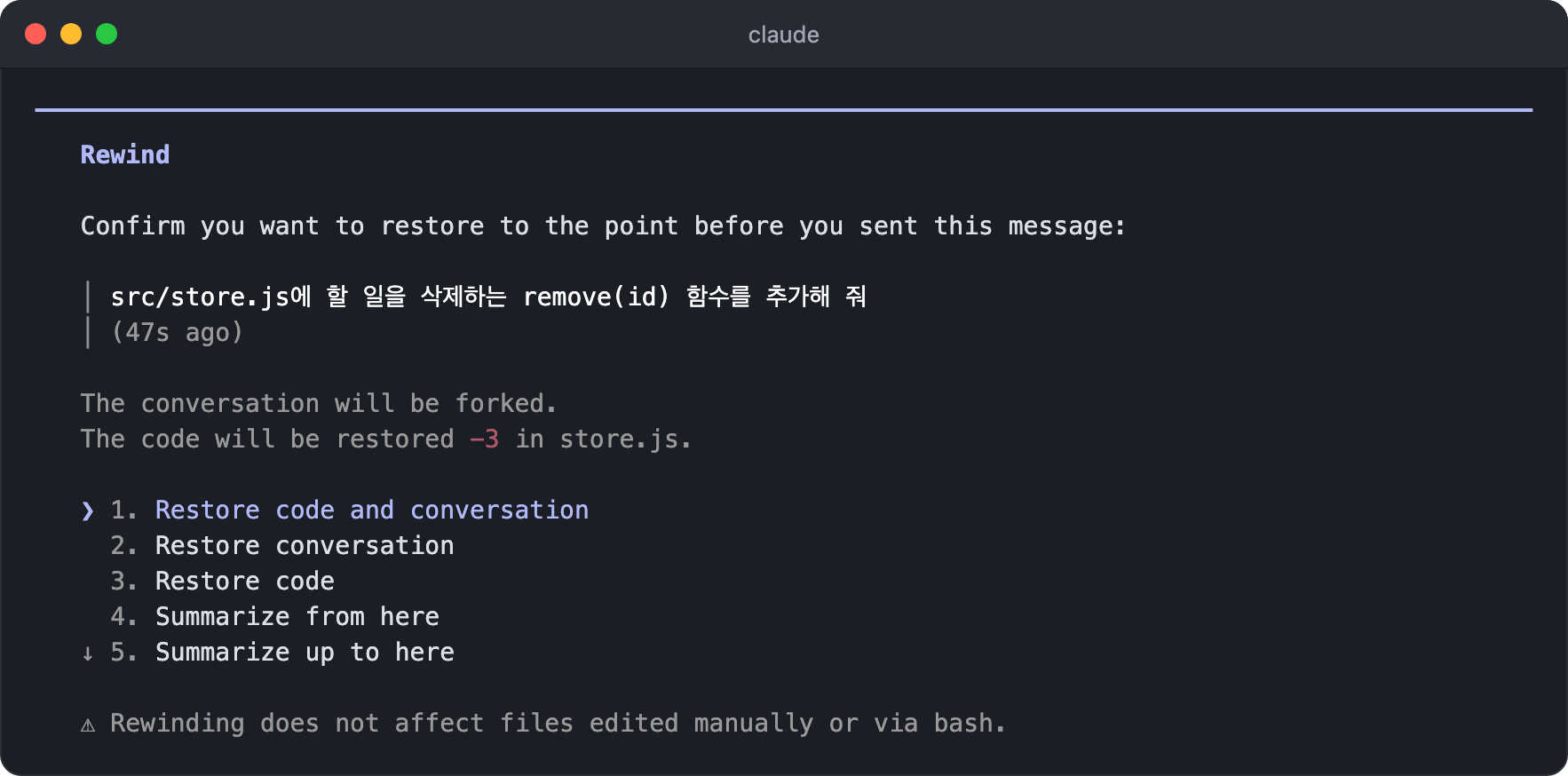
Option Code Conversation Restore code and conversationRewound Rewound Restore conversationKept Rewound Restore codeRewound Kept Summarize from hereKept Summarized from the selected message to the end Summarize up to hereKept Summarized up to just before the selected message The two options that rewind code appear only when there are tracked file changes after the selected point, and choosing
Never mindat the end of the list goes back without changing anything.If you rewind the conversation or choose
Summarize from here, the prompt you picked is filled back into the input box, so you can send it again as is or edit it first.The two summarize options leave files alone and replace only part of the conversation with a summary to free up context space. Unlike
/compact, which summarizes the whole conversation, you choose the range to summarize yourself, and the two differ in whether they summarize before or after the selected message.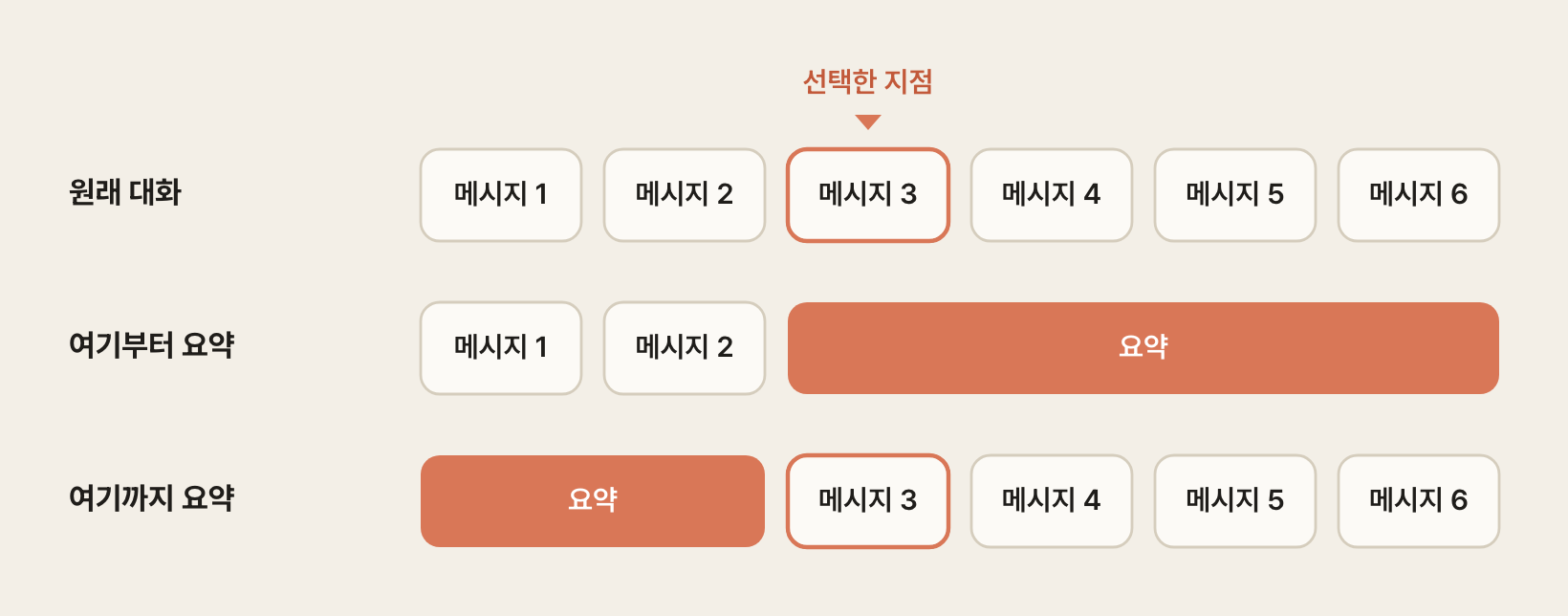
'Summarize from here' summarizes from the selected message to the end, so it suits cases where you want to keep your original instructions and shorten only a long debugging session.
'Summarize up to here' summarizes everything before the selected message and keeps the messages after it as they are.
Pressing a summarize option's number key summarizes right away. If you highlight the option with the arrow keys and type into the
add context (optional)field, you can set the focus of the summary.Even after summarizing, the original messages remain in the session history, so Claude can refer to the details when needed.
/btw [question]Short for 'By The Way', it lets you ask a quick side question without leaving it in the conversation history.
It answers based on the conversation so far and the side questions you asked earlier, and it doesn't use tools such as reading files or running commands.
You can use it even while Claude is responding, and it doesn't interrupt the work in progress.
While the prompt cache is still alive, it costs little beyond the answer itself.
When you ask, an answer panel opens above the input box.
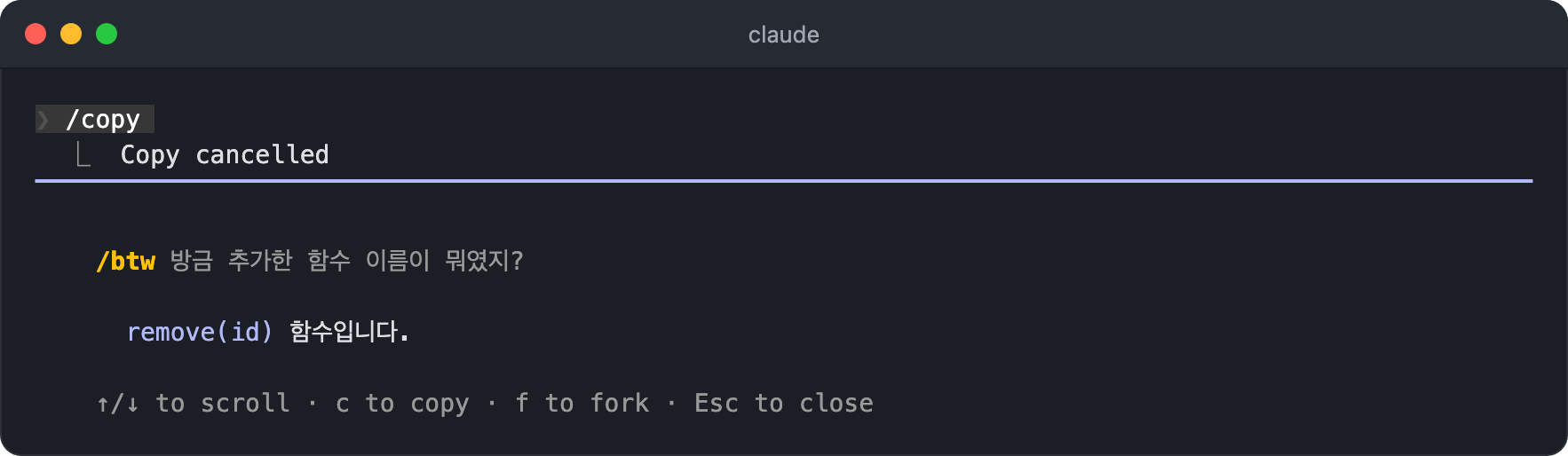
Scroll long answers with the up and down arrow keys, and copy the answer with
c.If you need to check files or continue working based on the answer, press
fin the answer panel you just got to hand this question and answer to a background subagent that can use tools. This key is available only in local sessions.Close it with
Esc,Enter, orSpace, and run/btwwithout arguments to reopen the last answer panel.Browse earlier questions with
Shift+ the left/right arrow keys (or[and]), and clear the list withx. The list disappears when you quit Claude Code.
/recapShows a short summary, in a few lines, of what you did in the current session and what to do next.
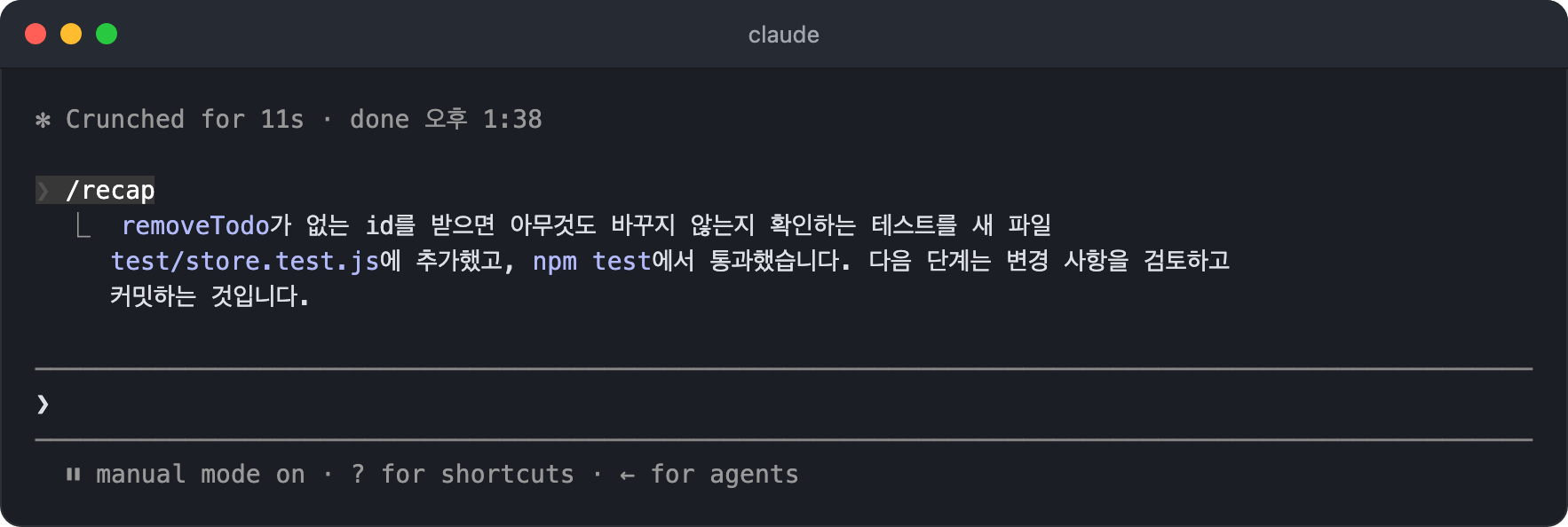
It's for quickly getting your bearings when you come back after stepping away, and it also appears automatically if you've been away for a while.
/autocompact [auto|<tokens>]- Sets the context size at which auto-compact starts.
- Pass a value between 100,000 and 1,000,000 tokens, such as
500k,1M, or200000, or passautoto go back to the default tuned for the model. - The value is saved in
modelSettingsin your user settings for the current model, so each model keeps its own value when you switch models, and it also applies to later sessions. To apply the same value to all models, setautoCompactWindowdirectly in the settings file. - You can save a value larger than the model's context window, but the threshold actually applied is the smaller of the setting and the model's window.
- If the
CLAUDE_CODE_AUTO_COMPACT_WINDOWenvironment variable is set, its value takes precedence, so you can't change it with this command. - With no arguments, it shows the current setting and opens a screen for choosing a value. You can also check the threshold currently in effect on the
Auto-compact windowline of the/contextscreen.
# Model and performance
/model [model]- Changes the AI model and saves the selected model as the default for new sessions.
- Passing an alias such as
opus,sonnet,haiku, orfableswitches to the latest model in that family, which on the Anthropic API is Opus 5.5, Sonnet 5.5, Haiku 5.5, and Fable 5.1 respectively. The default (default) is Opus 5.5 on all plans. - With no arguments, it opens a picker where you can also adjust the effort level with the left and right arrow keys.
- In the picker,
Entersaves the choice as the default, andsapplies it only to the current session. - If you change models while the prompt cache is still alive, the next request has to reread the whole conversation without the cache, so it asks you to confirm. Once you confirm, the change applies right away without waiting for the current response, and if the cache has already expired, it switches without asking.
/effort [level|auto|status|ultracode [on|off]]- Sets the effort level, which controls how deeply the model reasons.
- Choose from
low,medium,high,xhigh, andmax; the levels available differ by model. The default for Opus 5.5, Sonnet 5.5, and Haiku 5.5 ismedium, and starting with Haiku 5.5, Haiku models also support effort levels. - Higher levels improve the quality of complex work, but responses get slower and use more tokens.
- With no arguments, it opens a slider.
Entersaves the level as the default, andsapplies it only to the current session. - Saved levels are remembered separately for each model, and
maxalways applies only to the current session. autoclears the saved level and goes back to the model's default, andstatusprints the current level.ultracodeis not an effort level but a Claude Code-only setting. When it's on, large tasks are handled as workflows that coordinate multiple subagents. Since 2.1.284 it's a toggle separate from the effort level, so turning it on keeps your current effort level as it is.- Turn it on for the current session with
/effort ultracode(orultracode on) and off with/effort ultracode off. In the slider, toggleUltracodewithTaband apply it withEnter. To start every session with it on, set"ultracode": truein the settings file. - It's available only when dynamic workflows are turned on and the model supports
xhigh. How it differs from the workflow command/deep-researchis compared in Planning and repeated runs.
/fast [on|off]- Turns fast mode on or off.
- It doesn't switch to a smaller model; it uses the same Opus model with up to 2.5x faster output, and it's supported only on Opus 5.5, Opus 5, and Opus 4.8. Since 2.1.280, turning on fast mode uses Opus 5.5 by default.
- The per-token price is higher than regular Opus, and on subscription plans you must first turn on usage credits in
/usage-creditsto use it. - If you turn it on in the middle of a conversation, the whole conversation up to that point is reread once at the fast mode price, so if you plan to use it, it's cheaper to turn it on when you start the session.
/advisor [model|off]- Sets an advisor model so that Claude asks a stronger model for advice at important moments during its work.
- The advisor receives the whole conversation and tool results and returns advice, and the main model continues its work with that advice.
- The main model decides when to ask for advice, usually before settling on an approach, when the same error keeps repeating, and before declaring the work done.
- Pass
fable,opus,sonnet, or a full model ID as the argument, or run it without arguments to open a picker. - The selected model is saved in your user settings (
advisorModel) and kept for later sessions. To set it for this session only, runclaude --advisor <model>. - The advisor connects only if it's a valid pairing with the main model. For example, if the main model is Opus 5.5 or Opus 5, only Fable or models from Opus 5 onward can be the advisor; if it's Sonnet 5.5, you can use Fable, models from Opus 5 onward, or Sonnet 5.5 as the advisor.
- Keeping the main model light and the advisor strong, for example leaving everyday work to Sonnet and asking Opus only about planning or failures with unclear causes, can cost less than using only the top model.
- On subscription plans, advisor usage counts toward your plan usage, but if you set Fable as the advisor, it may be billed to usage credits depending on your plan, and it takes effect only after you agree once in
/model fable. - It works only on the Anthropic API and isn't available with other providers such as Amazon Bedrock.
# Information
/helpShows help and the available commands in the
General,Commands, andCustom commandstabs.The
Generaltab, which opens first, lists frequently used input methods and shortcuts, such as shell mode (!), file path input (@), side questions (/btw), and switching permission modes (Shift+Tab).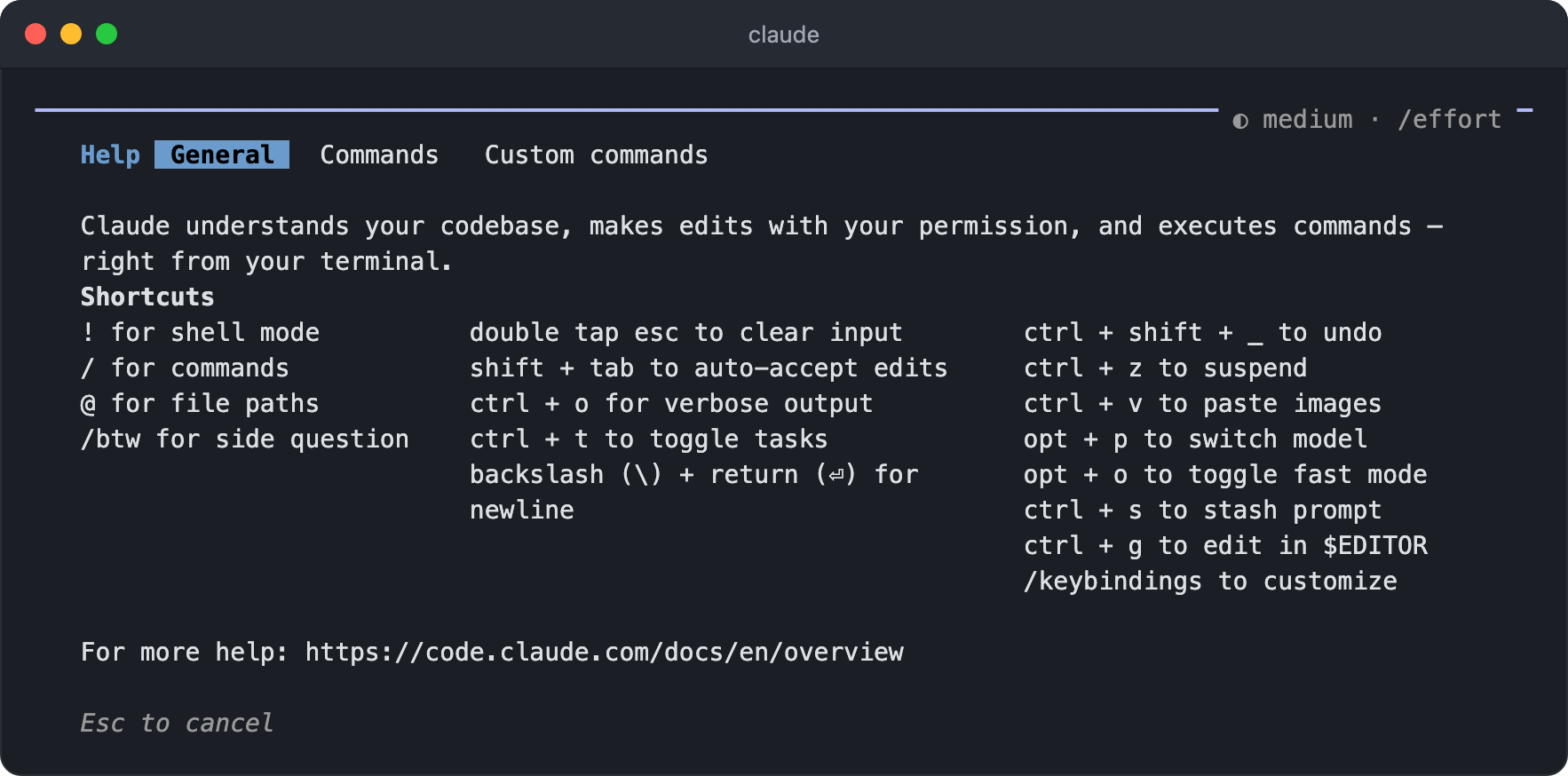
Switch tabs with the left and right arrow keys. In the
Commandstab, browse built-in commands and their descriptions with the up and down arrow keys, and in theCustom commandstab, see commands you made yourself or installed through plugins.
/powerup- Introduces Claude Code's features through short interactive lessons with animated demos.
- It's a good way to learn the main features one by one when you first start using Claude Code.
/usage,/cost,/statsShows the current session cost, plan usage limits, and activity stats on one screen, and
/statsopens the stats tab directly.The session cost is a reference value calculated from token counts, so it matters to API users. Subscription plan users should check the plan usage bars instead.
On paid plans, it also shows factors that made up 10% or more of recent usage, such as long context or cache misses, along with ways to reduce them.
You can also check the run count and token usage of each
/looptask, as well as the session's prompt cache hit rate.Running it opens the
Usagetab of the settings window.Sessionat the top shows the current session's token count and the cost calculated from it at per-token prices, and the bars below show how much of your subscription plan's usage limits you've used and when they reset.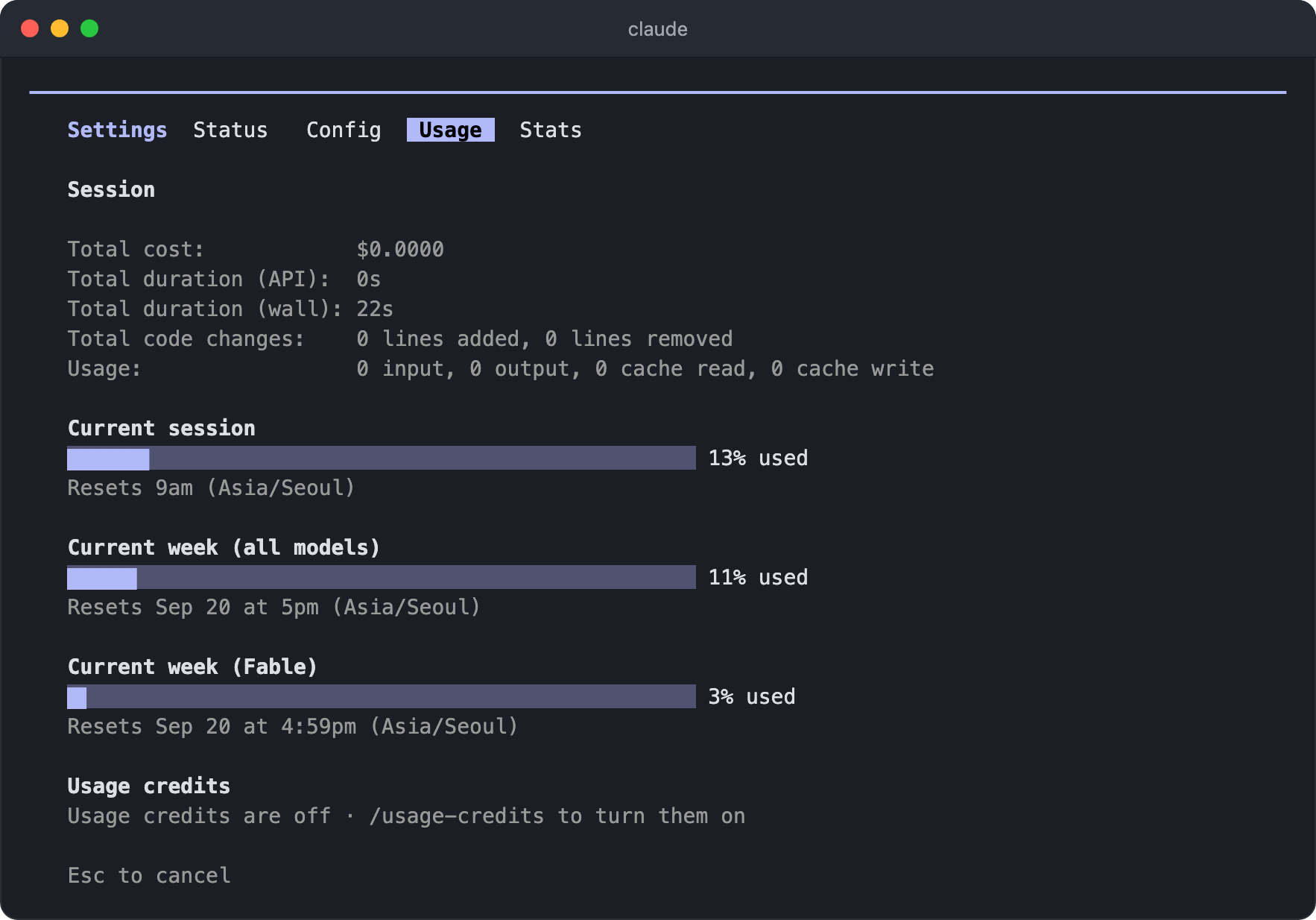
Current sessionis the session limit that resets on a short cycle, andCurrent week (all models)is the weekly limit. If there is a per-model weekly limit, it's shown separately, as inCurrent week (Fable)./status,/config,/usage, and/statsall open this settings window and differ only in which tab is selected, so you can move between theStatus,Config,Usage, andStatstabs with the left and right arrow keys.The
Statstab shows a calendar marking the days you used it, along with stats such as total tokens, session count, and longest session. Pressrto change the period (all time, last 7 days, last 30 days).
/statusOpens the
Statustab of the settings screen to check the version, model, account, and connection status.You can use it right away without waiting, even during a response.
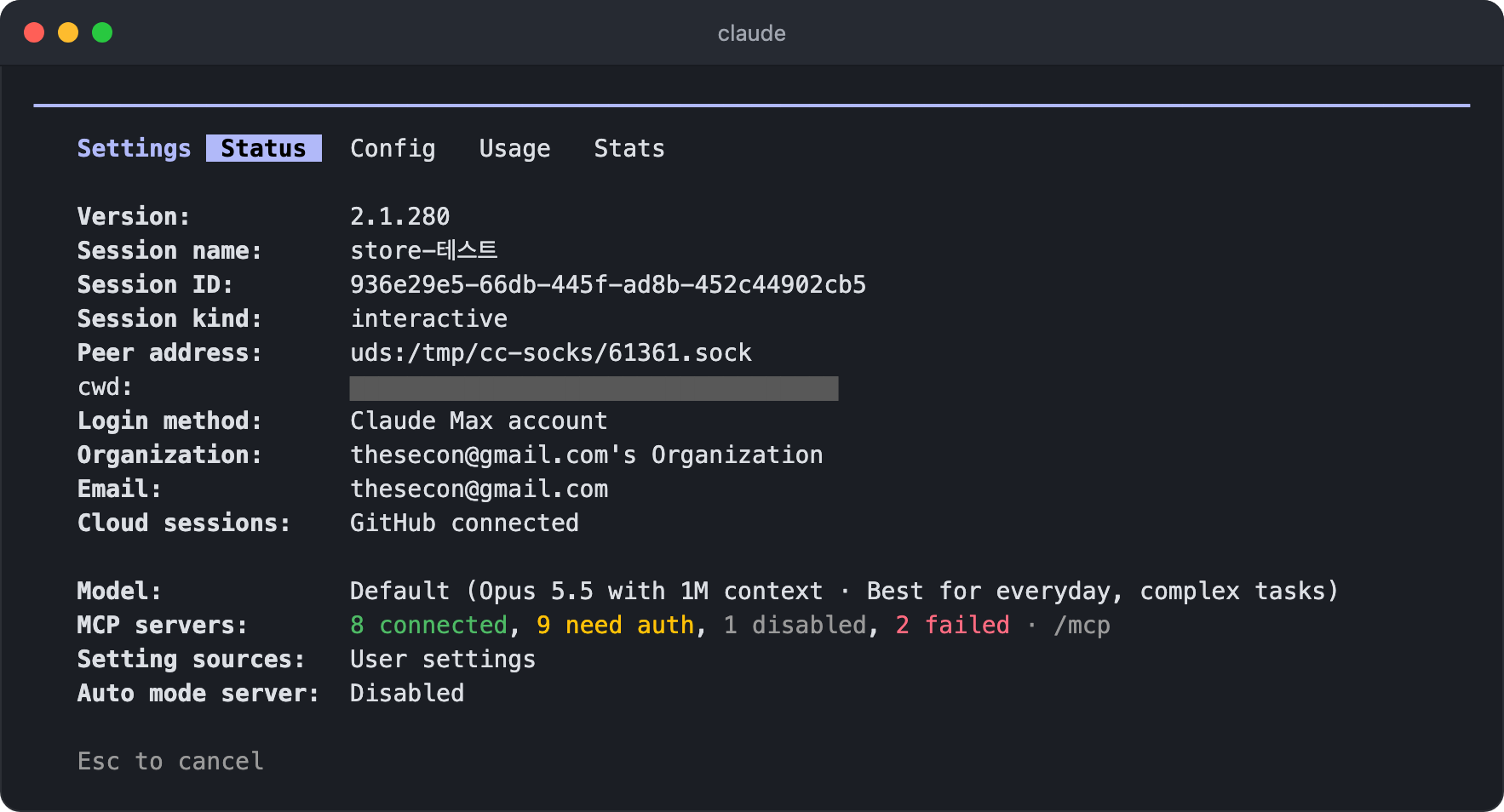
The top shows the version, session name and ID, working directory (
cwd), login method, organization, and email, and the bottom shows the model in use, MCP server connection status, and the settings files in effect (Setting sources).It's a good first screen to check when an MCP server isn't working or a setting doesn't seem to apply.
It shows your account email and working directory path as they are, so be careful when sharing or capturing the screen. The working directory path is hidden in the screenshot above as well.
/release-notes- Lets you pick a version and view its changelog.
- The changelog is shown only on screen and doesn't enter the conversation that Claude sees.
/doctor [prompt-audit [path]],/checkup(skill)- Diagnoses your installation and settings and even suggests fixes.
- It checks everything from installation status, such as duplicate installs, PATH problems, unreadable settings files, and whether a new version is available, to the context cost of unused skills, MCP servers, and plugins, slow hooks, and cleaning up a bloated
CLAUDE.md. - It also suggests pre-approving read-only commands that are often denied, or setting auto mode as the default.
- It reports its findings first and makes changes only after you confirm. To check only the installation status without a session, run
claude doctorin the terminal. - Passing
prompt-auditchecks your instruction files instead of the installation. InCLAUDE.md,CLAUDE.local.md,AGENTS.md, and the rules, skills, commands, subagents, and output styles in the.claude/folder, it looks for instructions written for older models, content that points to files or commands that don't exist, and instructions that conflict with each other, then reports suggested fixes. - If you pass a path, as in
/doctor prompt-audit .claude/skills/deploy, it checks only that file or folder, and the suggested fixes aren't applied to the files until you ask for them.
/insights- Analyzes recent sessions on this machine and generates an HTML report with the projects you mainly work on, usage patterns, common sticking points, and features to try.
- The report is saved to
~/.claude/usage-data/report.html, and the tokens used for the analysis count toward your plan or API usage.
/debug [description](skill)- Turns on debug logging for the current session and reads the logs to diagnose problems that occurred while running.
- Logging starts when you run the command, and describing the problem along with it helps narrow the focus of the analysis.
/heapdump- Saves a heap snapshot and a memory analysis file to your desktop (
~/Desktop, or the home directory on Linux without a desktop folder) so you can diagnose memory problems. - It doesn't appear in the menu, so you must type the full name.
- When reporting a problem, attach only the
-diagnostics.jsonfile, and don't share the.heapsnapshotfile, which contains the whole conversation and your credentials.
- Saves a heap snapshot and a memory analysis file to your desktop (
# Account and settings
/config [key=value ...],/settingsOpens the settings screen for things like the theme, model, editor mode, and output style.
If you pass values, as in
/config theme=darkor/config model=sonnet, it changes the settings right away without opening the screen.You can see the setting keys you can change with
/config --help. Settings that require a confirmation step in the settings screen can only be turned off this way, not on.With no arguments, it opens the
Configtab of the settings window, which lists the settings and their current values. The cursor starts in the search box, so you can type right away to narrow the list by setting name.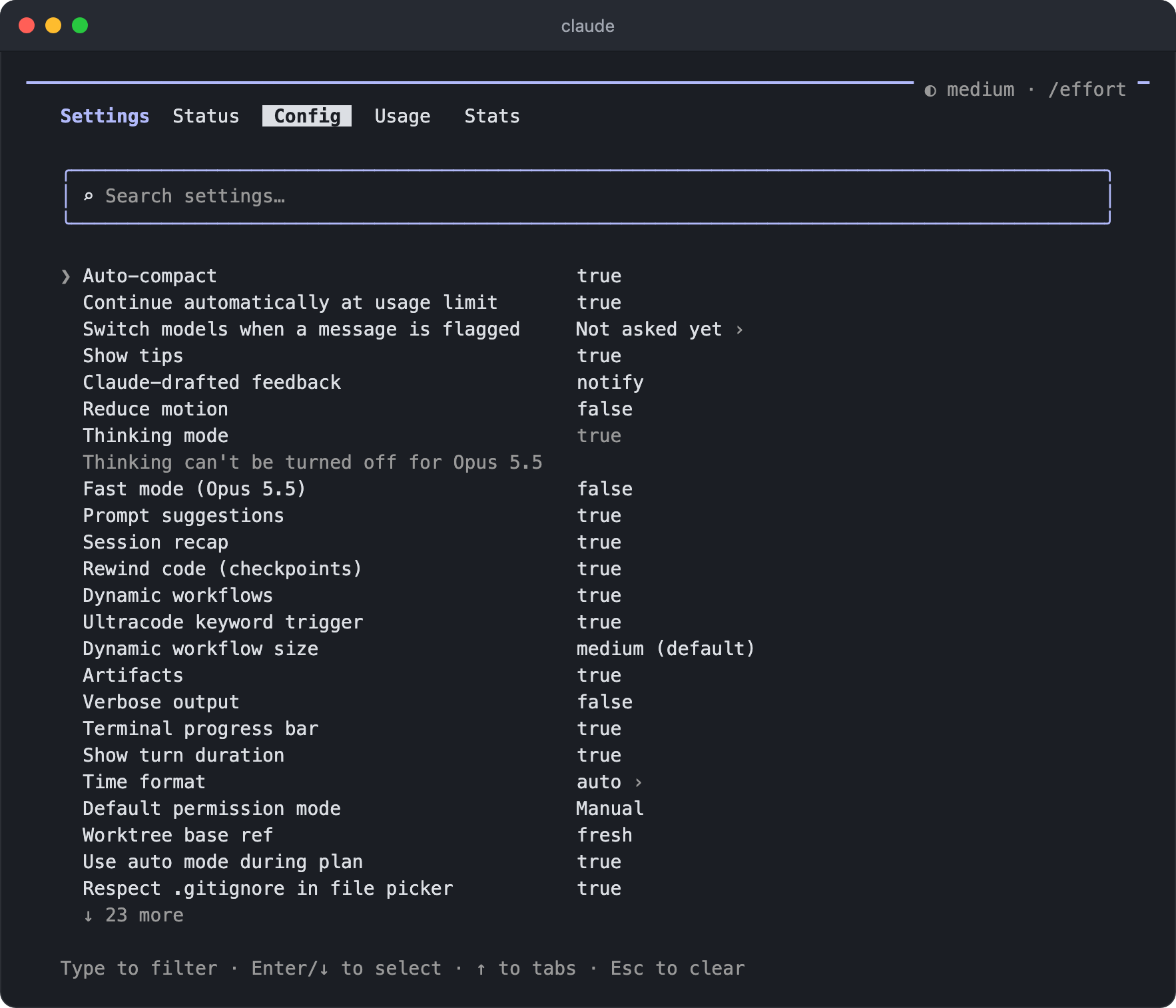
Enter the list with
Enteror the down arrow key, choose an item with the up and down arrow keys, and change its value withEnterorSpace.Items that cycle through several values have arrow marks on both sides of the value, and you can move between the previous and next values with the left and right arrow keys.
PgUpandPgDnmove through the list one page at a time.Pressing
/in the list takes you back to the search box, and pressing the up arrow key in the search box moves to the tabs, where you can pick another tab with the left and right arrow keys.Escin the search box clears what you typed, andEscin the list closes the window and shows the changed settings in the conversation, as inDisabled auto-compact.A line like
25 moreat the bottom of the list means there are more items you can scroll to, and frequently used items such asOutput styleorLanguageare faster to find by searching.
/theme- Changes the color theme.
- It offers
auto, which matches your terminal background, light/dark, colorblind-friendly themes, and ANSI themes that use the terminal palette, and you can also make a custom theme with theNew custom themeitem.
/output-style [name]- Shows the list of output styles, which decide how responses are written, or switches to a different style.
- With no arguments, it prints the available styles and their descriptions, and passing a name, as in
/output-style Concise, switches to that style. - Besides the default style (
Default), the built-in styles areConcise, which answers briefly with the result first,Proactive, which makes assumptions on minor decisions and acts right away,Explanatory, which adds explanations while working, andLearning, which has you write some of the code yourself. - You can also change it in the
Output styleitem of/config.
/statusline- Sets up the status line below the input box.
- Describe the setup you want, as in
/statusline show the branch and model, and Claude builds it. With no arguments, it sets one up automatically based on your shell prompt.
/tui [default|fullscreen]- Chooses the terminal UI renderer and restarts while keeping the conversation.
fullscreenis a full-screen renderer with no screen flicker, mouse support, and steady memory use even in long conversations.- Some features, such as
/focus,/scroll-speed, and the diff panel, are available only with fullscreen rendering. With no arguments, it shows the current renderer.
/focus- Turns focus view on or off, which keeps only the last prompt, a summary of tool use, and the final response.
- It's available only with fullscreen rendering, and the setting carries over to later sessions.
- On a device connected through Remote Control,
/focus onand/focus offapply only to the current session and leave the saved setting as it is.
/scroll-speedAdjusts the mouse wheel scroll speed with a preview.
Set how many lines one notch of the wheel moves with the left and right arrow keys, and while the window is open, roll the wheel to check the new speed right away.
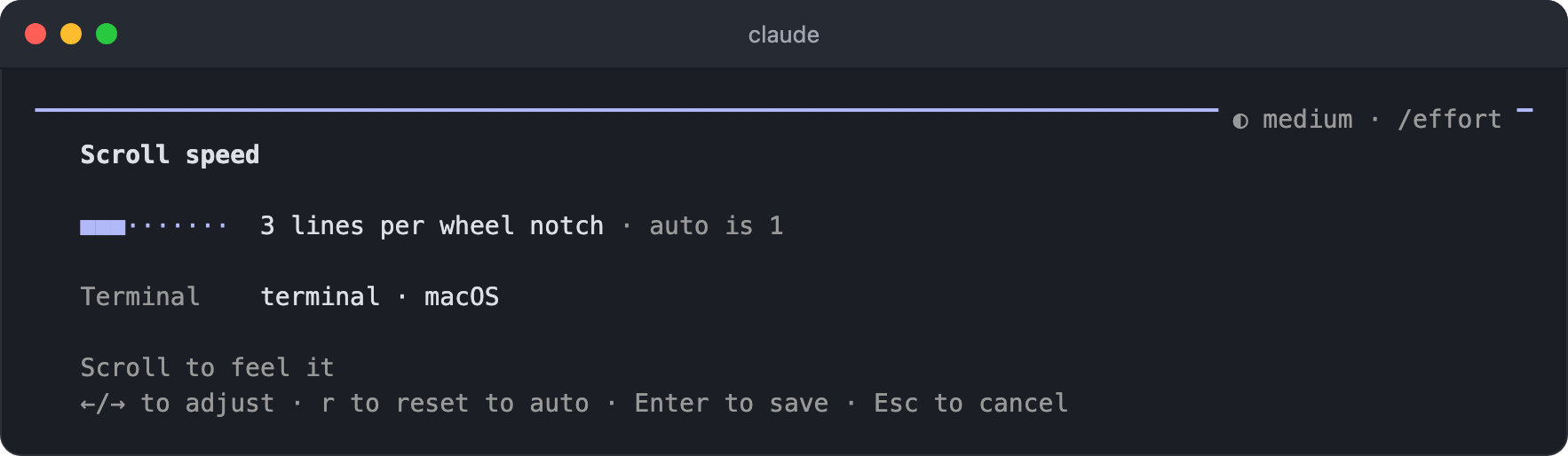
Save with
Enter, or pressrto go back to the automatic value (auto) set for your terminal. The screen also shows the detected terminal type and the automatic value.It's available only with fullscreen rendering and isn't offered in the terminals of JetBrains IDEs.
/keybindings- Opens the keybindings settings file.
/terminal-setup- Installs the
Shift+Enternewline keybinding in terminals such as VS Code, Cursor, Devin Desktop, and Zed. Alacritty works without setup from version 0.16, so you need it only on earlier versions. - In the default macOS Terminal, it turns on
Option+Enterfor newlines and turns off the bell, and in iTerm2, it allows clipboard access so that/copyworks.
- Installs the
/login,/logout- Logs in to or out of your Anthropic account.
/usage-credits- Opens a page in your browser for setting up usage credits so you can keep working when you hit your usage limit.
- Team and Enterprise members without billing permissions should ask an admin for credits.
- You must turn this on first to use
/fastmode.
/rate-limit-options- Opens a screen where you choose how to keep working when requests stop because you hit your claude.ai usage limit.
- You can choose to wait until the limit resets and continue automatically, add usage credits, or upgrade your plan, and you can also cancel so that it doesn't continue automatically.
- Claude Code may open this screen itself when you hit the limit in the terminal, and it's available only when you're logged in with a claude.ai subscription.
/upgrade- Opens a page in your browser for upgrading to a higher plan.
/passes- Shares a pass that lets a friend use Claude Code free for one week.
- It appears in the list only when your account is eligible, and depending on the conditions, you may also receive usage credits.
/privacy-settings- Lets you view and change privacy settings, such as whether your conversations are used to improve Anthropic's models. It's available only on the Pro and Max plans.
# Project settings
/init- Analyzes the codebase and generates
CLAUDE.md, a guide to the project. - If you have OpenAI Codex or Gemini CLI settings, it asks whether to bring them in with
/import. - If you set the
CLAUDE_CODE_NEW_INIT=1environment variable, it also sets up skills, hooks, and a personal memory file interactively.
- Analyzes the codebase and generates
/memory- Lets you pick a memory file such as
CLAUDE.mdorCLAUDE.local.mdat the user or project scope and opens it in your editor. If you select a file that doesn't exist yet, it creates one. - You can turn auto memory on or off or open the auto memory folder, and you can also toggle the on/off item with the left and right arrow keys.
- Auto memory is a feature where Claude writes information it learns while working, such as build commands or your preferences, directly to
~/.claude/projects/<project>/memory/. - In projects without a
CLAUDE.md, it readsAGENTS.md, which other AI coding tools use, instead, and you can change this behavior in theProject instructionsitem of/config.
- Lets you pick a memory file such as
/permissions,/allowed-toolsManages tool permission rules (allow, ask, deny).
You can open it even during a response, and changed rules apply from Claude's next tool call.
Running it opens a permissions screen divided into tabs. Switch tabs with the left and right arrow keys, and enter the list with the down arrow key to select a rule. In the
Allow,Ask, andDenytabs, you can add a new rule with theAdd a new ruleitem in the list.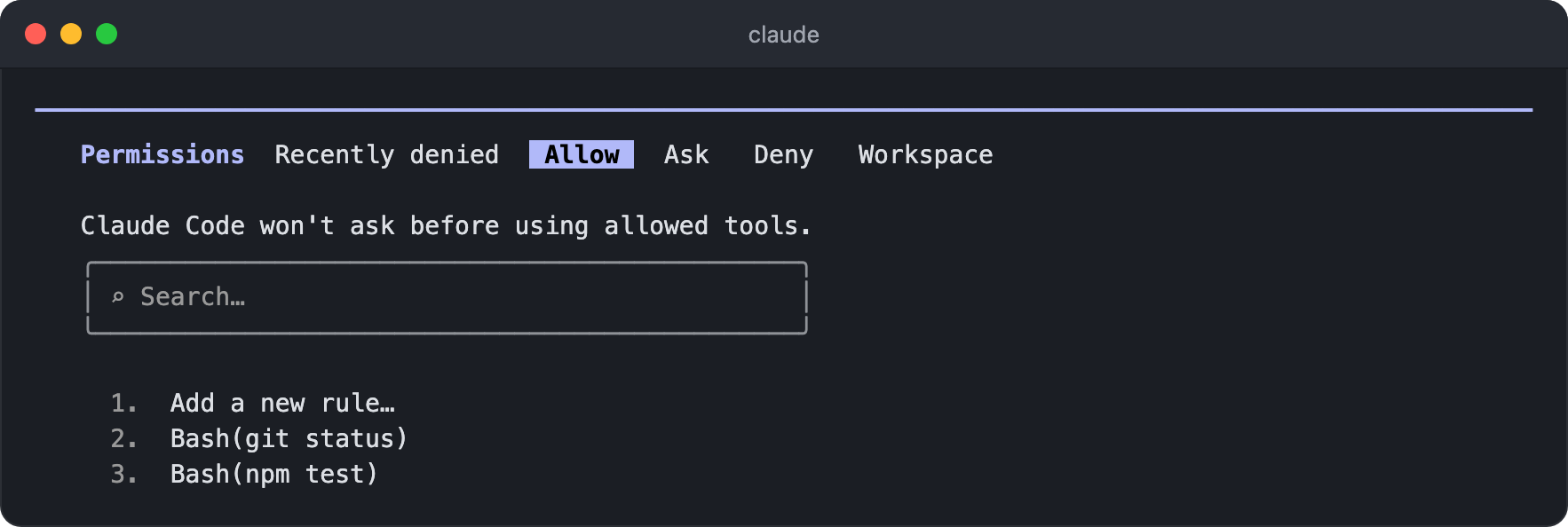
Tab Contents Recently deniedRequests recently denied in auto mode AllowRules that run without asking AskRules that ask for confirmation every time DenyRules that block execution WorkspaceList of working directories If a command keeps asking for permission, register it here as an
Allowrule.Depending on your environment, an
Auto modetab for checking and editing auto mode's classification rules also appears.
/fewer-permission-prompts(skill)- Finds read-only Bash commands and MCP tool calls you used often in past session history, and adds a prioritized allowlist to the project's
.claude/settings.json. - Instead of registering rules one by one in
/permissions, it reduces the number of approval prompts based on your actual usage history.
- Finds read-only Bash commands and MCP tool calls you used often in past session history, and adds a prioritized allowlist to the project's
/sandboxTurns on or off sandbox mode, which limits Bash command execution to an isolated environment.
It enforces at the operating system level that files can be written only to allowed paths such as the working directory, and that the network can reach only domains you've approved.
Inside this boundary, commands don't need approval one by one, so it raises autonomy while keeping things safe.
On macOS, it works right away with the built-in Seatbelt, while Linux and WSL2 need the
bubblewrapandsocatpackages.Native Windows isn't supported, so on Windows you need to run Claude Code inside WSL2. It doesn't work on WSL1.
Running it opens the sandbox settings window. Switch tabs with the left and right arrow keys, pick a mode in the
Modetab with the up and down arrow keys, and apply it withEnter. The screen shows it as something likeSandbox BashTool, with auto-allow, and the modes differ as follows.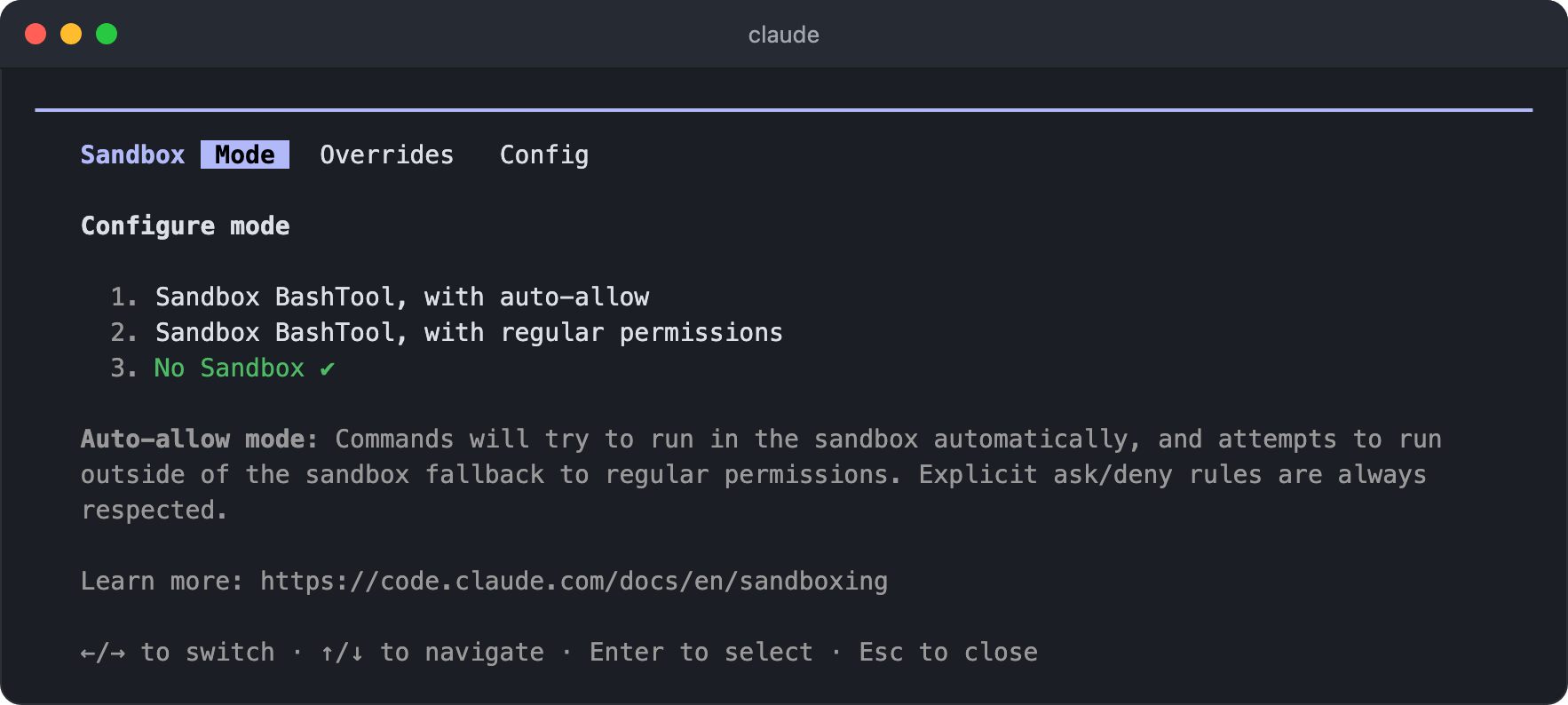
Mode Behavior auto-allowCommands that run inside the sandbox go through without approval, and only commands that need to run outside are approved as usual regular permissionsRuns inside the sandbox, but every command goes through permission rules and approval as usual No SandboxDoesn't use the sandbox (default) Auto-allow mode works independently of permission modes other than plan mode, so even in the default permission mode, Bash commands inside the sandbox run without asking.
However, explicit deny rules still block commands, and ask rules such as
Bash(git push *)andrmcommands that delete important paths still ask for confirmation in auto-allow mode.Claude may try to rerun a command that failed inside the sandbox outside of it, and in that case it asks for approval as usual. To block these retries themselves, use the
Overridestab, and check the sandbox settings in effect in theConfigtab.
/add-dir <path>- Adds a working directory where the current session can read and edit files.
- When you run it, you choose the scope.
Yes, for this session: Adds it for this session only. Use this when you briefly connect a directory for reference.Yes, and remember this directory: Saves it topermissions.additionalDirectoriesin the project's.claude/settings.local.jsonso it carries over to later sessions. Use this for directories you'll keep working with, such as other packages in a monorepo.
- For a directory added with the command, Claude Code not only allows file access but also loads the
.claude/skills,.claude/commands, and.claude/agentsinside it. On the other hand, it doesn't load hooks, reads only plugin-related keys from settings, and loadsCLAUDE.mdonly when you set theCLAUDE_CODE_ADDITIONAL_DIRECTORIES_CLAUDE_MD=1environment variable. - Directories saved in the settings file get only file access from the next session on, and setup such as skills isn't loaded.
- You can see added directories in the
Workspacetab of/permissions, and to move the session itself to another directory, use/cd.
/hooks- Shows your hook settings.
- Hooks are shell commands you define to run automatically at specific points in the Claude Code lifecycle, such as before and after a tool runs.
- Use them to automate rules that must run every time, such as blocking dangerous commands or running a formatter after a file is edited.
- Running it opens a single list of configured hooks grouped by event, and each hook shows where it came from, such as user settings, project settings, or a plugin.
- Picking a hook shows the full command it runs and where it's defined. This screen is read-only, so you make changes in the corresponding settings file.
/update-config(skill)- Changes
settings.jsonsettings such as permissions, environment variables, and hooks through conversation. - You don't need to know the setting key names; just describe the behavior you want. Behavior that must run automatically every time, such as 'run the formatter whenever a file is edited', is set up as a hook.
- Changes
/import [codex|gemini|cursor] [--dry-run] [--yes]- Brings settings from OpenAI Codex, Gemini CLI, and Cursor on this machine into Claude Code.
- It covers instruction files, MCP servers, commands, subagents, and skills, and passing
--dry-runpreviews what would be imported without writing any files. - Passing
--yesimports right away without the selection screen. In non-interactive environments such as-p, you must also pass the value the preview gave you, in the form--yes=<digest>. - When you move over from another AI coding tool, you don't have to recreate your settings one by one.
# Planning and repeated runs
These commands plan work, or keep work going without you sending a prompt each time.
Among them, /goal, /loop, and /schedule differ in when the next run starts and where it runs.
| Command | Next run | When it stops | Where it runs |
|---|---|---|---|
/goal |
Right after the previous turn ends | When the condition is met, when it's judged impossible, or when you clear it | Current session |
/loop |
When the set interval has passed | When you stop it, when Claude decides it's done, or 7 days after it was registered | Current session |
/schedule |
When the scheduled time arrives | When you turn off or delete the routine | Cloud |
/plan [description]Switches to plan mode, where Claude analyzes the code without editing files and proposes a work plan first.
If you also pass a description, it switches to plan mode and starts on that task right away. Example:
/plan fix the authentication bugWhen the plan is ready, a screen opens with the full plan and choices for how to proceed.
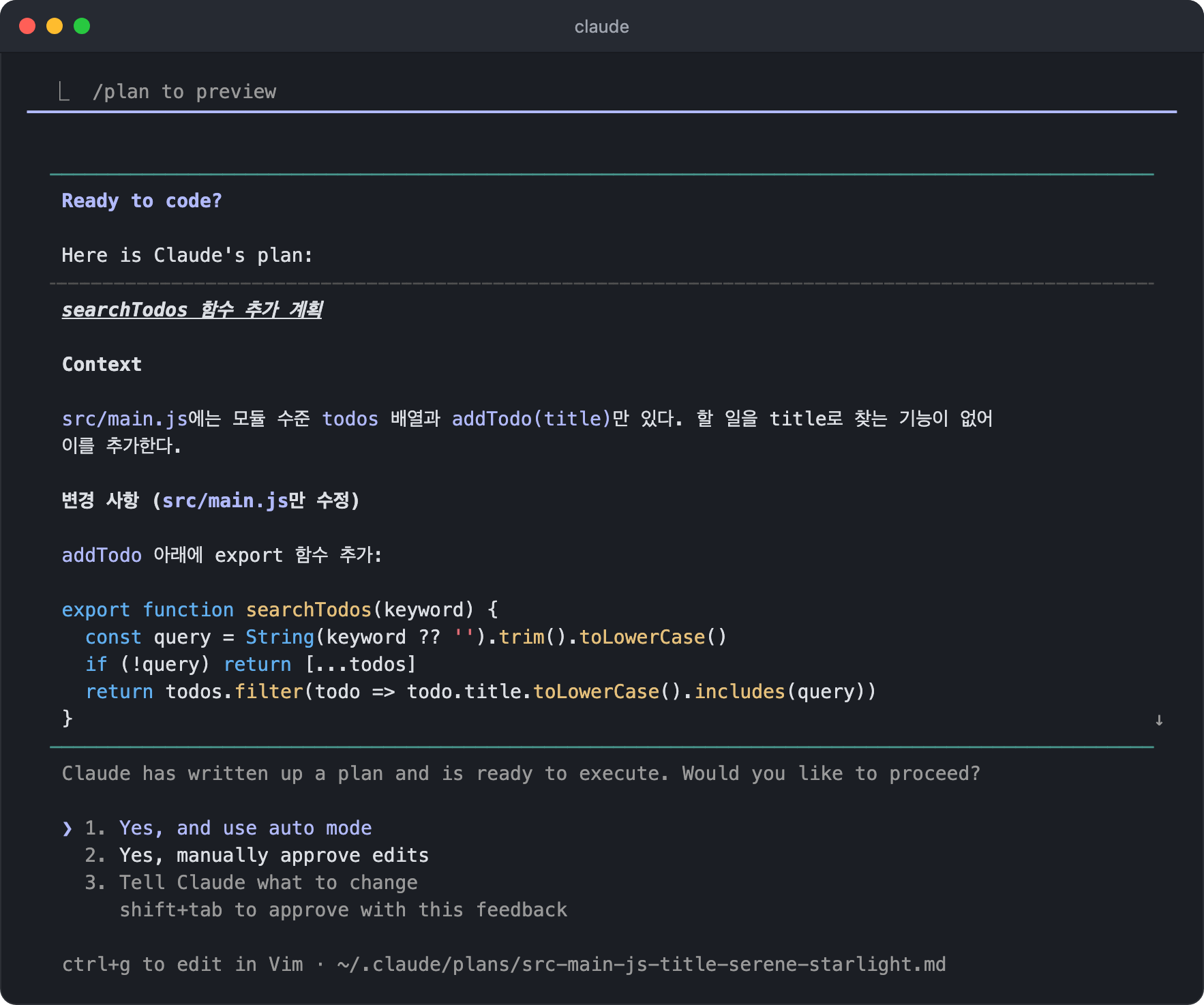
Option How it proceeds Yes, auto-accept editsProceeds with the plan and applies file edits without approval Yes, manually approve editsProceeds with the plan but asks for approval on each edit Tell Claude what to changeType what to change and have the plan rewritten In sessions where auto mode is available, the first option appears as
Yes, and use auto mode, and choosing it switches to auto mode and proceeds with the plan.In the third option, if you type what to change and press
Shift+Tab, it applies your changes and proceeds right away.Plans are saved as Markdown files in the
~/.claude/plans/folder, and you can open one in your editor withCtrl+Gto edit it yourself.
/goal [condition|clear]Once you set a completion condition, Claude keeps taking turns and working without waiting for your next prompt until the condition is met.
At the end of every turn, a separate small, fast model looks at the results shown in the conversation and judges whether the condition is met.
The judging model doesn't run commands or read files itself, so you should write a condition that can be confirmed from Claude's output, such as 'all tests pass'.
Setting a condition starts the work right away, and while it's in progress, a
/goal activeindicator and the elapsed time appear above the input box.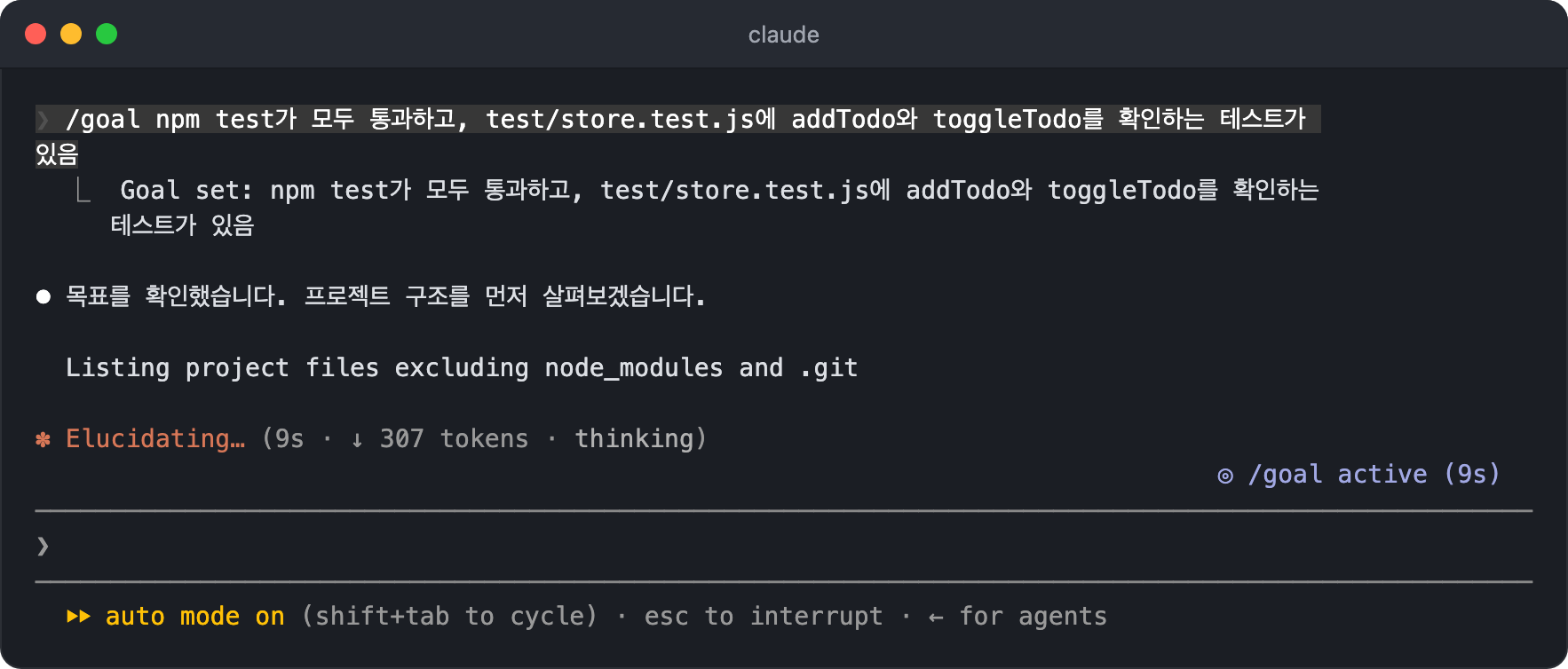
When the condition is met,
Goal achievedappears along with the time taken, the number of turns, and the tokens used, and the goal is cleared automatically.The permission mode doesn't change, so to keep going without approval prompts, use it in auto mode.
With no arguments, it shows the current goal or the last goal achieved, and passing
clear(orstop,cancel, etc.) clears the goal.Example:
/goal all tests in test/auth pass and there are no lint errors
/loop [interval] [prompt],/proactive(skill)- Runs a prompt repeatedly while the session is open, and it behaves differently depending on what you type.
- If you give both an interval and a prompt, it runs at that fixed interval. Example:
/loop 5m check whether the deployment has finished - If you give only a prompt, Claude looks at the result each time and decides the next interval, between 1 minute and 1 hour. Example:
/loop check whether CI passes and address the review comments - If you leave out the prompt, it runs a built-in maintenance prompt, even when you give only an interval as in
/loop 15m. You can replace this default prompt with a.claude/loop.mdor~/.claude/loop.mdfile. - Write intervals like
30s,5m,2h, or1d. They are converted to cron expressions, so seconds are rounded up to minutes, and values that don't divide evenly, such as7mor90m, are adjusted to a nearby value. - You can also pass a skill in place of the prompt to repeat it, as in
/loop 20m /review-pr 1234. However, skills that Claude can't invoke on its own aren't run and are passed as plain text. - A loop where Claude decides the interval can be stopped with
Escwhile it's waiting for the next run. - Every recurring task runs one last time 7 days after it was registered and is then deleted automatically, so to run something longer or independently of the session, use
/schedule. - You can check the tokens used by each loop in the
Loopsitem of/usage.
/schedule [description],/routines- Creates, edits, lists, or immediately runs routines that run in the cloud.
- They run on schedule even when your computer is off, and the setup process guides you interactively.
- You can also ask about a routine's recent run results.
- MCP servers configured in Claude Code aren't connected to cloud routines as is, so you need to register them as connectors on claude.ai or commit them to the repository as
.mcp.json.
/deep-research <question>(workflow)Splits the question into multiple web searches, researches them in parallel, cross-checks the sources, and writes a report with citations.
It's a workflow built into Claude Code, with five predefined stages: scope, search, fetch, verify, and synthesize.
Scope: Splits the question into five search angles.Search: One agent per angle searches the web in parallel.Fetch: Fetches up to 15 top sources after removing duplicates, and pulls out claims that can be fact-checked.Verify: Three agents try to refute each claim, and claims refuted by two or more of them are dropped.Synthesize: Organizes the remaining claims by confidence and writes a report with sources attached.
When you run it, it first shows the list of stages and a usage warning and asks whether to proceed. Once you approve, it runs in the background so you can do other work in the meantime. You can check progress in
/workflows, and when it finishes, the report arrives in the conversation.Even a single simple question can run close to 100 subagents, so usage grows quickly. Also, in the default permission mode, it asks for confirmation every time it uses a tool that needs approval, such as web search or fetching a page.
It works only when you run it yourself; Claude doesn't start it on its own.
It's easy to confuse with
/effort ultracode./deep-researchis a command that handles one job, web research, in fixed stages, while ultracode is a toggle setting of/effortthat has Claude write the workflow each task needs on its own.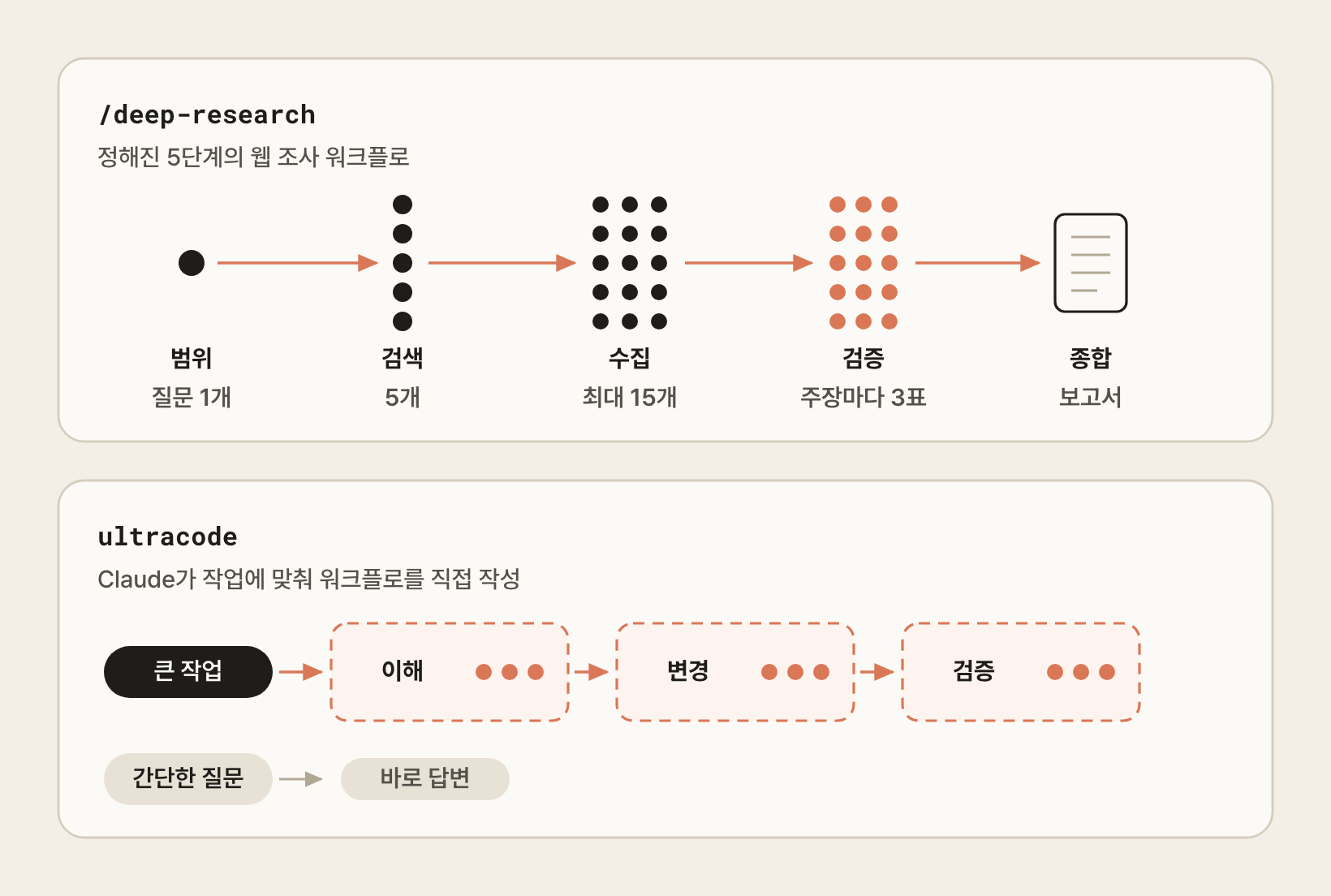
Aspect /deep-researchultracodeKind Built-in workflow command /effortsettingTarget Web research questions Any task, including coding work Workflow Five predefined stages Written by Claude for each task Scope The one question you ran The whole current session When ultracode is on, large tasks are split into multiple workflows such as understanding, changing, and verifying, while simple questions can be answered directly without a workflow. It doesn't change the effort level, so you can turn it on at
mediumorhightoo.To handle just one task as a workflow rather than the whole session, include the
ultracodekeyword in your prompt.
/workflowsOpens the workflow progress screen.
Workflows are a feature that coordinates many subagents in parallel through a script Claude writes. When you ask for large-scale work, such as auditing an entire codebase or a large migration, Claude writes a script suited to that work, and the runtime runs it in the background.
It's available on paid plans, and on the Pro plan you need to turn on the
Dynamic workflowsitem in/config.When you pick a running workflow, the left side shows the list of stages (
Phases) with progress counts for each, and the right side shows the agents in the selected stage. Each agent also shows the model it used, its token count, and its run time, and agents waiting their turn are shown asqueued.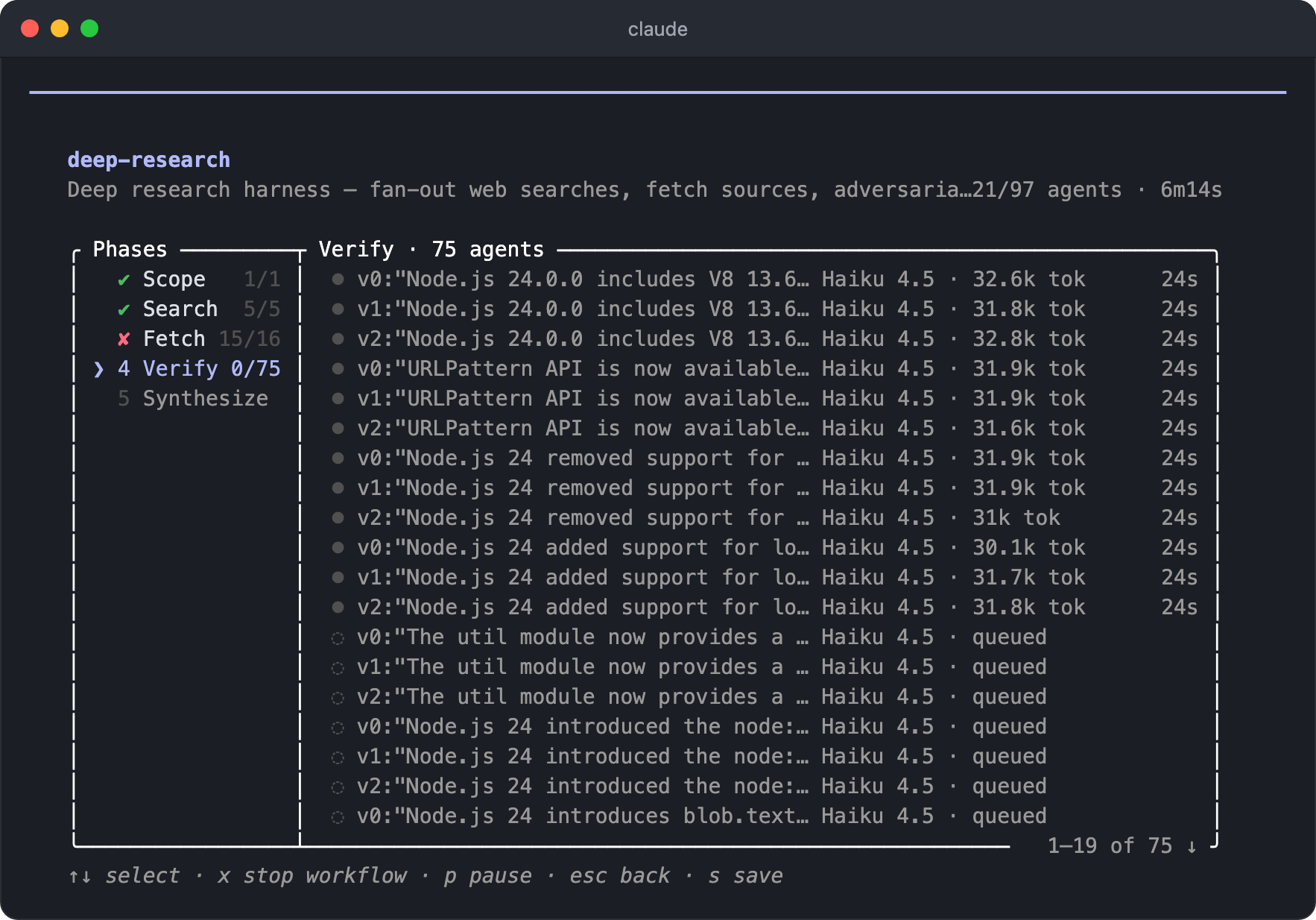
Key Action Up/down arrow keys Select a stage xStop the workflow pPause and resume sSave the workflow EscGo back to the previous screen A saved workflow becomes a command you run by name, like
/deep-research, and appears in the/list as well.
/batch <instruction>(skill)- Breaks a large change into independent units and handles them in parallel.
- It researches the codebase and first presents a plan that splits the work into 5-30 independent units. Once you approve, a subagent for each unit implements, tests, and even creates a PR in an isolated worktree.
- It suits work that applies the same pattern to dozens of files, such as
/batch migrate the src/ folder from JavaScript to TypeScript, and it needs a Git repository. Even without a Git repository, it can run in environments where aWorktreeCreatehook creates the workspace.
# Tools and integrations
/mcp [reconnect (<server>|all)|enable|disable [<server>|all]]- Manages MCP server connections and OAuth authentication.
- You can turn each server on or off, so you can save context by turning off servers you don't use.
- Change connection status without opening the screen with
/mcp enableand/mcp disable, and reconnect a dropped server with/mcp reconnect server-name. /mcp reconnect allreconnects all servers that failed to connect or need authentication at once.
/plugin [subcommand],/plugins,/marketplace- Manages plugins and marketplaces.
- With no arguments, it opens the management menu, and you can also pass subcommands such as
list,install,enable, anddisabledirectly. - Plugins you install or turn on and off in the menu are reloaded and applied by Claude Code for you when you close the menu. If doing so would invalidate the prompt cache, it holds off on applying them and tells you, and only then do you need
/reload-plugins --force. - Since 2.1.287, plugins can also contain Mods. A Mod is a JavaScript or TypeScript function that reacts to events such as tool calls, prompt submissions, and screen drawing. It runs inside Claude Code and changes how Claude Code itself behaves, for example by adding panels to the screen or blocking and changing tool calls.
- Some Claude Code features, such as the
/diffpanel, are also built as built-in Mods, so you can see them in theBuilt-initem of theInstalledtab and turn them off. A Mod is code that runs with your permissions, so install only Mods from sources you trust.
/reload-plugins [--force]- Reloads active plugins without restarting and shows the number of components reloaded and any load errors.
- If the loaded MCP tools would change and invalidate the prompt cache, it warns you and skips the reload, and passing
--forceforces the reload.
/skills- Shows the list of available skills.
- Filter by name, description, or source, sort by token count with
t, change a skill's visibility (whether to show it to Claude and in the/menu) withSpaceorEnter, then save and close withEsc.
/skill-doctor- Shows how much context each skill takes up and how often it's used, to help you find skills you can turn off.
/reload-skills- Reloads skills added or changed on disk during the session.
- You don't need to restart the session while testing a skill you're editing.
/chromeSets up the integration with the Claude in Chrome extension and checks the connection status.
The top of the screen shows the integration status (
Status) and whether the extension was detected (Extension), and from the list below you choose to install the extension, manage site permissions, reconnect, or enable it by default.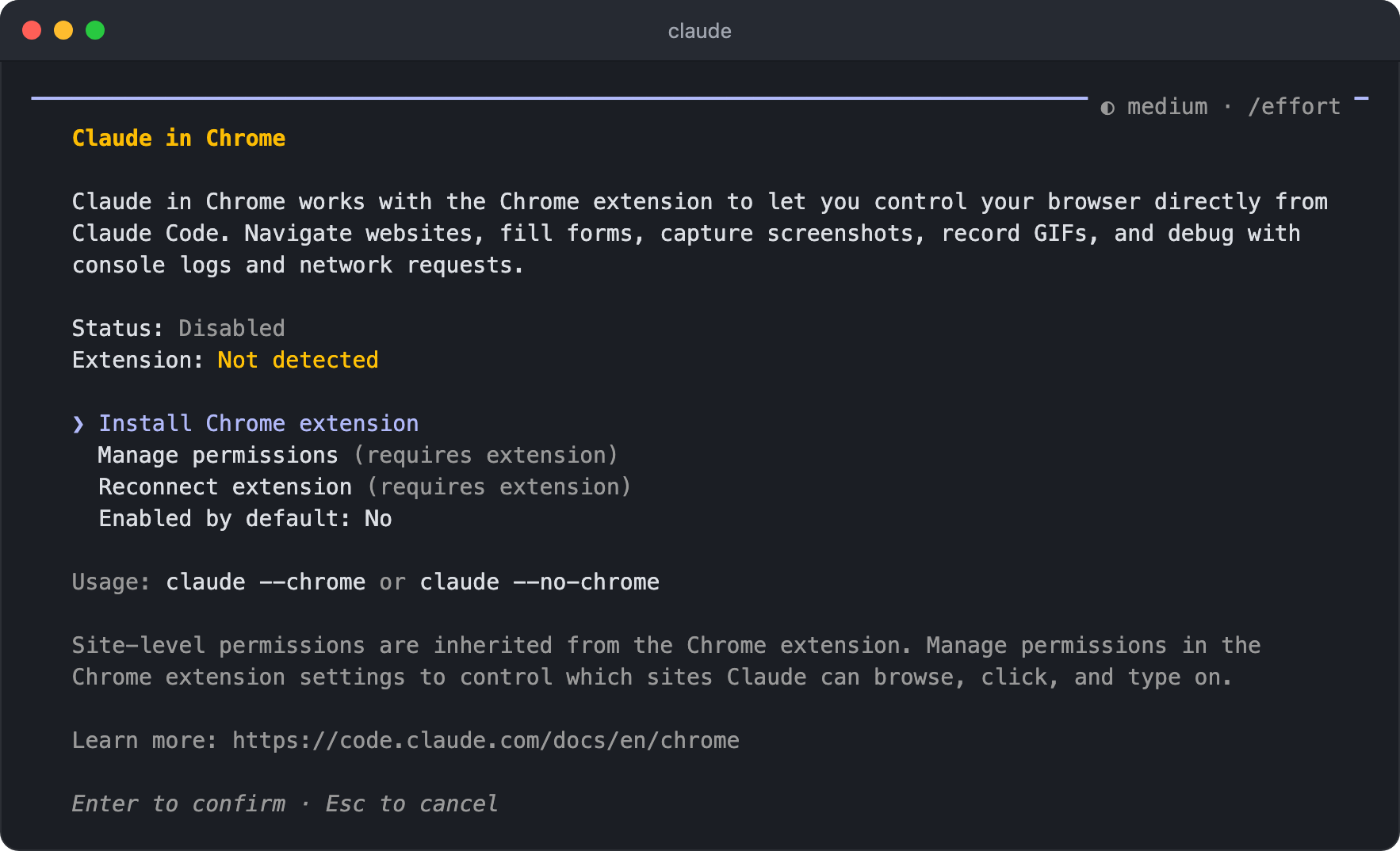
Turning on
Enabled by defaultconnects automatically in every session. To turn it on or off for a single session, runclaude --chromeorclaude --no-chrome.Which sites Claude can browse, click, and type into follows the extension's site permission settings.
/claude-in-chrome(skill)- Loads browser automation instructions so that Claude operates the connected Chrome browser directly.
- It clicks, types, takes screenshots, and checks console logs in a new tab of your existing browser session, so you can use sites you're already logged in to as they are.
- If the extension isn't installed, it shows installation guidance when Claude needs the browser and connects on the spot, so you don't need to run
/chromein advance.
/artifacts- Artifacts are a feature that uploads web pages Claude made to claude.ai so you can share them by link.
- It lists artifacts you published or that were shared with you, and lets you attach the selected artifact to the session, open it in the browser, or copy its link.
- The list is divided into
All,Mine, andSharedtabs, and artifacts published in this session appear at the top. When you publish an artifact in a session, its name appears below the input box, and selecting it opens the same list.
/design [brief](skill)- Draws design drafts such as screen mockups, screen flows, landing pages, and posters as multiple artboards on one canvas and publishes them as an artifact.
- You can edit the published canvas directly in a desktop browser, your edits are saved automatically, and you can export each artboard as PNG or PDF.
- Example:
/design the settings screen of a mobile banking app
/slides [brief](skill)- Makes a new presentation from what you give it and publishes it as a Claude Slides artifact.
- It appears in the list only when Slides templates are available on your account.
- Example:
/slides quarterly review for the platform team
/design-sync [name](skill),/design-login- Converts the repository's React design system (components) and uploads it to Claude Design (claude.ai/design), a design generation tool.
- Once uploaded, the designs Claude Design makes use the project's real components rather than arbitrary UI.
- Authenticate your claude.ai account first with
/design-login. The first sync can take several hours on large repositories.
/ide- Manages and checks the integration with the Claude Code extension for editors such as VS Code.
- Once connected, code you select in the editor is automatically included in the context, and you can review Claude's suggested changes in the editor's diff view.
/install-github-app- Installs the Claude GitHub App in the repository and, if needed, also sets up a GitHub Actions workflow and secrets.
- It supports only github.com repositories.
/web-setup- Connects the GitHub account for Claude Code on the web using your GitHub CLI (
gh) login, so cloud sessions can clone and push to GitHub repositories. - If you don't have
gh, you can connect by approving the GitHub App during web (claude.ai/code) onboarding.
- Connects the GitHub account for Claude Code on the web using your GitHub CLI (
/install-slack-app- Installs the Slack app, opening the browser to complete OAuth authentication.
/claude-api [subcommand](skill)- When you build an app with the Claude API, it loads API and Managed Agents material for your project's language to help Claude write code that follows the latest spec.
- It also activates automatically when your code imports
anthropicor@anthropic-ai/sdk. - Its subcommands are
migrate(update code for a new model),upgrade(bump the SDK major version),managed-agents-onboard(guide to creating a Managed Agent),prompt-audit(check prompts written for older models),cost-optimize(apply ways to cut API costs), andbuild-evalandhillclimb(write an eval set and improve iteratively).
/dataviz,/artifact-capabilities,/artifact-diagramming,/workflow-authoring,/plugin-authoring(skill)- Load reference material needed for specific tasks, such as chart design, artifact capabilities, diagramming, writing workflow scripts, and writing Mods.
- Claude usually loads them on its own when needed, so you'll rarely run them yourself. For example, if you ask for a Mod, Claude can load
/plugin-authoring, write the Mod, and even install it.
# Remote and other
/remote-control, /desktop, and /teleport all let you continue your current work somewhere else, but they differ in which direction the session moves and where it actually runs./teleport brings a cloud session into the terminal, /desktop moves a terminal session to the desktop app, and /remote-control leaves the session in the terminal and only lets you operate it from another device.
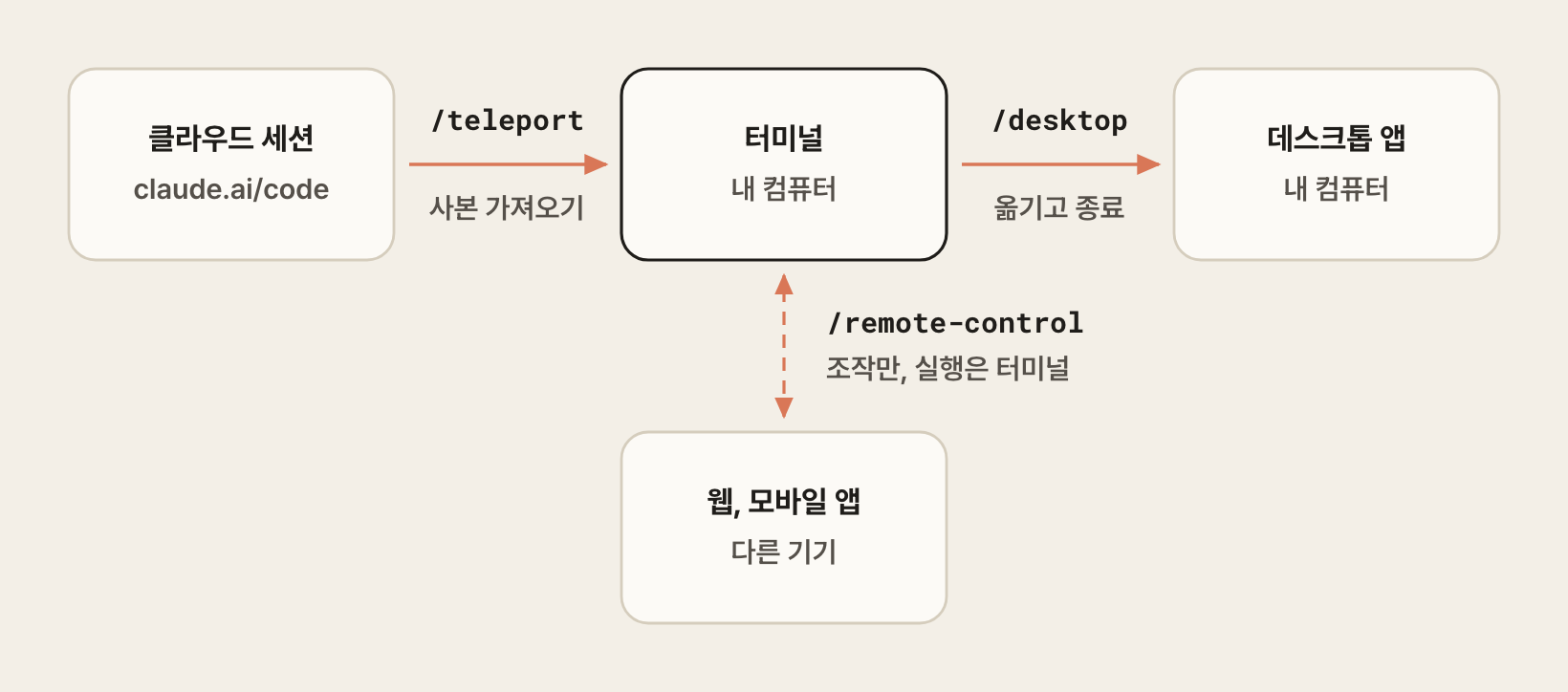
/remote-control,/rcConnects the current local session so you can keep operating it from claude.ai/code or the Claude mobile app.
The session keeps running on your local machine, so it uses your local environment as is, including files, tools, and MCP servers, and the web and mobile screens act as windows for operating that session remotely.
You can start work at your desk and pick it up on your phone, sending messages from the terminal, the web, or your phone in turn.
The first time you run it, a screen asks whether to connect, and choosing
Enable Remote Controlshows the session URL.Running it again while connected opens a screen where you choose to disconnect (
Disconnect this session), show a QR code to scan with your phone (Show QR code), or continue (Continue).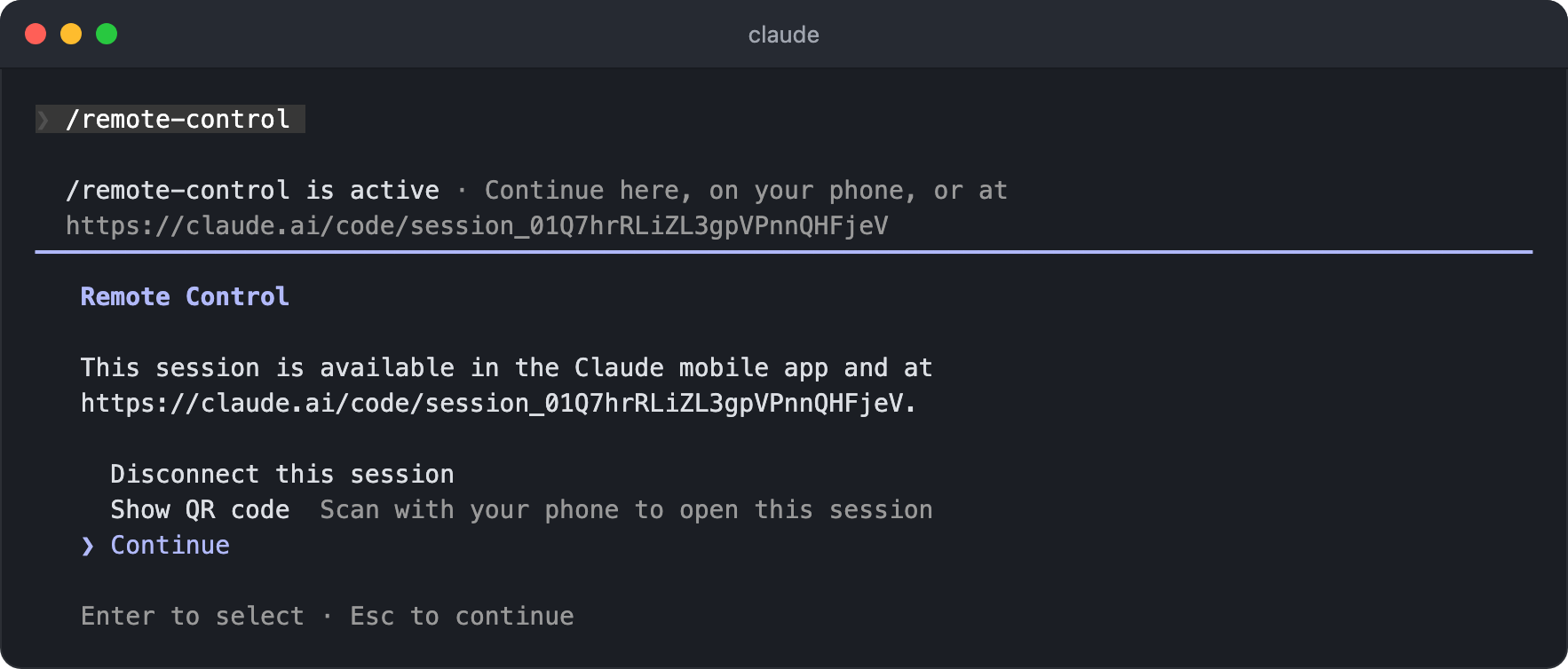
You must be logged in with a claude.ai subscription to use it.
/desktop,/app- Moves the current session to the Claude desktop app and continues it there.
- It saves the session, opens it in the desktop app's Code tab, and then quits the CLI, so you're simply switching from the terminal to the app on the same computer.
- Conversely, running
/resumein the desktop app's input box lets you pick a session started in the CLI and continue it in the app. - It's available only on macOS or x64 Windows when you're logged in with a Claude subscription.
- Before starting a session, you can also run
claude --desktopin the terminal to open the current directory directly in the desktop app, and passing--continueor--resume <session ID>along with it opens that session.
/teleport,/tp- Brings a cloud session you were working on at claude.ai/code into the current terminal so you can continue working.
- Running it opens a session picker, and it brings in the selected session's working branch and conversation together.
- It switches the working branch, so if you have uncommitted changes, it first asks whether to stash them.
- The session you bring in is a copy, so work you continue in the terminal isn't reflected in the original cloud session. There is also no feature for sending a terminal session to the cloud.
- You must run it in a directory where the same repository is checked out, and you need a claude.ai subscription. To bring a session in directly from the terminal, run
claude --teleport <session ID>.
/remote-env- Chooses the default environment used by sessions that run in the cloud.
- An environment is the container configuration a cloud session runs in, including environment variables, a setup script, and the level of network access.
- This command only chooses the default; you create and edit environments on the web (claude.ai/code).
/mobile,/ios,/android- Shows a QR code for downloading the Claude mobile app.
/voice [hold|tap|off]Turns voice input on or off, and it requires a claude.ai account.
When it's on, the recording method and dictation language are shown, and a
hold space to speakhint appears below the input box. While recording, an indicator that it's listening appears above the input box, and the dictated text fills the input box right away.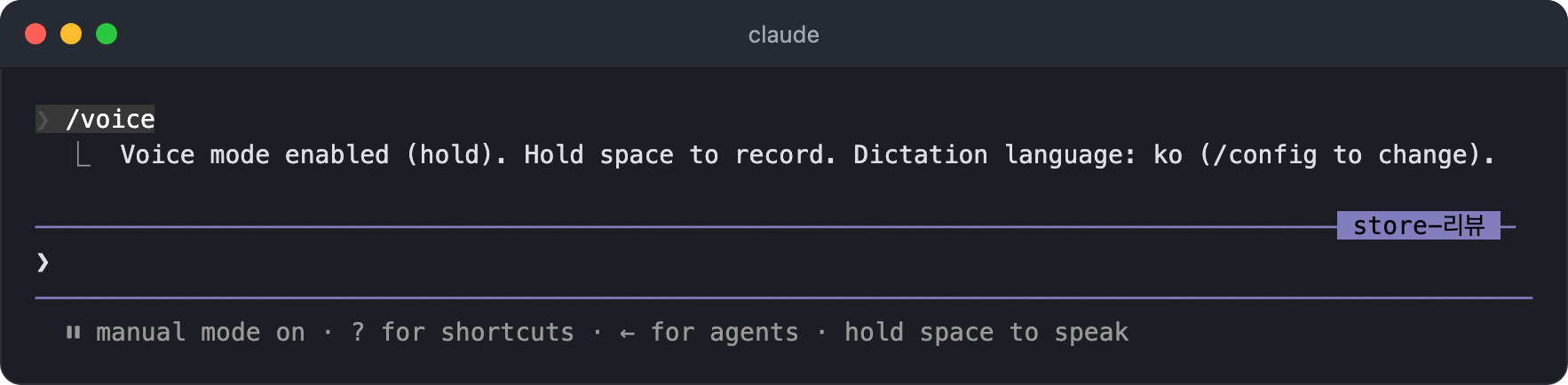
holdrecords while you hold downSpace, andtapstarts recording with one press and stops with another. If the dictated text is three words or more, it's sent as is; if it's shorter, it only fills the input box.The dictation language follows the
languagesetting, the same one used for the response language, so to dictate in another language, set that language in/config.You can change the recording key with the
voice:pushToTalkitem in the keybindings settings.
/bug [report],/share- Reports a bug or shares the conversation.
- You choose how much of the session history to include, and it's sent only after you confirm on the consent screen.
- If you're logged in with an Anthropic account, it's sent to Anthropic. In third-party provider environments such as Bedrock, it's saved as a file in
~/.claude/feedback-bundles/so you can deliver it yourself.
/feedback [report]- Sends product feedback about Claude Code, using the same screen and consent process as
/bug. - If Claude drafted feedback during the session, running it without arguments opens the list of drafts so you can review and send or delete them.
- Sends product feedback about Claude Code, using the same screen and consent process as
/team-onboarding- Analyzes the last 30 days of session, command, and MCP server usage stored on this machine and generates an onboarding guide that a teammate can paste as their first message to follow the same setup.
- The result is a Markdown document, so you can review its contents yourself before sharing it, and on paid claude.ai plans it also creates a share link your teammate can open right away.
/radio,/stickers/radioplays a lo-fi radio station (Claude FM) in the browser, and/stickersopens the page for ordering Claude Code stickers.
# Code review and verification
Choose the command for checking and reviewing changes based on your goal.
| Goal | Command |
|---|---|
| Check what changed yourself | /diff |
| Find bugs and things to clean up | /code-review |
| Clean up code only, without bug hunting | /simplify |
| Check for security vulnerabilities | /security-review |
| Run the app and check that it works | /verify, /run |
/diffShows uncommitted changes in the working tree, including edits Claude made.
With fullscreen rendering, a diff panel opens next to the conversation and updates automatically whenever Claude edits a file or runs a shell command. You can watch changes pile up as you keep working.
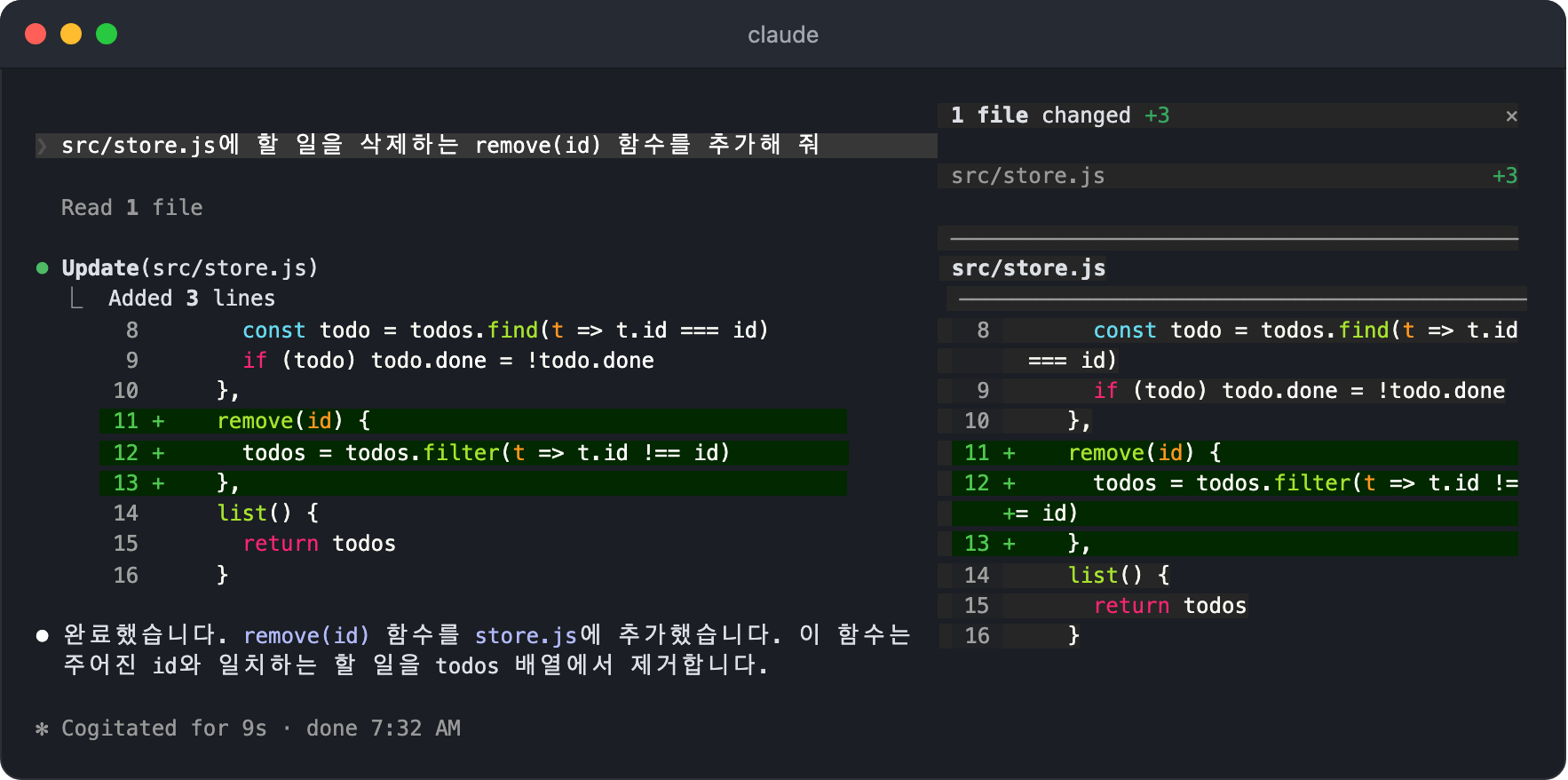
The panel opens in a Git repository when the terminal is at least 110 columns wide, and if it's too narrow, a message asks you to widen it.
Clicking a row in the file list jumps to that file, and selecting lines of code with the mouse attaches them to your next prompt so you can ask about specific code.
By default, the panel shows only changes made in this session. Files you edited before the session started are collapsed at the bottom of the list as something like
+1 file edited before this session (show), and if nothing has been edited yet,No changes this sessionappears.Each time you press
Ctrl+Xfollowed byB, the comparison base changes, and the current base is shown below the file count.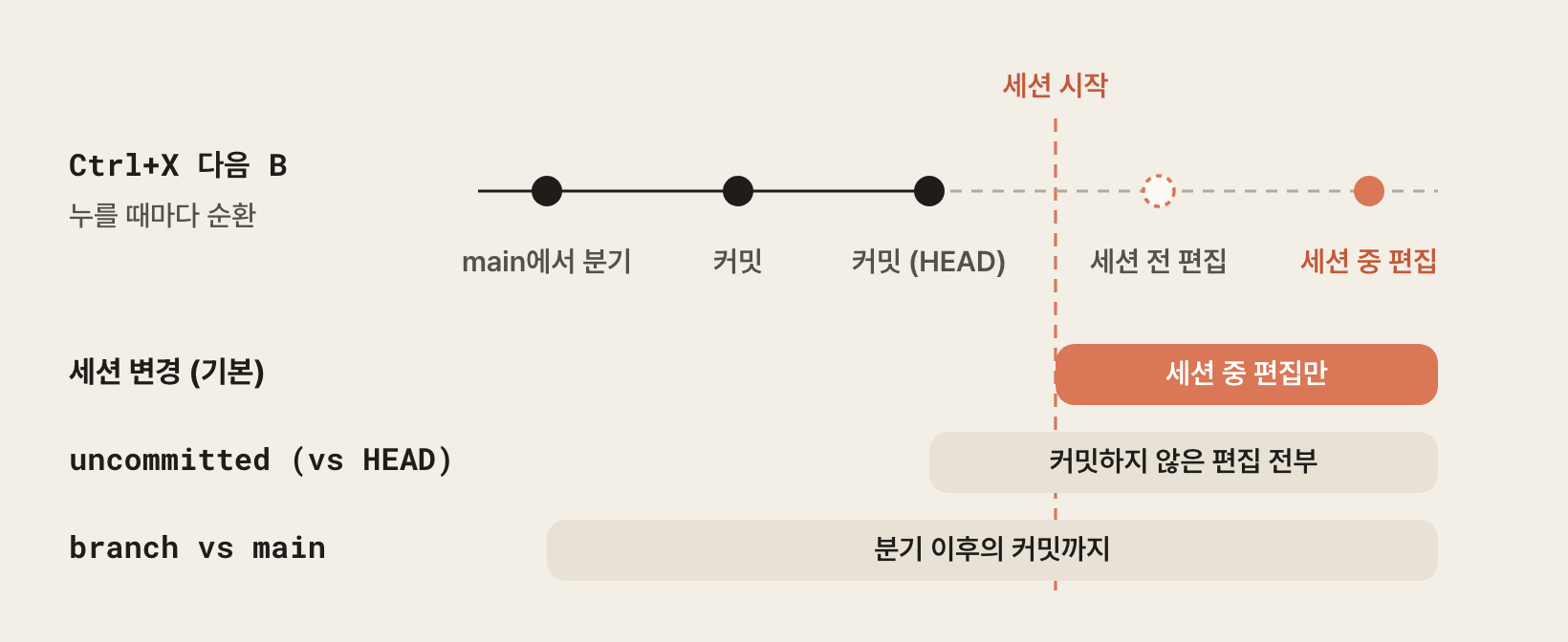
uncommitted (vs HEAD)shows all uncommitted changes, including those made before the session started, andbranch vs mainadds the commits made since the branch split off from the default branch. The second name follows the repository's default branch, so it may also appear asbranch vs master.Use
branch vs mainwhen you want to check all the work on the current branch at once, and leave it on the default base when you only want to see what Claude just changed.To close it, run
/diffagain or click the close button at the top right of the panel.If the terminal is at least 144 columns wide, it opens automatically when Claude starts editing files. After you open it yourself once, it also opens automatically at 110 columns or more, and if you close it, it stays closed in later sessions as well.
Since 2.1.287, this panel is drawn by a built-in Mod (
cc-plugin-diff). If you turn off this Mod in/plugin, the/diffcommand remains, and the version built into Claude Code runs instead.With the default renderer, a diff viewer opens in place of the input box. Switch between all uncommitted changes (
Current) and per-prompt changes with the left and right arrow keys, pick a file with the up and down arrow keys, and pressEnterto see its contents.
/code-review [low|medium|high|xhigh|max|ultra] [--fix] [--comment] [--max-findings n|all|default] [target],/review(skill)- Runs a code review that looks for bugs in the branch's commits ahead of upstream and in uncommitted changes, and depending on the model and level, it also looks for improvements in reuse, simplification, and efficiency.
- If you pass a PR number, branch, or path as the target, it reviews that target instead of your local changes. Example:
/code-review high 1234 lowreports only high-confidence issues, so it has few false positives, whilemediumthroughmaxwiden the scope but may also include lower-confidence items. With Opus 5.5 or Sonnet 5.5, frommediumon it also reports code cleanup andCLAUDE.mdrule violations.- If you leave out the level, it reuses the level between
lowandmaxthat you last typed. - The number of findings it reports is capped, but you can set the number, as in
--max-findings 20, or have it report all of them with--max-findings all. The value you set carries over to later reviews until you pass--max-findings default. --fixapplies the findings directly to the working tree, and--commentleaves them as inline comments on the GitHub PR. On a GitLab MR, it leaves a single note with theglabCLI, and ifglabisn't installed, it prints the results in the terminal.ultraruns Ultrareview, a deep review by multiple agents in the cloud. It works only when your account can use Ultrareview; otherwise it falls back to a local review in the current session. On accounts that can use it,/ultrareviewis an alias for the same command.- The Pro and Max plans include 3 free runs per account as a one-time offer, and after you use them up, you need usage credits.
- When reviewing a github.com PR with
ultra, passing--postas well starts with the option to post the finished results to the PR already selected. /reviewused to be a separate command for a quick read-only PR review, but it's now an alias for/code-review.- Fixes applied with
--fixby a background review aren't recorded in checkpoints, so you can't undo them with/rewind; revert them with Git if needed.
/simplify [target](skill)- Runs review agents in parallel on the code you just changed, from four angles (reusing existing helpers, simplification, efficiency, and level of abstraction), and applies the fixes too.
- It's a cleanup-only review that doesn't look for bugs, so use it to polish your code after finishing a feature and before committing.
- You can pass a path or PR to review a specific target only, and if your goal is finding bugs, use
/code-review.
/security-review- Analyzes the changes between the current branch and the remote default branch for security vulnerabilities such as injection, authentication problems, and data exposure.
- It needs an
originremote repository as the comparison base.
/verify(skill)- Builds and runs the app itself to check that the current changes actually work.
- Rather than relying on test or type check results, it directly operates the points where the change shows up (CLI, API, screens, etc.), observes the results, and gives a verdict.
- Unlike
/code-review, which reads code to find bugs, it observes the results of running the app, and it works only when you run it yourself.
/run(skill)- Runs the project's app and operates it directly to show the changes working.
- Unlike
/verify, whose goal is a verdict, its goal is to let you see the results with your own eyes, for example by starting the development server and showing the changed screen.
/run-skill-generator(skill)- Figures out how
/runand/verifycan build and run this project's app in a clean environment (install commands, environment variables, run scripts) and records it as a project-specific skill. - If you run it once in a project where the run method is hard to infer because it needs a database or env files,
/runand/verifyfollow the recorded method from then on.
- Figures out how
/autofix-pr [prompt]- Creates a Claude Code on the web session that watches the current branch's PR and pushes fixes when CI fails or review comments come in.
- The watching session runs in the cloud, so it keeps working even after you quit Claude Code locally.
- You can set the scope of its response with a prompt, as in
/autofix-pr fix only lint and type errors. - It needs the
ghCLI and access to Claude Code on the web.
# Conversation branching and background
These commands let you try a different direction while keeping the current conversation, or split off work and hand it off.
All four commands inherit the conversation context so far, but they differ in which conversation you stay in after running the command and where the results come back.
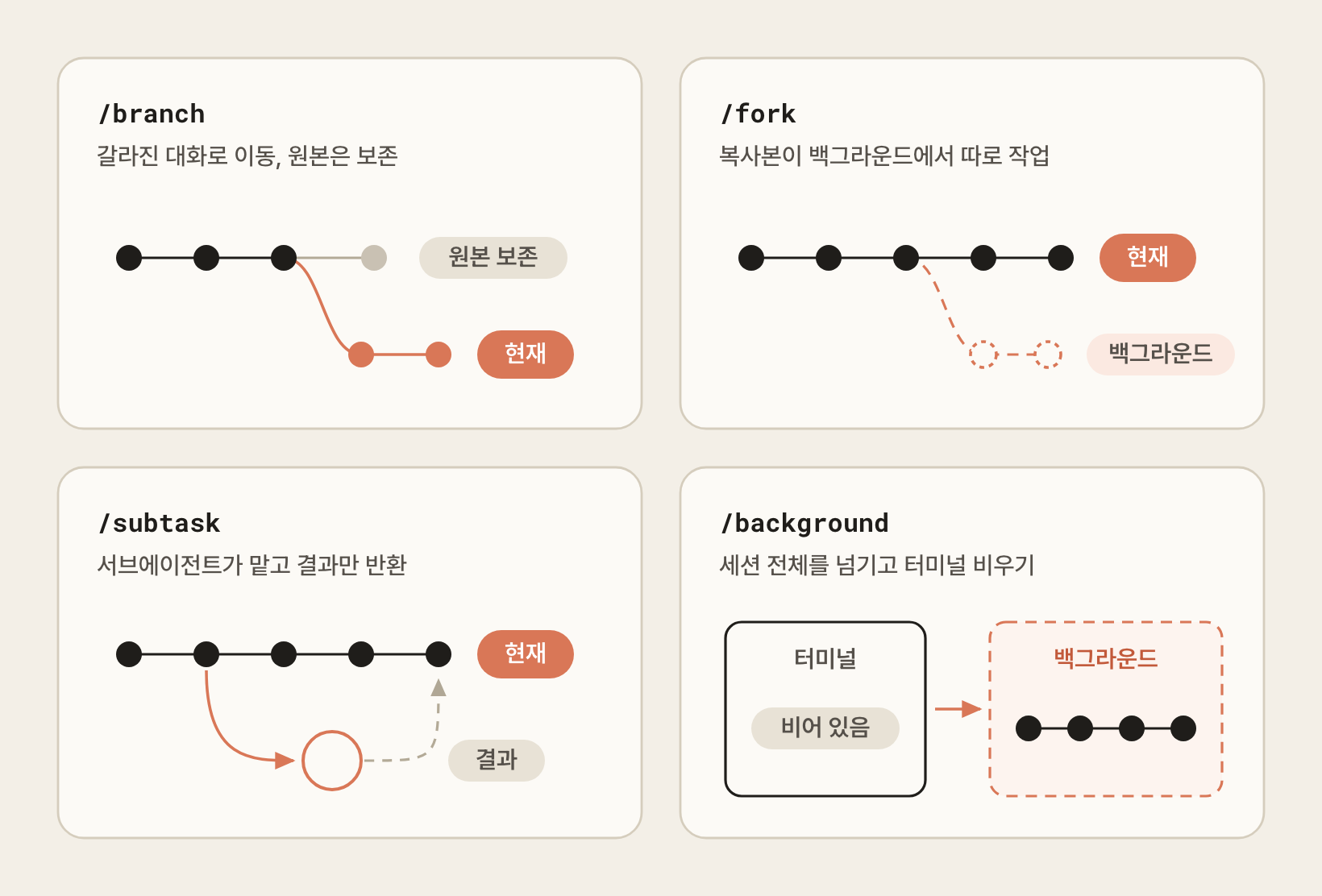
/branch [name]- Creates a branch of the conversation at the current point and switches to it.
- The original conversation stays as a separate session, and you can go back by running
/resumewith the original session ID shown in the confirmation message. - Unlike Git branches, there is no concept of merging; you end up with two independent sessions that split from the same point.
- It's useful for trying a different approach without losing the original, and in the terminal you can get the same effect with
claude --continue --fork-session.
/fork [prompt]- Creates a new background session that copies the current conversation, while you keep working in the original conversation.
- If you pass a prompt, the copy starts on that task right away; if you leave it out, it waits for its first instruction.
- The copy inherits the model, permission mode, effort level, added directories, and granted permissions. Inside a Git repository, it's also told to create its own worktree before editing code, so it works without mixing files with the original work.
- The copy appears as a row in the agent view, which you open with the
claude agentscommand in the terminal. Select the row and send it instructions withSpace, or attach to it withEnterto talk to it. - Example:
/fork create a draft PR from the work so far
/subtask <task>- Hands a subtask to a subagent that inherits the current conversation as is, while you keep working.
- The subagent works in the background, and when it's done, only the result comes back to the current conversation.
- The details of the subtask don't pile up in the main conversation, so you save context.
- Example:
/subtask draft unit tests for the parser code changed so far
/background [prompt],/bg- Hands the entire current session to a background agent and clears the terminal.
- If Claude was in the middle of responding, that response continues in the background, and if you pass a prompt, it sends that instruction last before handing the session off.
- You can find the handed-off session in the agent view, opened with the
claude agentscommand, and attach to it again. - Pressing the left arrow key while the input box is empty moves the session to the background and opens the agent view right away.
/stop- Available only while attached to a background session, it stops that session.
- Stopping keeps the conversation history and worktree.
- To detach without stopping, run
/exitor press the left arrow key.
/tasks,/bashesShows and manages subagents and shell commands running in the background in the current session, including subagents that have already finished.
Running it shows background shells (
Shells), running subagents (Local agents), and finished work (Completed) separately, and each subagent also shows the model it ran on. For models that let you set an effort level, the level is shown as well.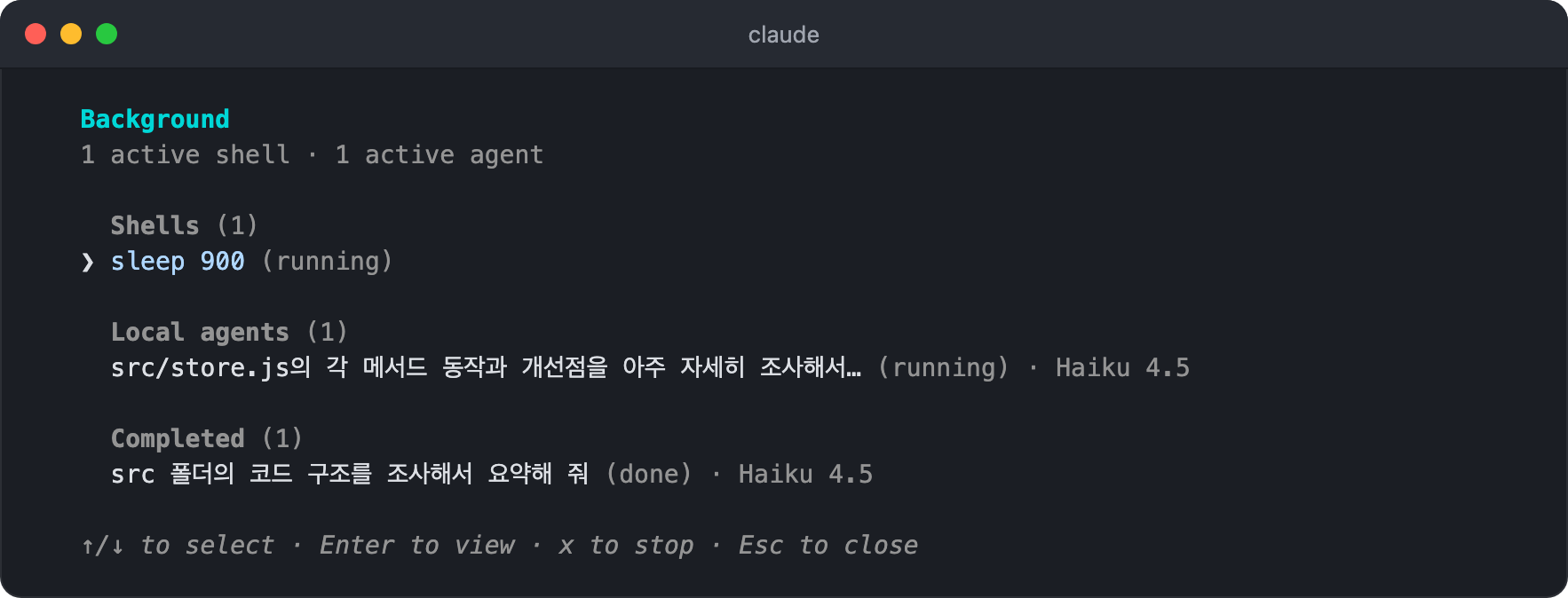
Pick a task with the up and down arrow keys and press
Enterto see its status, run time, command, and output, and stop it withx.Background work that Claude Code runs on its own is collapsed into a single
System tasksrow, which expands when you pressEnteron it.While background work is running, an indicator such as
1 shellappears below the input box, and pressing the down arrow key while the input box is empty also opens this screen.
/list-agents,/peers- Lists the subagents, agent team members, other Claude Code sessions on the same machine, and your cloud sessions that Claude can send messages to, along with the name to use for each.
- It's available only in sessions with cross-session messaging turned on.
/agents- It used to open a screen for creating and managing subagents, but now it only prints a notice.
- Manage subagents by asking Claude to create them, or by editing the files in the
.claude/agents/and~/.claude/agents/folders yourself.
Thanks for reading to the end.
Likes and kind comments help keep this blog going!